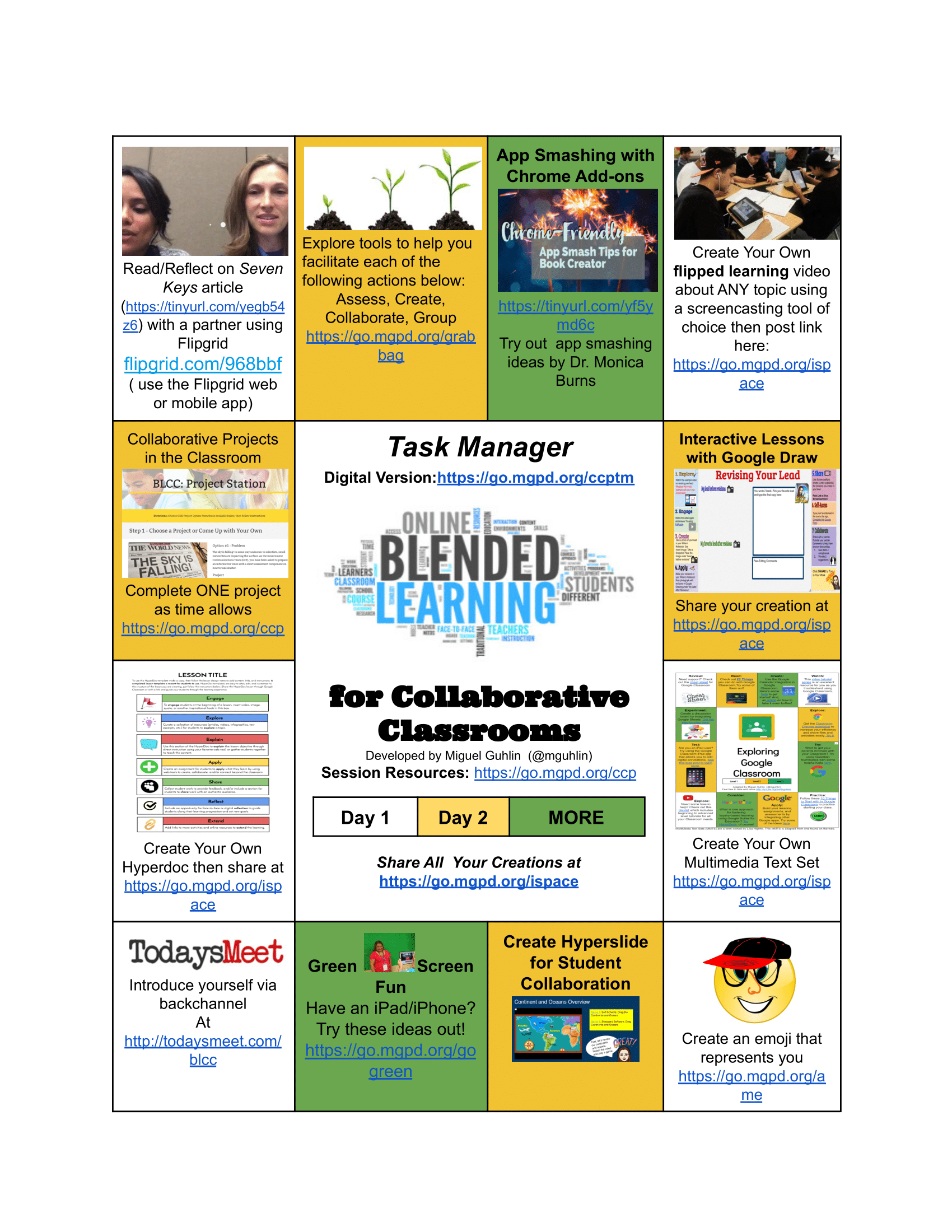
Creating engaging professional learning sessions that model PBL in a device-agnostic environment can be challenging. Come along as we explore a workshop design that focuses on solving problems together in a BYOD setting. You will also get the chance to see some of our favorite teacher-created products in this one and a half to three hour session.

Essential Elements
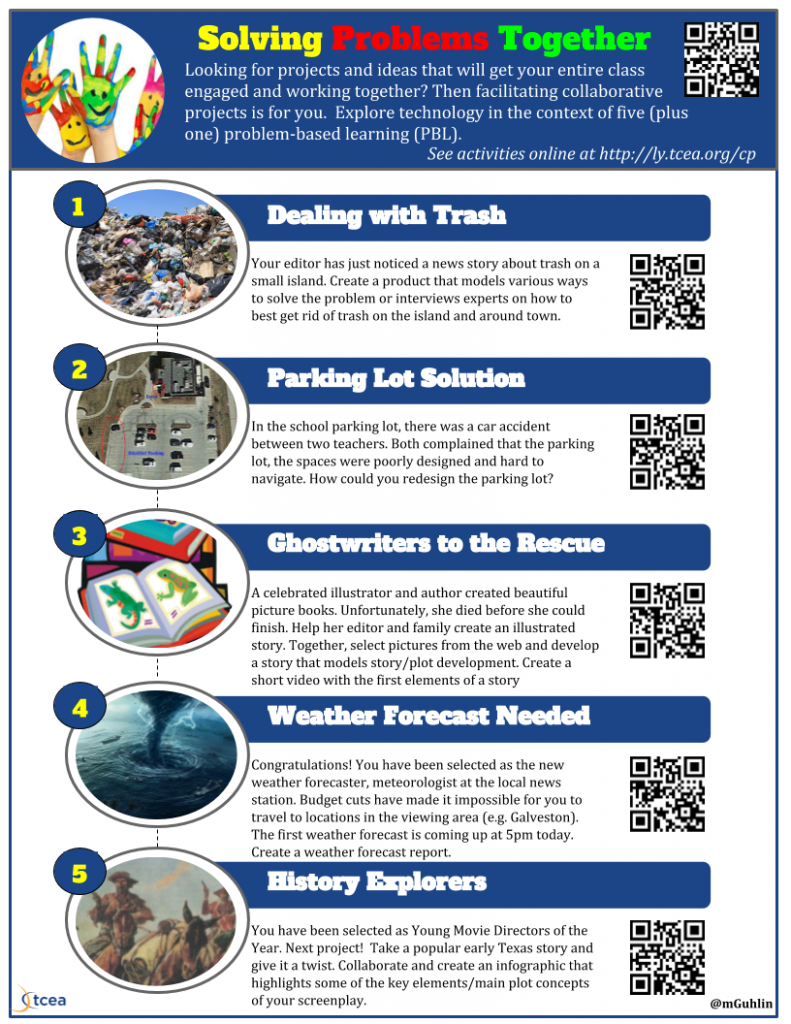
Before we jump into the project stations, let’s review a few components common to each. Each project station includes three components:
- Explore
- Adapt/Create
- Share
In the Explore portion, participants are presented with a simulation of a real-life problem. They work to develop background knowledge in the key concept shared. In the Adapt/Create, they make connections between their own experiences as learners. Two ways to accomplish this include adapting an existing work in light of new information. The second way is to create a new product. After they create or adapt, they share that online with a global audience. Sharing is accomplished via a Seesaw Class space.
All project stations are designed to facilitate hands-on learning experiences. You can learn more about the reason why PBL remains a solid hands-on learning strategy to engage learners of any age. Let’s get started.
An example of a fanciful way of removing trash
Project Station #1: Dealing with Trash
In the Explore stage, participants are introduced to a problem. The problem is about communication, and involves learning how to use various iOS apps. In this case, the scenario is simple:
Your editor has just noticed a news story about trash on a small island. The problem involves local trash disposal issues in your hometown. The task involves providing information, raising awareness, and preparing a call to action for this Sunday’s television editorial.
Participants are encouraged to create a product that models various ways to solve the problem or interview experts on how to best get rid of trash on the island and around town. A variety of apps are provided.
-
- iMovie (Free)
- Shadow Puppet EDU (Free)
- PicCollage (Example)
- Strip Designer ($2.99) Comic Strip Maker/Collage Maker (Example)
- Action Movie: (View example of video. View animated GIF)
- FxGuru: (View example)
- Super Power FX (View example)
- Extreme Movie FX (View example)
- Videorama (View example)
Remember you can “app-smash” or combine the products of multiple apps into one. Participants also have access to other resources, as needed:
- Flipgrid on App Smashing
- Apps | Key Apps for App Smashing
- iOS Favorite Apps
- iOS Apps for Elementary Classroom
- Screencasting Tools
- iOS Recording Tools
- iOS Movie Effects
The goal is to provide time and an incentive to model collaborative problem-solving as learners explore various technologies intended for use on the Apple iPad, a device many districts have available.
Project Station #2: Parking Lot Solution
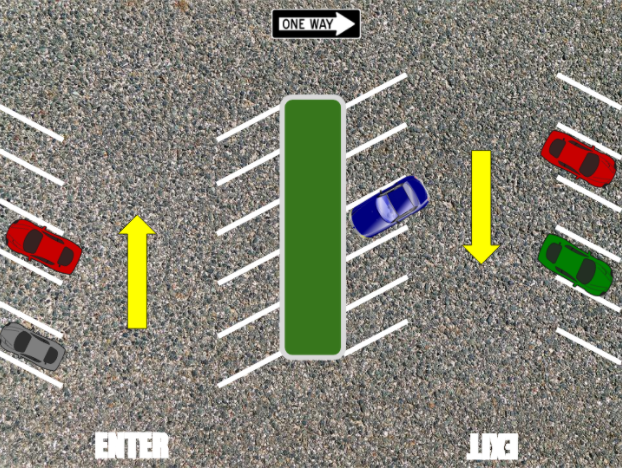
One example of a teacher-created product
In this project, a problem that takes advantage of drawing and communication tools is presented to participants. The first stage, Explore, includes the following:
In the school parking lot, there was a car accident between two teachers. Both complained that in the parking lot, the spaces were poorly designed and hard to navigate. How could you redesign the parking lot to minimize the likelihood of accidents and maximize the number of parking spaces?
In the Adapt/Create stage, participants are invited to use one of the tools below to redesign the parking lot and create a product they can share with the team.
- MS Sway – www.sway.com
- PowerPoint or PowerPoint Online
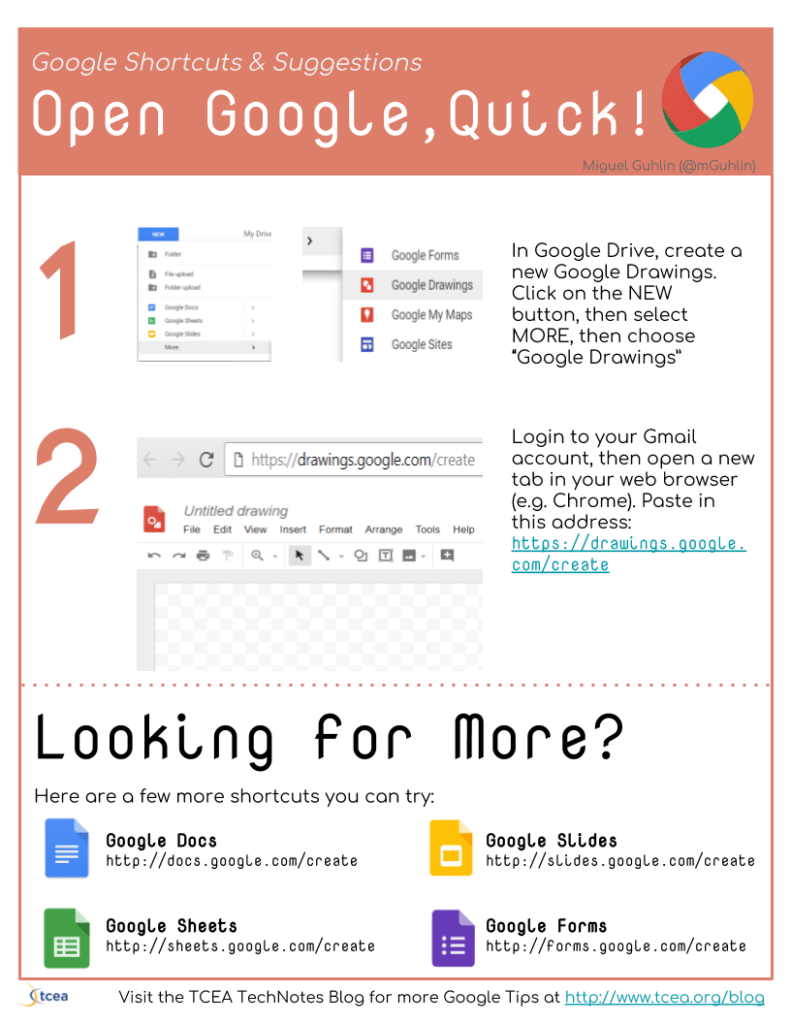
- Google Drawing
- Audacity
- Minecraft: Education Edition (MCEE)
- Microsoft Photos
- Podcasting with MS Sway
- Microsoft Photos
A popular activity, participants found various ways to showcase their parking lot designs.

Project Station #3: Ghostwriters to the Rescue
In this tragic problem, participants assume the role of ghostwriters, called upon to finish a task.
A celebrated illustrator and author created beautiful picture books. Unfortunately, she died before she could finish. Help her editor and family create an illustrated story. Together, select pictures from the web and develop a story that models story/plot development. Create a short video with the first elements of a story.
Learners are encouraged to use one of the tools included to create a short video.
- Image Sources
- Google Slides
- Screencastify
- Nimbus Screenrecording
Participants are also invited to add interactive elements by incorporating a variety of media with a MMTS or inquiry-based hyperdoc. Resources include the following:
- Image Sources
- Fabulous Presentations with Google Slides
- Video: Screencastify
- Combine Google Slides with Screencastify
Creating hyperdocs or multimedia text sets can be engaging, if time-consuming for some participants. Often, working with video serves as a convenient alternative.
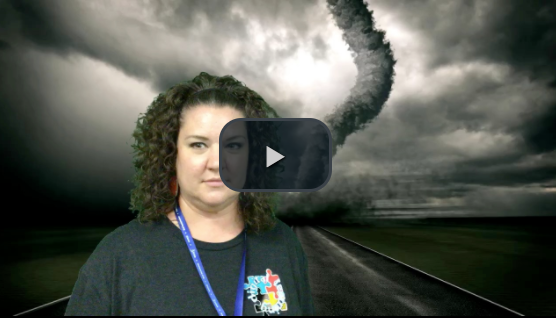
Watch video. One of my favorite creations. This team’s inventiveness captured the fun of the Elementary Technology Conference.
Project Station #4: Weather Forecast Needed
Ready to put your green screen skills to the test? Consider this scenario:
Congratulations! You have been selected as the new weather forecaster/meteorologist at the local news station. Budget cuts have made it impossible for you to travel to locations in the viewing area. The first weather forecast is coming up at 5:00 p.m. today.
Breaking News: An oil spill has taken place on the Galveston coast in the midst of a water spout.
Working with your team, take advantage of green screen technologies to create a weather forecast report for the local news broadcast. Your end product will be a video that will be run on the evening news.
Participants explore the DoInk Green Screen app (Watch the video ), as well as watch this Jonathan Wylie created sway. Participants are also encouraged to visit the Go Green resource page. It features videos, blog entries, a sketchnote of ten ways to get started with green screen for under $5, and much more.
This has resulted in several inspired creations that are sure to make you smile.
More Project Stations
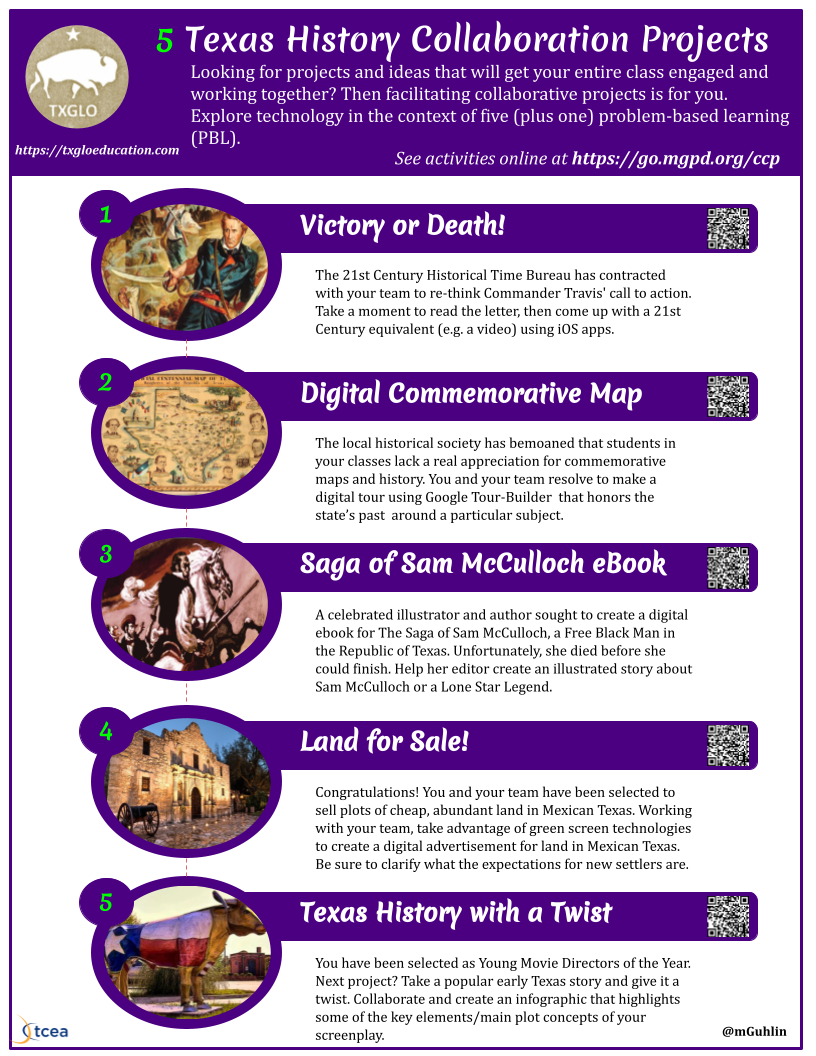
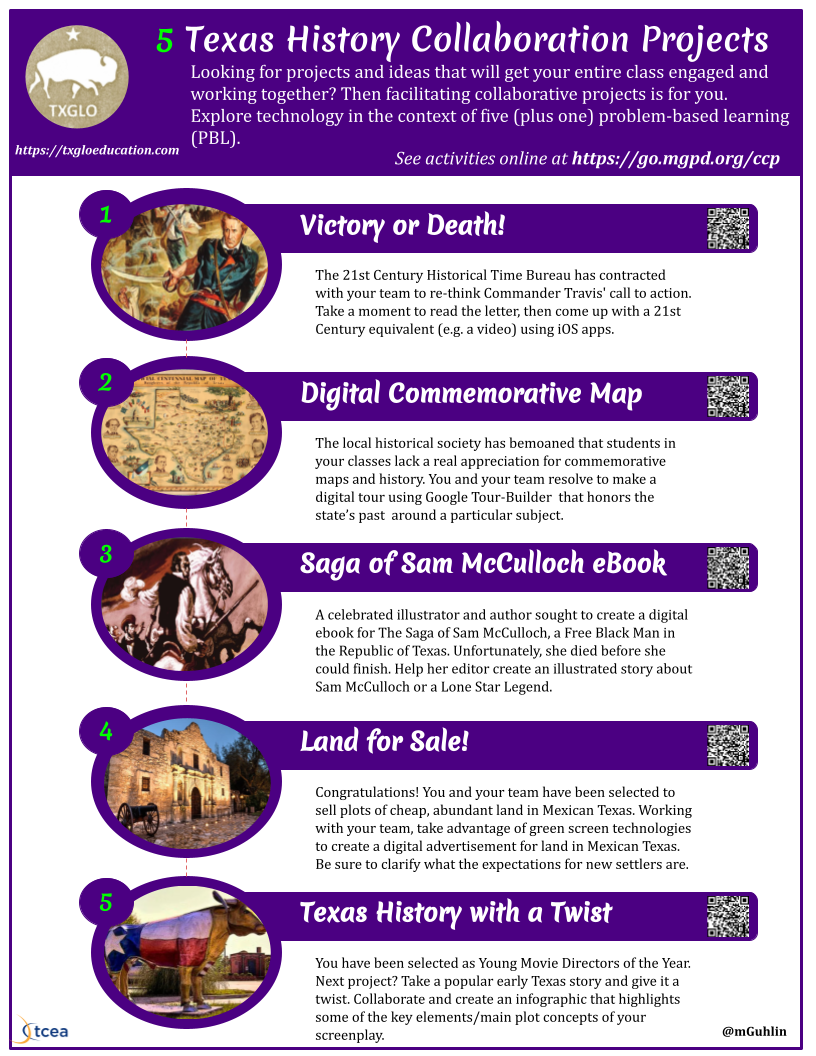
The session includes two additional project stations focused on encouraging participants to collaborate and create an infographic or digital story of a screen play. In the last project station, participants rely on paper slides to create a presentation to address a serious global problem.
Turn Napkin PD into a Reality
Want to schedule TCEA professional learning for your school district that focuses on project-based learning? Fill out a TCEA logistics form, as well as attend our face-to-face conferences and the annual TCEA Convention. We can help you turn your napkin professional development plans into a reality. And be sure to check out other “napkin PD” blogs here.