For decades, teachers took student attendance with visual checks and marks on paper. Then attendance tracking became an exercise in logging student absences and tardies in digital gradebooks. When teachers exchanged physical classrooms for virtual, however, it created a problem.
Few gave thought to how to track attendance. They scrambled to answer the question, “How can I track it in my learning management system?” In this blog entry, we’ll explore how some popular LMSs handle attendance tracking.
TCEA offers amazing learning management system (LMS) self-paced courses. These are designed to take the sting out of having to sit through hours of Zoom lessons only to realize that the presenters went too fast. Instead, take your time and learn what you need to be successful via TCEA’s courses. Learn more about why we did this on the Ed Tech Club podcast.

The Existential Question: Are They Here? Or There?
“Why can’t we call out their names and take attendance like we always have?” I overheard a teacher ask in a webinar. The question remains, How do you verify a student is sitting in your virtual classroom? That’s an important question since school funding is tied to average daily attendance (ADA):
The average daily attendance (ADA) is the total days of student attendance divided by the number of instructional days for the specified time period. For example, a student attending every day would equal one ADA. ADA is not the same as enrollment, which is the number of students enrolled in a campus on a given day. (Source: Texas Education Agency)
Some LMSs have attendance tracking built-in. Some educators are relying on one-question non-graded assignments, visual check-in, or Flipgrid to keep track of who’s there. Which of these solutions will work best?
#1 – Schoology Attendance Tracking
Using Schoology? If you have access to Schoology Enterprise, you have several ways to track students in the course. These analytics include assignment, discussion, link clicking, and materials access. Armed with this information, you can see the impact of your assignments and work. But what about attendance tracking?
Did You Know?
TCEA offers a $29 Schoology Educator course you can take to get up to speed on Schoology Basic and Enterprise features. Bulk discounts are available, and you get a digital badge and certificate. You also earn 12 CPE credit hours. Learn more.
One easy way is to take attendance with the Attendance menu, available in Schoology Basic. You can see what that looks like below:
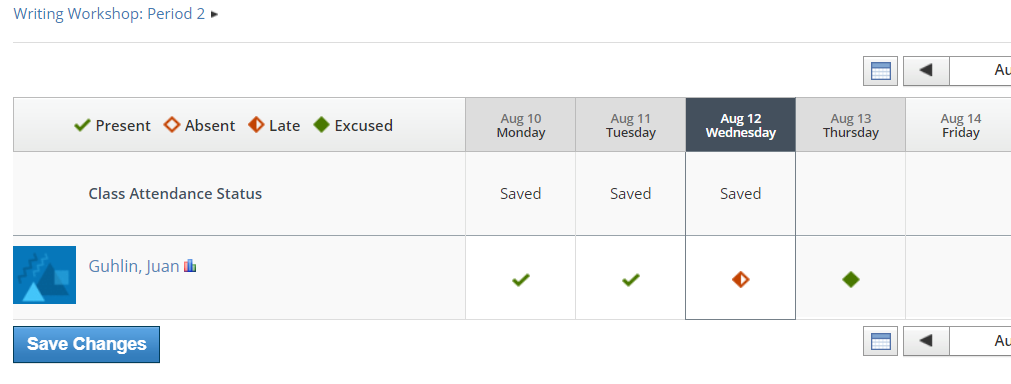
Schoology Enterprise gives you even more information via their Analytics menu option. Their analystics system provides access to:
- Consistent tracking of Schoology usage across web, iOS app, and Android app use
- An insight dashboard. This dashboard provides insights into how students are accessing the classroom, including what materials students are viewing and the amount of time spent.
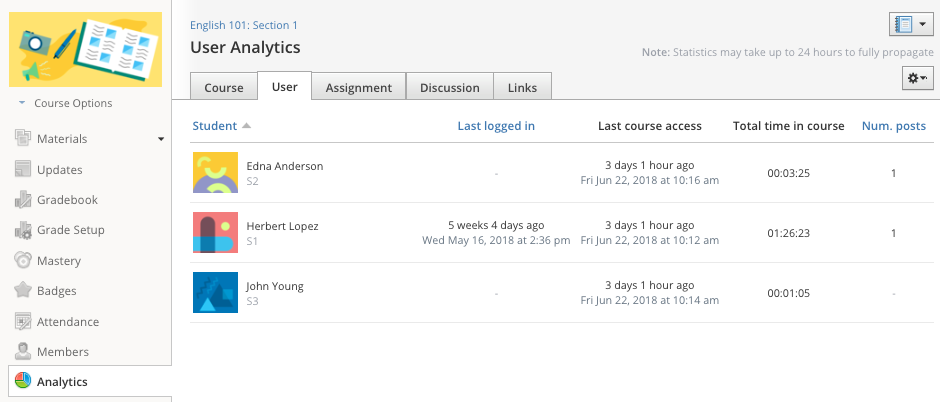
Source: View Image Source
Educators can export user analytic statistics as a comma-separated values (CSV) (a.k.a. comma-delimited) file. This makes importing the file to a spreadsheet program easy. Once in a spreadsheet (e.g. Excel, Google Sheets), you can generate graphs and more reports if needed. In summary, Schoology Basic gets you started with attendance tracking. Schoology Enterprise provides a wealth of information teachers can use.
#2 – Canvas
As you may know, Instructure’s Canvas is a popular choice for many school districts. But how do you track attendance in Canvas?
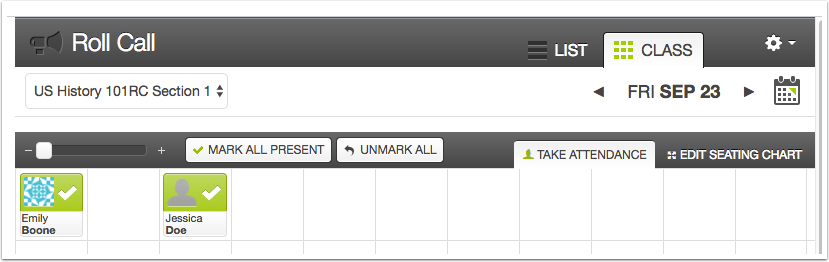
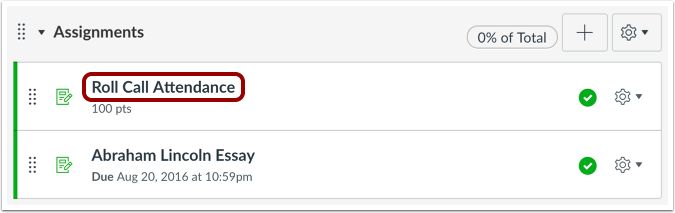
Canvas, like Schoology, enjoys an analytics section. It also has a specific feature to track attendance. That feature is the Roll Call Attendance Tool. It masquerades as an assignment. Here’s how Canvas Basic Guide describes it:
The Attendance (Roll Call) tool is an external app (LTI). Use it to take attendance in Canvas courses.
Enabled at the account level, use the Roll Call Attendance tool in all courses in a Canvas account. Some districts are choosing to not use fancy, outside LTIs.
#3 – Seesaw
Why did your district pivot from a more age-appropriate LMS like Seesaw? If that’s a question you’ve been asking yourself, here’s why. Unlike Schoology and Canvas, tracking attendance isn’t obvious in Seesaw or Google Classroom. There aren’t any fancy analytics in these tools. That’s why some school districts dropped Google Classroom and Seesaw. Some districts, like San Antonio ISD, dropped Seesaw and pushed everyone to Canvas. The problem, however, is that Seesaw for Schools is easy to work with for younger students.
While some districts compensated by tracking attendance in daily face-to-face, live (a.k.a. synchronous) meetings, others preferred daily assignments. The problem with that approach is that there is a time lag from when the student submits the assignments to when the teacher grades and puts it in the book. Putting the information into the attendance book is thus a manual process.
Were you aware that TCEA member Brittany Beaird created an amazing online course to assist you in learning Seesaw? Become an overnight pro with the highly-rated Seesaw Educator course. Or learn how to Bitmoji your virtual classroom with TCEA member Lisa Marie Bennett.
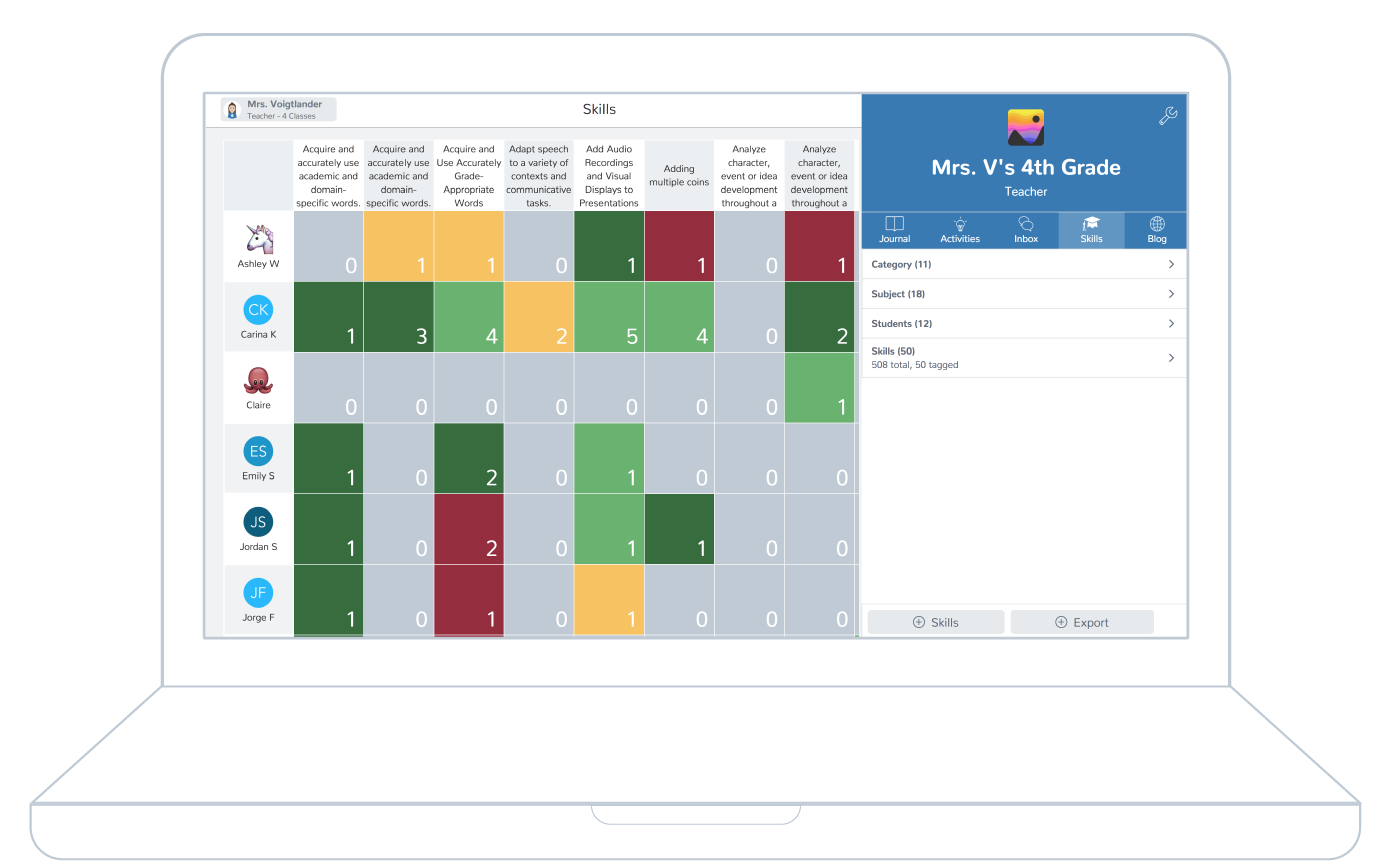
Even so, it is possible to track attendance in Seesaw without assignments. This approach relies on Seesaw’s Skills.
How do you track attendance with students in Seesaw? One approach that Lisa Monthie (Waco ISD) suggests is using Seesaw Skills. Kris Szajner describes this approach in the video below:
Source: Kris Szajner (@KSzajner)
“You can click on the skill and grade it by giving it stars. There’s a report that gives you the grades in a CSV file,” says Lisa Monthie (Waco ISD). This makes it easy to import into an external digital attendance tracking system. Chances are, your school won’t allow import into the gradebook system. That means most folks will be using the manual approach to transfer grades.
#4 – Google Classroom
Using Google Classroom as your LMS? One of the ways G Suite EDU educators are tracking attendance is to rely on a scheduled Google Meet.
Sign up now for Google Classroom, TCEA’s online, self-paced course. Learn what others are saying about this and TCEA’s other online courses.
As mentioned in previous blog entries, you can use Google Chrome browser add-ons. In my blog entry, Google Meet Add-Ons and Updates, I share several tools you can use. Some of those Google Meet tools for tracking attendance include:
- Meet Attendance – Collect attendance in a Google Sheet from a Google Meet
- Google Meet Plus – An amazing tool that is a must-have for any teacher. You can drop links, famous quotes, or use a whiteboard that tracks who did what.
Need analytics to complement Google Classroom? Find a few solutions in Five Amazing Add-Ons for Google Classroom. One worth looking at is Classwork Zoom.
Have the freedom to try a different tracking approach? Give this last option a try.
#5 – Flipgrid for Student Attendance
“Worried about evidence of attendance for school funding? No problem, it took me about three minutes to schedule my weekly Flipgrid attendance,” says Dr. Randall Sampson (@RandallSampson). He goes on to say the following:
I can insert attendance in required SIS and have a back-up security blanket of evidence. Plus, all videos are time stamped! Today’s scheduled attendance is working. I also receive email confirmations every time a student checks in for attendance. What does a school get from a 15-second Flipgrid attendance video? Export your Flipgrid Attendance videos to a spreadsheet.
Wow, let’s unpack some of that. Dr. Sampson asserts that you can use Flipgrid to:
- Collect time-stamped attendance
- Receive email confirmations
- Export attendance records to a spreadsheet
“I want to keep it super simple. I set it to 15 seconds. Student: State your ‘first and last name’ and say ‘here,'” Dr. Sampson says. Isn’t that amazing? Thanks to Microsoft, Flipgrid.com is available at no cost to educators around the world. Get your free education account now.
Now that you’ve seen some different approaches to attendance tracking, share what you are doing. Have no doubt, attendance tracking is about bringing money into the school district. This makes doing it right and in a consistent manner important to your admins. Finally, don’t forget to explore TCEA’s free Remote Learning resources and blog entries.

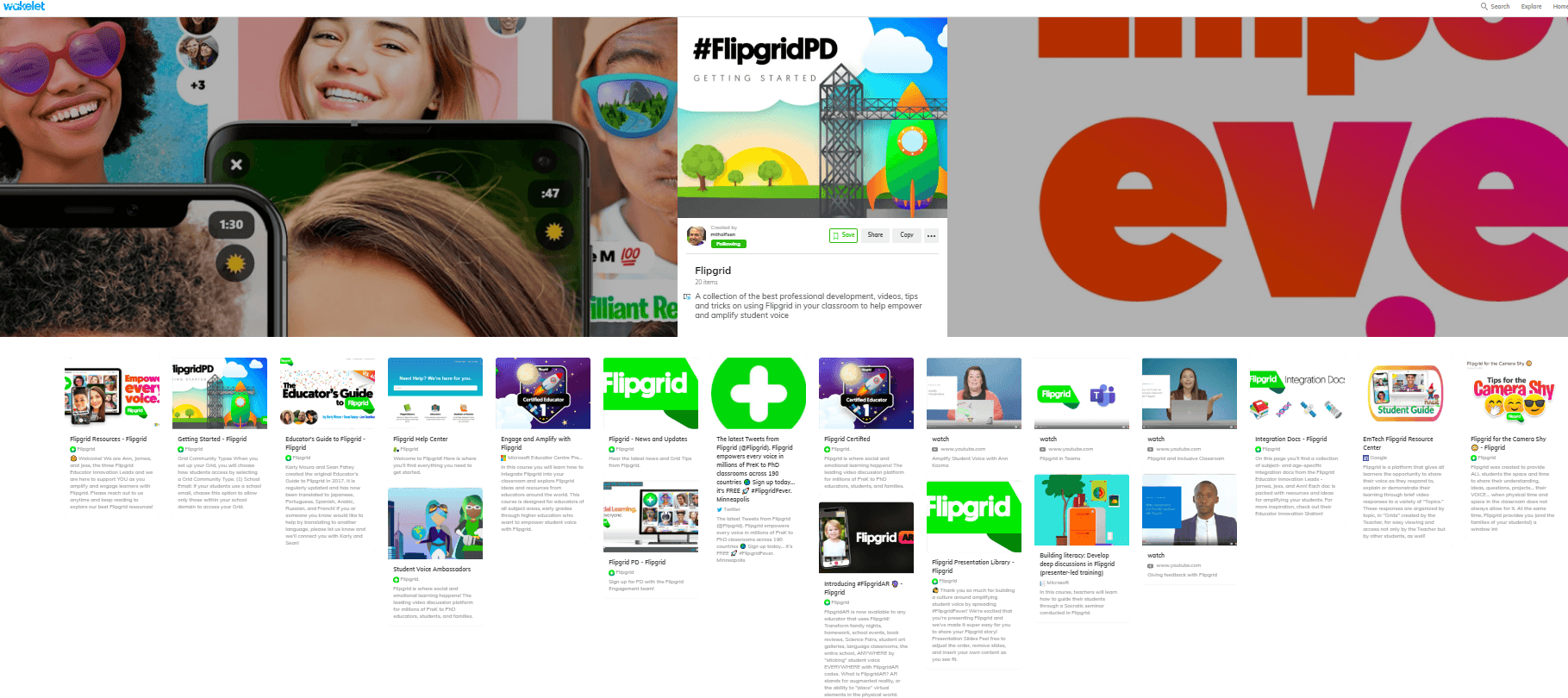



 You have probably already heard of Flipgrid and perhaps even started using it, at least to some degree. It definitely seems to be the perfect tool to support students in many ways, not to mention using it as a way to provide peer- and content-support to teachers.
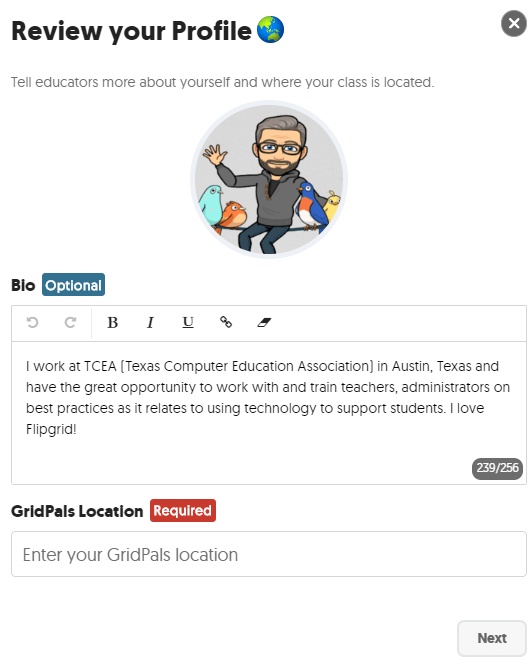
 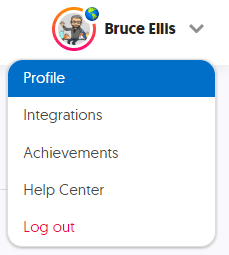 Begin by making sure that your profile is updated. Don’t be shy. This will allow others to better connect with you. Click on your image in the top right and select Profile. Select a photo or avatar for your profile picture. If you have a picture that has a busy background or you want to use a quick editing tool to remove the background (as I did on my
  GridPals is, as you may have deduced, Flipgrid’s version of pen pals. It’s a super easy way to connect with other educators and enthusiasts to further learning and improve education.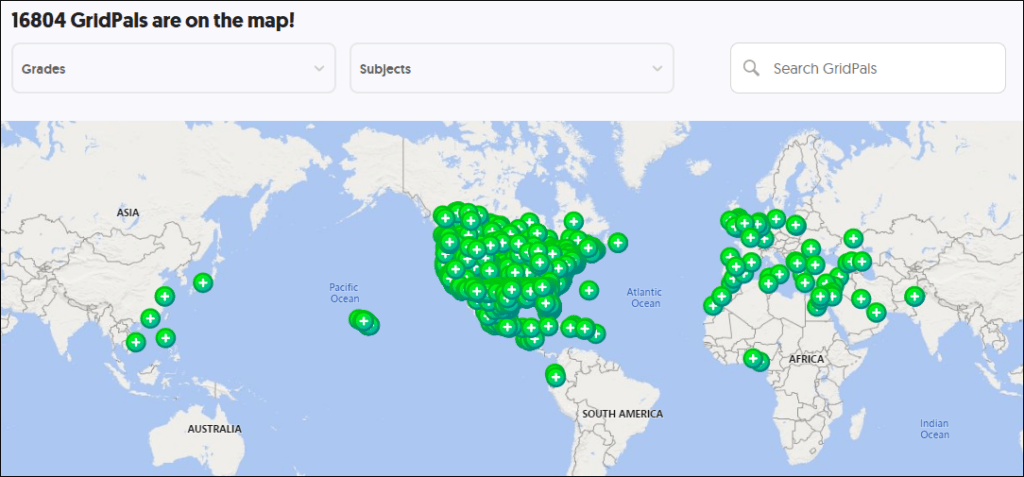
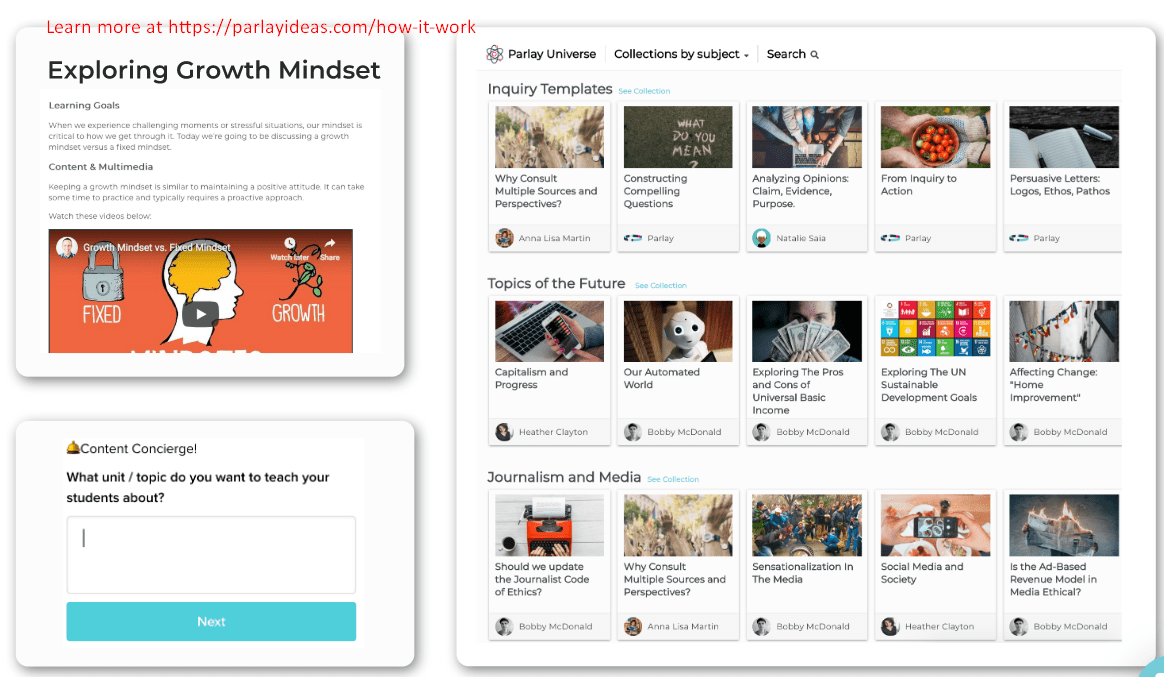
 Featured Disco Playlists are sets of topic templates provided by various organizations such as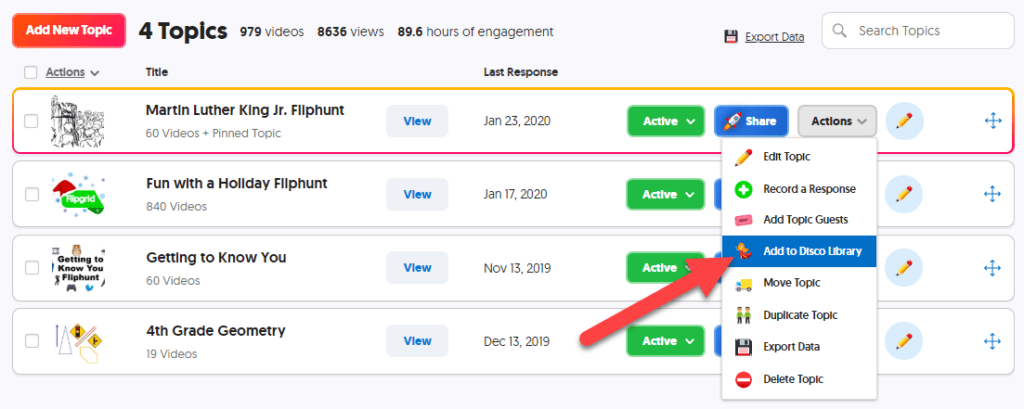
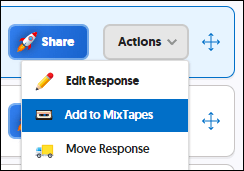 No, this isn’t creating mixtapes on cassettes like we might have done back in the ’80s and ’90s to give to someone special. This is a whole new way of sharing — but based on the same principle.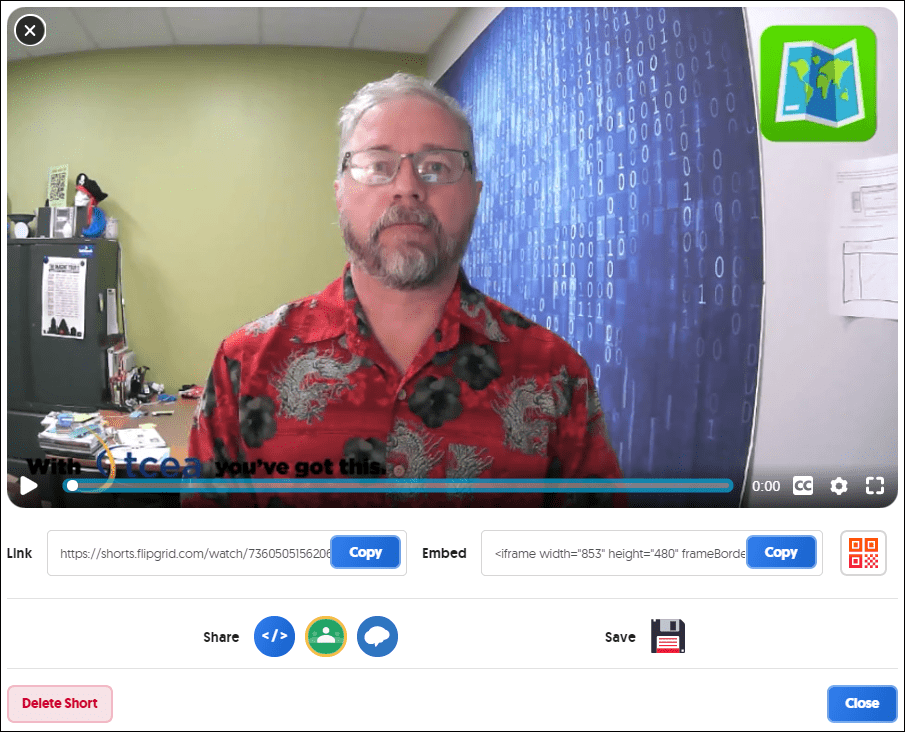
 So how do you use Flipgrid? Which feature(s) have you found to be the most impactful? Even if you haven’t had a chance to use Flipgrid, have you come across an innovative way to incorporate it in the teaching and learning process or in professional development? We’d love to hear from you!


 What Is Flip?
 Students begin learning observational skills in science starting in kindergarten. Though the skill is not as robust or refined as what a high school student may demonstrate, there is still great value in having them engage in observing the world around them to start taking notice of how things work. Observation is a foundational science skill that leads to communication, classification, measurement, inferencing, and predictions.
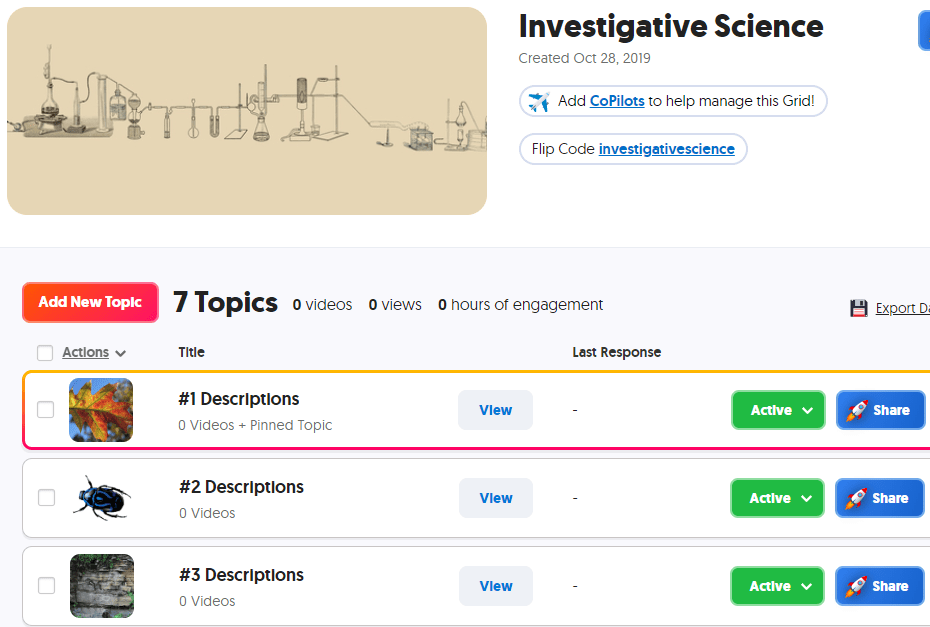 In Flip, create a grid for observations. Each topic in this grid will show a photo or video that the student is to observe and describe. Depending on the level of skill, you can require students to use previously learned vocabulary in their responses. If you want students to use words from a given word bank that you have developed for them, create the document and add it as a topic attachment to the topic. You can reference this word bank in multiple topics by adding the link to each topic. If you have a rubric to guide the students in their work, add the rubric as another topic attachment; for younger students, you may need to record a video showing the rubric while you are reading it aloud.
 Go to
Go to  Begin by creating a grid to hold your inferencing topics. As done above, create a standard set of instructions for your students. You can go to ,
 Pixabay -(
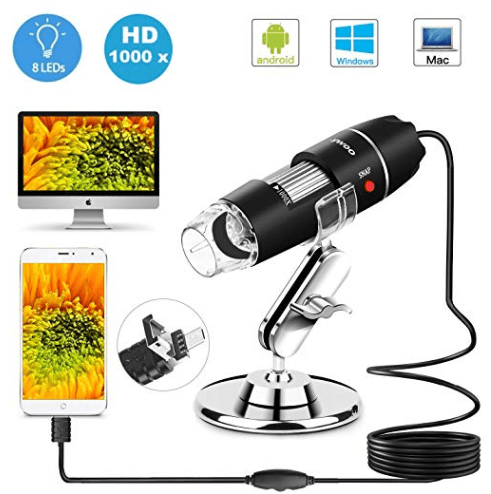 USB Microscope – Consider purchasing a USB microscope that you can connect to your device in order to take photos and videos of actual materials in your classroom…or on fieldtrips! Read the details carefully as some microscopes will work with some devices but not all…such as Android phones/tables, PC computers, and Mac computers but not iPhones or iPads. If you need a microscope that connects with your iPhone or iPad, be sure that it explicitly states that it connects. Likewise if you are wanting to connect the microscope to a Chromebook. If it is not clearly stated, look for a link in which you can ask the seller or locate that microscope on another seller’s website to see what information they provide.