Discover resources and strategies for teaching core content areas. Explore tips, tools, and activities to enhance learning across all subjects.

Zearn‘s premise is simple, and compelling: All kids can love learning math. A non-profit organization, Zearn creates materials that are free for teachers and students. EdReports.org “green-lights” ZearnMath’s materials. In fact, one in four elementary students nationwide rely on Zearn in to learn math.
Note: This is a ten minute video that shows how students and teachers rely on ZearnMath. Find a wide variety of videos showcasing different aspects of Zearn on their YouTube channel.
How Does Zearn Work?
ZearnMath offers quite a bit once you get an account (more on that in a moment). Once you do, you have access to the following:
- 800+ digital lessons that teach math concepts in short engaging videos and that kids can work on in an independent manner
- Interactive math models, including concrete manipulatives and pictorial representations
- Frequent checks for understanding and engagement that combine digital and paper activities
- Feedback as students work through pre- and post-assessment activities
- Built-in math support that relies on adaptive pathways to offer solutions
- Tier 1 intervention built into lessons
- Notifications to teacher(s) when student(s) need more help
- The ability to assign targeted lessons
ZearnMath offers quite a bit for educators and students to use. But at what price?
Announcements (Updated 6/8/21): Zearn’s paper-based teacher and student instructional materials are now available in Spanish . All educators can download these PDF instructional materials from the Grade and Mission pages in their Zearn Math accounts.
Zearn Math for Texas, a TEKS-aligned version of Zearn’s top-rated math curriculum has been released. Texas educators can access 400+ hours of interactive digital lessons for every unit of K–5 math, as well as tailored guidance and teaching materials.
How Much Does It Cost?
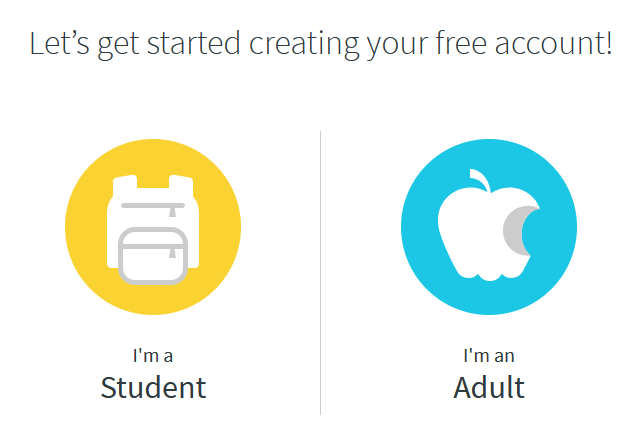
Individual teachers and students can use Zearn for free. Schools and districts can request a quote. For schools, quotes start at $2,500 per school. You can get started with a free, individual teacher or student account. After you respond to a few questions, you’ll get a verification email. You then have the option to login with Clever or Google.
Additional Resources from Zearn
Zearn also provides summer growth activities for grades K-5 and a summer intensive series for grades K-7, a real need this year after the pandemic slowed math learning down. In addition, they offer a summer school curriculum and a math acceleration guide, as well as recorded webinars to help teachers best use the resources. Educators can also request by email a standards alignment guide for their own state standards.
Be sure to check Zearn out, if you haven’t already. You can use it for remote and face-to-face instruction. So grab it now and get your students learning to love math with scaffolded support!
Feature Image Source
Photo by Katie Rainbow 🏳️🌈 on Unsplash