Explore tips, tools, and strategies for using iOS devices in education. Discover resources to enhance teaching, learning, and productivity.
Discovering new and exciting ed tech apps was a top priority for many educators attending TCEA 2017. Luckily, there were plenty of fantastic, free resources to choose from, suggested by our experts. Janet Corder and Joan Gore, featured presenters at the convention this year, are pros at technology integration and wielding ed tech apps for student engagement and achievement. At an event called the App Smackdown, Janet and Joan were joined by TCEA Convention Chair Dr. Roland Rios, Vice President of TCEA David Goodwin, and ed tech superstar Heather Kilgore. They shared their favorite app discoveries. Here are a few of the ingenious apps they highlighted. The best part? They are all free!
Apps for Educators
Educators have a difficult job. However, there are several free apps that can make classroom management and assessment a little easier.
- Peergrade.io is a web app that makes getting your students to give peer feedback a breeze. Students submit an assignment into the platform. Next, the assignments are removed of identifying details and redistributed. Then, students can provide constructive comments on their peers’ work. The teacher oversees both the assignments and the feedback through the app.
- Chwazi is an iOS app that provides an easy, fun way to assign students to tasks. Students place their fingers on the screen and the app randomly selects one. Chwazi can also divide your students into randomly selected groups.
- Quizziz makes creating review materials a breeze! Educators can easily design and play quizzes on any subject on this free iOS app.
- Recap provides a great way for educators to better assess the needs and interests of their students. This video response reflection app lets students respond to prompts from their teacher and offer their own thoughts and ideas. Recap is available for both iOS and Android.
Apps for Exploration
These apps can help both educators and students find resources they need. They can also help students explore worlds they might not otherwise have access to.
- Expeditions is a virtual reality field trip. Students can travel to the top of Mount Everest, examine the surface of Mars, or see a chemical reaction firsthand. Through 3D walking tours, they are able to explore on their own or through educator-directed instruction. Teachers can even see what all of their students are experiencing at any given time.
- Destiny Discover gives you the power to search your library resources in the blink of an eye. With the iOS app installed, just search for a subject on Google. Items on the subject that are in your library’s Destiny catalog or Follett eBook collection will appear above the regular search results.
- Discovery VR is another free, immersive virtual reality app. This app allows students to explore new places, characters, and ideas from the comfort of their classroom or library.
Apps for Entertainment
Finally, some apps are first and foremost simply fun. However, these can still be great sources for creative curriculum connections or opportunities for brain breaks.
- Teledoodle is the game of telephone for the digital age. Players take turns drawing and guessing with hilarious results. The game can be played as a pair or small group activity.
- Fyuse lets users take 3D images with their camera. Just hold down the button as you walk around an object or person to produce a dynamic image. This free app makes your selfies seem to jump right off the screen.
- Blippar is an augmented reality app. You can take photos or images and add new elements to them. These virtual elements can link to website or videos. In addition to being fun, this offers great opportunities to extend learning.
There is no shortage of mind-blowing ed tech apps and new ones appear every day. The expert panel at App Smackdown at TCEA 2017 each had their favorite app discoveries. Comment below to share your own favorite ed tech apps!
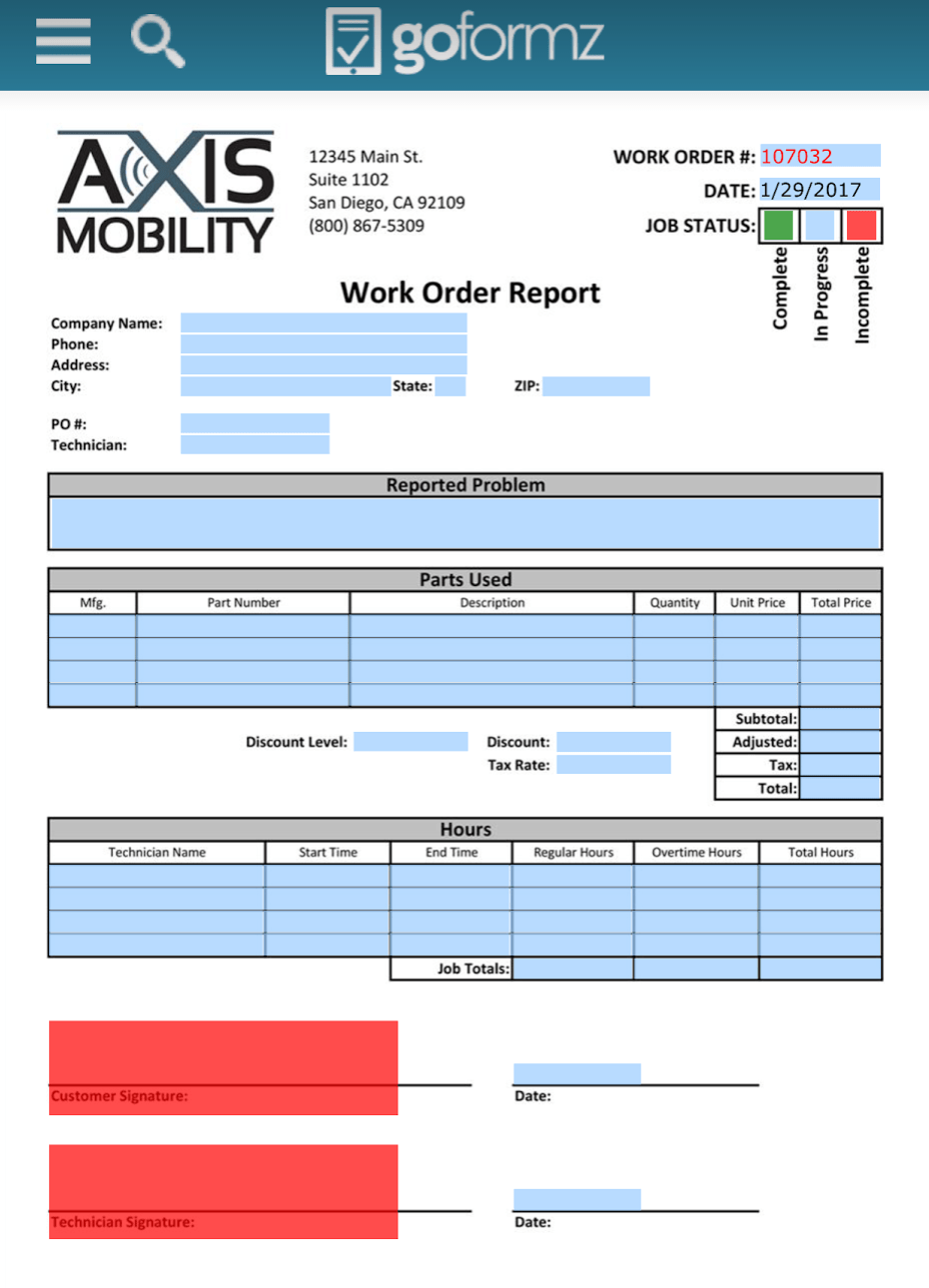 Solution #3 – GoFormZ
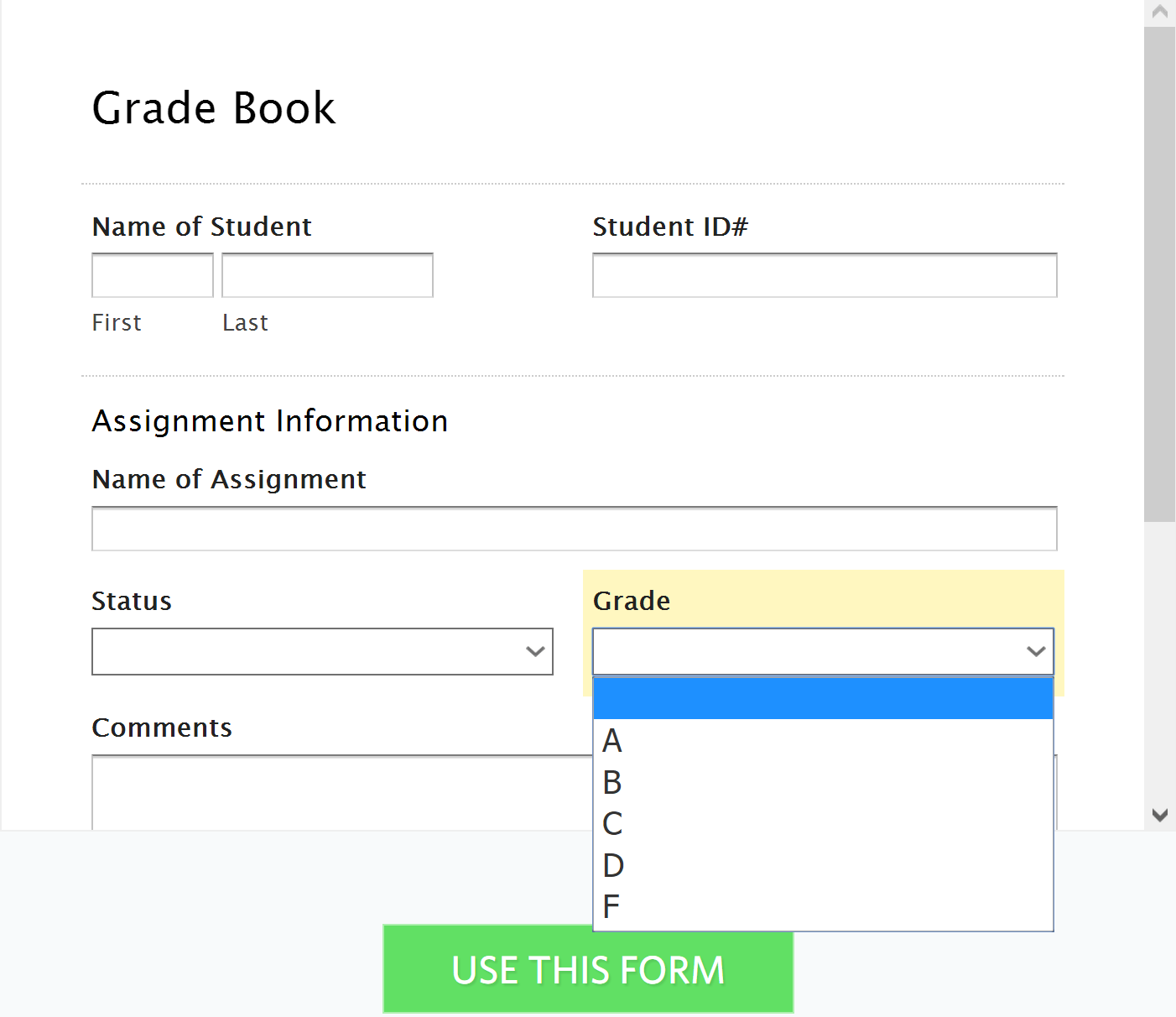 Branding itself as a “choose your own adventure story” for form development,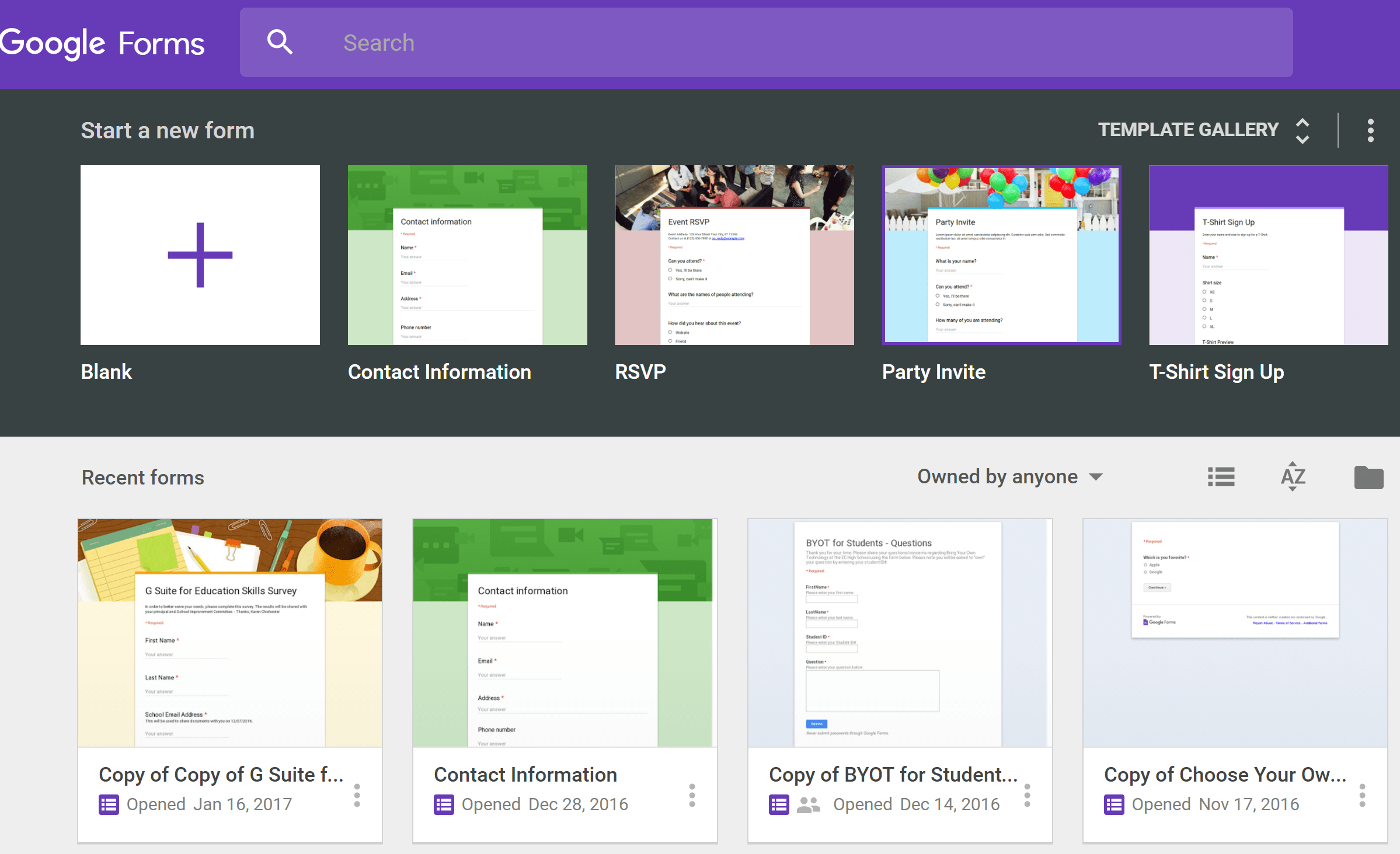
 at
at 
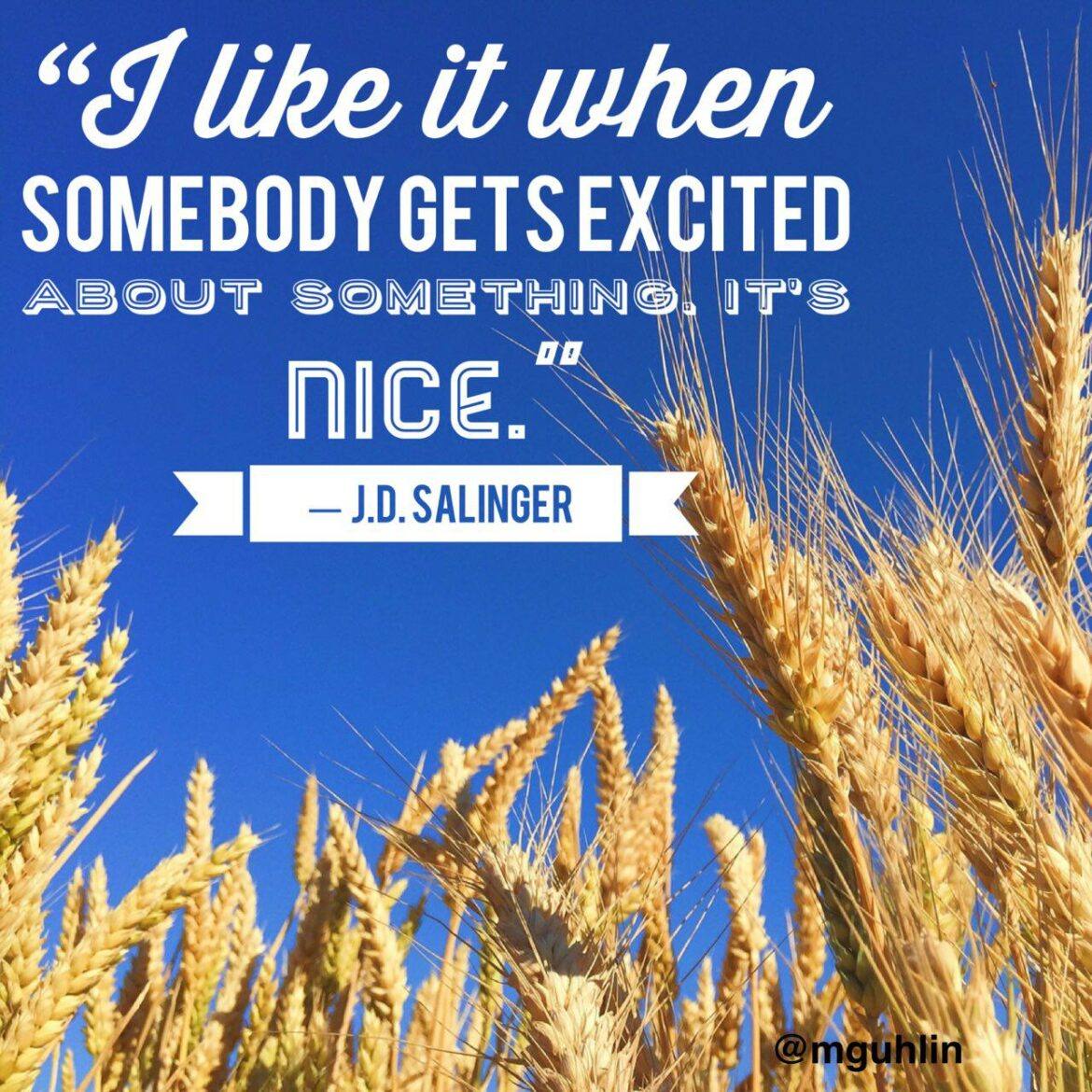
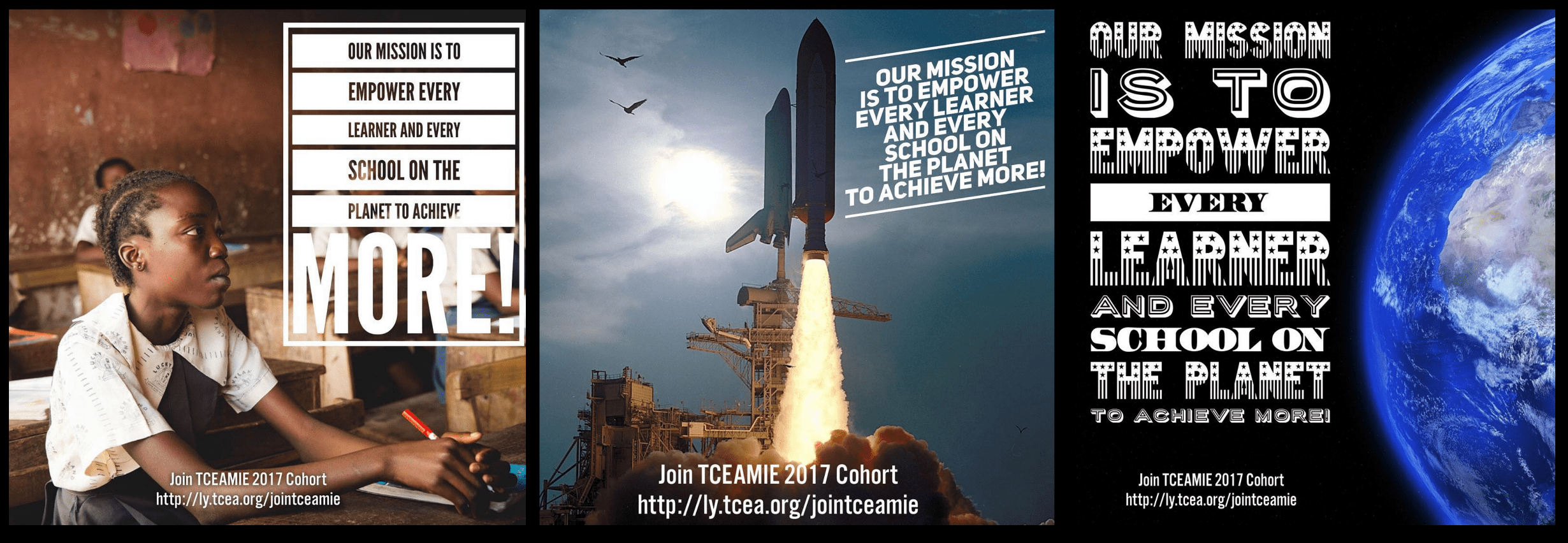
 a work of art. This work can be displayed via social media or made into a “mini-poster” for bulletin board placement. And you can also help students “summarize the main idea and supporting details in text in ways that maintain meaning.” Whether for professional development (e.g. book study, article jigsaw) with adults or ask ing students to work in small teams with a buddy to analyze text, this type of activity is powerful for engaged learning.
 Here are the steps you can take to create your Typorama quote project. Remember, these techniques can be used whether you have the app or not. If you and your students are on a computer, try one of the aforementioned, browser-based, free quote generators.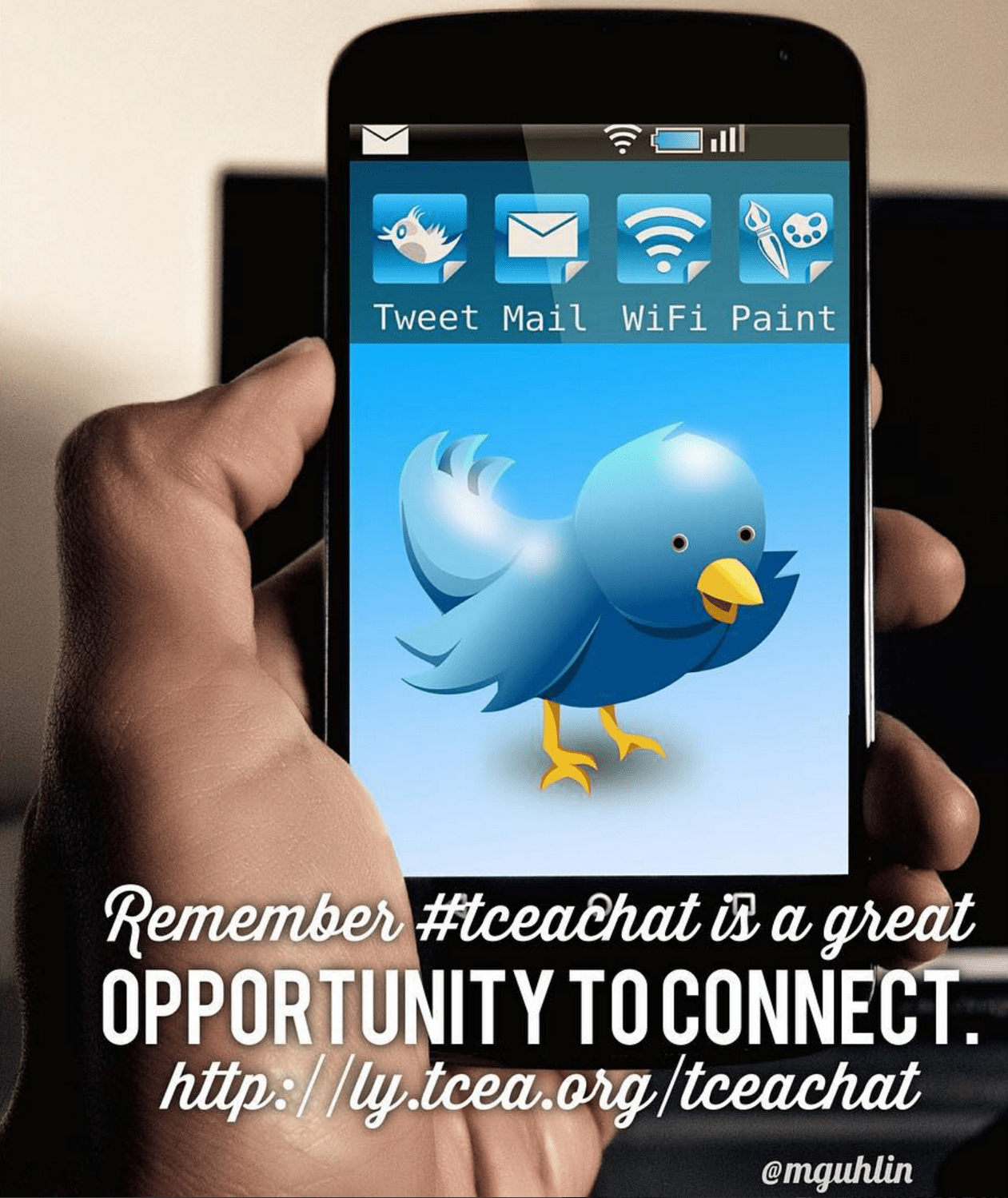
 List of Copyright-Friendly Image Resources
 Class Notebook
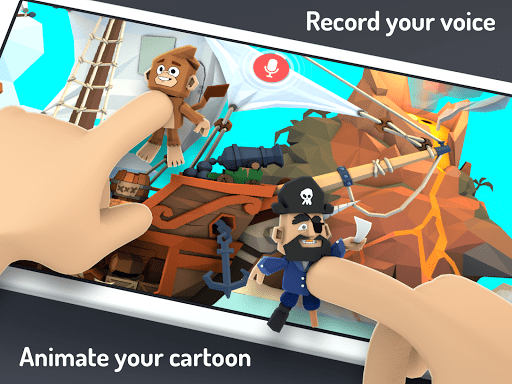
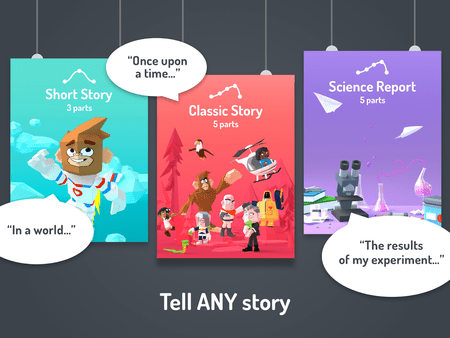 As with any tool, the strength of the learning that results comes from how much thought students have to put into it in the first place. So they should definitely be asked to storyboard their cartoon first and have it peer edited for clarity, flow, and understanding. The app encourages students to use “Story Arcs” in planning their masterpiece. According to the website, “A Story Arc is a scaffolding tool that helps you map out a story’s plot. Whether they’re learning Language Arts or Science, kids can practice communication skills using story arcs as formulas for convincing arguments.”