Discover tips, tools, and resources for using Chromebooks in education. Enhance learning and productivity with strategies tailored for classrooms.
The Google Calendar is a little used jewel for keeping you organized. This is especially true for a teacher who has a never-ending list of things to do and places to be. I have a confession to make — I am lousy at using lists. I make them, but then rarely use them to guide my day. Instead, I’ve found that I work best by using a calendar to track my tasks as well as my events. Let’s explore a few ways a teacher can use the Google Calendar to keep them on track and organized.
Layout of Google Calendars
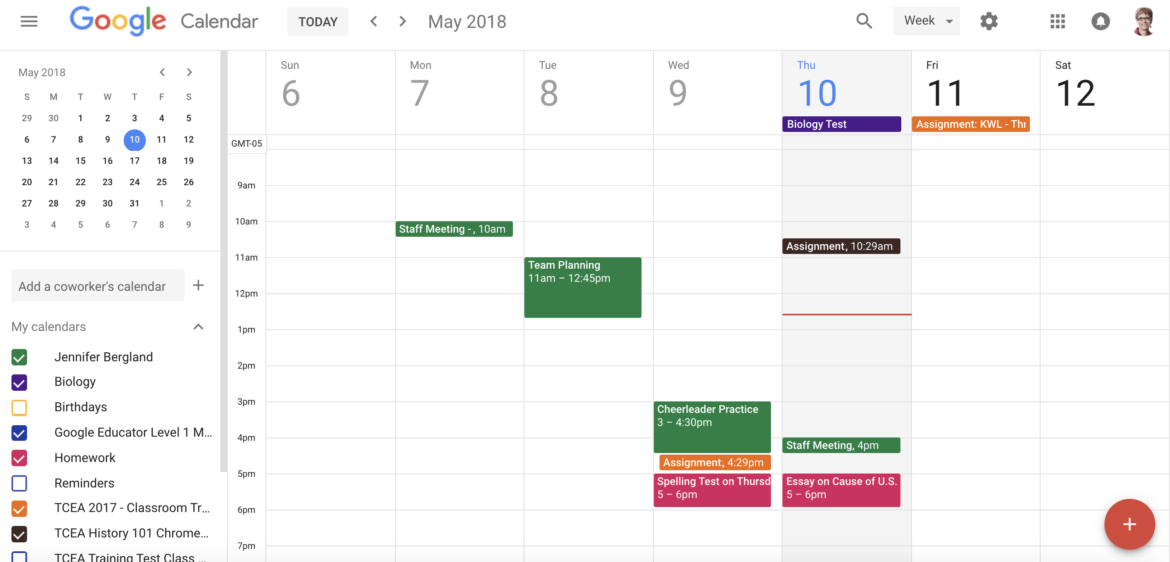
Before we look at specific uses, we need to review some of the basics of Google Calendar. The calendar allows you to create multiple planners that can be toggled on and off. This allows you to create calendars that have a specific purpose (homework, lesson plans, cheerleader practice) that can be shared separately. However, you can also view them together. In the above image, you can detect the different calendars by their color.
Different Types of Calendars
The next thing you need to understand is that Google groups your calendars in two lists — My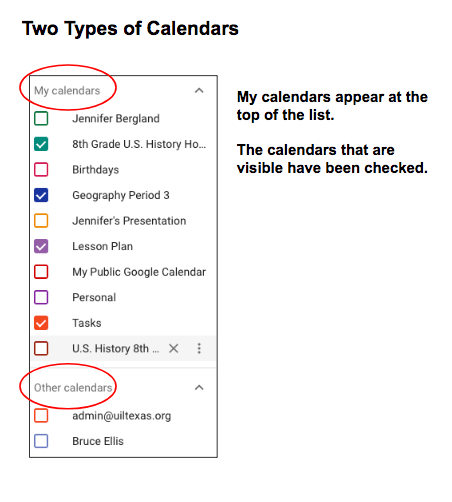 Calendars and Other Calendars. My Calendars are calendars that you created or were created for you and that you have been given the ability to manage. These calendars are located at the top of the list of calendars. Other Calendars are calendars that you have added or that have been added for you by your G Suite administrator. This list of calendars is below the calendars that you own and/or manage.
Homework Calendar
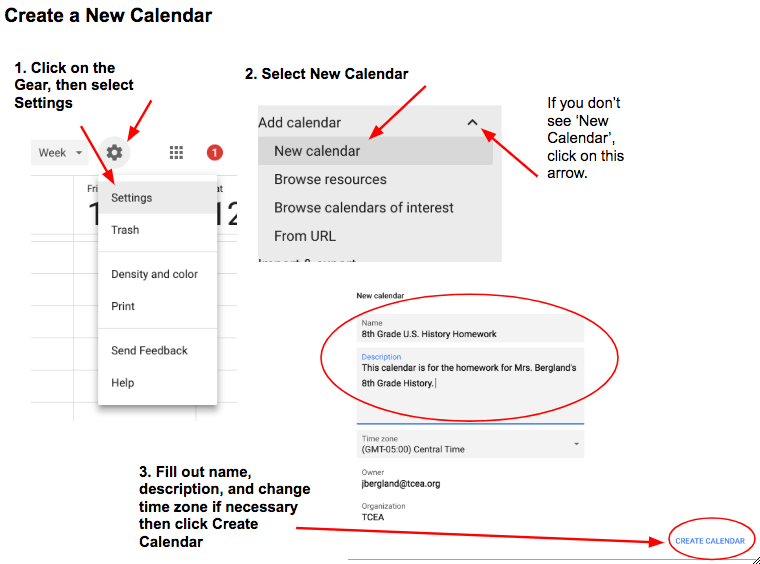
Let’s start by creating a calendar to help your students and their parents keep track of assigned homework. You only have to generate the homework information once and then let parents and students access the calendar at a time that fits their schedule. No more filling out homework sheets for individual students. You could also assign a different student each day to enter the information on the calendar.
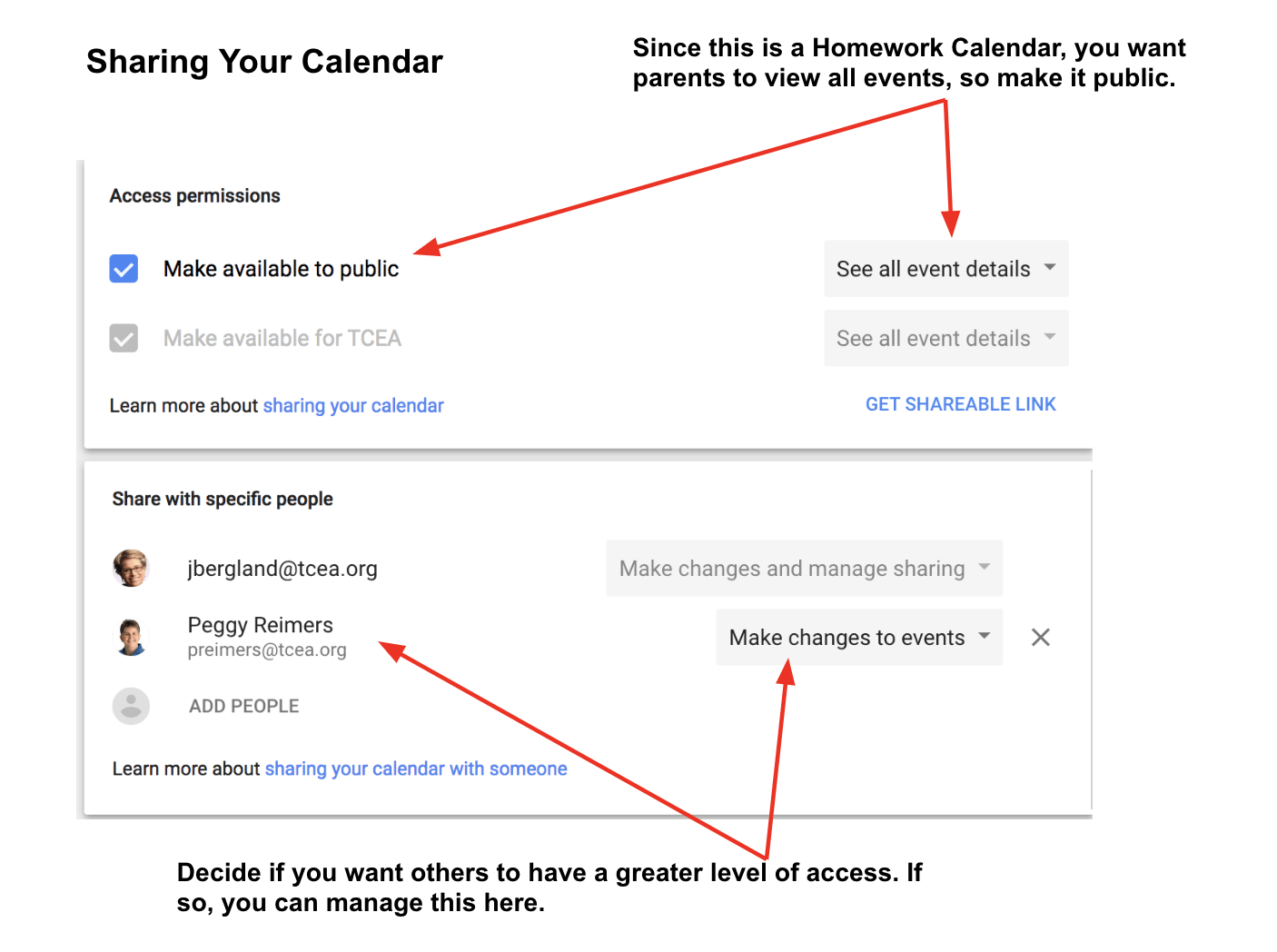
You will next want make sure you share your calendar with the public and possibly give other individuals more specific sharing permissions.
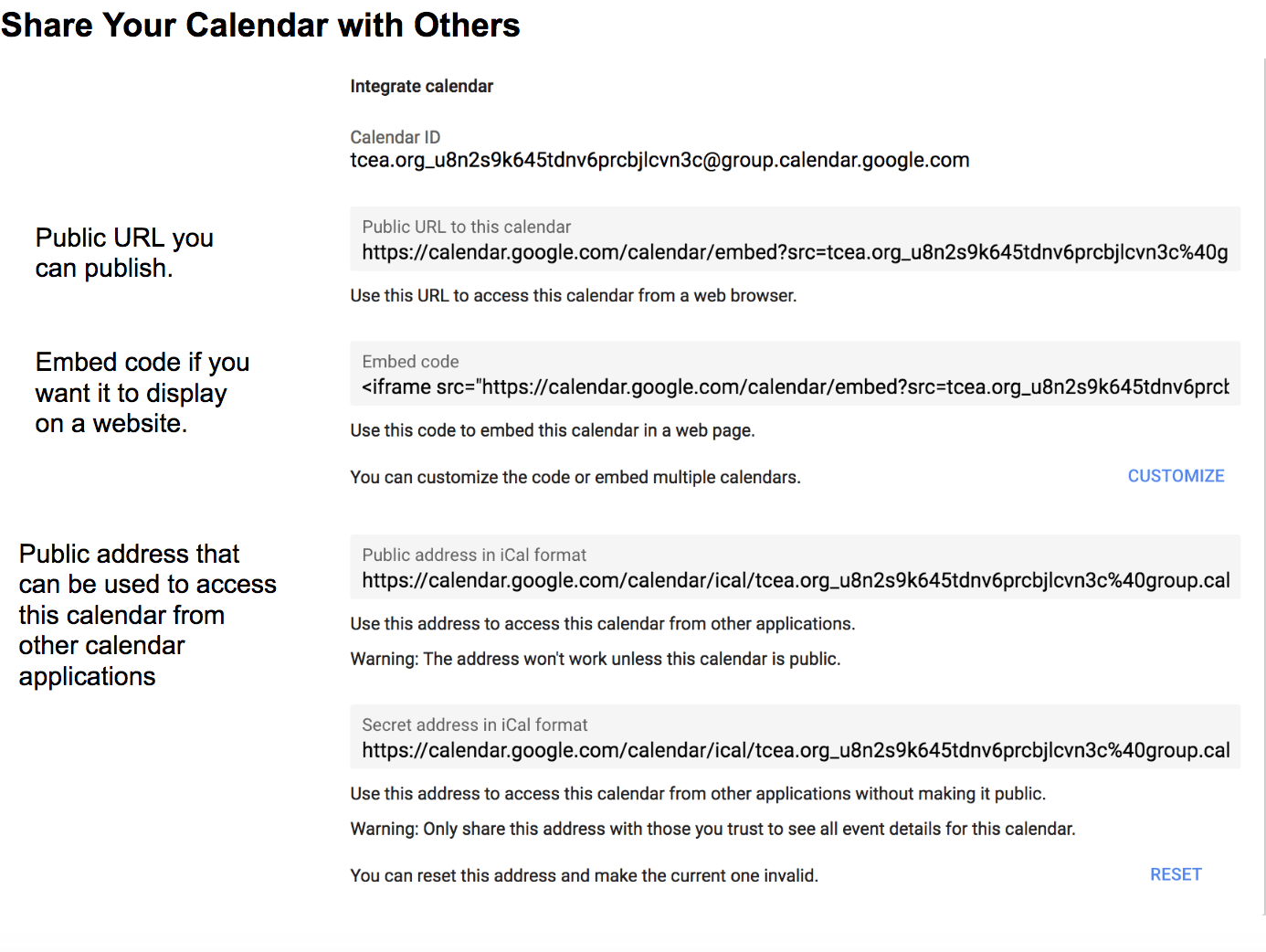
Finally, you will need to decide how you will share your calendar with the world. You can either do this by copying the URL for the calendar and link to the calendar in an email or possibly post the link on a website. You could also embed your calendar either in a Google site or another website.
And finally, you can share the iCal address with individuals who have another type of calendar application.
Lesson Plan Calendar
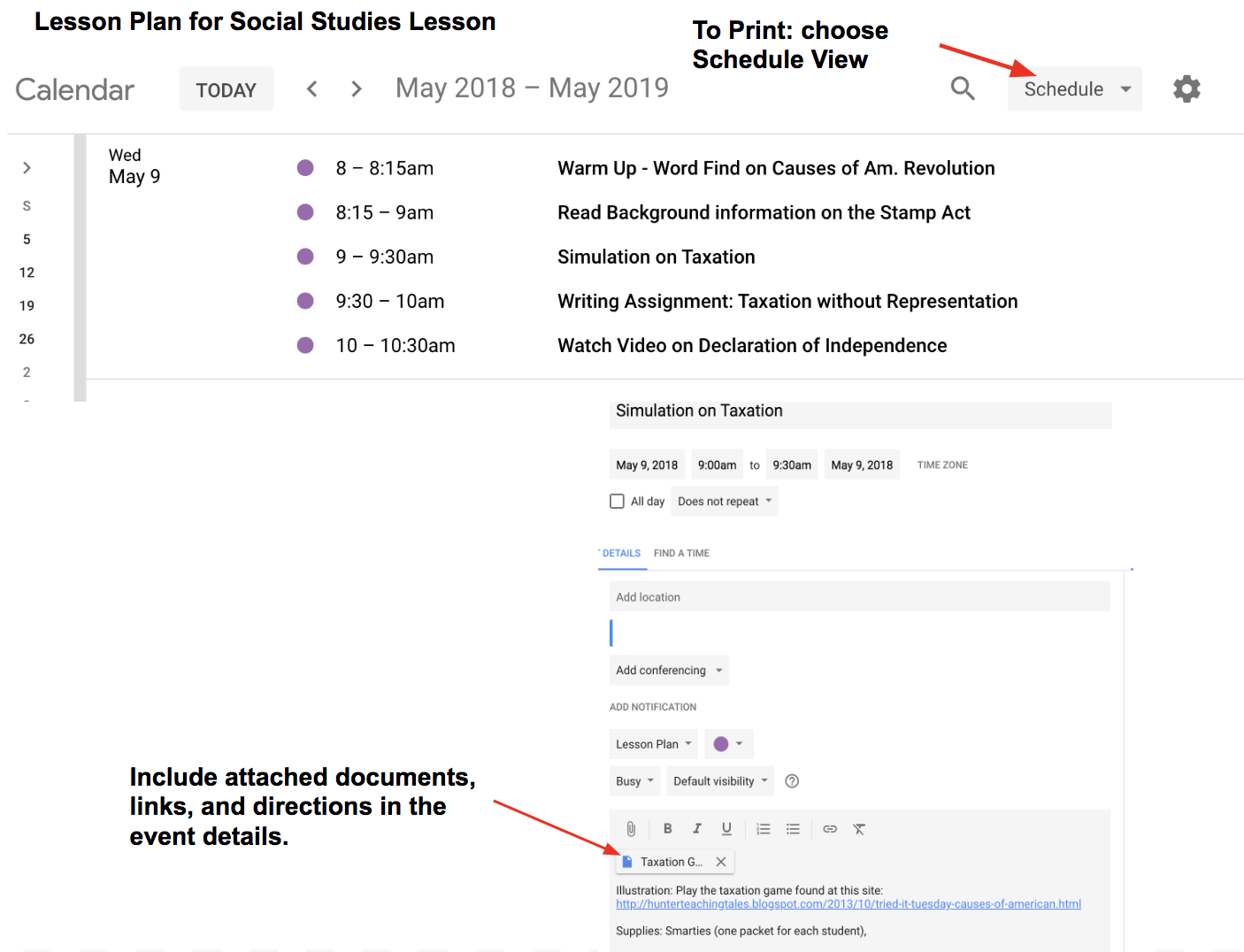
Using Google Calendar as a place to store your lesson plans can be very useful. For each activity, create an event. Within the event details window, you can attach handouts, links to be used in the lesson, and other instructions you might want to give your students. If you need to print your lesson plans, use the Schedule View.
Add Useful Calendars
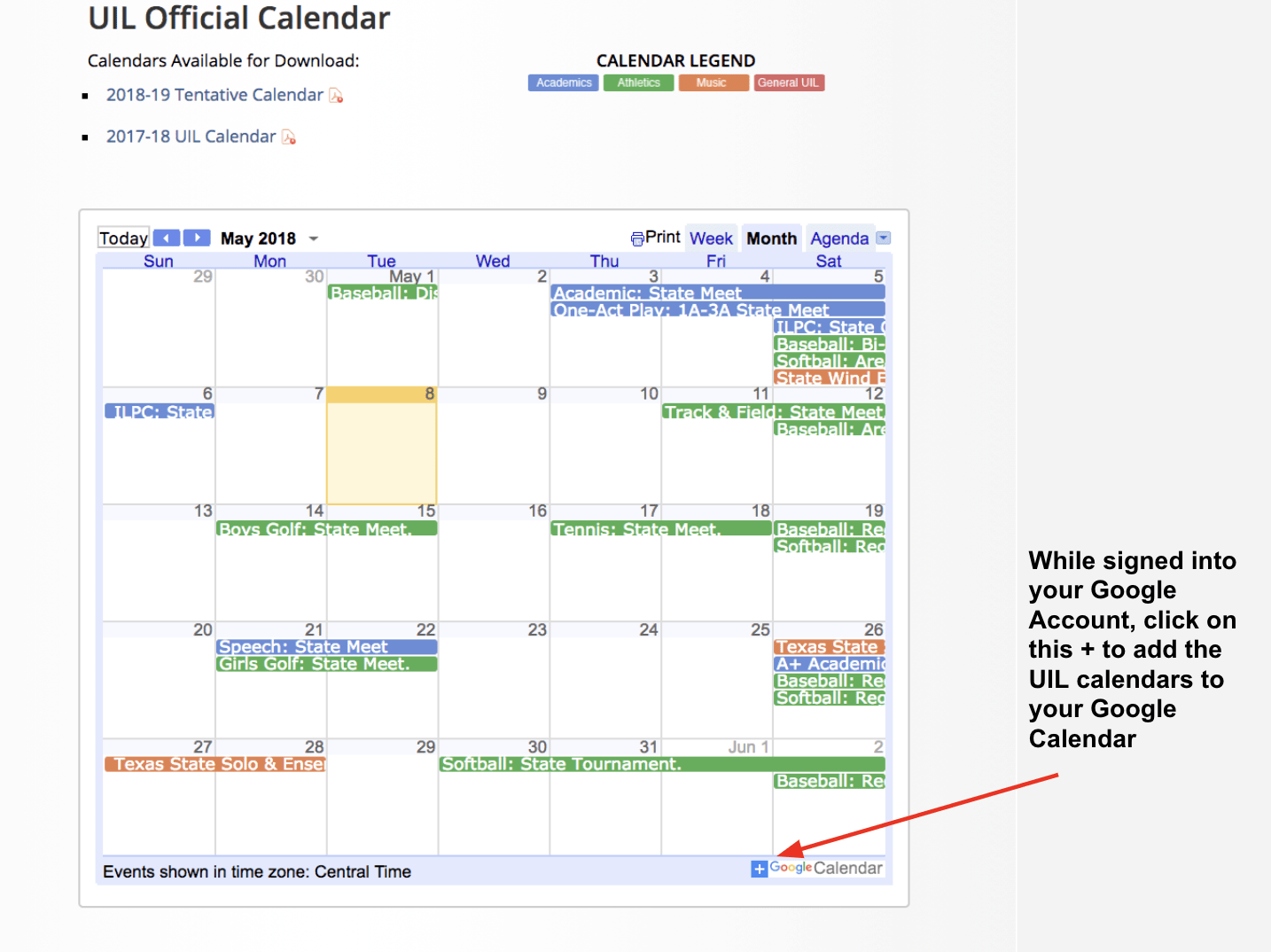
There are other calendars you can add to your Google calendar that provide you with information that you may find helpful. A great example are the UIL calendars. UIL has published their events on four Google Calendars and made them available to the public. All you have to do is subscribe to their calendars by clicking on the + sign at the bottom right of the calendar. All four will be added to your Other Calendars.
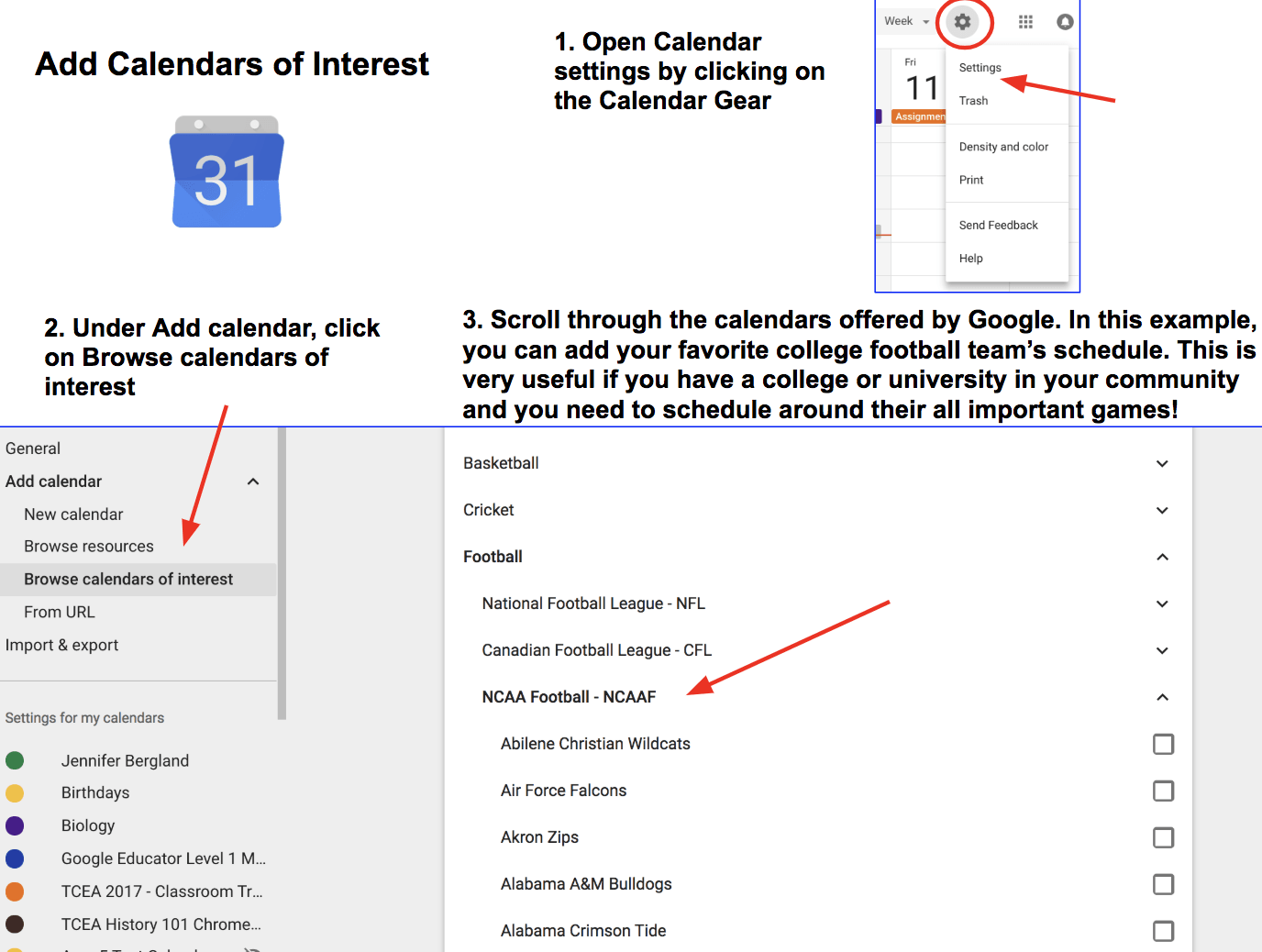
Google also has some calendars you might find useful or interesting. Remember, these calendars will be added to your Other Calendars.
Viewing the Task List in Calendars
I already confessed that I’m not good with tasks, but for those that are, Google has a very useful Task list that you can access via the Gmail or Calendar app. For this blog, we are going to focus on using the Task list from your calendar.
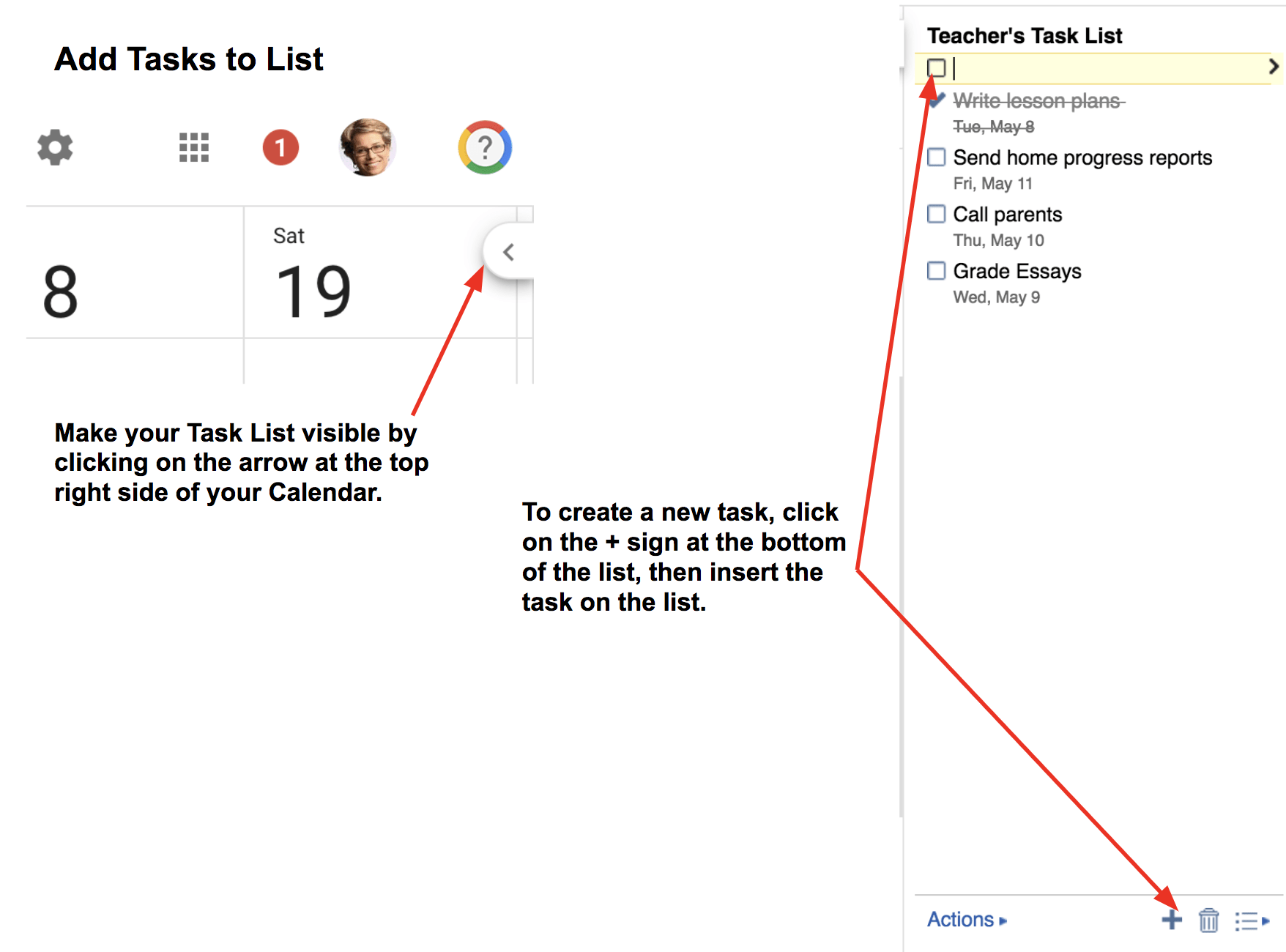
First, let’s toggle the Task calendar on.
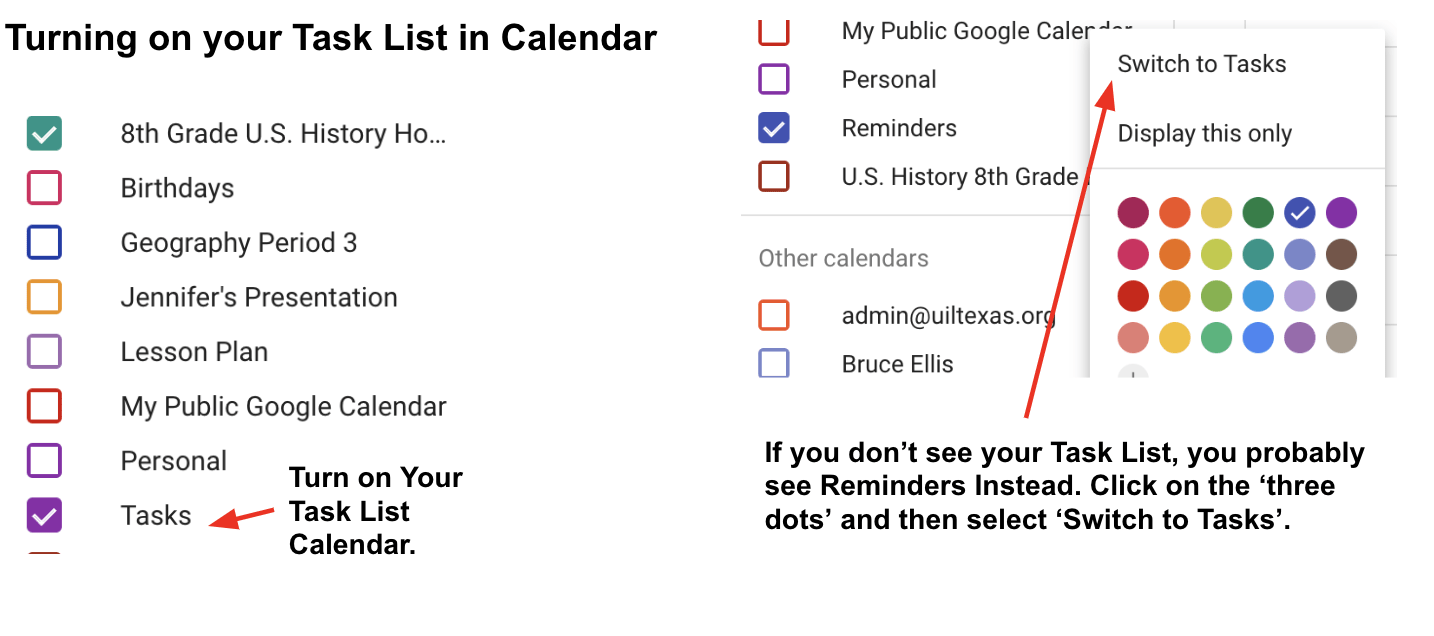
Let’s make sure the Task list is visible and you know how to add tasks to the list. Note that adding tasks to the list works exactly the same in the Gmail app.
In order to view a task in your Task calendar, you must add a date in the event details.
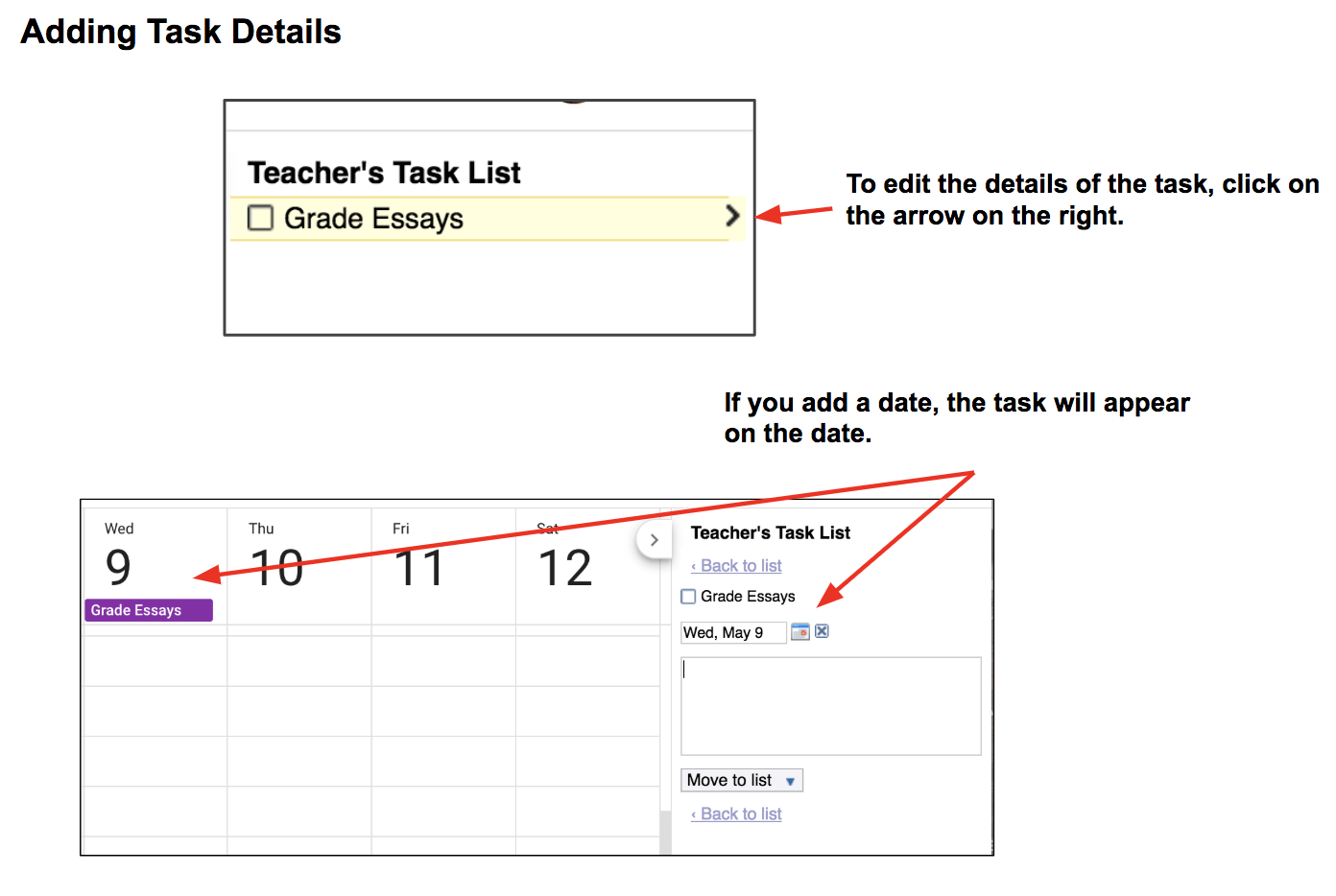
My one complaint is that the task is only visible at the top of the day it is to be accomplished. As of now, you can’t assign a specific time to accomplish the task (i.e. 8:30 am). Google, if you are reading this blog, PLEASE consider adding this feature. Instead of using a list, I assign a specific time to accomplish a task and put those directly on my calendar. I could be persuaded to use this app if I could do this via a Task list.
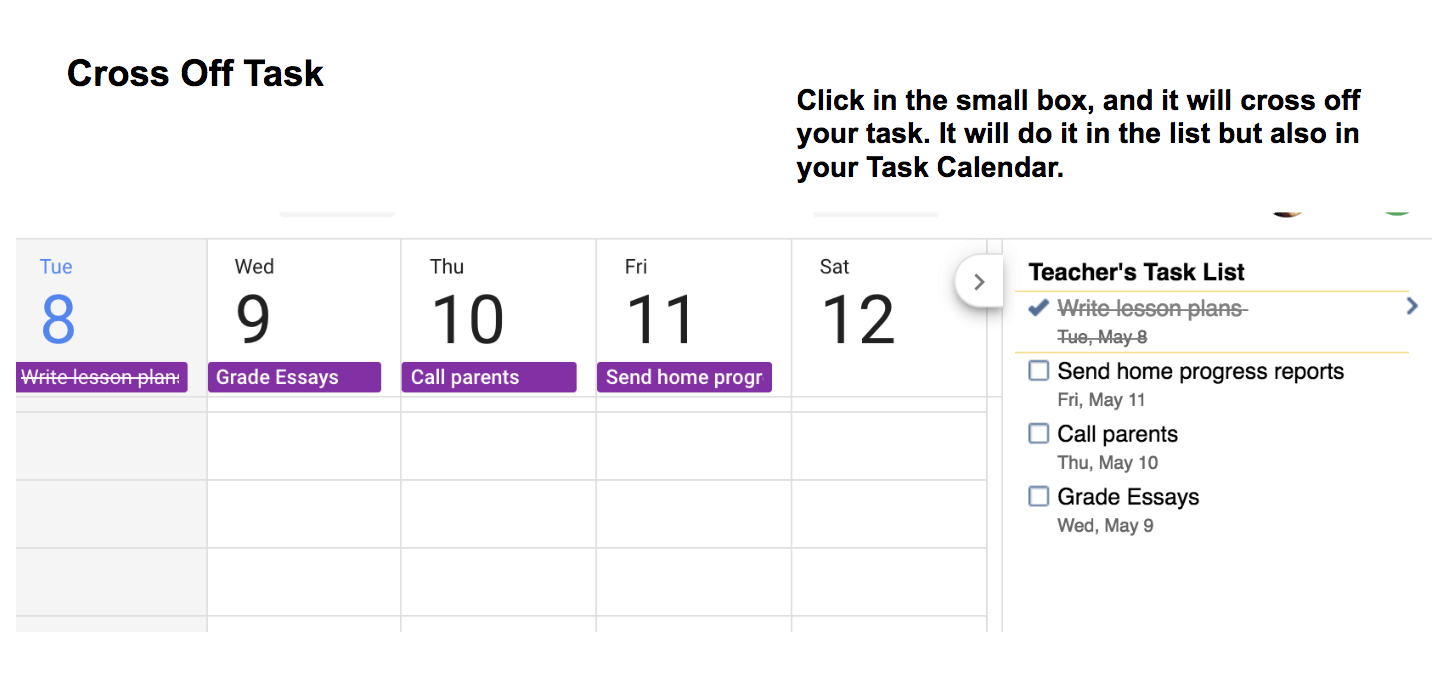
Most people who use lists love the experience of crossing off the items that have been accomplished. This is as easy as checking a box in the Google Task list. Note that the item is crossed off in the list and calendar view.
Reserving a Room or Resource
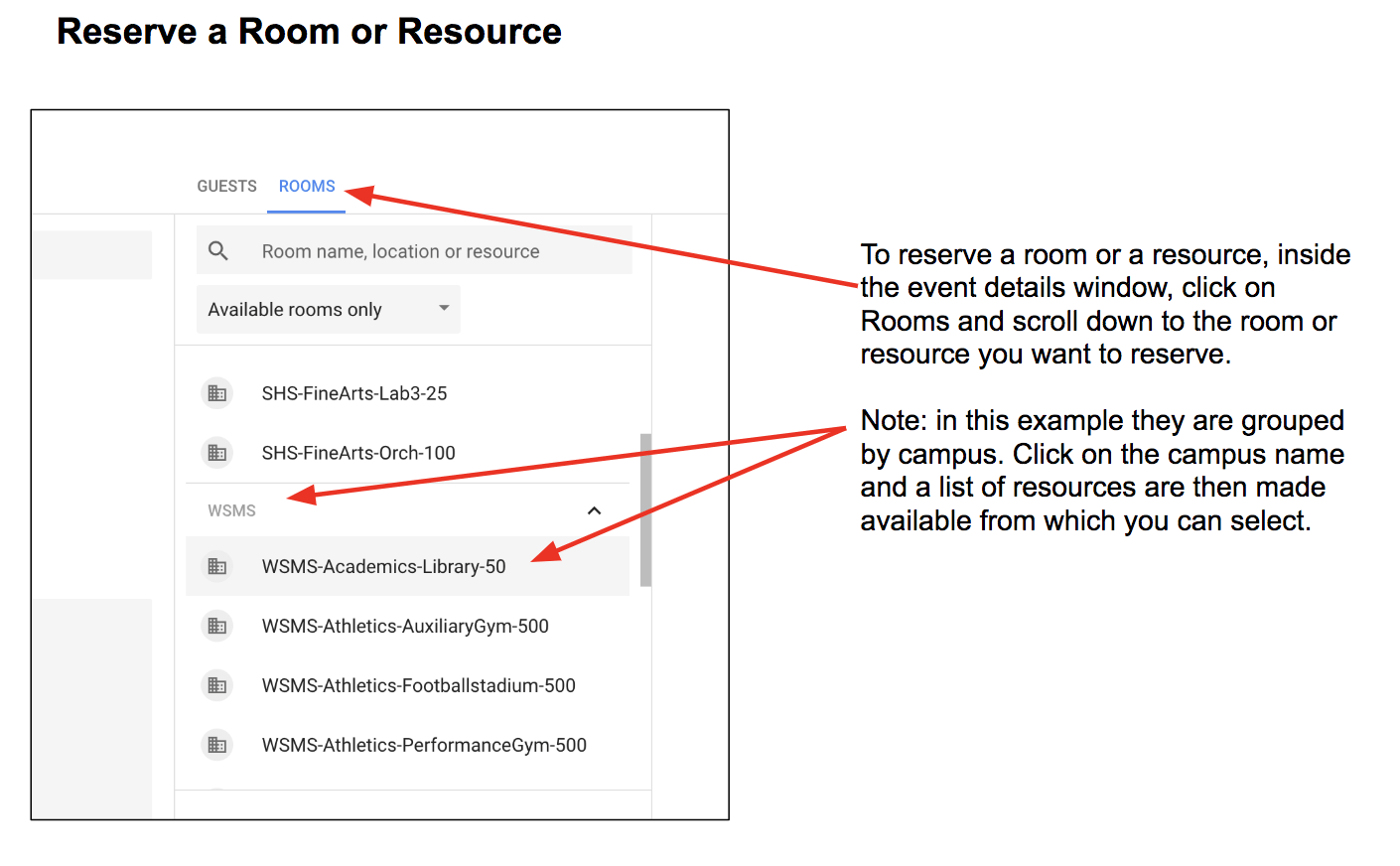
One very helpful tool in Calendar is that within the event details you can reserve a room or a resource. No more going to the library to check out the iPad cart or signing up for the library. There all kinds of uses for this feature. The types of resources can be grouped together to make it easy if the list becomes too long. In order to use this feature, your domain administrator must enable it and create the list of rooms and/or resources.
Color Coding
Some people love to organize with color. Google makes this easy. You can color code each calendar so that when you toggle them on and off, you can easily see what events go with each calendar. You can also color code each event. For instance, you could assign a color for parent teacher conferences and a different color for faculty meetings.
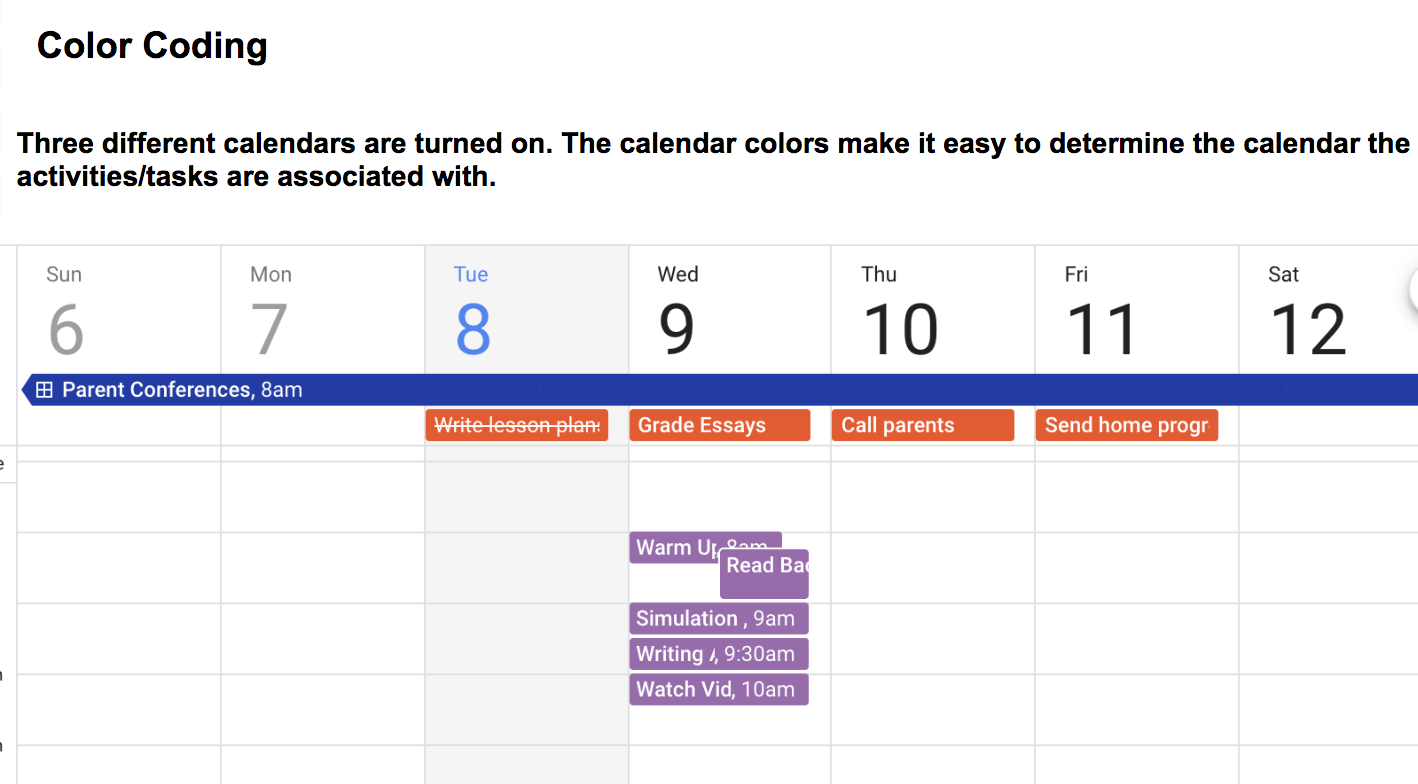
As you can see, Google Calendar has the ability to assist you in organizing your events, tasks, and activities. Google also has a Calendar app for both Android and iOS that works very well with the online application. Make a goal to try at least one of these ideas and tell me what you think. Also, if you have any other ways you use the Google Calendar in your classroom, leave a comment below.

 Adobe users unite! You’ll find this the perfect academy if you use any of the Adobe products yourself or if you teach your students how to use them. Innovative uses, clever work-arounds, and new features will be shared to give you the solutions and steps you need. And, if you are new to Adobe, you will find several sessions that will help you get up to speed and boost your confidence. Adobe pros haven’t been left out; our presenters have clever ideas that are worth listening to and taking note of.
 Make a point to attend our first annual Microsoft Academy to boost your skills in Microsoft products including Office365 and Minecraft. This is going to be a great gathering! You’ll also be introduced to mobile coding with Creative Coding through Games and Apps and gain a deeper understanding into Microsoft Makers projects and 3D Builder. You will definitely find this packed full of topics that you can’t get at other learning opportunities.
 Even if you don’t have a Chromebook, but use Google Suite for Education, you will find these sessions filled with new and great ideas that you can take back to transform the way your students learn. Be sure to bring a friend so you can divide and conquer on the sessions and then share with each other at the end of the day!
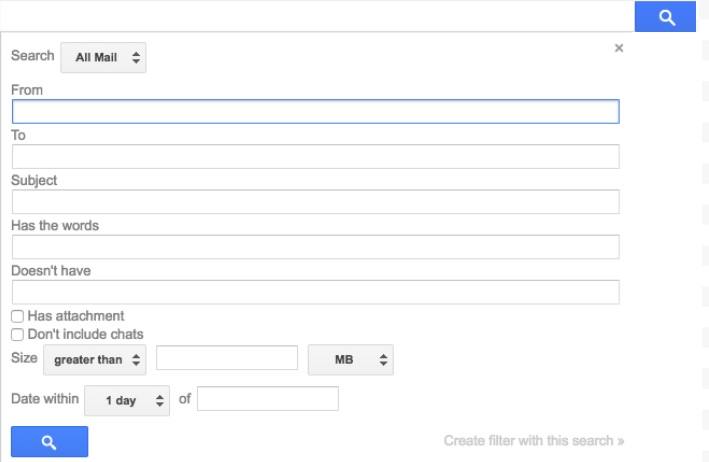
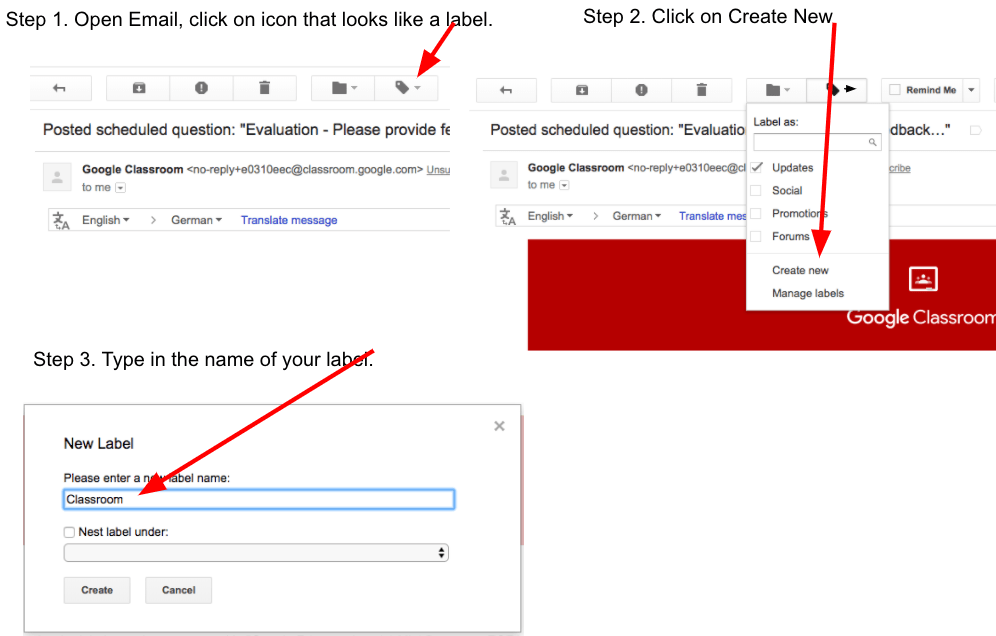
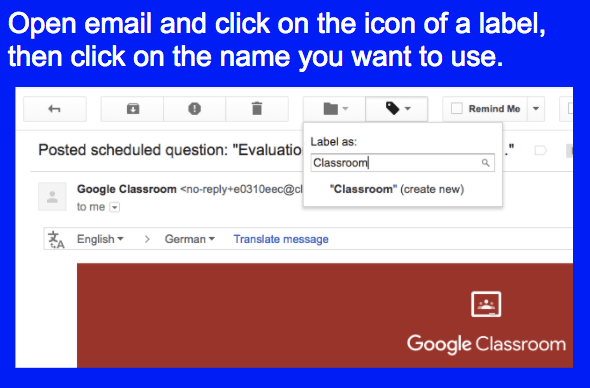
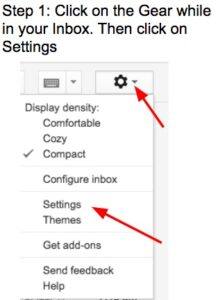
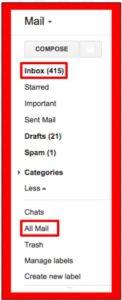 email. Your inbox is what you see when you open up your email. You can remove an email from your inbox, but not delete it from your account. This way you can declutter your inbox but still keep important or useful emails. You do this by archiving the email which removes it from your inbox and places it in your All Mail. The easiest way to archive an email is to open the email and then click on the icon that looks like a folder with a downward pointing arrow. This is called archiving.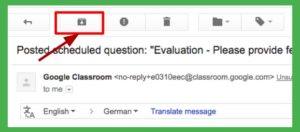
 Do you teach any of the Technology Applications or Career and Technology Education courses where students learn to use Adobe products such as Photoshop, Illustrator, InDesign, Lightroom, Premiere, etc.? Or do you want to enhance your creative Adobe skills for personal projects and enjoyment? If either of those are true, then you definitely want to attend the Adobe Academy on June 19-20! Besides networking with other creative educators, you’ll have concurrent sessions to choose from in order to gain fresh ideas, polish your Adobe skills, and take your curriculum to the next level. You’ll learn from other Adobe-using educators in this hands-on event. For more information about this academy go to
  If you are one of the many Microsoft-using educators, you will find the Microsoft Academy a perfect fit. On July 12-13, you can experience a wide array of Microsoft tools to help you extend your learning and gain fresh ideas of how to use the tools with your students and fellow educators. Whether you are using Office365 in the cloud or are using a not-quite-so-new version, join in on the active sessions and take away new ideas. For more information about this academy go to
  Calling all Googlers! Learn from some of the Googliest educators around at our interactive Chromebook Academy on July 26-27. There will be great sessions for Google Suite administrators as well as for teachers integrating Google Suite in their classroom. You’ll learn about the most current features and how you can use them to maximize your impact with students. Add-ons, scripts, hyperdocs, Slides, Forms, and more will be explored so that you can get what you need to take your students to the next level! To learn more about the Chromebook Academy, go to
 With all of the amazing information that’s currently available to each of us on the internet, it can sometimes be very hard to find the real gems. To assist with that, I’d like to share what tens of thousands of educational blog readers thought was most valuable via our Top 20 Blog Posts list. See if any of these resources resonate with you!