
Discover tips, tools, and resources for using Chromebooks in education. Enhance learning and productivity with strategies tailored for classrooms.

Like many Chromebook educators, I often find myself interacting with Microsoft Office documents in a less than satisfactory way. Fortunately, that experience is about to undergo an upgrade.
Mission Possible: Android Apps on Chromebooks
As Dr. Bruce Ellis reported in his March 2017 blog entry, Running Android Apps on Chromebook, future Chromebooks will run Android apps.
According to the Chromium Projects, starting this year, all Chromebooks that become available are supposed to work with Android. Even if you don’t see your Chromebook on the list, it will still receive updates until its Google-determined end-of-life, which should be about five years after it debuted.
The ability to load Android apps on your Chromebook enables access to a host of Android apps for education. These apps expand the Chromebook’s viability for younger grades and students (source). Teachers will also have access to many Android apps, as well as specially-designed cloud apps. These include Adobe Creative Cloud apps (such as Photoshop Mix, Lightroom Mobile, Illustrator Draw, Photoshop Sketch, Adobe Comp CC, and Creative Cloud Mobile).
Furthermore, one more inducement for some educators and students exists. That is the ability of Chromebooks to run the MS Office Android apps.
MS Office Goes Chrome via Android
Research (via Chrome Unboxed) revealed in November 2017 that MS Office Android apps are working on the following Chromebooks:
Microsoft reports that they “…are partnering with Google to deliver the best experience for Chromebook users and plan to make the apps available on all compatible devices by general availability” (source).
Windows Programs on Chromebooks
If Android isn’t enough for you on your Chromebook, you may want to give another product a try. In my early days as a veteran GNU/Linux and Macintosh user, I often found myself trying to run Windows programs. Those experiments involved WINE (Wine is NOT an Emulator), as well as tools like Codeweavers’ Crossover product. Not familiar with Crossover? Here is a quick overview from their website:
Don’t let dual-booting or a virtual machine slow you down. CrossOver will open your Windows software. Launch Windows productivity software, utility programs and games natively. CrossOver doesn’t have the overhead of the Windows operating system like a virtual machine, which means that Windows programs run at native speed, games play at full fps and you don’t need to purchase a Windows license.
After trying Crossover in various situations, I can say it worked…barely. Now, Crossover is available for Chrome OS:
The CrossOver Chrome OS beta will let you run Windows software on Intel-based Chromebooks and Android tablets. Seamlessly run full-featured Windows software that is not available in the Google Play store alongside mobile apps. Run Windows utility software like Quicken and Microsoft Office, or DirectX games, like Wizard101. Games from your steam library will run with CrossOver Android at native speeds. Get rid of remote sessions and multiple devices! With CrossOver Android you’ll only need one device to run your Windows programs and mobile apps. Watch the video.
In most situations, running Crossover for the lone district administrator or campus staff member was not worth the trouble. You just have to spend the money on a computer that is not under-powered.
Ready to Try?
If you’re ready to give it a try, you have two options for exploring Microsoft Office 365 on your compatible Chromebook. For the occasional user, a Chromebook running Android versions of MS Office may be the solution.


 If you like listening to audiobooks, you’ll enjoy using OverDrive. If your district doesn’t subscribe to it, check and see if your local public library does. If so, you can check out audiobooks from them, as well as through their network of other contributing libraries!
 While grandparents love this app for making collages of their grandkids, students of all ages will find this app easy to use when they have an assignment where they can create collages, annotate over photos, etc.
 Though many of us remember copying down notes in class to study for tests, current students seem to prefer to take photos of the board to capture their notes. This app is so handy for that. Point and aim it at the board, projector, paper, etc.. Once it detects the area, you just snap the photo; it will crop it so only the board is in the photo and deskew the image so it looks like you had prime seating in front of the board when you took the picture. Save as an image on your device or as a PDF or Office format if you have an Office 365 account.
 Sometimes you want your students to record a video to capture their learning. But many devices have a default video recording app that is bare bones. You’ll find Adobe Express to be an easy go-to tool that will help students make great videos without getting bogged down in the technical aspects of videography. Though it is only for iOS currently, it is worth the wait for other operating systems.
 Pushbullet is great if your students find that they need to “push” files or photos from their phone or tablet to their laptop/computer (and vice versa). Pushbullet makes it easy without having to move your file/photo to Google Drive, Microsoft OneDrive, or DropBox first. And, since it is in the cloud, you can access your account from any device to retrieve previously pushed files. This is great if you have students taking photos or videos on their phones, but then need to add them to documents that they are editing on a computer.
 If you want an easy app that allows all of your students to share, then this has to be the best app for that. It’s perfect for having students summarize their content or reflect on their learning. If they are using a phone or tablet, they’ll need to download the app; otherwise, they can use the webcam on their laptop to participate. Though I don’t recommend the paid version of many apps (I remember what it was like when my teacher budget was whatever I had in my pocket), this is definitely one app that is worth the price; consider getting others to join with you and you all can enjoy a discounted price. Even without the additional features in the paid version, this is a super app!




 malistic environment, which is not too taxing to the hardware.
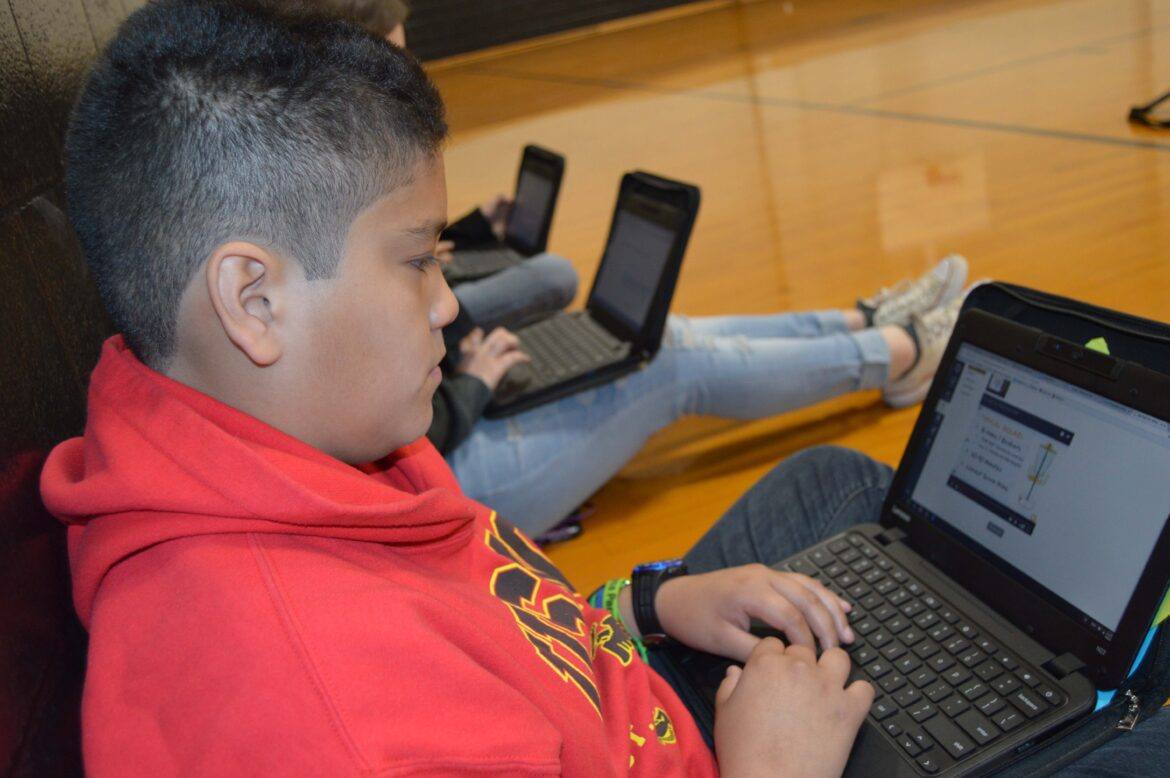
  Every teacher in a school can have a computer but, when it comes to students, some institutions may find it hard to give each child his/her own device. Because everything on Chromebooks is stored on the web, they can be passed around from one learner to the next, with no direct trace of what a previous user was doing. All you need to do is use
  ting, and they’re not really useful when offline.
 The purpose of this certification is to help educators build foundational skills in using their Chromebook as an effective learning tool in the classroom. As you go through the course, you will also be introduced to several of the Google Suite of tools to promote collaboration and critical thinking, and you will be provided opportunities to apply it to your content area or grade level. The capstone project for this certification is a lesson plan implementing some of the learned skills and tools within the grade level and content area of your choice.
 The purpose of this certification is to help educators build foundational skills in using the iPad as an effective learning tool in the classroom. As you go through this course, you’ll learn how best to use the features of the iPad to differentiate and support student learning. The capstone project for this certification is a lesson plan implementing some of the learned skills, features, and apps within a grade level and content area of your choice.