Discover tips, tools, and resources for using Chromebooks in education. Enhance learning and productivity with strategies tailored for classrooms.
AndroidChromebooksESL/ELLGood TeachingGoogle Tips and TricksiOS Tips and TricksMicrosoftSpecial Needs
Transform Learning with Text to Speech
One of the biggest strengths of using technology to transform learning comes from its ability to help us solve common problems. A great example of this is the current crop of text to speech solutions that are available. Text to speech remains critical for teachers and the learners they serve, regardless of age. Consider that tools like ReadItLater’s Pocket make it easy to transform web pages into spoken-text audio that is easy to consume. And the research says that listening to audio while reading text improves reading skills.
Benefits of Text to Speech
Studies show that “…listening while reading helps people have several successful reading events in a row, where they are reading with accuracy and enjoyment…listening has been shown to help with decoding, a fundamental part of reading.” Colleague Kasey “Shake Up Learning” Bell points out the benefits of text to speech for students:
- Relieves the burden of decoding
- Focuses on comprehension
- Improves fluency and endurance
- Identifies and corrects more errors
If research shows this is effective, let’s clarify some ways to actualize this text to speech, speech to text connection in the classroom.
Speech to Text
- OneNote with Learning Tools add-in: Use the free OneNote program with the Learning Tools add-in to dictate your speech (or student’s speech) and then have it appear magically on the screen as text.
- Google Docs: Did you know Google Docs features speech to text? It’s called “voice typing.” Find out more. In a similar vein, consider the VoiceNote Chrome extension.
Text to Speech
Whatever your device, text to speech solutions abound. Most solutions require a dedicated internet connection since the bulk of the processing occurs via remote web servers. Let’s take a quick look at this round-up of apps, browser extensions, and computer programs.
- OneNote with Learning Tools add-in: Use the free OneNote with the Learning Tools add-in to quickly capture images, grab text from the image (Optical Character Recognition, OCR for short), and then save that text into a OneNote page. Use the Learning Tools addition to read the “OCR’d text” to learners. Wow, that means you can grab any picture off the web, then grab text, and play it as audio.
- Google Keep: Use Google Keep to quickly grab a picture, then grab text from the picture and save it as text. On Android devices, you can take advantage of Google’s Text to Speech engine. “From within any app that contains highlightable text,” shares John Dye at Android Authority, “you can now instantly conjure the voice of your preference to read the content aloud.”
- Dragon Dictation (Free iOS app) – “Dragon Dictation is an easy-to-use voice recognition application powered by Dragon® NaturallySpeaking® that allows you to easily speak and instantly see your text or email messages.”
- Chrome Text to Speech extensions: Chromebook or Chrome browser user? Give these text to speech extensions a try. Each boasts various features you can use. These extensions include the following: Announcify, SpeakIt, Read&Write for Chrome, and JustRead. See other great tools online at Eric Curts’ Ctrl-Alt-Achieve blog.
- Voice Texting Pro (Free iOS app) – “…Speak into the microphone and convert your speech into text. Then directly send your message to email, SMS, Twitter, or Facebook. You can also send it to your clipboard (copy) and paste the dictated text in any other application.”
- Speech Notes (Free iOS app) – “Speech Notes is a note taking app that can convert speech with the help of an internet connection. Just tap on the mic button and, once done, hit again to start converting voice to text.”
- Voice Assistant ($1.99 for iOS app) – This translates your voice in text and then enables you to share it with other iOS apps.
Now that you have access to multiple solutions for text to speech, speech to text, how could you transform learning in your classroom? The research is clear. What isn’t clear is how educators are adapting these technologies in the classroom. Please share your students’ success stories in the comments!

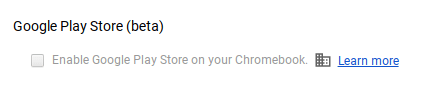 that the option to access the Google Play Store on your Chromebook is enabled in the dashboard. You can check your Chromebook by going to Settings. Scroll down until you see the Google Play Store (beta) section. If the option is greyed out, then you’ll need to bake a batch of cookies to take to the domain administrator and ask if they can enable the feature. (Giving cookies increases the chances of having this feature enabled by 64 percent.) If you log in with your personal Google account on the Chromebook, you’ll notice that it is already enabled. But you do NOT want to use your personal account with your students and other teachers. For safety reasons, you always want to use your district account, even if that means bribing the domain administrator or waiting a few days for it to be enabled.
 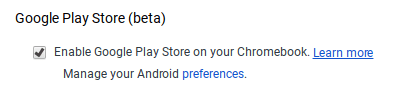 Once the option to enable is made available, you’ll be able to enable it in Settings and manage Android preferences (similar to if you were setting Android preferences on an Android phone or tablet).
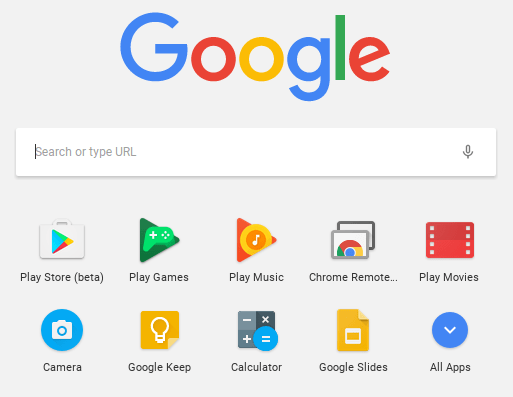 Yippee! You have it enabled. So where it it? Click on the Launcher icon which, by default, is the icon on the bottom left on the shelf. You will now see the Play Store (beta) icon. This beta Play Store is currently a stipped down version of the Play Store you would see if you accessed it through the browser. And yes, you will need to use the beta Play Store to install Android apps. When accessing the store via the browser, your Chromebook will not be an option in the dropdown list of compatible devices. Once you click on the beta store, you will recognize the various categories to help you narrow down what type of app you are looking for. If the developers have not completely finished updating the app in question, it may be available as a beta version. When I spot checked several of the Android apps I have on my phone, almost all were available and ready in the Play Store. You might even find that some app developers have made their product available as a Chrome app (that you install via the Web Store) and an Android app (that you install via the beta Play Store). Either way, once installed, they will appear in your launcher window.
 Autodesk SketchBook – Whether it is illustrating, diagramming, or sketchnoting, you’ll find this to be a simple app to use. When done, save the image to your Chromebook.
 Trello – More than just a to-do list app, Trello can help you keep track of projects. You can work alone or collaboratively with classmates to keep track of project-based learning activities.
 Trading Cards – This isn’t your traditional trading card maker. Templates provided include fictional person, real person, fictional place, real place, object, event, and vocabulary. Once you enter information on the front and back of the card, you can share it as a photo to your photo gallery.
 Pic Collage – Share your message with pictures! Pic Collage lets you start by selecting your photos and then adding them to a grid with templates (start with a themed background) or freestyle (begin with a blank slate and add to it). You can also easily add text and search for photos on the internet to add to your collage.