Explore effective teaching strategies, tools, and resources. Discover ideas to enhance classroom practices and inspire student success.
As educators prepare for going back to school, some may still feel uncertain as to what our upcoming year will look like — and most importantly, how it will start. In March, we were all thrown into the deep sea of remote learning regardless of whether we were tech-savvy enough to swim or not! It is safe to say though that teachers now have a wide variety of tech tools under their belt.
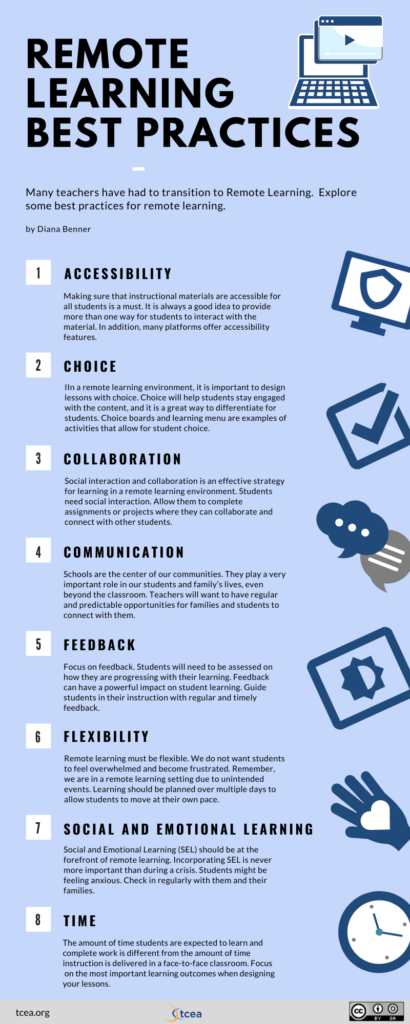
Here are eight tips on using tech tools that enhance best practices for remote learning and even traditional settings. Whether your district will follow a hybrid model or full remote model, the following digital tools and examples from additional resources will help you be ready for whatever comes your way.
Digital Organization for Remote Learning
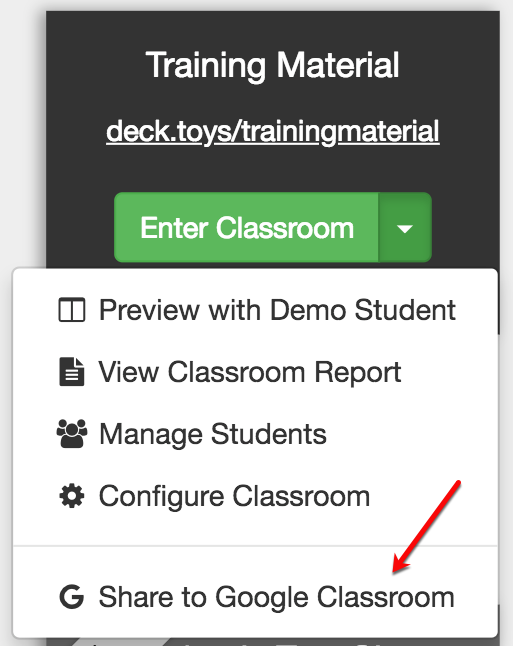
Being organized can help to reduce stress and focus on what’s most important, allowing more time for teaching or facilitating the learning of students, while also helping them access resources easily. Google Classroom has a fairly new feature where assignments or questions can be categorized by topics for efficient organization.
Creating hyperdocs is another way to keep tasks and assignments in one document where students are provided hyperlinks and instructions for a self-paced lesson. Google Sites is a great tool that is free and available for Google users to set up a digital classroom where students can visit to access resources, assignments, important upcoming dates, and other materials all in one place.
Increase Student Engagement
In order to increase student participation during remote learning, we must keep them engaged with interactive lessons. Nearpod is a teacher favorite that focuses on learner participation with a wide variety of activities embedded, such as open-ended questions, fill-in-the-blank, Flipgrid, and matching pairs, available for feedback and assessments.
Content media can easily be included in the lessons as well, such as videos, VR field trips, 3D objects, and Sways. This tech tool is constantly evolving to meet teacher needs in order to keep every student engaged while delivering a live lesson for synchronous learning or a student-paced lesson for asynchronous learning.
Nearpod has a full library of already created interactive lessons that are aligned to state standards ready to be assigned to students. Classflow is a cloud-based software that allows for effective lesson delivery and you don’t necessarily need an interactive display. Pear Deck is a Google Slides add-on that helps teachers create interactive lessons with different activities and assessments for students to participate in during a live lesson.
Finally, Edpuzzle is a life saver when it comes to assigning videos to students. This tool allows teachers to embed questions, narration, or notes throughout any video to check for comprehension and ensure students are fully engaged.
Facilitate Student Learning
Become a facilitator and encourage students to take ownership of their own learning. You can create and assign a hyperdoc for an entire week, allow students to complete it at their own pace, and set a due date for students to submit all of their work. You can use Google Docs or Google Slides to create those interactive lesson documents with hyperlinks and resources.
Timely Student Feedback
Timely feedback from students in real time allows the opportunity to monitor and adjust instruction immediately to meet their needs. You can empower every student with a voice by actively participating using collaborative Google Drawings or any other Google tool, interactive assessments with Quizizz, fun synchronous assessments with Kahoot, and game-based quizzes using Time to Climb activities in Nearpod.
Another amazing tool that allows for students to have a voice is Flipgrid. While you effortlessly engage learners, you also provide the opportunity to boost their confidence.
Student Collaboration
Collaboration among students not only increases their confidence and keeps them actively learning, but also allows them to problem solve with peers while developing one of the critical skills needed in the real world.
Padlet is a digital platform where teachers can create beautiful collaborative boards for students to contribute with a variety of media. They can post content such as text, hyperlinks, images, and videos.
Nearpod also has a collaborative activity where students can post ideas or resources to one digital board. Teachers can also share templates they create in Google Docs, Slides, and Drawings, granting them editing rights to work synchronously in real time to complete a task or assignment as a group.
Limit Screen Time
Just because students are learning remotely does not mean all of the work needs to be done digitally. Students can be given a project-based assignment and be asked to reflect or present it to peers using a tech tool, such as Flipgrid or Seesaw. Within both of these platforms, students can record a video of themselves and safely share with peers.
Video Recording
Video tutorials are one of the best ways to teach anything while showing visuals or using a digital whiteboard, especially on YouTube! Screencastify or Loom will allow you to record yourself explaining a concept while sharing your desktop screen and simply uploading it to YouTube to share with students.
Communication with Students and Parents
Communication is key. One of the best interactive tools to openly communicate with students, parents, and even colleagues is Google Sites. As mentioned in the first tech tip for best practices, Sites allows the user to organize any content and media in pages and personalize it to make it fun.
The site can be shared and viewable to not only students but parents as well to create a centralized digital location for all important classroom information and resources for student success. Think of it as a digital open-house for the entire year!
Photo by Thomas Kolnowski on Unsplash