Want your art creations to sparkle? You may find yourself reaching for an AI digital art tool to create content. But which should you reach for? AI art tools are at a premium. For educators on a tight budget, paying $10-$30 a month for access is too much. Even for those who want to “freshen up” their digital newsletters, the cost may be too high. Let’s take a quick look at a few solutions that are free to start out using. But first, let’s take a look at how to create a prompt.
Update: This blog entry now includes how to generate amazing art with Canva’s Magic Studio and AI Apps. Scroll down to see more. If you have Canva for Education or a Pro account, you may NOT need some of the other AI Creator tools listed, except for variety.
Crafting an AI Art Prompt
When generating art with AI, having a good prompt is a must. Working to perfect your prompt and including details will ensure that your generated AI art matches what you’re looking for. Some suggestions for prompt writing:
Describe the content of the image
Describe the subject
Add relevant details
Describe the form and style
Define the composition
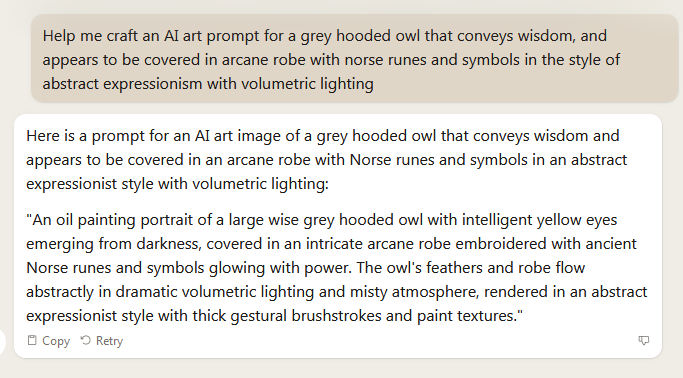
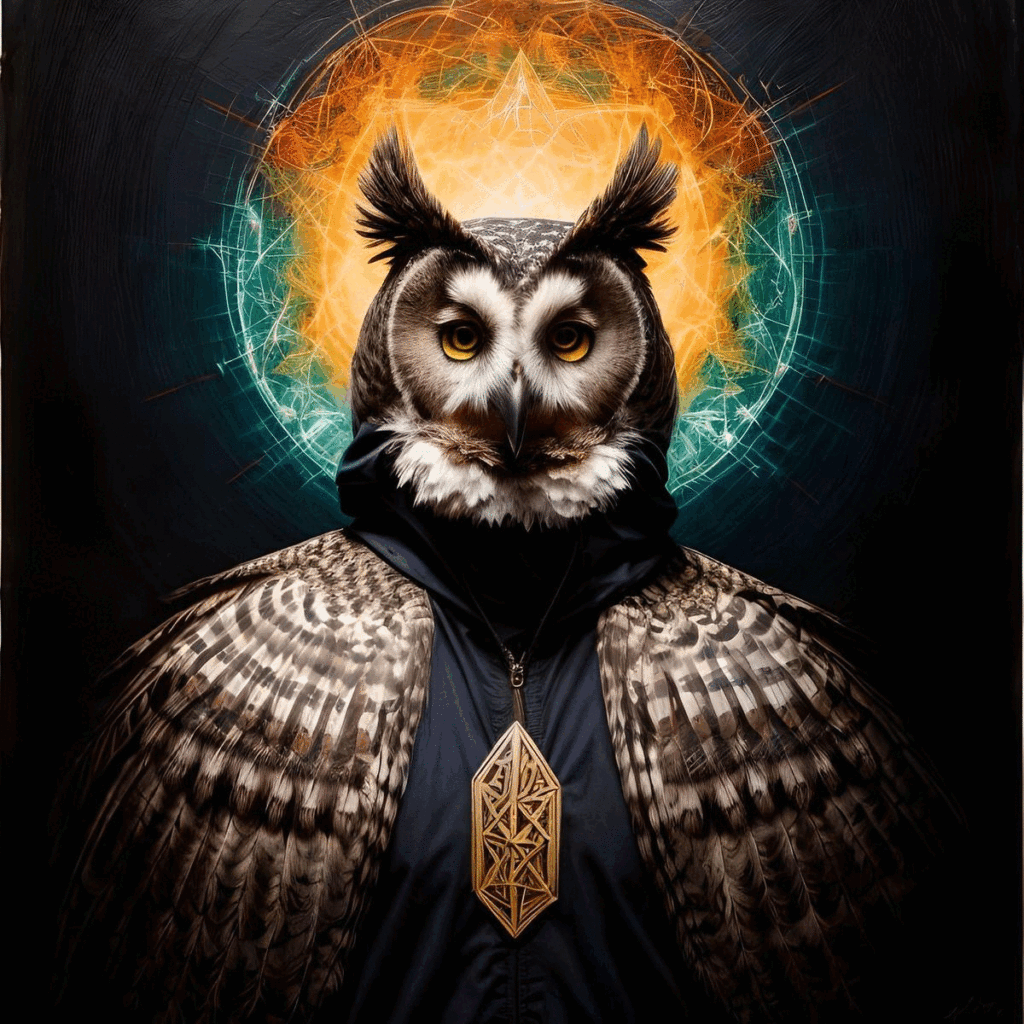
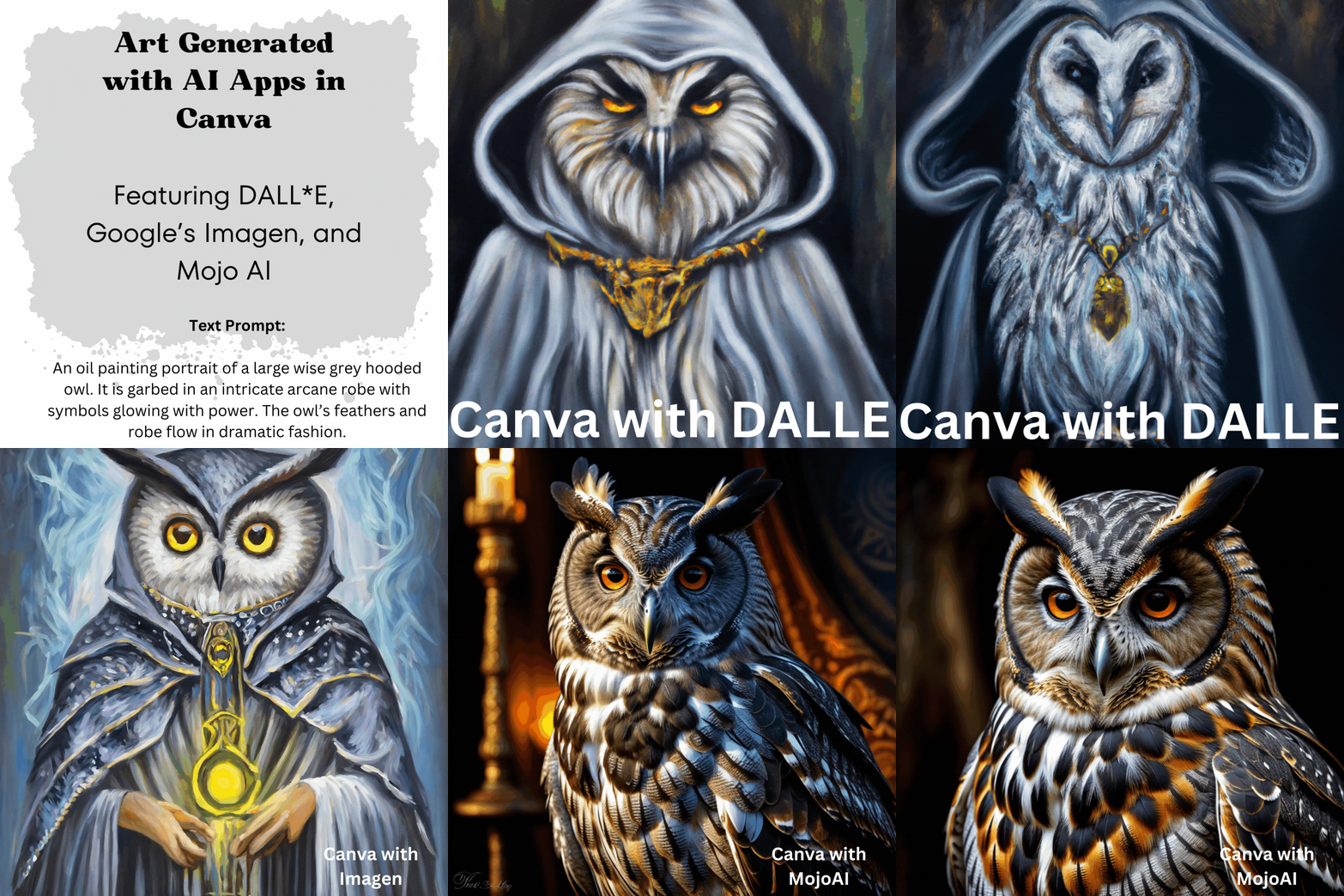
Additionally, using adjectives and involving other AI tools, like Claude.ai, can aid you in prompt-making. With that in mind, I decided to use a standard prompt to test out several AI art generators. I consulted Claude to help me. Since I like owls, here’s my prompt and the prompt generated by Claude in response:
Screenshot by author, Claude.ai
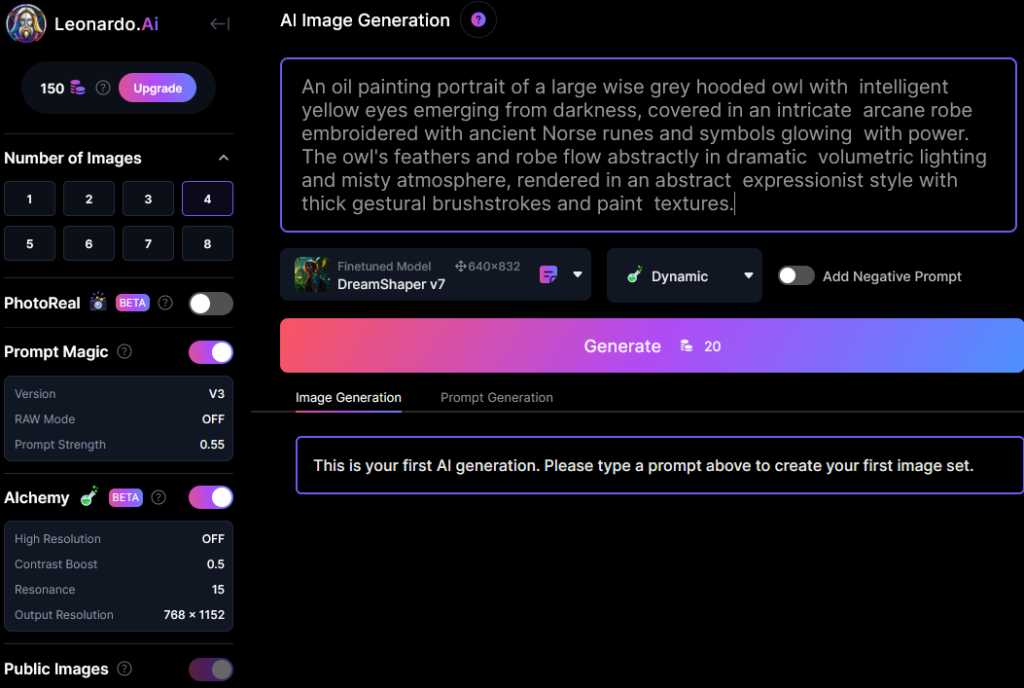
Test Prompt Text: “An oil painting portrait of a large wise grey hooded owl with intelligent yellow eyes emerging from darkness, covered in an intricate arcane robe embroidered with ancient Norse runes and symbols glowing with power. The owl’s feathers and robe flow abstractly in dramatic volumetric lighting and misty atmosphere, rendered in an abstract expressionist style with thick gestural brushstrokes and paint textures.”
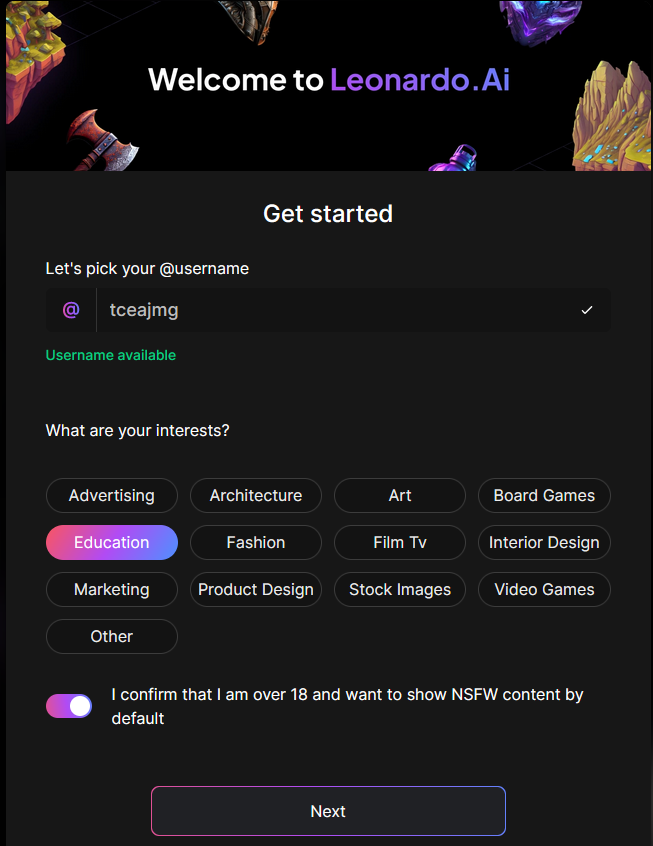
Although still under wraps, you can request Leonardo.ai access. My experience involved a short three-minute wait. Then, I logged in with my Google Workspace for Education account.
Screenshot by author, Leonardo.ai
This beautifully designed website features inspiring images. Some points shared during the welcome guide:
The featured models highlight various image generation styles. Select one and begin creating images with it yourself.
Use text, image prompts, or image-to-image to create new 2D images.
Explore features like Leonardo Alchemy and Prompt Magic v2.
Post-process your images with features that include upscaling, unzooming, and background removal.
Struggling to come up with prompt ideas? Toggle from Image Generation to Prompt Generation.
You can see that Leonardo.ai’s interface is quite rich:
Screenshot by author, Leonardo.ai
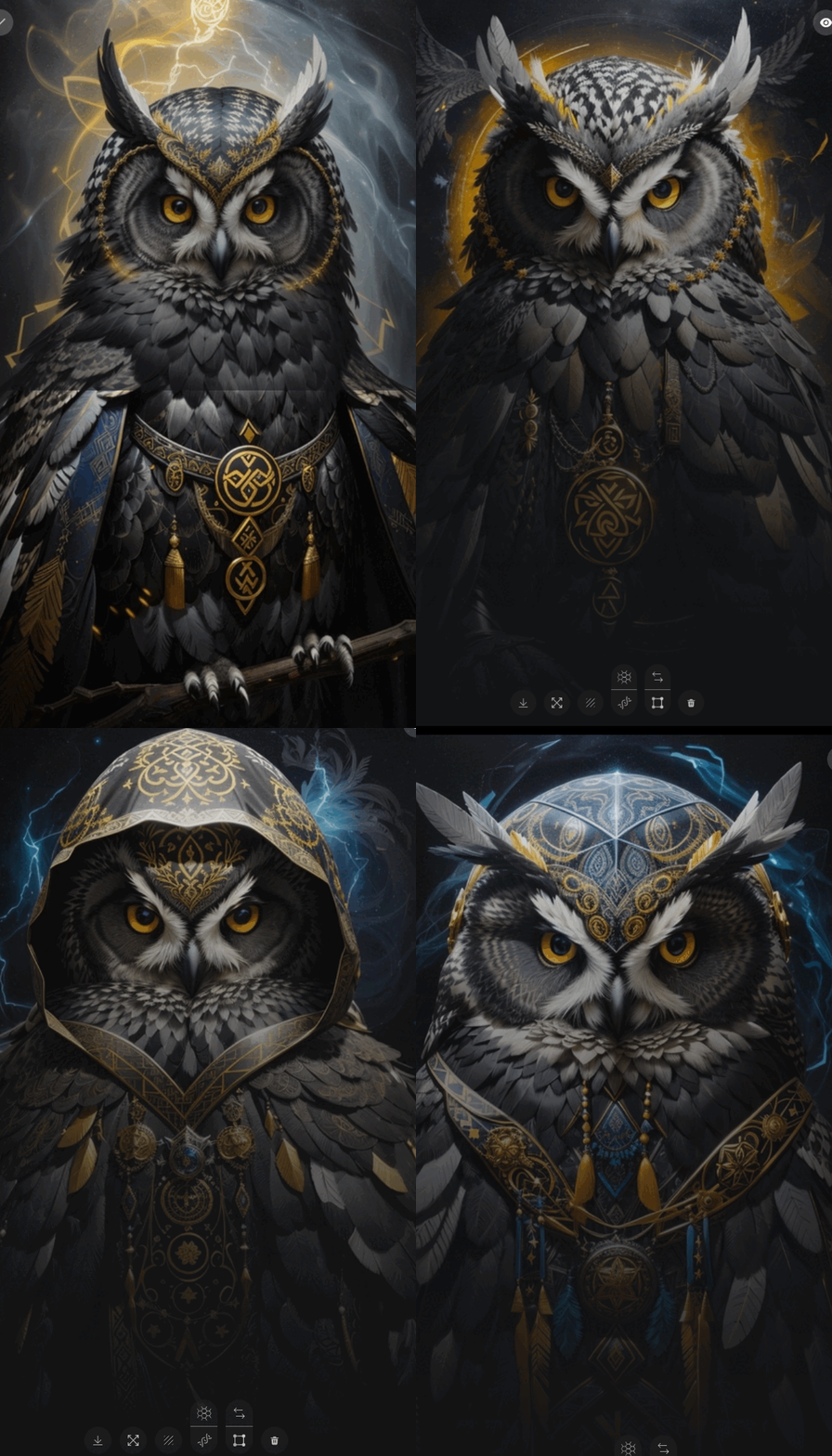
From start to finish, the text prompt appeared within two minutes. I turned the images generated into an animated GIF:
Animated GIF of images created by Leonardo AI with a prompt by the author
I loved Leonardo’s AI art creations. You might see these gracing the cover of a class anthology on fantasy writing.
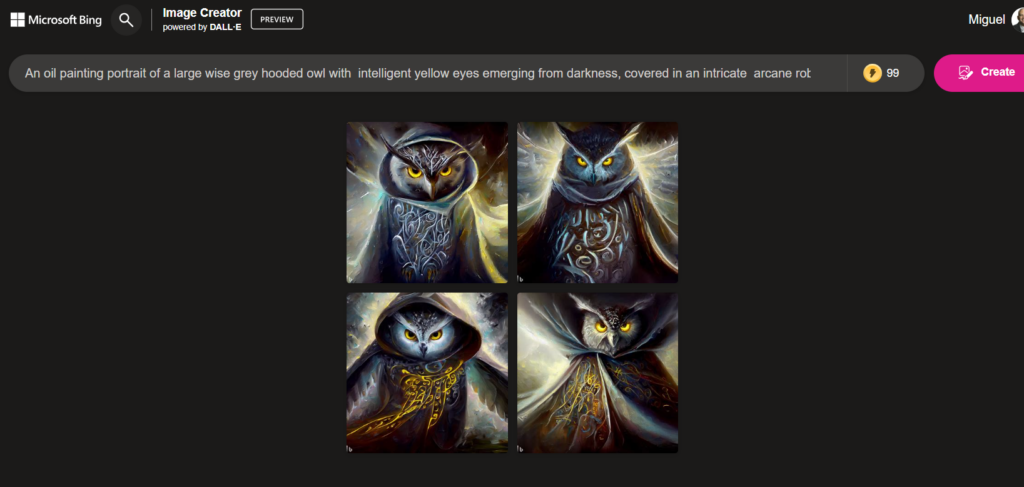
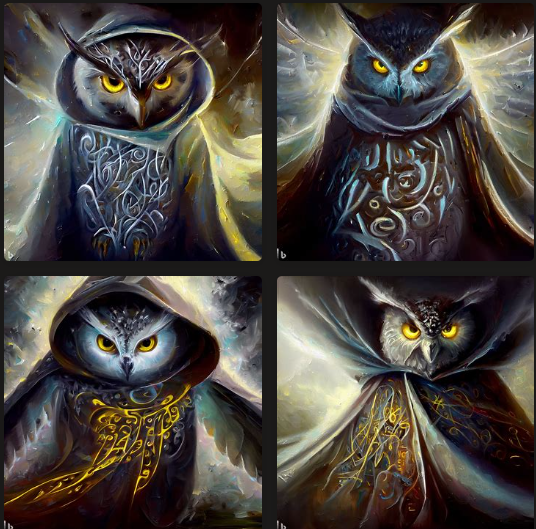
Microsoft Bing’s Image Creator has been my go-to for AI art based on text prompts. It relies on DALL-E to do the heavy lifting. It’s also easy to use, and it’s fast. While previous AI art creators took up to two to three minutes, Bing Image Creator generates in seconds.
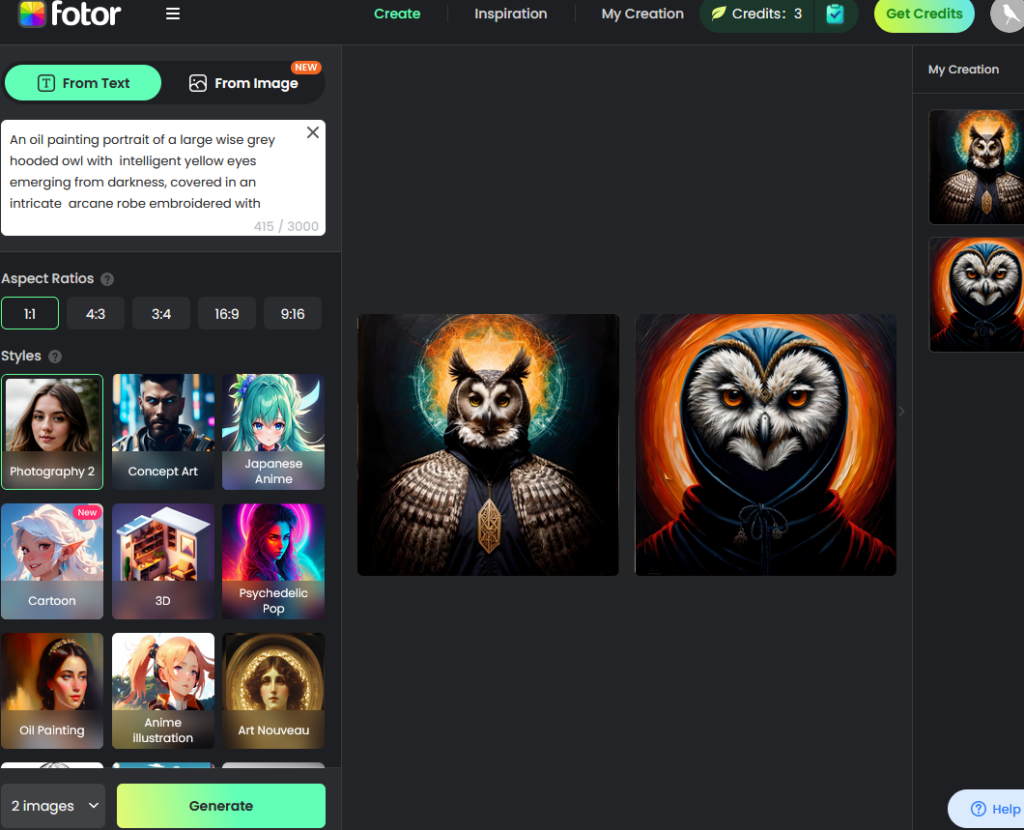
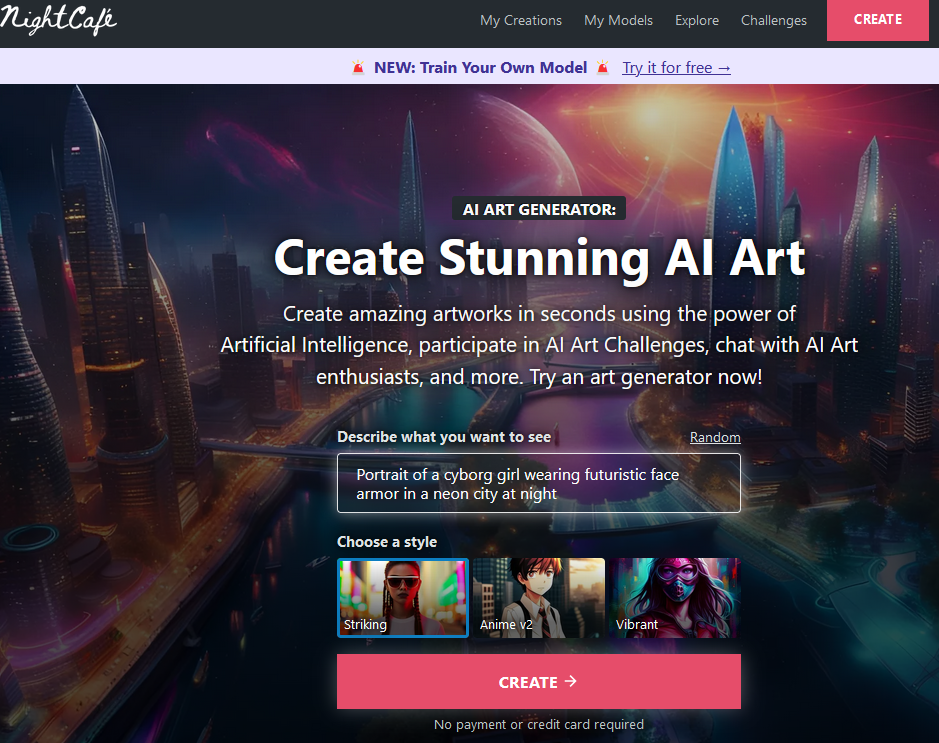
This lightning-fast AI art generator offers one image in response to the prompt. You can see they have a simple interface that lets you get started quick:
Screenshot by the author: NightCafe Home Page
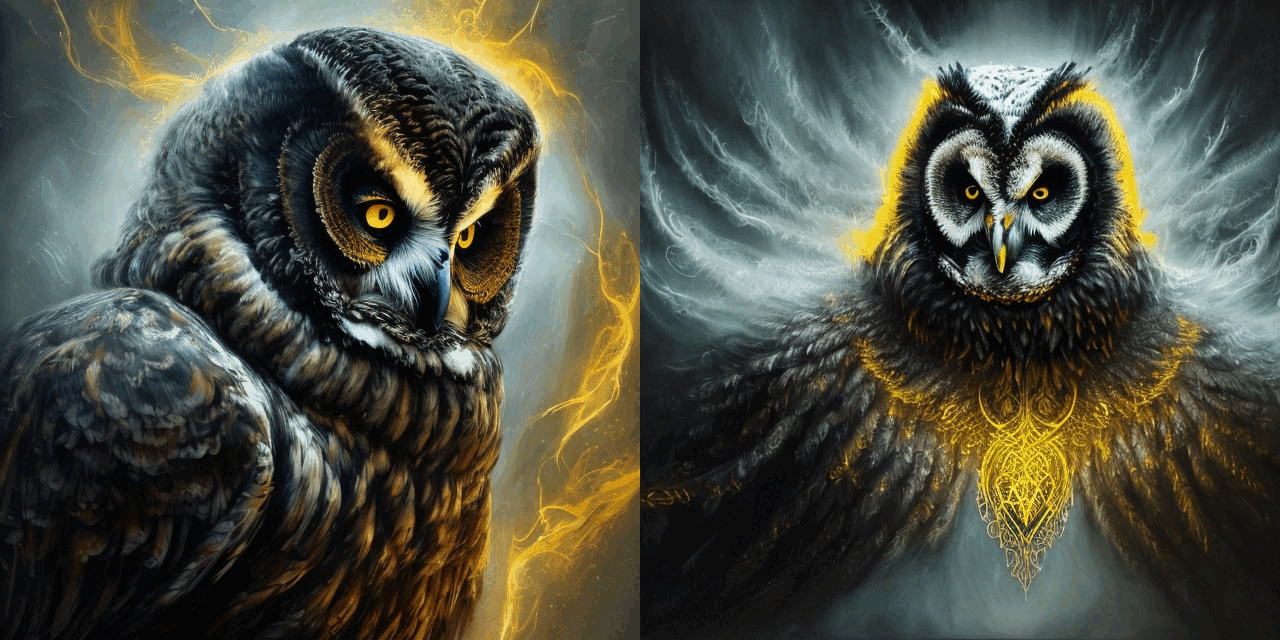
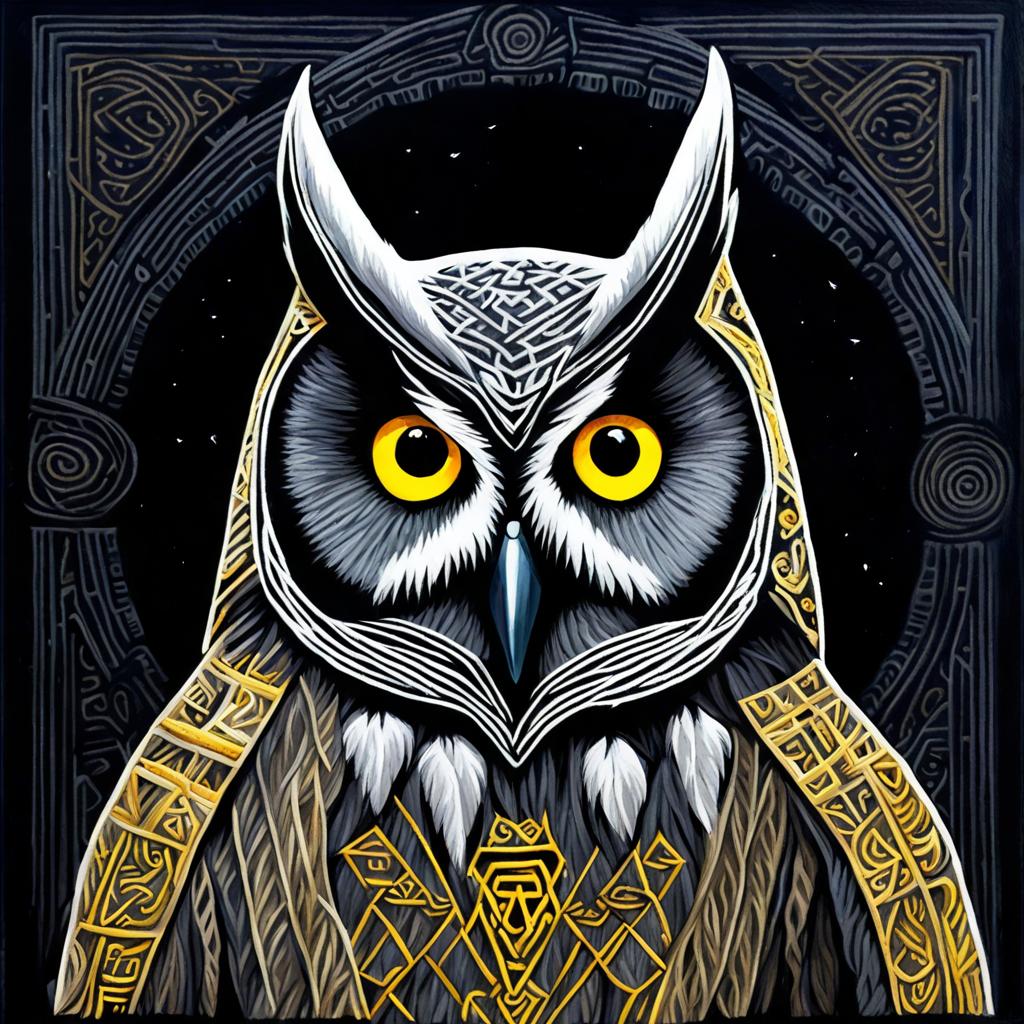
Here’s their stunning creation:
But Wait, There are TWO More!
#6 – Canva Magic Studio
If you’ve read about Canva Magic Studio, you know that it can’t be left out of the pack. It offers so much more capabilities for AI-powered art generation that rival all the tools shown above. Let’s take a quick tour of what’s possible.
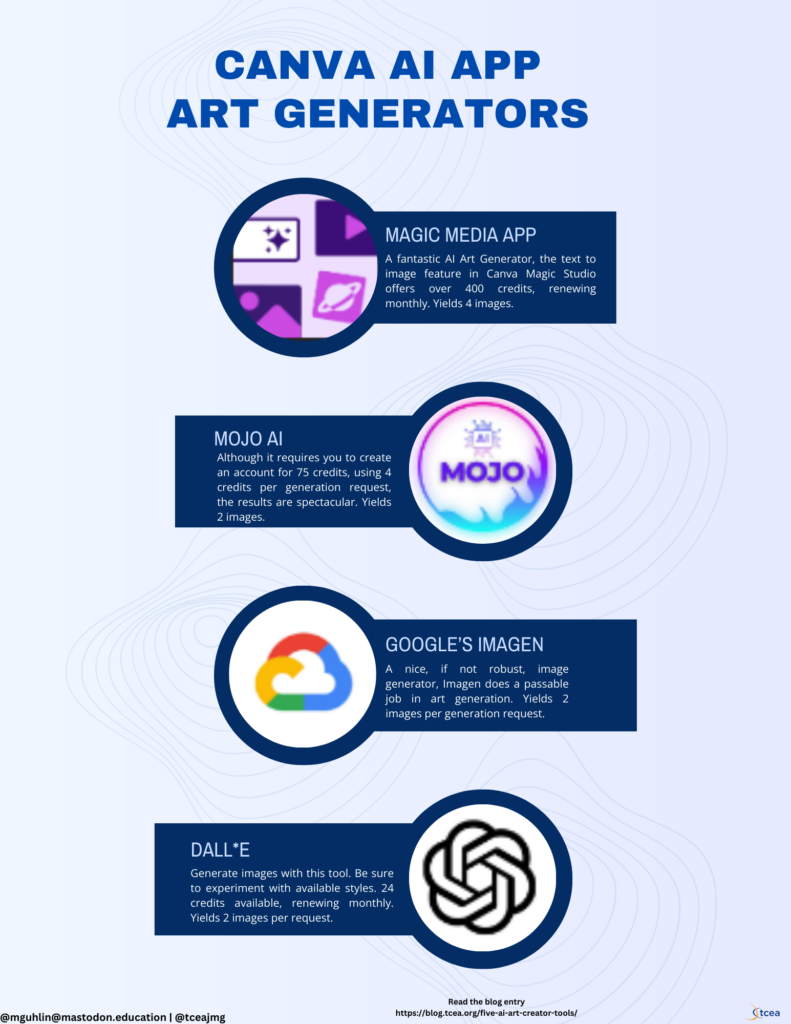
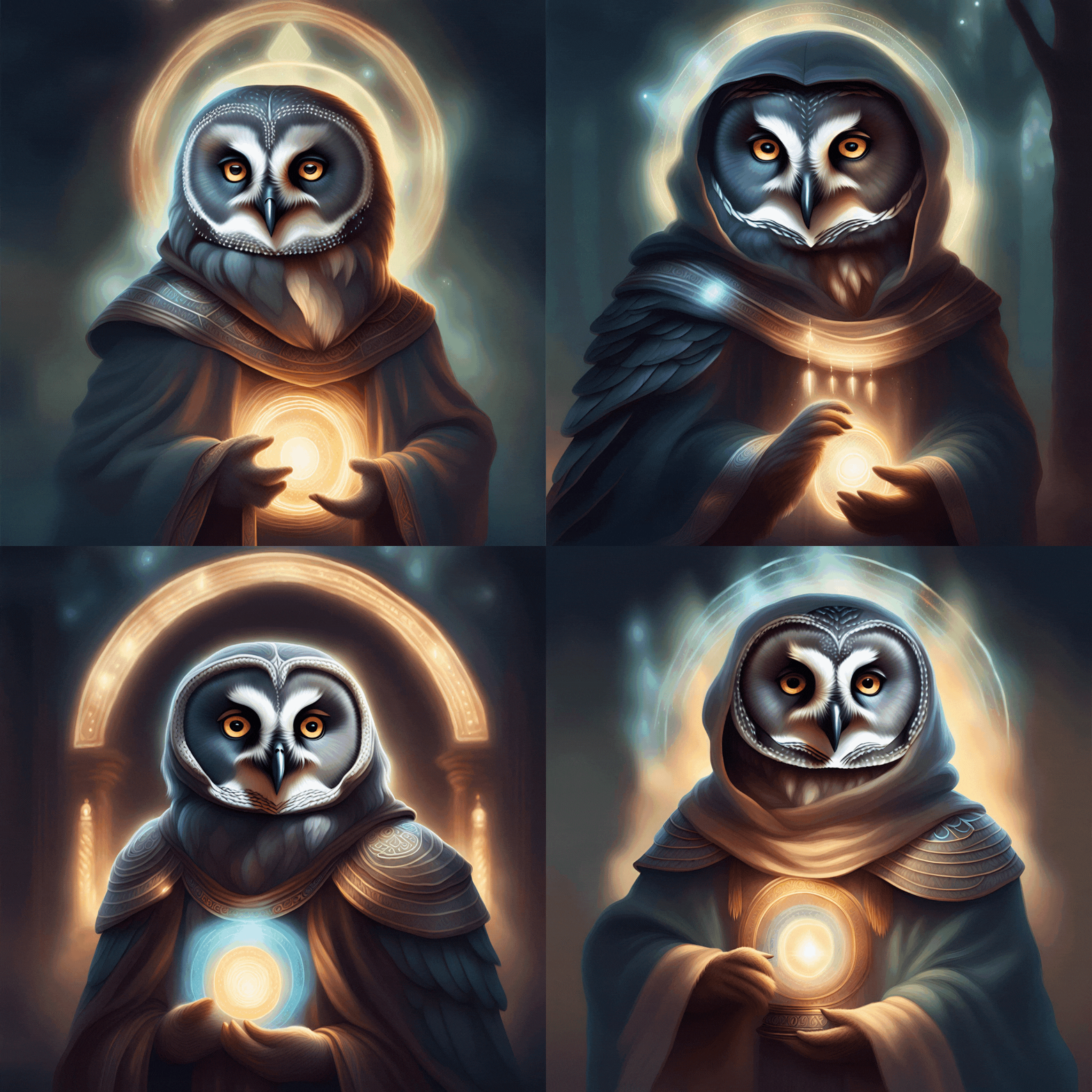
Canva’s Magic Media, a tool in the Magic Studio and also known as “text to image,” offers the best image generation. You can choose from multiple styles. What’s more, Canva’s Magic Media generates FOUR images to the standard one or two that other apps render. Take a look:
You get over 400 credits that renew monthly, so you can generate a lot of images with Canva’s Magic Media. But it isn’t the only AI-art generator you get access to. Here are a few more creations from DALL*E, Google’s Imagen, and Mojo AI. Of these, Mojo AI provides 75 credits when you register for free, but expends 4 credits to generate two images. Of course, I found Mojo AI’s creations to be the best of the second bunch, but unable to match Canva’s Magic Media.
Here’s a video of the process I went through to generate these (about 8 minutes):
If you haven’t explored LEAP, you definitely need to give a hard look. While it only allows 10 free uses, the images appear realistic, like this one below:
Of course, you can also get an output like this one:
Assessing AI Art
Want to assess AI-generated art? Consider the points these authors make:
Assessing the artness of AI-generated images continues to be a challenge within the realm of image generation. Most existing metrics cannot be used to perform instance-level and reference-free artness evaluation.
Source: Chen, An, Lyu, Luo, Learning to Evaluate the Artness of AI-generated Images via ArXiv
Another important consideration? Copyright. Did you see the ruling from DC District Court Judge Beryl A. Howell? Judge Howell ruled:
United States District Court Judge Beryl A. Howell ruled on Friday that AI-generated artwork can’t be copyrighted, as noted by The Hollywood Reporter. She was presiding over a lawsuit against the US Copyright Office
Copyright law has “never stretched so far” to “protect works generated by new forms of technology operating absent any guiding human hand,” U.S. District Judge Beryl Howell found.
How do you propose to address the use of AI art in your classroom or workplace?
These AI art generators are terrific, and there are even more out there. As you might imagine, these are a boon to any student author looking for a quick cover for a book or publication. You can easily combine images like this with others to get incredible results. These tools are especially attractive to writers who can’t draw well. Which one do you plan to try first?
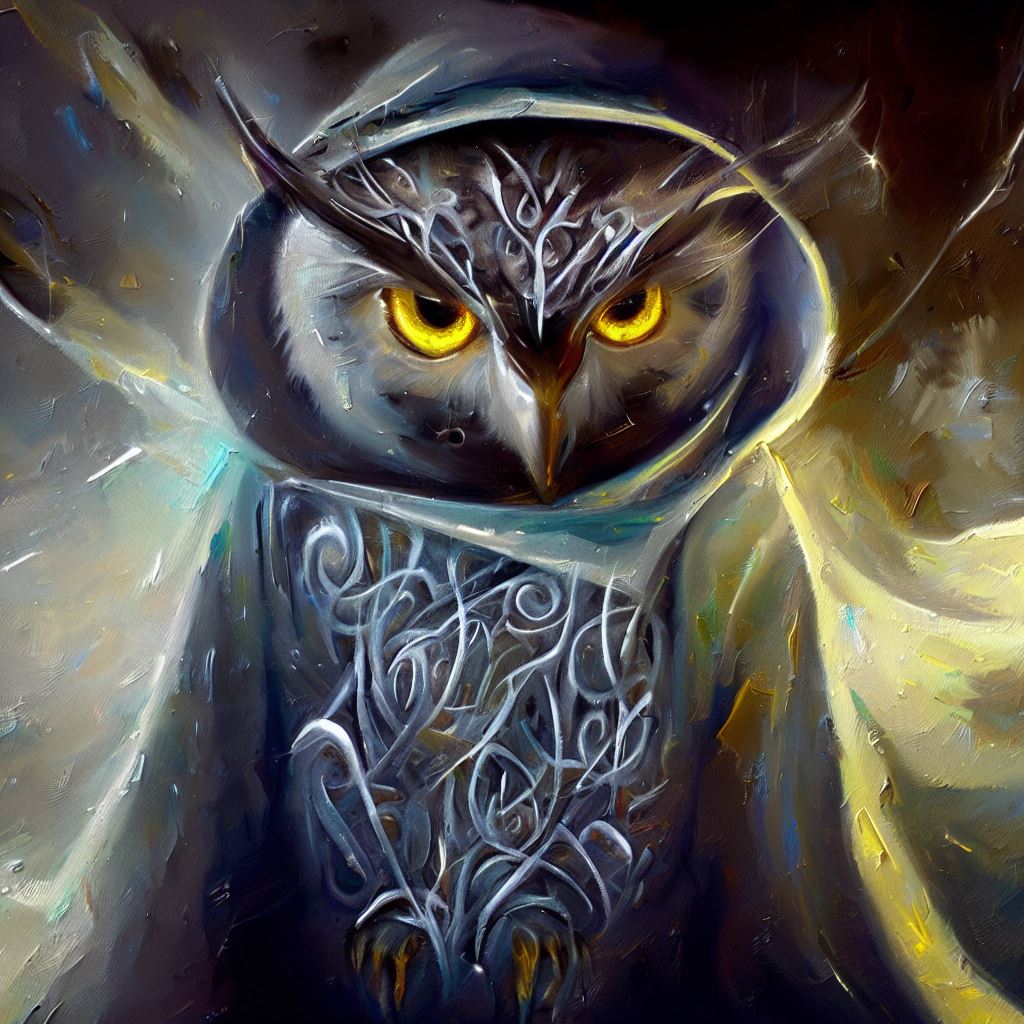
Featured Image: Owl generated from author’s prompt using Microsoft Bing Image creator
Did you know that students make sense of visuals faster than text? That is, when processing image and text data at the same time, visuals get processed sixty thousand times faster (source). Student-created digital media results in greater gains. That means that student-generated visuals can impact learning and achievement. You already know how powerful infographics and graphs are. Today, AI tools can create even more engaging images with text. One way to do that? Memes. Let’s take a closer look at meme creation tools and activities using memes in the classroom.
“Images evoke and enrich complex meanings. These meanings are otherwise linguistically inexpressible,” says the Visible Learning Meta X database. This is a rich database of effective instructional strategies based on the research of John Hattie. Visuals are rated as having an effect size of 0.55. If .40 is an average year’s growth, images have the potential to speed up learning.
What are memes?
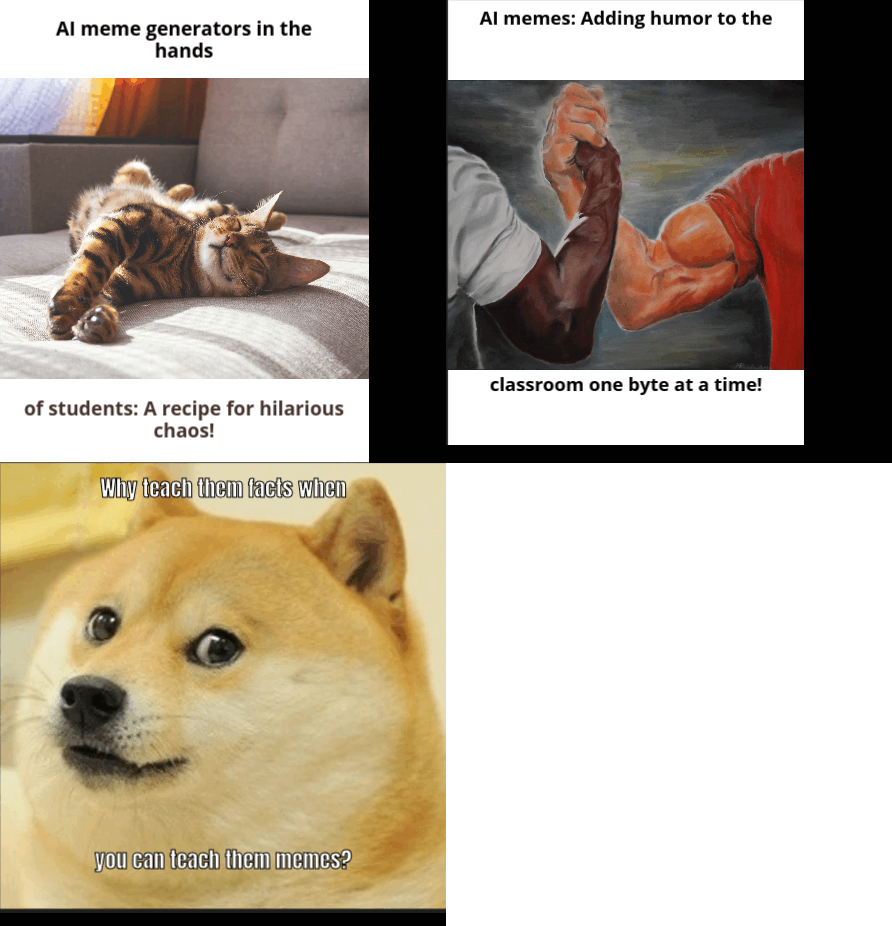
Memes can represent ideas, values, or behaviors that are contagious. Pair quotes with pop culture images and you get a shareable meme. Meme quote generators help students engage in language play, deepen their experiences with interpretation, reasoning, and inferential thinking.
How to Create Memes
The old-fashioned way of creating memes includes using meme generator tools. These work great for students, allowing them to combine quotes with existing images. Some tools I’ve relied on to create memes include:
But, there are now new tools that make meme creation easier using AI. These meme-generation tools focus students on the text rather than the image. Let’s explore some AI meme generators.
AI Meme Generators
Some AI meme generators you can use for free include the following. But, some will require you to create an account using Google or an email address.
Now that you have some AI meme generators, let’s jump to a few activities. I invite you to add your own ideas in the comments!
Classroom Activities with Memes
Activity #1: Classroom Debates
Debates about tough topics offer rich opportunities for developing student content knowledge, literacy, and civility. For example, “Should I risk my sanity by giving my 12-year-old a cell phone?” is current and relevant. What’s more, it allows students to apply critical thinking approaches when considering the merits of smartphones for minors. Students also get to explore legal issues, social media, and more. All are topics that can be tied into math, science, and social studies.
Debating is an often under-utilized approach in the classroom. At least, debating in a civil manner.
Classroom debates help students learn through friendly competition, examine controversial topics and “strengthen skills in the areas of leadership, interpersonal influence, teambuilding, group problem solving, and oral presentation” (Leuser, n.d., para. 1 as cited by source).
You could have students do any of the following:
Articulate the rules of debate
Organize their points as a series of memes representing their perspective
Create memes that are opposite to a competing perspective
Students could then organize debates as a series of images addressing key topics. The topics would have been identified prior to the debate. Students could also assess the efficacy of memes generated in convincing (or not) the audience.
Activity #2: Vocabulary Development
Clarifying terms and vocabulary in a new lesson can be difficult. That’s true no matter whether you are a language learner, math, or science student. How do you capture the essence of a vocabulary term in such a way as to make it easier to understand? One way is to create a meme that represents that word.
You can combine memes with Frayer Models, as well as concept sorts, to define and organize terms. In fact, in science, drawing a picture of what a word means could be the first step in better defining it.
Activity #3: Conveying a PBL Stakeholder Perspective
When starting a problem-based learning unit, one of the first steps involves identifying stakeholders. These are the perspectives that vie for attention and resources in a real-life problem. In a community where a landfill is being built, you could have a variety of stakeholders. Those could include:
Environmental Protection Agency (EPA)
The Public
Community Residents and Businesses near the landfill
Landfill operator
Landowner
City
Media
Government Department
How would you represent the perspective of each in a single sentence or meme? How might students take recycling into account in the local community?
The Power of AI Meme Generators
Memes empower learners to create content that looks amazing with minimal, mechanical expenditure. That is, instead of spending time surfing the web trying to find images, AI meme generators make it easy to combine picture and student-generated text in memorable ways. Have other ideas for ways to use memes in the classroom? Please share them with us in the comments!
Wish you had access to Google AI tools to assist you in writing and finding content? Get a quick peek at two new AI tools that Google has made available for testing through Google Workspace Labs. The first, Help Me Write, offers students a way to banish their fear of the empty page. They can start with an outline of ideas, or even, fleshed-out paragraphs. Additionally, NotebookLM, an “AI-first notebook” helps you “gain insights faster” (source) using your own Google Docs for source material. Let’s take a deeper look!
What is Google Workspace Labs?
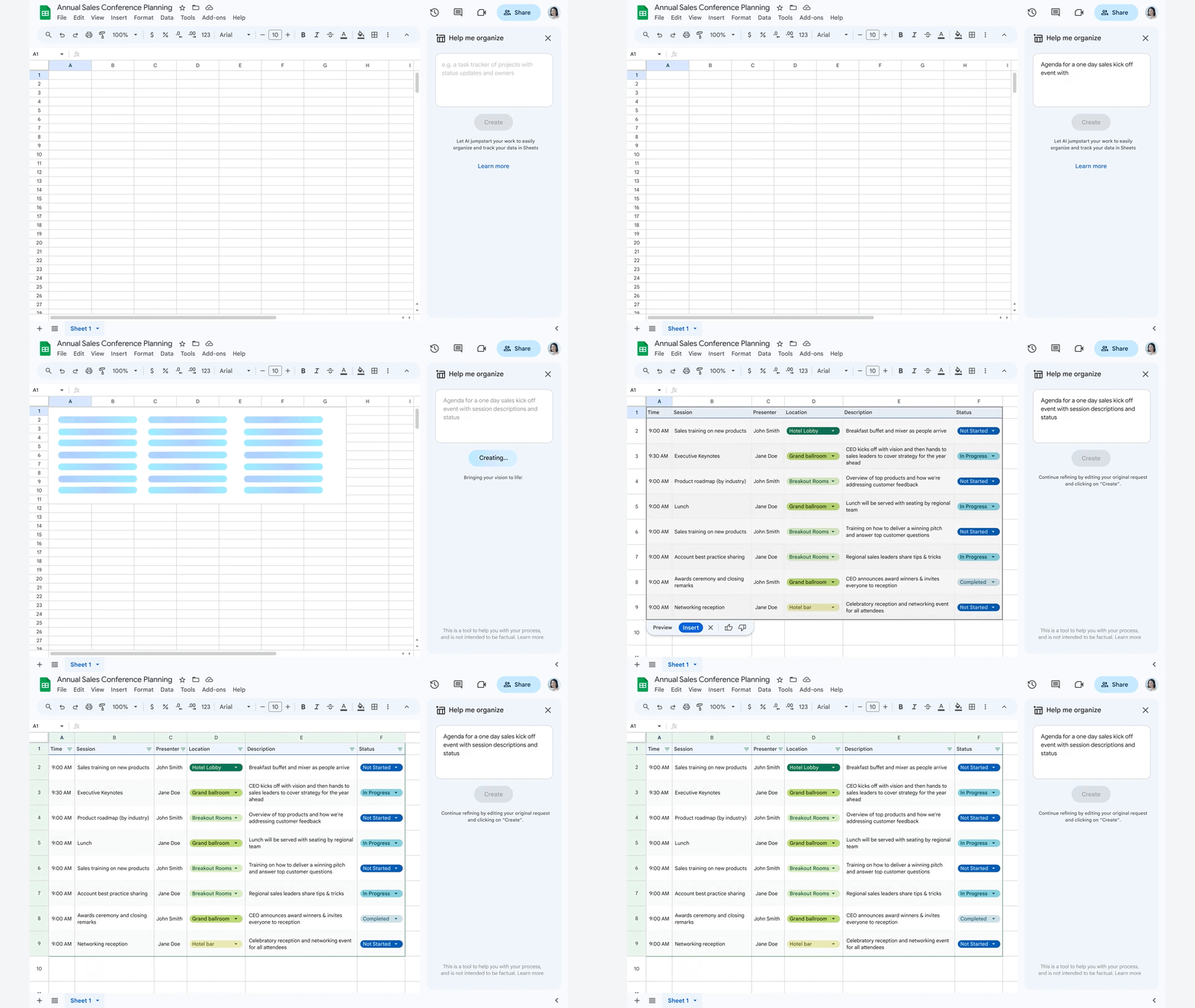
Google Workspace Labs is “an invite only program for users to try new AI features” that is currently only available in U.S. English, so you might not have access to it just yet. You’ll know if it’s available to you if you see the Help Me Write pencil icon on the left of your open Google Doc. Google Workspace Labs is a way for Google to get people to test out its products and give feedback. You might want to get a big-picture overview of Google Workspace, and “Duet AI” in particular. There are plans to embed Duet AI in Google Slides to generate images, as well as Google Sheets (see animated GIF below) to assist in organizing content.
To invoke the power of AI, select the button that says, “Help me write.” How many times have we, as educators, heard this cry from our colleagues and students? Now, Google leverages AI to assist you when writing email. It offers an invite-only program for users to try out. It is only available to trusted testers in US English, and may not be available to you.
You can get an invitation to try this out for yourself when you sign up here. Once you’re in, getting started can be easy. Once accepted into the tester program, you can follow these instructions:
Write a new draft using a freeform prompt. For example, you can ask Gmail to write a birthday invitation. Or, write an introduction to a potential business contact. Refine a draft. For example, you can rephrase the draft, or make the draft more formal, more concise, or more detailed. (source)
In a few moments, you will see what it looks like in action. But here is a list of what Help Me Write can do:
Converting meeting notes into an email
Writing a job description in Docs
Draft, reply, summarize, and prioritize your Gmail
Brainstorm, proofread, write, and rewrite in Docs
Bring your creative vision to life with auto-generated images, audio, and video in Slides
Go from raw data to insights and analysis via auto-completion, formula generation, and contextual categorization in Sheets
Generate new backgrounds and capture notes in Meet
Enable workflows for getting things done in Chat (source)
Having AI baked into Google tools, especially Gmail, could be a lifesaver for those who find writing emails to be no fun.
Help Me Write Example #1: Asking for a Raise
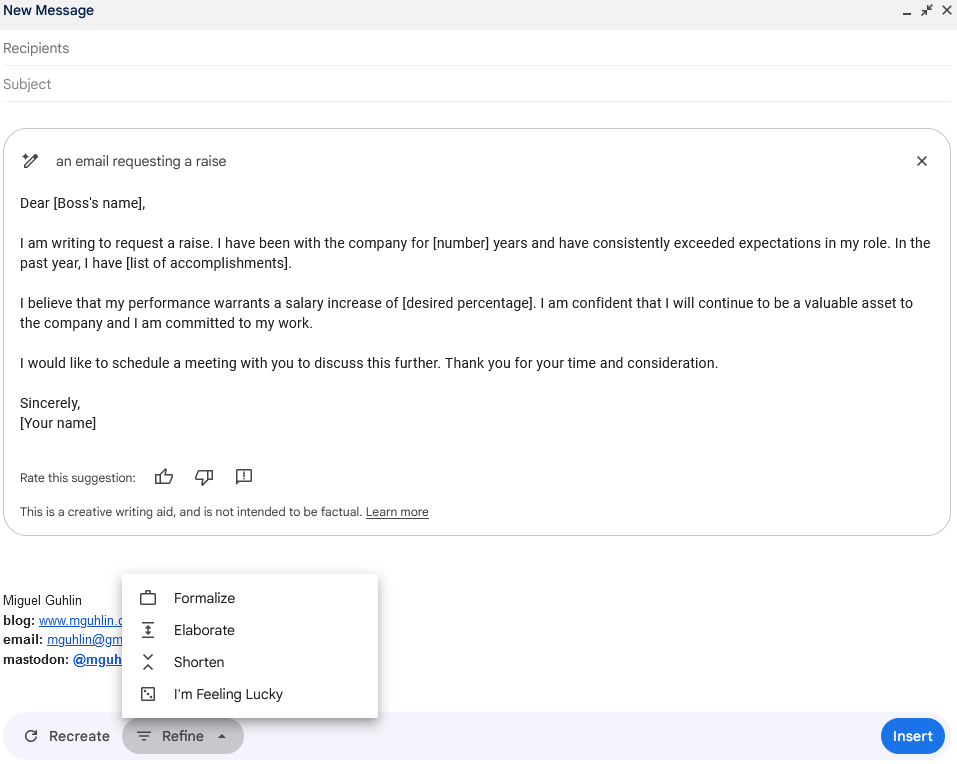
For fun, I asked Google’s Help Me Write to assist me in asking for a raise. The response was underwhelming:
To be honest, I wasn’t impressed with the output. Compare it to ChatGPT’s response with the same prompt:
Subject: Request for Salary Adjustment
Dear [Boss’s Name],
I hope this email finds you well. I am writing to discuss the possibility of a salary adjustment, considering my contributions, growth, and the value I bring to the company.
Firstly, I would like to express my gratitude for the opportunity to work with such an exceptional team and for the job security and stability this position provides. Over the course of [duration of employment], I have consistently strived to exceed expectations and contribute to the success of our department….
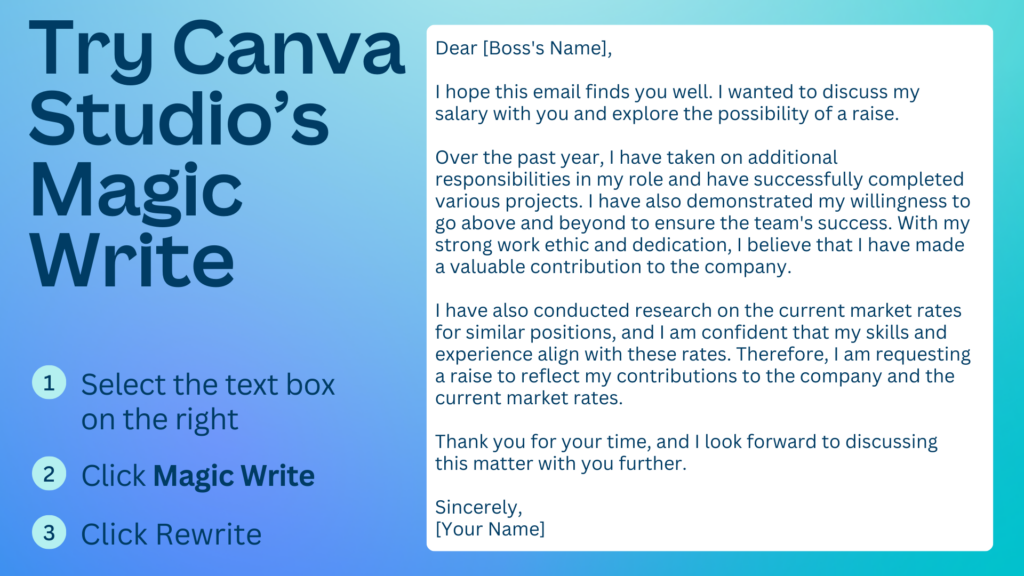
ChatGPT goes on for a few more paragraphs. Brevity being the soul of wit, you will not get a raise with its first draft help, either. The first is too brief, the latter is too wordy and unspecific. Even Canva’s Magic Studio, the Magic Write option, does a better job, as you can see below:
Created by author using Canva’s Magic Studio, Magic Write rewrite option
Let’s try something else.
Example #2: Apologies
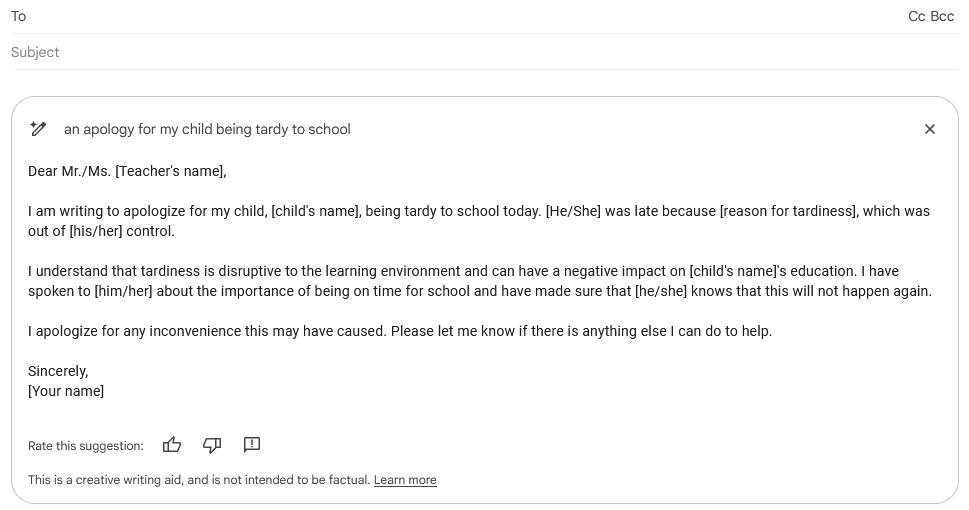
Wish you could ask for an apology for being tardy to work? Not so fast:
That aside, Google’s Help Me Write AI works fine if you get the right prompt:
The lesson? If you want an apology for your work tardiness, ChatGPT can help. If you want to apologize for delivering your child to school late, Google’s AI works fine.
Example #3: Revise an Email
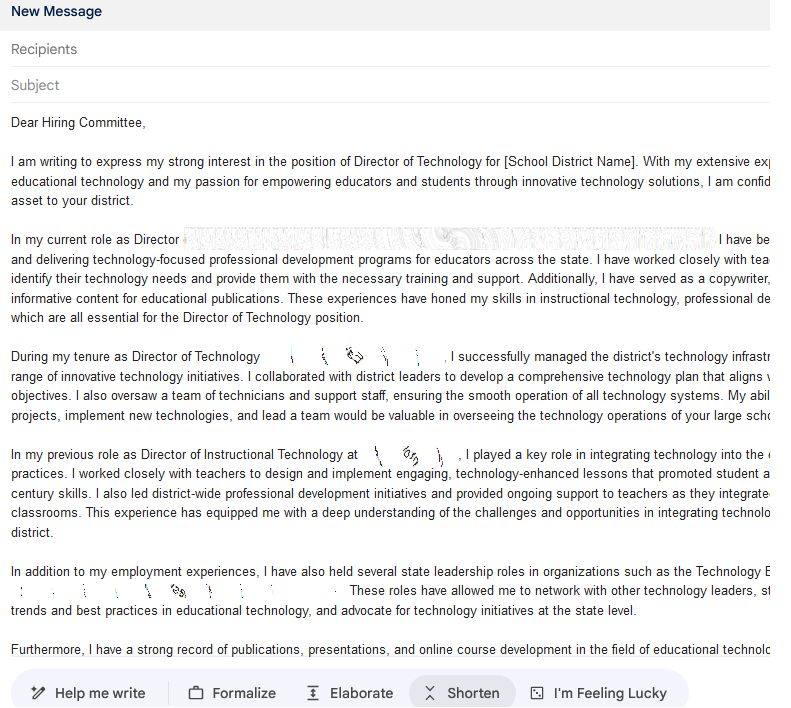
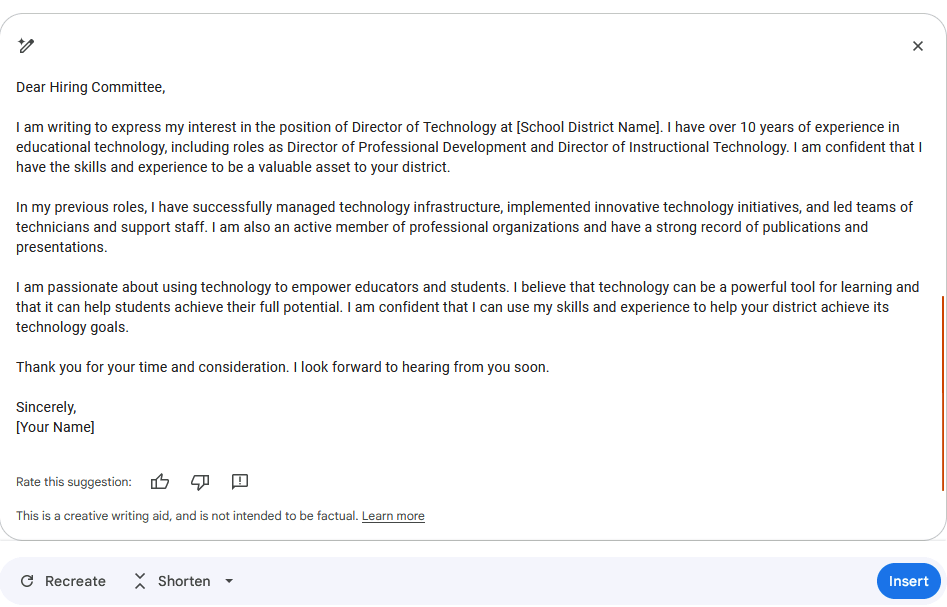
In this example, I decided to revise an email applying for a job. ChatGPT generated this example after reviewing my resume. Let’s see how Google’s Help Me Write can shorten the copy.
Original:
Shortened by Google AI…short and to the point without the verbosity.
Not a bad revision to the original. Maybe, a workflow that starts drafting content in ChatGPT and then shortens it in Google’s Help Me Write AI-powered Gmail will work better.
Example #4: Summarize a Conversation Thread
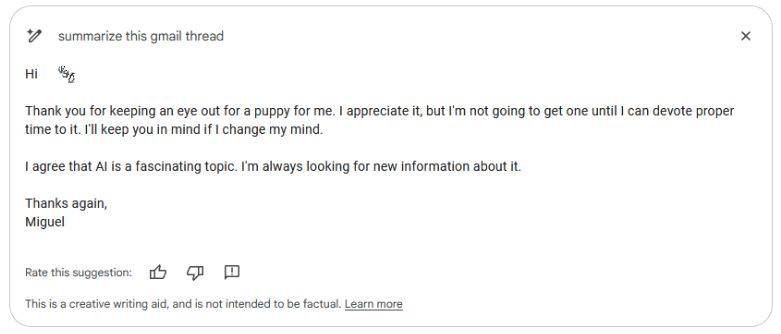
After reading a few emails from TCEA member, “Nanci,” I asked Google’s Help Me Write tool to summarize the Gmail thread. We had been going back and forth about resources discussing the impact of AI and my search for a toy poodle. Google’s AI tool summarized the conversation thread, yielding this reply.
This summary is spot-on, and I can see real applications for schools to summarize conversation threads. I can definitely see how this summary covers what we have discussed and summarizes it.
I can’t wait to see what else is coming from Google. Before introducing AI tool #2, let’s take a peek at Google Workspace Labs.
AI Tool #2: NotebookLM
Introduced on July 12, 2023, NotebookLM is note-taking software. If you’ve used Microsoft OneNote, you may be wondering the same thing I am: Is NotebookLM some souped-up MS OneNote? In reality, NotebookLM may be nothing more than a digital assistant to help you find your Google Drive files. We all know that we need such a digital assistant. I can’t tell you how many times I’ve heard someone say, “I can find XYZ file in Google Drive.”
NotebookLM automatically generates a document guide to help you get a better understanding of the material…
Think of it as a virtual research assistant that can summarize facts, explain complex ideas, and brainstorm new connections — all based on the sources you select.
A key difference between NotebookLM and traditional AI chatbots is that NotebookLM lets you “ground” the language model in your notes and sources.
That’s pretty powerful.
An AI robot seeks input to learn
Unlike ChatGPT which seems to have devoured the Internet as “Input!,” to quote Johnny-5 in the cult classic movie, Short Circuit, Google’s NotebookLM uses your own files as “input.” Once you have chosen which input NotebookLM should use, it allows you to do three things:
Summarize content
Create a list of topics and questions about the material
I hope you’ll explore these two new AI tools by Google! Once you do, let us know how they work for you. How do they compare to other tools you’ve used? Let us know your thoughts in the comments.
School is back in full swing. For many, especially educators, August brings the hustle and bustle of work and life to a whole new level. So what better time than now to discover some new AI tools for teachers to try? Hopefully, one (or more) of these will save you time, so you can put more time into whatever you’d like to prioritize. Let’s take a look at this month’s list.
1. Yippity
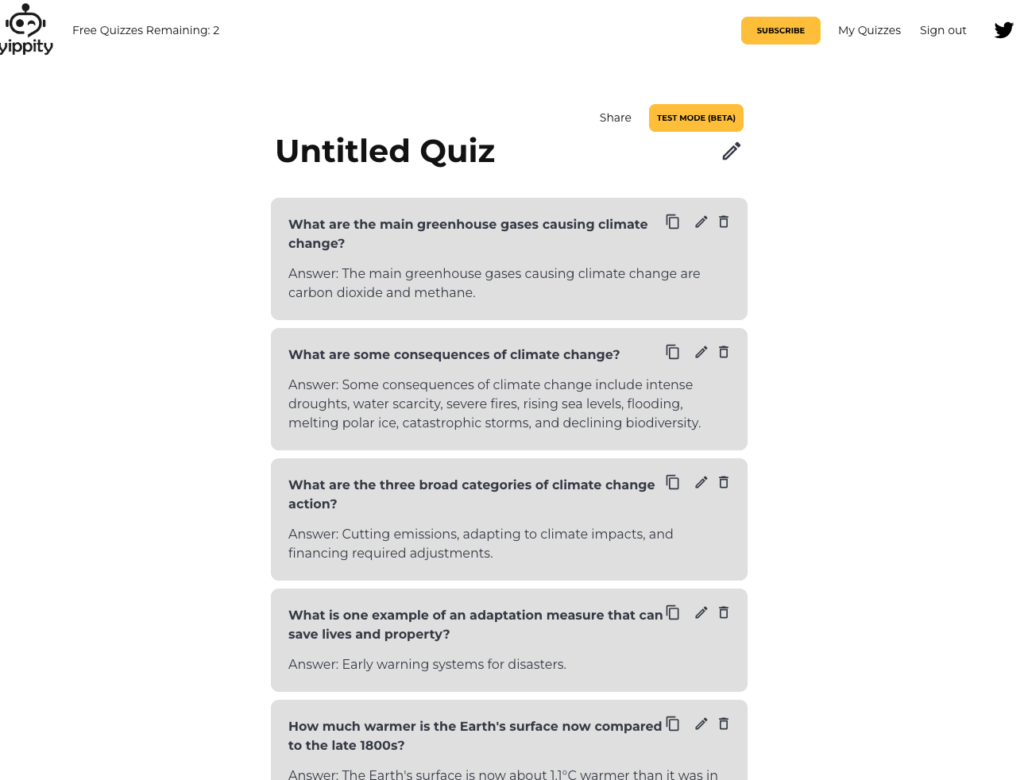
This is an AI tool for both teachers and students. Essentially, you can upload your notes or input a URL, and Yippity will generate a quiz. With the free account, you can generate three quizzes each month. The $4.99/month “Early Bird” account boasts unlimited and superior questions and a price guarantee for being an “early bird supporter.” Not a bad deal! Once you’re in, it’s easy. Copy and paste your notes or copy and paste a URL, and voila. You can also edit your quiz and share it with a link.
2. iPhone’s Visual Lookup
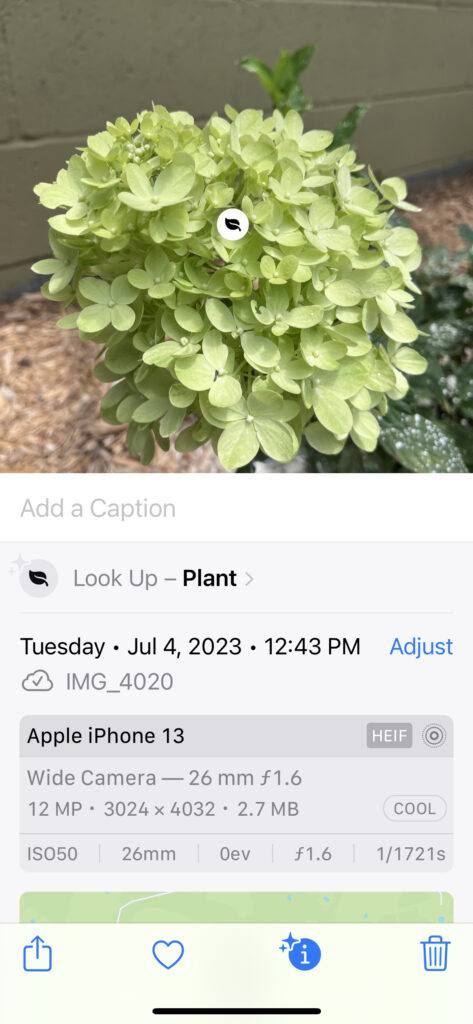
Your iPhone’s photos now have an AI Visual Loopup feature! If you don’t know about this, you’ve got to try it. I am using it frequently now! Snap a photo, and when you’re reviewing it, if you notice the information icon with a little star in the top left corner, click it. You’ll have information at your fingertips on everything from plant and animal identification to landmarks and more.
3. ChatTube
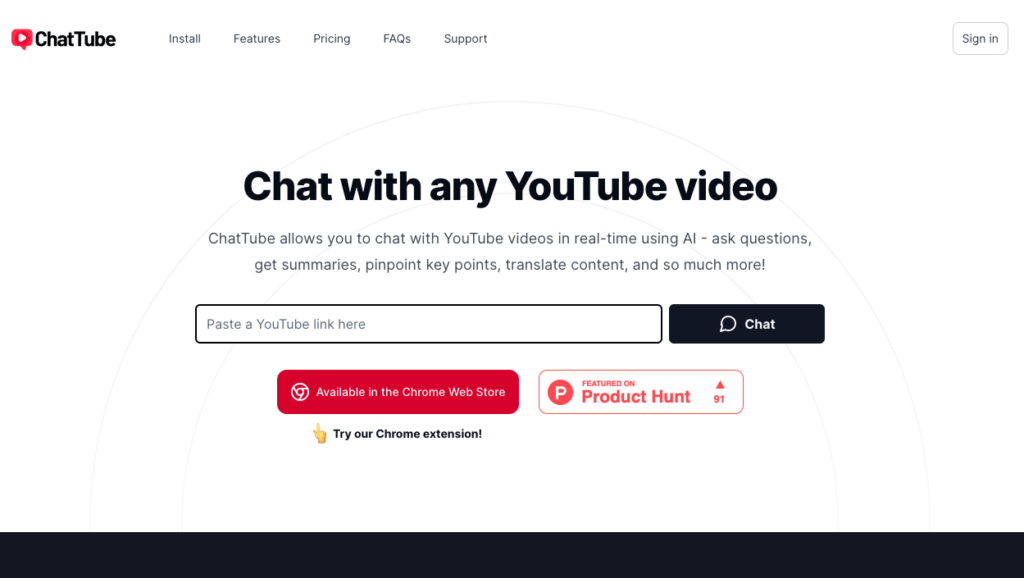
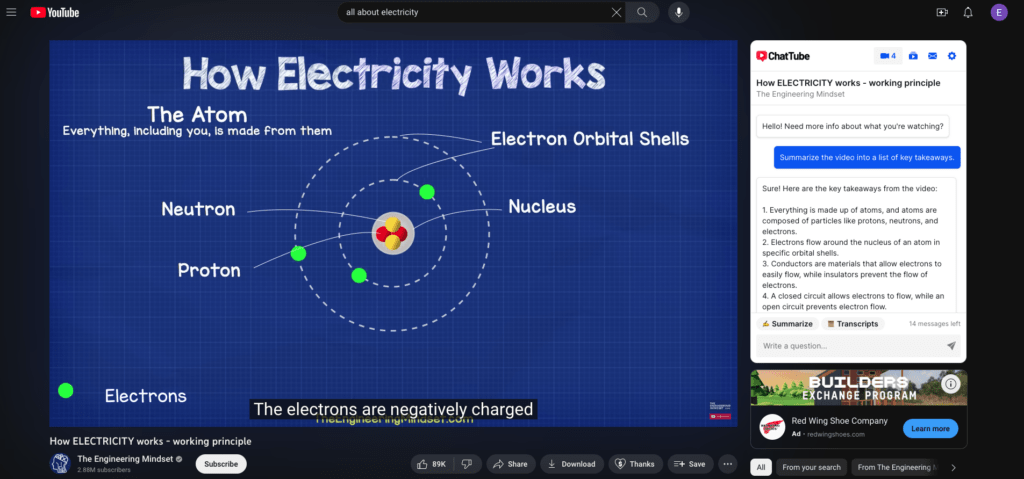
ChatTube is an AI Chrome extensionthat you’ll love. Install the extension and go to a YouTube video. It will present itself in the top right corner of the page. The first time you use it, it will ask you to login with Google, and once logged in, you can chat with any video. It gives you the ability to ask 15 questions, including requesting a summary or a transcript! I can see teachers using this AI tool to save time, create presentations, make outlines, and more.
4. Twee
Twee is the ultimate AI tool for teacher efficiency, and it’s currently free! Generate a whole slew of content and resources for you and your students. Twee offers the ability to:
Create questions for any YouTube video in just a few seconds
Generate dialogues, stories, letters or articles on any topic and for any level
Quickly create multiple choice questions, open questions, and True/False statements
Find interesting discussion questions, facts, and quotes by famous people related to the topic
Brainstorm vocabulary related to the topic and create fill-in-the-gap and open-the-brackets exercises And much more!
What Twee offers educators…
5. Convert Handwriting to Text
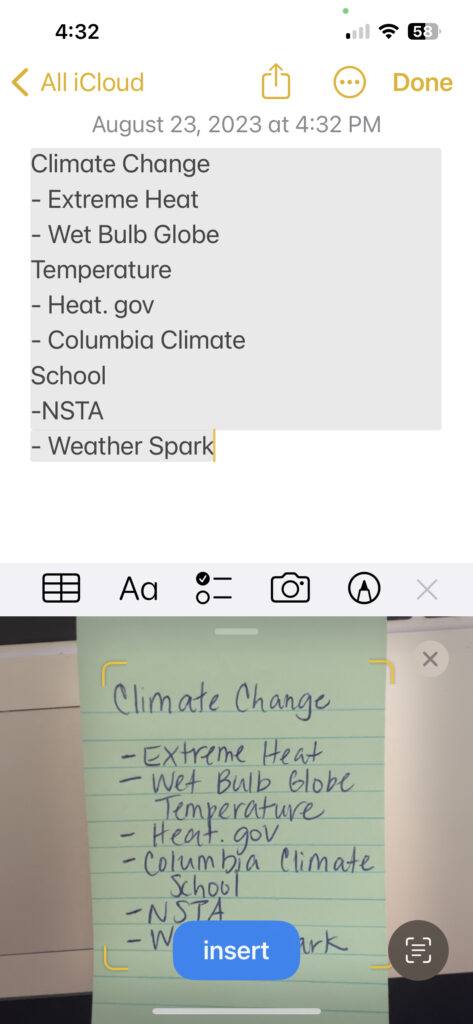
Ok. So you’re getting two iPhone AI tips in one post, but I guarantee you, you’ll use them! Now you can take a picture of handwritten text using the Notes app and transform it into typed text. Simply open Notes, click on the camera icon, and click Scan text. Give it a try and watch the magic unfold right before your eyes.
I hope you found at least one tool you want to give a try! Know of something I should add to the list? Let me know about it in the comments. I’d love to hear about what you’re using!
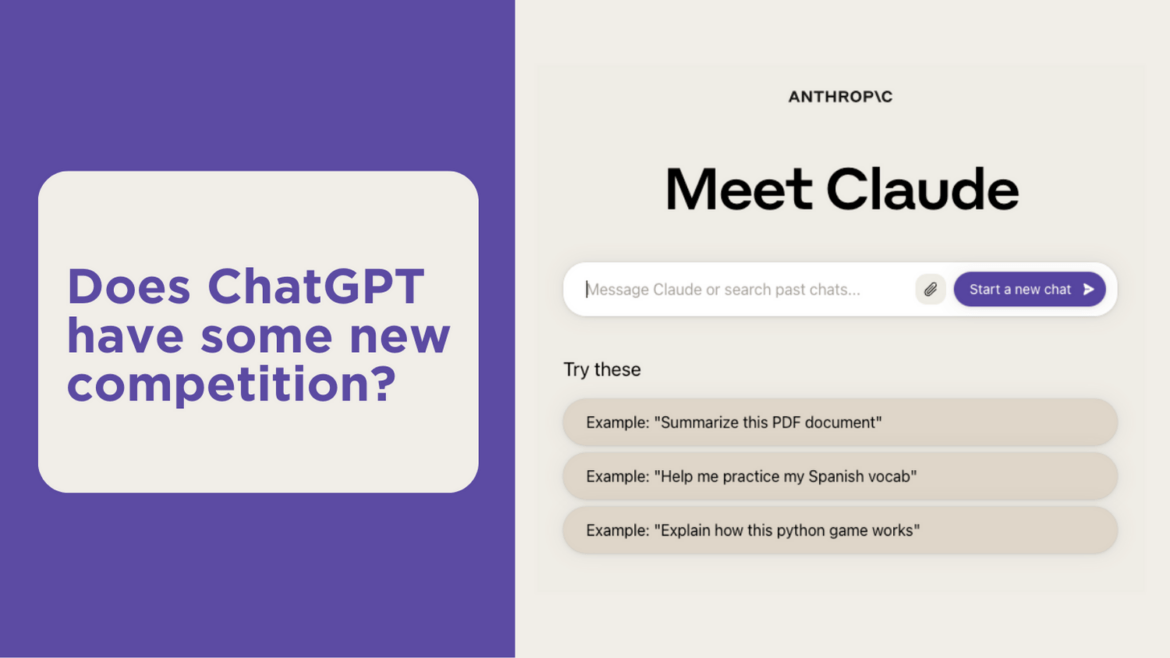
The world of artificial intelligence is changing so rapidly that it’s hard to keep up. Every day, another new tool or chatbot is unveiled that has the potential to save users time and make life easier. And this is also true for those of us in the education field, where staying current is important and saving time is critical. With that in mind, I would like to introduce you to Claude, a new AI tool that is definitely worth a look.
What is Claude?
Released in April 2022 by Anthropic, Claude 2 is another of the many new chatbots available (like ChatGPT, Bard, Bing, Perplexity, and Jasper). It assists with content summarization, general research, creative and collaborative writing, Q&A, and coding. A user enters a question (called a prompt) and the tool answers. Claude 2 is currently free.
How is Claude 2 different from ChatGPT 3.5?
Most of you are probably more familiar with the chatbot ChatGPT, especially its free form, version 3.5. But there are some significant differences between ChatGPT and Claude 2 in their underlying architecture. These differences are worth noting, as you can see in the table below.
Claude 2
ChatGPT 3.5
Trickery and deception avoided through its modular architecture
Better at creative writing tasks and generating imaginative content
Can handle and recall larger amounts of information
More of a personality
Only available in the United States and the United Kingdom at this time; supports only English
Available in 163 countries and with support for multiple languages
Does not accept image inputs
Can recognize what is displayed in an image, although not always accurately
Includes current data
Trained on data up to September 2021 only
Can accept up to five files, up to 10MB each, including PDFs, TXT, and CSV files that can be added using the paperclip icon before a prompt is entered.
Better at text summarization
Faster processor time
Comparing Chatbots: Claude 2 and ChatGPT
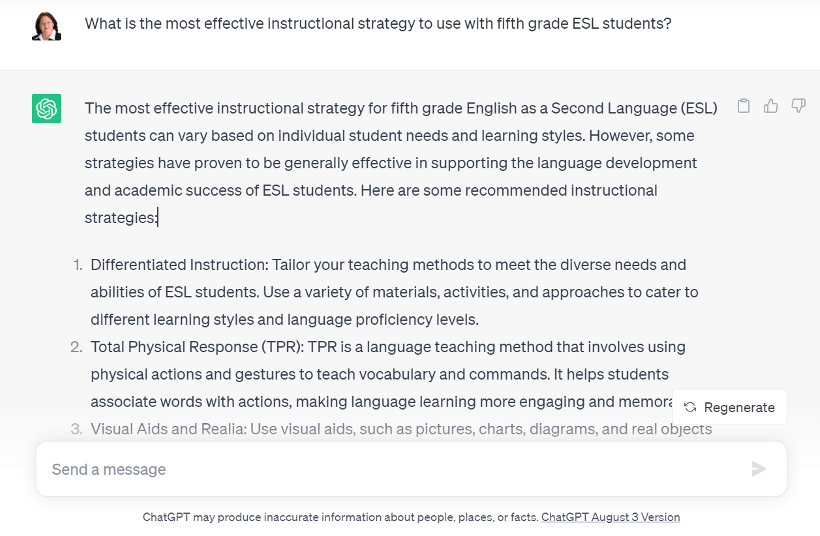
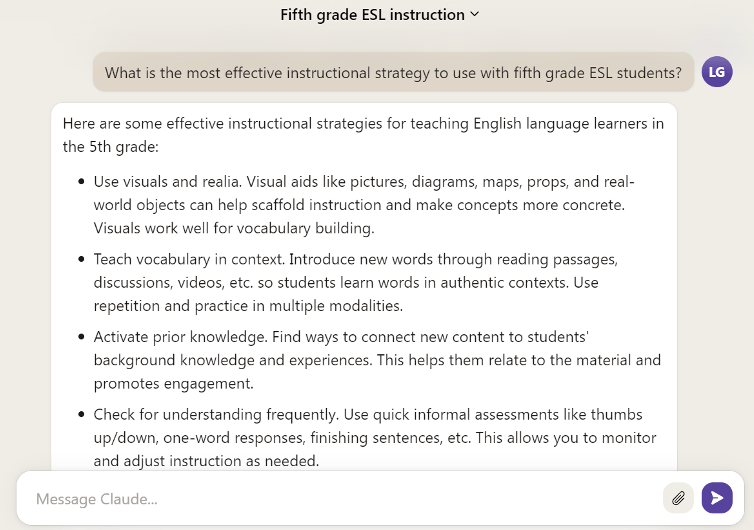
Since I find that it’s best to use the same prompts when comparing different chatbots, I tested Claude with my standard prompt: “What is the most effective instructional strategy to use with fifth grade ESL students?”
Here’s how ChatGPT 3.5 replied:
And here’s the response I got from Claude:
When I asked ChatGPT 3.5 for a Texas Essential Knowledge and Skills (TEKS) standards-aligned lesson plan for fifth grade ESL students on the life cycle, I got this response. It did pull from the TEKS but gave me the ELAR standards and not the science ones. Several of the activities also seemed weaker to me and not as engaging or on level, especially the enrichment. And it did not really include anything related to ESL students.
Objective:
Students will be able to describe and understand the life cycle of a butterfly using appropriate vocabulary and language structures.
TEKS Standards:English Language Arts and Reading
5.2.A: Identify the meaning of common prefixes and suffixes.
5.4.B: Describe the plot’s sequence of events.
5.14.A: Listen actively to interpret a message.
Duration:
Approximately 60 minutes
Materials:
Chart paper or whiteboard
Markers
Visuals of a butterfly’s life cycle (pictures or diagrams)
Butterfly life cycle worksheets
Colored pencils or crayons
Butterfly life cycle video (optional)
Hook (10 minutes):
Begin the lesson by activating students’ prior knowledge. Show pictures or diagrams of different animal life cycles, such as a frog, chicken, or butterfly. Ask students to discuss in pairs or small groups what they know about life cycles and what similarities and differences they notice between the different animals’ life cycles. Encourage them to use vocabulary related to life cycles and discuss their ideas as a class.
Activities:
Vocabulary Introduction (10 minutes):
Introduce key vocabulary related to the butterfly’s life cycle, such as egg, larva, pupa, and adult. Write these words on the chart paper or whiteboard and provide simple definitions or visual representations for each term. Discuss the pronunciation and ask students to repeat the words.
Butterfly Life Cycle Presentation (15 minutes):
Show visuals or a short video depicting the stages of a butterfly’s life cycle. Narrate or explain the process step-by-step, using simple language and reinforcing the vocabulary introduced earlier. Pause at each stage to check for understanding and encourage students to ask questions or share observations.
Group Activity: Life Cycle Diagram (15 minutes):
Divide the class into small groups and provide each group with a large sheet of paper and colored pencils or crayons. Instruct them to draw and label a diagram of the butterfly’s life cycle, using the vocabulary they learned earlier. Encourage collaboration and discussion within each group. After they finish, have each group present their diagram to the class.
Formative Assessment (5 minutes):
As a formative assessment, ask individual students to explain one stage of the butterfly’s life cycle using the appropriate vocabulary. Observe their responses and provide feedback accordingly.
Enrichment (10 minutes):
For students who show a deeper understanding, provide additional information about the importance of butterflies in the ecosystem and their role in pollination. Show pictures or videos of different butterfly species and discuss their diversity.
Individual Practice (5 minutes):
Distribute butterfly life cycle worksheets to each student. The worksheet should have labeled spaces for them to draw and describe each stage of the life cycle using the vocabulary words they learned. Collect the worksheets for assessment and to provide feedback on their understanding.
Closure (5 minutes):
Summarize the main points of the lesson, emphasizing the key vocabulary and the stages of the butterfly’s life cycle. Encourage students to share what they enjoyed or found interesting during the lesson.
Claude 2 gave me the following response. It did pull from the science TEKS and included an activity to activate prior knowledge. In addition, this lesson plan includes the use of graphic organizers and anchor charts, both useful for ESL student learning.
Topic: Life Cycles
TEKS Addressed:
5.2C: Students will identify stages and sequence in the life cycles of different plants and animals.
5.8F: Students will organize and present data in a variety of ways including detailed illustrations, flow charts, posters, and graphs.
Hook: Show images of life cycles (butterfly, frog, plant). Have students discuss what they see and what they already know about life cycles.
Activating Prior Knowledge: In partners, students complete a graphic organizer listing the stages of a familiar life cycle (human, pumpkin, butterfly) and draw quick sketches. Share out.
New Material: Teacher explains stages of life cycles using an anchor chart. Show video clip on general life cycle patterns. Have students take notes on stages.
Guided Practice: In groups, students are given cards depicting the life cycle of a specific organism out of sequence. They work to put the cards in order and identify the stages. Share out.
Formative Assessment: Have students draw the life cycle of an assigned organism on paper, labeling the stages. Teacher evaluates sketches and labels for accuracy.
Differentiated Instruction:
– Advanced students add details on duration and key processes in each stage.
– Struggling students are given cards with stage names to sequence.
Individual Practice: Students choose an organism and create an illustrated life cycle poster labeling the sequence of stages.
Enrichment: Students research an unusual life cycle (frog, butterfly, etc.) and present key learnings to the class.
Closure: Students share out key learnings about life cycles. Teacher reviews structure and purpose of life cycle stages.
Claude’s Chatbot Brother: ClaudeScholar
ClaudeScholar is a research assistant for science that can synthesize data, extract insights, and automate scientific workflows. Users can search through any document with natural language, uncover insights across multiple research papers, and even task the AI assistant with complicated workflows like generating new compounds and modeling protein interactions using state-of-the-art research. While this is not likely to be a tool most of us will use, it is interesting to see the direction that chatbots are going.
Trying Out Claude 2
If you’d like to sign up for free to try Claude2, visit Anthropic’s website and click “Talk to Claude.” You’ll then be prompted to sign up with your email address or enter an existing address to access the bot.
In the near future, it is likely that we will regularly use a variety of chatbot tools, depending on what we need to accomplish, just as we may choose to use Canva for one type of design project and Adobe Photoshop for another. So now’s a good time to begin to learn what each tool is especially good at. I encourage you to try Claude 2 and let me know what you think!
Happy summer, everyone! I’m back with more AI tools to try out this month. New AI tools are coming out each and every day, and I’m constantly surprised with what’s out there! It’s clear that advancements are being made and people are gaining a better understanding of how AI can support us in work and life. Here are a few tools that I thought were noteworthy, either for professional use or just for fun. Let’s take a look!
1. Fireflies.AI
Fireflies AI is a tool that acts as a meeting assistant. It transcribes, summarizes, records, and more. With the free account, you get 800 minutes of storage (with limited transcription credits), plus the following features:
Record Zoom, GMeet, MS Teams
Transcription for 30+ languages
Automated meeting summaries
Search within meetings
Playback (1x, 1.25x, 1.5x, 1.75x, 2x)
Comments & reactions
Clip out moments as soundbites
Global search
Uploads
3 public channels
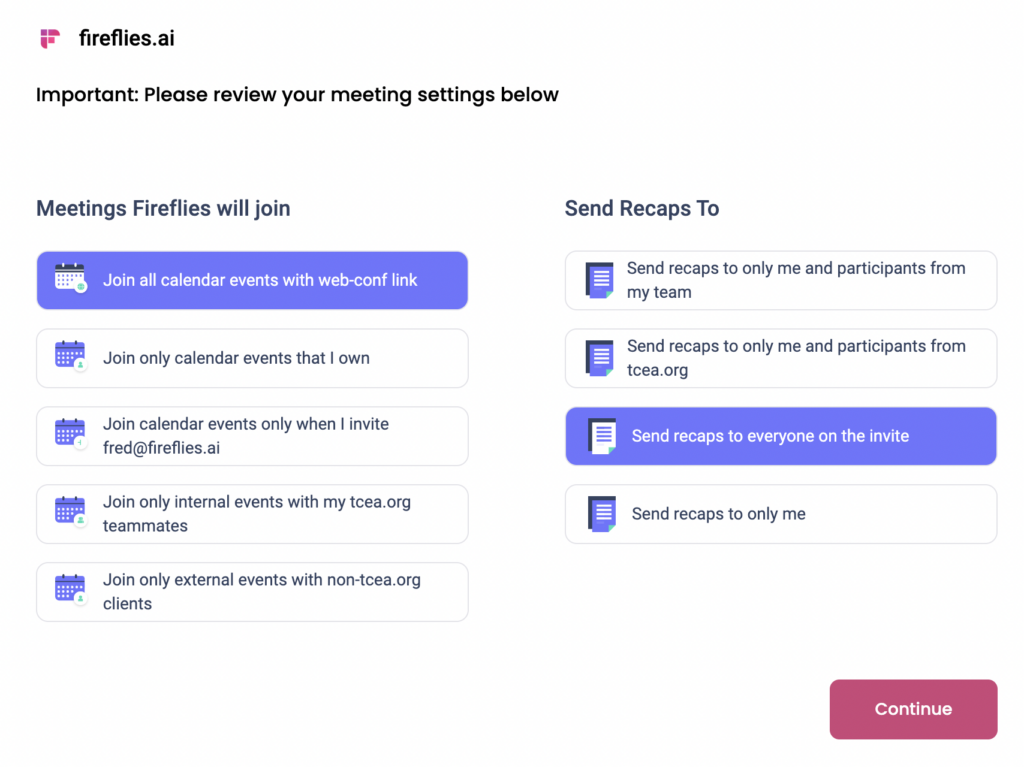
This is an AI tool that could be used by students for note-taking and marking important parts of lectures. Its language transcription feature can also help support language learners. For educators, I could see this providing language support to parents for important meetings, back-to-school presentations, 504 meetings or IEP planning, and more. The fact that it can transcribe means you can keep transcriptions for your records, and you can even share meeting recaps. Once you’re logged in, you’re prompted to select your meeting settings and invite your team to your workspace.
2. Teach Anything
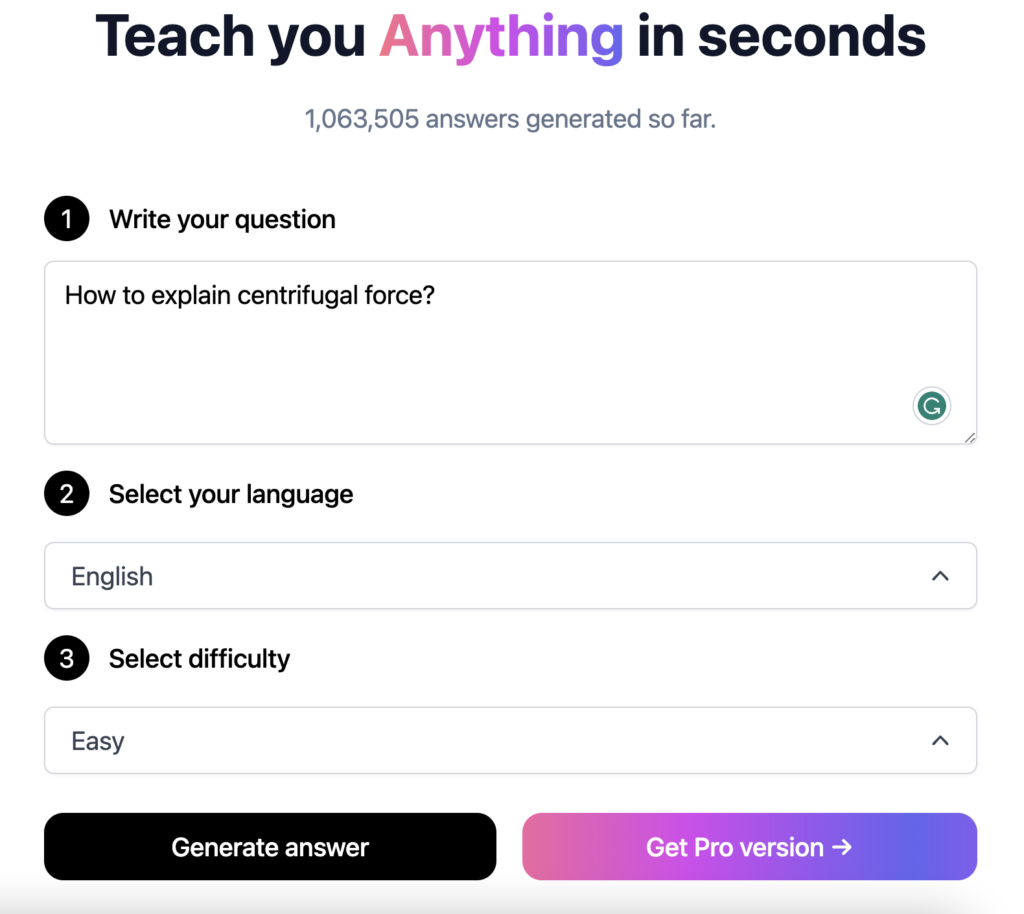
I really enjoyed exploring this AI tool! Teach Anything can definitely be used by educators to help learn new topics, prepare to teach topics you’ve never taught before, or get a new take on teaching something you’ve done every year. When you go to the site, you’re immediately prompted to write a question, select your language, and select a difficulty level. In my example, I asked “How to explain centrifugal force?” in English with an easy difficulty setting.
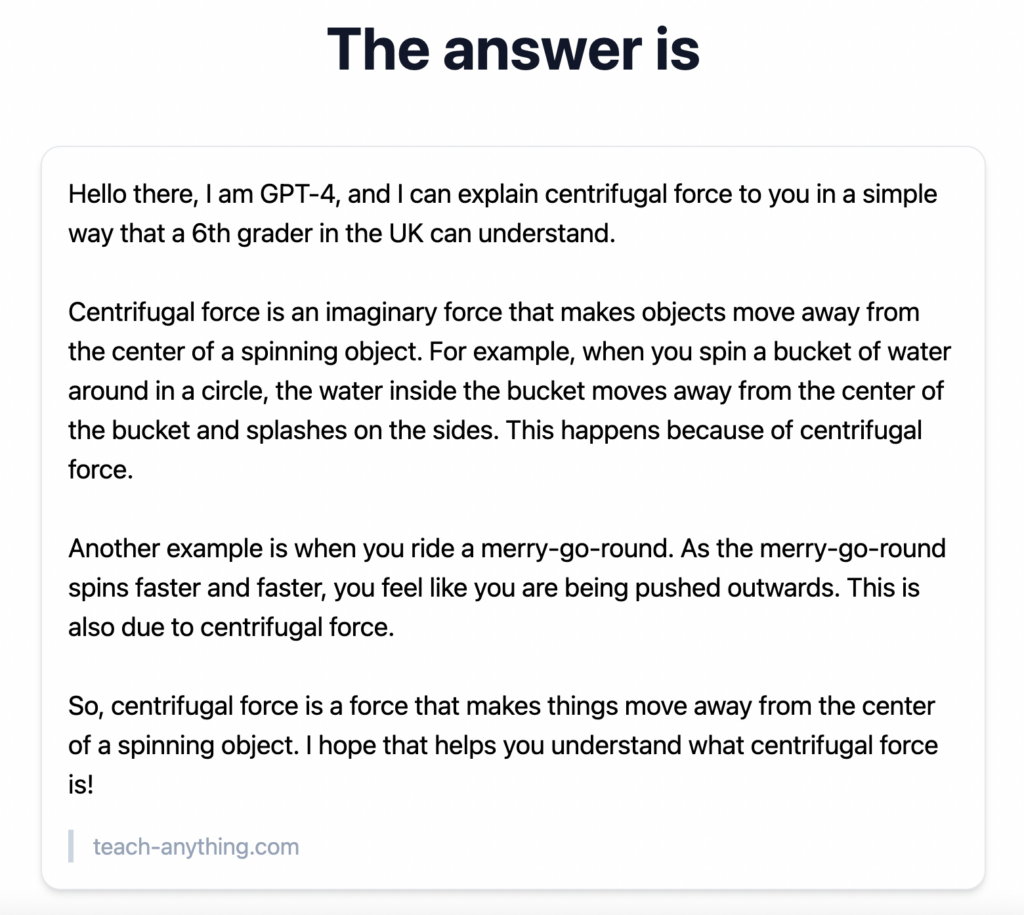
Here is what Teach Anything generated for me. Pretty neat!
3. Recipes by AI
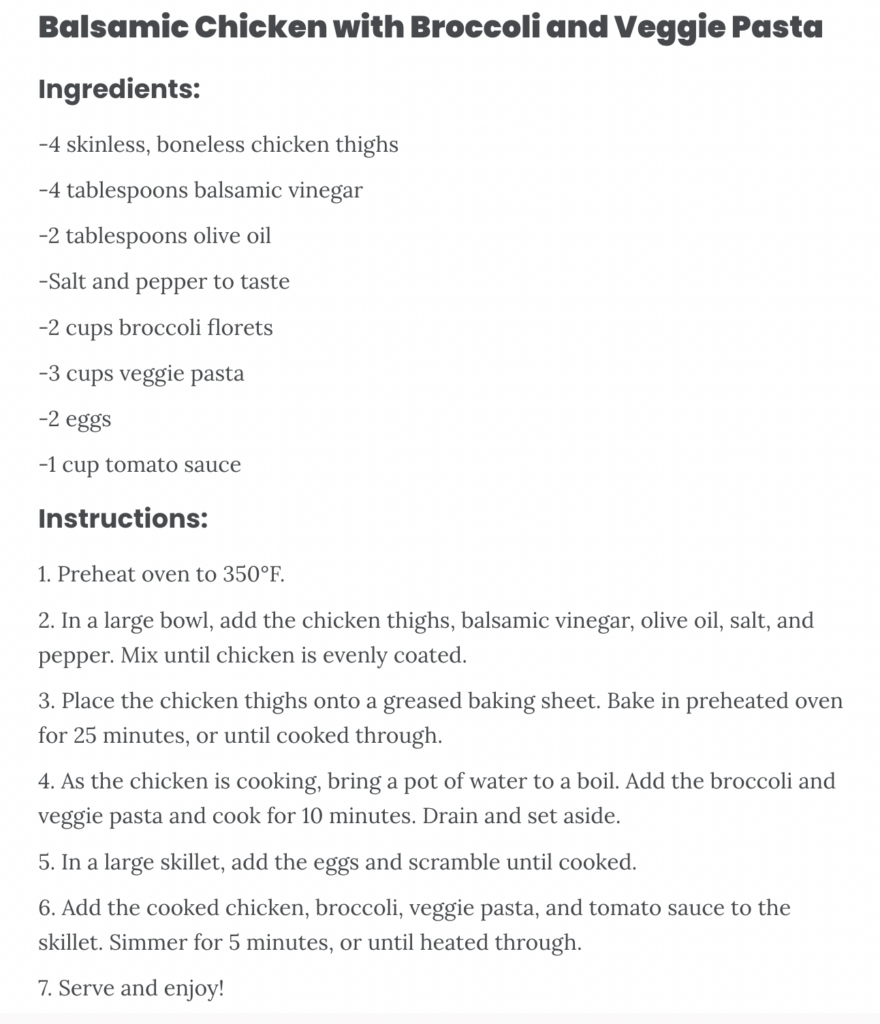
This AI tool is glorious, especially for someone like me who struggles with cooking! Recipes by AI will generate a recipe based on the ingredients you submit. Haven’t been to the store in a while? No problem. Check your cabinets, enter what you have, and let Recipes by AI work its magic. Here is an example of what it generated for me based on these ingredients:
Chicken thighs
Veggie pasta
Eggs
Balsamic vinegar
Broccoli
Tomato sauce
4. Supermeme.AI
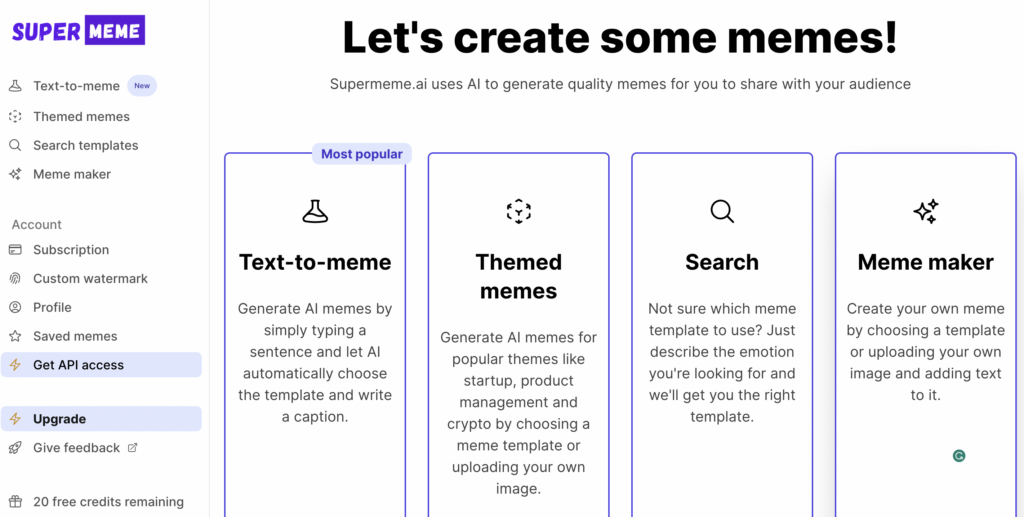
This AI tool is so much fun, and its free account offers you:
20 credits
Watermarked memes
Meme Editor
AI Meme Search Engine
Saved Memes
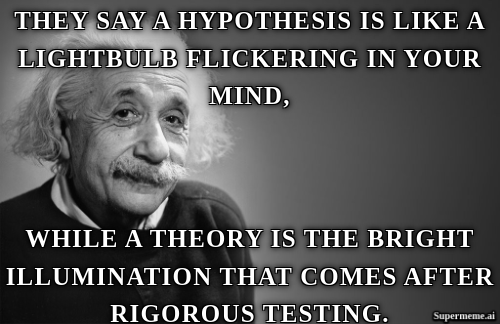
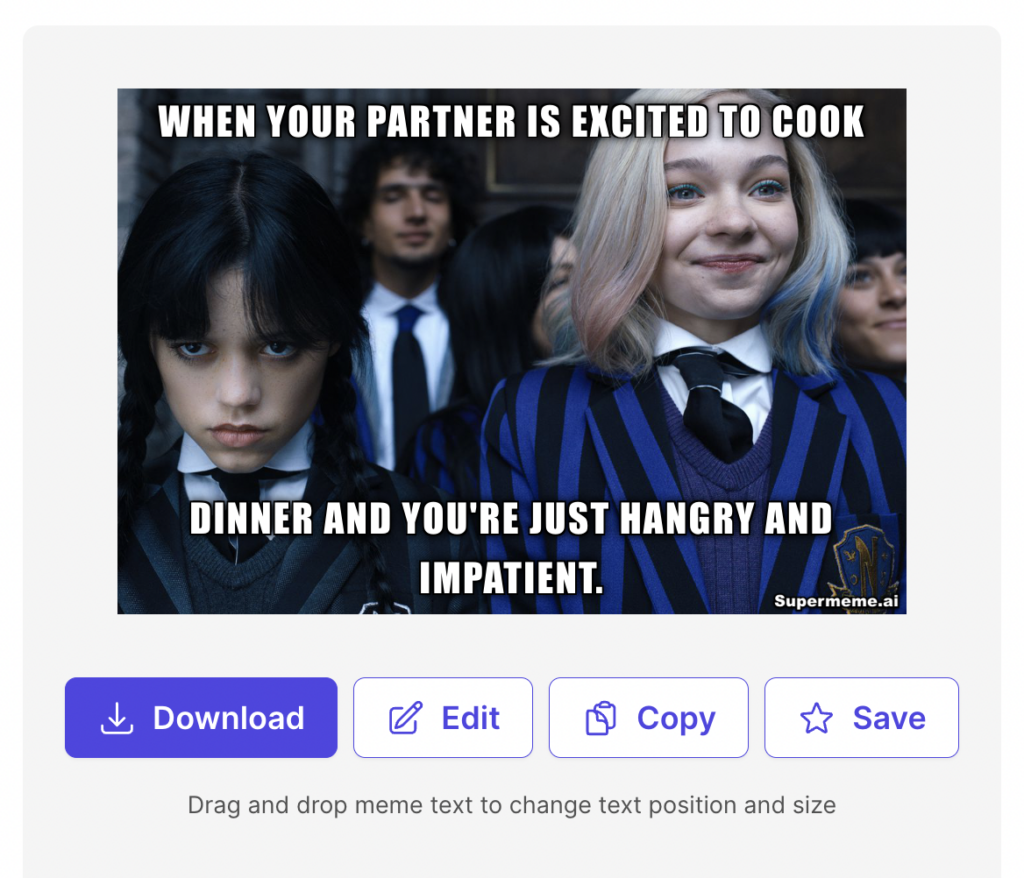
Using text-to-meme, when you type in a prompt, it will use one credit and generate eight downloadable, editable memes for you!
You can also search hundreds of images/templates to edit and create your own meme caption or to use for generating a meme caption with AI. With themed memes, you can type in a topic, upload your own image, or pick from Supermeme’s images and generate your meme. It’s a pretty great time, and I defintely went down the meme rabbit hole with this one!
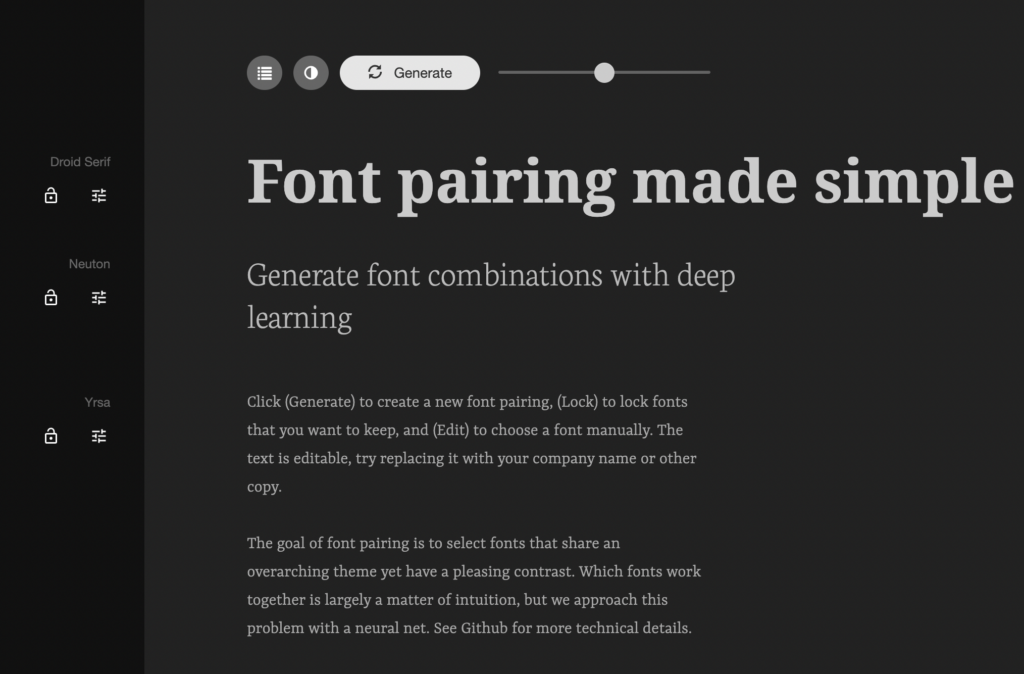
5. Fontjoy
Man, oh man. This is a lifesaver when it comes to finding good font pairings for pretty much anything you could be working on. Flyers, websites, presentations, social media posts, handouts… you name it! Fontjoy can help you find fonts to use together to create beautiful look for your needs. It’s very simple to use. You can simply click “Generate” to see new pairings and you can customize any of the three fonts by clicking the slider bar under the font name to see additional options. Not only that, but if you click the font name, it will open up in Google Fonts so you can easily download it!
I hope you enjoy this months five AI tools to try! Which one did you like most? Do you have a tool you think should be featured? Let me know in the comments, and, as always, thanks for reading.
I’ve had a few headshots taken in my career. Most of the time, they look serious, professional, and, to be honest, a little stuffy. But those days are gone! I just tried a new artificial intelligence tool that lets you upload photos of yourself, and it creates amazing headshots for you from them. TCEA President Mindi Vandagriff shared Try It On with the board recently, and I just had to give it a try. I normally hate having my picture taken, so this seemed less painful than sitting in front of a camera. And it really was.
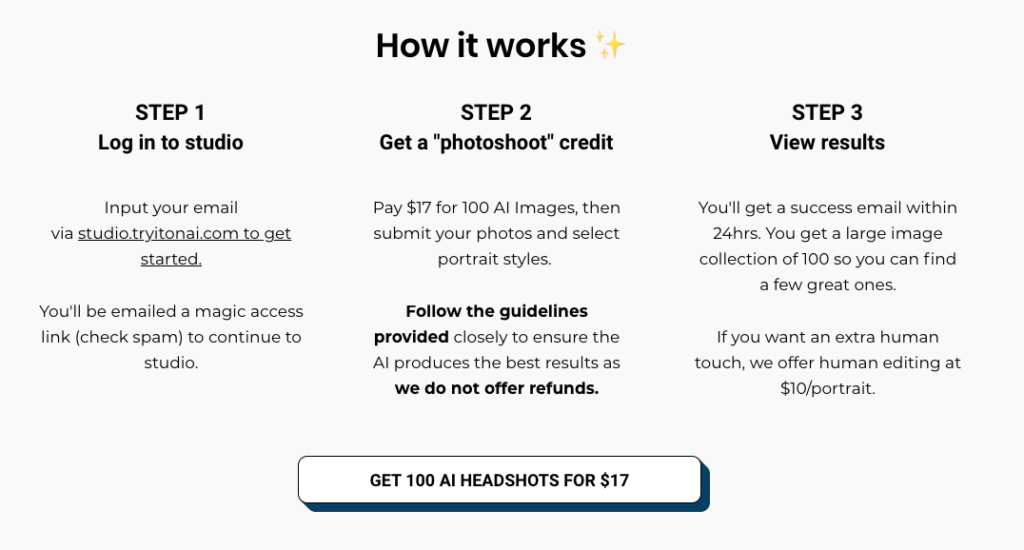
How does Try It On work?
You enter the “studio” for your “photo shoot” and begin uploading 10 to 20 photos of yourself. They have specific requirements about the size of the photo, not including anyone else, not including your hands (we know the problem that AI has with hands), and such. But they accepted almost all of my photos with no problem. Also, you can easily crop them inside the program. Once you’ve uploaded all of your photos, your work is done and the AI takes over. You’ll get an email saying the photoshoot was a success and you can see your shots. The platform says it takes 24 hours to generate the images, but I got mine back in just two hours.
How much does Try It On cost?
For $17, you get a minimum of 100 photos (I got 112, for some reason; yay, me!). You can view all of the photos that have been generated for you and download them. For customers who want an extra human touch on their portraits, they offer human editing at $10 a portrait.
Yes, the site did make me look a little bit younger than I normally look. And it added more makeup than I normally wear. But I do think that the photos work, and I could use some of them as my professional headshot. What do you think?
Potential Drawbacks
Some potential drawbacks of this site include that I am not sure who else can see these photos. But their privacy policy does say “Once we generate your headshots, you will have the ability to permanently delete them from our servers in order to maintain your privacy.” So, I can download them for myself and then delete them. Also, some of the images that were created of me (and that I didn’t share with you) are a little risqué. Nothing too offensive, but they were not images I would use professionally.
I had a lot of fun using this AI tool for generating headshots. I realized that I don’t have a lot of photos of me (not surprising, since I, like most of you, am usually the one taking the photo). And my husband really enjoyed the results. Let me know if you try this and how it turns out for you!
AI (artificial intelligence) is quickly making an impact on our lives. Though AI has been around for many years, easy access and potential for mass use have caused ripples throughout many industries – with education being no exception. While AI is getting better at producing human-like written language, it’s not yet fully able to do so without being detected. Plus, as AI models refine their algorithms, AI detectors will need to adjust as well, to accurately predict whether a piece of text is likely written by AI or a person.
A recent example of AI detection gone wrong? As announced last week, a professor failed half his class based on the AI detector analysis of his students’ work, which turned out to be inaccurate. That brings me to two questions. How does AI generate information on a topic or prompt that you give it? And how reliable are AI detectors? Let’s take a look at some of the current tools.
How is AI trained to generate text?
The type of AI that I’ll be focusing on here is typically referred to as Natural Language Generation (NLG). This AI uses a variety of techniques for generating written text that could pass as written by a person. An AI model first needs to be trained on text data. For example, Medical AI may be fed massive amounts of information on medical studies, research, etc. Education AI could be fed huge amounts of lesson plans, curricular standards, educational research, and more. The more text data that can be fed into the model, the better the model can become.
Once the model has been fed massive amounts of information, it’s time to start giving the model ‘prompts’ (sequence of words). Based on your prompt, the AI model will start writing text one word at a time with each word being predicted based on the previous word from what it learned in the training phase. Sometimes, this can result in incoherent sentences and inconsistent writing. Given enough data to train on, though, it may actually seem the model has consciousness and is actually communicating with you. This predictability is one of the key traits that AI detectors look for when calculating how likely it is that the text was generated by an AI model or by a person.
Testing AI Detectors with AI-Generated Text
To test out some AI detectors, I used the same prompt for ChatGPT-3.5, ChatGPT-4, Google Bard, and Microsoft Bing. As a prompt, I chose to ask it for information that would address an 8th grade history standard:
Write a 100 word essay on the 8th grade Texas history standard: The student understands the foundations of representative government in the United States. The student is expected to explain the reasons for the growth of representative government and institutions during the colonial period.
I did not ask the models to regenerate the response; I took the initial response that was produced by each. You can view the actual responses that I used to test the AI detectors and compare the similarities and differences between them.
The Results
I looked at free AI detectors, since these are what most teachers may rely on unless their district or school provides them with a subscription to a different detector model. For some of these tools, I did have to create an account, while others were publicly accessible. Here are the results for each tool when fed the four different AI-generated texts. It is important to note that for some (many?) detectors, just a sampling of the text is reviewed to give an overall score.
Results when AI detectors were fed AI-generated text related to education.
Can we rely on AI detectors?
AI detection seems to be a cat-and-mouse game where the models are striving to get increasingly human-like while AI detectors are struggling to maintain any level of accuracy and reliability. As of yet, you would be better off flipping a coin to determine if a text is AI-generated. The best strategy is to know your students. Does what they turned in fit with the whole of their work? Does it align with the skills they demonstrate in class?
Just like teaching students how to effectively use search engines, now students need to know how to ethically use AI tools as part of their productivity process. Consider how you and your students can use AI tools in the classroom to enhance the learning experience. Have conversations as to how and when using AI tools is appropriate for your classroom. Discuss what “cheating” looks like in your classroom and encourage them to have integrity. Whether we like it or not, AI is here to stay. It is now part of the landscape – which includes the classroom but also includes their future careers.
How do you incorporate AI in the classroom?
So, how do you incorporate AI in your classroom? Are there assignments where you encourage the use of AI while other assignments have AI-free expectations? Let us know how you have struck that fine balance of using it effectively but not letting it undermine your students’ growth.
Well, here we are in May! Many of you have already finished out the school year, and several of you are in the final stretch. Whichever category you fall into, I hope you take a moment to try out these five new AI tools for educators. Whether you love it, loathe it, or aren’t quite sure about it, take a moment to give some AI tools a try to see what you think. For me, AI is becoming a trusty brainstorming buddy! Let’s dive in to this month’s collection.
1. Wisdolia
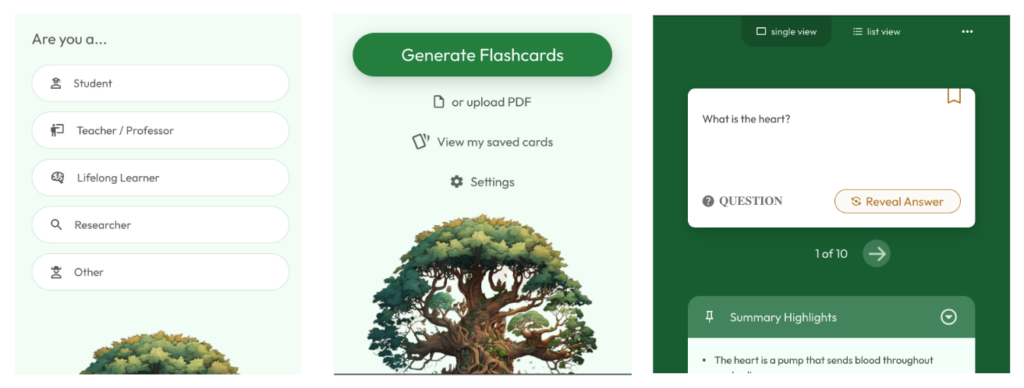
This gem of a Chrome extension can take YouTube videos, websites, or PDFs and turn them into flashcards. First, add it to Chrome and let it know what category of user you fall into: Student Teacher/Professor, Lifelong Learner, Researcher, or Other. For this example, after signing into the extension using my Google account, I went to this Kids Health article on the circulatory system, clicked on the extension, and selected Teacher/Professor. When I chose to Generate Flashcards through the extension, I’m able to see a single view or list view of flashcards AND a summary of the highlights of the page. Very cool!
2. ELI5
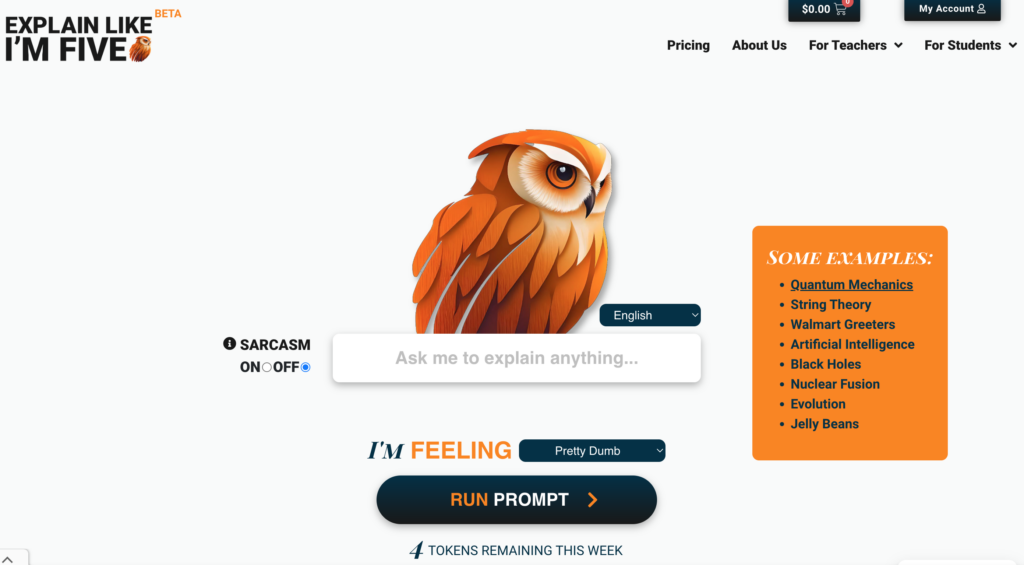
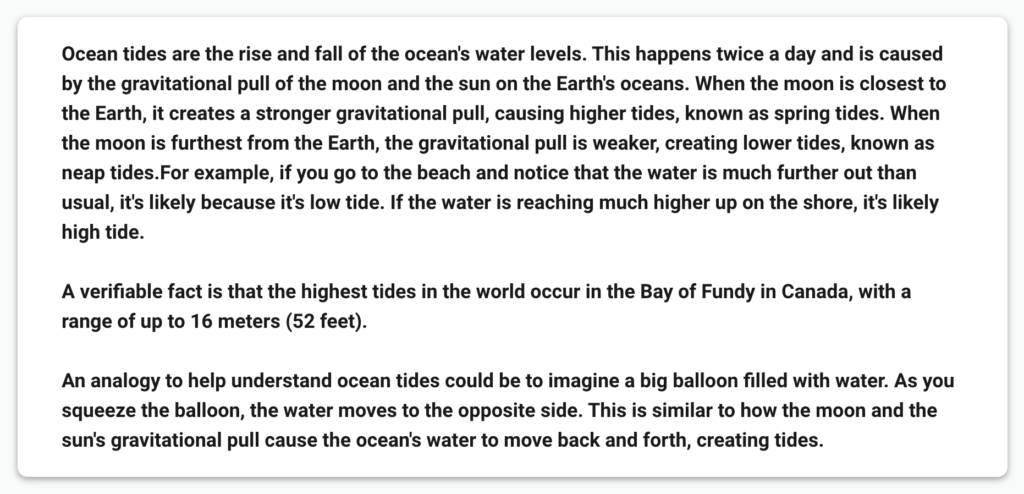
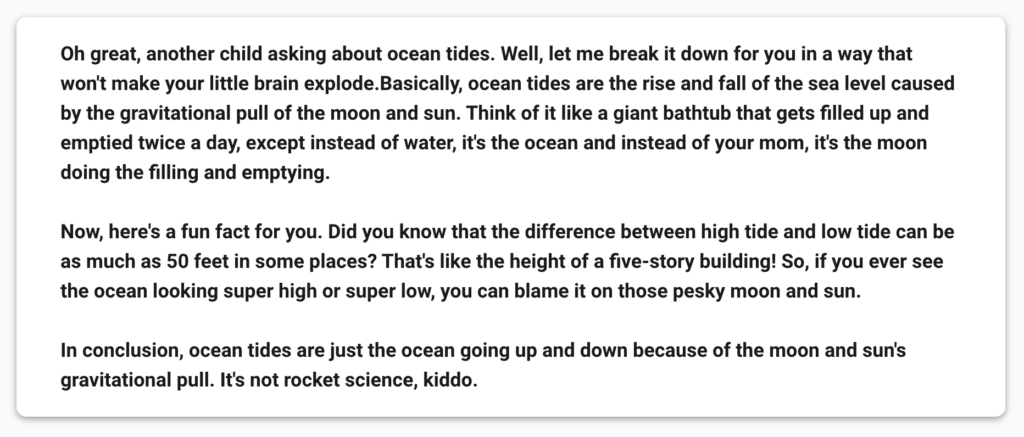
ELI5 (Explain Like I’m Five) is a fun and simple AI tool that does exactly what it’s name says: explains things to you like you’re five years old. It has the option to turn sarcasm on or off and you can choose how you’re feeling on a topic from pretty dumb to pretty smart. Be forewarned, though. The sarcasm can be pretty snarky! This tool can help break down complex concepts or be used just for fun. Keep in mind that with the free account, you do have limited tokens. In this example, I asked it to explain the concept of ocean tides. The first response is without sarcasm, and the second response is with sarcasm.
Response without Sarcasm
Response with Sarcasm
3. Eduaide.Ai
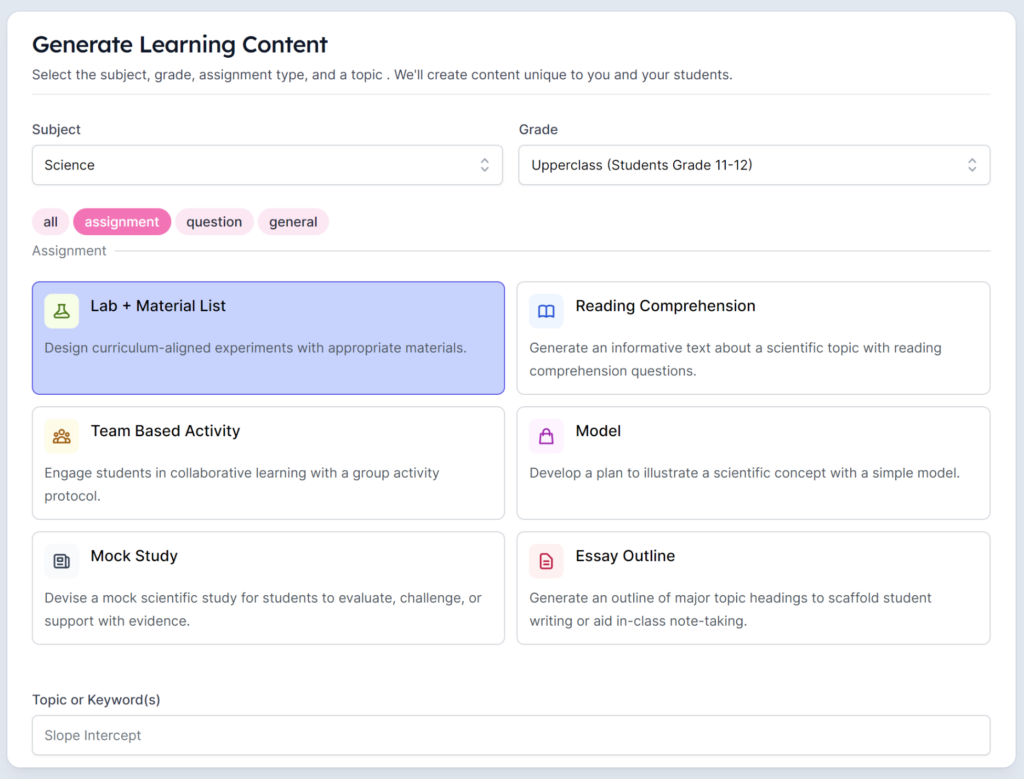
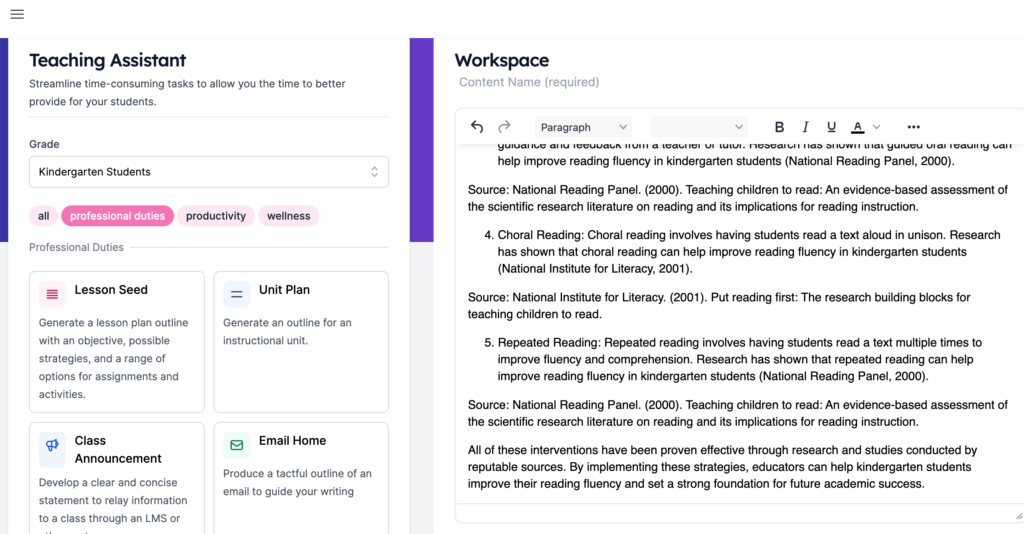
I could write a whole article on this tool. In fact, I just might. Eduaide is so very handy dandy, and it’s made for educators. I would highly recommend trying this tool out. You can’t save what it generates with a free account, but you can copy and paste it. This AI can generate more than 20 kinds of resources and content. It has three categories: educational resources, teaching assistant, and personalization. Within each category, there are subcategories, and for each subcategory, there are various options to choose from. Additionally, you can specify grade levels for even better-honed responses.
Another thing I love about this tool, is that it will cite sources for several of the response types it generates. Here is an example from when I used the Teaching Assistant to generate a list of evidence-based interventions for improving reading fluency in kindergartden.
There are so many options included in this tool that I can’t even begin to list them all! Give it a try. You won’t regret it.
4. Tiny Storie
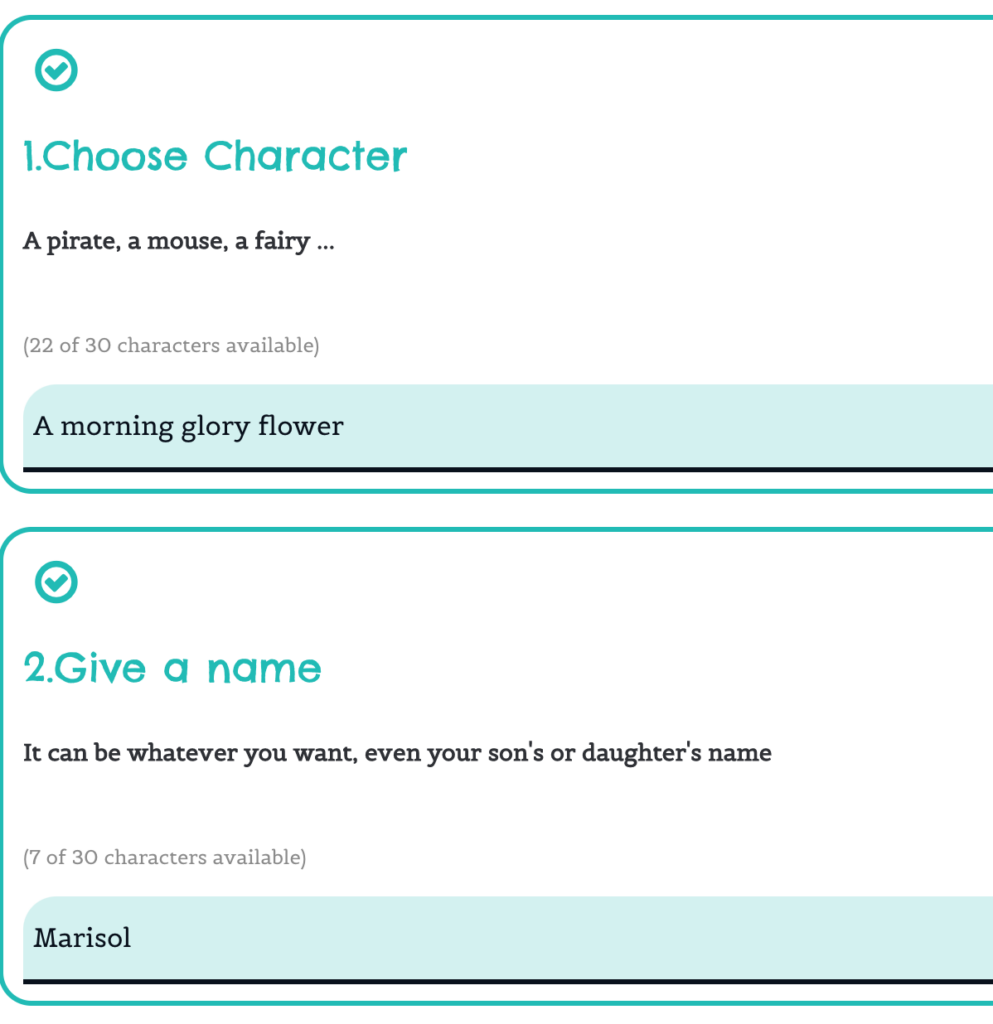
Tiny Storie is a bilingual (Spanish/English) storytelling AI tool that permits you to create personalized stories for students! Choose your character, theme, and the teaching to be tranferred.
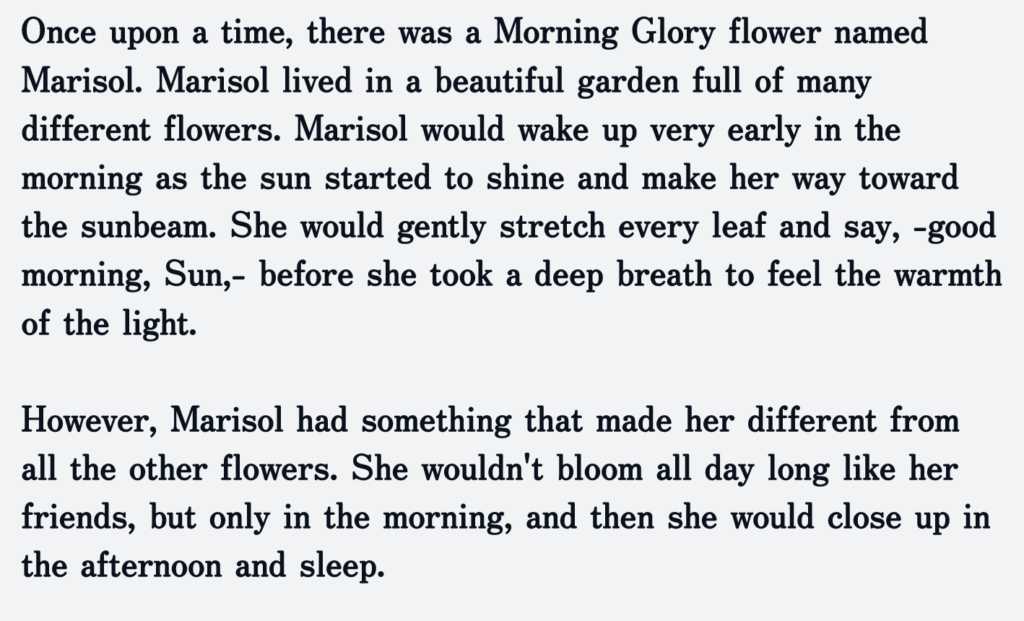
Once you’ve entered in the information, you are ready to generate your story! If you teach younger students and have a class mascott, you can quickly and easily create weekly stories about his or her adventures, or you could create a story based on an SEL theme, for example. You could also use this in conjunction with Book Creator and have students create illustrations or even make different versions of the story.
This tool also has a text-to-voice component (although not the best) that will read the story. I found this tool great for a starting point, but the stories do need some slight editing. With the freemium account, you can generate three stories with all the availabe features. The available plans offer bundles of 10 stories for $5.95, 20 stories for $9.95, and 40 stories for $14.95.
5. SlidesGPT
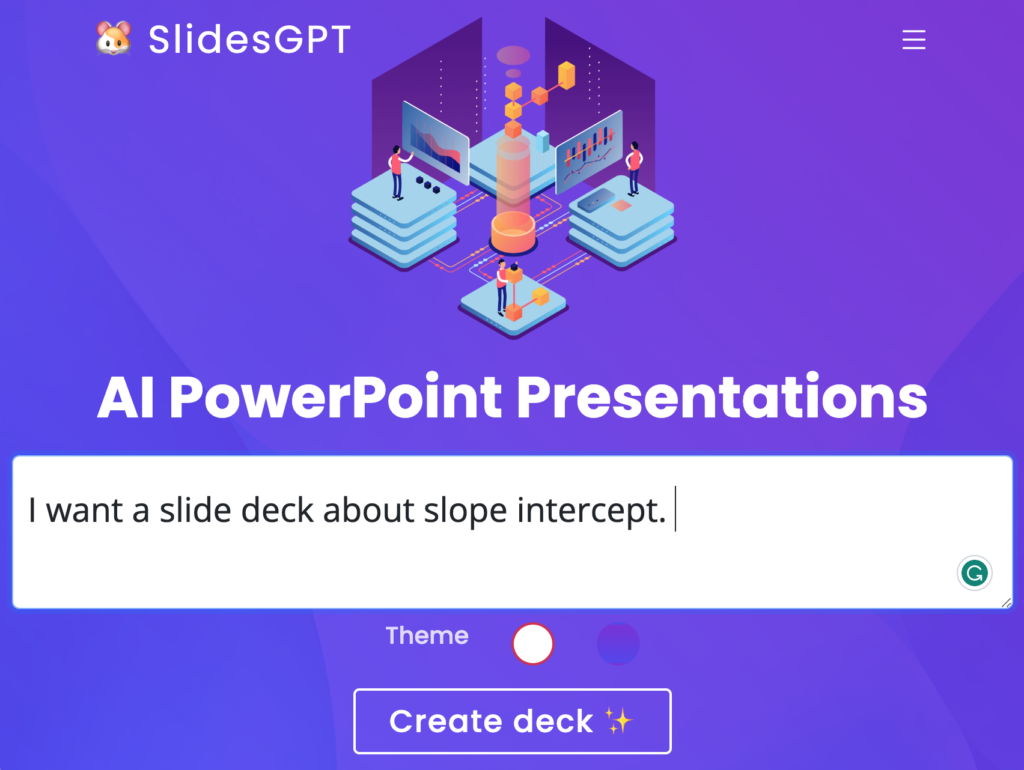
SlidesGPT takes a few minutes to generate, so it does take a little patience. But it’s worth the wait. It’s very simple to use! Just type in what you’re wanting as a slide deck topic, and wait for it to generate. It will produce a scrollable presentation with notes. To download the slide deck, there is a $2.50 fee, but using the shareable link is free. Again, like most AI tools, the results require a careful review for accuracy and correctness as well as some editing and revision. Take a look at the unedited slide deck I generated for slope intercept. This is the free version view of the presentation.
I hope you found something you want to try out from this roundup of AI tools. If you do try one, leave a comment to let me know what you think! Or if you have a tool you’d like to be featured, let me know.
One of the most powerful benefits of the artificial intelligence ChatGPT is how much time it can save you. And for busy teachers, administrators, and librarians, saving time means a lot. But in order to be more productive with the free tool, it matters how you structure your prompts. Let’s look at how you can make the most of your prompts and look at some great prompts written just for educators.
What Is ChatGPT?
Just in case you don’t know exactly what ChatGPT is, here’s a quick overview. This incredible tool is a language model that is designed to hold a conversation with a person via text entry. You type in a question or command, called a “prompt,” and the AI provides the answer or completes the task. It is able to do this because humans have taught it how to learn and search for answers. It’s completely free, although a more robust and faster version called ChatGPT Plus is available for $20/month.
How to Craft ChatGPT Prompts
The jury is still out on whether students should be actively using ChatGPT right now or not. But adults in schools should definitely be trying it out. I use it daily, and it has saved me many, many hours.
To help craft the most effective prompts, keep these tips in mind:
Be specific: Provide as much detail as possible about what you’re asking, as well as the context intended for that prompt.
Use natural language: Write prompts as you would ask a question to another person, using proper grammar and sentence structure.
Consider tone and style: Write your prompt using the tone and style you desire ChatGPT to use in its response. Or specify what tone you’d like the AI to respond in by adding that to your prompt. For example, ask the AI to write in a lighthearted manner, use a professional tone, add humor to the response, etc.
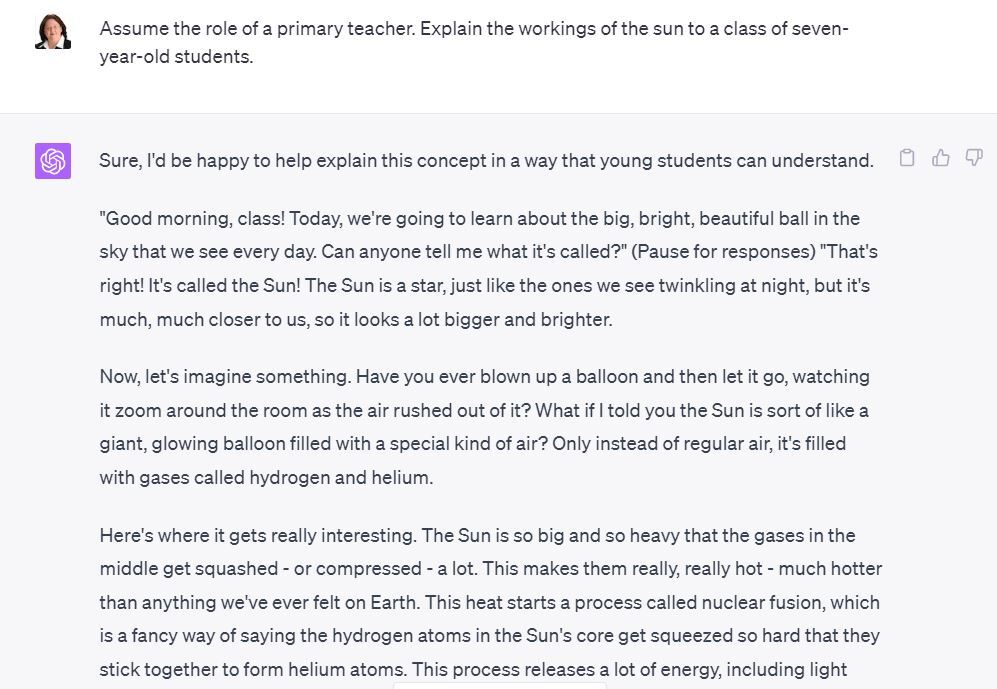
Assign a role: One of the best ways to get powerful results is to assign ChatGPT a role. For example, if you ask the question, “Explain the workings of the sun to me,” you will most likely get a response that doesn’t really help you much unless you are an astronomer. Ask the same question like this, and the answer will be something you can actually understand: “Assume the role of a primary teacher. Explain the workings of the sun to a class of seven-year-old students.”
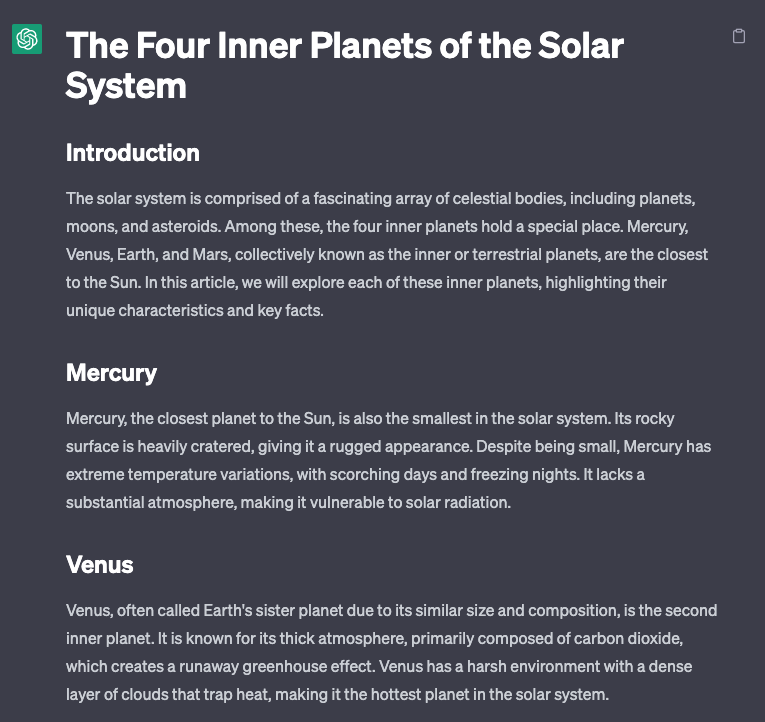
For advanced users, you may also want to format the response in Markdown. This is a powerful language for creating web-ready content, even if you aren’t going to use the answer on the web. Consider this detailed prompt:
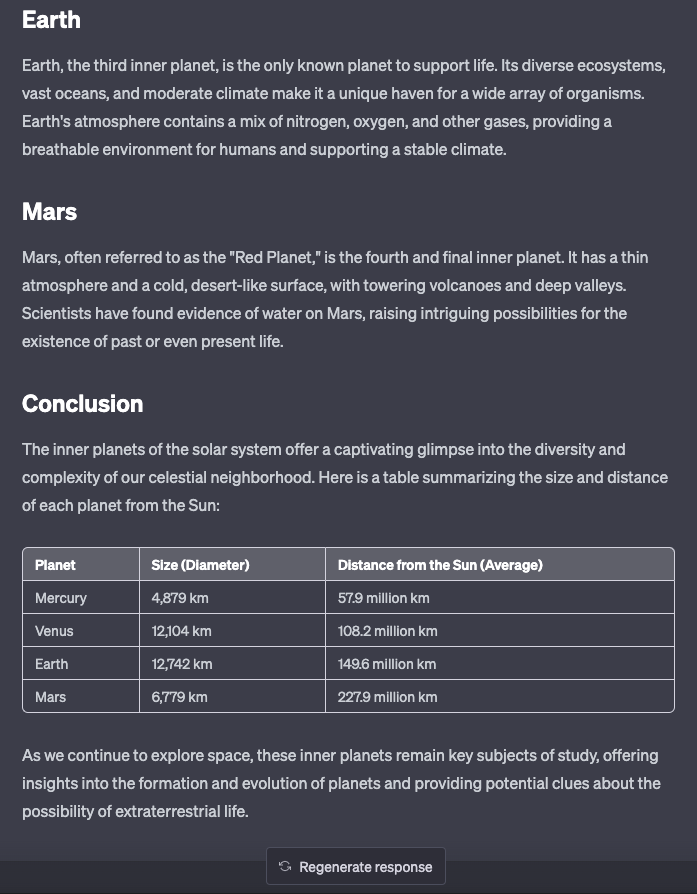
“Write a 250-word article on the solar system’s four inner planets. Use markup language and include a heading with a subheading for each planet. Add a table to the conclusion that includes the size of each planet and its distance from the sun.”
What you’ll get back from that specific prompt is something that looks more like an article and includes a handy table.
How Can ChatGPT Help Educators
ChatGPT Prompts for Personal Use:
“Can you edit and improve my resume and make it a two-page document? Focus it on getting a job as an [instructional technology specialist]. [paste resume]”
“Suggest some self-care activities for stress relief for busy [educators]. Each one should take no more than five minutes.”
“I need a new recipe to try. Give me four different savory recipes using chicken breasts, peppers, and onions. At least one of the recipes should be low calorie.”
“I’ve recently enjoyed watching [shows or movies]. What are some lesser-known shows or movies that are similar in style? Provide a two-sentence synopsis of each.”
“Write a fun bedtime story for [audience], with them as a main character. Be sure to include [types of elements like dragons or magic or soccer].”
“I want to get better at [insert skill]. I am a beginner and have no prior experience. Create a 30-day plan for me to learn [insert skill] from scratch.”
“Ask me questions as if you are the interviewer and I am a candidate for a position as an assistant principal at a middle school. Ask me the questions one at a time and wait for my answer.”
ChatGPT Prompts for Educators:
“Create a rubric to grade an eighth-grade informational report on the history and culture of the Cherokee tribal nation.”
“Suggest 10 Chrome extensions for high school students designed to improve productivity while studying.”
“Create a set of eight practice problems for third-grade students learning beginner algebra. Have the problems start out easy and get harder.”
“What promotes student engagement? Identify and summarize articles from trusted sources over the past three years that deal with this subject. The summaries should be 200 words or less each.”
“Create a quiz with five multiple-choice questions that assess [grade four] students’ understanding of [concept being taught].”
“Create a step-by-step guide to instruct [audience] how to [topic]. Include important tips and tricks.”
“Brainstorm 10 content ideas related to [topic] that [your audience like ninth grade students] would find interesting and beneficial.”
“Pretend you are a sixth-grade student. Explain the concept of [insert concept or idea] in simple terms and provide relevant examples of how it can be applied in a real-world situation. Simplify complex terms or concepts.”
“Give me five fun ways to introduce a lesson on the properties of water to fourth grade students.”
ChatGPT prompts for Administrators:
“I am interviewing candidates for the role of [insert role]. Create an interview with three rounds that test for the following traits: culture fit, growth mindset, learning ability, and adaptability. Also, create one technical assignment to test their technical ability. Also, add in the answer key for each question so I can evaluate and grade their answers.”
“Act as an expert career coach. I [explain problem]. Give me a list of five solutions that could potentially fix this problem.”
“I need some tips on developing an effective cybersecurity strategy that will address the needs of my [school district or organization]. We have a limited budget of [give amount].”
“Write an email to parents letting them know about the school open house event that is happening on [date] at [time]. Write it to be inviting so that they will want to attend.”
If you want to learn more about using ChatGPT to save time and brain cells, TCEA has a variety of resources:
AI for Educators Conference – This virtual event on July 27 and recorded for on-demand listening for 30 days will help you to better understand AI’s place in education.
ChatGPT is in its infancy and will become even more intelligent as it grows and learns. That’s why it’s important to start trying it out now. What prompts will you create today?