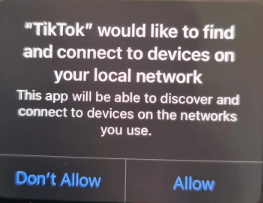
Have you installed a new app lately? Whether it’s Tik Tok, ChatGPT, or some game app, you often get a list of required permissions. Microphone: allowed. Contacts: allowed. Location: always on. For a game about stacking colored blocks, there’s an awful lot of information that is being transmitted. If this sounds familiar, you may be an avid smartphone user. But consider what these permissions mean for our children’s use of smartphone and tablet apps. Parents often have no idea what to do with it.
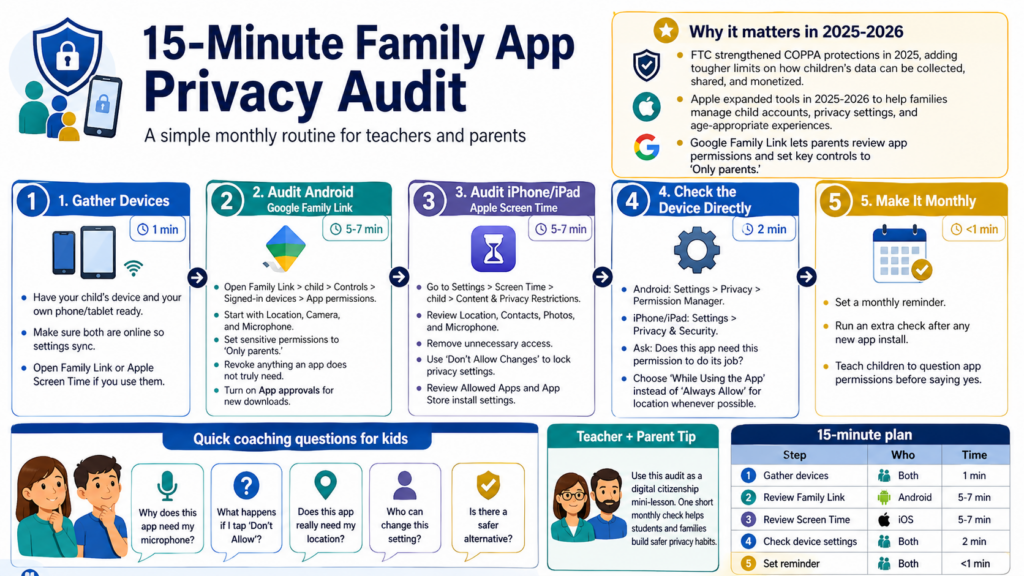
In this blog, you’ll find a fifteen minute process that gets you through it. It’s an app permission gauntlet that can get tedious in its regularity. Even a simple flashlight or alarm clock app can be a pain. While there are no guarantees this will make the overall process less tedious, you will have a consistent process you can model for your children and/or students.In this blog, you will also find an info graphic and digital audit tool to guide you included.
Step 1: Gather Your Devices
To begin, make sure you have your child’s device in hand along with your own phone or tablet. If you use Google Family Link or Apple Screen Time, double-check that both devices are connected to the internet before you start. Changes you make in the parent app sync automatically to the child’s device, so the connection needs to be active.
This step takes about one minute.
Step 2: Audit Android with Google Family Link
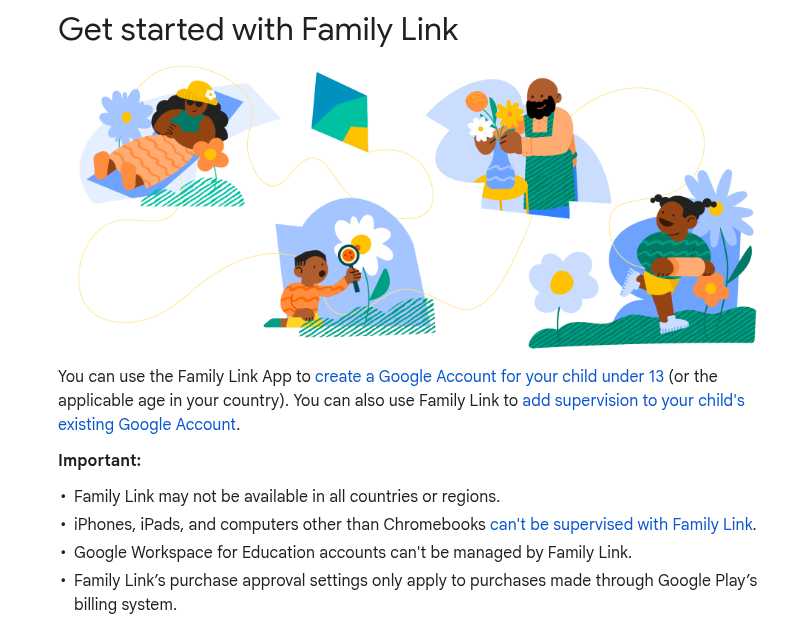
Google Family Link works on Android 6.0 and higher and gives you one place to review permissions across every app your child has installed.
Follow these steps:
- Open Family Link on your device
- Select your child’s profile, and
- Navigate to Controls, then Signed-in devices, then App permissions.
The three most important items are Location, Camera, and Microphone. For these, you will want to set each to “Only parents.” This ensures your child cannot re-enable them without your sign-off. After that broad sweep, pick two or three apps your child opens every day and look at the permissions each one holds.
Apps that request Contacts access should be disallowed. You will want to revoke anything that doesn’t belong. Then, confirm that “App approvals” is turned on. This ensures your permission is required before any new download installs. Google’s support documentation walks through each of these steps if you need a reference.
Step 3: Audit iOS with Apple Screen Time
On iPhone and iPad, your starting point is Content and Privacy Restrictions.
- Go to Settings, then Screen Time, then
- Select your child’s name under Family Sharing. Tap Content and Privacy Restrictions and
- Enter your Screen Time passcode.
Under Privacy, review Location Services, Contacts, Photos, and Microphone, and revoke access for apps that don’t need it. Then set those critical permissions to “Don’t Allow Changes.” This is important because a determined child can restore everything you just changed if you don’t make that last setting change.
Two more worth your time: under Allowed Apps, toggle off anything your child doesn’t use, and under iTunes and App Store Purchases, set “Installing Apps” to Don’t Allow if you want to review each app before it arrives on the device.
Step 4: Check the Device Directly
If you’re holding your child’s phone right now and don’t have a parent control app set up, you can still get a clear picture.
- On Android, go to Settings, then Privacy, then Permission Manager. This view lists every app with access to a given category. Start with Microphone and work down from there.
- On iOS, go to Settings, then Privacy and Security.
For each app, the question is the same: does this app need this permission to do its job? If the answer is no, revoke it.
One rule worth keeping permanently, and one I set for my apps that request location access: always choose “While Using the App” over “Always Allow” for location. No homework app needs to know where your child is when the app is closed.
Digital App Privacy Audit Tool
Please find a short, interactive guide to use once a month to audit your own, as well as your children’s, apps. The full screen version is available at this website.
Step 5: Make It a Monthly Habit
A single audit handles the backlog. What protects your child going forward is repeating it.
Set a monthly reminder and do this again. That’s 12 short sessions per year, which adds up to less time than most families spend picking a movie on a Saturday night. Run an extra check whenever a new app becomes popular at school or lands on your child’s wish list.
| Step | Platform | Time |
|---|---|---|
| Gather devices and confirm connectivity | Both | 1 minute |
| Review Family Link permissions | Android | 5 to 7 minutes |
| Review Screen Time restrictions | iOS | 5 to 7 minutes |
| Check permissions directly on device | Both | 2 minutes |
| Set monthly reminder | Both | Under 1 minute |
Apps accumulate quietly. Running this audit once a month means you stay ahead of what they collect, one unnecessary microphone permission at a time.
Need More Guidance?
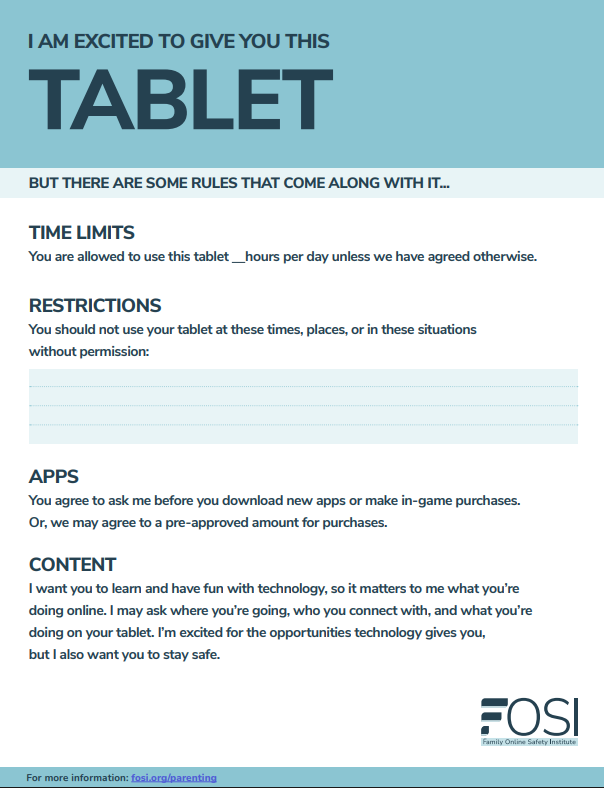
If you find you need more guidance, especially about parental controls and digital privacy, the Family Online Safety Institute offers free resources for parents at every comfort level. They offer a variety of resources, such as the Device Safety Cards (page one shown below) that you can share.
👤 Human-directed (Miguel Guhlin) · 🤖 Gen AI-assisted (Claude, ChatGPT)