Explore articles and resources on accessibility in education. Discover strategies, tools, and best practices to create inclusive learning environments for all students.
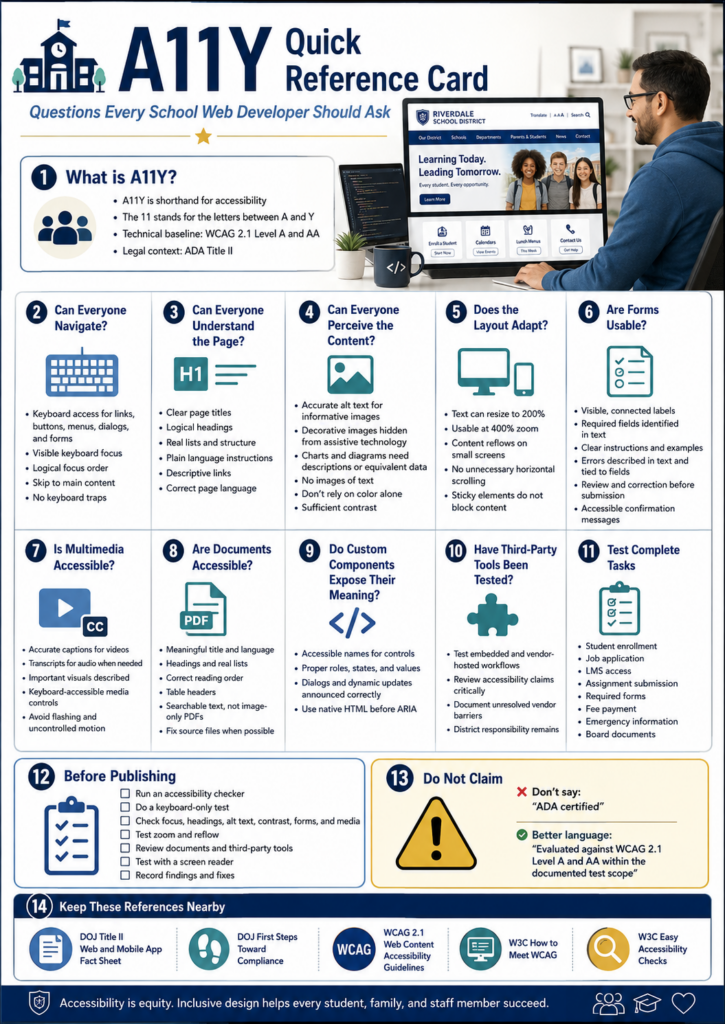
Supervising a web developer in a school district can be fun. Your idea starts out as a simple website, but then, pretty soon, the web developer is making suggestions about accessibility you hadn’t even thought of. If you haven’t been listening to your web developer, then you may want to. There’s a clock ticking and an upcoming deadline. This blog covers digital accessibility (A11Y for short) and offers some suggestions to prepare, if you haven’t already. You will get access to several tools and questions to ask, chatbot custom instructions, and see a sample report.
Upcoming Free Event: October 14, 2026 at 4:30 PM (Central) – Register Now
Digital accessibility is a Texas-sized topic with an impact on every learner. For the past decade, Mary Rice and Raymond Rose have explored how accessible digital environments support students, faculty, administrators, and parents—and they have witnessed growing awareness across education. Whether you are just discovering digital accessibility or ready to dig deeper, this session offers something for DigitALL learners. Come learn how accessibility makes digital learning more inclusive, practical, and effective for everyone. Join the presentation for a lively discussion, questions, and shared ideas.
Join us live for the presentation, then stick around for 30 minutes of open conversation and Q&A with the presenters.
Questions to Ask
Here are some questions that you, as a web developer, should be asking. Or, maybe you should ask your web developer where your website stands on these:
Scenario To Avoid
Imagine yourself as a parent. A parent opens your district website to register a child for school. The registration link just says “Click here,” the form fields carry no labels a screen reader can announce, and the required handbook turns out to be an image-only PDF with no readable text behind it. For most families that adds up to a minor annoyance. For a parent who navigates by screen reader, it can stop the whole process before it starts.
Become a CyberSmart Educator with a practical, self-paced course designed to help you protect sensitive data, secure accounts and devices, recognize social engineering attacks, respond appropriately to cybersecurity incidents, and build stronger digital safety habits. The course is $49 at full price or $34 at the discounted rate. Register online through TCEA Courses.
School websites stopped being brochures a long time ago. Families rely on website for all sorts of necessary tasks, such as:
registering students,
checking calendars,
applying for jobs,
reading emergency notices,
making payments, and
reaching learning resources.
Once the site becomes the front door to a public service, accessibility is no longer a design nicety (if it ever was). Now, there’s a federal standard that clarifies expectations.
What Changed Under ADA Title II?
The U.S. Department of Justice updated the regulations for Title II of the Americans with Disabilities Act. Under the rule, state and local governments, public schools and districts included, have to make their web content and mobile apps accessible.
The technical standard is Web Content Accessibility Guidelines 2.1, Level AA, usually shortened to WCAG 2.1 AA. You will also run across accessibility written as A11Y, where the number stands in for the eleven letters between the “A” and the “Y.”
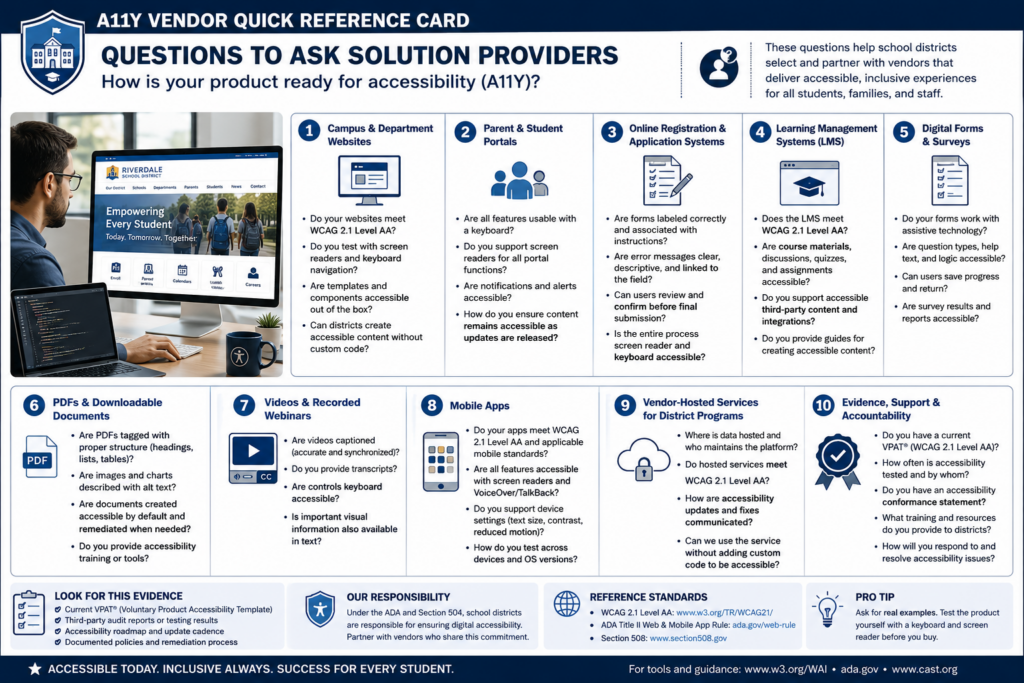
The rule reaches well past your homepage. It can cover items that have you ask third-party solution providers how their products comply. Here’s a short list and a list of questions for those solution providers:
Campus and department websites
Parent and student portals
Online registration and application systems
Learning management systems
Digital forms and surveys
PDFs and downloadable documents
Videos and recorded webinars
Mobile apps
Vendor-hosted services used to deliver district programs
As you can see, some of the products schools and district use every day have to comply. Read that list again and notice the bolded items. To me, those bolded items would surely have been a “not my circus, not my monkeys” kind of situation. However, they are significant performers in schools and districts.
Simply put, a vendor resource does not get a pass just because it sits behind a login or belongs to a vendor. The Department of Justice fact sheet points out that content and apps delivered through contracts, licensing, or other arrangements are covered right along with everything you build yourself.
When Do Schools Need to Comply?
The Department of Justice extended the original compliance dates in April 2026. Public entities serving a population of 50,000 or more now have to meet the technical requirements by April 26, 2027, while smaller public entities and special district governments have until April 26, 2028. Both dates appear in the 2026 interim final rule.
One possible concern is that “population” refers to the jurisdiction you serve, not your student enrollment. The DOJ explains that distinction in First Steps Toward Compliance. Some school districts may confuse jurisdiction with student enrollment, resulting in mistakes.
Keep the following information in mind: The population figure determines which ADA Title II compliance deadline applies. A district might enroll only 8,000 students but serve a jurisdiction with more than 50,000 residents. Using enrollment would wrongly place that district in the smaller-entity category and could make it plan around the later deadline.
Public entities already carry ADA duties around effective communication and equal access, and those duties did not move with the deadline. A family can raise a barrier today, and courts have recognized web accessibility claims for years.
Start With What Families Actually Have to Do
One way to approach this is to start with the essential tasks a family or staff member has to complete:
Enroll a student
Apply for a job
Submit a required form
Find emergency information
Get into a course
Read a board document
Ask for help
Work through each one using a keyboard alone, no mouse, then run the same pages through a screen reader and zoom to 400 percent to see what falls apart. From there, make sure to check the following:
Forms,
Videos,
PDFs, and
Error messages inside tasks
When you find an issue, fix it in the shared template or component rather than page by page. That may assist you in preventing the problem from reoccuring across the hundreds of pages you maintain.
Who Owns This?
As you may have guessed, your web developer isn’t the sole person responsible for this. While you may wear that hat in your role, this is actually a “A11Y is everyone’s responsibility” situation. Consider that Communications manages pages, teachers upload documents, human resources posts job applications, curriculum staff build courses, and vendors run the biggest platforms.
Wherever people publish, that’s where the responsibility has to be assigned as well. It’s a big job, especially if you outsource solutions like learning management systems, content management systems, video hosting, parent/student portals.
You will need to put a system in place to manage all the components, including a content inventory, a named accessibility owner, staff training, purchasing requirements that ask vendors to prove conformance. You will also need a clear way for people to report barriers, and a written remediation plan. I would also recommend a committee to share the compliance load.
Here’s a list of questions you can use:
As you might imagine, you are not trying to earn an “A11Y certified” badge. The goal is that a person with a disability can reach the same information as anyone else. And, also, that someone needing A11Y can finish the same school tasks with comparable privacy, independence, and ease.
Focus
What to do first
Essential tasks
Test enrollment, job applications, and forms by keyboard and screen reader
Shared templates
Fix the component, not the individual page
Documents
Replace image-only PDFs with readable, tagged versions
Purchasing
Require vendors to document WCAG 2.1 AA conformance
Ownership
Name an accessibility lead and train the people who publish
Not only is A11Y a legal requirement, it is also a long-term goal that schools and districts need work towards achieving and maintaining.
Just wanted to say I liked your package about accessibility. It was very comprehensive. Ideal for folks who get it and need help making their school/district in compliance. Nice job.
Raymond Rose
A Tool to Help: Digital Accessibility Readiness Assessment
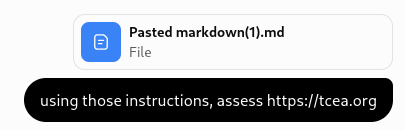
Do you have access to a paid chatbot, such as ChatGPT, Claude, or Gemini? Get it to do the initial, first-step work of assessing your websites and other services. Use these custom instructions (get a copy) and paste them into your chatbot of choice. Then, ask it to assess the website or learning management system. It won’t be perfect, but it may get you further along than simply eyeballing a website.
For fun, I used ChatGPT to assess the TCEA.org website using the custom instructions…you can see my prompt was short and to the point.
Wondering how to use the instructions? Copy-n-paste them into a chatbot screen. You might even create a custom Project (Claude and ChatGPT call them “Projects,” while Gemini may refer to it as a “Gemini Notebook and Gem”) if you know this is something that you’ll be doing again and again.
Wouldn’t it be nice to have a report like this available to kick your A11Y committee work off?
Pick one high-traffic task on your site this week, the enrollment form is a good candidate, and try to finish it using only your keyboard. What you run into will tell you exactly where to start. Share what you learn in the comments.
👤 Human-directed (Miguel Guhlin) · 🤖 Gen AI-assisted (Claude, ChatGPT)
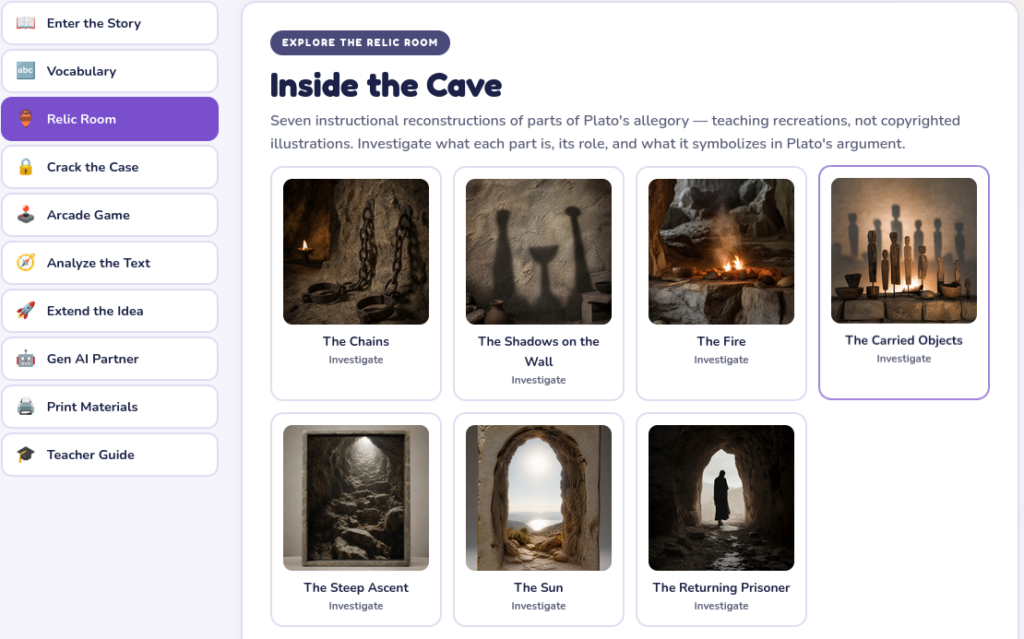
Looking for a way to engage students with literature? Consider PlotPoint, a literature learning arcade featuring 100 titles. The goal of PlotPoint is to turn reading into an investigation. It offers interactive learning opportunities for students and stories appropriate for grades six through twelve. Students examine artifacts, solve evidence-based breakouts, play short literary games, and explain the thinking behind their choices. What’s more, you also get 35 classroom poster images for popular texts in grades 6-12, Texas classrooms (not all posters reflect titles explored in PlotPoint, however).
Note: These are popular texts but may or may not yet appear as PlotPoint reading rooms. These are only 15 of the total 35 available posters. Get the complete collection here.
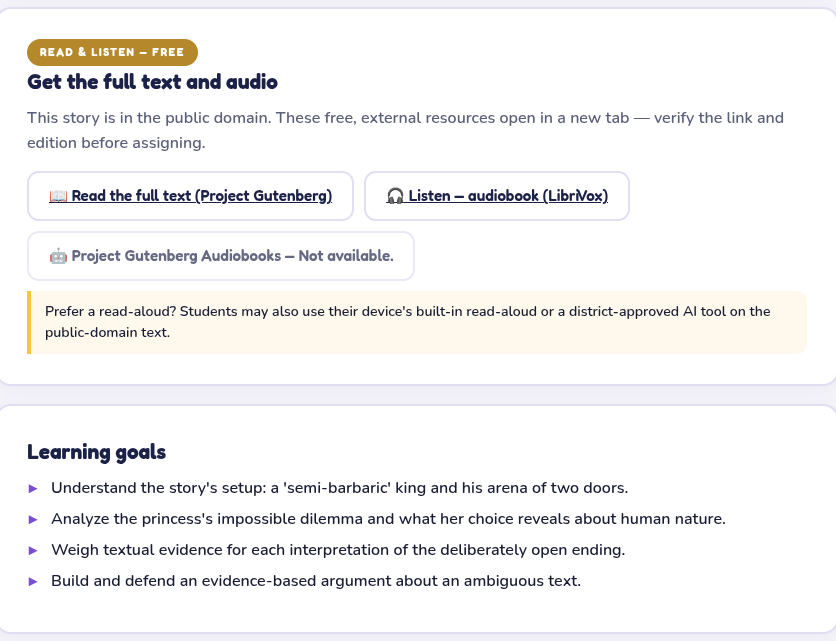
I like activities that make students return to the text without making the return trip feel like punishment. PlotPoint does that by wrapping close reading and reasoning inside a room built around a specific book. In addition to classical tales, I’ve also incorporated a few short stories from my days in school, like The Lady, or the Tiger?
A Quick Reminder: Allow me to point out that these reading rooms are available in SEVEN different languages, including English, Spanish, Vietnamese, Chinese, Arabic, Hindi, and Urdu. Finally, efforts have been made to make it A11Y friendly. PlotPoint is built to widen access for emergent bilingual students, supporting all four ELPS language domains.
For example, most texts are linked to Project Gutenberg full text, as well as either or both the LibriVox or Project Gutenberg Audiobooks version.
What’s more, each comes with a series of activities.
Become a CyberSmart Educator with a practical, self-paced course designed to help you protect sensitive data, secure accounts and devices, recognize social engineering attacks, respond appropriately to cybersecurity incidents, and build stronger digital safety habits. Or, learn AI Essentialsfor Educators. Each course is $49 at full price or $34 at the discounted rate. Register online through TCEA Courses.
Read, Reason, and Play
Each title room is designed around three simple actions: read, reason, and play. Students may need to study a clue, connect details, test an interpretation, or use evidence to open a lock. The game elements add a reason to keep looking, but guessing alone will not carry the day.
These elements assist students who may remember a plot point, but miss the larger pattern. PlotPoint asks them to slow down, notice what matters. Then, students explain why their answer makes sense.
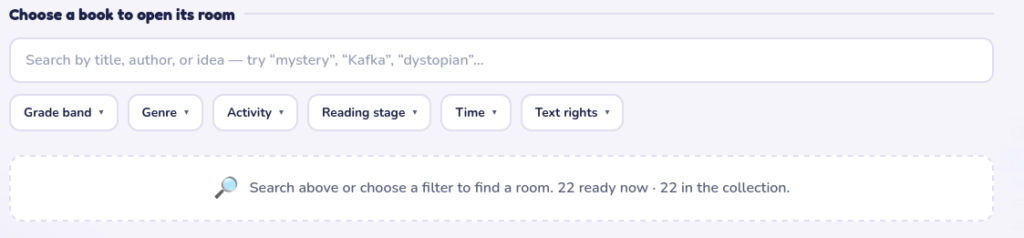
The collection currently lists 100 title rooms and there are more on the way. Teachers can search by title, author, or idea, which should make the growing library easier to navigate. Every effort has been made to address Texas’ specific texts, as well.
Make Student Thinking Visible
PlotPoint also includes a teaching companion built around the ACE Framework:
Articulate the idea in your own words
Connect it to evidence and prior knowledge
Extend it into a new question, situation, or interpretation
That sequence moves students from recalling pieces of a story toward building and applying an interpretation. It also gives teachers a practical check on student understanding, especially when Gen AI may have helped with part of the work.
Optional Gen AI use is built around accountability rather than answer production. Students think first, then use the tool where appropriate, and remain responsible for explaining their reasoning. PlotPoint does NOT employ ANY Gen AI tools whatsoever.
Open a Room
PlotPoint works in the browser, requires no login or account, collects no student data, and supports seven languages. That makes it easier to use for a class activity, small-group station, extension task, or literature review.
Visit PlotPoint and open the first title room with your students.
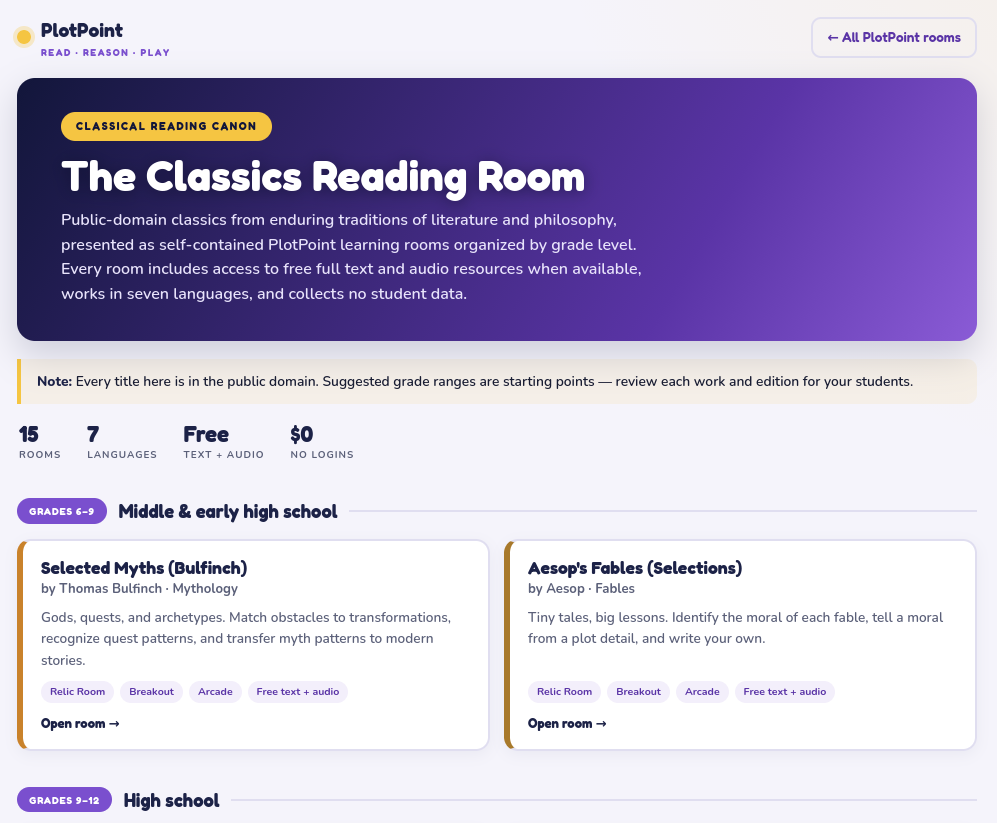
Classics Reading Room
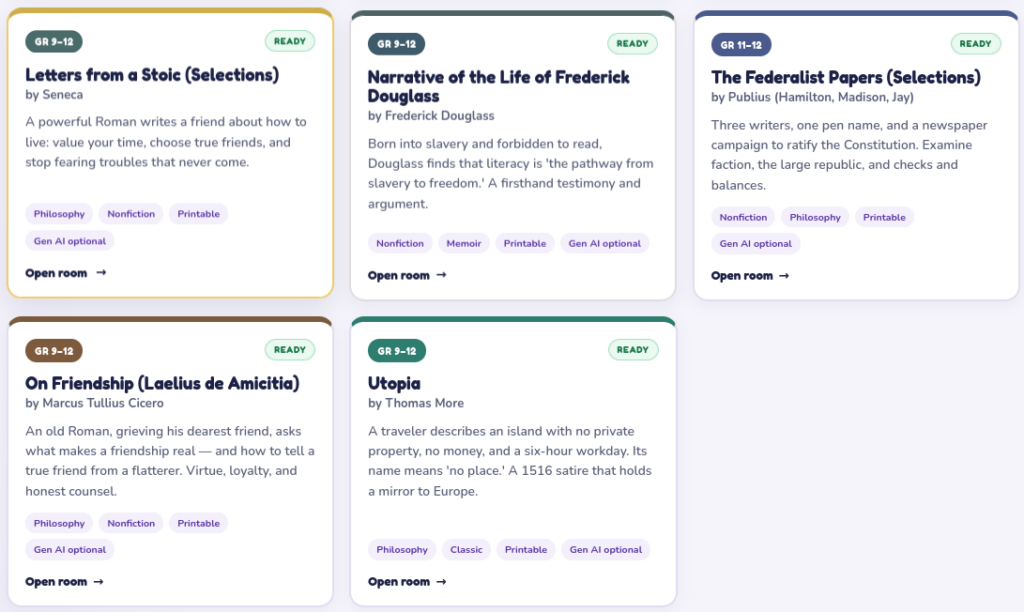
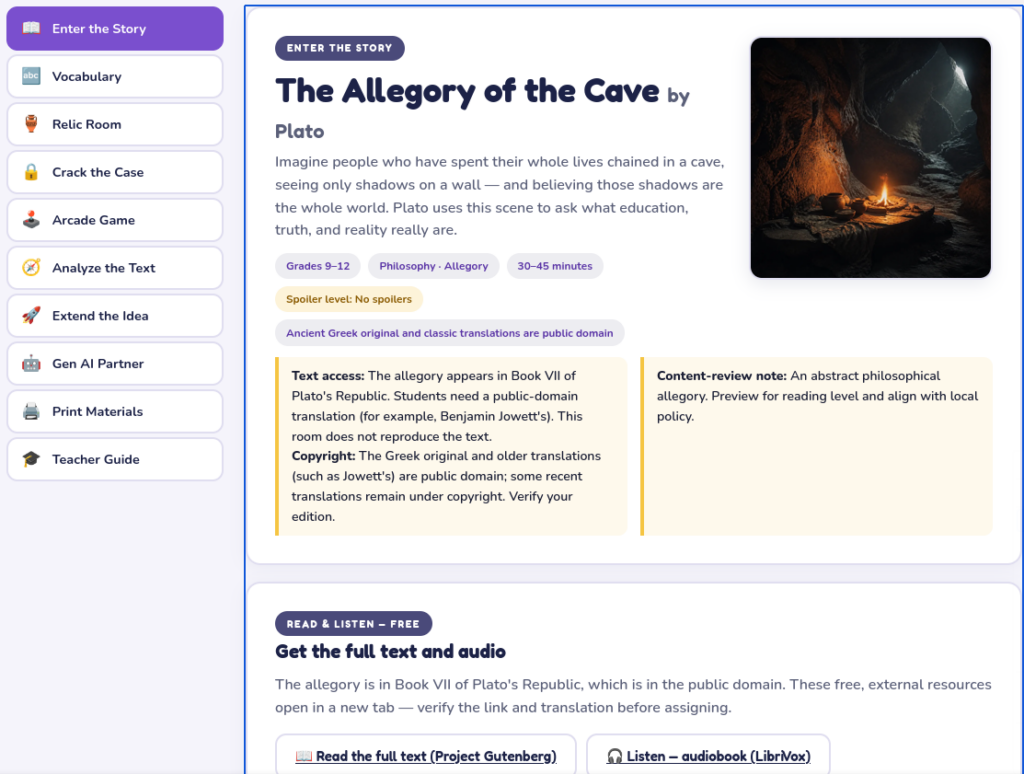
Public-domain classics come from the classical reading canon. These classics appear as self-contained PlotPoint learning rooms, organized by grade level. Every room includes the free full text and an audiobook, works in seven languages, and collects no student data. When possible, Project Gutenberg text, audiobooks, and/or LibriVox recordings have been included.
Here are a few titles:
Copyrighted Works Included
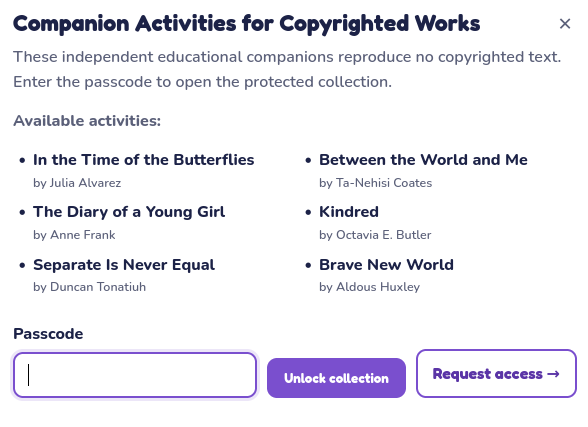
There are also activities available for selected copyrighted works. These activities are independent educational companions to the available titles. Students will need lawful access to the book. The activity does not reproduce or replace the book.
Furthermore, the activities are not affiliated with or endorsed by the author or publisher. The copyrighted texts, and any paraphrased or quoted passages, remain the property of their respective copyright owner. Educational companion activities appear for these titles:
Future companion activities for additional texts will be added in the future. Those include some favorites from high school, such as Maya Angelou’s I know Why the Caged Bird Sings, John Steinbeck’s Of Mice and Men and The Grapes of Wrath, Mark Twain’s Adventures of Huckleberry Finn (and other works), and Alice Walker’s The Color Purple. These are books and poems read across the United States.
How To Access Educational Companion Activities to Copyrighted Works
You, as teacher or librarian, can request the passcode to access the companion learning activities to copyrighted works via this online form. These are passcoded to prevent casual access in states where some texts are not permitted to be studied.
👤 Human-directed (Miguel Guhlin) · 🤖 Gen AI-assisted (Claude, ChatGPT)
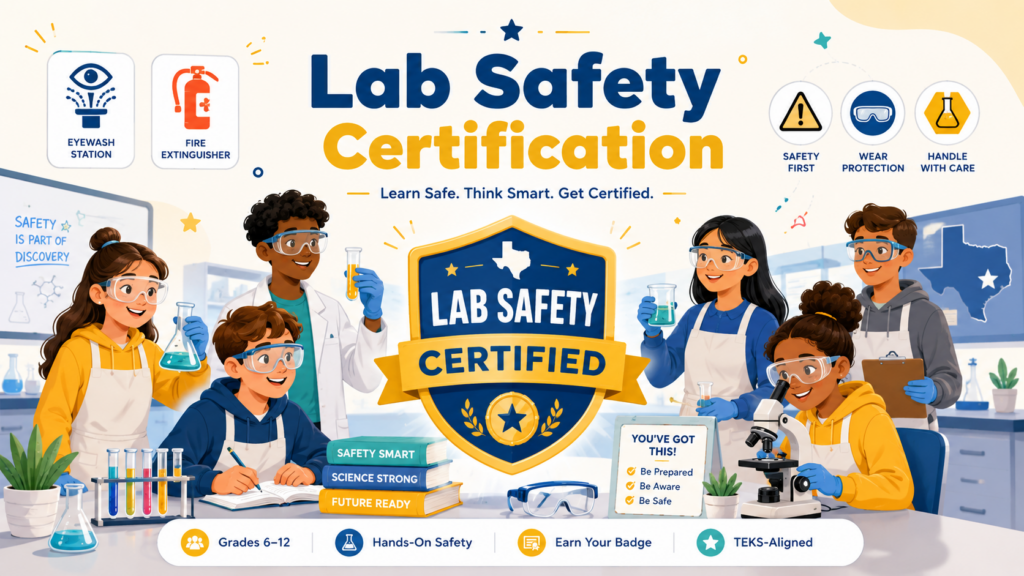
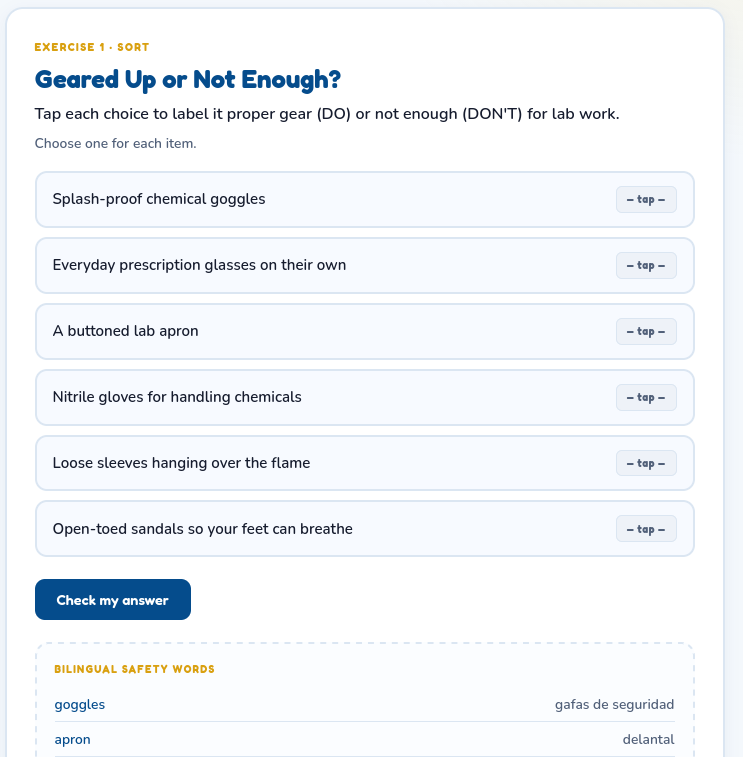
Teaching and modeling lab safety can become an area of concern. Often, reading a safety contract aloud does not always show whether students know what to do when something goes wrong. That’s why these resources may provide you with some support.
Become a CyberSmart Educator with a practical, self-paced course designed to help you protect sensitive data, secure accounts and devices, recognize social engineering attacks, respond appropriately to cybersecurity incidents, and build stronger digital safety habits. Or, learn AI Essentialsfor Educators. Each course is $49 at full price or $34 at the discounted rate. Register online through TCEA Courses.
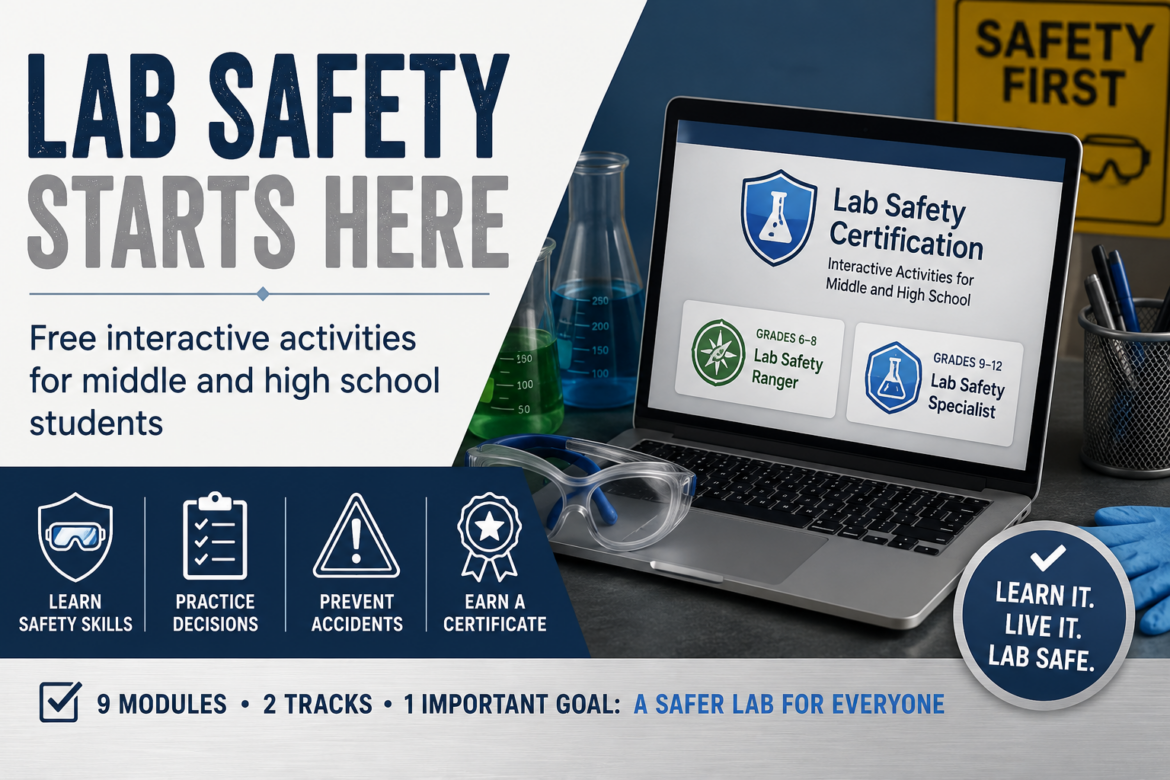
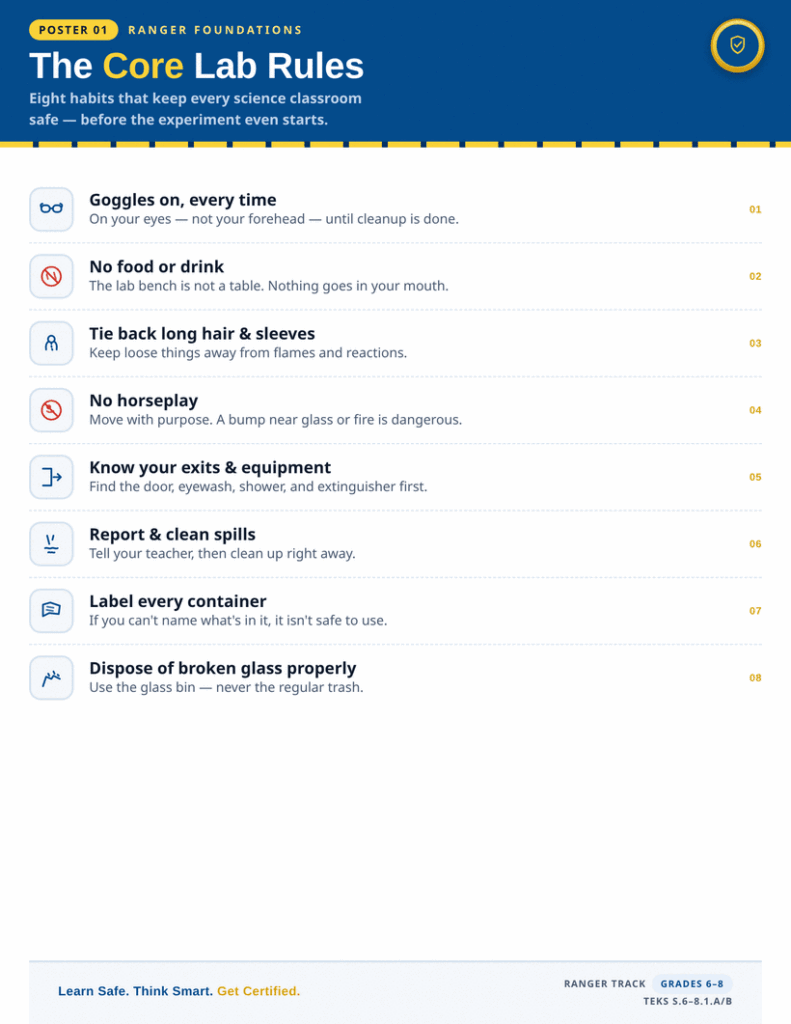
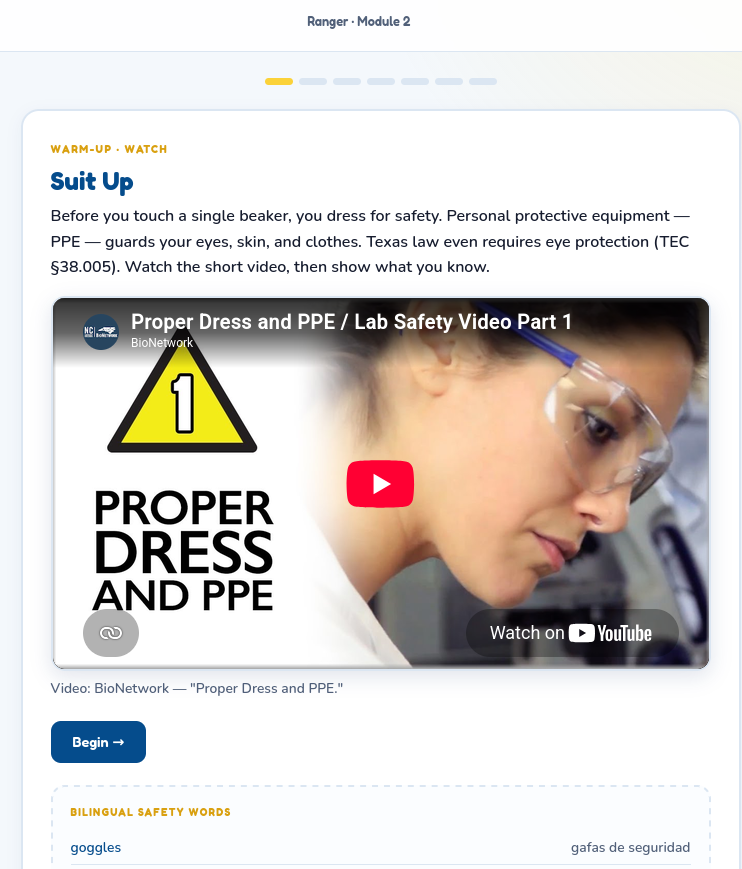
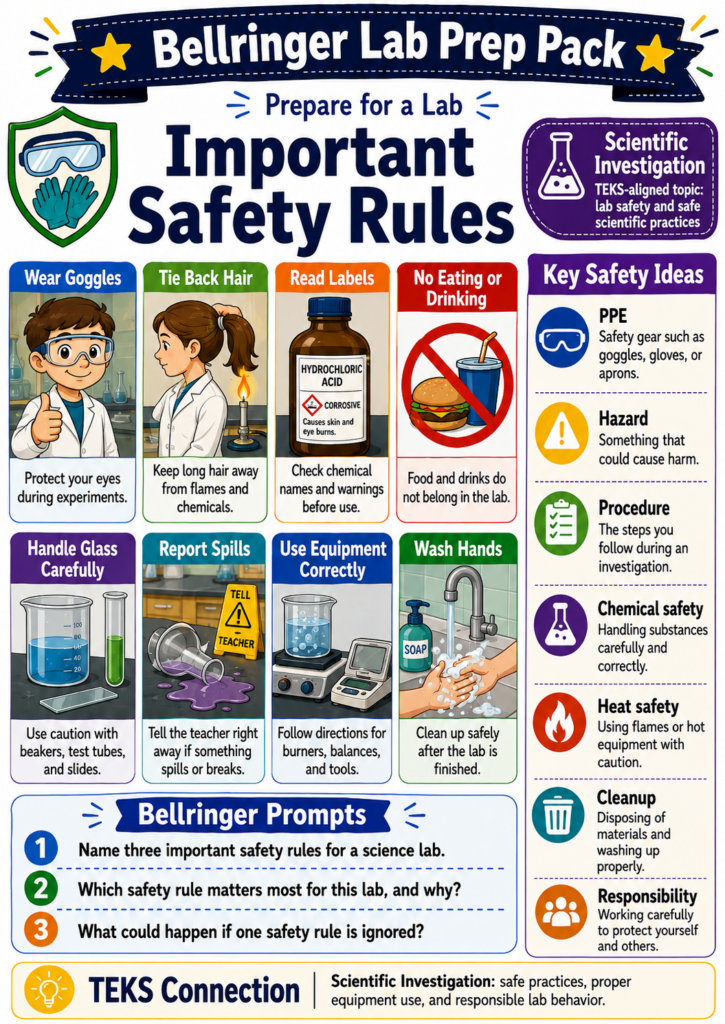
These free Lab Safety Certification activities (available in seven different languages) may give students a chance to practice those decisions before they begin laboratory work. And, as a bonus, you get five posters you can print and hang in your classroom.
Choose the Right Track
The collection includes nine interactive modules for students in grades six through twelve. Students follow one of two tracks.
The middle school modules introduce common safety routines. Students:
identify personal protective equipment,
locate emergency equipment,
interpret warning signs, and
inspect a laboratory scene for hazards.
The high school track asks students to do more analysis. They read parts of a Safety Data Sheet, classify hazards, judge chemical compatibility, and critique unsafe procedures. Is this something you would find useful?
Ask Students to Prove It
Students do more than watch a video or click through slides. They sort, sequence, select, inspect, and explain. You could use these as small group activities, as well.
I like the short “prove it” responses built into the activities. A student may choose the correct answer. But then they have to explain why that response is safe. That gives you more useful evidence than a lucky guess on a multiple-choice question.
Each module provides immediate feedback, so students can correct misunderstandings while they work.
Earn a Certificate
Students who complete every module in their track unlock a printable certificate. They enter their name and a teacher-provided class code (teachers, you need to request the passcode), then print the certificate or save it as a PDF.
Please note that students do NOT need to create an account. Progress stays in the student’s browser instead of being uploaded to an online profile. That makes the activities easier to use with classroom computers, shared devices, or links posted in your learning management system.
Use It Before the First Lab
You might assign the full track before the first laboratory investigation, use the modules as stations, or revisit one activity before a higher-risk experiment. The certificate can also become part of a science notebook or digital portfolio.
These activities support required safety instruction, but they do not replace district training, signed safety contracts, or hands-on practice with emergency equipment.
Open the Lab Safety Certification collection and choose the Ranger or Specialist track for your students.
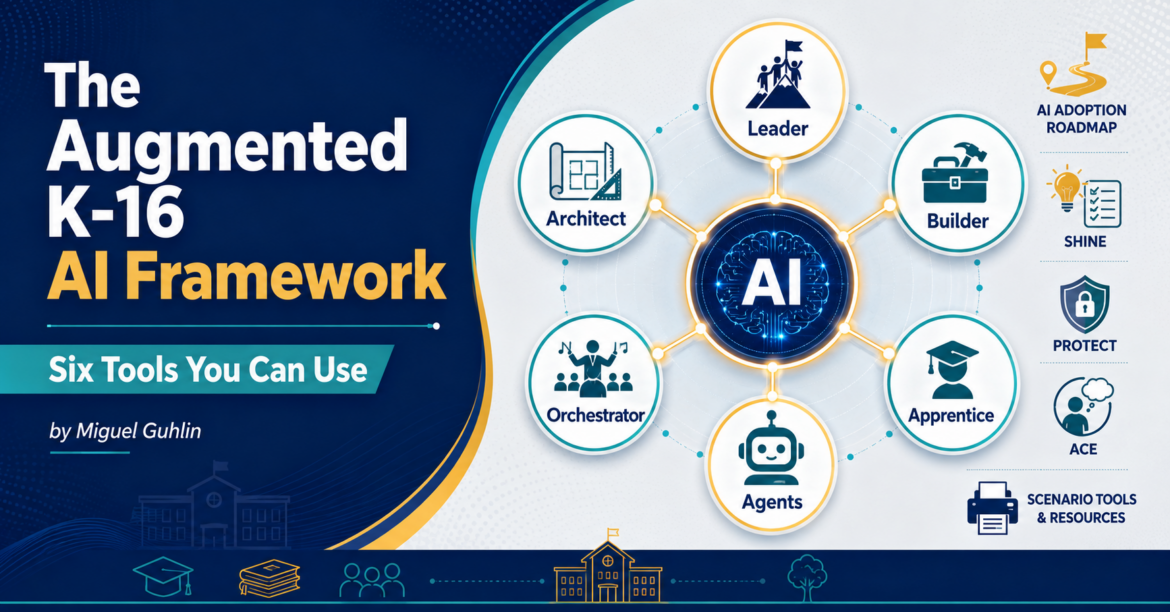
Looking for an intriguing approach to frame the Gen AI in schools discussion? You might find this Augmented K-16 AI Framework worth a read. The reason why is that it builds on Paul Roetzer’s upcoming MAICON 2026 talk (learn more). When I read his remarks on LinkedIn, it occurred to me that this might be one way to frame Gen AI causing so much turmoil in schools today. The Augmented K-16 AI Framework is adapted it from Paul Roetzer’s business version. Schools need their own map, so that’s why this is an adapted version. But I also revisit other tools that have been updated for your use.
Let’s take a look.
Update Note – Special Thanks to James Rolle for catching the fact I omitted the PROTECT v2.0 link. It has been added below. Read the details in the Comments, and leave one of your own.
1. The Six Roles
“I’m wearing seven hats today. None of them is the right one for this meeting.”
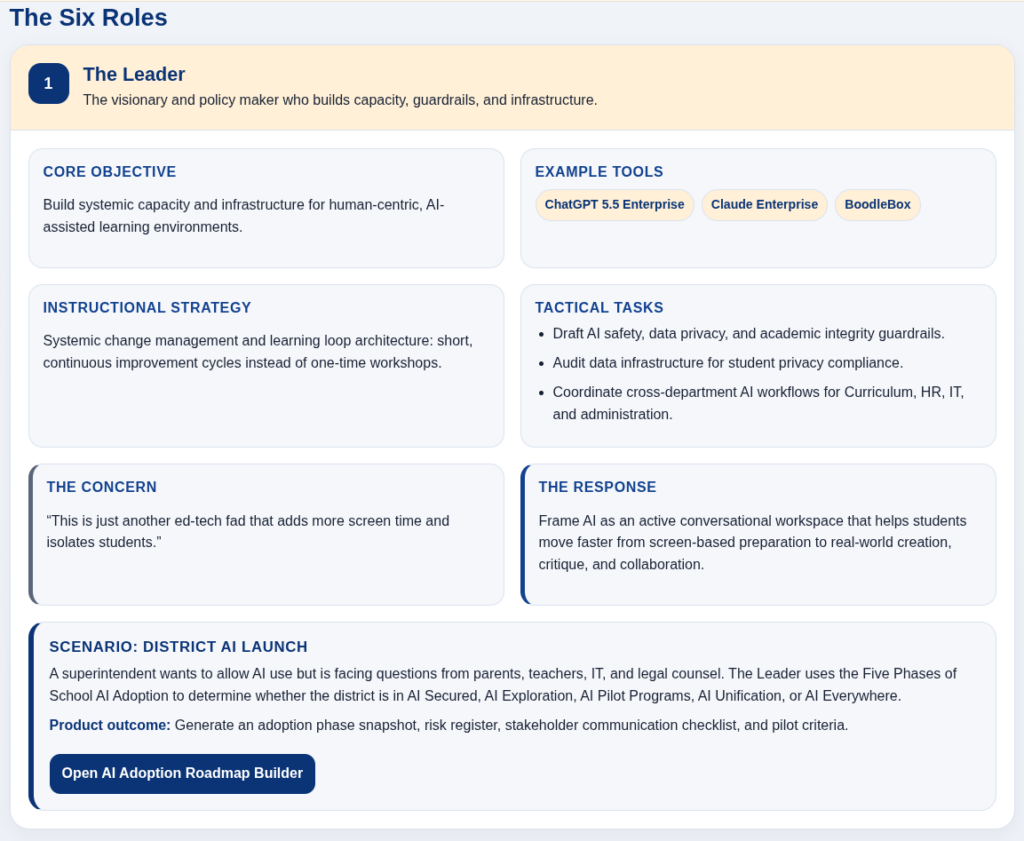
Most district staff play more than one role in AI adoption. The framework names six: Leader, Architect, Builder, Orchestrator, Apprentice, and Agents. Figure out which hat you are wearing before you decide what to do next. As I consider the framework, I can’t help but wonder at what point will educators become sophisticated enough to use AI agents in their work. Then I realize, that to some extent, an educator uses an agent when they dip into Claude Code or ChatGPT Codex on their device. Certainly, Google is starting to blend agents into their products. Soon, their use will be invisible to us, we only know that things get done.
For example, consider the Leader resource that comes with the AI Adoption Roadmap Builder tool, as well as a scenario. You could definitely use these cards and tools to get conversations moving in the right direction.
2. Five Phases of AI Adoption
“We don’t have an AI policy. We have eight teachers each using a different tool.”
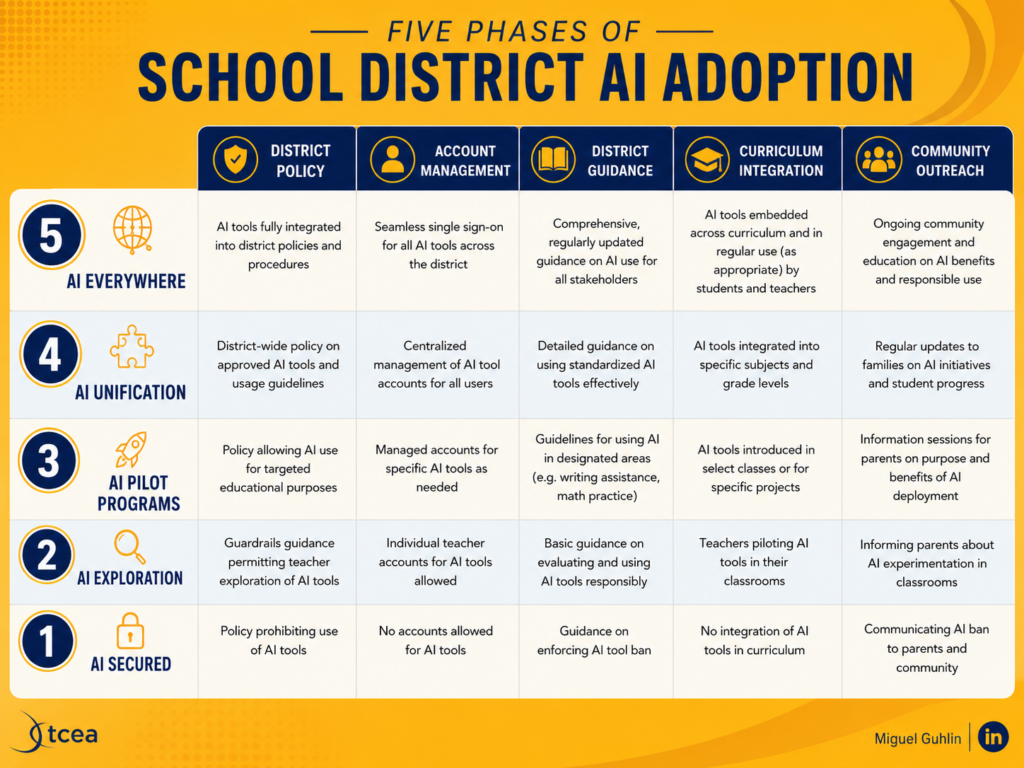
Locate your district before you write a policy or pick a vendor. The phases run from AI Secured (restricted, working on safety) to AI Everywhere (integrated into curriculum and communication). Most districts I work with sit in the middle: Exploration, Pilot Programs, or Unification. Naming the phase changes the conversation you need to have with your board. I put this together early on to map the road ahead for school districts who struggled with AI adoption.
To be honest, schools have less control over the road. You may be using these phases as a way to guide your understanding of what you could see on the way to AI Adoption. But the landscape changes due to the weather and other factors beyond your control, the road delivers potholes as easily as it takes you to your destination.
3. SHINE for Tool Evaluation
“The vendor said it’s COPPA compliant. That was the whole answer.”
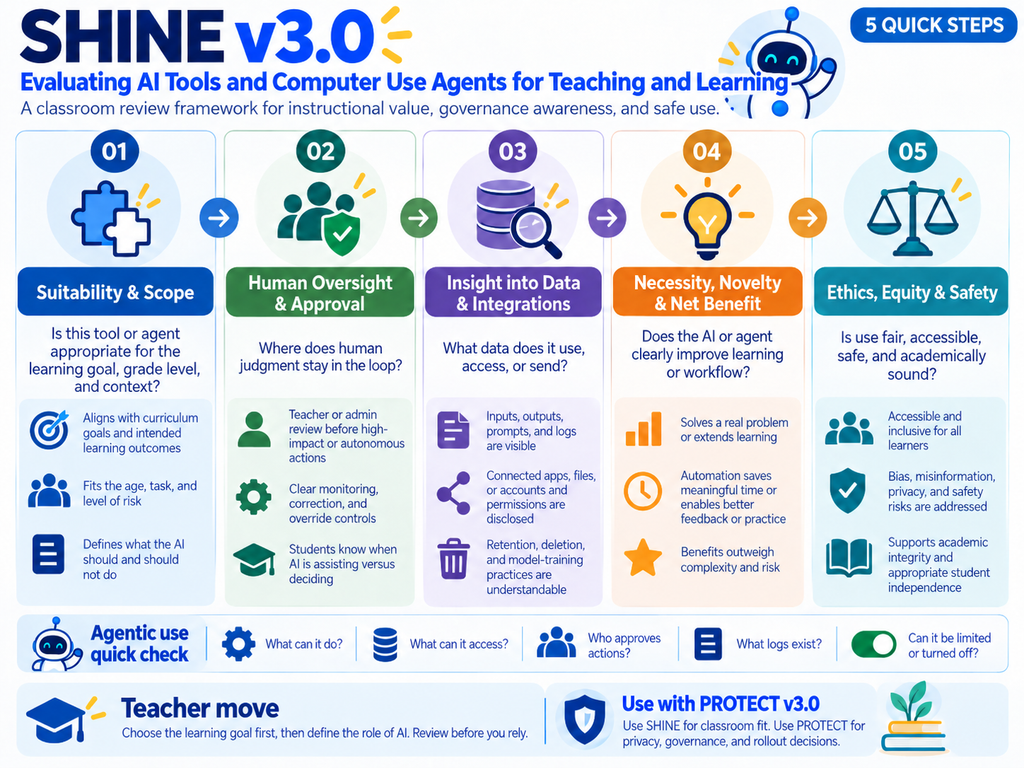
Run any AI tool through SHINE before adoption: Suitability, Human Oversight, Insight into Data, Necessity, and Ethics. I use it every time a vendor sends a demo invite. If a tool fails Necessity, the conversation ends.
For me, this is the must-have tool every school or district needs now. It’s the power to say, “No, this isn’t what we need right now” to the vendor, the legislator, the over-eager superintendent angling for some transitory benefit. It’s a tool anyone can use, but only central office can enforce.
4. The PROTECT Rubric for Privacy
“I asked them where the data goes. They sent me a marketing one-pager.”
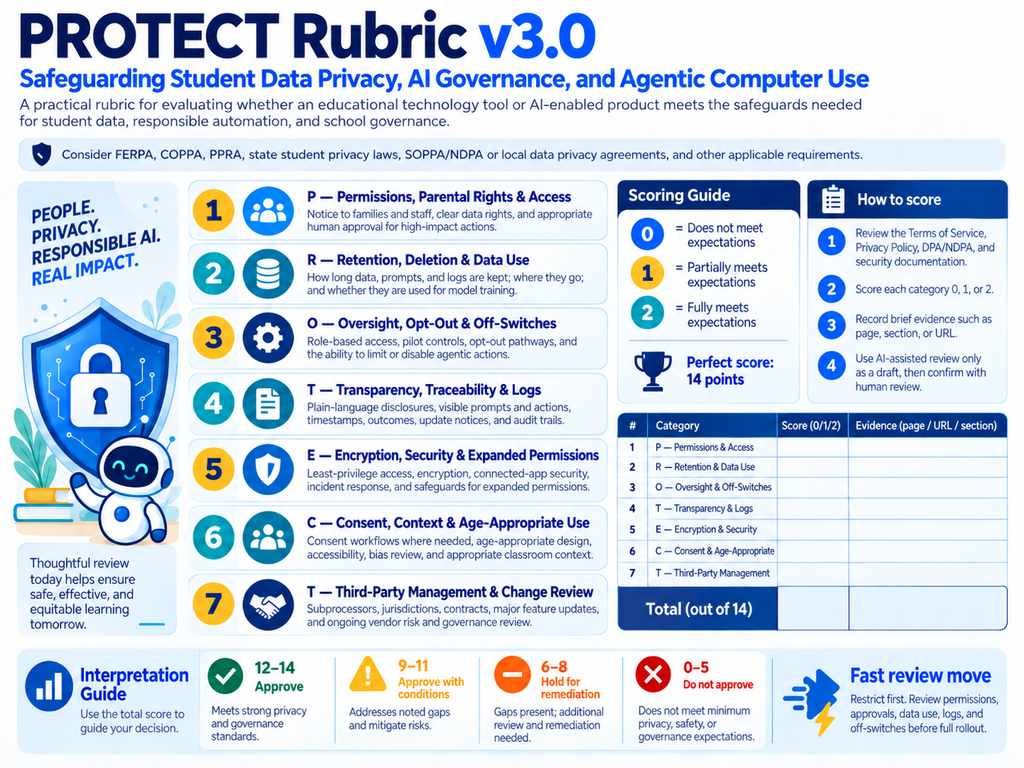
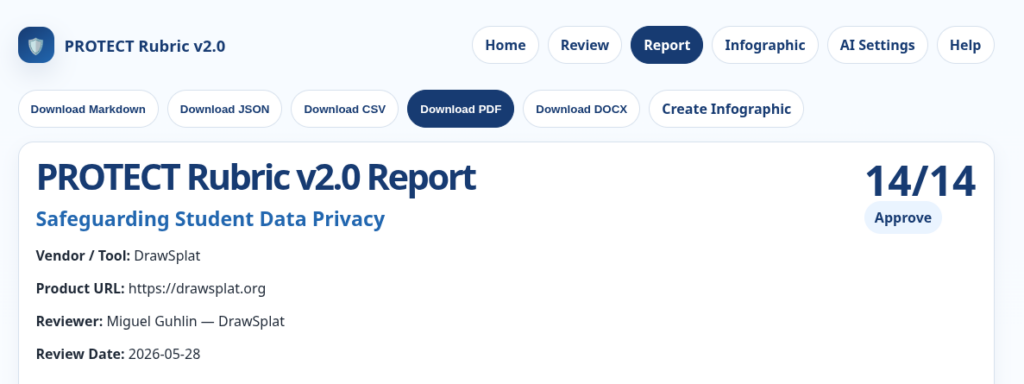
PROTECT scores seven privacy categories from zero to two: Parental Rights, Retention, Opt-Out, Transparency, Encryption, Consent, and Third-Party Management. Each one needs an answer. A tool that cannot say where the data lives, or how long it stays, really doesn’t belong in front of students. Read the PROTECT article.
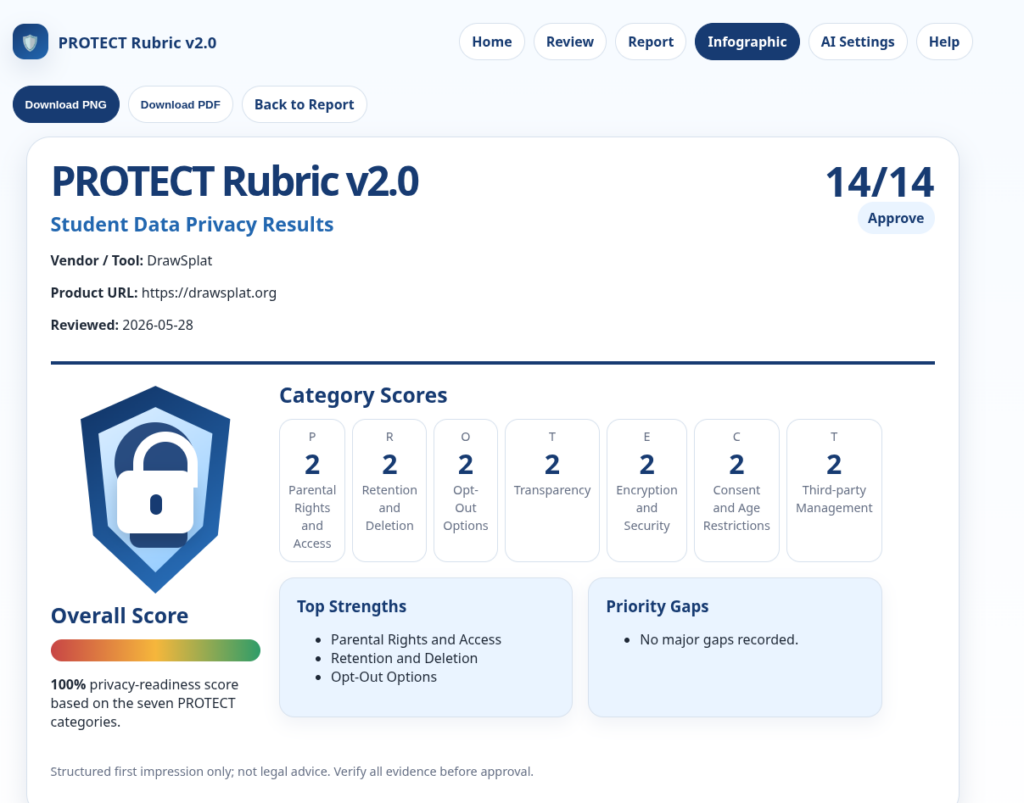
Given the changes in Texas law, here’s an updated TCEA PROTECT Rubric v2.0 that incorporates the latest. You can see it above, and give it a spin via this interface. If you have an AI API key, you can use that to turbo-charge the TCEA PROTECT Rubric v2.0. But that’s not required to use the free version.
What’s more, you can even get a simple infographic from it:
Let’s switch gears from assessing whether you should allow a tool in the classroom to how you would use it.
5. ACE Reflection
“I covered the lesson. I don’t know what they took with them.”
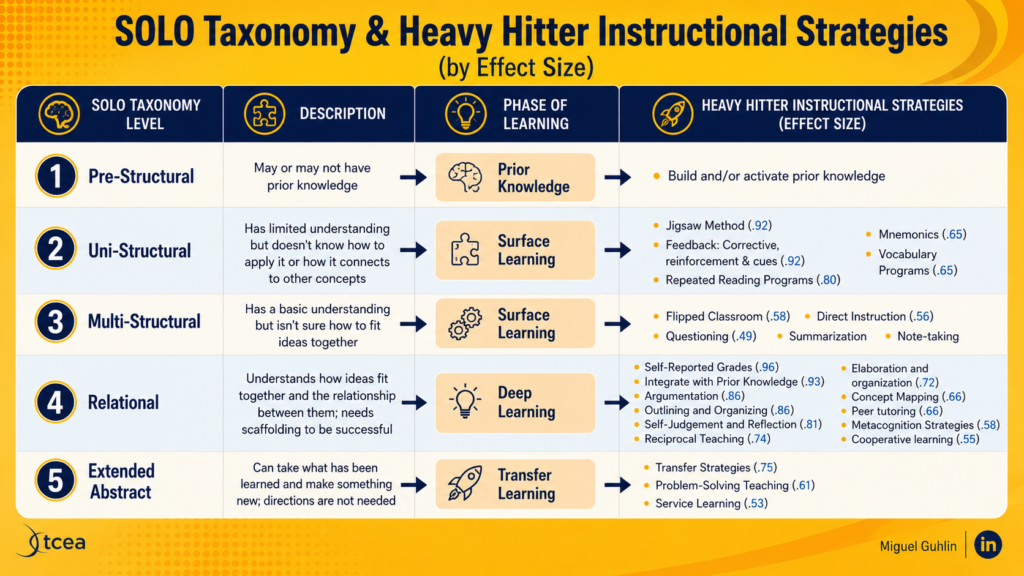
SOLO names five levels of learning: Pre-Structural, Uni-Structural, Multi-Structural, Relational, and Extended Abstract. The framework pairs each level with a specific AI use, from low-stakes retrieval at the surface to rapid prototyping at transfer. Match the activity to what students are ready to do, not to what the tool can produce. The ACE Reflection is built atop the SOLO Taxonomy, which is grounded in research.
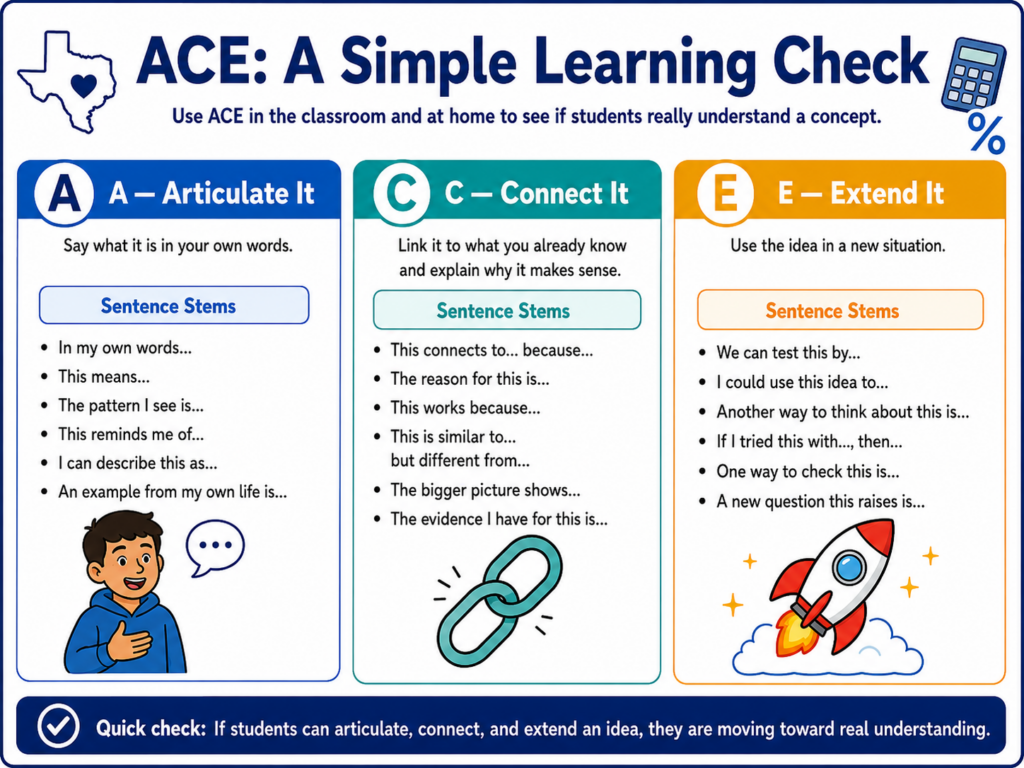
ACE gives students three prompts: Articulate it in your own words, Connect it to what you already know, Extend it to a new situation. Two minutes at the end of class. You will know whether students understood the lesson or only watched it happen.
“I have a parent conference in two hours and I’m not ready.”
Each role has a scenario tool that produces a printable product, not a chat transcript. The Third Thinker Debate Tool generates role cards, an evidence audit, and an exit ticket for a classroom debate. Need to prep that parent conference?
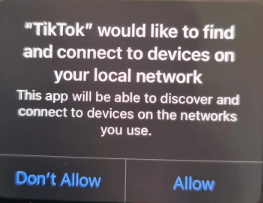
Have you installed a new app lately? Whether it’s Tik Tok, ChatGPT, or some game app, you often get a list of required permissions. Microphone: allowed. Contacts: allowed. Location: always on. For a game about stacking colored blocks, there’s an awful lot of information that is being transmitted. If this sounds familiar, you may be an avid smartphone user. But consider what these permissions mean for our children’s use of smartphone and tablet apps. Parents often have no idea what to do with it.
In this blog, you’ll find a fifteen minute process that gets you through it. It’s an app permission gauntlet that can get tedious in its regularity. Even a simple flashlight or alarm clock app can be a pain. While there are no guarantees this will make the overall process less tedious, you will have a consistent process you can model for your children and/or students.In this blog, you will also find an info graphic and digital audit tool to guide you included.
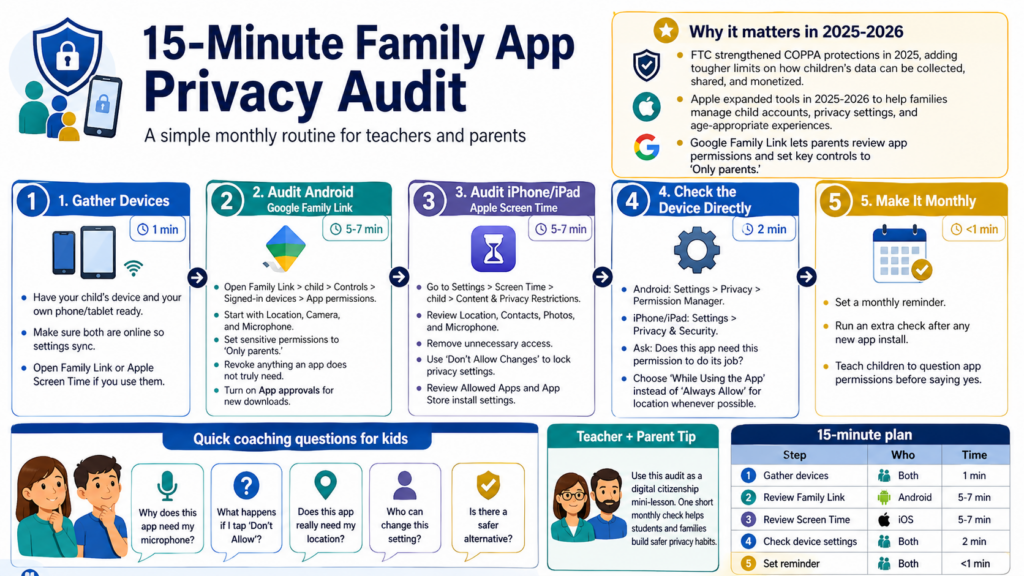
Step 1: Gather Your Devices
To begin, make sure you have your child’s device in hand along with your own phone or tablet. If you use Google Family Link or Apple Screen Time, double-check that both devices are connected to the internet before you start. Changes you make in the parent app sync automatically to the child’s device, so the connection needs to be active.
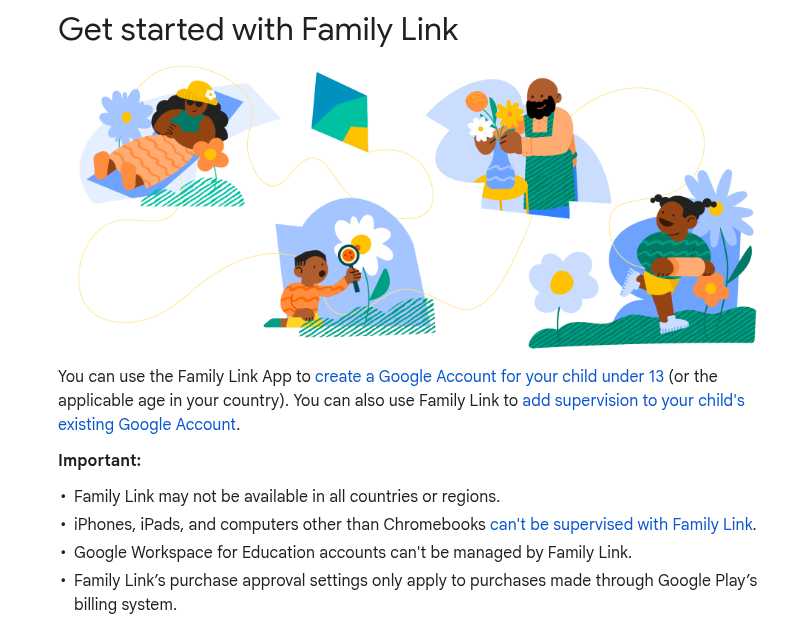
Google Family Link works on Android 6.0 and higher and gives you one place to review permissions across every app your child has installed.
Follow these steps:
Open Family Link on your device
Select your child’s profile, and
Navigate to Controls, then Signed-in devices, then App permissions.
The three most important items are Location, Camera, and Microphone. For these, you will want to set each to “Only parents.” This ensures your child cannot re-enable them without your sign-off. After that broad sweep, pick two or three apps your child opens every day and look at the permissions each one holds.
Apps that request Contacts access should be disallowed. You will want to revoke anything that doesn’t belong. Then, confirm that “App approvals” is turned on. This ensures your permission is required before any new download installs. Google’s support documentation walks through each of these steps if you need a reference.
Generated by author from blog article content using ChatGPT 5.5 Pro account
Select your child’s name under Family Sharing. Tap Content and Privacy Restrictions and
Enter your Screen Time passcode.
Under Privacy, review Location Services, Contacts, Photos, and Microphone, and revoke access for apps that don’t need it. Then set those critical permissions to “Don’t Allow Changes.” This is important because a determined child can restore everything you just changed if you don’t make that last setting change.
Two more worth your time: under Allowed Apps, toggle off anything your child doesn’t use, and under iTunes and App Store Purchases, set “Installing Apps” to Don’t Allow if you want to review each app before it arrives on the device.
Step 4: Check the Device Directly
If you’re holding your child’s phone right now and don’t have a parent control app set up, you can still get a clear picture.
On Android, go to Settings, then Privacy, then Permission Manager. This view lists every app with access to a given category. Start with Microphone and work down from there.
On iOS, go to Settings, then Privacy and Security.
For each app, the question is the same: does this app need this permission to do its job? If the answer is no, revoke it.
One rule worth keeping permanently, and one I set for my apps that request location access: always choose “While Using the App” over “Always Allow” for location. No homework app needs to know where your child is when the app is closed.
Digital App Privacy Audit Tool
Please find a short, interactive guide to use once a month to audit your own, as well as your children’s, apps. The full screen version is available at this website.
Step 5: Make It a Monthly Habit
A single audit handles the backlog. What protects your child going forward is repeating it.
Set a monthly reminder and do this again. That’s 12 short sessions per year, which adds up to less time than most families spend picking a movie on a Saturday night. Run an extra check whenever a new app becomes popular at school or lands on your child’s wish list.
Step
Platform
Time
Gather devices and confirm connectivity
Both
1 minute
Review Family Link permissions
Android
5 to 7 minutes
Review Screen Time restrictions
iOS
5 to 7 minutes
Check permissions directly on device
Both
2 minutes
Set monthly reminder
Both
Under 1 minute
Apps accumulate quietly. Running this audit once a month means you stay ahead of what they collect, one unnecessary microphone permission at a time.
Need More Guidance?
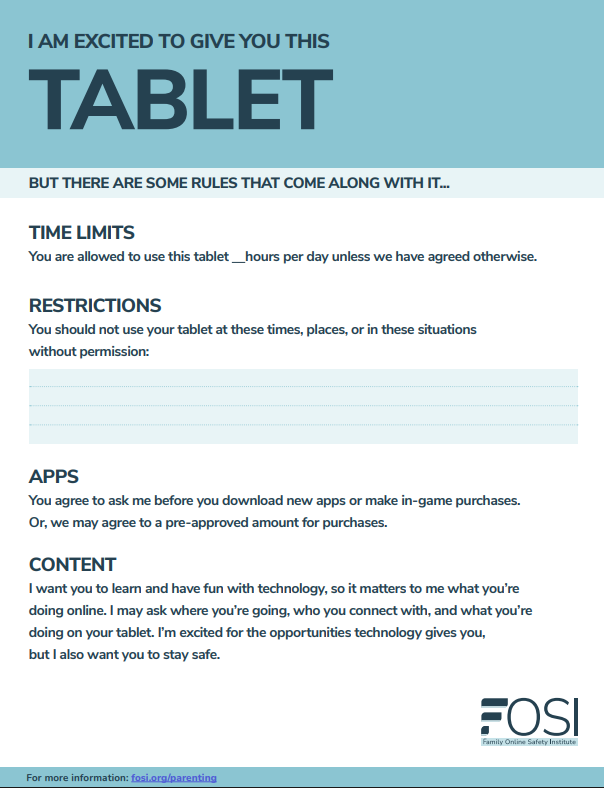
If you find you need more guidance, especially about parental controls and digital privacy, the Family Online Safety Institute offers free resources for parents at every comfort level. They offer a variety of resources, such as the Device Safety Cards (page one shown below) that you can share.
👤 Human-directed (Miguel Guhlin) · 🤖 Gen AI-assisted (Claude, ChatGPT)
As a bilingual student myself growing up, I often found myself in the situation of speaking Spanish at home, thinking in Spanish, and then having to prove I understood photosynthesis in English. Eventually, I learned to think in English or in Spanish as the situation demanded. But in those early days, the question my teachers never asked was, when I failed a quiz, which did I get wrong? Did I get the science wrong, or did I get the English wrong? This caused problems for me in second grade, parent-teacher/principal meetings, and summer school tutoring in English. Today, this problem wouldn’t be as big an issue. That’s because some quiz tools are more flexible, avoiding reliance on a single language. This blog entry is about one of those.
Why Language-First Quiz Tools Fall Short
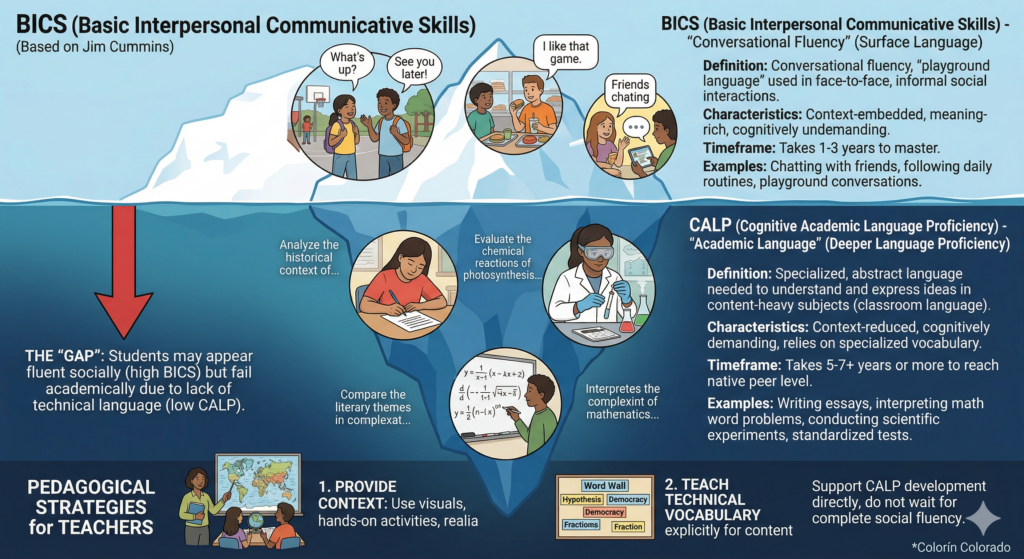
Paperless quizzing is often simple, affordable, and reliable. Since some quiz tools are English only, that can be a real problem in bilingual and ESL classrooms. When the interface is in a language students are still learning, you’re not even measuring general English proficiency. Rather, you’re measuring Cognitive Academic Language Proficiency (CALP).
That is, the academic language register that takes 5–7 years to develop. A student who can discuss the water cycle fluently in conversation may still lack the academic English to navigate a multiple-choice prompt about it. The quiz penalizes CALP development, not content gaps. Those are two different things and conflating them distorts the data you are trying to collect. An awareness of Basic Interpersonal Communication Skills (BICS) and CALP is something I didn’t develop until graduate school, long after my second grade self struggled with managing two languages.
TCEA PROTECT Assessment
Before I share a little more about NoPaperTest, I need to share that TCEA evaluates solutions using the PROTECT rubric. NoPaperTest scored 9 out of 14 when the Terms of Service and Privacy Policy was evaluated. These documents evolve over time, so don’t be surprised if the score improves. Details appear below:
Key Strengths: Good transparency about data collection, clear data security practices with encryption, COPPA compliance acknowledgment
Areas for Improvement: Limited parental rights specifics, vague opt-out mechanisms, incomplete third-party disclosure
NoPaperTest takes a different approach. It currently supports 11 languages: English, Spanish, German, Portuguese, French, Italian, Czech, Dutch, Chinese, Japanese, and Hindi. They have more planned, too.
The way it works is that students take the quiz with the interface in their own language. Instructions, navigation, and prompts appear in the language they chose. That means a Spanish-dominant student can focus on answering a science question correctly rather than decoding what “submit” means.
For teachers running a dual-language program or a sheltered instruction classroom, this changes what the data actually tells you.
Fuzzy Matching for Short-Answer Responses
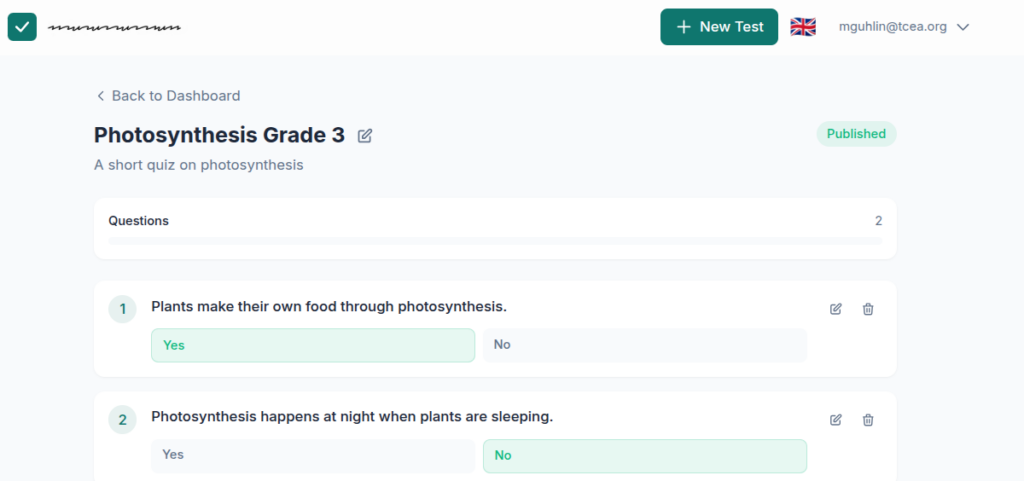
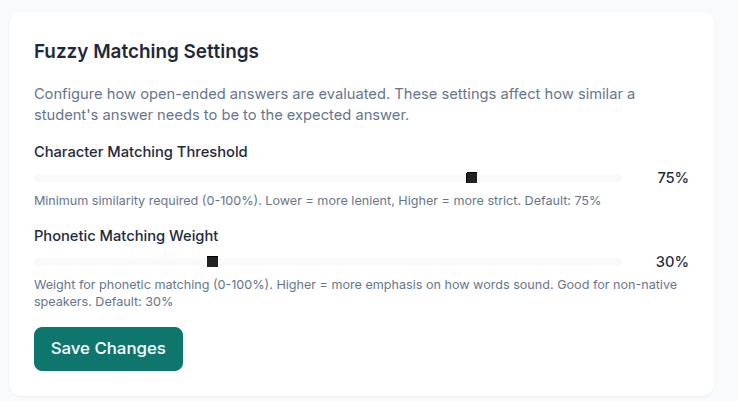
What’s more, NoPaperTest includes fuzzy matching for short-answer responses. It catches typos and phonetic spelling.
Students writing in their second language make consistent, predictable errors. They spell words the way they sound in their home language. A student might write “fotosintesis” instead of “photosynthesis.” Standard quiz tools mark that wrong. Fuzzy matching recognizes the intent and gives credit.
I do not think enough people talk about how often grading penalizes language acquisition instead of measuring content mastery. This feature does something about it.
A Quick Overview
Here’s an overview of some of the features NoPaperTest has. Please be aware that features change over time, so you should investigate these features before making a financial investment.
Feature
NoPaperTest
Interface Languages
11 languages (e.g., EN, ES, DE, PT, FR, IT, ZH, JA, HI)
Student Response Cap
Unlimited
Fuzzy Matching
Yes (Native support)
Cost
$3/month (Approx. $36/year)
What features are you looking for in solutions such as NoPaperTest?
For classrooms where English is not everyone’s first language, NoPaperTest offers a new solution to a problem. Which of your current quizzes would give you better data if students could take them in their home language?
Remember the days of drowning in essays and other written assignments, each page a crimson battlefield of red pen corrections? Those days are over, my friends. Don’t get me wrong, written feedback is essential, but wouldn’t it be awesome to have a toolbox filled with ways to make learning a dynamic conversation? Let’s dive in with three tech tools – Stickity, Beep, and ScreenPal – that can transform your feedback from one-way lectures to engaging conversations that empower your students.
Why variety matters
Students learn best through an iterative process – trying things out, communicating what they learn, getting feedback, and refining their understanding. Think of learning like a hike. Students are constantly navigating new terrain, and effective feedback is the trail guide. It points out interesting landmarks (strengths!), helps them avoid pitfalls (weaknesses), and keeps them motivated to reach the summit (learning goals). But wouldn’t a boring old map get stale? Our feedback needs to be meaningful and cater to different learning styles. Imagine a student who thrives on visual cues versus one who responds better to hearing your voice. Tech tools can bridge these gaps and personalize the feedback experience.
Remember the days of drowning in essays and other written assignments, each page a crimson battlefield of red pen corrections? Those days are over, my friends. Don’t get me wrong, written feedback is essential, but wouldn’t it be awesome to have a toolbox filled with ways to make learning a dynamic conversation? Let’s dive in with three tech tools – Stickity, Beep, and ScreenPal – that can transform your feedback from one-way lectures to engaging conversations that empower your students.
Stickity: Fun Meets Focus
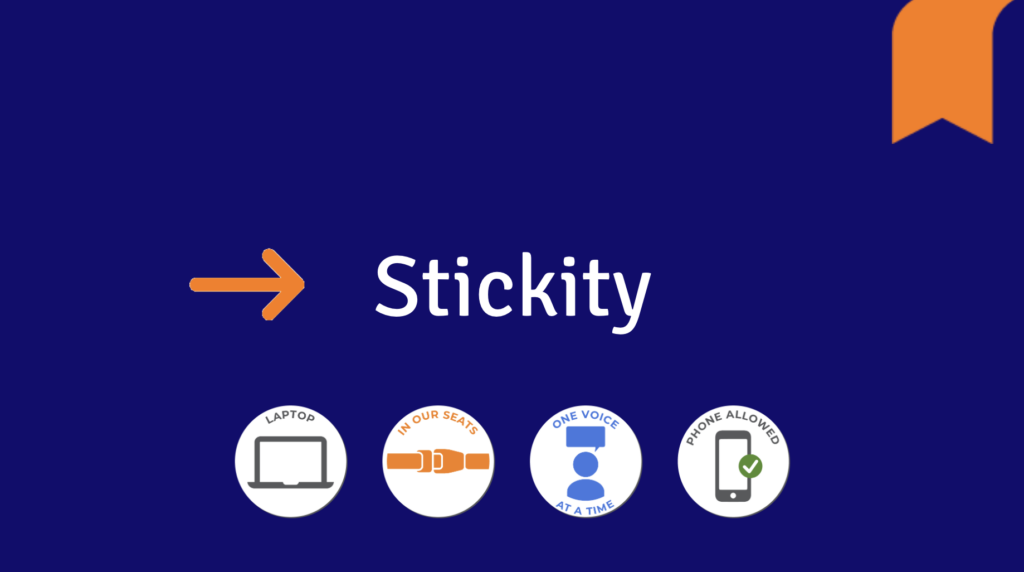
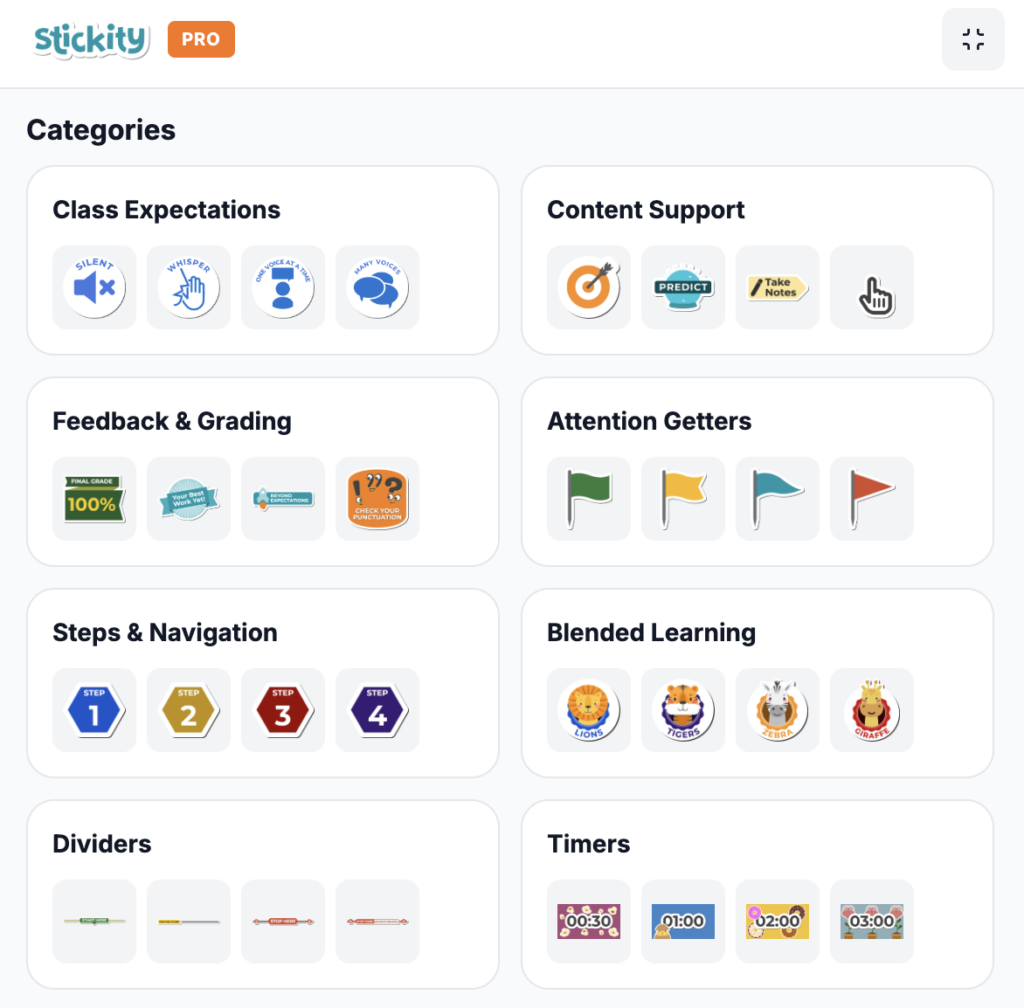
Imagine an engaging digital stickerchart on steroids designed with accessibility and inclusion in mind. That’s the magic of Stickity, a free Chrome extension (premium content also available).
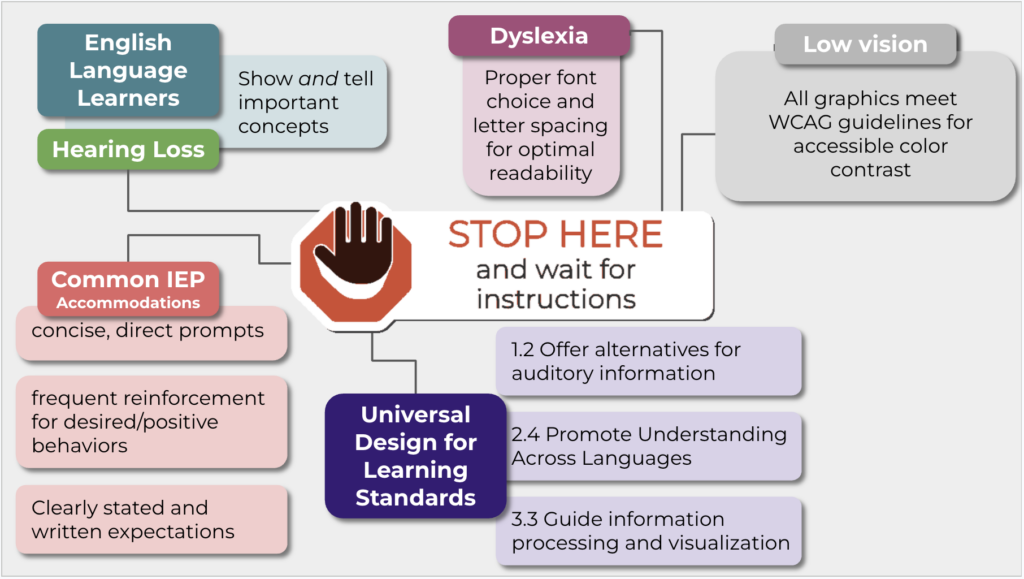
This tool bursts with attention-grabbing stickers for a variety of scenarios: content support, steps and navigation, differentiation levels, buttons, dividers, and more. From timers to highlighting expectations, Stickity injects a dose of fun while promoting accessibility for all learners. Students with different learning styles can benefit from the visual cues and graphics, and the premium option to translate text into 10 languages ensures nearly everyone’s included. Plus, it’s a great way to set clear expectations and create a consistent learning environment.
Teachers love it because:
Clear expectations are easy to set with a plethora of pre-made stickers and gifs.
Communication is reinforced, even if students don’t have the extension installed themselves.
Students become more independent and self-monitor their work because information is visually chunked
Students love it because:
Reminders come alive with bright colors and animations, making them impossible to miss.
Timers visually show the passage of time with an alert at the end, helping students stay on track without feeling stressed or startled.
Stickers are inclusive, meeting guidelines for accessible color-contrast and optimal text and spacing for dyslexic learners
Beep: The Power of Voice
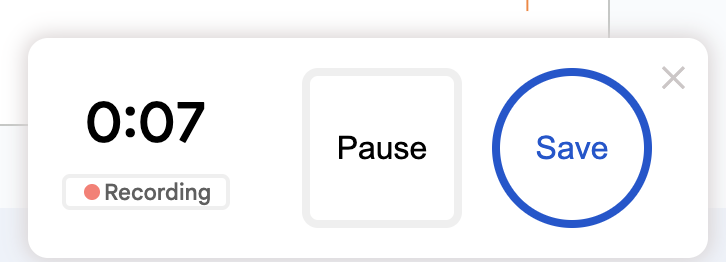
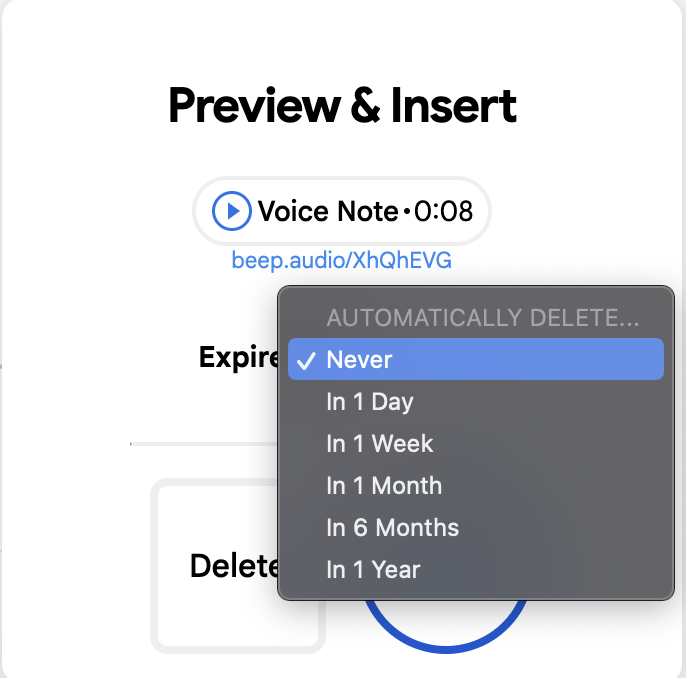
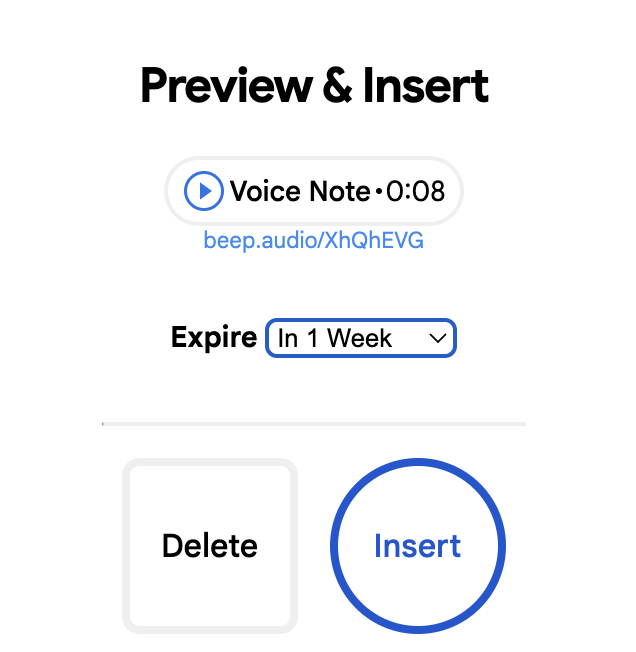
Sometimes, the written word just doesn’t capture the nuance you want to convey. Enter Beep, a Chrome extension that lets you leave voice notes directly in Google Classroom, Docs, or even Gmail. Use Beep to 24 voice recordings up to 1 minute (per month on the free plan) with an option to set a message to auto-delete or expire for added privacy.
What’s more, check out this Sample Audio Quiz Assignment to see how Beep can be used to create audio quiz questions in Google Forms, adding a whole new dimension to assessments. This tool is a lifesaver for students who might struggle to express themselves in writing, and it allows teachers to convey tone and inflection effectively.
Teachers love it because:
Tone and intonation come through clearly, making encouragement and constructive feedback more impactful.
Voice instructions cut down on content creation time
Communication is streamlined. You can leave voice messages for other teachers, parents, or even admin.
Students love it because:
Learning feels enriched. Hearing your voice explanation can make complex concepts click.
They can express themselves differently. Students who struggle with writing can shine with audio explanations.
They feel heard. Knowing their teacher is taking the time to listen can boost their confidence.
ScreenPal: The Personalized Touch
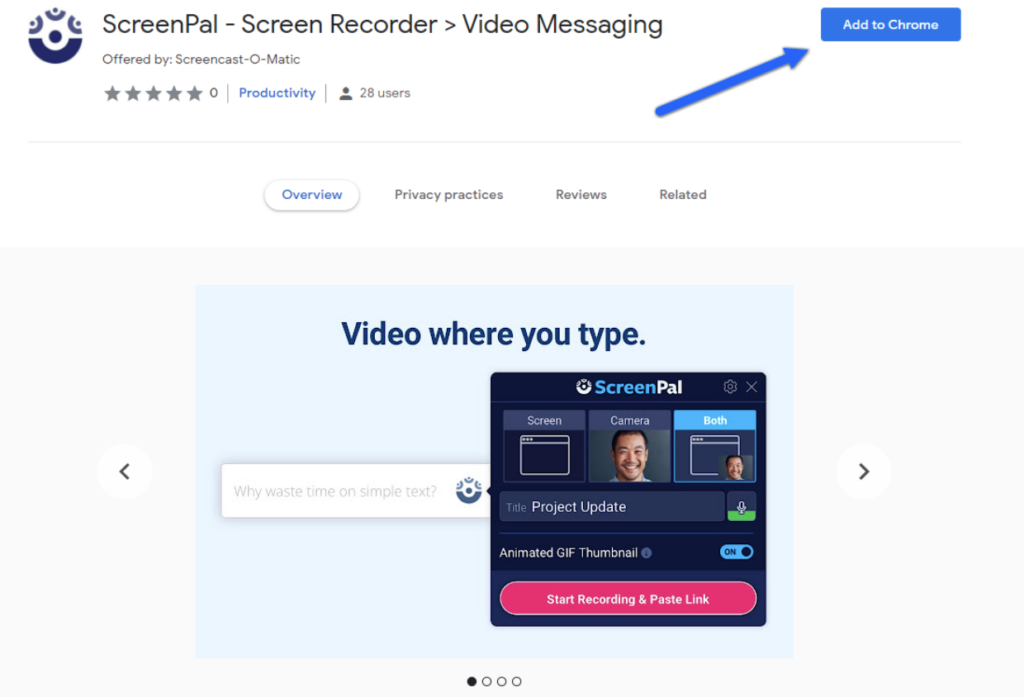
Let’s be honest, sometimes staring at text on a screen can feel impersonal. The ScreenPal Chrome extension for video messaging lets you quickly record your screen, camera, or both for personalized video feedback.
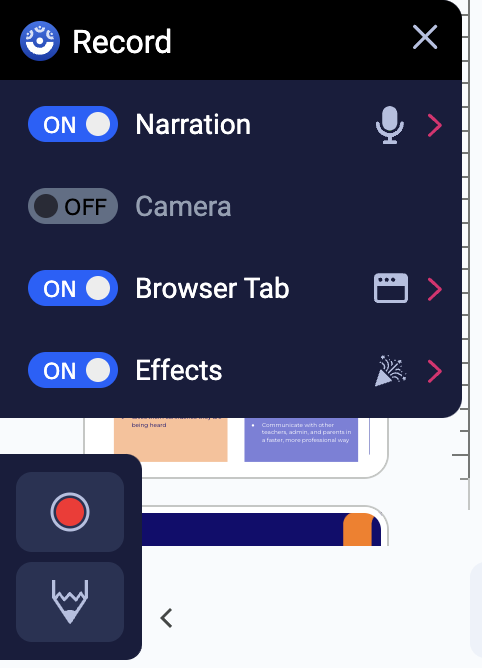
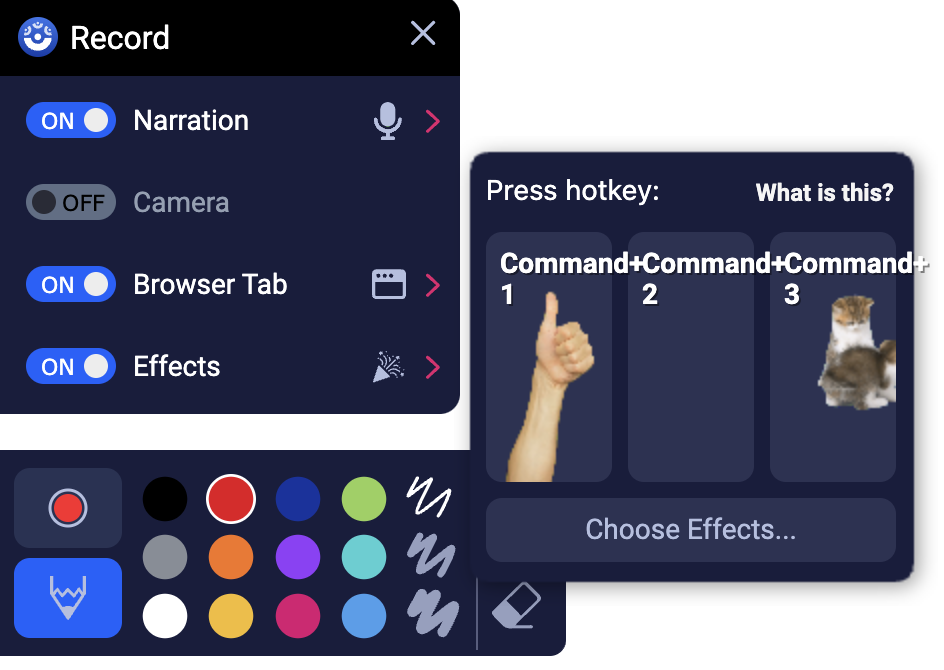
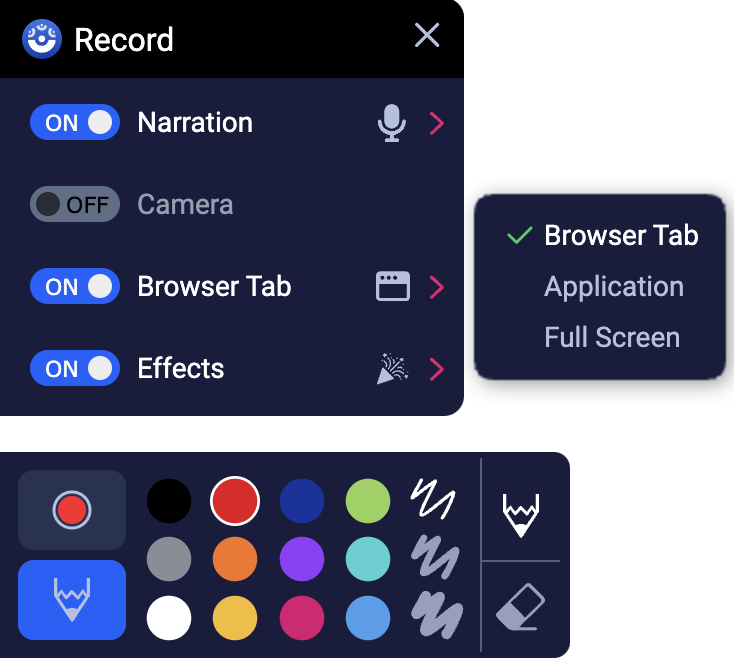
It’s free, allows you to record anywhere you can type, provides limited editing (trimming), and has a few fun gifs you can add as overlays. Sharing these quick recordings is a breeze with auto-upload and the link copied directly to your clipboard, and the “hover to play” option allows for video playback without having to leave the current window.
Teachers love it because:
The power of body language: Facial expressions and tone can add valuable context to your feedback and quickly builds positive rapport with students.
The learning curve is gentle. No fancy editing skills required, just hit record and go!
On-camera anxiety melts away. Short, focused videos keep things stress-free.
Students love it because:
Personalized learning: Seeing your face and hearing your voice fosters a stronger connection whether you’re explaining a concept or offering feedback.
Reduced miscommunication: Nonverbal cues can clarify meaning beyond the written word.
Projects come alive. They can use video to showcase their work and explain their thought process.
Iterative communication: Students can respond in kind by sending a video through email or as a comment in a Google Doc, creating a true two-way feedback loop.
For more information, check out the author’s blog post and webinaron “Empowering Teachers with ScreenPal: Your Guide to Stress-free Video Creation”. If you’re ready to dive into the deep end, the full version of ScreenPal has both free and paid features for more in-depth video editing.
Summary
These tools are just a springboard! By incorporating Stickity, Beep, and ScreenPal into your classroom routine, you’re creating a two-way street for feedback. You can provide clear, personalized feedback, tailoring your approach to diverse individual learning styles and abilities, while students can use these same tools to ask questions and demonstrate their understanding, gaining the confidence to communicate in new ways and becoming more independent learners.
Ready to Take Action?
Check out the resources below to learn more about these amazing tools and discover even more ways to transform your feedback practices. Let’s move beyond the red pen and create a feedback revolution together.
Let us know in the comments below – what are your favorite tech tools for giving feedback?
If you get any feedback or questions about the product, please feel free to let me know at jonathan@beepaudio.com (we’re very receptive to feedback and feature requests).
Google Classroom Extension – perfect for teachers and students. It’s much faster and allows you to record and play messages within Google Classroom, Google Docs, and Gmail with a single click.
Gmail Chrome Extension– it offers a better recording experience, more features, and the ability to insert a voice message player like the one you see above.
Docs Chrome Extension – it’s much faster and allows you to record and play messages within Docs with a single click.
The author of this guest blog is Destiny Wagner, Chief Education Nerd at EdTech Nerds. She is an educator with over 20 years experience as both a classroom teacher (physics) and an instructional technology coach. With a proven record of creating and delivering professional development, presenting at numerous national conferences, and focusing on staff wellness, her goal is to leverage her expertise to help educators succeed in achieving their objectives while maintaining an effective work-life balance and to overcome the struggle with burnout that has become all too common in recent years.
She enjoys certification as a Google Certified Educator Levels 1&2, Campus Technology Specialist, TCEA Course Creator, Slytherin Prefect, Reality Based Self Defense Instructor, RYT-500 Yoga Teacher.
I first heard about the Texas Formative Assessment Resource (TFAR) around the end of the fall semester in 2022. Our high school principal had been at a meeting where the STAAR redesign was discussed, after which he shared that we needed to look into TFAR as an option for preparing our students for the new interactive question types. Our district testing coordinator then contacted me, and I began training to learn about TFAR and started to share it with our ECHS teachers and students. Here’s a walkthrough of how I got started:
About TFAR
TFAR was released by TEA in August 2020 in response to HB 3906 which stated that all state assessments would have to be administered online by the 2022-2023 school year. It provides access to the testing platform and was designed to be used for formative assessments throughout the school year. Provided question banks are filled with past STAAR questions, interactive question types from sample packs, and the ability to create your own questions to help students prepare for and get accustomed to these style of questions.
Getting Started
During the spring of 2023, I met with all of our high school students who were taking EOCs that spring. I went into individual classrooms and pulled multiple classes into our large lecture hall, before leading students through the login process, adjusting their test settings, and a leading a practice mini assessment (10 questions or less) where we talked about all the test features and how to navigate the new interactive question types.
These sessions were focused more on online testing tips and understanding the test platform than being related to the academic content. These sessions were very beneficial, as they allowed students to access to the real testing platform so they could become more comfortable with it, giving time to students to click all the buttons (and we did click ALL of them to make sure they understood how and why they’d use them). They also allowed students to hear another voice talk through how to answer these new questions, helping them understand why reading all the directions could be incredibly important. In essence, we gave them time to play in the test platform and ask questions that they previously hadn’t been able to ask, or might not have even known to ask.
Adjusting TFAR for Students Requiring Accommodations
After I led these sessions with students, our lead English teacher asked me to lead a session with our students who received testing accommodations. She wanted those kids to have time to play and ask questions, too. So, we pulled all English 1 and English 2 students who would test that spring into a classroom and I went through all of the testing accommodations with them, as well. We practiced adjusting the text-to-speech voice and talked about the benefits of adjusting it to meet your needs. We practiced typing in the boxes, and turning spell check on and off. We even discussed how to utilize the online dictionary.
After these sessions, many of our tested subject teachers created short quizzes in TFAR and utilized them in their own classrooms for additional practice leading up to their assigned testing dates. When scores came in, we saw amazing growth in our pass rates.
TFAR in the Elementary Classroom
I’ve led TFAR sessions each year with students at our high school, since the 2022-2023 school year. In that time, some of our teachers (specifically our ELA teachers) have made TFAR a more regular practice in their classrooms, and our English 2 pass rate scores have jumped 17 percentage points. This led us to start using TFAR with some of our elementary students, in hopes of allowing students to practice earlier in their school careers.
In January 2025, I visited all of our 3rd, 4th, and 5th dyslexia intervention classes, and our 4th and 5th grade basic reading and math classes, where I worked with the campus instructional coach and the campus testing coordinator to ensure that all testing accommodations were turned on and ready for use with the TFAR system. Then, I led these students through a session where we talked through how to use all their testing accommodations on their STAAR tests and they got to practice with me over a few days.
They were able to practice using content language supports, text-to-speech, word prediction, spelling assistance, and speech-to-text tools. We let them play with the color backgrounds and showed them how to adjust the text-to-speech voice after they started their test, and how to use their headset microphones to better utilize the speech-to-text function. At the end of these sessions, we asked them to share which accommodations they were most excited to use on the day of their tests now that they knew how to use them and knew that they would help.
Our 4th and 5th grade general ed classroom teachers continued to use TFAR in their classrooms with all students and these students were able to continue to practice with accommodations that looked identical to their tests. And, when scores came in, we saw growth not only in our overall pass rates, but also in our special education population.
Integrating TFAR: The Results
Since we started using TFAR in our district, I’ve witnessed more students utilizing all their testing tools and features during their tests. They appear less stressed and more calm on their test days, and are more confident, often approaching their tests with a different level of seriousness and effort than I saw when I was a classroom teacher in this same district.
Can we attribute all of this success to our use of TFAR? No, but I do think that we’ve found a way to bring it into our classrooms in a meaningful way that is contributing to our overall success.
I’m very excited to share more of our journey with TFAR at the 2026 TCEA Convention and Exposition this Jan. 31 through Feb. 4 in San Antonio, TX. I’ll be sharing a few more details about our process and also how we have started training more of our teachers on TFAR so it can be used more widely across our district. I hope to see you there!
Click here to register for TCEA 2026 to see Brittanie Payne’s presentation, as well as hundreds of others from amazing educators across the TCEA network!
When my WiFi network died, I sat there staring at my laptop screen. It still had power but I wondered, “How will I get by without all the information on the Web?” Obviously, it’s a problem that can be solved in many ways. One approach is to make a copy of critical documents and resources. What could be more critical than free, educational materials like Wikipedia, Wikiversity, and other great resources available at no cost? In this blog entry, I’ll share about free, open source Kiwix, a tool you can use on your mobile devices, as well as your desktop. Even when the Internet connection dies, you can still access vast libraries of educational content.
How Kiwix Works
Founded in 2007, Kiwix offers a treasure chest (995 books in their library) of what are called ZIM files. These ZIM files are easy to share and accessible on USB flash drives, as well as low-cost Raspberry PI devices. ZIM files are portable and represent vast libraries of content available for free via the Web. This makes ZIM files perfect for reference materials.
For example, I saved quite a few ZIM files using the Kiwix interface to my hard drive, taking up a mere 187 gigabytes of storage space. For $20 – $30, you can get portable USB flash drives to carry that data around. It makes my childhood efforts to copy the encyclopedia pages I needed for a research report laughable. Of course, it was those very experiences at summarizing Encyclopedia Britannica and WorldBook content that impacted my writing.
The right to information and right to freedom of expression are fundamental human rights and we’ll stand by and defend those values… Knowledge is so fundamental to allowing us to make decisions that empower and fulfil us as individuals. Wikipedia is one of the remaining free and open spaces on the internet. -Katherine Maher,
Why Every K-12 Classroom Needs Kiwix
You may be saying, “Why would anyone want that much information offline?” Even though Internet access is a given in many places, rural and/or economically challenged areas may appreciate a portable Wikipedia, Wikiversity, or a dozen others repositories. And, in support of accessibility and language learning, Kiwix can read any text aloud in whatever language is loaded on the computer.
Screenshot of offline copy of a TCEA blog page with read aloud features emphasized
Some of my work once involved setting up school bus-based learning management systems with content for migrant workers. The bus came to them for daily learning opportunities sans Internet. The description my employer shared with me matches the picture in my head. It is a powerful scene, and it has stayed with me.
An AI-generated image rendering an imagined image from the author
I imagine the most needy having access to non-internet connected machines. On those machines, a Kiwix-based treasure trove of information. When the Wi-Fi drops out, Kiwix steps up. Even students in internet connected settings can benefit from the smartphone version of Kiwix, able to, as one Jeopardy contestant (Matt Amodio) uses Wikipedia “brush up on less familiar subjects.” After all, there is a certain fascination to reading an encyclopedia.
Screenshot of smartphone version of Kiwix by author
What You Get with Kiwix
There’s really too much to include in a short blog entry. Here is a short list of what you have access to via Kiwix:
Entire encyclopedias or curate subject-specific collections
Wikibooks (textbooks)
Wiktionary (dictionaries)
Project Gutenberg (classic literature), and
Inspiring TED Talks
In my pursuit of critical thinking resources, I even stumbled upon these specific collections:
MediaWiki
Wikipedia
Rational Wiki
Skeptics
Wiktionary
EduTech Wiki
Wikibooks
Pets
Wikiversity
And many more resources.
Cross-Platform Compatibility
If you’re wondering if Kiwix will work with whatever devices you have, you need not worry. It works with:
Android
iOS
Windows
Mac
Linux
It also comes with browser extensions for Chrome, Firefox, Edge. This makes it easy to deploy and use on ANY device. The secret to Kiwix are ZIM files you can store on portable media, such as USB drives or hard drives. You can easily make them accessible by pointing the Kiwix software to where the data is stored.
The portability of the book, like that of the easel-painting, added much to the new culture of individualism. -Marshall McLuhan, as quoted in WikiQuotes
Create Your Own Portable and Shareable Knowledge
You can store ZIM files on portable media like USB drives or external hard drives. This makes sharing content between devices or even classrooms incredibly easy. The user-friendly interface boasts full-text search, tabbed Browse, and the ability to export articles, streamlining research and making it simple to create resources for assignments and handouts.
What you may not realize is that you can also create your own ZIM files with an online utility, Zimit. For example, I started the process to create a ZIM file of the TCEA blog:
I will report back at the end of this blog post with the results.
Beyond Wikipedia: Essential Resources for K-12
Kiwix is a gateway to a rich ecosystem of educational content that directly supports the K-12 curriculum. Here are just a few examples of the valuable resources available:
Resource
Description
Relevance to K-12
Wikipedia
The world’s largest encyclopedia in multiple languages.
Foundational information across all subjects, supporting research and general knowledge.
Wikibooks
Free, open-content textbooks and manuals.
Provides alternative or supplementary textbooks for various subjects.
Wiktionary
A multilingual dictionary and thesaurus.
Essential for vocabulary building, language arts, and understanding new terms.
Wikiversity
Educational resources, learning projects, and courses.
Supports project-based learning and provides resources for deeper dives into topics.
Project Gutenberg
Thousands of classic literary works.
Offers access to literature for reading assignments and explorations of classic texts.
TED Talks
Inspiring talks on a wide range of educational topics.
Provides engaging content for sparking discussions and exploring diverse perspectives.
Empowering Learning with Kiwix in the Classroom
Integrating Kiwix into classroom activities can significantly enhance learning experiences. As a technology director, I would have loved to have provide a copy of Kiwix and resources available for our District’s computer give-away program.
Getting Started with Kiwix is Simple
Getting started with Kiwix is easy. Follow these four steps.
Download Kiwix. Get the free application for your device. Find it at the official website or your device’s app store.
Explore the Library. Browse the collection. Select what is relevant and useful.
Download and Access: Select and get the ZIM files relevant to your needs. Open these files within Kiwix to start Browse content offline instantly. The process is easy.
Scale for Organizations. For school-wide access, set up a low-cost Raspberry Pi (or faster server) Kiwix hotspot to provide wireless offline access to multiple users simultaneously. That will ensure it’s accessible even if Internet access is lost.
And, for those who may need more robust support, explore the Kiwix WiFi Hotspot. After you set it up, you can connect to it via your browser without internet access. It provides access to custom libraries you have decided on.
For example, several libraries are offered such as Wikipedia (6.7 million articles), Preppers (resources on homesteading, water treatment, military and emergency medicine, etc.), and Medical (Emergency and Military Medicine). There are other options, too.
Kiwix for Offline Learning
While Kiwix offers ample access to information even when offline, remember to pair it with appropriate note-taking and concept mapping strategies. We have a wealth of information, and students need a process for understanding how to work with it and make it their own.
Oh, I almost forgot. I promised to show you how TCEA’s blog might get converted into a ZIM file for offline access.
TCEA Blog Offline Storage
You can see the status of the TCEA blog’s conversion to a ZIM file below is complete. The ZIM file was entirely too large to get in its entirety, but you can see it captured quite a bit of content from the blog:
What’s more, the content saved for offline use is searchable. This is wonderful, especially in those situations there is a storm and I am trying access content I needed offline. I can imagine many uses for school district technology directors who need to create a backup of their school websites and knowledge management resources:
Imagine making an archive of all of your critical resources for offline access for students and staff to enjoy offline.
Teaching in a multilingual classroom can feel like trying to translate Shakespeare on the fly—tricky, overwhelming, and honestly, a little exhausting. Enter Canva’s AI Voice Generator: your new sidekick for breaking language barriers and making lessons more accessible for students who don’t primarily speak English.
This text-to-speech feature can turn your written content into professional, natural-sounding narration in over 20 languages. Think of it as your classroom translator, narrator, and time-saver all rolled into one. Let’s explore how this nifty tool can make your teaching life easier (and your lessons way more engaging).
*Note: I am using Canva Pro which is free for all educators. As of now, the app featured below is a freemium tool within Canva.
Why This Tool Deserves a Spot in Your Teaching Toolbox
First things first, why should you care? Here are a few solid reasons:
It Speaks Their Language (Literally): Canva’s AI Voice Generator supports over 20 languages, including Spanish, Mandarin, and French. So, whether you’re teaching ESL students or tackling bilingual content, this tool has you covered.
It Boosts Understanding: Hearing lessons or directions in their primary language can help students connect the dots faster and feel more confident in class. No more blank stares or awkward “umm… what?” moments.
It Saves You Time: Recording and editing your own voiceovers is a marathon task (and who has time for that?). This tool lets you type, tweak, and go.
How to Use Canva’s AI Voice Generator
Getting started with Canva’s AI Voice Generator is so simple, you’ll wonder why you haven’t been doing this all along:
1. Hop Into Canva: Log into your Canva account and open your workspace. Whether you’re starting a new slideshow or giving an old project a glow-up, you’re in the right place. To make things even easier, click here to jump straight to the Murf AI app within Canva. You’re just a few clicks away from creating your masterpiece!
2. Pick Your Language: From the dropdown menu, select the language you need. Canva has an impressive lineup, so take your pick.
3. Choose Your Voice: Whether you need calm and formal, peppy and energetic, or something in between, Canva’s voice options have you covered. Think of it as the Goldilocks of narration—there’s always a “just right” choice. Just a heads-up: not all voices come with adjustable style options, at least as far as I can tell in the free version. So, pick and play to find the best fit!
4. Paste Your Text: Type or paste your script into the box. Think lesson instructions, key concepts, or even storytelling content.
5. Customize Your Voiceover: Adjust the speed, pitch, and tone to match your vibe. Slow it down for younger learners or pep it up for an exciting topic.
6. Add It to Your Design: Once you’re happy with the result, drop the audio into your Canva project, and you’re good to go. It’s that simple!
Classroom Ideas That Speak Volumes
Need some inspiration for how to use this in your classroom? Here’s how Canva’s AI Voice Generator can shine:
Lesson Translations: Add narration to your slideshows or videos in multiple languages to make content accessible for ESL students.
Parent Updates: Create narrated presentations or announcements in their preferred language—it’s like a warm, multilingual welcome.
Language Practice: Help students work on pronunciation and listening skills by creating audio flashcards or practice activities.
Storytelling Magic: Narrate short stories or cultural tales in your students’ native language to keep them hooked and learning.
Interactive Learning: Use it to create self-guided audio lessons for centers or independent study time.
Bonus Tip: Did you know Canva can translate your designs? This means you can quickly create presentations, worksheets, and visuals in your students’ native languages, helping English Language Learners stay on pace with their peers. You can even translate different pages into different languages! Learn how here.
Note: Murf AI begins a free trial that offers a user 10 minutes of voiceover and 10 minutes of transcription time free for you to test. It does offer educators a 20% discount on subscription plans.
So, Why Wait?
Teaching in a multilingual classroom doesn’t have to feel like a constant uphill climb. Canva’s AI Voice Generator is here to help you break down language barriers, engage your students, and reclaim some of your precious planning time.
Ready to give it a go? Your classroom just might become the place where everyone feels heard—literally.