
Discover resources and strategies for professional learning. Explore tools, tips, and opportunities to enhance educator growth and development.

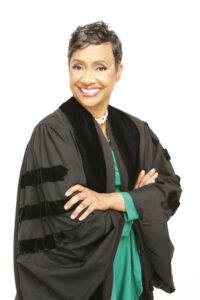
Whether you’ve already registered for the 2018 TCEA Convention & Exposition or are still making your final plans, we can’t wait to welcome you to Austin in February for five days of innovative professional development, networking, and resource gathering. We’re excited to announce one more person who will be joining us this winter to transform teaching and learning. Without further ado, our closing keynote, who will present on Friday, February 9, is none other than Judge Glenda Hatchett.
Transforming Excellence
Judge Hatchett is herself an emblem of the power of transformation. She has worn many hats (and as many robes) in her incredible 30-year career. Many will recognize her from her popular television show Judge Hatchett that ran from 2000 to 2008 and is now nationally syndicated. But here are a few things about our closing keynote that you may not know.
She is a graduate of Mt. Holyoke College and Emory University School of Law where she was an Earl Warren Scholar. Before she entertained millions with her firm but fair justice on TV, she completed a prestigious federal clerkship in Georgia, was the highest-ranking woman of color working for Delta Air Lines handling global crisis management, and was the first African-American Chief Presiding Judge of a state court in Georgia. She has also served on the boards of directors of three Fortune 500 companies and is a founding partner of the national law firm The Hatchett Firm.
Her show Judge Hatchett is a two-time Emmy nominee and winner of a Prism Award for Best Unscripted Non-fiction Series. Judge Hatchett is also a best-selling author of two books: Say What You Mean and Mean What You Say and Dare to Take Charge. In 2016, she returned to TV with a new show The Verdict with Judge Hatchett.
Throughout her career on the bench (both on TV and off), Hatchett has been devoted to offering alternatives for troubled children and teens, providing risk and crisis management, and pursuing justice for those who have experienced significant losses. Her legacy of excellence has been rewarded with numerous awards including the Roscoe Pound Award for outstanding work in criminal justice, the NAACP’s Thurgood Marshall Award, and the Emory Medal.
Your Closing Keynote Is Now in Session
We’re excited that Hatchett will be presiding over the closing session with her unique brand of justice. She is an inspiring speaker who will both entertain and inspire with her powerful message of how to live and lead with purpose. Her presentation will be valuable to educators in all roles as she speaks about her experiences working with youth and how to encourage them to achieve their highest potential, regardless of their current circumstances.
To hear Judge Hatchett’s purposeful message, you’ll need to make plans to be at the 2018 TCEA Convention & Exposition on Friday, February 9 at 10:30 a.m. Visit this blog to learn more about everything that’s new and exciting at this year’s convention. You can also read about our opening keynote, the equally impressive, Academy-Award winning Marlee Matlin, and other featured presenters here.
Don’t miss out and register today!





 Join us on October 26 and 27 at the TCEA Headquarters in Austin for sessions on hot topics such BYOD management, end-user technical support, security, Chromebooks, emerging technologies, network/wireless management, and more. Check out the
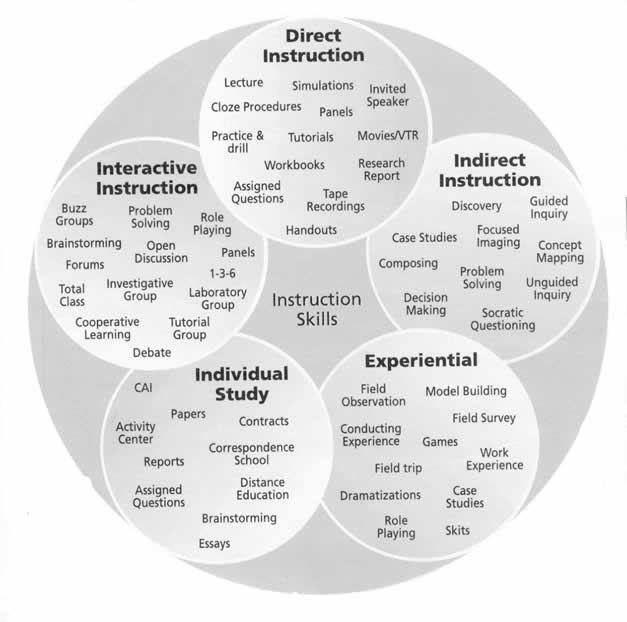 Chart to Classify Learning Activities (


 inspiring advocate for diversity and inclusion. And in 2015, she developed “Marlee Signs,” the first celebrity-driven app that teaches the basics of American Sign Language on mobile devices.