Explore insights and strategies for CTOs and CIOs in education. Discover tools and resources to support technology leadership and innovation.

I noticed something happening on my Facebook the other day. Suddenly, I was getting a lot of “sponsored stories” (ie. ads) with salacious headlines. Things like “Stop eating chicken breasts immediately!” and “You won’t believe what this famous star has become.” Then I noticed them showing up on my news websites: “Enter your name, wait 12 seconds, and brace yourself.” (Really? Why 12 seconds? Isn’t 10 standard?) And once I started seeing them, suddenly they were everywhere. Welcome to 2017, the year that clickbait becomes the norm.
What Is Clickbait?
According to Wikipedia, clickbait is a term for “web content that is aimed at generating online advertising revenue, especially at the expense of quality or accuracy, relying on sensationalist headlines or eye-catching thumbnail pictures to attract click-throughs and to encourage forwarding of the material over online social networks.”
There are several parts of that definition that jumped out at me. First, it’s all about the bottom line of selling stuff to unsuspecting internet browsers (like your students). Second, the people who create clickbait are very okay with sacrificing quality and accuracy. And third, they really want us to forward this garbage on to our unsuspecting friends and family and maybe help it go viral.
Why Clickbait Is So Dangerous
What makes clickbait so insidious is that, according to the latest research, American adults are fooled by their headlines 75 percent of the time and believe that the headline is true and factual. This is very scary and explains, to a large degree, the great divide we see in our country today.
A recent study on how well students can research conducted by the Stamford Historian Education Group (SHEG) titled Evaluating Information: The Cornerstone of Civic Online Reasoning was released in November 2016. The study of 7,804 student responses was conducted between January 2015 and June 2016 for students in middle school through college across 12 states. In summary, SHEG described students’ research ability as “bleak” based on the following:
- More than 80 percent of middle school students believed that an advertisement, clearly identified by the words “sponsored content,” was a real news story.
- Less than 20 percent of high school students used key details to notice that an unreliable source for a photograph was presented as evidence that nuclear radiation caused unusual growth.
I think all of us can agree that clickbait is something that we wish didn’t exist. It’s annoying and distracting. Even I, who consider myself a well-informed individual, find it hard to pull my eyes away from some of their headlines. And that’s why they are so powerful. They are created to appeal to our sense of curiosity, which makes them a natural for children and teens to click on.
The other thing that makes clickbait so dangerous, especially to students, is that it appears the most on social media sites. Since today’s youth practically live on social media, this means that they must be taught how to avoid clickbait and the problems it can cause. And because clickbait works, its use will only continue to grow.
What You Can Do
Here are some tips that something you are thinking about reading is not worth your time. If you follow them, you will easily be able to recognize clickbait when you see it.
The headline or title tells you nothing at all about the content of the article. For example “This Teacher Liked a Facebook Post; What Happened Next Is Awful.” Notice that the headline really doesn’t convey much about the story. What it does do is put a question into your brain: What happened to the teacher? They are counting on you wanting to know enough to click the link. Don’t!
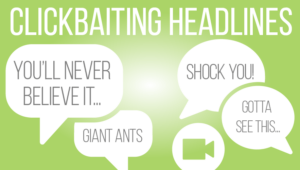 The headline is too good to be true. I think my favorite example in this category is “17 Cats Who Should Be Running for President.” Really? Cats for president? What’s the point of this article? If it’s too ridiculous to be true, it’s too ridiculous to be true and isn’t worth your time.
The headline is in poor taste. Examples include “The Party Is Titanic!” and “10 Things Only People with Dysentery Will Understand.” Good journalists will not stoop to this type of headline. Enough said.
The headline is too funny, too positive, too terrifying, too exploitative, or too anything else. Headlines should simply tell what the story will be about. It is not their job to engender strong emotions. They are supposed to be simply stating the facts.
The headline follows a standard formula.
- [?] tries to [?]. The reason why will make you [?]
- [?] tries to [?]. You won’t BELIEVE what happened next!
- This video will prove that [?]
- 10 [?] you should never [?] to [?]
- X was Y. First you’ll be shocked, then you’ll be inspired
- 10 [?] that look like [?]
- 10 [?] that you won’t believe [?]
Teaching Students About Clickbait
Share the tips above with your students and have an honest discussion with them about the fallacies and dangers of clickbait. Then try some of the activities below to help them learn to recognize clickbait.
- Have them take a familiar story, like The Three Little Pigs, and create some obviously clickbait headlines for the story, the stranger the better!
- Provide them with two headlines for the same story and ask them to decide which one is the clickbait. My favorite example is this one: Headline #1: “You Won’t Believe What This 13-Year-Old Did on His Holidays!” Headline #2: “The Kid Who Climbed Mount Everest”
- Have students use a headline generator, like the Link Bait Title Generator. Simply enter a topic, like “cats” and the generator will create numerous useless headlines. Discuss why it is so easy for a website to create so many headlines on one topic and what this says about the quality of the headlines being created.
- Discuss with them why clickbait can be bad. Have them create a PSA using video, audio, drawings, or writing to warn others.
- Take a historical event and write clickbait headlines for it. Then ask the students how these might color our view of the actual event if they were the only thing we knew.
- Ask students to write clickbait headlines for common teaching moments. An example is “You have a test today. You won’t believe #17!”
- Assign a different topic that you have studied in the past to each student and have them create a clickbait headline for it. Then have other students try to guess what the topic is.
- With older students, have an honest discussion about what problems fake news stories, such as clickbait, can cause. Make sure to have examples handy.
- Have students play the Factitious online game. a way to test their news sense.
- Your high school students can try their hand at “spreading” fake news in this ten-minute online game from Cambridge social psychology professor Sander van der Linden. The goal of the game is to teach people how disinformation is made and spread.
All of us can become better and more informed purveyors of the news stories being provided to us, but it will take a little work on our part. How will you help your students become better at this?
This blog was updated with additional content on February 22, 2018.




 Taking on new skills and the learning curve that goes along with it may be a frightening and/or frustrating task for your staff members. When possible, always try to set them up for success. They may not know how to break the skill down into manageable pieces, for example, so you may need to help model that aloud. Depending on the skill, you may also need to provide additional resources or training to help them become confident and successful. Put yourself in their position and consider what might be helpful in order to stretch…without breaking.
 Talk to your staff about the additional tasks and the need to grow and take on new skills. Having an open discussion can alleviate some of the fear that comes from encountering something new, different, or unknown. When possible, ask questions to find out what they think. They may have a completely different understanding based on their past experiences (or lack thereof). Open dialogue should not be constrained to a single staff meeting however; encourage the conversation to continue. Let your staff know that you want to hear their ideas. Though you may have no control over the growth that needs to take place, you do have a great deal of influence on how well they develop capacity to meet that need.
 When talking with a friend about building capacity in his team, he mentioned that he has a few people that can juggle six or seven major things, and he has one person that can only juggle four. No matter how much he wants the four-task-juggler to grow into a five-task-juggler, he realizes that it just isn’t going to happen. And the best thing he can do is recognize it and use it to both his and his staff member’s advantage. In doing so, he needs to set realistic expectations for each individual staff member. Just because you and I find certain tasks easy to juggle doesn’t mean that a another staff member will obtain the skill with ease. If we think back over our experiences, we probably had much more time (and resources) to build capacity in that area. With that in mind, consider how you can adjust expectations, but still arrive at the required destination.

 outside of school time to be successful in school. The survey also revealed that 75 percent of Texas 6th through 12th graders use the internet at home for school work. Those who do not have internet access at home are at a distinct disadvantage. Not only do they have fewer options in terms of access to content; they are unable to develop the technical skills necessary in an economy driven by technology.