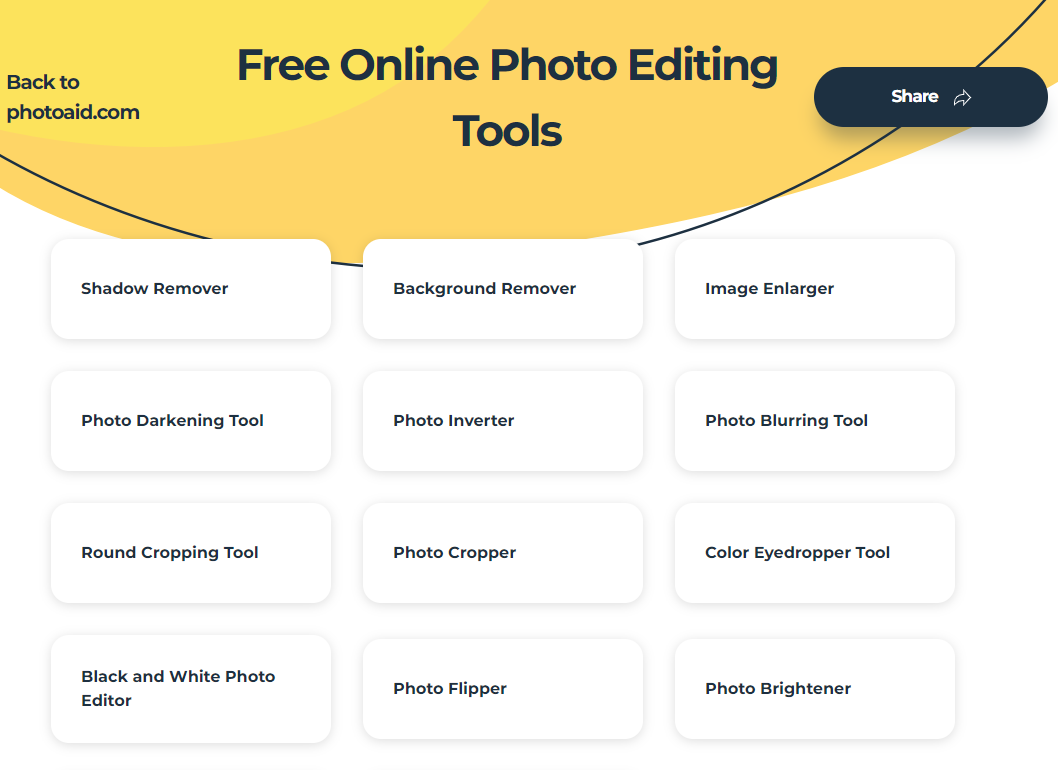
Fantastic image editing tools abound online. Let me introduce you to a new one, PhotoAid. It offers a stunning amount of solutions on one website through a collection of free, online photo editing tools–14 different tools to be exact. Let’s take a look at my top five PhotoAid tools. And, given the positive response this blog entry has received, you can find contributions from Twitter fans included after Tool #4. Check them out!
The main product of PhotoAiD is the all-in-one passport photo editor, which, thanks to Artificial Intelligence, will transform a simple selfie into a professional passport-style photo. The software we developed is composed of numerous small apps like our remove-shadows-from-photo app. We have figured out the smaller tools may be beneficial to plenty of people on their own, hence in order to give back to the society, we made this tool completely free of charge.
Tool #1: Background Remover
BackdropSplat removes photo, white, and colored backgrounds right in your browser. Prepare transparent graphics for slides, classroom projects, websites, and documents. Images stay on your device; photo removal downloads a model on first use.
Features
- Photo cutouts: Choose Fast or Best quality, with automatic fallback on unsupported devices.
- White background removal: Clear white around a subject or inside lettering and logos.
- Color removal: Pick or sample a background color, then adjust tolerance and soft edges.
- Selective matching: Remove border-connected areas or every matching pixel.
- Preview controls: Compare the original and result, and zoom to inspect edges.
- Batch processing: Process multiple images and download them together as a ZIP.
- Flexible exports: Save full-resolution PNG or JPEG with transparent, white, or custom backgrounds.
- ImageSplat integration: Apply cutouts directly to selected image layers, with one Undo to restore them.
- Local processing: White and color removal require no model downloads or external connections.
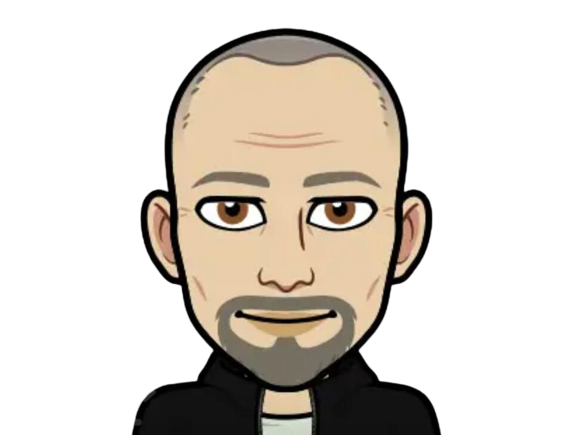
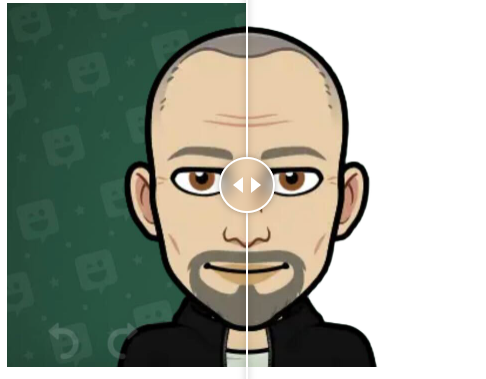
Pretty nifty, huh? BackdropSplat does offer an additional feature that still makes it a winner if you need it. That is, after removing the background, you can add a new one. The new background can be one of the six plus scenes or you upload one of your own. It’s also multilingual with support for seven different languages.
Tool #2: Free Round Cropping Tool
Find yourself dropping images into Powerpoint or Google Slides for cropping? Stop. Instead of using those juggernaut tools for cropping an image to a circle, use this one from PhotoAid. It’s quick and gives you a nice result, as you can see below:
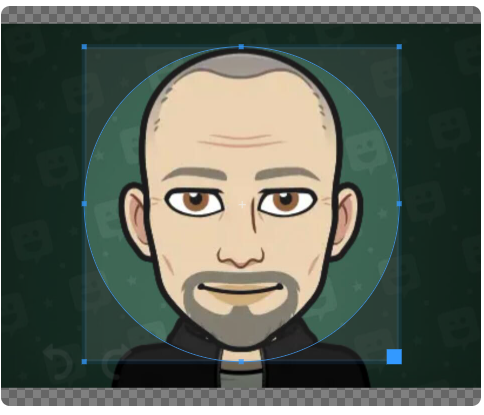
Once you have adjusted the cropping tool (the blue circle), download your image. It will look something like this (although not as dashing as my Bitmoji, of course):

TIP: Remember if you need to crop images into other shapes, you can also use IMGonline.
Tool #3: Free Photo Blurring Tool
Need to blur a portion or all of your photo? There are several tools you can use. For example, one of my favorite photo blurring tools is Irfanview. It’s a no-cost, Windows-only program (look at the shareware Graphic Converter for a Mac alternative) that offers a host of features. One of those features is the ability to blur images. The reason I like it is that I can apply a wide variety of effects via a simple interface to a photo selection. That is, blur the face of one person in a group rather than the whole group.
For a browser-based tool, you can try LunaPic would let you. A tool like LunaPic would let you be more selective about which portion of the image you might want to blur, like Irfanview.
If you need to blur an entire photo, then PhotoAid’s Free Photo Blurring Tool works quite well.
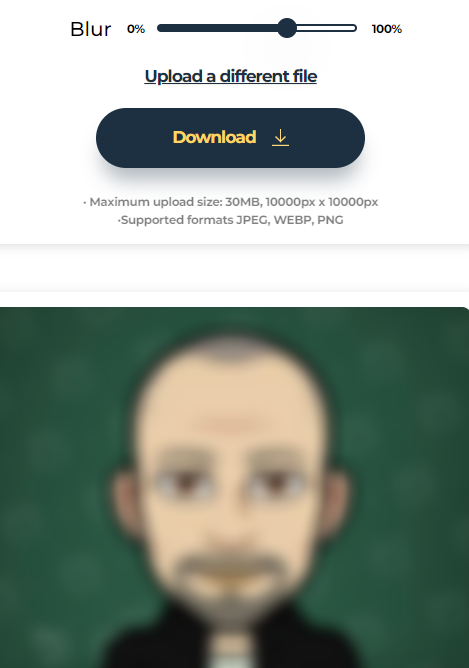
It’s a question of how selective you want to be. A general-purpose blurring tool can be helpful to have.
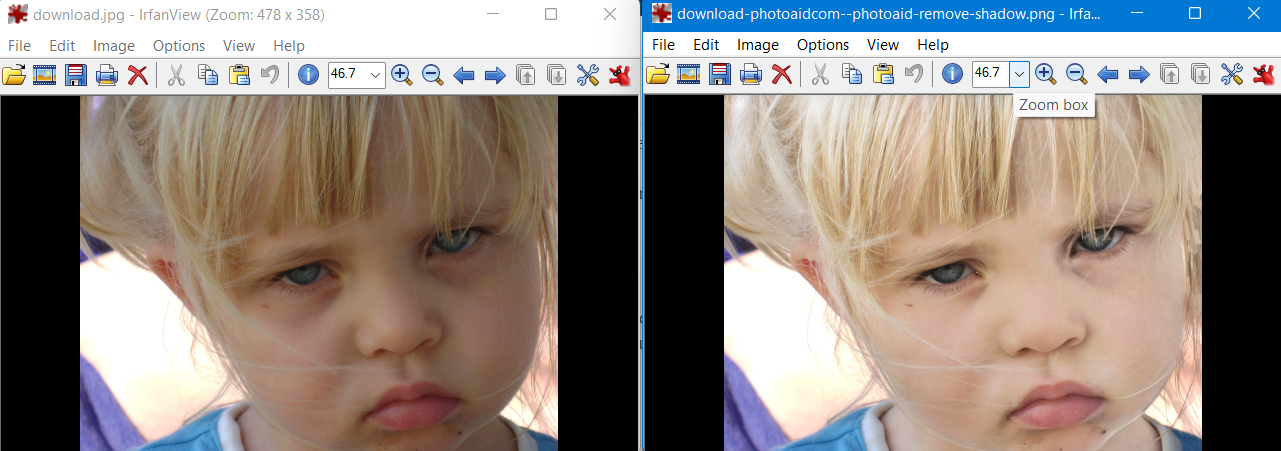
Tool #4: Shadow Remover
Now this is a tool I haven’t seen much. It allows you to lighten an image by removing shadows. Here’s a picture of me in my new Fiesta hat:

What if I want to remove the shadow cast by the brim of the hat? Here’s the resulting image; you decide as to the quality:

This might work great for removing circles under a person’s eyes, but I’m not sure about shadows cast by a hat brim. Here’s another example. The picture on the left is the original, and the one on the right is enhanced.
Hold On, I Want To Share Some Other Tools, too!
Thanks to feedback from the Twitterverse, I’m adding a few more tools other readers want to see included. Special thanks to TCEA Member John Bimmerle for sharing IMGCandy. If you haven’t seen it yet, it offers a ton of features as well, similar to PhotoAid. Give it a looksee!
Tool #5: Image Enlarger
Have a thumbnail image that you wish were…well…larger? You can do that with the image enlarger tool. The idea is that you can “upscale your pictures without losing quality.”
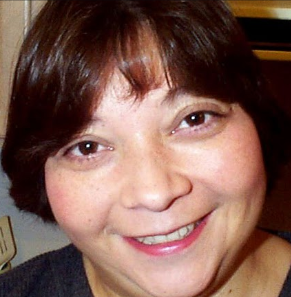
For this test, I took a small image and ran it through the enlarger.
Here’s the original thumbnail image:
Here’s the enlarged image:
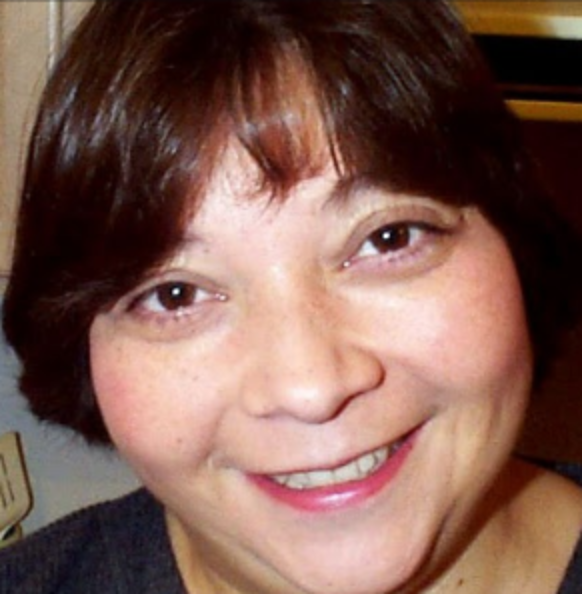
The pixel resolution doubled. What do you think of the quality of the image?
Additional PhotoAid Tools
I’ve shared a few of my most often used tools through PhotoAid’s site. But there are nine more to try. Find them all online here. The ones I didn’t mention but that you may find useful include:
- Photo Darkening Tool
- Photo Inverter
- Photo Cropper
- Color Eyedropper Tool
- Black and White Photo Editor
- Photo Flipper
- Photo Brightener
- Colorize Photo Tool
- Photo Rotator
Additional Articles on Photo Editing
If you’re a first time visitor, you may be wondering what other TCEA blog entries address photo editing and enhancing. Here is a short list you can explore later.
- Become a PhotoDroid: Image Editing on Android
- iPhoneography: Image Editing on the Go (with any device)
- [Converting PDFs/Images to Digital Worksheets](CONVERTING PDFS/IMAGES TO DIGITAL WORKSHEETS)
- Vector Images: Make Magic with Two Free Tools
- Powerful Photo Editing for All Devices
- Fix Your Grumpy sELF: How to Change Your Bitmoji Expressions
- How to Edit Emoji and Icon Colors using Google
- Shape Word Clouds Made Easy
- Five Fantastic Browser-Based Digital Tools
Give them a try. There’s bound to be some awesomeness you can use with your existing images.
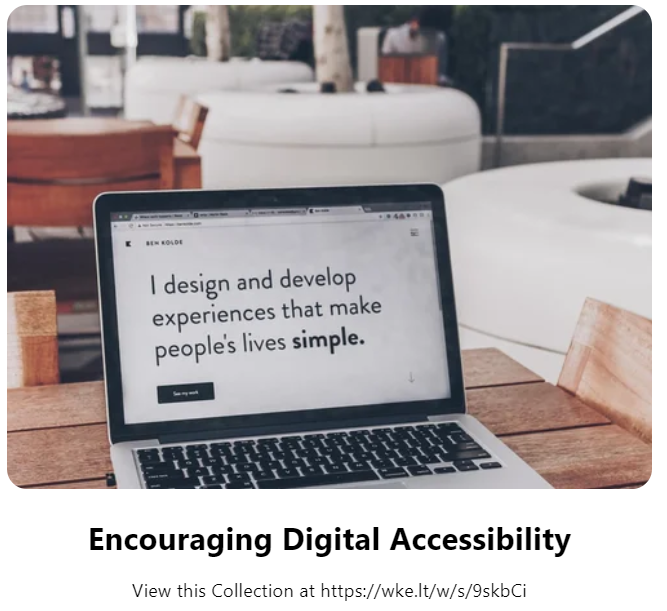
Feature Image Source
Screenshot by author.