Discover tips, tools, and strategies for using Microsoft in education. Explore resources to enhance productivity, teaching, and learning.
ChromebooksDigital LiteracyGood TeachingGoogle Tips and TricksiOS Tips and TricksMicrosoftUncategorized
Lesson Planning: 5E Model + Tech with the ISTE Standards (Part Two)
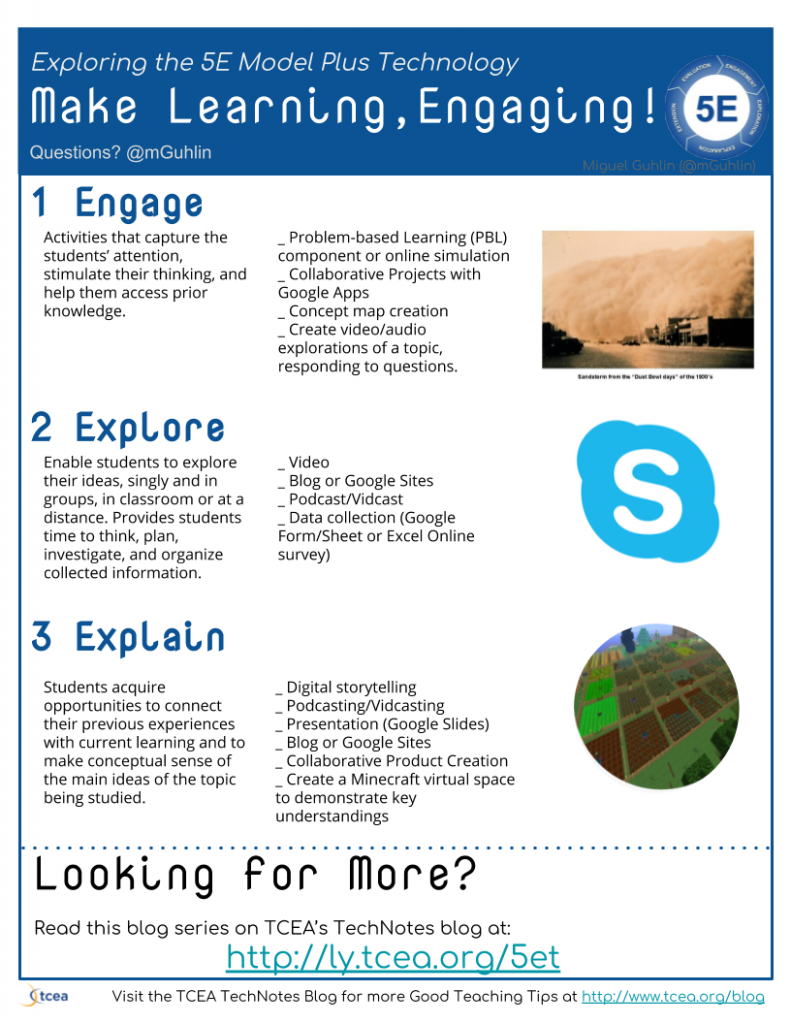
In Part One of this 5E Model plus Technology with the ISTE Standards blog, we explored the Engage, Explore, and Explain aspects of a 5E Model lesson plan. For fun, we took a look at blending the 5E Model with technology from the perspective of the Dust Bowl. In this blog entry, we’ll continue our journey through the Dirty Thirties, focusing on the Elaborate and Evaluate aspects of the ISTE Standards.
ELABORATE
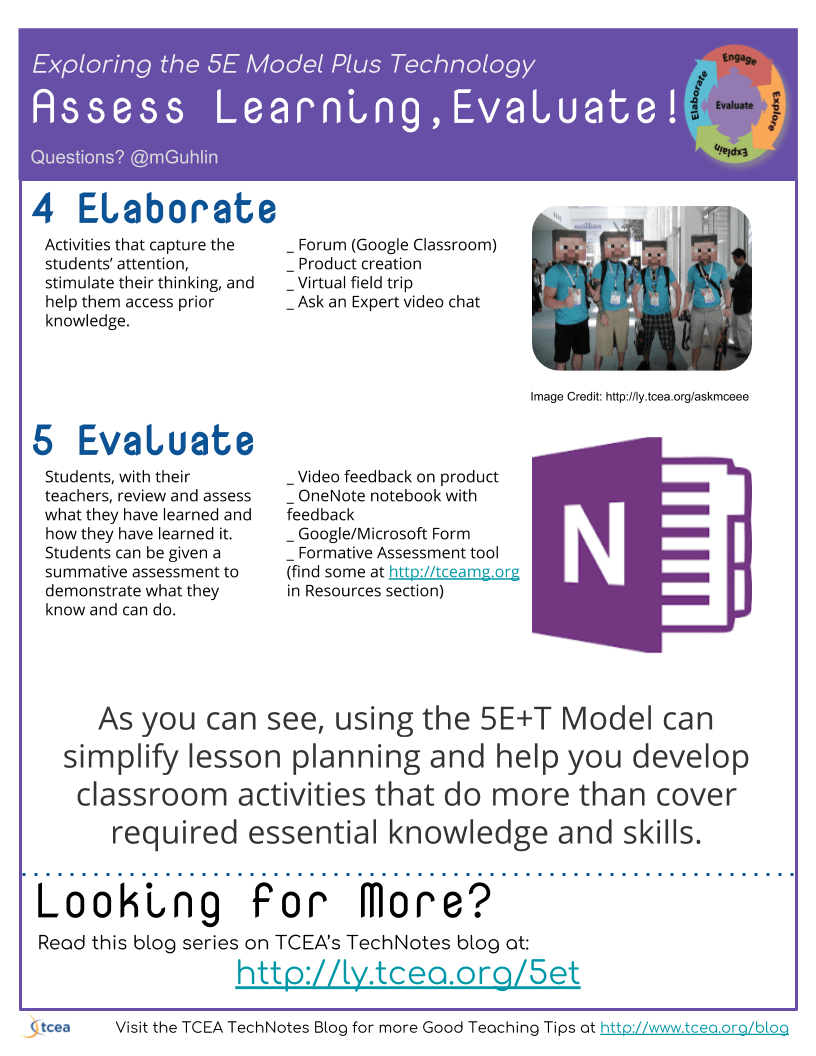
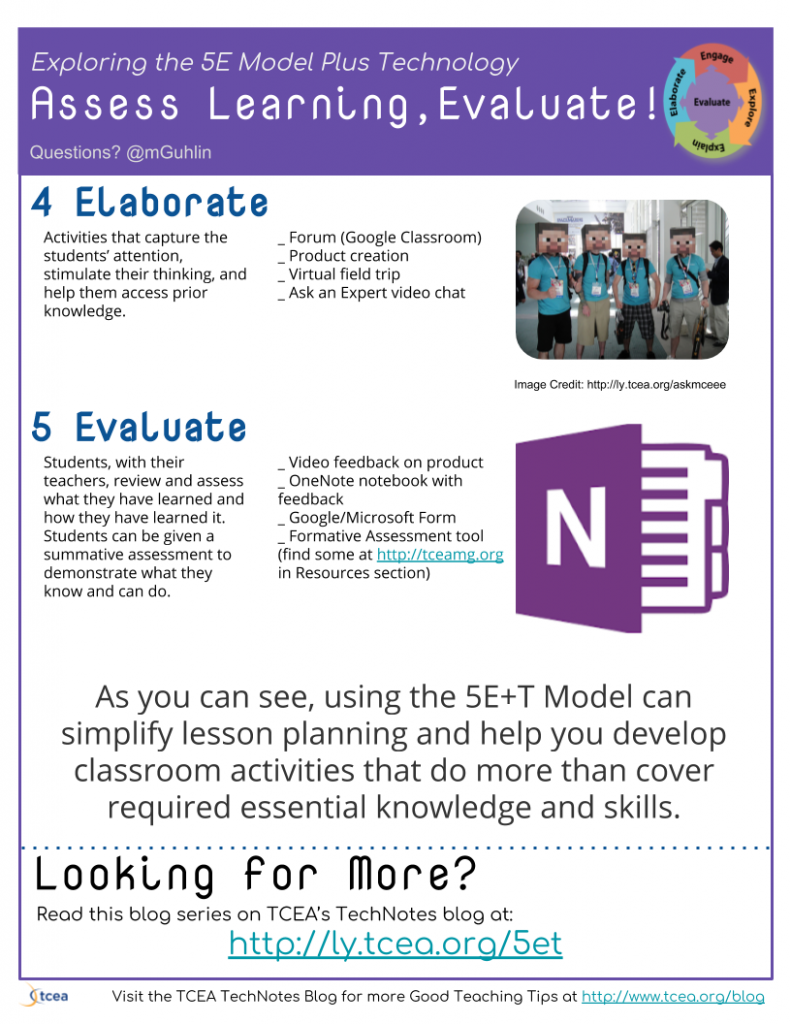
- How? Activities that capture the students’ attention, stimulate their thinking, and help them access prior knowledge.
- Technology? Some example activities appear below.
_ Forum (Google Classroom)
_ Product creation
_ Virtual field trip
_ Ask an Expert video chat - What Success Looks like?
- Students develop a solution to a real problem that incorporates their knowledge, communicating that in a variety of media formats. Students would rely on a combination of audio/video creation tools to articulate their perspectives and then express those online, soliciting feedback from the community and knowledgeable parties.
- Students could rely on VOIP tools like Skype, Google Hangout Meet, or Appear.in to connect with other teams of students exploring the Dust Bowl in other classrooms around the district or globe as appropriate.
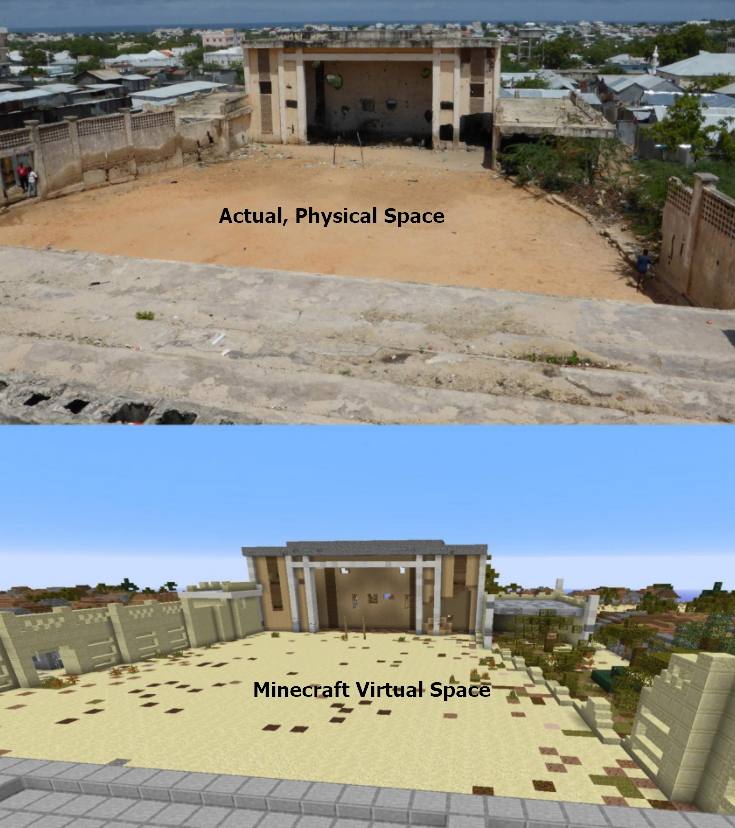
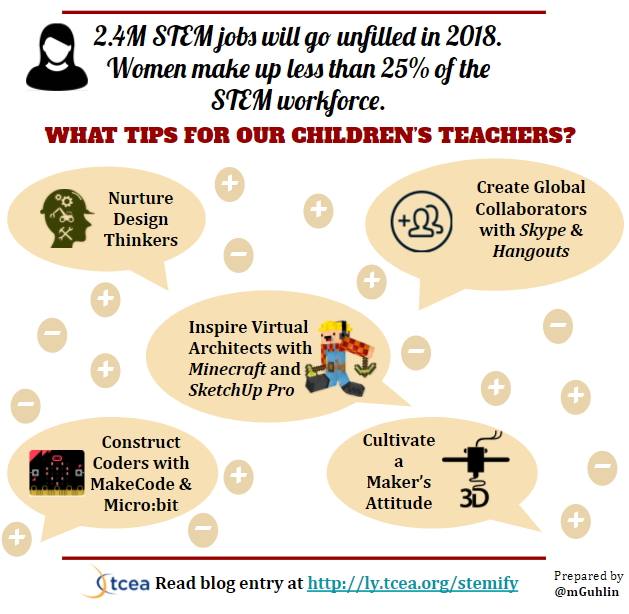
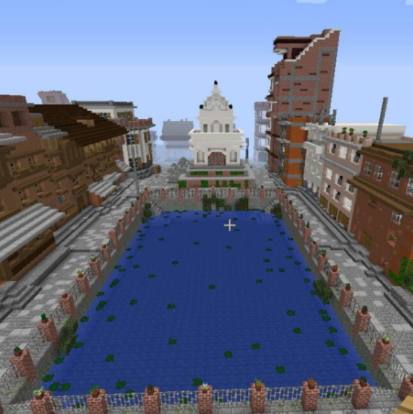
- After self-selection of a design process such as the Engineering Design Process, use video documentary creation tools and/or virtual world (e.g. Minecraft: Education Edition) to create their representation of the problem faced. Then they would offer solutions from various stakeholder perspectives pertinent to their own group. These would be incorporated into their digital representations/creations.
Did You Know?
TCEA offers teams of educators, as well as individuals, certification in the ISTE National Education Technology Standards (NETS). ISTE Certification is a new competency-based, vendor-agnostic educator certification based on the ISTE Standards for Educators. This digital credential recognizes educators who understand how to use edtech for learning in meaningful and transformative ways. Find out more.
EVALUATE
- How? Students, with their teachers, review and assess what they have learned and how they have learned it. Students can be given a summative assessment to demonstrate what they know and can do.
- Technology? Some example activities aappear below.
- Video feedback on product
- OneNote notebook with feedback
- What Success Looks like?
- Students create a OneNote notebook (or Google Slides/Sites) with embedded videos reflecting on content.
- Students’ creations are notated from a perspective of real life usability rather than teacher satisfaction with a transitional student product.
ISTE NETS Considerations
The primary ISTE Standards addressed include the following. How would you extend these?
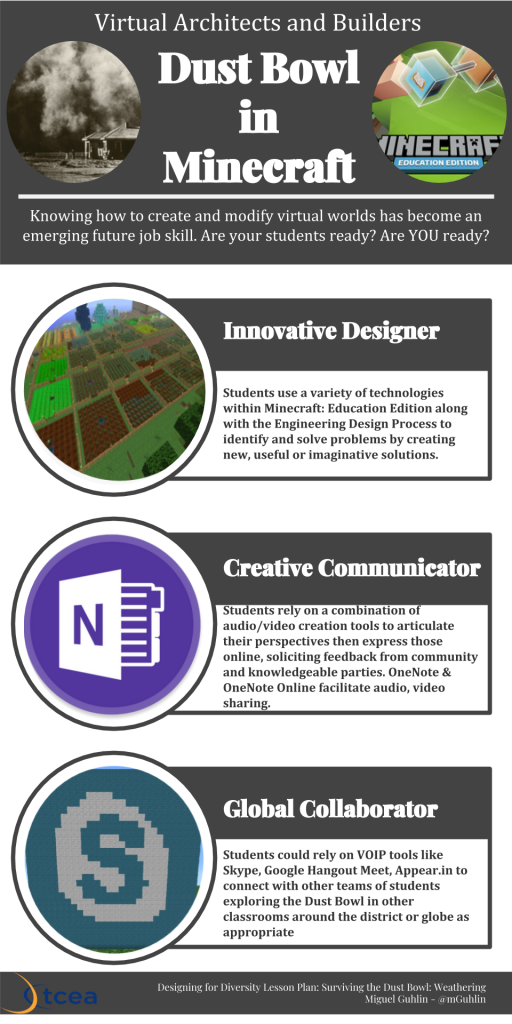
- Innovative Designer: Students use a variety of technologies within a design process to identify and solve problems by creating new, useful or imaginative solutions.
- Creative Communicator: Students communicate clearly and express themselves creatively for a variety of purposes using the platforms, tools, styles, formats and digital media appropriate to their goals.
- Global Collaborator: Students use digital tools to broaden their perspectives and enrich their learning by collaborating with others and working effectively in teams locally and globally.
Digital Tools
Curious about some of the digital tools available that could be used to facilitate this lesson? Here are a few ideas to get you started.
- Intended Use: Empower students to create a digital memory box to better capture resources needed for digital stories expressed as video documentaries or Minecraft virtual creations:
- Tools:
- OneNote + Office Lens: These two free apps, which work on a multitude of mobile devices, allow you to store text, audio, images, and embed videos and could easily be used to collect information. The Office Lens app lets you digitize content, snap a picture of paper items or photos, and save them to OneNote, a digital notebook. With OneNote’s built-in digital ink, students can easily fill in the chart and storyboard their digital story. The teacher can take those student creations, combine them with the final products, and publish them on Docs.com as a OneNote Notebook (which is free for everyone and works great on iPads, Chromebooks, Windows/Mac computers, and Android).
- Google Photos + Google Drive: With these two apps, you can save photos or videos taken with your device to Google Photos, saving content online.
- Assorted Image Apps: Collecting images can be straightforward with mobile apps like Camera Awesome (iOS and Android), Camera MX (Android), and Google Camera. Image annotation becomes easy with Annotate (iOS), Photo Editor by Aviary (Android and iOS), SnapSeed (iOS and Android), as well as EyeEm Camera and Photo Filter (iOS and Android). Don’t be afraid to take advantage of green screen apps (DoInk for iOS and Green Screen Pro for Android) to further enhance photos, making your own green screen with a $1.00 Dollar Tree store green plastic tablecover.
- Intended use: Video Documentaries
- Tools:
- Mobile Apps like Shadow Puppet EDU, Adobe Voice, and Storymaker 2, as well as MS Office Powerpoint (Windows/Mac) and iMovie
- Screencasting tools such as Screencastify or PowerPoint Screen Recorder
- Google Slides/PowerPoint plus Gifmaker.me to create animated GIFs that can be incorporated into video documentaries
- Green screen tools
- Tools:
- Intended use: Virtual World Construction and Digital Architecture
- Minecraft: Education Edition
- Office 365 accounts for students and teacher(s)
Final Thoughts
Students have a wide variety of technologies available to them at no cost, as well as others that tap into the Windows laptops, mobile iOS tablets (e.g. iPads), and/or Chromebooks that allow them to interact on both small and large screens. This interaction is collaborative given the nature of built-in collaboration options available to Google Suites for Education, Microsoft OneNote with Class Notebook and Microsoft Teams. Remember to start your engaging 5E Model + Technology lesson with a problem scenario and/or emotional hook. Then set up collaborative activities that facilitate solution development.

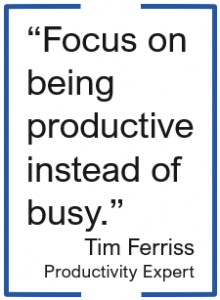 There are so many different tasks that I do which involve using either Microsoft Word or Google Docs that I have picked up a few tips and tricks over the years to help make using Microsoft Word even faster so I can get to other items on my to-do list. And isn’t that our main goal anyway? As Tim Ferriss, author of The 4-Hour Workweek, said, “Focus on being productive instead of busy.” I was training this past week on Microsoft Office and had that startling realization that there are things I know how to do in Office that I take for granted and just assume that everyone knows the same things and makes use of various tools to speed up their process. So, here is a shortened list I would share with someone if they use Word, but want to be more productive.
 Auto Recovery – Initially set at ten minutes, I dropped mine down to five. Whether I’m on my laptop on the go or plugged in at the office, if something happens and my computer shuts off, the worst case scenario is that I have only lost five minutes of work.
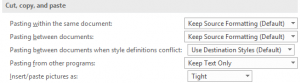 Copying/Pasting – When pasting from other programs, I typically want just the text (not the formatting), so why not set it here? I also have my pictures inserted/pasted as Tight…which is what I would change them to most of the time. The few times I want an image inserted in line with text or in front of text, I can easily change it on the fly using the Wrap Text button on the Format ribbon tab.
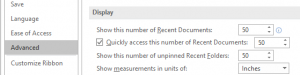 Recent Documents/Folders – It seems like I am always needing to find a Word file that I used a while back. To help make that easier, I increased the preference to show the 50 most recent documents (to quickly access them) and 50 unpinned recent folders.
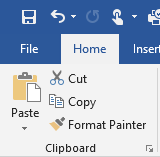 Format Painter – I cannot believe that everyone doesn’t know about the Format Painter tool! Click in the text that contains the format you want to paint somewhere else. Then, click the Format Painter tool once if you are only going to apply it once or double-click it if you want to apply it to multiple pieces of text (or graphics) in your document. If you double-click the tool, then you will need to click it again to turn it off. This tool is especially handy if you have multiple locations where you want to bold, resize, change the font, and the color!
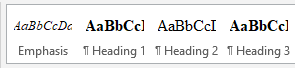 Styles – Instead of being forced to use the styles that are listed across the Home tab ribbon, consider updating them to be what you want. When your cursor is in the text that contains the formatting you want to keep, right-click on the appropriate style and select “Update…to Match Heading.” This is equivalent to boosting the Format Painter tool in that I don’t have to go and find the format in my document to click in and then grab the tool. Updating the styles makes it even easier.
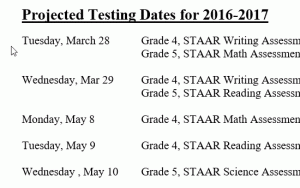 ALT+click/drag – We know that you can click and drag to select text. This shortcut is like that only on steroids! While you hold down the ALT key, click and drag to select the columns of text you want to delete. Once selected, just his the delete key or backspace key.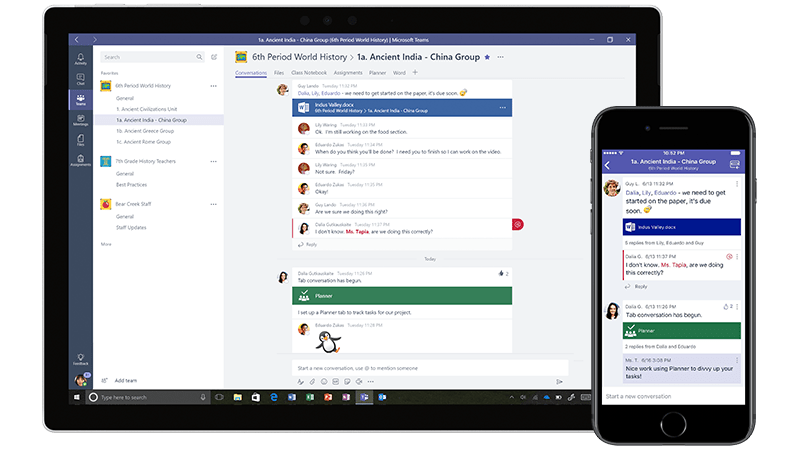

 In a
In a 

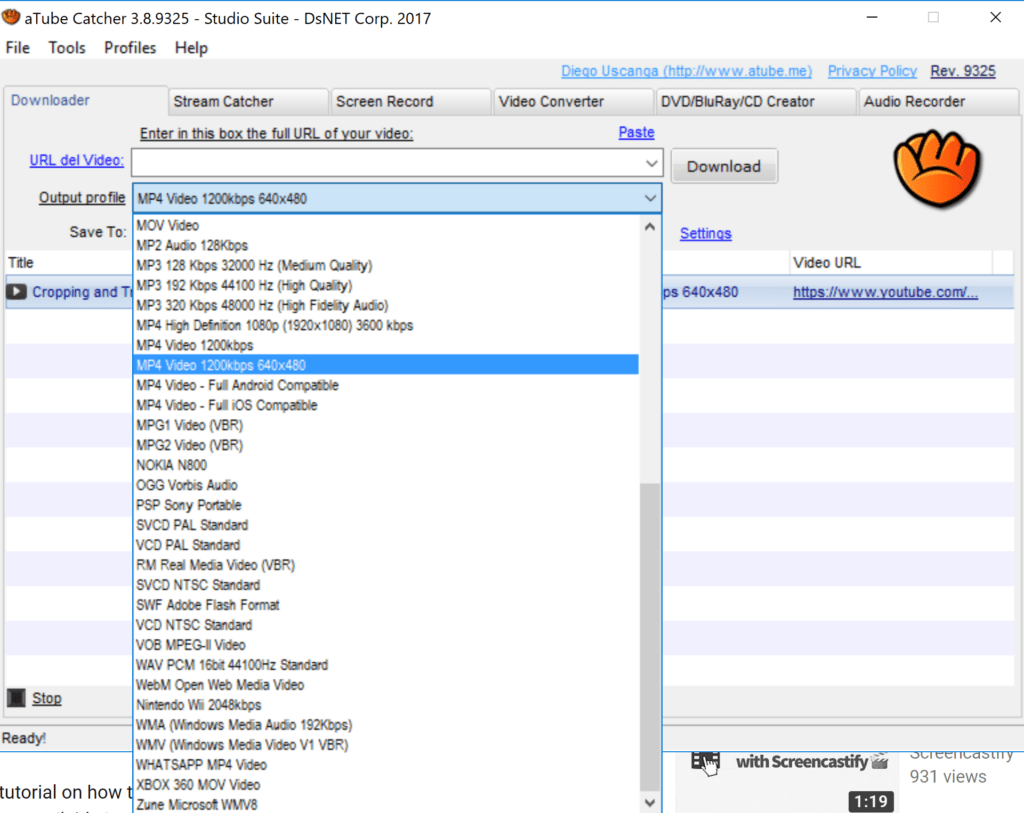

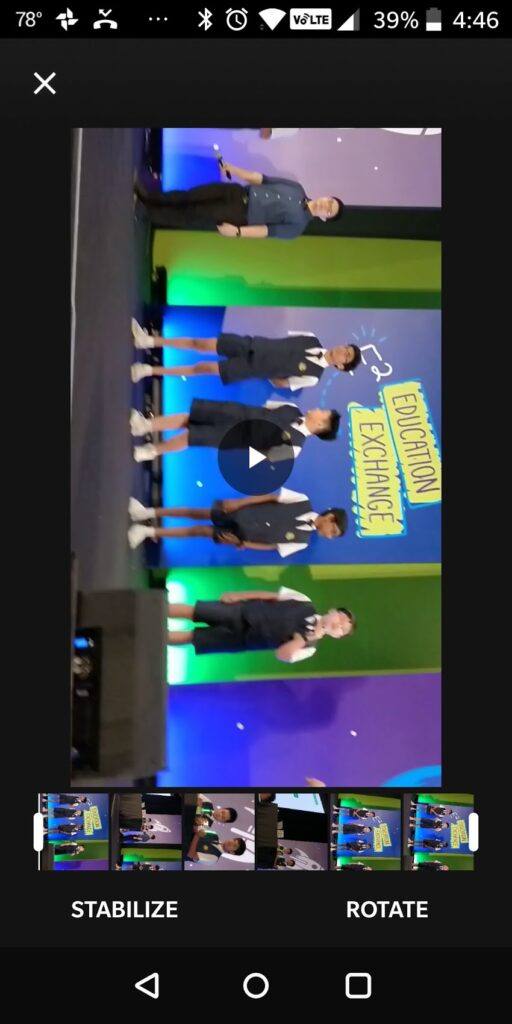
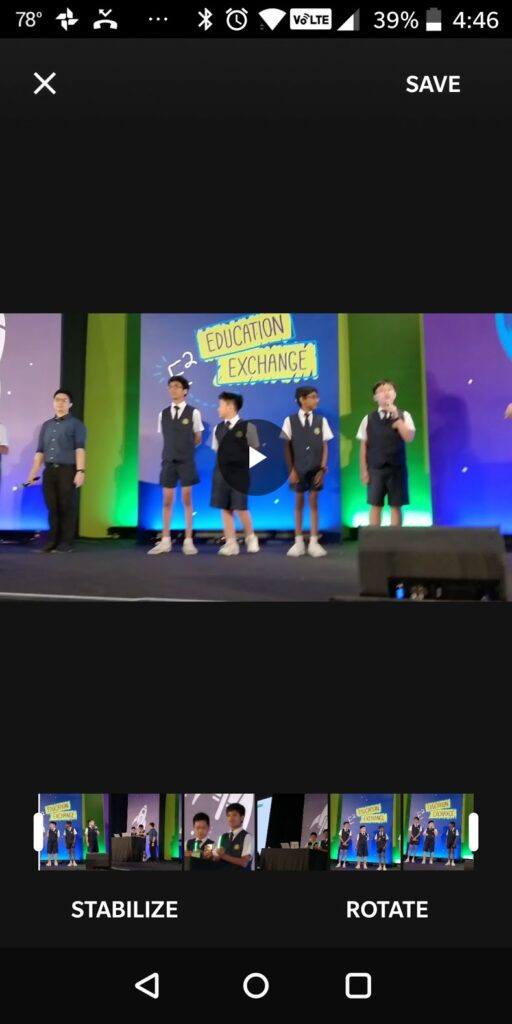
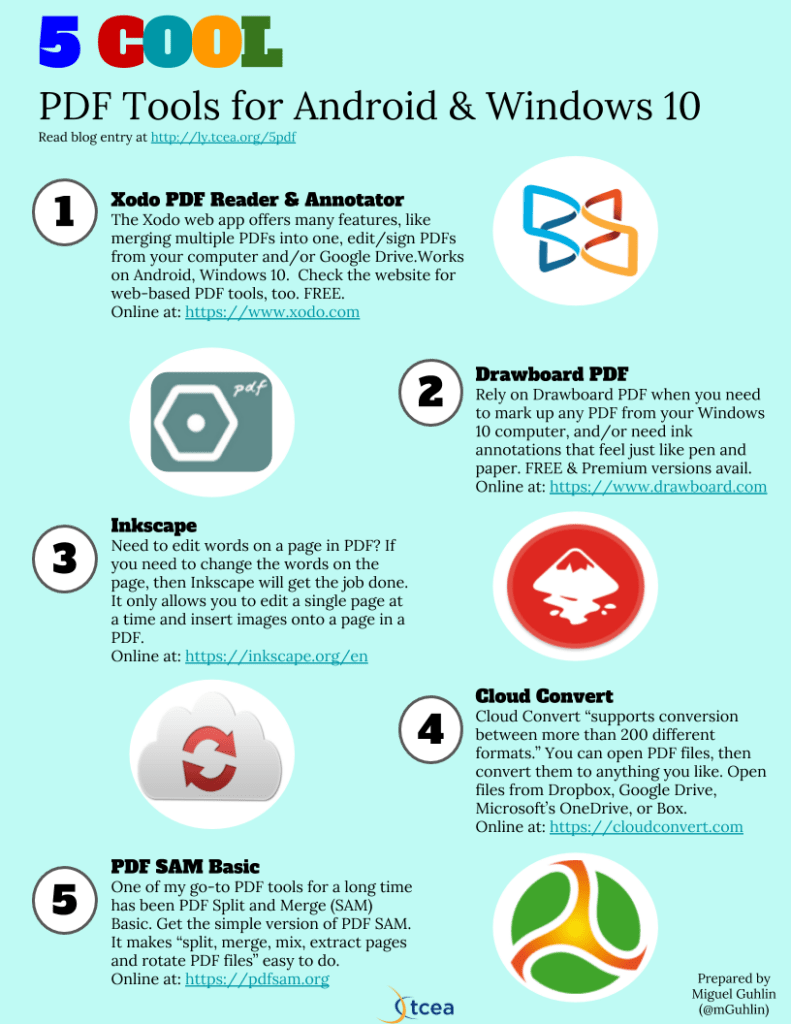
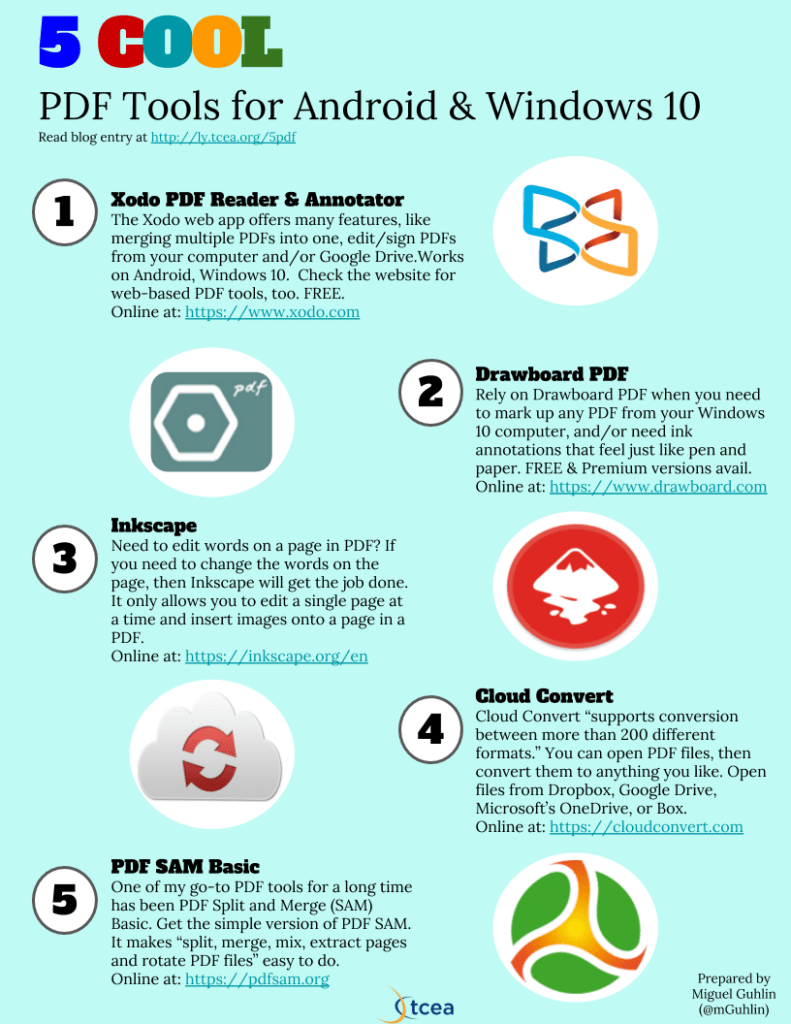
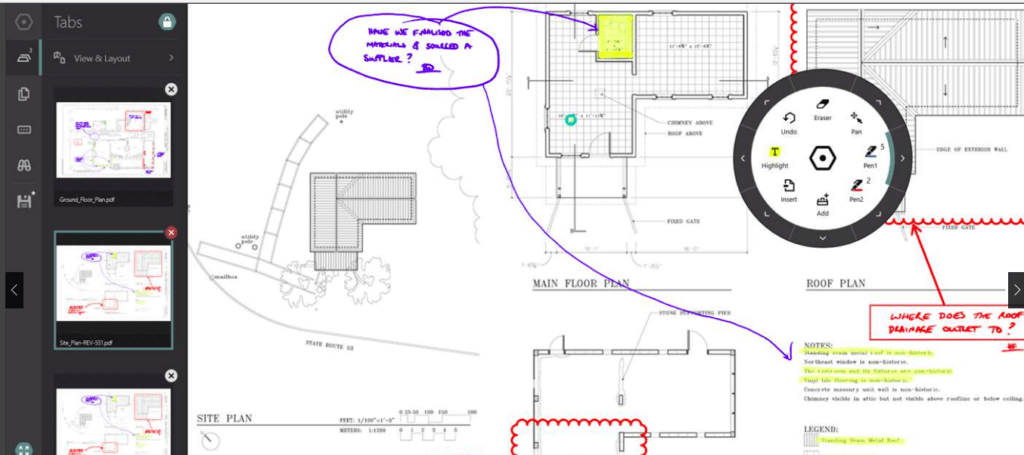
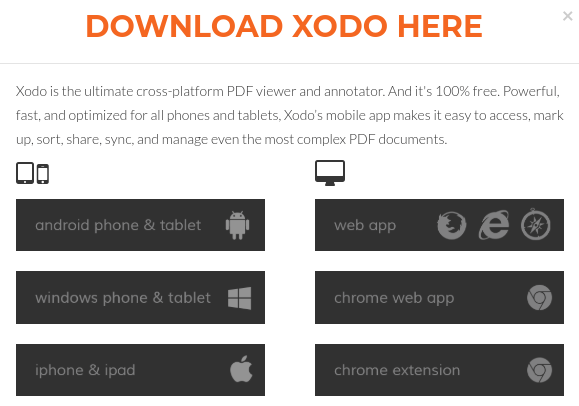 When I found Xodo, I was waiting to board a plane. I had to fill out a PDF form, sign it, and then email it. My Windows 10 device was stowed away; the only device I had was my Android phone. After using Xodo to get the PDF on its way, I made a mental note to see if it was available on Windows 10. Sure enough, you can get Xodo as an app in the Windows 10 Store. In addition to working as a native app on your Android or Windows 10 device, you can also
  The first time I tried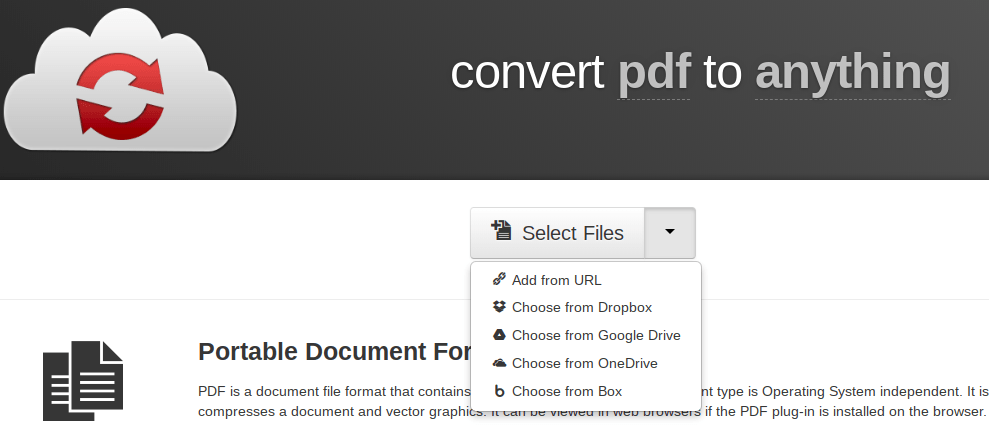
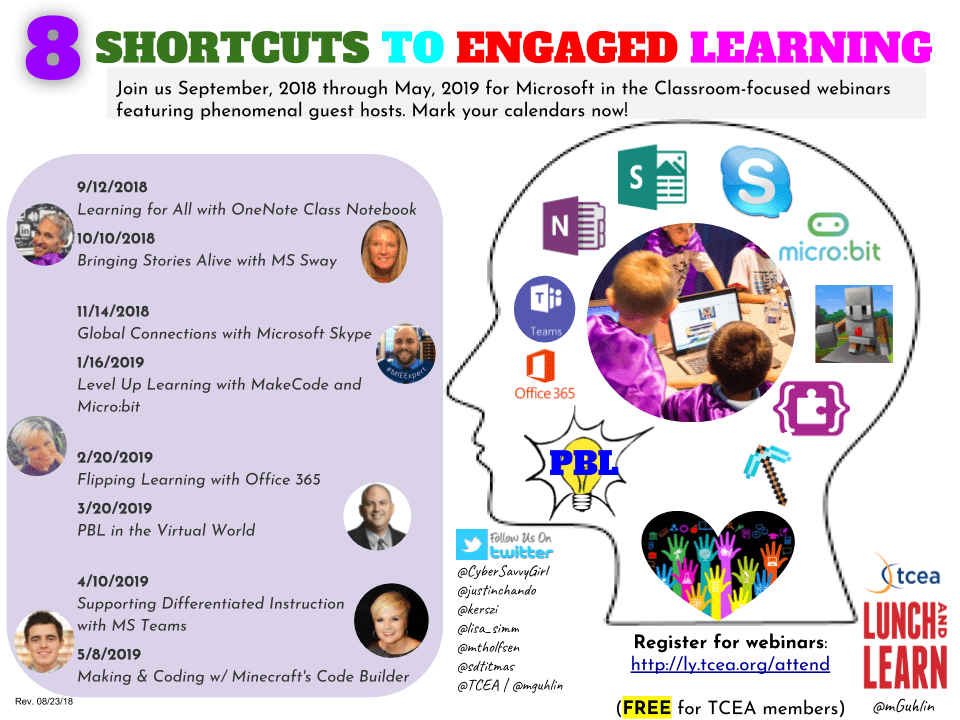

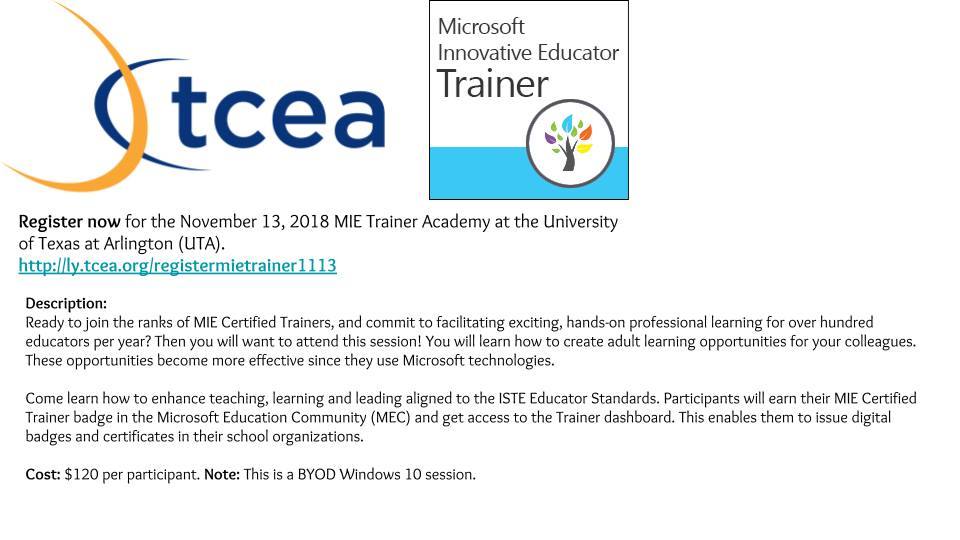

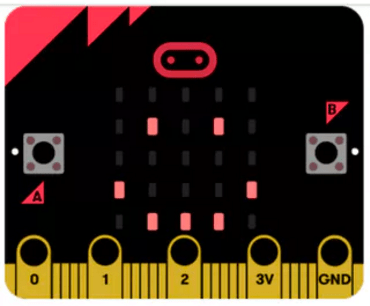 . You will also learn how to use MakeCode to control the Agent in Minecraft: Education Edition. This is a Bring Your Own Device (BYOD) hands-on session for all levels (no prior computer science experience required). Location: Austin, TX
 Adobe users unite! You’ll find this the perfect academy if you use any of the Adobe products yourself or if you teach your students how to use them. Innovative uses, clever work-arounds, and new features will be shared to give you the solutions and steps you need. And, if you are new to Adobe, you will find several sessions that will help you get up to speed and boost your confidence. Adobe pros haven’t been left out; our presenters have clever ideas that are worth listening to and taking note of.
 Make a point to attend our first annual Microsoft Academy to boost your skills in Microsoft products including Office365 and Minecraft. This is going to be a great gathering! You’ll also be introduced to mobile coding with Creative Coding through Games and Apps and gain a deeper understanding into Microsoft Makers projects and 3D Builder. You will definitely find this packed full of topics that you can’t get at other learning opportunities.
 Even if you don’t have a Chromebook, but use Google Suite for Education, you will find these sessions filled with new and great ideas that you can take back to transform the way your students learn. Be sure to bring a friend so you can divide and conquer on the sessions and then share with each other at the end of the day!