Discover resources and strategies for teaching core content areas. Explore tips, tools, and activities to enhance learning across all subjects.

There’s been a lot of discussion over the last year about implementing genius hour in the classroom. Genius hour is the strategy of giving time for students to do self-directed learning on interests that they are passionate about. Google regularly provides employees 20 percent of their work week that can be devoted to “passion projects,” believing that this will better engage the staff and make them more excited about all of their work. There is nothing magical about the “20 percent” number; it’s more important that you give students some time for open-ended learning in which they can pursue their own interests. Here are a few resources to help you get started integrating this educational trend into your classroom.
YouTube Videos
- What is Genius Hour? – Introduction to Genius Hour in the Classroom
- I want to do GH… now what?
- Second Grade GH
- Seventh Grade GH 2016
- 2016 GH Project Examples – under 2 minutes
Website Resources
- Genius Hour
- 20% Time Livebinder
- Idea Starters for the GH Classroom
- Implementing GH in Your Classroom
- The Four Essentials of a Successful GH
- Your Top 10 GH Questions Answered
- Five Genius Hour Strategies to Get You Started
- 10 Reasons to Try Genius Hour This School Year (A .J. Juliani)
- 10 reasons to Try GH This School Year (Matt Miller)
Genius Hour Blogs
- Genius Hour Blog
- Engage Their Minds
- My Own Genius Hour
- Integrating Technology & GH: My Journey as a Teacher & Learner
- The Schoenblog
- #SchoenTell GH
- Guest Post: “The Benefits of GH for ELLs”
- School Library Connection
- ABC’s with Mrs. B.
- Mrs. Gilroy’s Grade Two Blog
So how will you implement passion projects in your classroom? We’d love to hear your story. And if you have a great resource that you would like to share with our readers, please drop it in the comments section below.

that the option to access the Google Play Store on your Chromebook is enabled in the dashboard. You can check your Chromebook by going to Settings. Scroll down until you see the Google Play Store (beta) section. If the option is greyed out, then you’ll need to bake a batch of cookies to take to the domain administrator and ask if they can enable the feature. (Giving cookies increases the chances of having this feature enabled by 64 percent.) If you log in with your personal Google account on the Chromebook, you’ll notice that it is already enabled. But you do NOT want to use your personal account with your students and other teachers. For safety reasons, you always want to use your district account, even if that means bribing the domain administrator or waiting a few days for it to be enabled.
Once the option to enable is made available, you’ll be able to enable it in Settings and manage Android preferences (similar to if you were setting Android preferences on an Android phone or tablet).
Yippee! You have it enabled. So where it it? Click on the Launcher icon which, by default, is the icon on the bottom left on the shelf. You will now see the Play Store (beta) icon. This beta Play Store is currently a stipped down version of the Play Store you would see if you accessed it through the browser. And yes, you will need to use the beta Play Store to install Android apps. When accessing the store via the browser, your Chromebook will not be an option in the dropdown list of compatible devices. Once you click on the beta store, you will recognize the various categories to help you narrow down what type of app you are looking for. If the developers have not completely finished updating the app in question, it may be available as a beta version. When I spot checked several of the Android apps I have on my phone, almost all were available and ready in the Play Store. You might even find that some app developers have made their product available as a Chrome app (that you install via the Web Store) and an Android app (that you install via the beta Play Store). Either way, once installed, they will appear in your launcher window.
Autodesk SketchBook – Whether it is illustrating, diagramming, or sketchnoting, you’ll find this to be a simple app to use. When done, save the image to your Chromebook.
Trello – More than just a to-do list app, Trello can help you keep track of projects. You can work alone or collaboratively with classmates to keep track of project-based learning activities.
Trading Cards – This isn’t your traditional trading card maker. Templates provided include fictional person, real person, fictional place, real place, object, event, and vocabulary. Once you enter information on the front and back of the card, you can share it as a photo to your photo gallery.
Pic Collage – Share your message with pictures! Pic Collage lets you start by selecting your photos and then adding them to a grid with templates (start with a themed background) or freestyle (begin with a blank slate and add to it). You can also easily add text and search for photos on the internet to add to your collage.
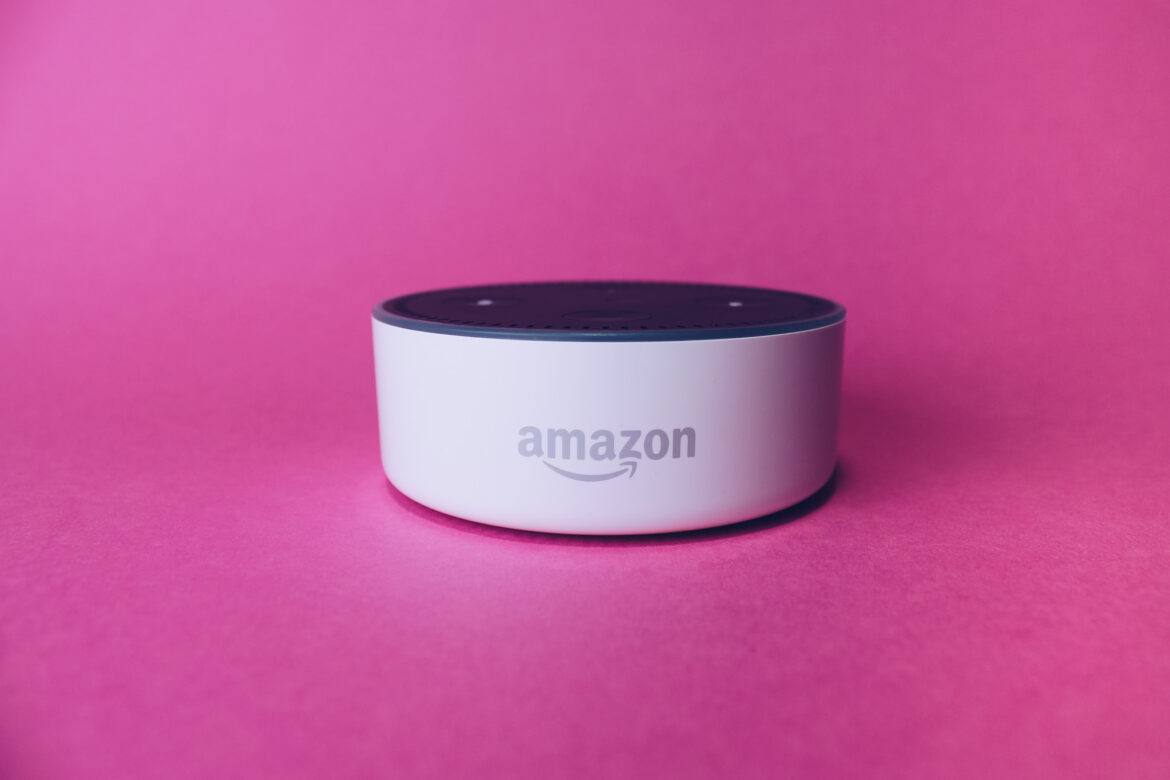
On April 25, Amazon announced a new Alexa designed just for children.
As with any tool, the strength of the learning that results comes from how much thought students have to put into it in the first place. So they should definitely be asked to storyboard their cartoon first and have it peer edited for clarity, flow, and understanding. The app encourages students to use “Story Arcs” in planning their masterpiece. According to the website, “A Story Arc is a scaffolding tool that helps you map out a story’s plot. Whether they’re learning Language Arts or Science, kids can practice communication skills using story arcs as formulas for convincing arguments.”