
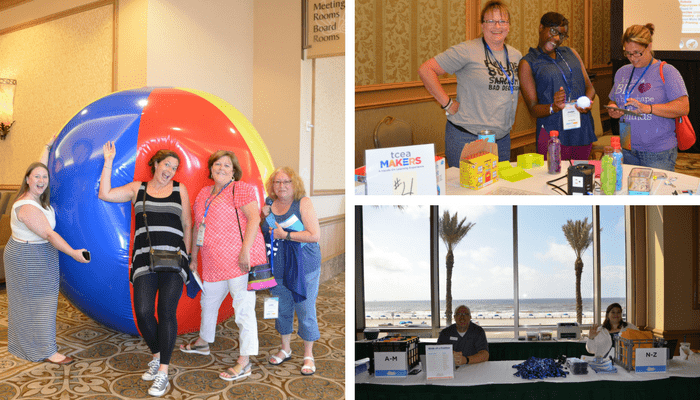
It’s a beautiful day for learning here in Galveston, Texas at the Tots and Technology summer conference. We’re excited to empower elementary educators to transform learning with two days of innovative professional development. The conference officially starts tomorrow, but today many educators showed up excited to supercharge their Tots experience with our interactive pre-conference workshops.
These workshops are very hands-on and last three hours, allowing the participants to dive deep into the learning and content. Teachers get to experience the engagement that can come from the thoughtful integration of technology in the PreK-5 classroom. We wanted to share with you a few photos and ideas from two of these sessions for our readers who couldn’t be here in person. We hope you’ll be inspired to create some of these experiences in your own schools.
Making Elementary Collaboration Easy
Fostering collaboration and encouraging students to work together is something most PreK-5 teachers strive for. Of course, the best way to get a class or small group working collaboratively is to give them a project they can really sink their teeth into. It needs to be challenging and engaging enough that they must pool their resources to find a solution. Teachers in the “Collaborative Projects for Elementary Students” session discovered some powerful project ideas to get students happily working toward a common goal.
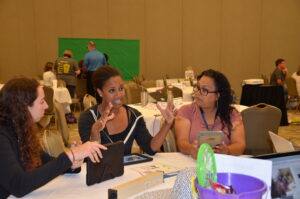
Teachers collaborating in a Tots pre-conference session.
And teachers didn’t just learn about the projects. They had a chance to try them out. They worked together in small groups and quickly got to know their fellow educators and team mates. They then moved through six stations and created projects together using different technology tools. Later, they posted their creations publicly on a shared blog, further collaborating with the larger group. You can be part of their collaboration and check out some of their creations too! Groups created animations, recordings with green screens, and more. They were given instructions to complete their project, but had to work together as a team to brainstorm how they would accomplish it with the technology available at each station.
Making Is for All Ages
At the “Making in the Elementary Classroom” workshop, educators got to try out 11 different maker places. They were introduced to some of the simplest tools for starting a makerspace, like the remarkable versatility of reusing cardboard and k-cups. They also saw some of the more complex tools like beebots and Osmos in action.
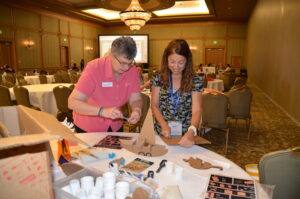
An aspiring maker discovering the power of cardboard.
More importantly than just seeing the technology or being inspired by new ideas for creating makerspaces of their own, they also got a crash course in what making is really about. They spent their time in the session working at different stations to create whatever they wanted. At first, they experienced some trial and error and the careful following of instructions. A teacher learning to use the 3D doodler carefully followed a suggested template to make a 3D signature. However, after working with the tool a little longer, she started to go off book. This is the true spirit of making. Educators learned not just a set of tools they can use with their students, but a way of thinking. Making is about trying and failing and exercising one’s creative energy.
Ready to Join In?
Want to experience these very workshops in person to get even more tips and ideas for the elementary classroom? Our PD team will be bringing these sessions back at Tots and Technology Arlington in July. You too can experience hands-on learning by doing, collaborate with peers, and make some incredible creations. Learn more and register here.




 The purpose of this certification is to help educators build foundational skills in using their Chromebook as an effective learning tool in the classroom. As you go through the course, you will also be introduced to several of the Google Suite of tools to promote collaboration and critical thinking, and you will be provided opportunities to apply it to your content area or grade level. The capstone project for this certification is a lesson plan implementing some of the learned skills and tools within the grade level and content area of your choice.
 The purpose of this certification is to help educators build foundational skills in using the iPad as an effective learning tool in the classroom. As you go through this course, you’ll learn how best to use the features of the iPad to differentiate and support student learning. The capstone project for this certification is a lesson plan implementing some of the learned skills, features, and apps within a grade level and content area of your choice.
 Taking on new skills and the learning curve that goes along with it may be a frightening and/or frustrating task for your staff members. When possible, always try to set them up for success. They may not know how to break the skill down into manageable pieces, for example, so you may need to help model that aloud. Depending on the skill, you may also need to provide additional resources or training to help them become confident and successful. Put yourself in their position and consider what might be helpful in order to stretch…without breaking.
 Talk to your staff about the additional tasks and the need to grow and take on new skills. Having an open discussion can alleviate some of the fear that comes from encountering something new, different, or unknown. When possible, ask questions to find out what they think. They may have a completely different understanding based on their past experiences (or lack thereof). Open dialogue should not be constrained to a single staff meeting however; encourage the conversation to continue. Let your staff know that you want to hear their ideas. Though you may have no control over the growth that needs to take place, you do have a great deal of influence on how well they develop capacity to meet that need.
 When talking with a friend about building capacity in his team, he mentioned that he has a few people that can juggle six or seven major things, and he has one person that can only juggle four. No matter how much he wants the four-task-juggler to grow into a five-task-juggler, he realizes that it just isn’t going to happen. And the best thing he can do is recognize it and use it to both his and his staff member’s advantage. In doing so, he needs to set realistic expectations for each individual staff member. Just because you and I find certain tasks easy to juggle doesn’t mean that a another staff member will obtain the skill with ease. If we think back over our experiences, we probably had much more time (and resources) to build capacity in that area. With that in mind, consider how you can adjust expectations, but still arrive at the required destination.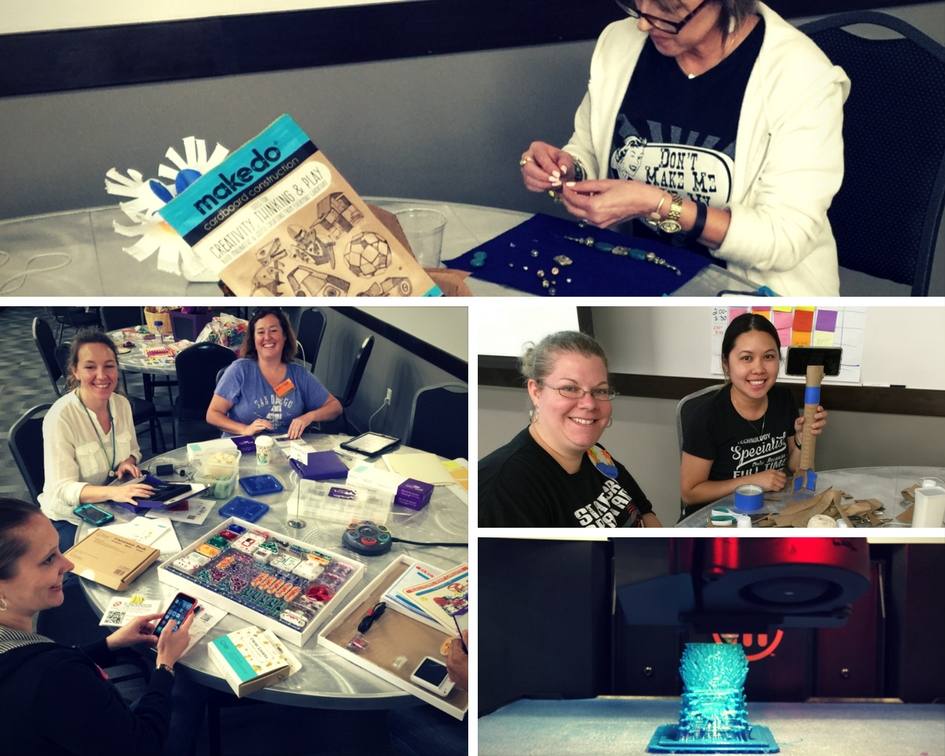

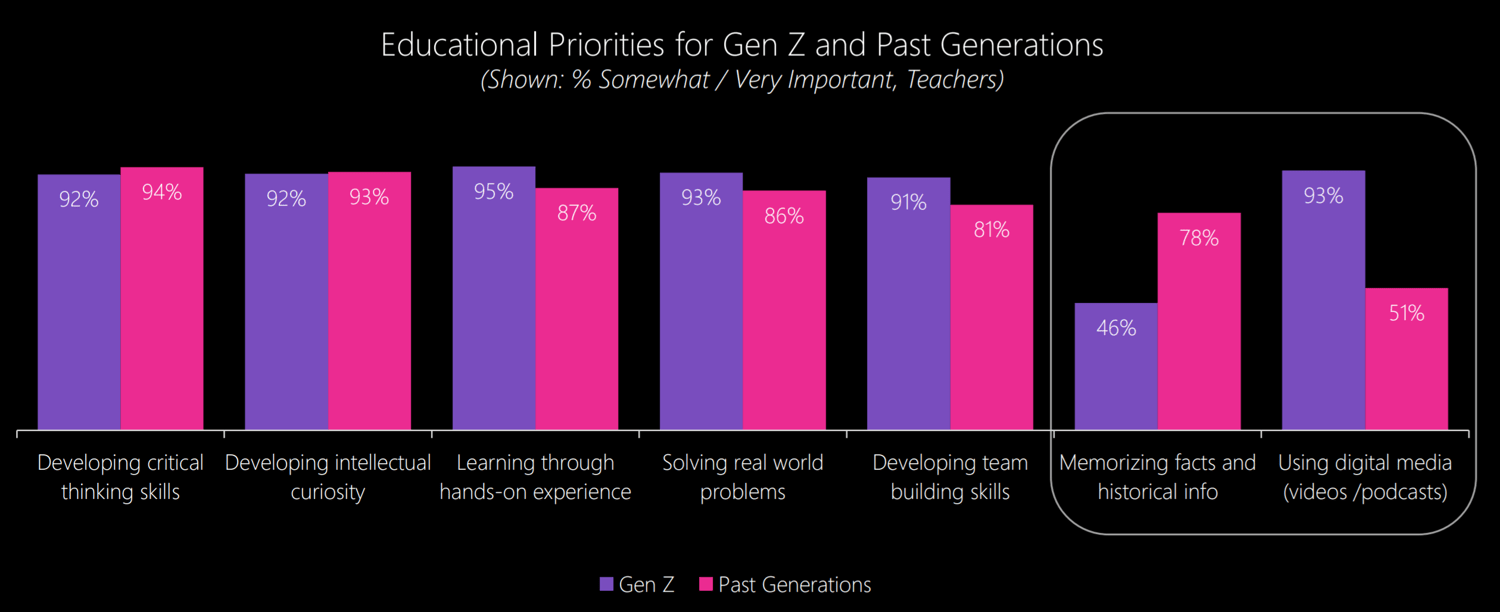 Teachers working with Generation Z have some changes to make in their classrooms. You can break the expectations down in simple ways: