“We are an Office 365 school district. Our superintendent just bought iPads. I’m coming from a G Suite for EDU background. How hard is it to use Microsoft apps on the iPad?” asked Virginia, a district instructional technology coordinator in a Texas school district. Like Virginia, I remember early difficulties with using Google Suites for Education on the iPad. Students could create work, but how would they get it off the device? With Microsoft iOS apps, those difficulties aren’t present. Let’s explore the OneDrive workflow on iOS devices.
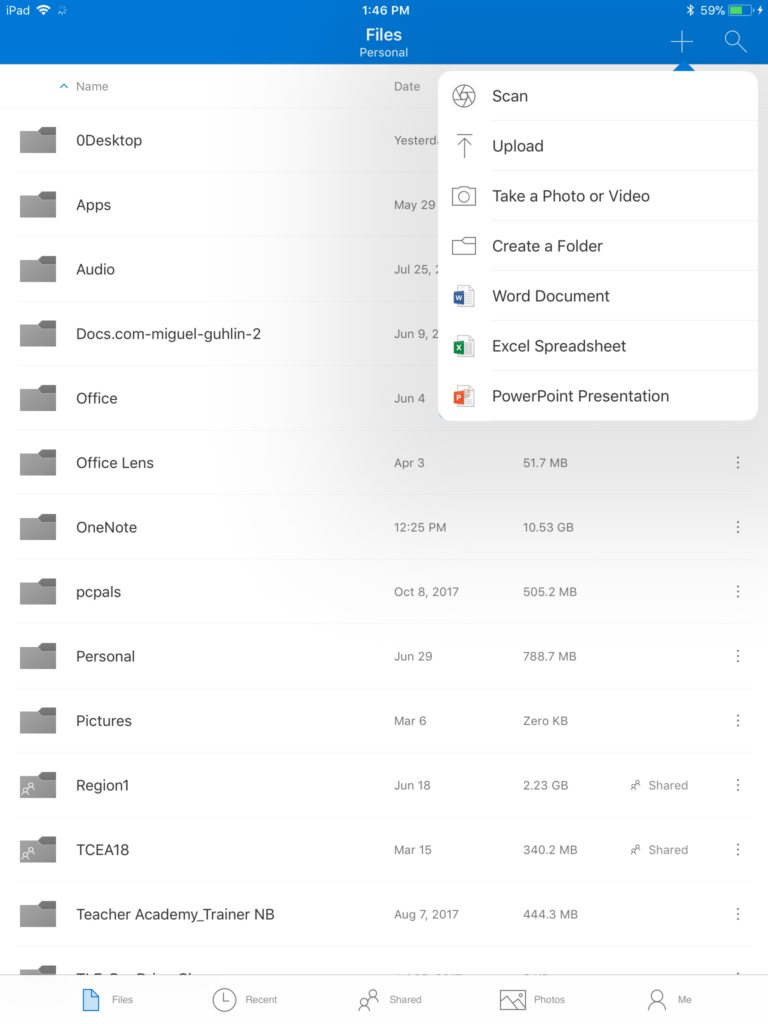
What OneDrive looks like on an iPad. Note that Scan, Upload, Take a Photo or Video options. These allow you to create and/or save content straight to OneDrive. This saves space on your iPad.
Where to Start
One mistake often made when working with Microsoft apps is not starting with the OneDrive app. The Microsoft OneDrive app serves as a username and password clearinghouse for all the other Microsoft apps on iOS. For example, while you can attempt to open the OneNote app and access your digital notebooks, you may find this workflow easier:
- Open OneDrive app.
- Navigate to the notebook you want to open.
- Open it.
The OneDrive app, after verifying your username and password, will open the appropriate Microsoft app (OneNote in this example). In a few moments, the OneNote notebook you selected will begin to synchronize (or save a copy) to your device. From that point forward, you can open OneNote instead of going to OneDrive to access the notebook. If you should close the notebook or remove it from OneNote on your iOS device, you can always re-open it via OneDrive.
Let’s take a moment to explore other documents and Microsoft apps.
Microsoft OneDrive
Folks may see OneDrive as only cloud storage (like Dropbox or Google Drive), but OneDrive can do much more. Some examples of how it can be used in the classroom include:
- Showcasing student work
- Sharing student work as examples via a OneDrive link
- Creating web-based documents that are shared online
- Enabling students to start work at home/school and then finish it on the go
- Collaborating on the same document
One important idea to keep in mind is Create your initial version of a file using OneDrive, including OneNote notebooks. In the web version of OneDrive, you are able to create all sorts of documents, such as Word, Excel, PowerPoint, OneNote, Excel Survey, Visio drawing, and link.
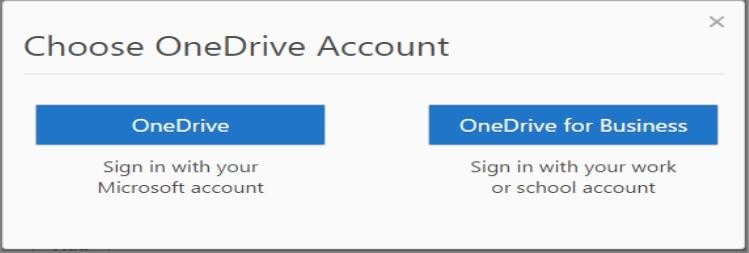
Since OneDrive functions as a username and password keeper for other Microsoft apps, you want to make sure to choose the correct account to use. If you are using OneDrive (and Microsoft apps) as part of your work, choose OneDrive for Business. If you are using OneDrive with a free Microsoft account (think “personal”), then choose OneDrive.
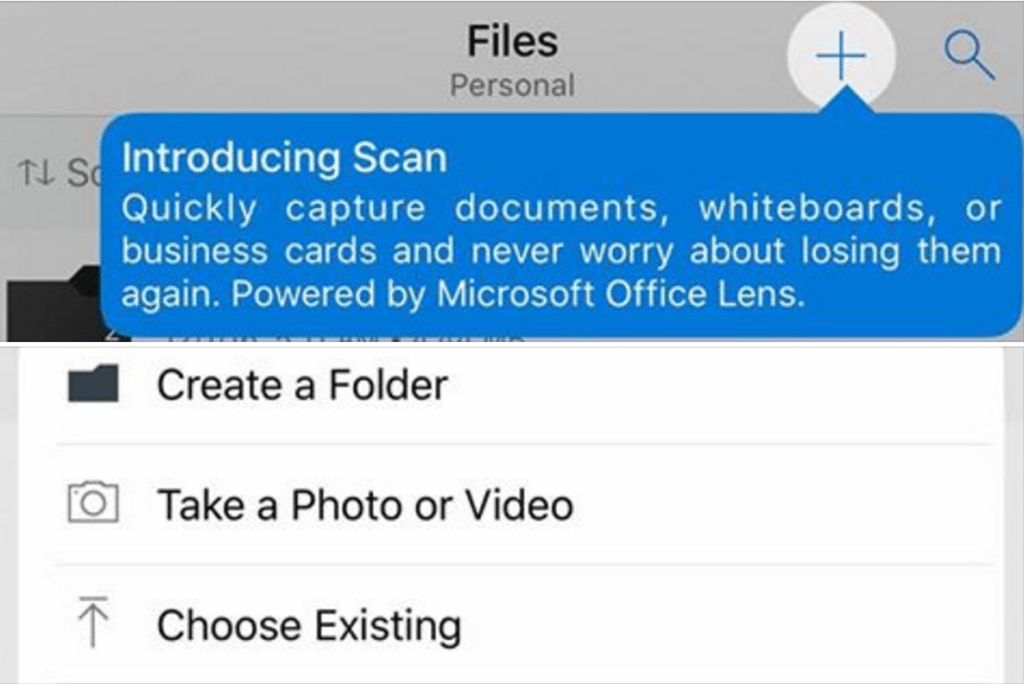
One benefit of OneDrive that is often overlooked involves how it handles photos and videos. In the iOS version, you are able to take a photo or create a video that saves directly to OneDrive. Learn more about iPad possibilities with OneDrive. Read more about OneDrive, as well as see free online courses in the Microsoft Education Community (MEC).
What Microsoft Apps Are Available on the iPad?
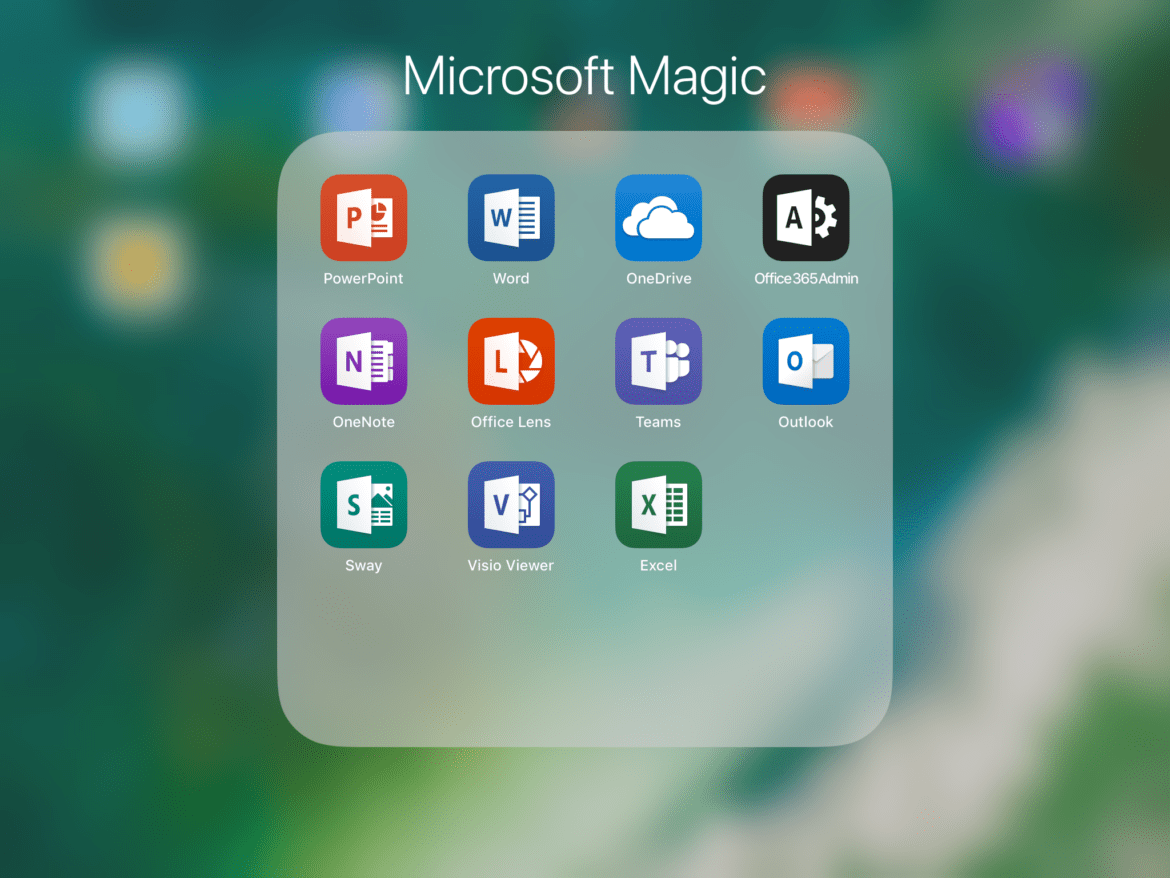
Now that you have some background about OneDrive, you’re ready to dive into the other Microsoft apps. Some of the apps you can get on the iPad include Excel, Office 365 Admin, Office Lens, OneDrive, OneNote, Outlook, PowerPoint, Sway, Teams, Visio Viewer, and Word. Get them via email or a text message to your phone.
My Favorite Microsoft Apps
Hands down, my top Microsoft apps for iPad include the following:
- OneDrive – Store tons of resources online in OneDrive. Use it to access and open any documents stored on iOS. OneDrive’s ability to save video recordings direct to cloud storage, bypassing the limited storage on my iPad, make it a must-have app. Learn more.
- Office Lens – Need to digitize a whiteboard diagram or capture a digital copy of a picture? Then Office Lens makes that easier. For iOS users, you have the added bonus of a built-in optical character recognition (OCR) combined with Immersive Reader. That means your students can scan a page of text and then Office Lens can read it to them. You can snap a picture of a page of text, then convert that image to editable PowerPoint or Word file. Wow! Learn more.
- Outlook – Looking for a great email program that works with all email services (e.g. G Suite, Gmail, Yahoo, Office 365), not just Microsoft? Then Outlook is your email program. Learn more.
- OneNote – This is a must-have notes app on any device. The ability to draw with various color pens and insert audio, images, files, links, and more are beautifully executed. Learn more.
- Teams – The latest version of Teams boasts many features for free. The EDU version makes access to assignments, files, notes, and OneNote Class or Staff Notebooks a click away. You can even blend Flipgrid topics into the available tabs. You can create channels within a Teams’ space to organize adults or students. Learn more.
Office Lens and Immersive Reader in Action
Shown below, you will see use of Office Lens to scan a news article for use in Immersive Reader. The latter component can read the scanned document to the student:
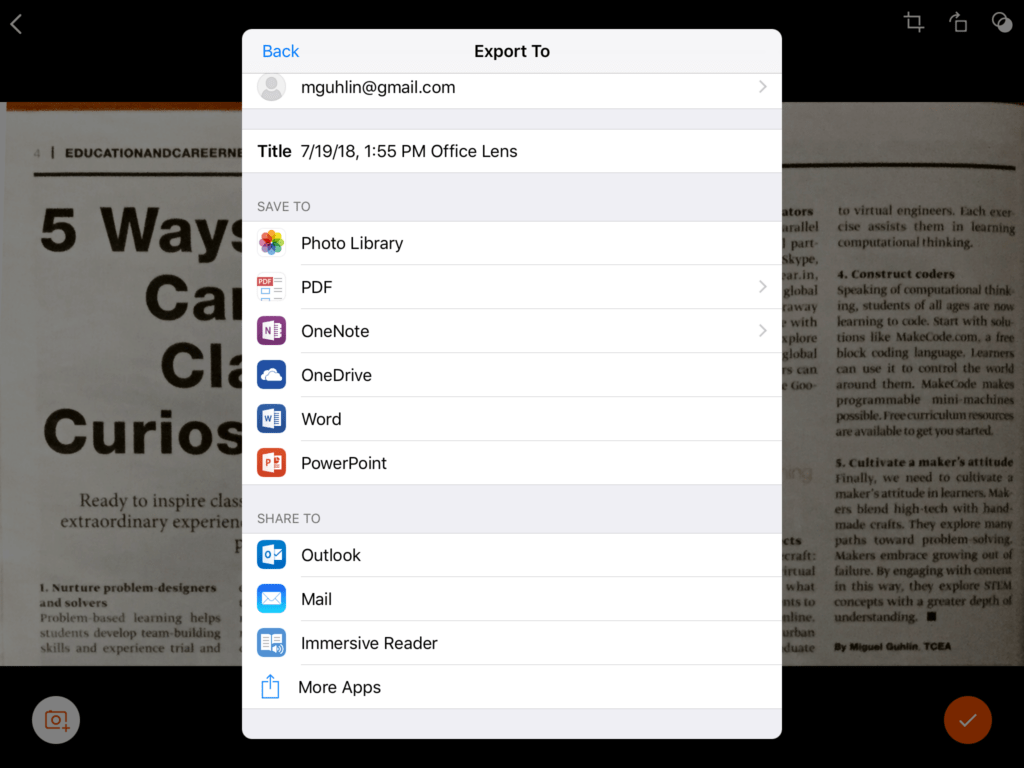
Description: Office Lens can send a scanned page of text, including newsprint, to any of the options shown in the image above. Send it to Immersive Reader, and Office Lens will read the text to you.
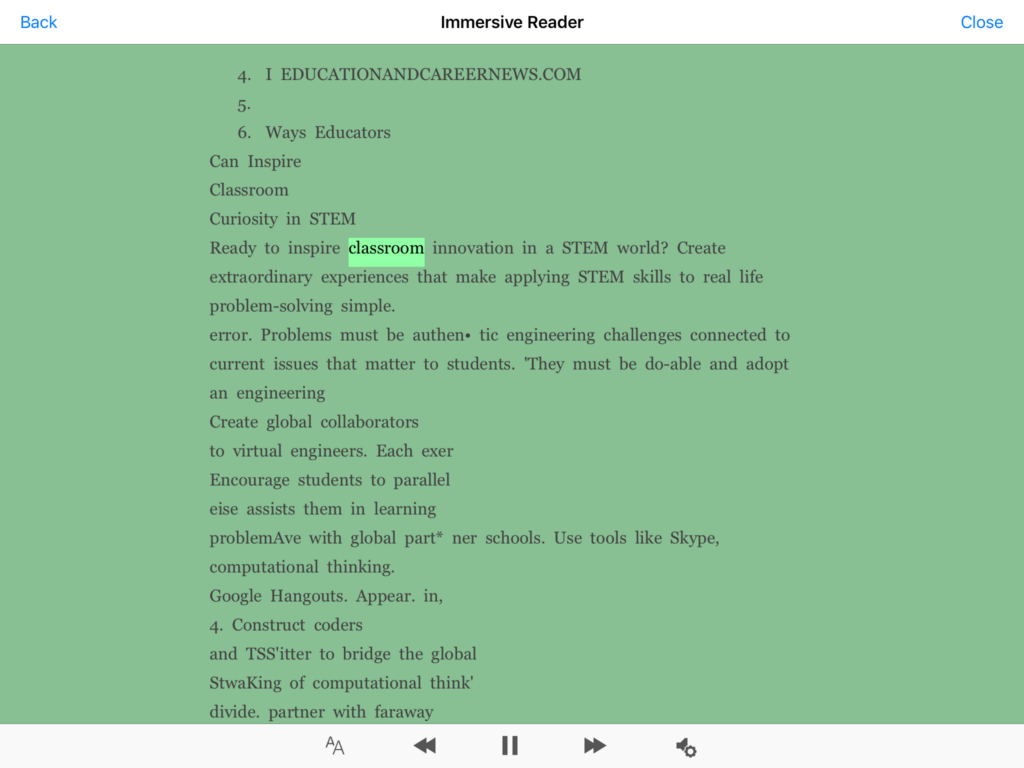
Description: Ignoring illegible characters, consider the quality of the newsprint. In this screenshot, Immersive reader is reading the text aloud.
Microsoft iOS Apps
Now that you’ve had a chance to get answers to your question, what are your preferred Microsoft apps on iOS?





 There are so many different tasks that I do which involve using either Microsoft Word or Google Docs that I have picked up a few tips and tricks over the years to help make using Microsoft Word even faster so I can get to other items on my to-do list. And isn’t that our main goal anyway? As Tim Ferriss, author of The 4-Hour Workweek, said, “Focus on being productive instead of busy.” I was training this past week on Microsoft Office and had that startling realization that there are things I know how to do in Office that I take for granted and just assume that everyone knows the same things and makes use of various tools to speed up their process. So, here is a shortened list I would share with someone if they use Word, but want to be more productive.
 Auto Recovery – Initially set at ten minutes, I dropped mine down to five. Whether I’m on my laptop on the go or plugged in at the office, if something happens and my computer shuts off, the worst case scenario is that I have only lost five minutes of work.
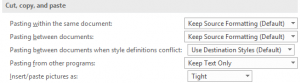 Copying/Pasting – When pasting from other programs, I typically want just the text (not the formatting), so why not set it here? I also have my pictures inserted/pasted as Tight…which is what I would change them to most of the time. The few times I want an image inserted in line with text or in front of text, I can easily change it on the fly using the Wrap Text button on the Format ribbon tab.
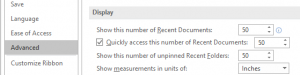 Recent Documents/Folders – It seems like I am always needing to find a Word file that I used a while back. To help make that easier, I increased the preference to show the 50 most recent documents (to quickly access them) and 50 unpinned recent folders.
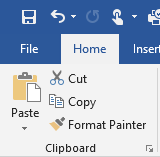 Format Painter – I cannot believe that everyone doesn’t know about the Format Painter tool! Click in the text that contains the format you want to paint somewhere else. Then, click the Format Painter tool once if you are only going to apply it once or double-click it if you want to apply it to multiple pieces of text (or graphics) in your document. If you double-click the tool, then you will need to click it again to turn it off. This tool is especially handy if you have multiple locations where you want to bold, resize, change the font, and the color!
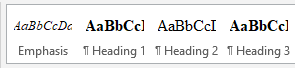 Styles – Instead of being forced to use the styles that are listed across the Home tab ribbon, consider updating them to be what you want. When your cursor is in the text that contains the formatting you want to keep, right-click on the appropriate style and select “Update…to Match Heading.” This is equivalent to boosting the Format Painter tool in that I don’t have to go and find the format in my document to click in and then grab the tool. Updating the styles makes it even easier.
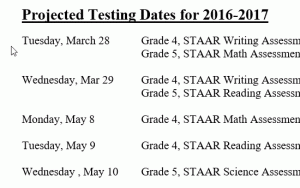 ALT+click/drag – We know that you can click and drag to select text. This shortcut is like that only on steroids! While you hold down the ALT key, click and drag to select the columns of text you want to delete. Once selected, just his the delete key or backspace key.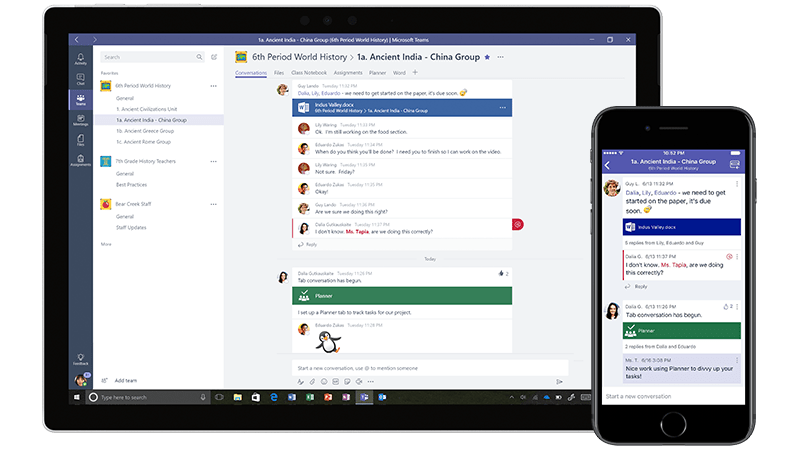

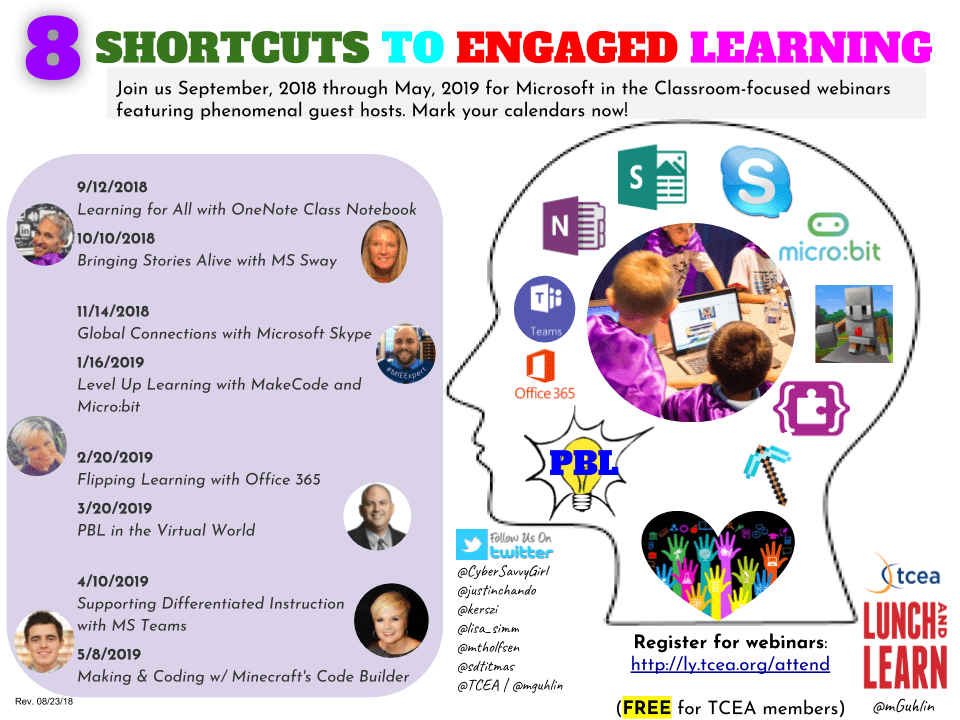



 . You will also learn how to use MakeCode to control the Agent in Minecraft: Education Edition. This is a Bring Your Own Device (BYOD) hands-on session for all levels (no prior computer science experience required). Location: Austin, TX
 Adobe users unite! You’ll find this the perfect academy if you use any of the Adobe products yourself or if you teach your students how to use them. Innovative uses, clever work-arounds, and new features will be shared to give you the solutions and steps you need. And, if you are new to Adobe, you will find several sessions that will help you get up to speed and boost your confidence. Adobe pros haven’t been left out; our presenters have clever ideas that are worth listening to and taking note of.
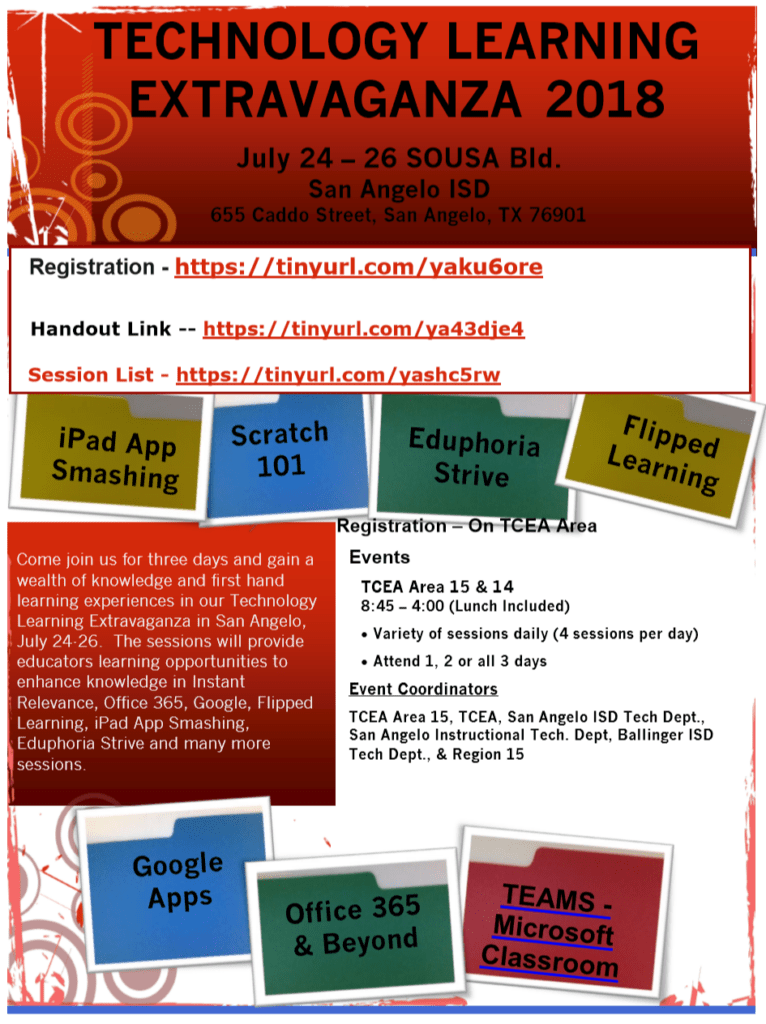
 Make a point to attend our first annual Microsoft Academy to boost your skills in Microsoft products including Office365 and Minecraft. This is going to be a great gathering! You’ll also be introduced to mobile coding with Creative Coding through Games and Apps and gain a deeper understanding into Microsoft Makers projects and 3D Builder. You will definitely find this packed full of topics that you can’t get at other learning opportunities.
 Even if you don’t have a Chromebook, but use Google Suite for Education, you will find these sessions filled with new and great ideas that you can take back to transform the way your students learn. Be sure to bring a friend so you can divide and conquer on the sessions and then share with each other at the end of the day!