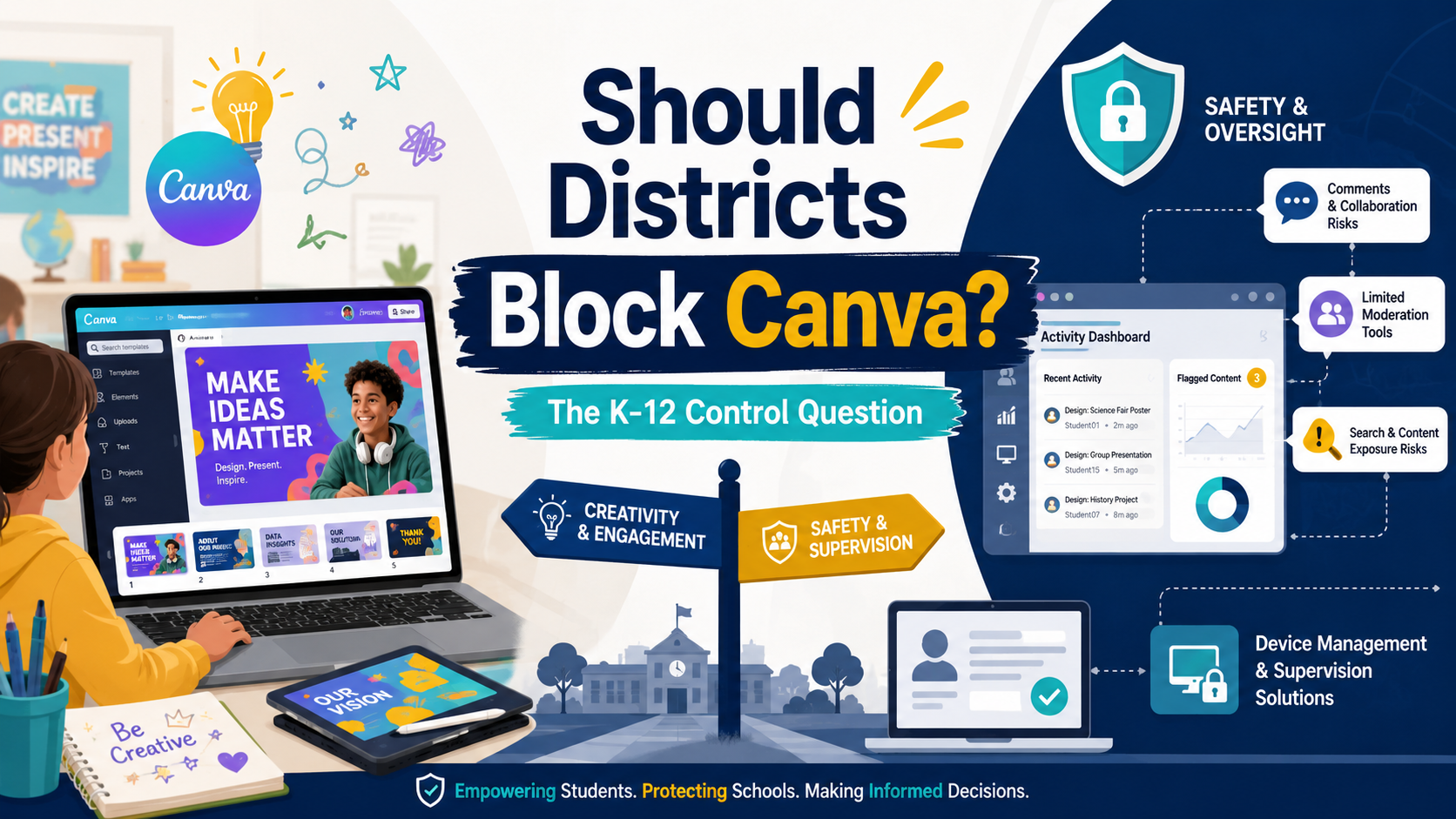
A district technology leader recently raised a question (a TCEA Community conversation) that probably made several CTOs pause over their coffee: Should Canva be blocked for students next year?
If you are staggering in shock at the question, you are not alone. I found myself astonished any district would consider blocking Canva Edu because it an extremely popular solution. Teachers like it. Students like it. It helps students make polished visual work without needing a full design course first. Unfortunately, that is also part of the problem.
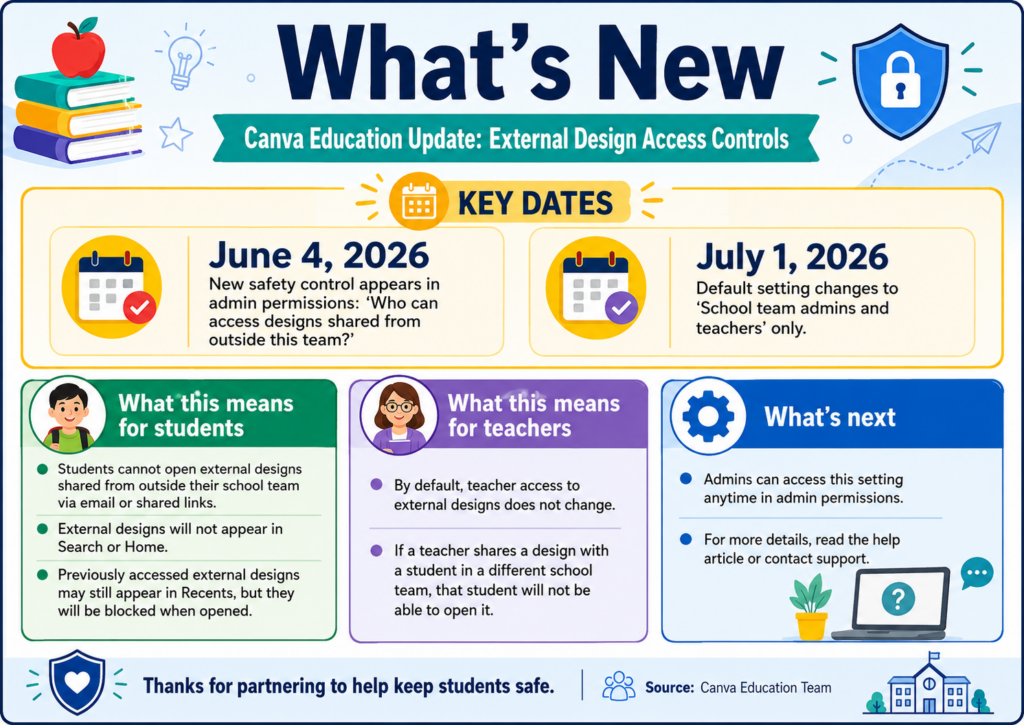
A Quick Update (7/1/2026)
Thanks to a TCEA member for sharing an update about possible changes that took effect today, July 1, 2026. This update focuses on external design access, but what about the commenting aspects?
Framing the Problem
With that update under consideration, let’s take a look at the actual problems teachers and schools are facing. To frame the problem, imagine your students involved in a Canva Edu project. Everything is going great but then teachers find that:
- Students are chatting through shared designs,
- Comments are used like messaging,
- “Suggestive images” appear in search results, and
- Limited district-level controls (see update above).
If you add one-to-one iPads to the mix, where monitoring inside apps can be harder than monitoring browser activity, you can see where the problem is. If this conversation sounds familiar, that’s because any technology leader has encountered it many times before.
Whether it’s Google Slides, or other popular tools, anything with un-monitored chat or comment features is now a potential student attack vector.
1 – Start with the Real Question
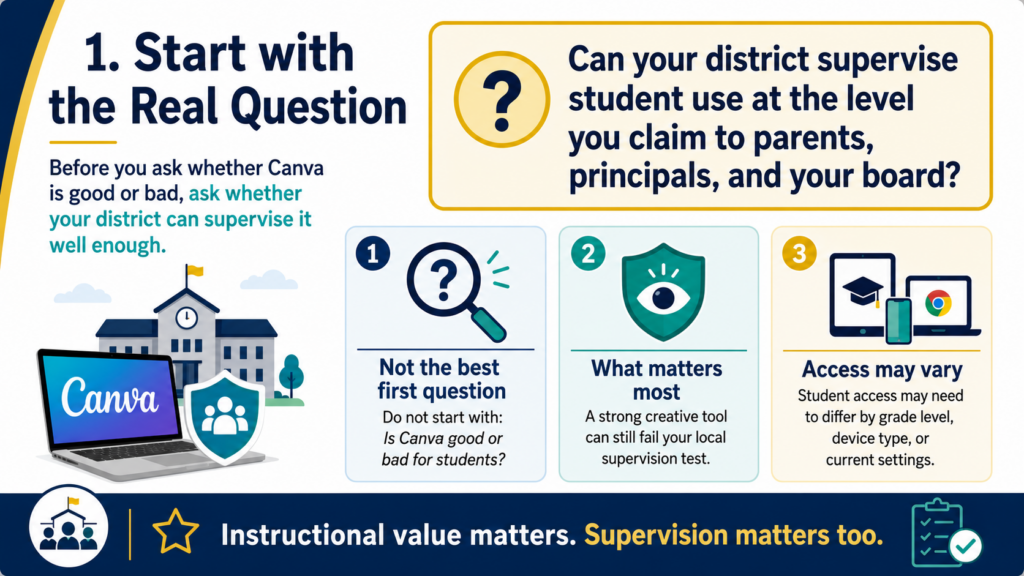
Understanding the actual problem is a key starting point. It’s easy to simply ask, “Is Canva good or bad for students?” This is the beginning of the browser wars, the Office Suite wars, and many more. As such, it’s not the best question to start with. Instead, you might ask, this one instead:
Can your district supervise student use at the level you claim to parents, principals, and your board?
Canva may be a strong creative tool and still fail your local supervision test. A district may love the instructional value and still decide that student access is not appropriate in certain grades, on certain devices, or under current settings.
Canva for Education is positioned as a K-12 tool, and Canva’s education trust page says it is FERPA and COPPA certified, with references to the National Data Privacy Agreement and state addenda. Those are important. If I run Canva through the TCEA Protect Rubric v2.0, here’s how they score:
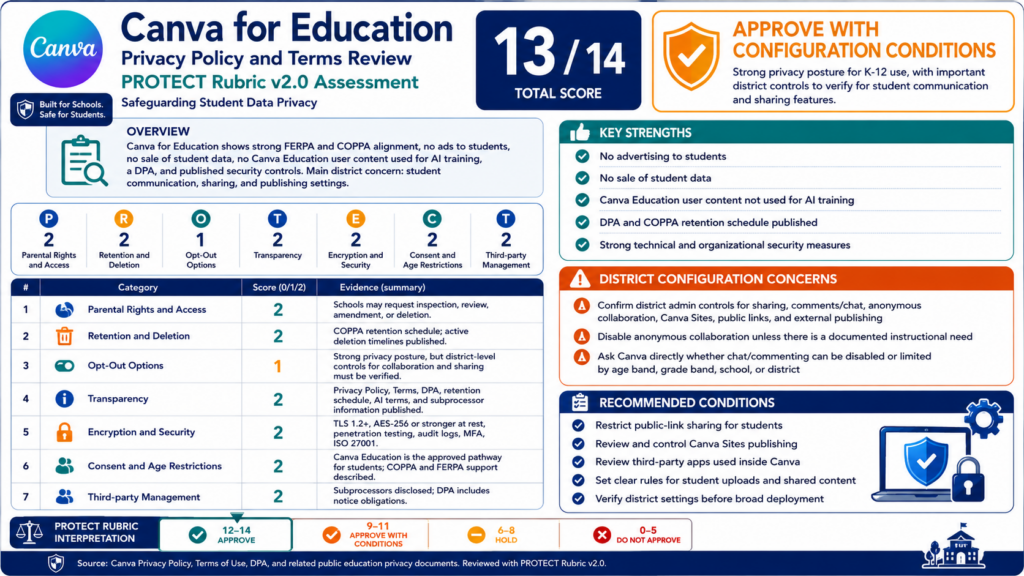
That aside, if Canva cannot answer the tough questions, that could be a “show-stopper” (one of my favorite colloquialisms) in some districts. Those questions can include inquiries a CTO has to answer on a Tuesday afternoon. You know, when a principal calls about student messages inside a shared design.
2 – Behavior Problem or Platform Problem?
Another way to frame the conversation is whether this a behavior problem or a platform problem? I like this approach because education is a people issue, not a technology one. We use educational technology tools to support teaching and learning efforts, not impede human to human interactions or inhibit behavior. There are ALWAYS detours to the technology roadblocks. If teacher intervention isn’t available to meet technology where it is at, then you may as well not use the technology. The goal is to minimize, as much as possible, the level of teacher effort and time required.
Students misusing comments, sharing, or collaboration tools is a behavior issue. But if the platform does not give the district enough visibility, logging, retention, or control to respond, then it becomes a platform governance issue.
I would not call this “chat” too quickly. Vendors can argue there is no chat feature. What districts are describing is student-to-student communication through collaboration spaces. Canva’s own public safety guidance notes that users can invite others to edit and comment in real time. That is the part that matters for schools.
If students can communicate in a space adults cannot effectively supervise, you have a supervision gap.
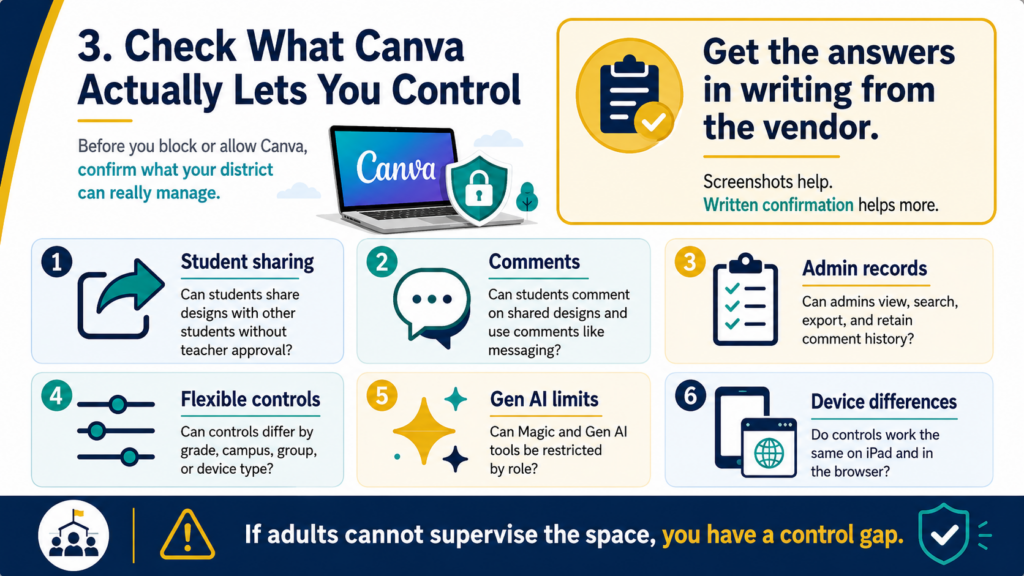
3 – Check What Canva Actually Lets You Control
Canva does provide some controls. For example, Canva documents app restrictions for students, access controls for Magic and Gen AI features, and comment-related permissions. Canva also states that, by default, K-12 students cannot edit or delete their own comments.
If students cannot delete comments, that helps with accountability. But it does not fully solve the concern. A harmful message, inappropriate image, or unsafe conversation can still happen before an adult sees it.
That is the gap districts are wrestling with.
| District question | Why it matters |
|---|---|
| Can students share designs with other students without teacher approval? | This creates a private communication path |
| Can students comment on shared designs? | Comments can become messaging |
| Can admins view, search, export, and retain comment history? | Investigations require records |
| Can controls differ by grade, campus, group, or device type? | Younger students may need stricter limits |
| Can Gen AI tools and apps be restricted by role? | Canva now includes many Gen AI-connected features |
| Do controls work the same on iPad app and browser? | Monitoring may differ by device |
Before blocking anything, get those answers in writing from the vendor. Screenshots from admin settings help, but written confirmation helps more.
4 – Device Choice Changes the Risk
One district in the discussion had been one-to-one iPads and blocked Canva. As they moved campuses to Chromebooks, they began opening Canva back up where their monitoring tool could see more web activity.
Sometimes the decision is not really “Canva or no Canva.” It is “Canva on which device, under which monitoring model, for which grade levels?” A web filter or activity monitor that catches behavior in Chrome may not give the same visibility inside an iPad app. Your mileage will vary, and that is where vendor promises get expensive if no one tests them. The challenge is that you may have to switch web filters if your current solution can’t get the job done. I love Canva, and if my teachers did, I would ask my current vendor what they can do to help. If it wasn’t enough, that’s incentive enough to switch.
So, take the time to run the boring test. Have a student test account share a design, post comments, reply, search questionable terms, open apps, use Gen AI tools, and attempt public sharing. Then check what your monitoring tools captured.
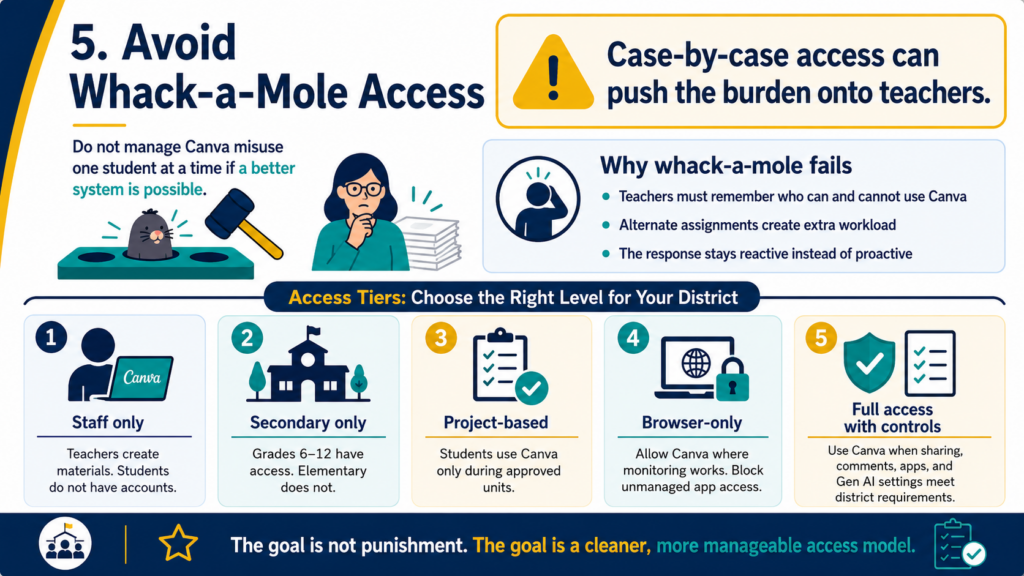
5 – Avoid Whack-a-Mole Access
Should you play Whack-A-Mole (the student who engages in the human act of communication with another human is the mole here) with misuse cases? If only two students misuse a tool, removing only their access sounds reasonable. But in practice, that can push the work onto teachers. They have to remember who can use Canva, who needs an alternate assignment, who lost access last week, and who is allowed back in today.
That becomes whack-a-mole with lesson planning attached. Perhaps, a cleaner approach might be to define access tiers.
| Tier | Example use |
|---|---|
| Staff only | Teachers use Canva to create materials, but students do not have accounts |
| Secondary only | Grades six through twelve have access, elementary does not |
| Project-based access | Students use Canva only during approved units |
| Browser-only access | Canva is allowed where monitoring works, blocked in unmanaged app contexts |
| Full access with controls | Students use Canva when sharing, comments, apps, and Gen AI settings meet district requirements |
The point is not to punish every student for the choices of a few. I like this approach as well because it avoids a model that only works after something has already gone wrong. Of course, in some districts, nothing goes wrong. In others, the word spreads in a viral fashion and you may have to take more direct action.
A Round Up of Quick Suggestions
- Do Not Ignore the Image Search Issue. The suggestive image concern belongs in the same conversation. Even with content moderation, search systems are not perfect. Canva says its education collections are reviewed for school appropriateness. You still need to check permissions, settings, reporting options, and a child’s readiness before use. You may decide that older students can use Canva search with supervision. You may decide elementary students should use teacher-provided templates and assets only. You may decide that another tool is a better fit for younger grades. You are making community and age-appropriate access decisions.
- Test alternatives. While there are alternatives to consider, be aware that they may not feel as smooth as Canva to teachers or students. Several educators will tell you it feels clunkier, or not worth the cost/effort to use. They may be right.
A Practical Decision Rule
I would not start with a districtwide block unless the risk is already documented and current controls are not enough. But I also would not keep Canva open just because it is popular. For one-to-one iPad districts, especially with younger students, the safest middle ground may be staff-only or grade-banded access until monitoring and admin controls catch up. For Chromebook campuses where activity monitoring can see more, access may be easier to justify.
One simple rule you can use boils down to:
If students can communicate, create, search, or share in ways your district cannot reasonably supervise, limit access until the control gap is closed.
That does not mean a full block. It may mean staff-only access. It may mean secondary-only access. It may mean browser-only access. It may mean a temporary pause while Canva, your mobile device manager (MDM) vendor, and your monitoring vendor explain what they can and cannot capture.
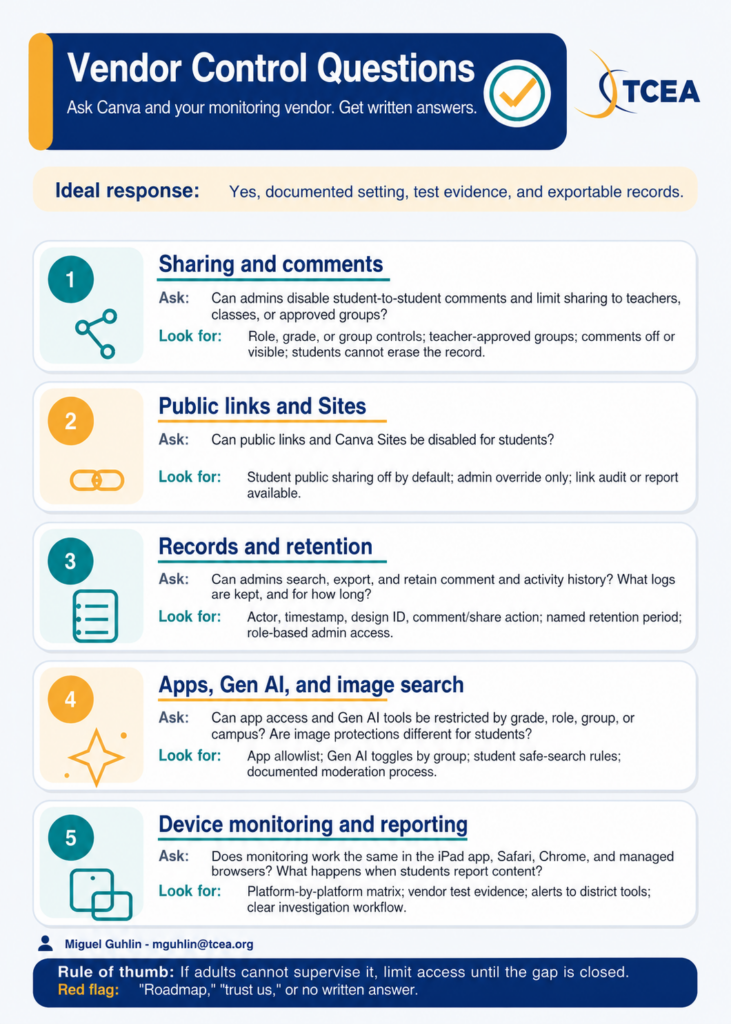
Questions to Ask Before Next Year
Before you decide, put these questions in front of Canva and your monitoring vendor:
- Can district admins disable student-to-student commenting?
- Can student sharing be limited to teachers, classes, or approved groups?
- Can public links and Canva Sites be disabled for students?
- Can admins search and export comment history?
- Can app access be restricted by grade, role, group, or campus?
- Can Gen AI tools be turned off for selected student groups?
- Are image search protections different for Canva Education students?
- Does monitoring work the same in the iPad app, Safari, Chrome, and managed browser environments?
- What logs are retained, for how long, and who can access them?
- What happens when a student reports content or behavior?
If the vendor cannot answer those questions clearly, that tells you something.
Did You Know? TCEA offers cybersecurity and data protection learning that can help staff better understand secure device use, cloud storage, and district risk decisions. That kind of shared baseline matters when tools blur the line between instruction, communication, content creation, and student data.
How is your district handling Canva access next year: open, limited, staff-only, or blocked? Share what controls made the difference.