Explore tips, tools, and strategies for using iOS devices in education. Discover resources to enhance teaching, learning, and productivity.
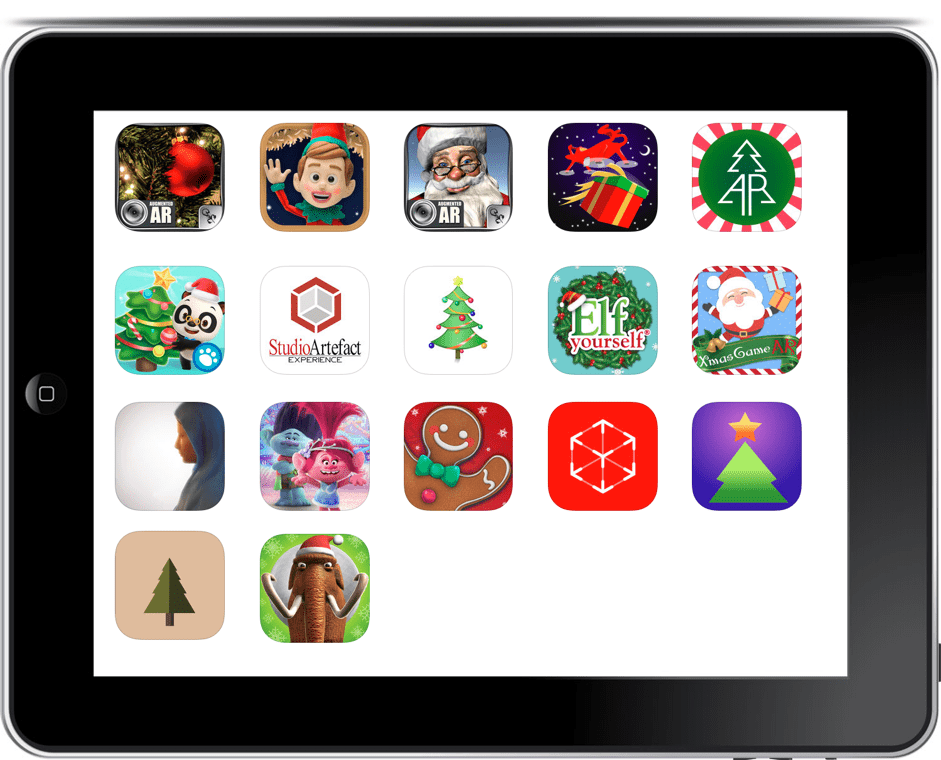
Many of us are getting in the holiday spirit right now, and what could create even more fun but to add some augmented reality to our gathering times? We’ve curated a list of iOS apps that you might enjoy. If you want to be even more nerdy as a gift giver, you can download the templates by Top Advertising and print/send augmented cards that will delight the receiver. But be sure they know how to download the ePrism app (iOS or Android) so they can enjoy your card to the fullest.
As you take a look at the apps below, consider how you can use them to make memories with your students and friends. And, as always, be sure to preview the app prior to sharing with your students/parents.



Dr. Panda AR Christmas Tree
Free
ElfYourself by Office Depot
Free
Be sure to share which app you used to add fun and merriment as you are with your group. If you tweet out a photo, be sure to tag #TCEA so we can enjoy it, too. And, if you happen to find other augmented reality apps that are holiday-focused, don’t forget to share them in the comments below!
This blog has only scratched the surface of great tools that can enhance your classroom, school, and district using iPads. If you would like more assistance, contact me at bellis@tcea.org to discuss scheduling TCEA to come to your site to provide either a half-day, full-day, or two days of training. You’ll find our training is very customized, research-based, definitely hands-on, and reasonably priced.

 If you like listening to audiobooks, you’ll enjoy using OverDrive. If your district doesn’t subscribe to it, check and see if your local public library does. If so, you can check out audiobooks from them, as well as through their network of other contributing libraries!
 While grandparents love this app for making collages of their grandkids, students of all ages will find this app easy to use when they have an assignment where they can create collages, annotate over photos, etc.
 Though many of us remember copying down notes in class to study for tests, current students seem to prefer to take photos of the board to capture their notes. This app is so handy for that. Point and aim it at the board, projector, paper, etc.. Once it detects the area, you just snap the photo; it will crop it so only the board is in the photo and deskew the image so it looks like you had prime seating in front of the board when you took the picture. Save as an image on your device or as a PDF or Office format if you have an Office 365 account.
 Sometimes you want your students to record a video to capture their learning. But many devices have a default video recording app that is bare bones. You’ll find Adobe Express to be an easy go-to tool that will help students make great videos without getting bogged down in the technical aspects of videography. Though it is only for iOS currently, it is worth the wait for other operating systems.
 Pushbullet is great if your students find that they need to “push” files or photos from their phone or tablet to their laptop/computer (and vice versa). Pushbullet makes it easy without having to move your file/photo to Google Drive, Microsoft OneDrive, or DropBox first. And, since it is in the cloud, you can access your account from any device to retrieve previously pushed files. This is great if you have students taking photos or videos on their phones, but then need to add them to documents that they are editing on a computer.
 If you want an easy app that allows all of your students to share, then this has to be the best app for that. It’s perfect for having students summarize their content or reflect on their learning. If they are using a phone or tablet, they’ll need to download the app; otherwise, they can use the webcam on their laptop to participate. Though I don’t recommend the paid version of many apps (I remember what it was like when my teacher budget was whatever I had in my pocket), this is definitely one app that is worth the price; consider getting others to join with you and you all can enjoy a discounted price. Even without the additional features in the paid version, this is a super app!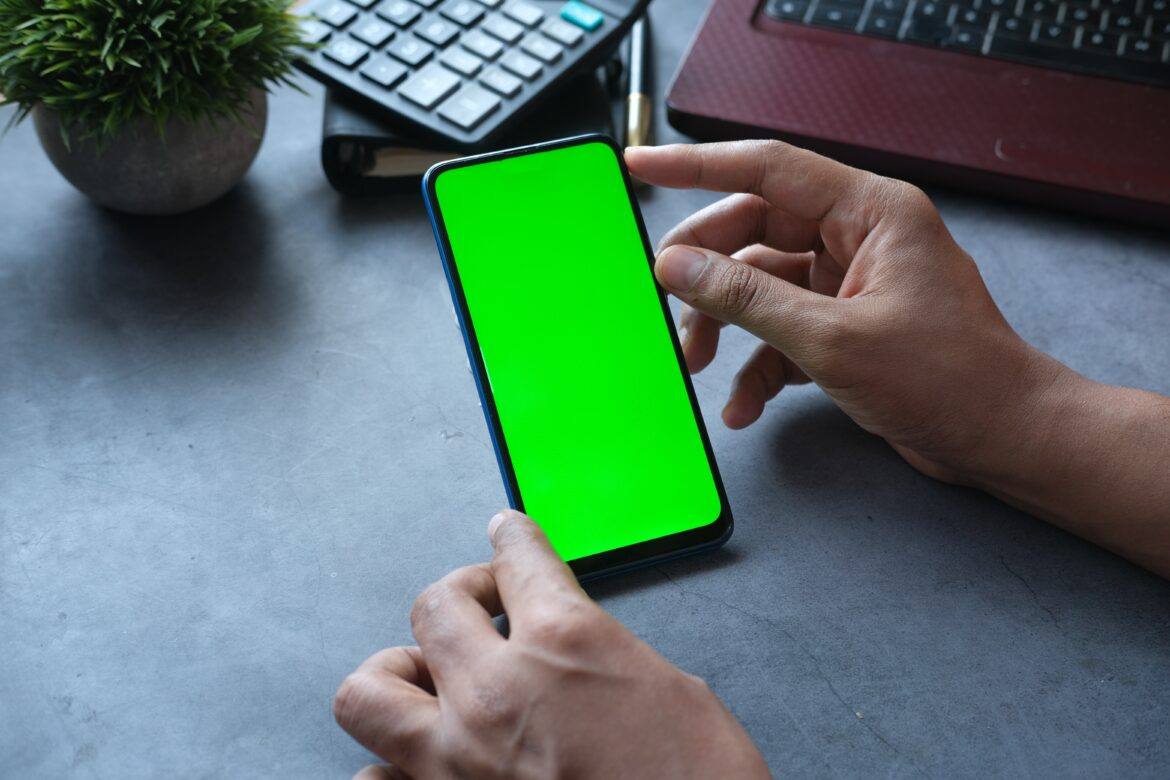
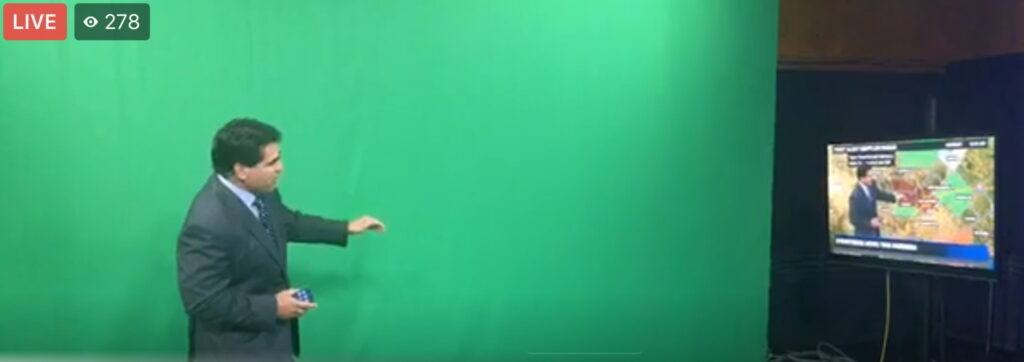
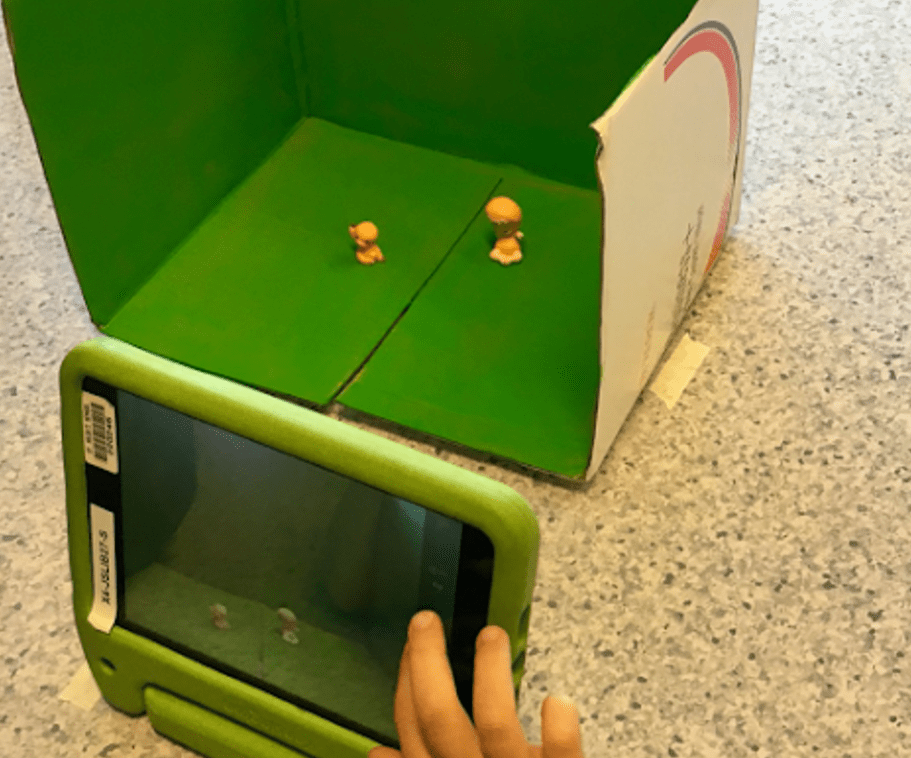
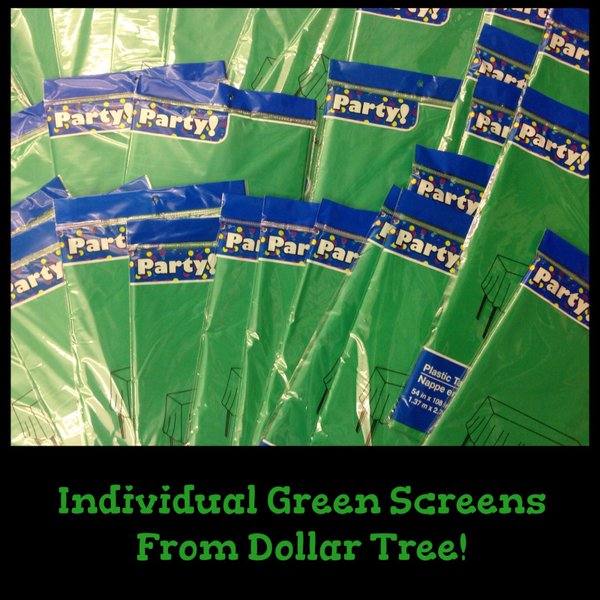 To get started, you will need a screen solution (e.g. the right shade of butcher paper, a $.99 green tablecloth from Dollar Tree, or green cloth) and one of the apps below. If you have an iOS device, the best app on the market is Green Screen by Do Ink, although you can accomplish even more with Touchcast (but some find it a little difficult to understand at first).