Discover resources and strategies for teaching core content areas. Explore tips, tools, and activities to enhance learning across all subjects.

Geography plays a crucial role in connecting the social studies disciplines, giving students a concrete understanding of how people move and interact, how the landscape can shape behavior and social structures, and more broadly, how the world we live in today came to be.
But year after year, the same headlines seem to appear:
“U.S. Students Are Really Bad at Geography”
“Most Young Americans Can’t Pass a Test on Global Affairs—Can You?”
“New Study Shows U.S. Students Miss Boat on Geography”
The good news is that ed tech can help us make geography, a foundation social studies area, more engaging for learners. Despite challenges, a student’s understanding of the intersection between physical and social worlds is vital in informing their understanding of history, civics, even life and earth sciences. All of those are brought together with interactive maps that facilitate active learning.
Setting the Standard
The importance and interdisciplinary nature of geography is made clear in the TEKS, the statewide educational standards in TCEA’s home state of Texas. An understanding of geography is included in standards from kindergarten through high school graduation.
Joseph Kerski, of the GIS firm Esri and a former president of the National Council for Geographic Education (NCGE), calls geography more than just “a ‘nice to have’ subject for an already-crowded educational curriculum.” Instead, he claims, it bolsters “the critical-thinking skills, technology skills, citizen skills, and life skills that underpin all other disciplines. It is essential for grappling with the essential issues of our time.”
A Trusted Navigator
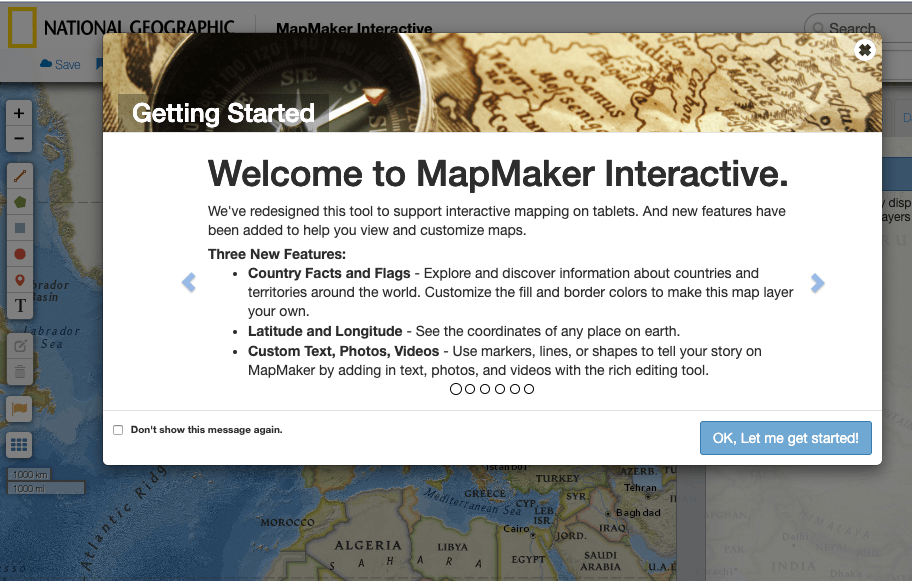
Technology can help bring geography to life. There’s no need for maps to be static. In fact, they can be dynamic, even interactive. That’s the premise behind MapMaker Interactive, a hands-on learning site developed by National Geographic. By pairing National Geographic’s world-class maps with powerful customization tools, educators can mark, label, bookmark, and save maps that are custom-built to match lesson plans.
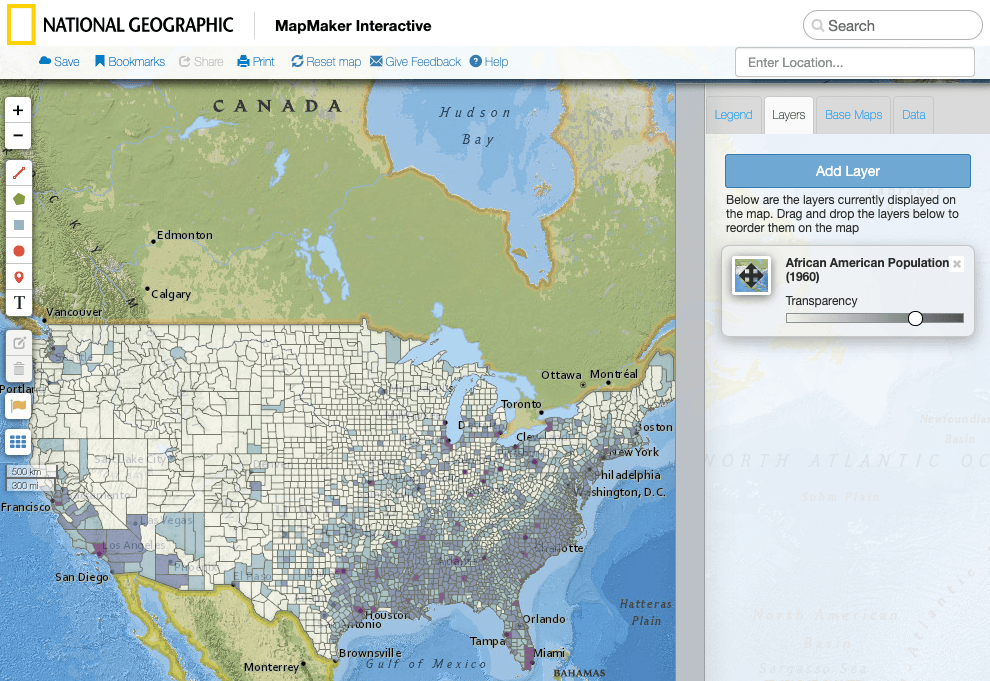
Students studying the Great Migration, for example, can automatically measure distances from the population centers of the Deep South to urban areas in the north and west by drawing a line between two points. Further, they can add pins, tags, and images. Even adding a population density overlay is simple and demonstrates the lasting influences of the historic movement of African Americans in the 20th century.
Just about any social studies lesson can be enhanced with custom maps. Let students create their own, or bookmark and save maps for use in future instruction.
The Cartographer’s Toolkit

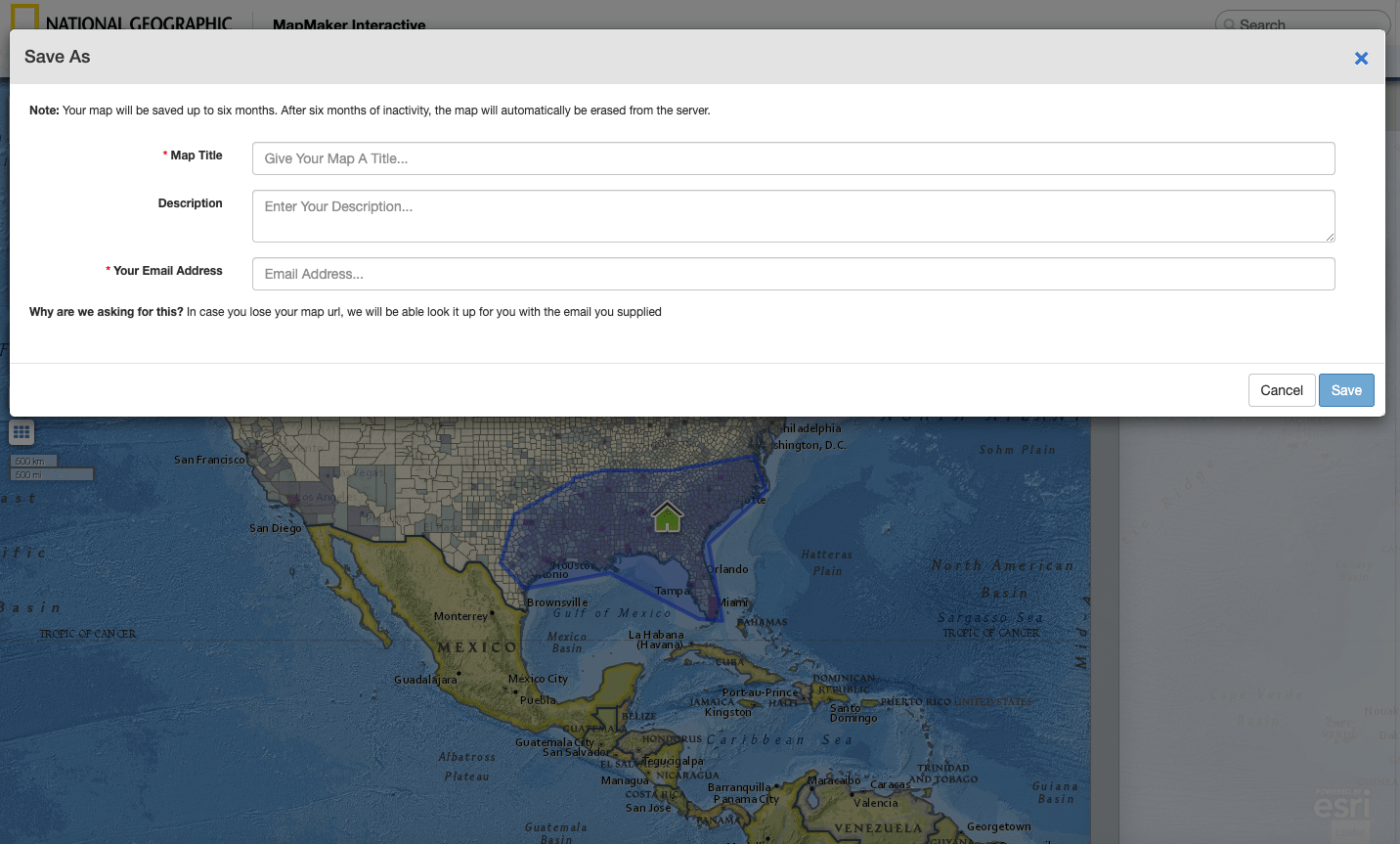
With the basics out of the way, here are a few of the tools built into MapMaker Interactive:
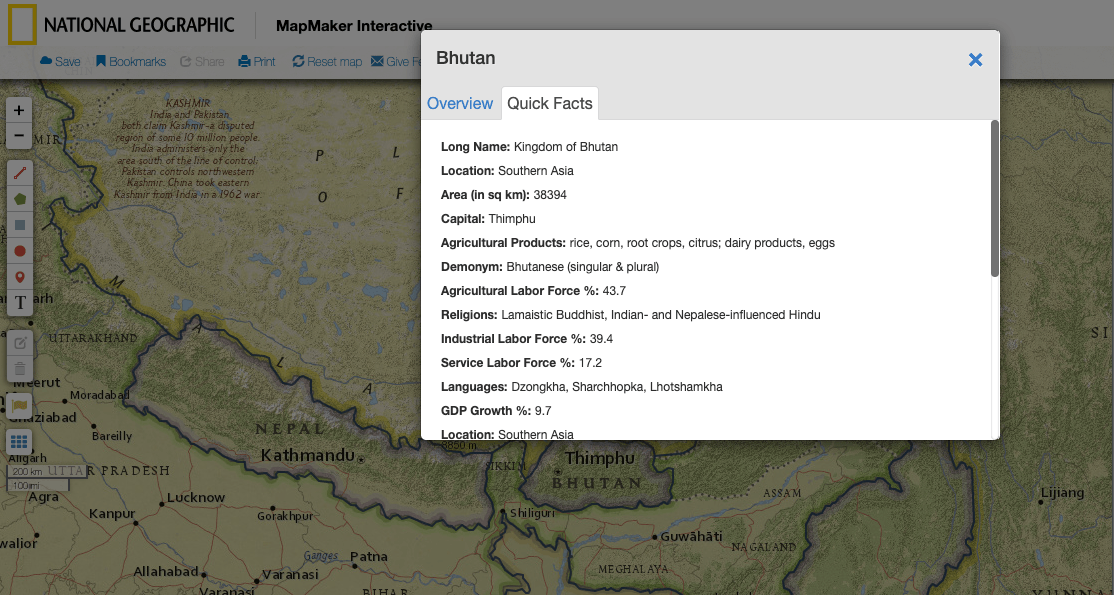
- Country Facts and Flags: This allows students to absorb basic national facts while also customizing border colors to make a unique, personal map layer.
- Custom Text, Photos, Videos: Students can use a vast array of markers and shapes to tell stories or display layers of data.
- Saving Custom Maps: You must provide an email address to save a map and generate a link to edit and share it.
- Pins, Markers, and Custom Drawings: Maps can be edited and adjusted in a number of ways with self-made labels, markers, lines, boxes, and more.
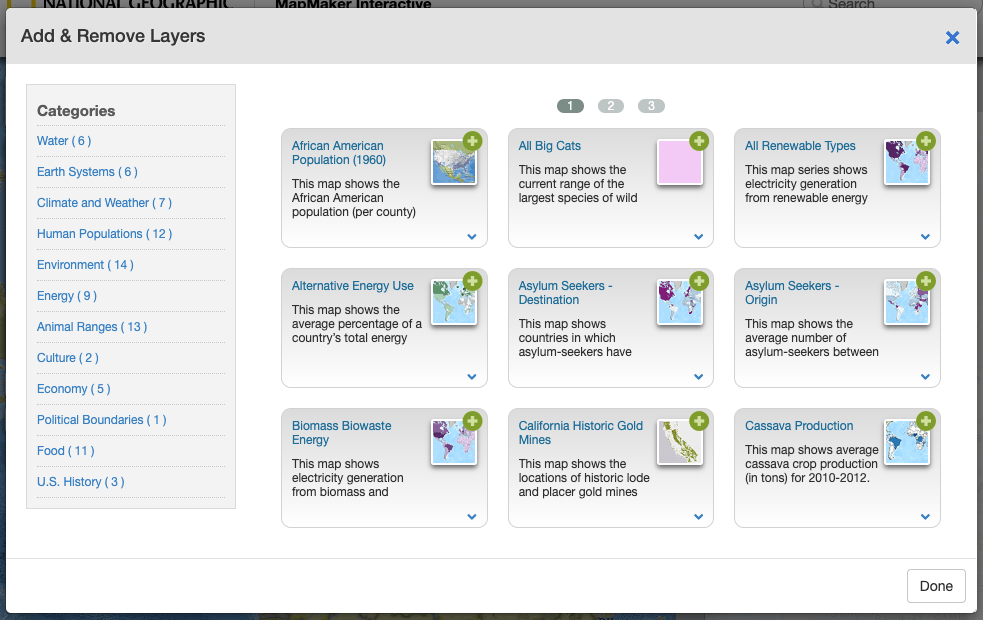
- Pre-Made Layers: Want to see the population density of Denmark? A map of big cat territory around the world? An overlay of the African American population in 1960? MapMaker comes with all that and more. You can even adjust the opacity of these layers.
Scouting the Terrain
It’s a powerful tool, to be sure, and this brief introduction couldn’t cover everything that MapMaker is capable of. Luckily, National Geographic has an entire playlist of video tutorials outlining the tool’s features, so you can learn how to best to implement it in your classroom.
What’s more, National Geographic also provides a number of written tutorials outlining everything from how to create “geotours”—a set of mapped bookmarks—to charting the biodiversity of the Amazon River basin.
Going Deeper Into Interactive Maps
For those looking for more, National Geographic Education also offers a number printable, black and white, one-page maps that emphasize a number of thematic components. You can access those here (requires Flash). In addition, educators can access large maps, printable in sections, that students can work together to compile and fill with information by drawing or coloring directly on the map, similar to the digital tools offered in MapMaker.
Looking for more geographic fun?
- Check out the Country of the Week Quiz from The New York Times.
- Read our post about Google’s Tour Builder technology.
- Learn how to create data-driven maps with Visme.




 Read2Play
 Writing Templates




 Image Source:

 eBook
eBook