Discover Android apps, tips, and tools for education. Enhance learning and productivity with strategies tailored for Android devices.
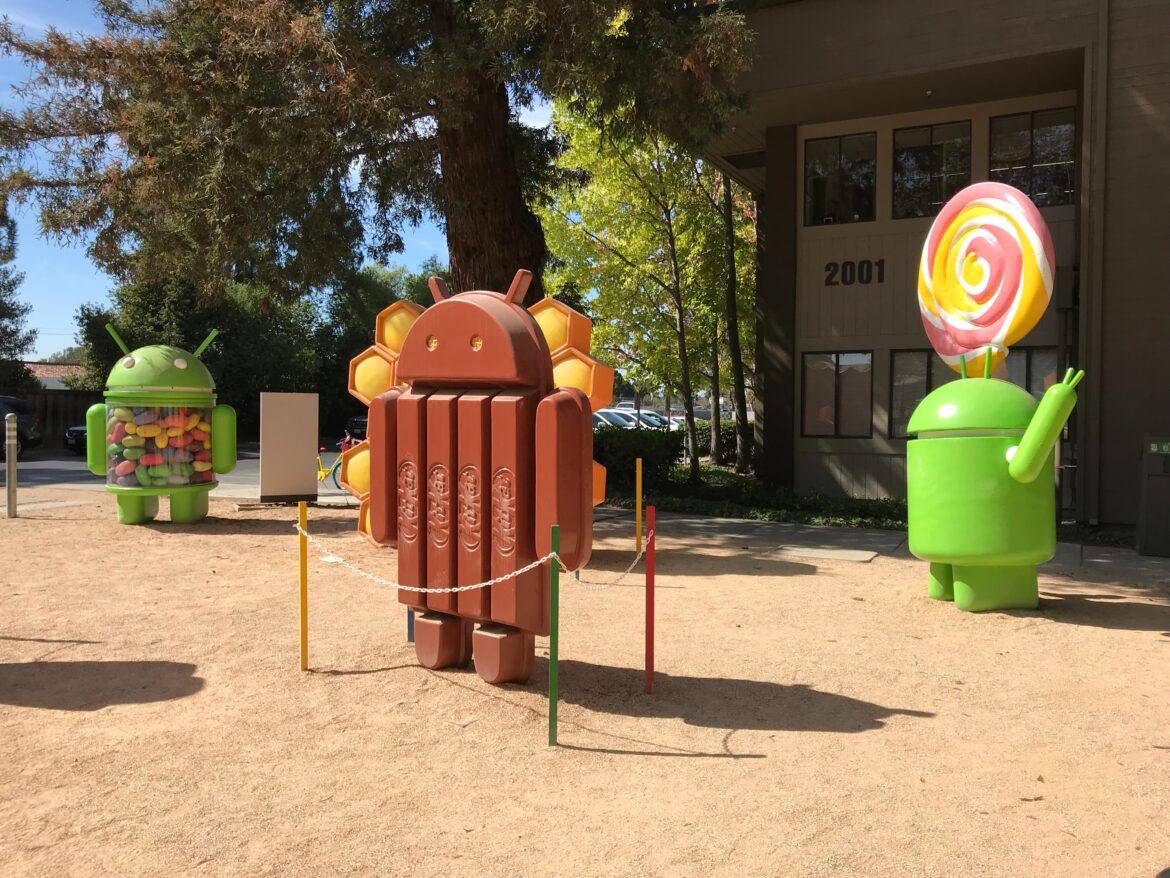
“Combinations of brightness and contrast settings can have very dramatic impact to your image, adding extra ‘punch’ or softening the visual impact,” says John Huegel in his piece, Image Editing Skills & Tools for Photographers. A Catholic school student for most of my life, I developed bad habits when it came to color matching. Dressing in simple white, blues, and/or black during your formative years may do that to you. Who would have thought uniforms might inhibit photo editing skills? Photos taken with my camera are more documentary in nature, resembling pictures of alleged UFOs in the sky. In a word, a “mess.” Manipulating photos today, though, has grown a lot easier. Let’s explore some photo editing tools on the Android platform by becoming PhotoDroids.
Impact of the PhotoDroid
“In June 2017, 53.3 percent of U.S. smartphone subscribers were using a Google Android device. Apple was the second most popular mobile OS with a market share of 44.9 percent,” reports Statista via their interactive graph. While some may argue that photo editing is best done on a Windows or Mac device or Chromebook, many of us snap pictures on the go. For at least fifty-three percent of us, that is an Android smartphone (iOS is second most popular with 44.9%).
Some of my favorite photo backup and editing tools appear below. Give them a try, won’t you?
A Few of My Favorite Tools
Google Photos remains one of the top photo apps, and not just because it backs up all your photos from your smartphone to the Google cloud. Google Photos automatically turns your photos into animated slideshows. What’s more, Photos makes it easy for friends to contribute their own pics to a shared album and more. This can be a life saver for journalism students curating images in an online space. Google Photos also incorporates simple editing tools, including crop, light balance, and basic filters. Microsoft’s OneDrive also provides automatic backup of images and photo albums. Try them both out and decide which works best for you.
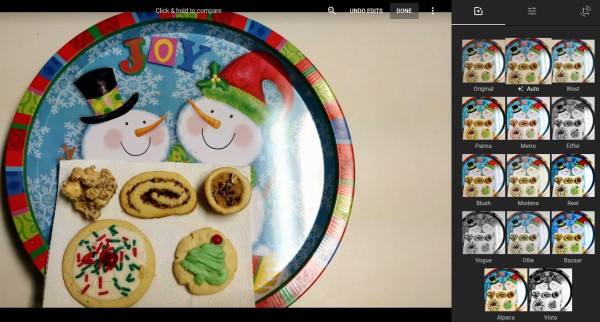
In the picture shown above, you can see a sample of the amazing holiday cookies made for TCEA staff each year by Peggy Reimers. This picture can have a baker’s dozen of special effects applied to them from within Google Photos.
CameraMX serves as a nice replacement to the built-in camera app you have on your Android phone. It allows you to apply a wide variety of effects, some of which are free. Other effects will cost, but just $1.99 per collection. Effect collections include Summer Shore, Iconic Line, Famous Movie Looks, and Fun Mirrors. Each collection provides a host of effects that can enhance your photo. You need not purchase effects, though, to use many of the benefits of CameraMX. Those benefits includes geometric grain, geometric, multi-color vignette, and scratches overlays. A wide array of frames are also available.
For example, in the snapshot below (captured from a television news broadcast with CameraMX), you can see several effects with frame applied. In a short time, you and your students can produce beautiful images for websites and presentations.

Source: Snapshot of television screen, SA Live show on KSAT12 broadcast on 01/6/18 featuring West Kings Highways‘ singer, Johnny Carrera
Pictures can be shared to a variety of online spaces or remixed into another app for app-smashing purposes.
Android Screenshot Tip: Did you know you can configure your Android device to take a screenshot of whatever app you are in? Some of the screenshots of my Android device involved running three fingers simultaneously down the phone’s screen. This takes a snapshot that is autosaved to your Google Photos, making it easy to capture and save screenshots of your device. To configure, go to Settings->Additional Settings->Screenshot to enable “slide three fingers to take a screenshot.“
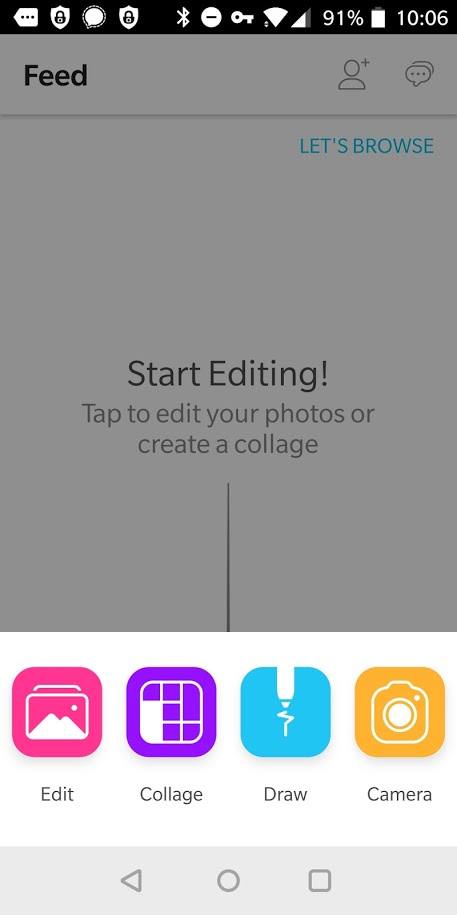
PicsArt Photo Studio opening screen on Android Smartphone
PicsArt Photo Studio: Collage Maker and Pic Editor offers several features, including (per their description) “tools, effects, collage maker, camera, free clip art library, millions of user-created stickers, and our drawing tools.” This is one of the most fun apps you can start with. PicsArt Photo Studio delivers with a wealth of effects in a simple interface.

But wait, there’s more! With stickers, call-outs, and more, there’s nothing cheesy you can’t do with a picture. In this image below, you can see a call-out (“Love is…”) and a heart sticker that’s been superimposed. What’s neat is you can use the built-in eraser in PicsArt to remove the contents of the heart, revealing your photo beneath the outline of the sticker. That’s simply incredible. You can also add other elements (like alien hands) to the animation.

The makers of PicsArt Studio have also created Animator. It allows you to create animated GIFs, blending pictures you may have taken with animations. Per their website, PicsArt Animator includes…”duplicate frames, layers, fully equipped drawing tools, animated stickers, Emoji Me features, and much more!” Here’s a quick animation I made with a picture of the countryside viewable from a car ride. I added the sun and airplane.

More Photo Magic Here
 There are many more photo editors you can take advantage of on the Android platform. Two of my final favorites include PhotoLayers and GifGuru. Here’s a quick overview of these, along with a few others:
- PhotoLayers: Interested in taking pictures with green screen on Android? You can use PhotoLayers to take any green screen picture and then replace the background. You can learn more about green screen by visiting my website on the topic, as well as read more blog entries here at TCEA TechNotes. Blog entries include the following:
- GifGuru: Recently, I explored creating digital image slideshows with animated GIFs. While I had identified tools for iOS and your computer, I missed GifGuru on Android. It enables you to convert a video to a sequence of images or organize images you’ve taken with your smartphone. This sequence of images is placed into an animated GIF you can share in a variety of ways, via Twitter, websites, or share them on Giphy.
- Giphy offers a FREE app available for both Android and/or iOS, so if 100% free animated GIFs are desirable, go with Giphy. Imagine your students creating animated GIFs about their content knowledge or a visual tutorial and then sharing it on Giphy’s website (you may need to review content before sharing it).
- Quote Editor: This is one of the many tools you can use to combine images with quotes. It enjoys multiple fonts, built-in quotes (in case you find yourself without words), and an easy interface. Although no Typorama, you can have a lot of fun. Less is more, after all. Endless choices can paralyze students. You can see the example shown right.
Were you looking for a selfie app? Here are two you will want to explore, Microsoft Selfie and Cymera. These are two apps you will want to check out. While I’ve mentioned Microsoft Selfie before in my iPhoneography blog entry, I hope you will check out Cymera. It comes with “thousands of filters effects, collage, frames, selfie stickers and the best features for your 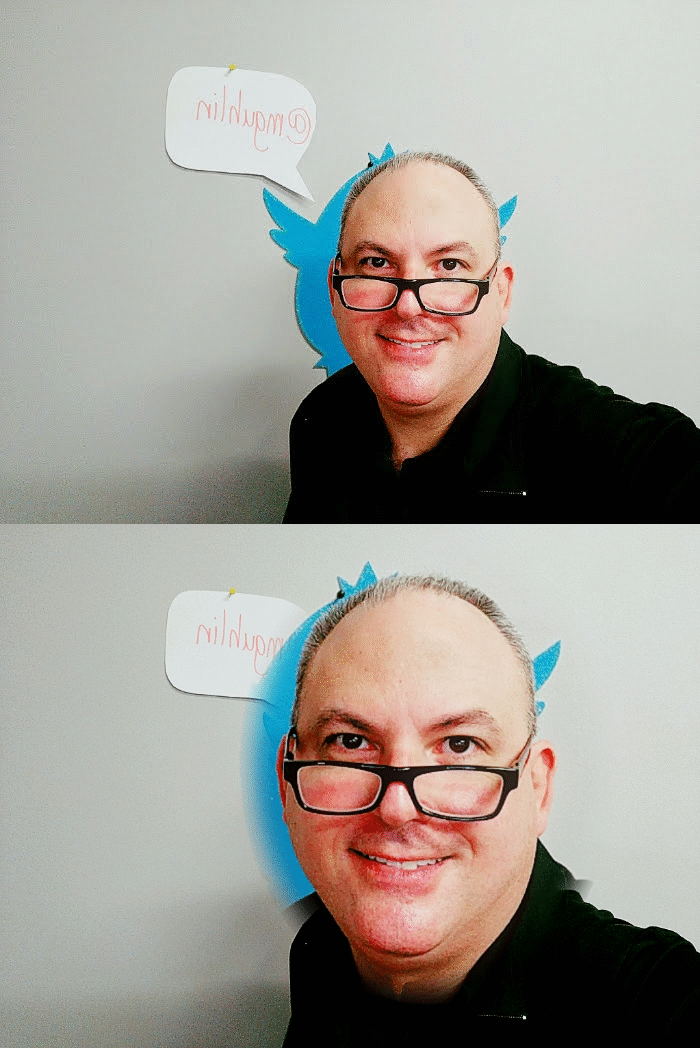 face and body.” That’s no joke. You will want to view all the free effects and options Cymera comes with. While Microsoft Selfie limits the choices (much easier), Cymera works hard to put effects at your fingertips, such as Face Pop (example shown right), Meme, Text and stickers.
Say “Cheese!”
Helping students explore image editing and effects in an academic setting may seem like too much fun. However, the conversations about file types (e.g. JPG, PNG, GIF, animated GIF), how to share online, and how to insert images into documents meant for web or print are priceless. While students take a hit or miss approach to graphic image manipulation, direct instruction with an academic purpose can help you address those Technology Applications TEKS. These approaches range from K-3 with appropriate use of digital images to high school.


 If you like listening to audiobooks, you’ll enjoy using OverDrive. If your district doesn’t subscribe to it, check and see if your local public library does. If so, you can check out audiobooks from them, as well as through their network of other contributing libraries!
 While grandparents love this app for making collages of their grandkids, students of all ages will find this app easy to use when they have an assignment where they can create collages, annotate over photos, etc.
 Though many of us remember copying down notes in class to study for tests, current students seem to prefer to take photos of the board to capture their notes. This app is so handy for that. Point and aim it at the board, projector, paper, etc.. Once it detects the area, you just snap the photo; it will crop it so only the board is in the photo and deskew the image so it looks like you had prime seating in front of the board when you took the picture. Save as an image on your device or as a PDF or Office format if you have an Office 365 account.
 Sometimes you want your students to record a video to capture their learning. But many devices have a default video recording app that is bare bones. You’ll find Adobe Express to be an easy go-to tool that will help students make great videos without getting bogged down in the technical aspects of videography. Though it is only for iOS currently, it is worth the wait for other operating systems.
 Pushbullet is great if your students find that they need to “push” files or photos from their phone or tablet to their laptop/computer (and vice versa). Pushbullet makes it easy without having to move your file/photo to Google Drive, Microsoft OneDrive, or DropBox first. And, since it is in the cloud, you can access your account from any device to retrieve previously pushed files. This is great if you have students taking photos or videos on their phones, but then need to add them to documents that they are editing on a computer.
 If you want an easy app that allows all of your students to share, then this has to be the best app for that. It’s perfect for having students summarize their content or reflect on their learning. If they are using a phone or tablet, they’ll need to download the app; otherwise, they can use the webcam on their laptop to participate. Though I don’t recommend the paid version of many apps (I remember what it was like when my teacher budget was whatever I had in my pocket), this is definitely one app that is worth the price; consider getting others to join with you and you all can enjoy a discounted price. Even without the additional features in the paid version, this is a super app!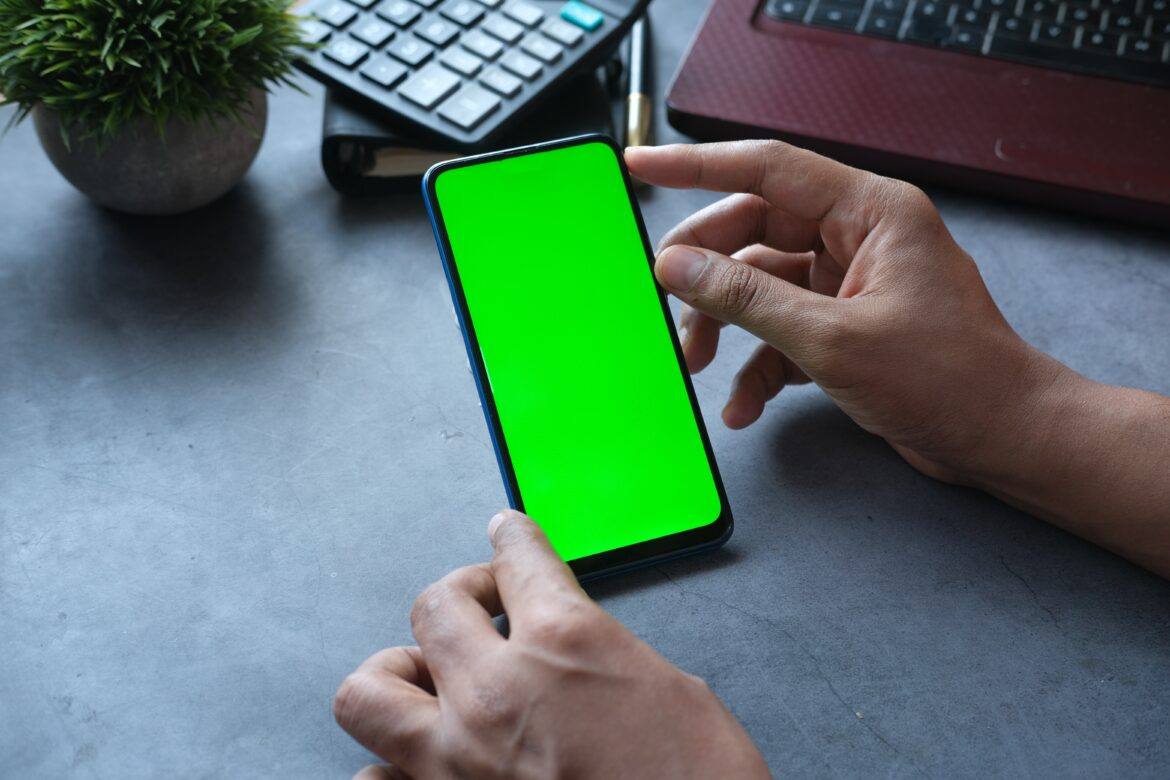
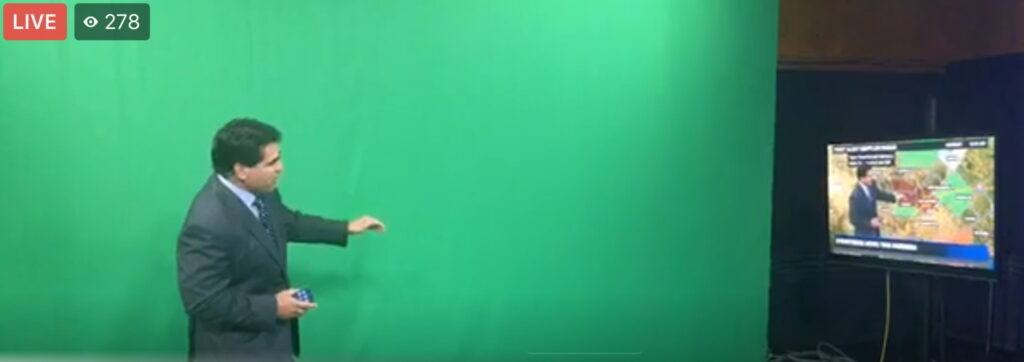
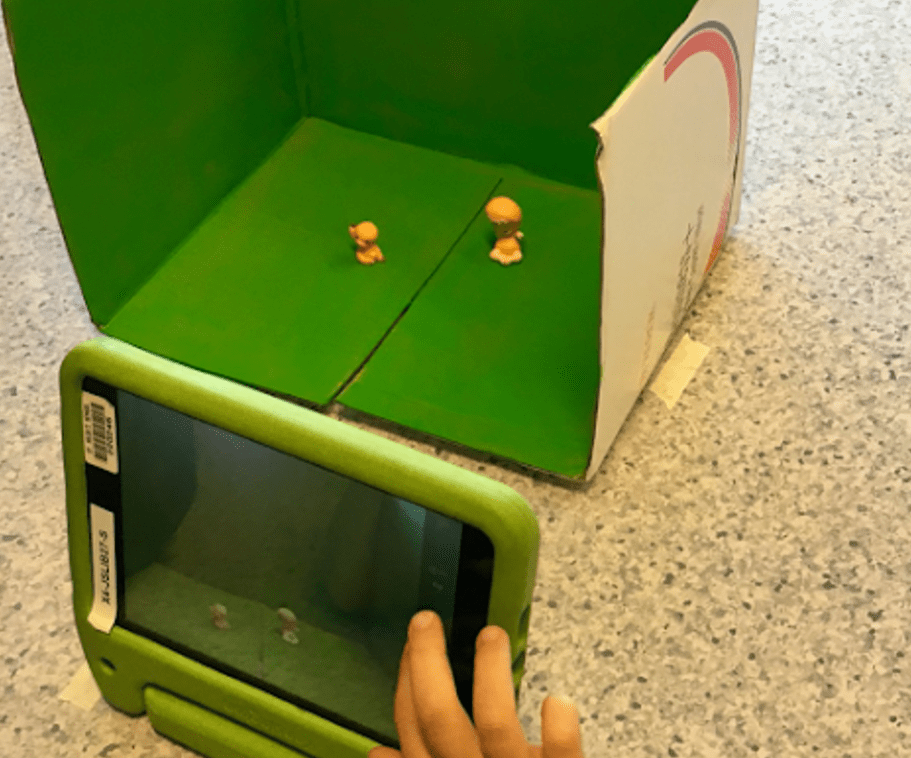
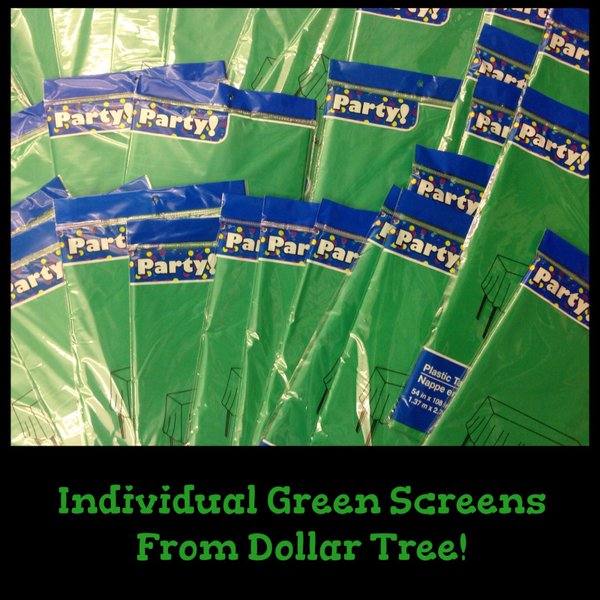 To get started, you will need a screen solution (e.g. the right shade of butcher paper, a $.99 green tablecloth from Dollar Tree, or green cloth) and one of the apps below. If you have an iOS device, the best app on the market is Green Screen by Do Ink, although you can accomplish even more with Touchcast (but some find it a little difficult to understand at first).