Welcome to Part 2 of When Disaster Strikes, a series focused on disaster recovery planning. (You can check out Part 1 here.) In this portion, we will explore taking a systems approach and performing an assessment, including a checklist to follow.
Insight #3 – Systems Approach and Assessment
Conducting a needs assessment remains a critical first step. Moving forward from that benchmark assessment can involve developing a design of how data flows in the district and how it can best be maintained, backed up, and set up for disaster recovery/business continuity.
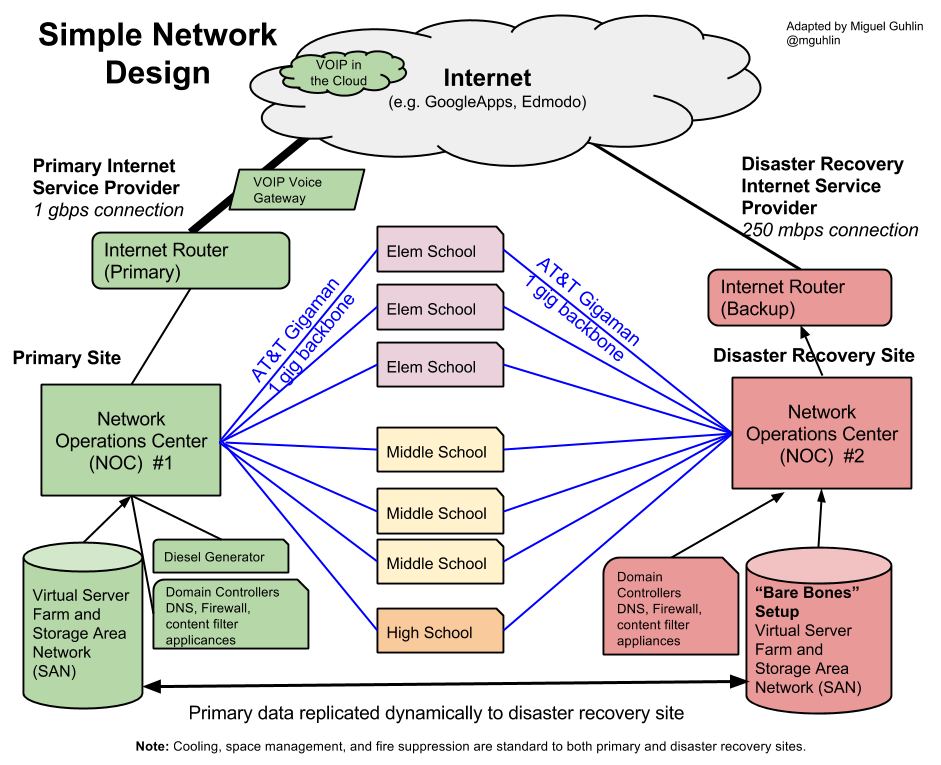
You can partner with a variety of solution providers (e.g. TCEA, Encore Technologies, Computer Solutions, Dell, Education Partner Solutions) to conduct network, infrastructure, and data assessments. They can evaluate your strengths and weaknesses, then offer you a report. It is up to you whether you will rely on their particular solution, of course. For example, in my district, I put this design together to help leadership better understand the big picture.
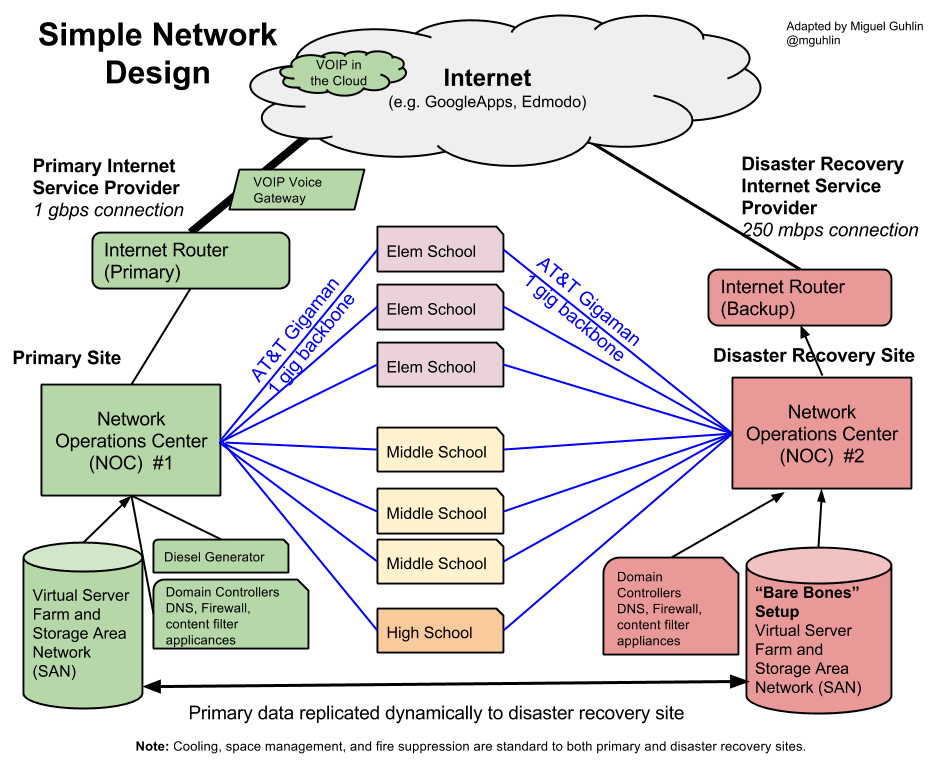
My first effort at capturing the network in a 10K student district. Now, a DR/BC cloud backup site would replace NOC #2. Prices for a cloud-based NOC have gone down considerably in the few years since the above diagram was created.
More Lessons Learned
Dr. Kari Murphy (Deer Park ISD) offers these specific lessons, each resulting from a disaster that prompted them to see things from yet another perspective. Here is a quick re-organization and adaptation of those lessons.
Advance Planning
- Formulate a formal disaster recovery plan.
- Switch to electronic payments for employees.
- Designate a remote off-site working location in advance.
- Store data backups off-site.
- Establish disaster recovery agreements with finance and student data providers.
Equipment and Facilities
- Consolidate all servers into one location (e.g. convert physical to virtual).
- Move critical data to the cloud (e.g. websites, other data).
- Put all equipment on the second floor or higher to avoid flooding.
- Add air and battery backup (e.g. Liebert Systems), fire suppression, natural gas generator, and fire doors for each network operations/data center.
- Keep an industrial sink/sump pump and large drying fans accessible to quickly dry out flooded areas.
- Ensure conduits are “foamed in.”
- Test and verify vendor claims about their backup systems.
- Add special coating to windows to prevent damage from bullets and airborne objects.
Communications and News
- Track weather reports.
- Establish a district-wide communication system for alerts.
- Take advantage of tools like Voxer, Zello, or Telegram for quick communications among district staff.
- Set up and maintain a phone number (e.g. Google Voice) that can be called for updates.
Insight #4 – Maintain a Living Document
Plan the time to start creating the disaster recovery plan. Then, keep that plan a living document. Ensure disaster recovery does not become a “shelve it and forget it” plan. Follow these suggestions to keep your disaster recovery plan up to date:
- At every monthly team meeting, focus on one aspect of the plan for updating.
- Require up-to-date inventory logs and make sure that new equipment purchases are added to the list.
- Keep a master list of new data that is added to servers and identify how that data is being backed up.
- Establish a master update schedule for primary and secondary network center equipment and services.
- Present major changes and updates to the disaster recovery and business continuity plan to district leadership.
- Plan and budget for enhancements, identifying a road map for upgrades, enhancements, and implementation.
These suggestions can ensure your disaster recovery plan remains a priority. Remember, disaster strikes when you least expect it.
Insight #5 – Hosted Solutions Backup
“I have thought about disaster recovery, but I haven’t given any thought to hosted solutions and how we’re backing up that data. How am I going to ensure that data is protected when it’s outside of my control?” While school districts often know how they are backing up their own data, outside vendors are another story. What happens when that vendor suffers a catastrophic data loss due to a backhoe, a natural disaster, or act of digital destruction? One tip is to put expectations for disaster recovery and business continuity in writing, identifying how quickly services can be restored. A second tip involves demanding a secured data dump from the vendor on a regular basis. In this way, you have control of your raw data. If the solution provider’s data center suffers a setback and data is lost, you would have a secure backup to work from.
Another Approach
Tokenization is the process of replacing sensitive data with unique identification symbols that retain all the essential information about the data without compromising its security (source).
Given the increasing number of data breaches affecting, well, everyone, one novel approach involves tokenization. In essence, hosted providers would use tokens in lieu of obtaining a copy of sensitive data. Confidential data is often transferred every hour or once a day via file transfer protocol (FTP) to solution providers. Any time data leaves your district servers, risk of a breach mounts. Tokenization, points out Michael Knight (keynote speaker and CEO of Encore Technologies), eliminates the need for the transfer of confidential data, offering instead a single use token. The token is not usable anywhere else and has no value in itself except in the context of a particular digital service provider.
Final Thoughts
The five insights shared in this two part series highlight the need for serious attention to disaster recovery and business continuity. As one speaker at the TCEA Technology Leadership Summit on October 11, 2017 stated, “Our school district cannot function without technology. Not investing in disaster recovery and business continuity ceased to be an option a long time ago.” How are you, as a school district leader, CTO/CIO safeguarding what your organization needs to be successful?