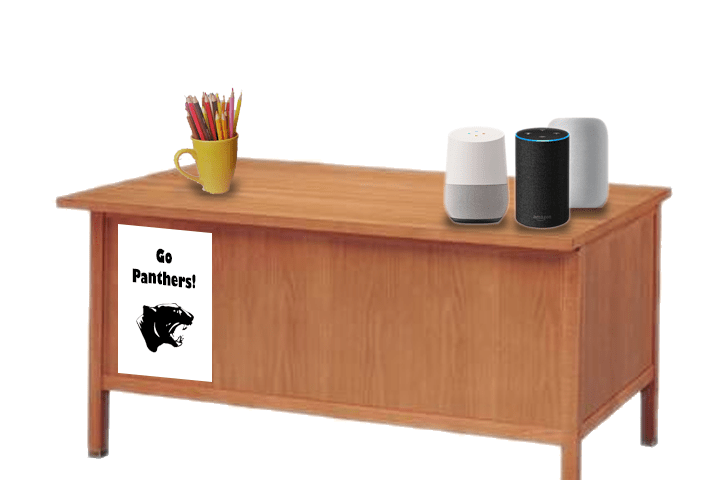
Based on several comments on a previous blog post, Alexa: Your New Teacher Assistant, along with a few questions I’ve received via email, it seems there is a definite knee-jerk reaction by some districts to incorporating voice assistants in classrooms. While voice assistants are new technology and evolving quickly, I don’t think that necessarily makes them dangerous despite the recent scare with the Alexa emailing a recording to a person on a connected contact list. In all reality, stories like that one should reinforce the need for what most schools are already doing: providing training in the effective use of technology for educational purposes.
Responding to New Ideas with New Policies
When I look at some of the knee-jerk reactions that have taken place, it seems very reminiscent of when BYOD (Bring Your Own Device) was being praised (or scrutinized) in districts across the nation within the last decade. Those that accepted BYOD as a viable environment within classrooms thought through making sure their networks were secure, reviewing their policies, procedures, and practices, and even tailoring professional development to help teachers understand how to have BYOD in their classrooms. Districts put together their list of best practices, had open discussions with teachers, principals, and parents, and recognized that some educators may need more time before they can confidently support students in a BYOD environment.
Join the Conversation
I think we should approach voice assistants in the classroom in the same manner. Regardless of whether we use Google, Amazon, or Apple, or some other off-brand that pops up, we need to make sure that good thinking precedes it and lays the foundation for why we are doing what we do and how we do it. Since I’m guessing that voice assistants aren’t going away, it would behoove us to be part of the conversation that helps develop this technology to be valuable to education. Instead of throwing the baby out with the bathwater, consider having open meetings to discuss uses of AI devices, their connection to the curriculum, and how they can be incorporated in meaningful ways. If we don’t encourage students to evaluate the information they receive based on its credibility, authorship, or accuracy, then we have shortchanged our students and only provided a newer, trendy way of mindlessly copying/pasting information.
When I was an Instructional Technology Director, I was frequently frustrated by the technical side of the house. It seemed like they just wanted to say no to everything. Once I realized that was an asset and their perspective was really to provide as safe of an environment as possible, it became easier for me to change my communication from, “This is what I think we should do.” to “This is what I think we should allow our teachers and students to do. How can we do that in a way that is safe?” If you are in a campus or district and find yourself in a similar situation of being surrounded by those that don’t want to change (no matter what the change is), consider approaching them from this perspective.
Share Your Expertise
Are you already using voice assistants in your office or classroom (even secretly)? Let us know what you see as the pros and cons of the technology. What would be your recommendation to a teacher wanting to jump in and run with it? What advice would you give that would hopefully be useful not just for this technology but for future technology yet to be conceived? Remember, at the end of the day, it’s not really about the device.
If you are a technology director (or a technology director wannabe), we’ll be starting a new cohort in September with our Technology/IT Director Certification where you will find helpful live webinars and online courses to keep you current and help you stay ahead of the curve. Let us know if you are interested or if you have any questions.
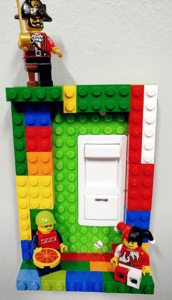

 If you are into gears, then SRex has designed the
  If you are a science teacher or English teacher, you might be interested in the
  Harry Potter fans will enjoy the
  And no collection would be complete without a

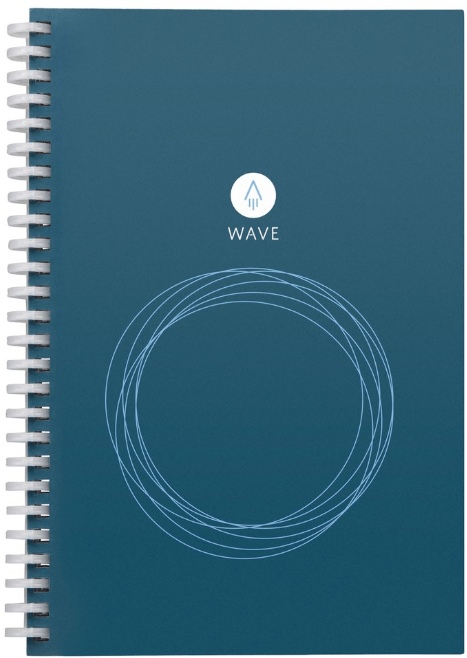 Though many folks use digital tools to take notes (such as OneNote, Google Keep, etc.), you may prefer to take notes the old fashioned way with paper and pen. If this you, then check out the
 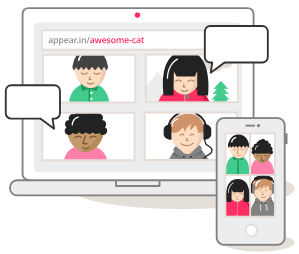 Video conferencing doesn’t get any easier than
  Noisli
 Adobe users unite! You’ll find this the perfect academy if you use any of the Adobe products yourself or if you teach your students how to use them. Innovative uses, clever work-arounds, and new features will be shared to give you the solutions and steps you need. And, if you are new to Adobe, you will find several sessions that will help you get up to speed and boost your confidence. Adobe pros haven’t been left out; our presenters have clever ideas that are worth listening to and taking note of.
 Make a point to attend our first annual Microsoft Academy to boost your skills in Microsoft products including Office365 and Minecraft. This is going to be a great gathering! You’ll also be introduced to mobile coding with Creative Coding through Games and Apps and gain a deeper understanding into Microsoft Makers projects and 3D Builder. You will definitely find this packed full of topics that you can’t get at other learning opportunities.
 Even if you don’t have a Chromebook, but use Google Suite for Education, you will find these sessions filled with new and great ideas that you can take back to transform the way your students learn. Be sure to bring a friend so you can divide and conquer on the sessions and then share with each other at the end of the day!
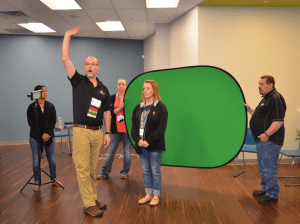 Do you teach any of the Technology Applications or Career and Technology Education courses where students learn to use Adobe products such as Photoshop, Illustrator, InDesign, Lightroom, Premiere, etc.? Or do you want to enhance your creative Adobe skills for personal projects and enjoyment? If either of those are true, then you definitely want to attend the Adobe Academy on June 19-20! Besides networking with other creative educators, you’ll have concurrent sessions to choose from in order to gain fresh ideas, polish your Adobe skills, and take your curriculum to the next level. You’ll learn from other Adobe-using educators in this hands-on event. For more information about this academy go to
  If you are one of the many Microsoft-using educators, you will find the Microsoft Academy a perfect fit. On July 12-13, you can experience a wide array of Microsoft tools to help you extend your learning and gain fresh ideas of how to use the tools with your students and fellow educators. Whether you are using Office365 in the cloud or are using a not-quite-so-new version, join in on the active sessions and take away new ideas. For more information about this academy go to
  Calling all Googlers! Learn from some of the Googliest educators around at our interactive Chromebook Academy on July 26-27. There will be great sessions for Google Suite administrators as well as for teachers integrating Google Suite in their classroom. You’ll learn about the most current features and how you can use them to maximize your impact with students. Add-ons, scripts, hyperdocs, Slides, Forms, and more will be explored so that you can get what you need to take your students to the next level! To learn more about the Chromebook Academy, go to
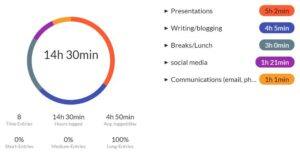 Before you can address some of your habits, you may have to identify them and discover which ones are taking up more time than you realize. In doing so, I highly recommend
  Bone conduction works on a similar premise as how you normally hear. Normally, sound waves (vibrations) enter your ear and are translated by your inner ear. With bone conduction, though, sound travels through your bone (skull) to reach your inner ear. While this process sounds like something from science fiction, it works very well. You actually don’t feel anything unless you have your music turned up on high.

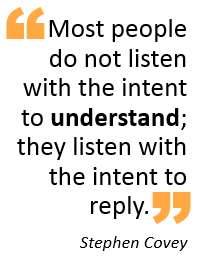 The other day, I was talking with my wife. She had just come home from work and was sharing a frustration of her day. Before she was able to complete two sentences, I was ready to provide a solution that only included three easy steps. As I interrupted with what I thought was going to be received as a caring gesture, she looked at me and said “I’m not looking for a solution. I know what to do. I just needed someone that I can share my frustration with.” Ouch! While I didn’t gain any Husband of the Year votes from that encounter, it did get me to thinking about how many times I assume everyone is needing a solution when they talk with me…or at least before they get two sentences out.