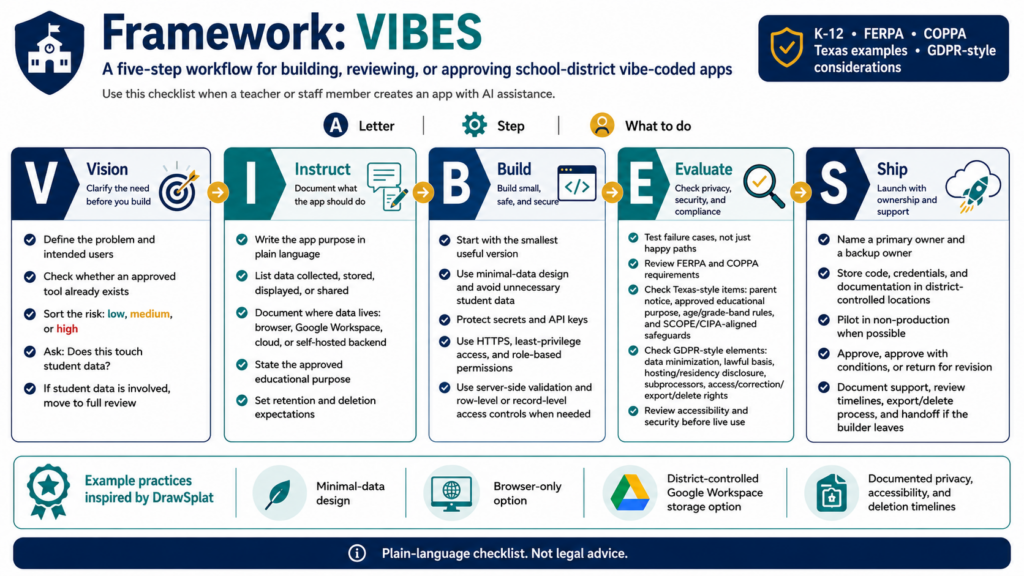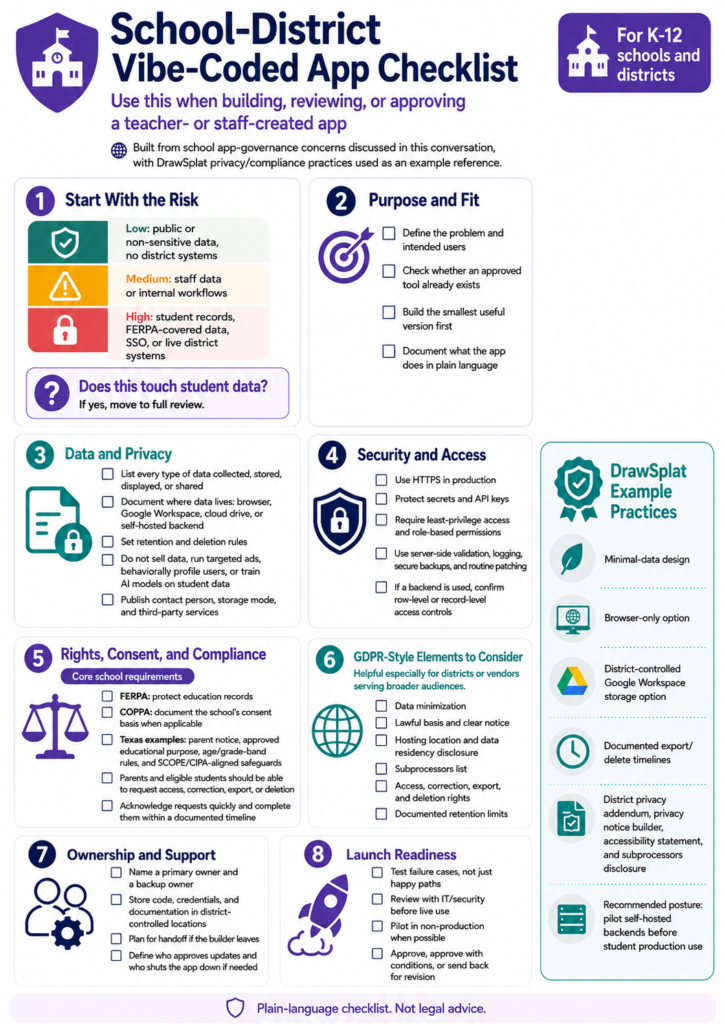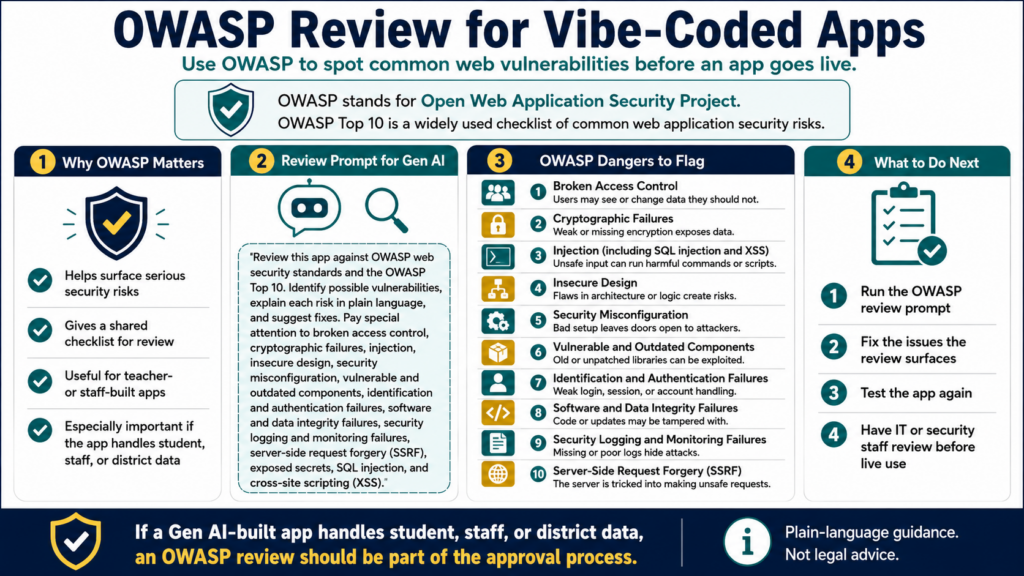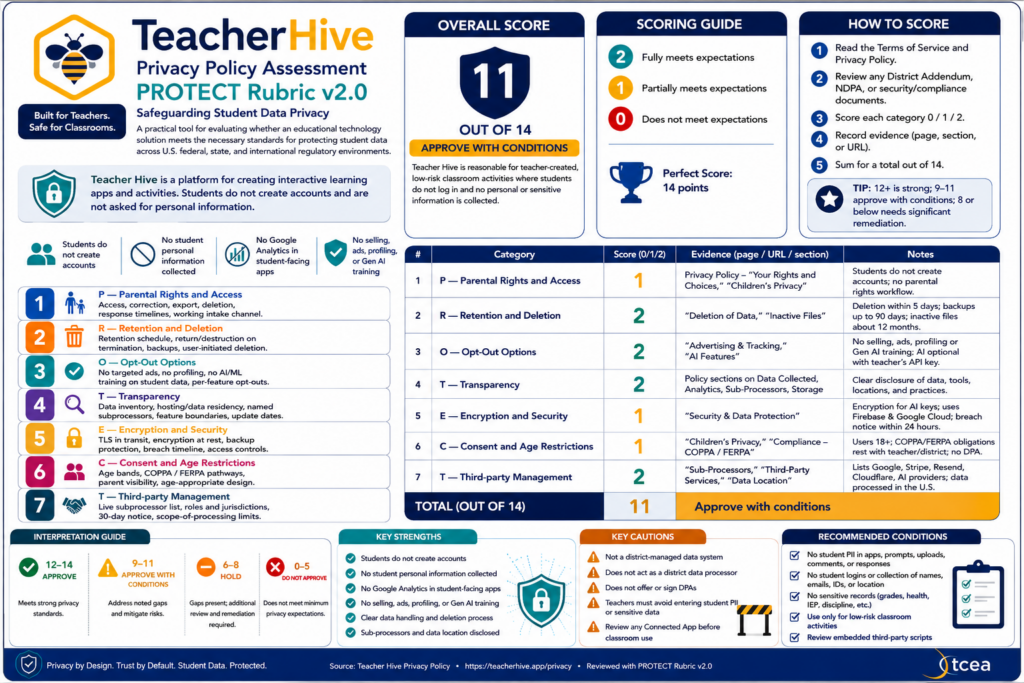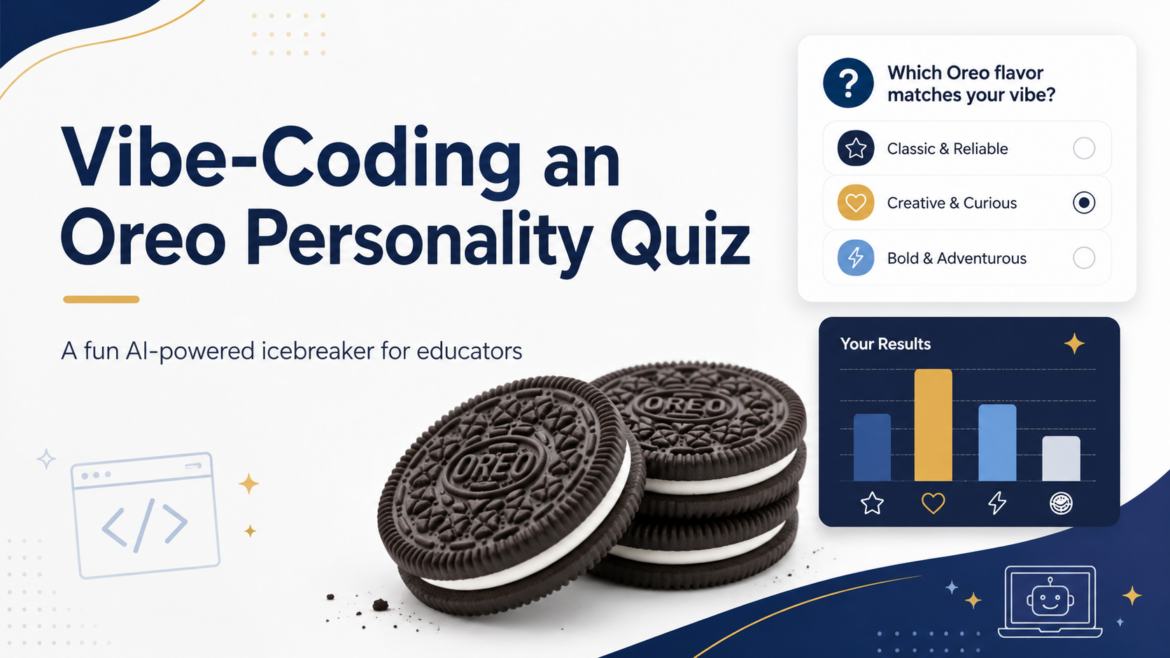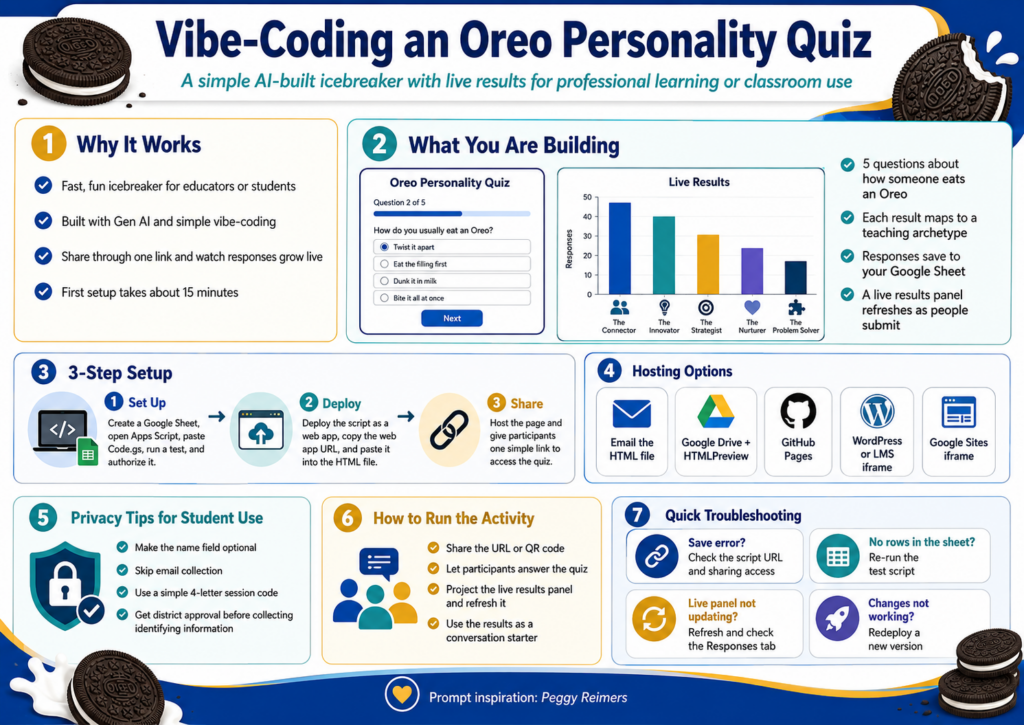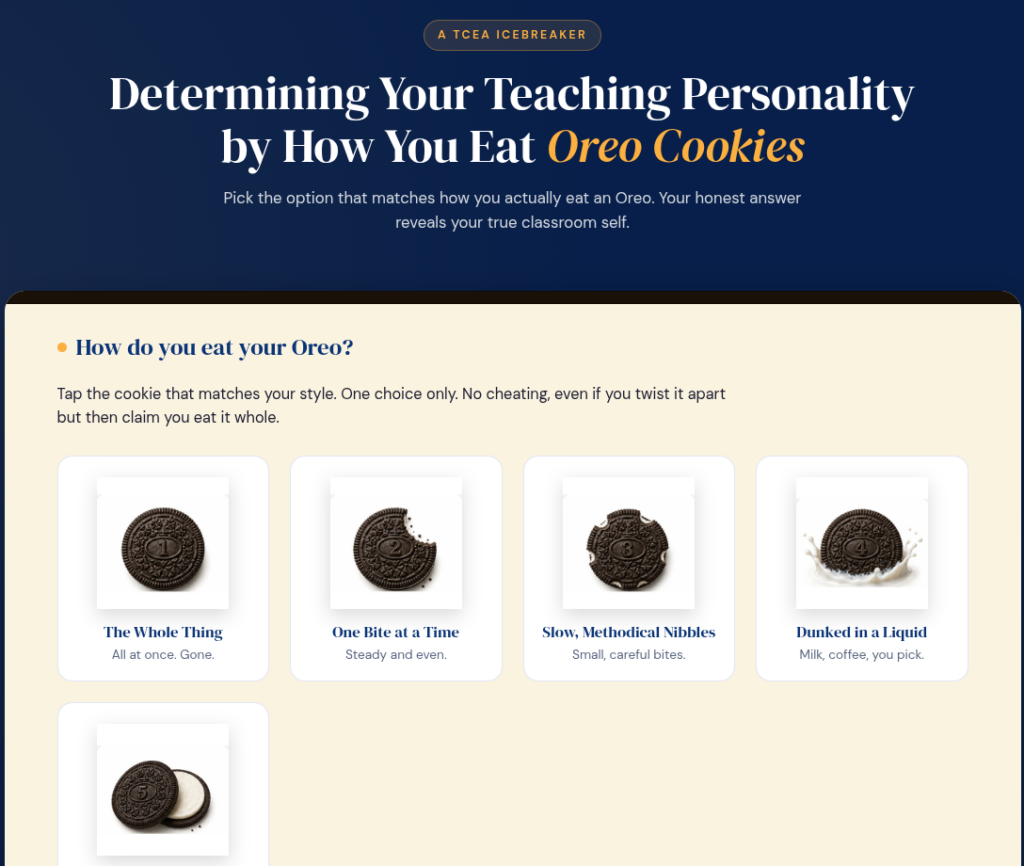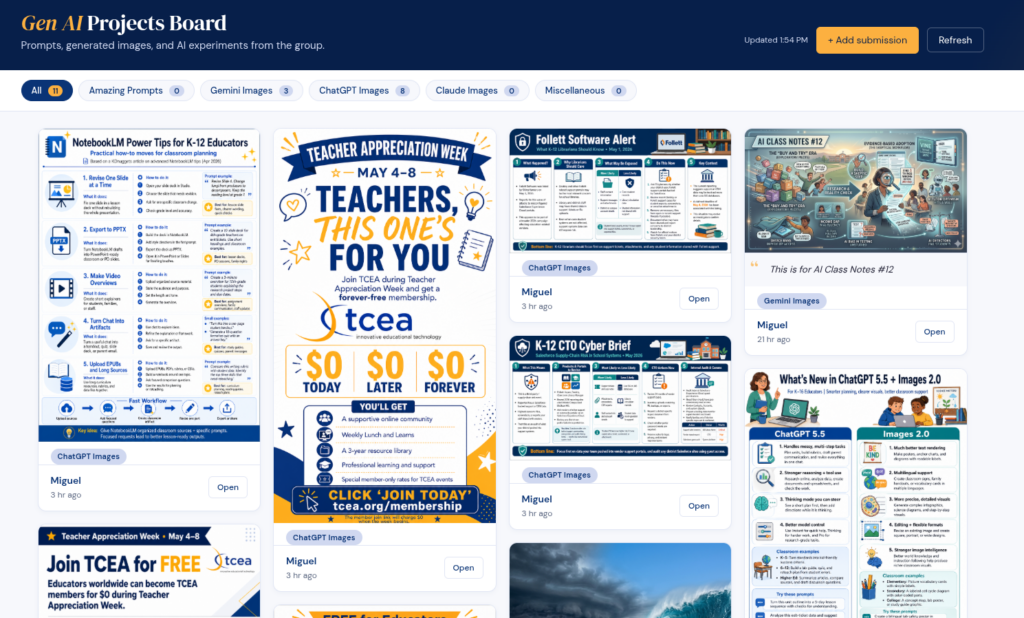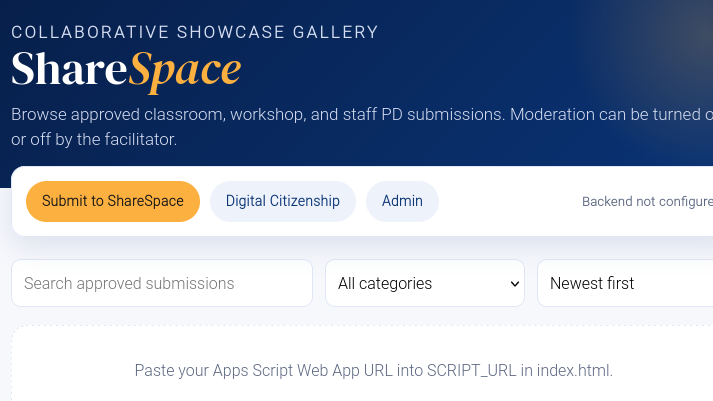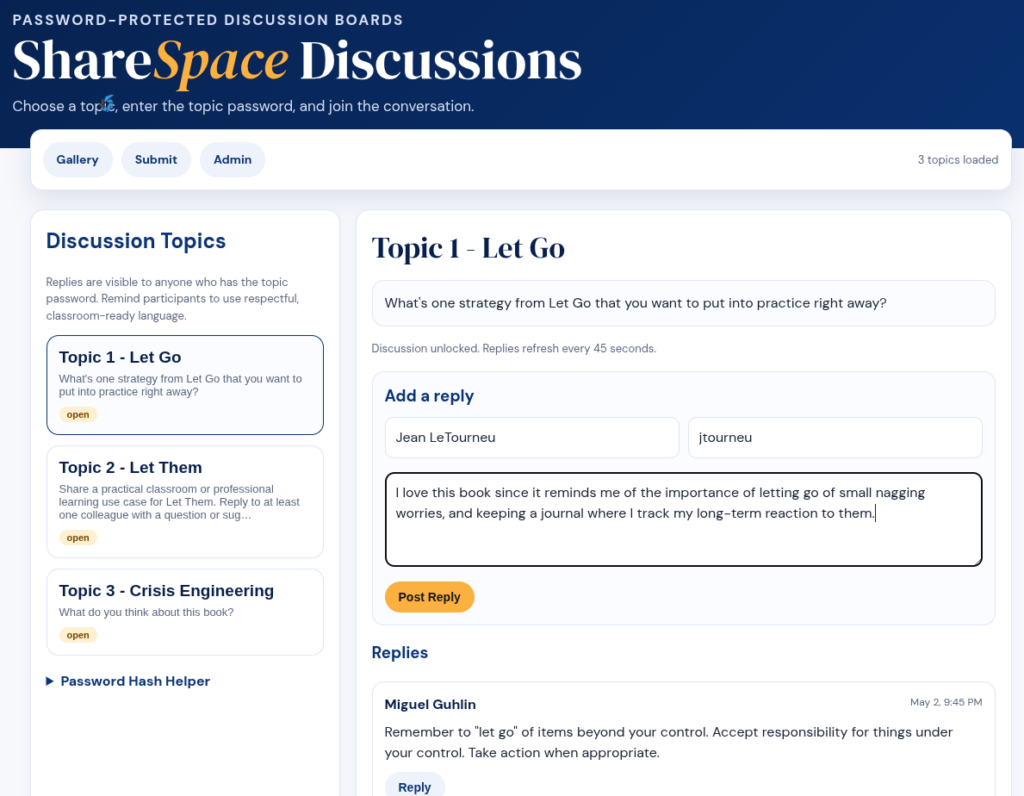
In the two previous parts of this blog series, you saw how to make a custom GPT accessible to anyone, whether they have a ChatGPT account or not, as a website. In part one of the AI Magic Maker series, you created a custom GPT-based Fun Personality Quiz. In part two, you saw how to turn a custom GPT into a webpage for easy access via the web. In part three, you will learn how to simply vibe code to collect the data entered via the web version of Fun Quiz into a Google Sheet.
In this part, we’ll explore how to save data from the interactive webpage to Google Sheets for later analysis. Saving the data from the interactive webpage to Google Sheets takes this interactive page to a whole new vibe code level since you can now create quizzes and more that save the data.
Wait, How Is This Possible?
The journey from custom GPT requiring individual user accounts to a webpage anyone can access is made possible through the use of free tools. Those tools include:
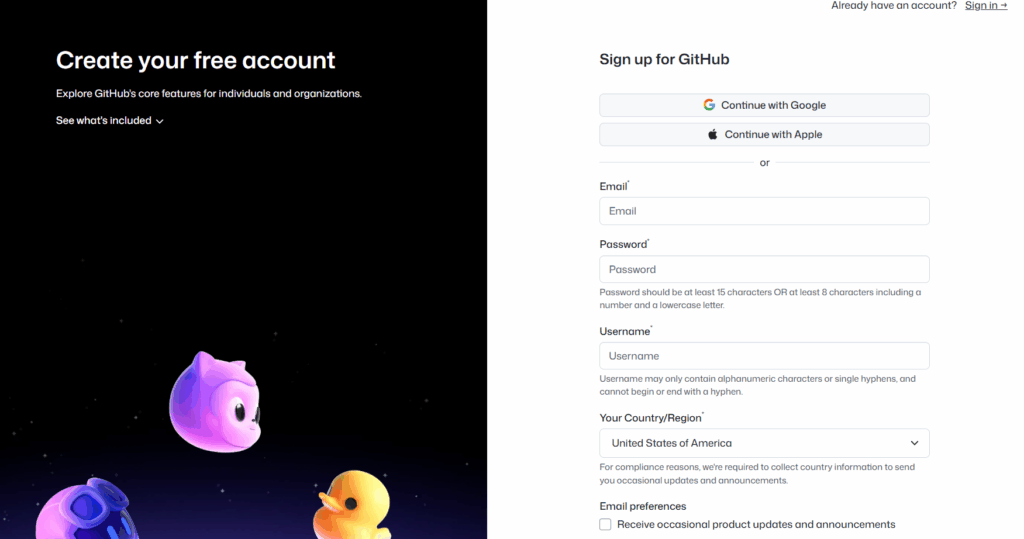
A GitHub account. How to get a free account is explained in part two of the series.
A Google Drive account with Google Sheets. You can do this with the free, or consumer, version of Google Sheets or you can use your Google Workspace for Education/NonProfit account.
Google Apps Script Web App. This is such a game-changer and I suspect you may soon be making your own Web App scripts using Generative AI. It’s the “hidden” lesson in this series.
All these tools are free. Of course, I did rely on a paid Gen AI model (about $20 a month).
Achieving the Impossible
Using Gen AI (for part three, I asked my Claude Pro account for help), I asked for a step by step. Since I’m not a Google Apps script whiz and failed BASIC programming in high school (I hope you appreciate how tough an admission like that would be for a high school student), I can attest to the power of vibe coding to help me achieve this hitherto impossible task.
Yes, with Gen AI at your side, you can leap tall mountains of code. But you first must have a plan.
The Plan
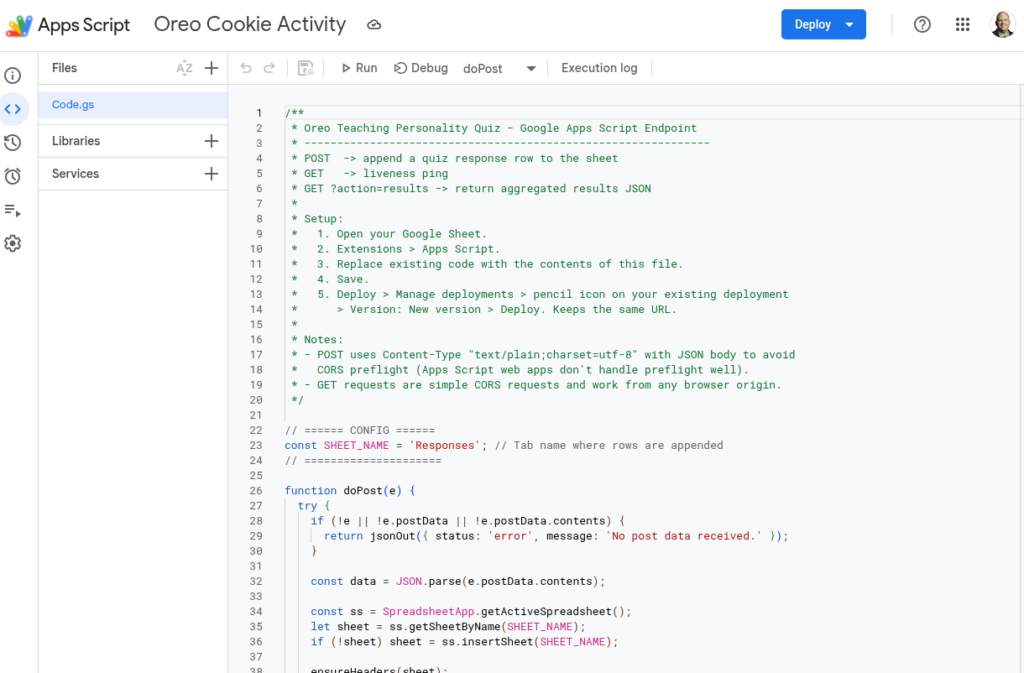
The plan is that you will create a Google Sheet and deploy a Google Apps Script as a Web App (takes approximately five minutes). Then, Gen AI will update the script.js to POST (a specific action, so that’s why it’s capitalized) the result to the Web App URL.

The data logged per quiz submission will be:
Timestamp
Quiz name (e.g., “Smurfs”)
Result character (e.g., “Papa Smurf”)
Step 1: Set up Google Sheets + Apps Script
These are the steps I will follow in the video available to you at the end of this blog post. In the meantime, follow these steps:
Create a new Google Sheet.
Name the first sheet tab Results.
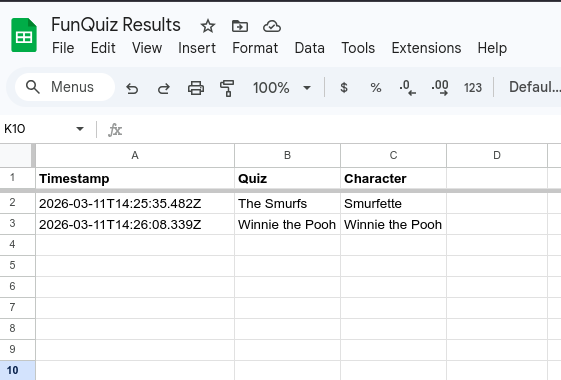
Add headers in row 1: Timestamp, Quiz, Character.
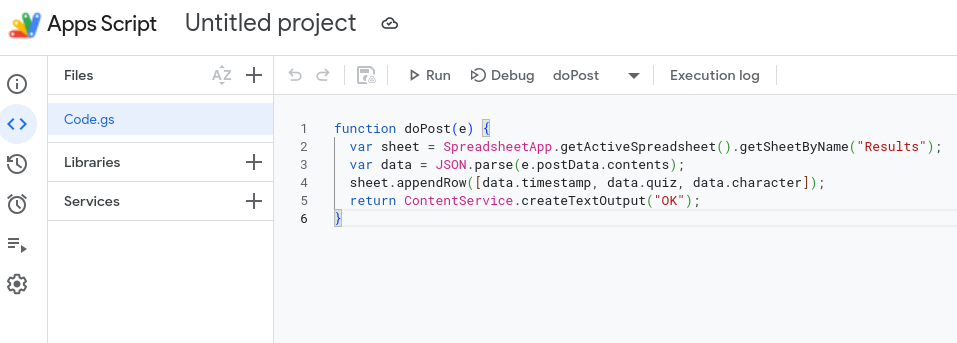
Go to Extensions → Apps Script.
Replace all code with this:
function doPost(e) { var sheet = SpreadsheetApp.getActiveSpreadsheet().getSheetByName("Results"); var data = JSON.parse(e.postData.contents); sheet.appendRow([data.timestamp, data.quiz, data.character]); return ContentService.createTextOutput("OK"); }
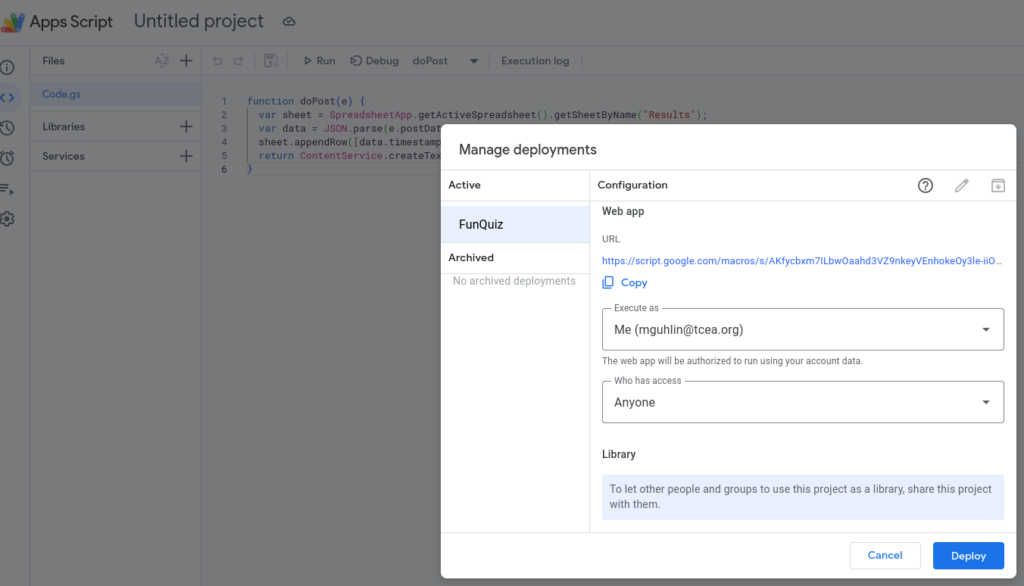
Click Deploy → New deployment
Type: Web app
Execute as: Me
Who has access: Anyone
Copy the Web App URL. You will need it next.
Step 2 — Updated script.js
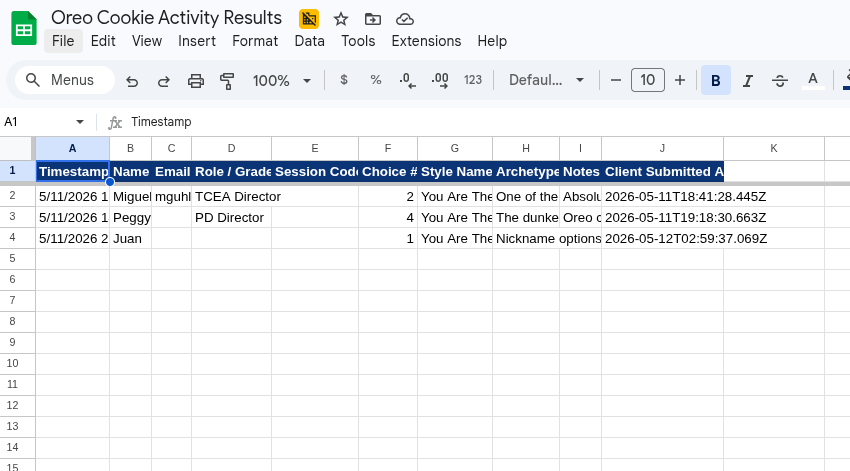
Now that you are ready with the Google Sheets Web App URL, you will need to add it to the script.js file at the top of the file. This will result in rows like the ones in this Google Sheet:
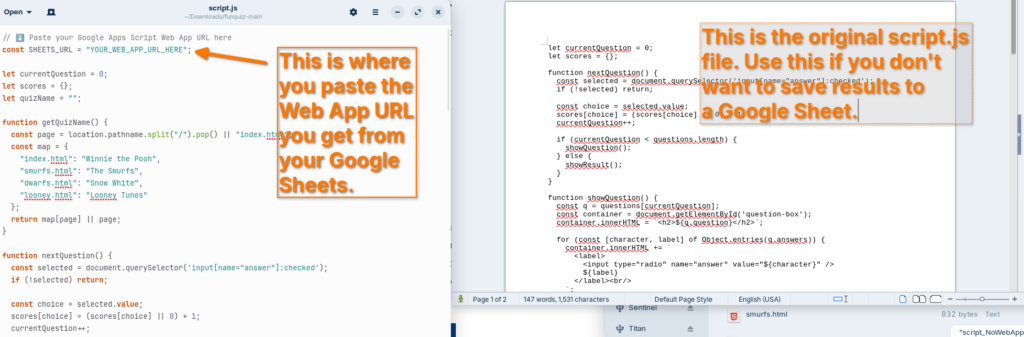
This is the only file you need to replace. All four HTML files already load script.js, so nothing else changes. Once you have your Apps Script Web App URL, replace “YOUR_WEB_APP_URL_HERE” at the top of the file.
Each completed quiz will log a row like:
Timestamp
Quiz
Character
2026-03-11T14:32:00Z
The Smurfs
Papa Smurf
That’s pretty much all there is to it. Not sure what to do?
Watch the Video
This video walkthrough will get you started. You are also going to get the download file (a compressed zip file linked below the video) with all the web pages and the generic script.js so that you won’t be tempted to simply use mine.
In this video, you get a tour of the process, from start to finish:
You can also download a copy of the entire FunQuiz website from GitHub using the link below:
Remember, if you decide to try this yourself, you will need to update the script.js file to point to YOUR Web App URL, rather than mine.
Since you have both versions of the file, you can compare them:
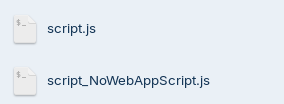
From left to right: Script.js file that saves results to Google Sheets, script_NoWebAppScript.js that simply runs the quiz and no results are saved. Make sure to rename the “script_NoWebAppScript.js” to “script.js” if that’s what you decide to use.
Wrapping Up
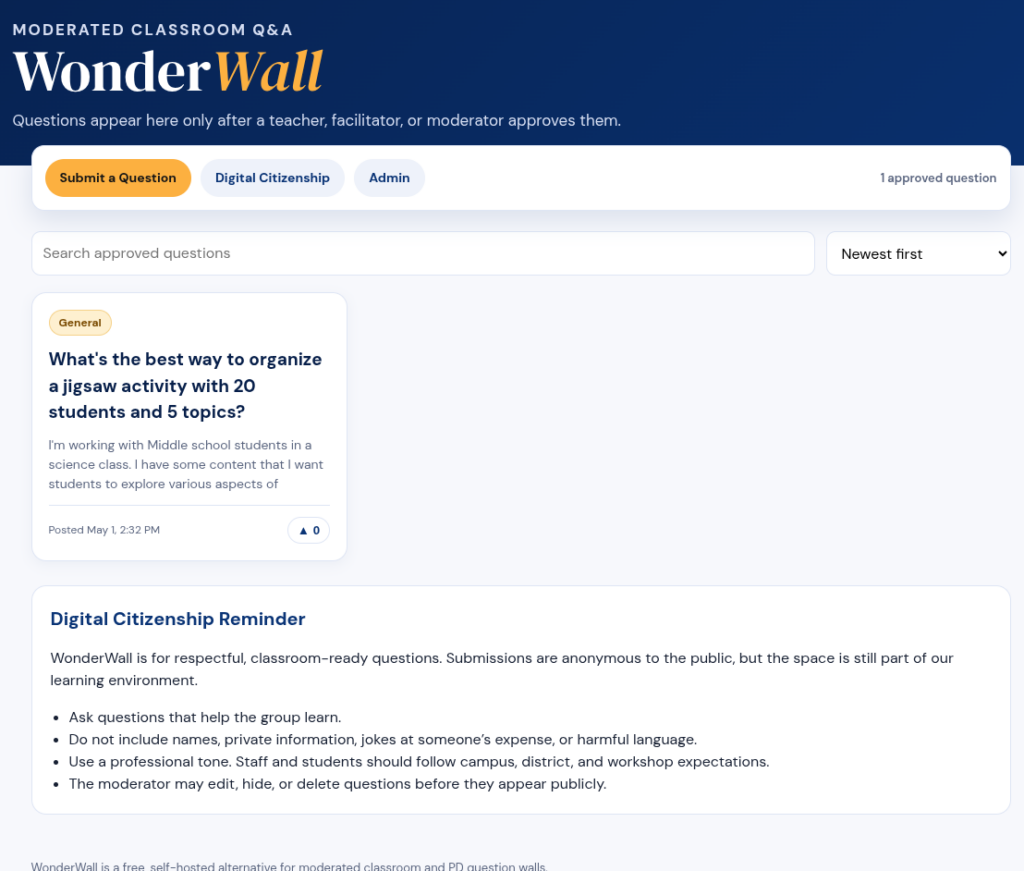
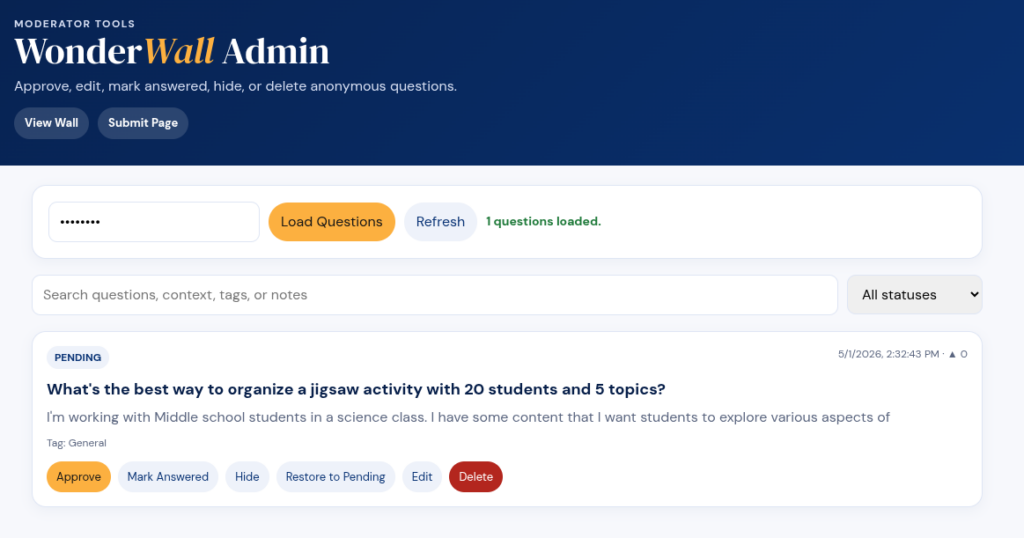
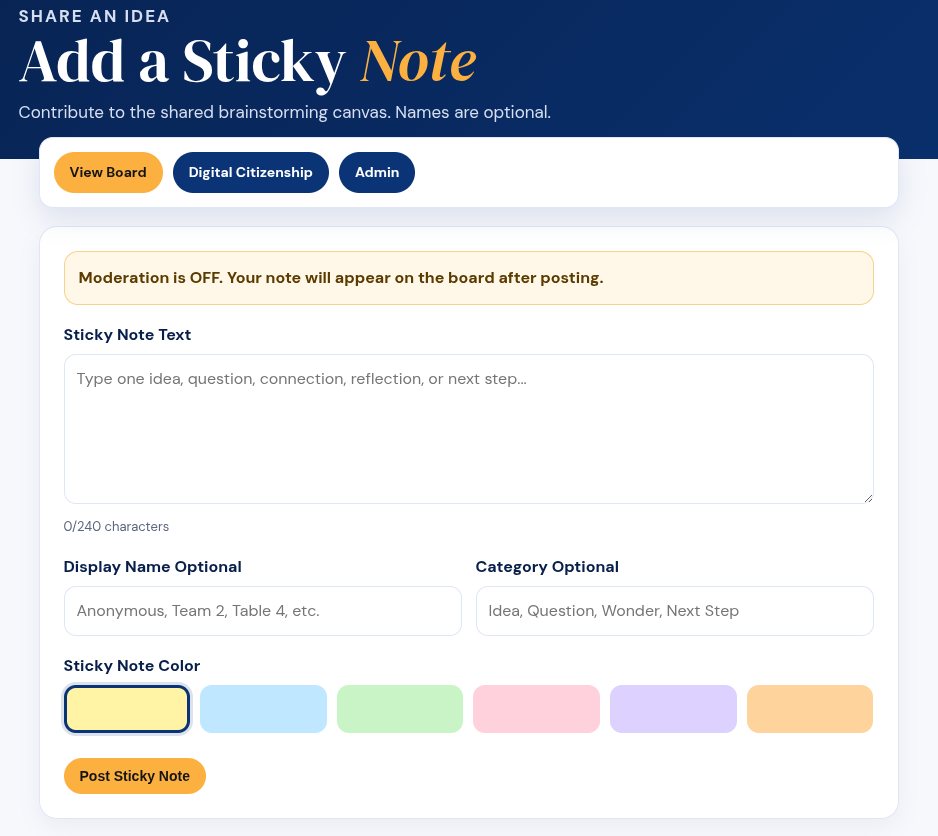
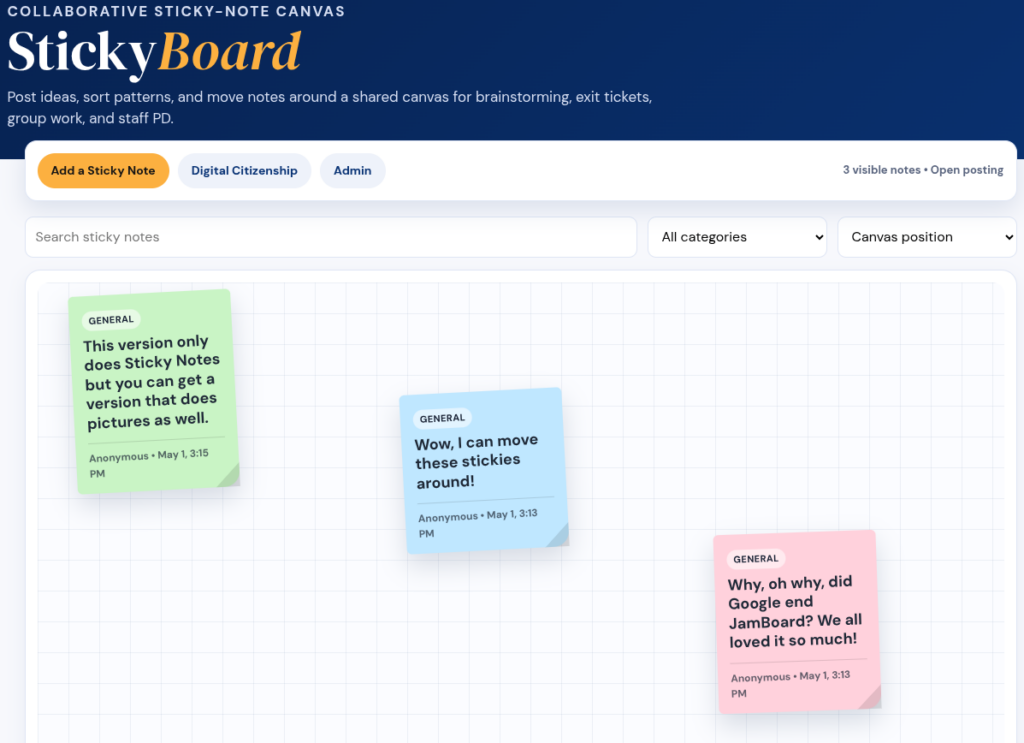
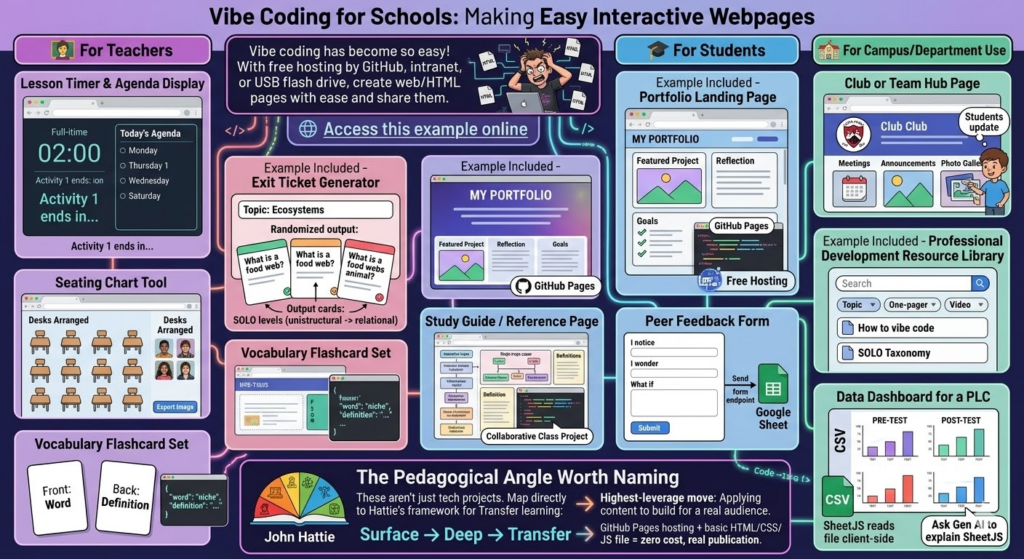
Vibe coding has become so easy, and with free hosting by GitHub or any web server you have access to, you should be able to create web/HTML pages with ease and share them. Here are some potential applications in school environments, even though it may drive technology directors crazy with the need to host teacher-generated HTML pages (but it’s super inexpensive, so why not on an intranet server or off a USB flash drive?).
Here are practical, high-impact ideas organized by who benefits most.
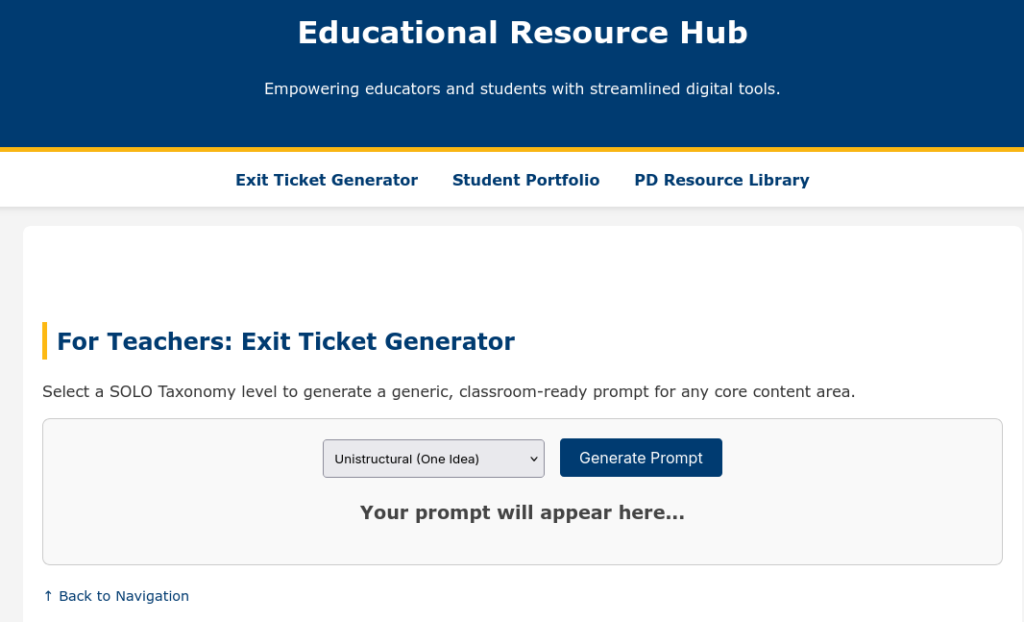
A simple, bare bones example of one of each of the following ideas is available. It took about thirty seconds to make, and that shows. I could have spent more time on it, but this example should give you an idea of what’s possible with minimal time investment.
🧑🏫 For Teachers
Lesson Timer and Agenda Display. A full-screen HTML page showing the day’s agenda with a countdown timer per activity. No app needed, just a browser tab.
Exit Ticket Generator (example included). Input a topic, get a randomized exit ticket question. Teachers could build a bank of prompts tied to SOLO levels (unistructural → relational questions).
Seating Chart Tool. Drag-and-drop HTML interface for arranging desks. Exportable as an image. Far lighter than any app.
Vocabulary Flashcard Set. A simple spaced-repetition card flipper built around a unit’s word list. Teacher edits one JSON file to update the deck.
🎓 For Students
Portfolio Landing Page (example included). Students build a personal HTML page showcasing work samples, reflections, and goals. Hosted free on GitHub Pages. Real-world skill, real audience.
Study Guide/Reference Page. A single-page interactive reference sheet for a unit — definitions, diagrams, examples — that students help build as a class project.
Peer Feedback Form. A lightweight HTML form that structures feedback using a protocol (e.g., “I notice/I wonder/What if”). Submissions could go to a Google Sheet via a free form endpoint.
🏫 For Campus/Department Use
Club or Team Hub Page. A simple landing page for a club: meeting times, announcements, photo gallery. Students own and update it.
Professional Development Resource Library(example included). A searchable, filterable page of links, one-pagers, and videos organized by topic. Way faster to update than a LMS page.
Data Dashboard for a PLC. A static HTML page that visualizes pre/post assessment data from a CSV. No backend needed if you use a SheetJS that will read the file client-side. (No, I don’t know what SheetJS is either, but ask Gen AI to explain it to you).
For example, Dr. Aida Guhlincozzi runs a Geosciences camp in Missouri (wouldn’t this be great to have in Texas?). Here are some sample projects that camp participants (all students) could create:
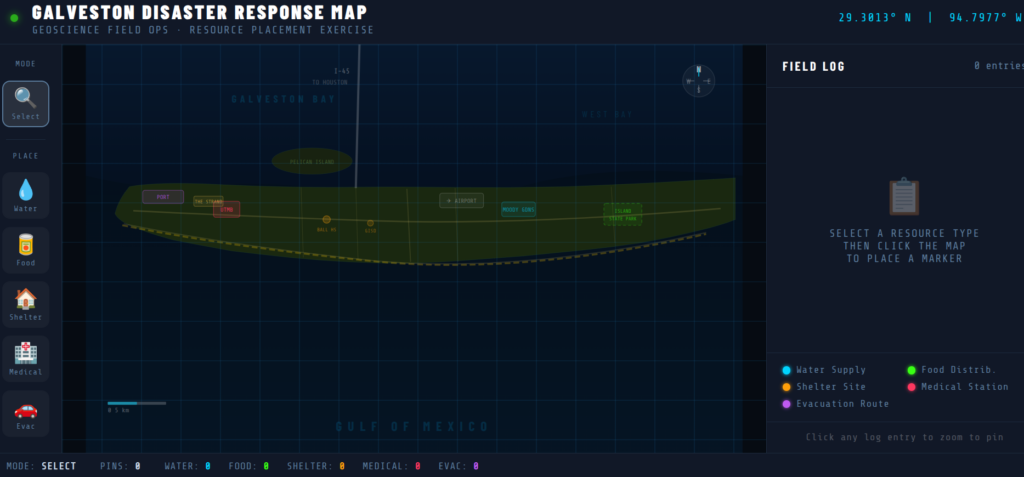
1. Interactive Disaster Response Map. Students place SVG/CSS pins on a campus or regional map, tag each with resource type (water, food, shelter), and add pop-up notes explaining why that location matters. Demonstrates spatial reasoning and GPS concepts.
2. “Before & After” Disaster Slider. A CSS clip-path slider showing satellite imagery or hand-drawn maps before and after a natural disaster. Students write captions explaining the geoscience behind the change.
3. Personal Field Journal. A scrollable, styled “expedition log” with sections for hypothesis, observation, data collected, and reflection. Could include a hand-drawn map image upload area. Demonstrates scientific writing and process documentation.
4. Mini-Data Dashboard. Students input their own GPS coordinates from a field activity into a table that auto-calculates the distance between points. Demonstrates data literacy and real-world math application.
5. “Meet a Geoscientist” Profile Card. A styled bio card students build about a scientist they researched; includes a quote, field of study badge, and “why this matters” section. Great for identity/representation work (ties directly to Guhlincozzi’s story).
6. Decision Tree: What Would You Do?. A branching HTML page presenting a disaster scenario. Each choice leads to a new page/section with consequence text. Students author the branches, not just navigate them.
The Pedagogical Angle Worth Naming
These aren’t just tech projects. Each student item maps directly to Transfer learning in Hattie’s framework. Students applying content knowledge to build something real for a real audience is one of the highest-leverage moves in the Surface → Deep → Transfer progression.
GitHub Pages hosting + a basic HTML/CSS/JS file = zero cost, real publication. Oh, the places we’d go!
Code Reject
Google Gemini 3 Pro coded this page below. It’s amazing, but not quite as good as the Claude Pro generated version included above. Still, for comparison’s sake, it’s worth including below:
How do you make a custom GPT accessible to anyone, whether they have a ChatGPT account or not? You turn it into a website! In part one of the AI Magic Maker series, you created a custom GPT-based Fun, Personality Quiz. The only problem is that this personality quiz lives inside a Custom GPT. If you did not have access to that GPT, or a free ChatGPT account, you could not use the quiz. Instead of a custom GPT, I wanted a web address or uniform resource locator (URL). In this way, I would be able to drop the link into a slide deck, blog post, or whatever for easy access. A tool I knew little about (i.e. GitHub) made this possible.
GitHub Repository for the website files generated by ChatGPT and the author
Let’s go through the process together. Towards the end, you will find a video that walks you through the GitHub set up as well.
Step 1: Capture the Quiz as a Web Page
First, I asked ChatGPT to help me translate the quiz into a web format. What I am looking for has to include:
A simple page titled “Fun Personality Quiz for Educators.”
The same instructions as the GPT version.
A place to show the quiz image at the top.
Also, I wanted to get an interactive version using HTML and Javascript with buttons, tallies, and the response with the result. To get ready, you will need:
A GitHub account (for hosting your quiz for free )
A GitHub repository (which you will create)
The files you will need (e.g. index.html, style.css, script.js)
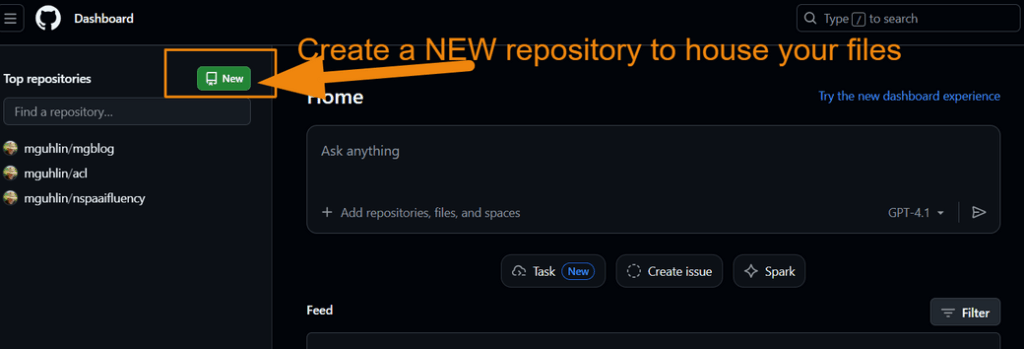
After creating an account using GitHub, you are ready to create a repository. Rather than mix this quiz with other projects, I created a new GitHub repository just for it. Something like:
funquiz
Then, I prompted ChatGPT to create the files I would need with a simple prompt:
I want to turn this personality quiz into a github page that people can fill out online, then get the result right then and there. How would that work?
It then offered a step-by-step for me to follow, and provided the required files (list appears below).
Did You Know?
In part three of this series, you will modify that prompt to get a version that saves the results into a Google Sheet. For now, this is a simple process to put the quiz online.
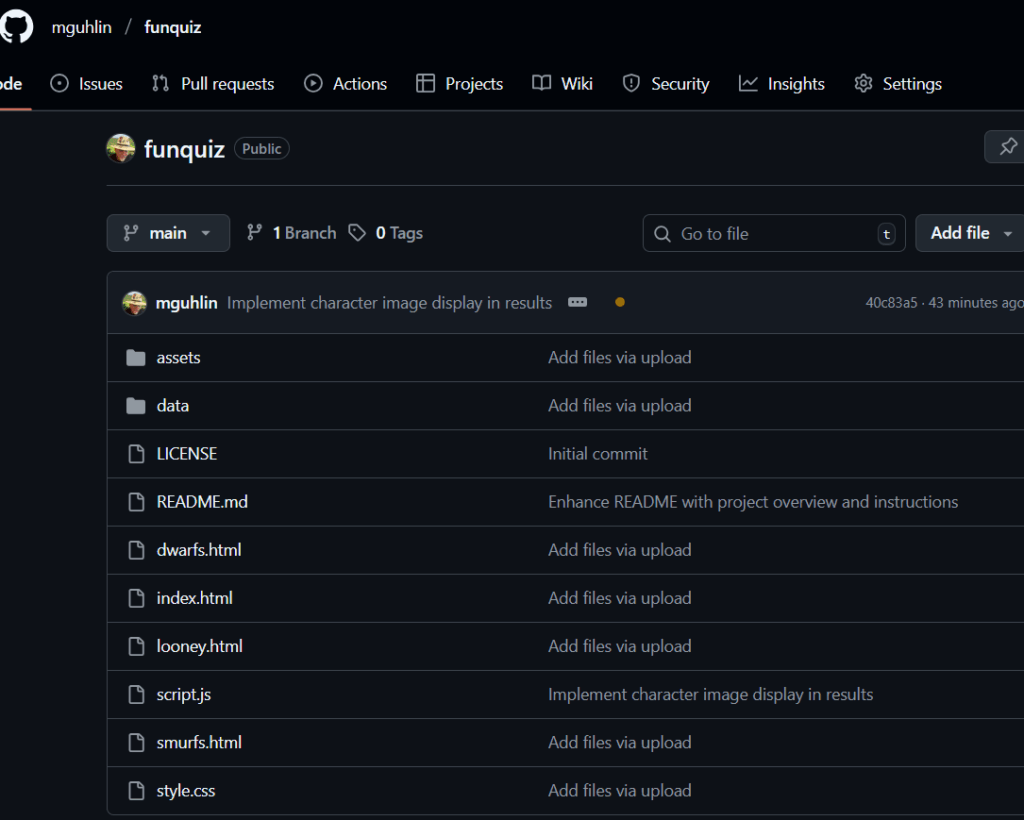
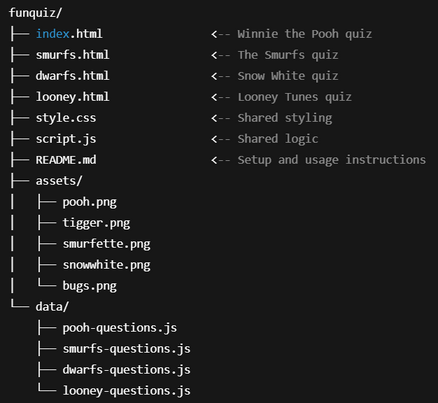
With my new repository, funquiz, you will see the following:
As you can see, this image offers a folder structure for placement of files. I did not include the assets (I’ll do that in part three). Or, to be more exact, I included them but they did not work. I will ask ChatGPT to fix that in the final version.
You can prompt ChatGPT to do the following prompt, which appears below:
Begin prompt
Create a complete GitHub Pages project for "Fun Personality Quizzes for Educators" called `funquiz`.
It should include:
- One HTML page per quiz (Pooh, Smurfs, Dwarfs, Looney Tunes)
- Shared CSS for layout and styling
- Shared JS logic for quiz progression and results
- One question set per quiz in separate JS files under `/data/`
- A dropdown menu to choose a quiz from any page
- An `/assets/` folder with character images or placeholders
- A README.md file explaining how to deploy and customize
Package it all as a downloadable ZIP I can use or upload to GitHub Pages.
End Prompt
Now the quiz exists as a small website folder, ready to publish. Before putting it into the GitHub repository, you can test it on your device. I created a folder to house these files, then uploaded (put) them into the GitHub repository once they had the look I wanted.
Step 3: Turn on GitHub Pages
In the repository:
Go to Settings.
Scroll to Pages (sometimes under “Code and automation”).
Under Build and deployment, set:
Source: Deploy from a branch
Branch: main
Folder: / (root)
4. Save the settings.
GitHub will build the site and generate a public URL, usually in this format:
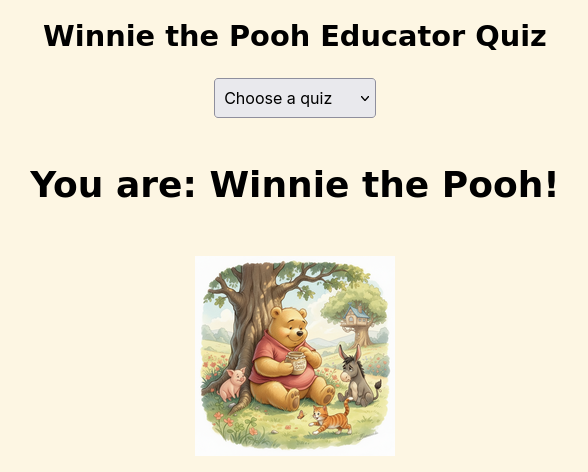
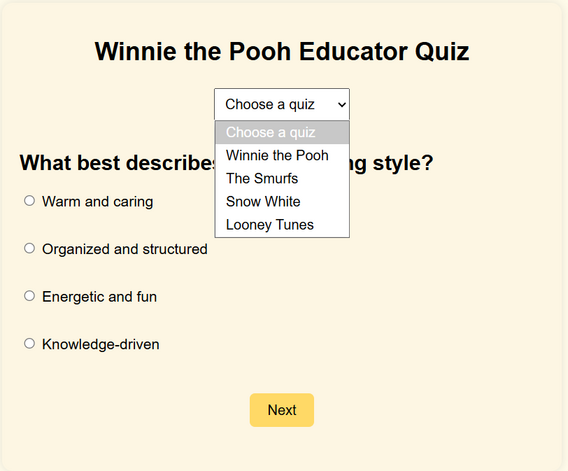
As you can see from the screenshot below, I’m able to pick the quiz I want users to see. I can also upload images so that each quiz has its own custom image. I’ll save that for the final version in part three of this series.
Step 4: Test the Live Quiz
Next, I opened the URL in a browser:
Did the title display correctly?
Did the image load?
Were instructions clear for educators?
If interactive, did clicking answers produce a final result?
Any changes needed went back into index.html or one of the other files. You can watch a short video of the steps I followed below:
Step 5: Share, Embed, and Extend
For the final step, I’m ready to share this with colleagues as a link that will go in a blog post (like this one), or use it in a future workshop. In part three of this series, I will add images, instructions, and save the results of the quiz to a Google Sheet.
The big benefit of all this is that we not only end up with a fun personality quiz, but also, have a process for vibe coding our way from a custom GPT to a website hosted for free online. Of course, GitHub Pages may be blocked by your school district, but that’s another blog entry.
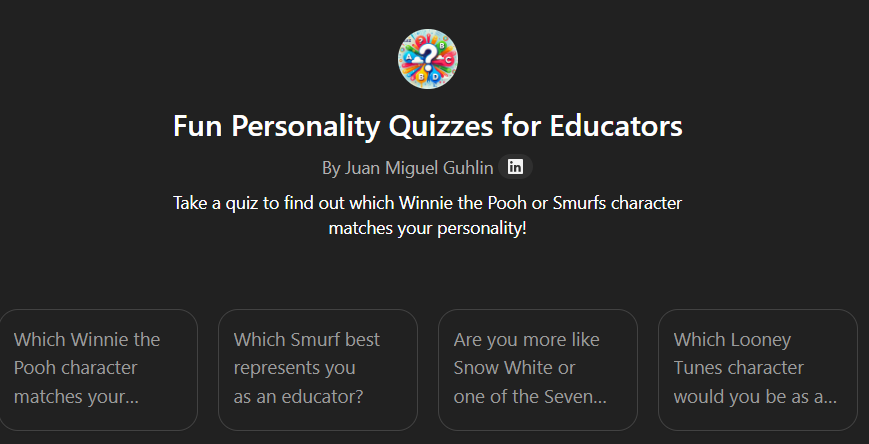
Are you looking for something lighter than a rubric or pre/post test, but still useful in PD sessions? Perhaps you want to vibe code your way to a standalone icebreaker personality quiz you can use with your students? That’s how I started. I wanted a fun, low-stakes icebreaker, a way for educators to reflect on their teaching style. Of course, I also wanted to test out another vibe coding solution, using Gen AI to develop a website, interactive personality quiz. In this two part blog entry, I’ll share how to build a custom GPT and then how to turn it into a standalone website. You might start with a personality quiz, then graduate to an online entry/exit ticket or icebreaker.
In this part, we’ll explore first how to create a custom GPT. Then, in part two, we’ll turn it into an interactive webpage you can host for free on GitHub. Finally, in part three, I’ll share how you can save the data from the interactive webpage to Google Sheets.
Creating an Engaging, Fun Personality Quiz
One of my favorite personality quizzes online is, “Which character are you?” You have probably taken a few of these on Facebook. What bothers me about those quizzes is the collection of personal data. A question in my mind was, “How could I design a privacy-safe, fun personality quiz for teachers?”
Winnie the Pooh seemed the best place to start. I love the characters of the 100-acre wood, and my family often identifies with Pooh and characters. Are you a Tigger or an Eeyore? Maybe you are Owl or Roo?
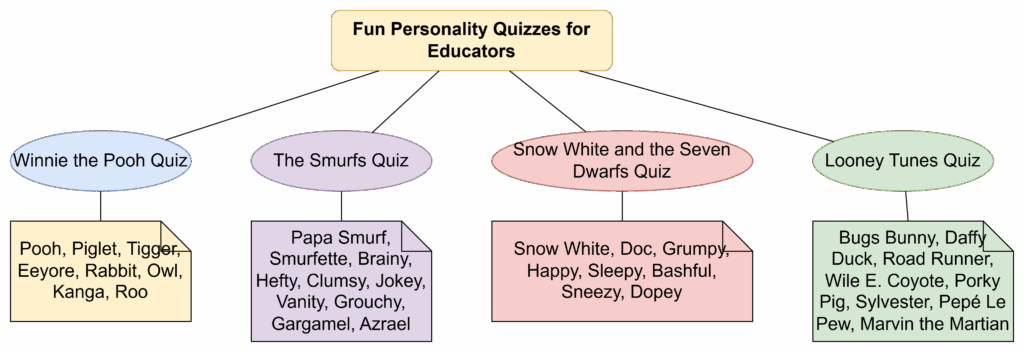
By popular demand from my work colleagues, I also wanted the quiz to sort educators into characters they were familiar with. So, in addition to Winnie the Pooh, they wanted:
The Smurfs
Snow White and the Seven Dwarfs
Looney Tunes
Each quiz would end with a playful answer: “You’re Tigger as a teacher,” or “You’re Brainy Smurf in the classroom.” The results included a short description of what that character is like as a teacher.
Starting with the Problem, Not the Tool
While I wish I could say I began with the end in mind, I had only a vague idea. I started a conversation with ChatGPT and the adjustments came over time. After working with colleagues, I had to add different universes (e.g. Smurfs, Looney Tunes) because I had different colleagues ask, “Could you please make an assessment for Looney Tunes or Smurfs, etc.?” The first one I started with included Winnie the Pooh characters. At the end, I ended up with several additional considerations:
Each quiz uses a single universe (Pooh, Smurfs, Snow White, or Looney Tunes).
Each quiz has exactly five multiple-choice questions.
Questions appear one at a time.
The quiz waits for the user’s answer before moving on.
At the end, the GPT assigns one character based on the most frequent trait pattern.
The result explains what kind of teacher that character would be.
Again, these developed over time via an interactive conversation with ChatGPT. Then, I asked ChatGPT to give me the custom instructions for the GPT. At that point, I had something to work with.
Want to try this out on your own? If you have a paid account for an AI chatbot (such as BoodleBox Unlimited, ChatGPT Plus/Teams/Education/Enterprise, Google Gemini Gem, Claude Project/Artifact), you can use the custom instructions in this Google Doc to get started. Simply save the instructions as a text file or markdown content with a filename extension of TXT. The filename and extension would be instructions.txt.
Designing the Quiz Flow with ChatGPT
Next, I focused on behavior, not characters. I asked ChatGPT to sketch the flow of a single quiz from start to finish. The prompt looked something like this:
Help me design a personality quiz flow for educators.
Five questions, multiple choice.
Ask questions one at a time.
Wait for an answer before showing the next question.
At the end, analyze answers and assign a single character type.
Make it easy to convert into Custom GPT instructions later.
ChatGPT responded with a simple sequence:
Greet the user and explain the quiz theme.
Ask Question 1 with answer options A–D.
Wait for an answer.
Record the trait associated with that option.
Repeat for Questions 2–5.
Tally which trait pattern appears most.
Map that pattern to a character.
Present the result with a short, teacher-focused description.
This became the framework for every quiz, no matter the universe.
Building the Character Library
As I mentioned earlier, some of my colleagues wanted to know which Smurf or Looney Tunes character they would be. The chatbot provided the descriptions of each character. Of course, the magic is that this would happen no matter what universe they are in:
Winnie the Pooh: Kind, gentle, loyal. As a teacher: Warm, welcoming, always encouraging.
Piglet: Timid, anxious, brave when it counts. As a teacher: Patient, supportive, nurturing confidence.
Tigger: Energetic, optimistic, adventurous. As a teacher: Fun, engaging, brings excitement to learning.
Rabbit: Organized, responsible, a bit fussy. As a teacher: Structured, caring, focused on progress.
I repeated the process for:
The Smurfs (Papa Smurf, Smurfette, Brainy, Hefty, etc.)
Snow White and the Seven Dwarfs (Snow White, Doc, Grumpy, Happy, etc.)
Looney Tunes (Bugs, Daffy, Road Runner, Wile E. Coyote, etc.)
Each question’s options pointed to the traits of one or more characters. At the end of five questions, the most frequently tapped trait pattern determined the result. Describing this takes longer than the actual amount of time spent asking the Gen AI chatbot to do this.
Turning the Model into Custom GPT Instructions
Once the Project worked well, I asked it to give me the custom instructions (a.k.a. system prompt) for the Custom GPT.
Take our quiz flow and character descriptions and turn them into Custom GPT instructions.
The GPT should offer a menu of quiz themes (Pooh, Smurfs, Snow White, Looney Tunes).
Once the user chooses one, it should explain the quiz and start with Question 1.
It must not skip ahead. Wait for each answer.
After five questions, it should assign a character and explain what kind of teacher that character would be.
Always keep the tone warm and educator-friendly.
Display this image at the start:.
Again, with some interactive back-and-forth with the chatbot, ChatGPT generated a set of “rules.” Those rules included:
How to greet users
How to present the image
How to guide quiz selection
How to enforce the one-question-at-a-time rule
How to tally responses and deliver a result
This became the backbone of my Custom GPT, ensuring a reliable response each time. You can see the custom instructions here that I relied on.
Testing, Tuning, and Making It Teacher-Friendly
The last step was trial and error. I found volunteers to run through the various iterations and it turned out to be a wild success. People love fun personality quizzes. As I tested it, I saw different ways to improve it, such as:
Simplifying question wording
Balancing answer choices
Softening language for more hesitant audiences
Ensuring the final descriptions felt affirming, not judgmental
At the end, I had a Custom GPT that educators could enjoy in a PD session, department meeting, or just for fun. The quiz is not about labels. It is about language for talking about how we show up in the classroom. It also served as a way to introduce people unfamiliar with Gen AI to a custom GPT.
Pondering Next Steps, an Interactive Webpage
The next step became obvious after I tried it with others who lacked a ChatGPT account. How could I move this beyond the OpenAI Custom GPT space? Doing so would allow anyone to take the personality quiz via a simple link, no ChatGPT account required. What’s more, I’d be able to create similar assessments that could avoid OpenAI’s strictures of adult learners only. In part two of AI Maker Magic, you will see how to use vibe coding to turn this quiz into an interactive webpage.
Ever played a game and thought, “This is cool, but I wish I could add a secret level” or “What if the spaceship had rainbow lasers?” That feeling, that creative spark, is called a “vibe.” Your students can use that vibe to become game creators with the help of AI.
Every teacher has a “Guardian of Memory,” a moment that sparked their passion. For me, it was a 1980s text-based Star Trek game I wrote about in part one of this blog entry. That nostalgic spark led to an adventure in modifying classic code with modern AI. Now, you can take your students on a journey.
The lesson plan below offers students an opportunity to revise simple, game code. Students can use this to problem-solve, collaborate, and create in a lesson supercharged with evidence-based instructional strategies. This lesson will integrate several high-impact strategies to foster deep and transfer-level learning.
Vibe Coding is an approach that puts creativity and fun first. Instead of getting stuck on complicated rules, students start with their cool ideas and use an AI partner to bring them to life. This lesson transforms a classic coding activity into an exciting adventure in digital creation.
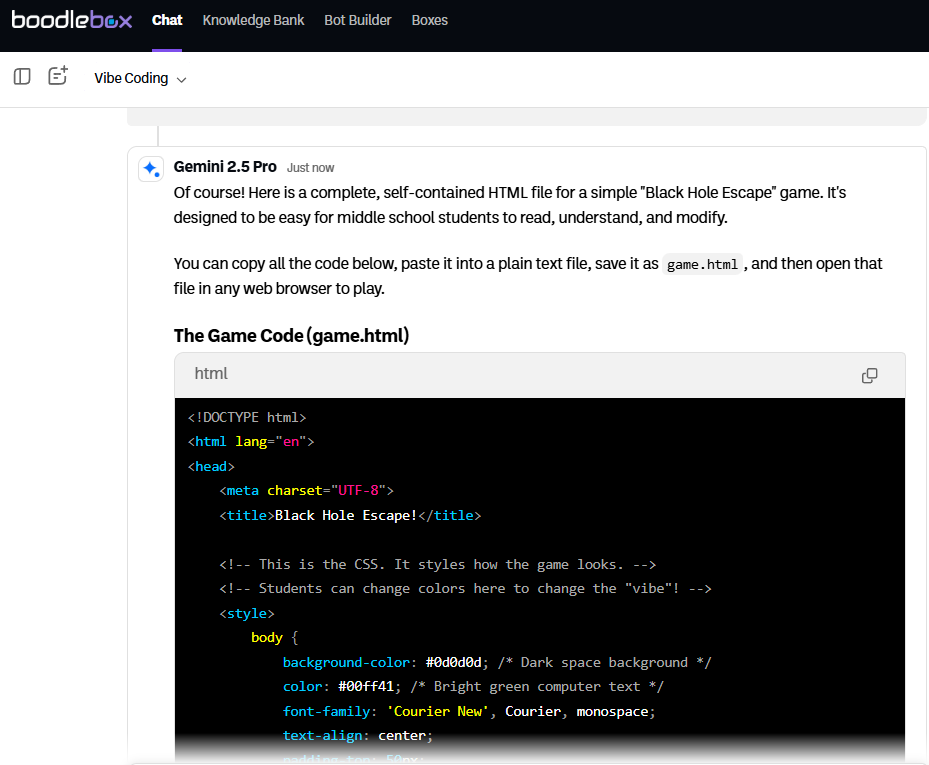
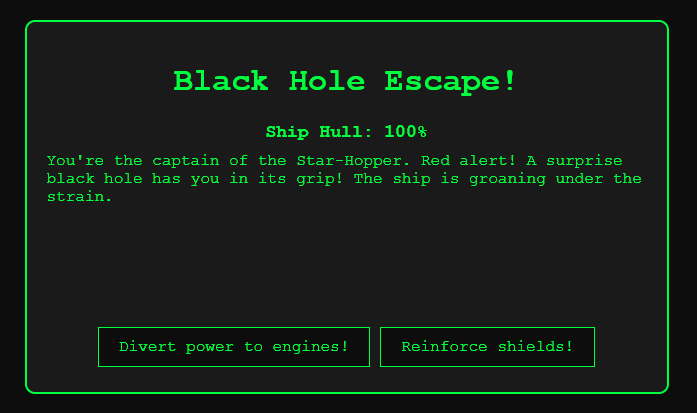
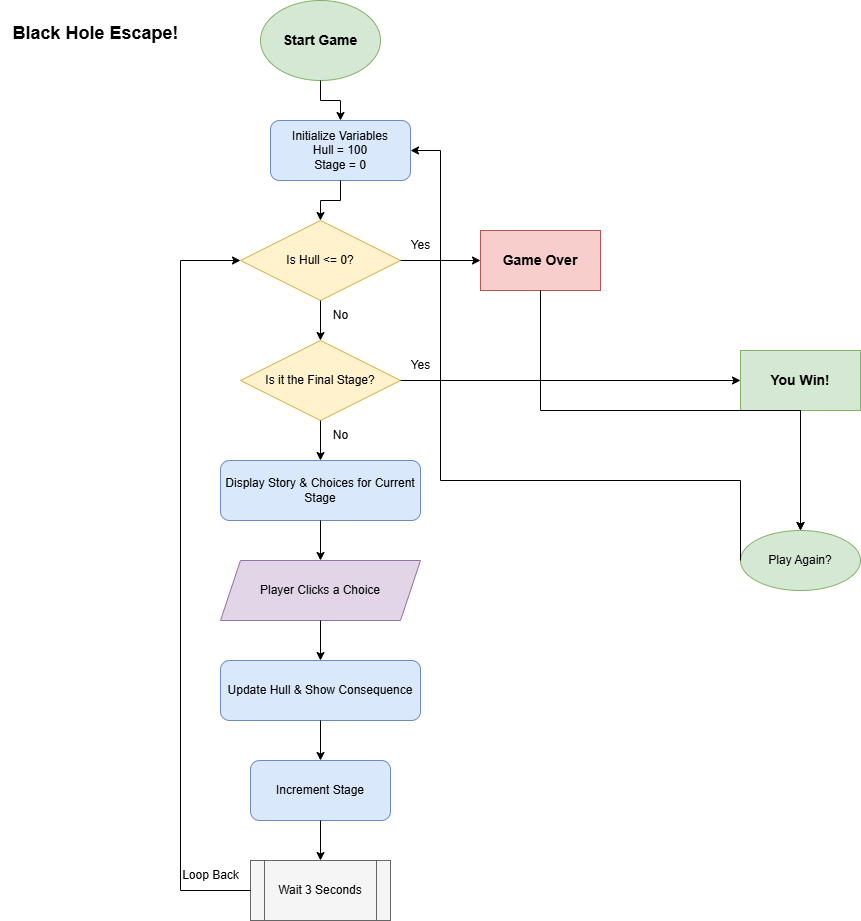
A working example of a vibe coded game created in BoodleBox
The Vibe Coding Quest: A Lesson Plan
This lesson guides students to put together a simple game. They turn their creative vibes into real, working code. It’s built on evidence-based teaching strategies to make learning stick.
Subject: Digital Creation, Tech, Problem-Solving
Grade Level: 6-8
The Goal: Students will use their creativity and an AI partner to modify a simple game, learning coding concepts along the way.
Step 1: Find Your Vibe (Brainstorming Fun)
Before writing a single line of code, you will need a framework or idea to start with. Start off with a class discussion using the PRISM framework to get the creative juices flowing.
Patterns: “What cool features do you see over and over in your favorite games?”
Reasoning: “Why do you think those features make a game so fun?”
Ideas: “If you could mash up two different games, what would you create?”
Situation: “How are games today different from old-school games?”
Methods: “How could we test if a new feature makes a game better?”
This isn’t just talk. The goal is to activate students’ Prior Knowledge (Effect Size: 0.93) and make the project relevant to them. I don’t know about you, but I have a few ideas about games I have played, from ASCII arts games to first person adventures.
Example of Vibe Coding Prompt: “You are a spaceship captain who has just returned from a journey near a black hole. Explain what you saw and what you learned to a group of middle school space cadets. Use the attached article for your scientific facts, but tell it as an exciting adventure story.”
Step 2: Vibe with the AI (Creative Collaboration)
Now it’s time to bring in the AI sidekick! Students will work with a chatbot to turn their vibe into code.
Activity: Model how to “talk” to the AI. Instead of just saying “make a game,” show them how to be specific: “Hey AI, here is my game’s code. Can you help me add a new enemy that drops extra points when you beat it?” Maybe include a persona approach, taking academic content or an idea and putting it in the form of a story. You can have students craft their vibe coding prompts in a shared Google Doc or word processor.
Check the AI’s Vibe with SIFT: Since no AI is perfect, model the SIFT Method for students to think critically about the AI’s suggestions:
Stop: Does this code feel right? Is it what I asked for?
Investigate: Look at the code. Do I understand what the AI is trying to do?
Find: Are there other ways to do this? Let’s ask the AI for another option.
Trace: If I add this code, will it mess anything else up in the game?
Strategy: This whole process is a form of Problem-Solving Teaching (Effect Size: 0.68), where students learn by doing and tackling challenges in a supportive environment.
Step 3: Share the Vibe (Showcase and Feedback)
The best part of creating something cool is sharing it!
Activity: Host a “Game On!” gallery walk where students play each other’s modded games.
Strategy: Encourage students to give each other feedback. This use of Peer Feedback (Effect Size: 0.92) helps students learn from each other and see new possibilities.
Reflection: End the quest with a quick reflection. Ask: “What was the coolest part of your mod? What did you learn about working with an AI?” This builds Metacognitive Strategies (Effect Size: 0.69), helping students think about their own learning.
Vibe Coding is more than a lesson, it’s a new way to create with an expert assistant. Give it a try.
An Example: Black Hole Escape!
Here’s one created through simple prompting in BoodleBox Unlimited ($16 a month for educators; $20 a month for everyone else; read how to get started for free).
As a 13 year old connected to the world via a modem and electronic bulletin board services (BBSs), I found myself playing simple text-based games online. It was 1983, a year after the release from Super Star Trek game in 1982. The version I played was the 1978 text-only copy, which I stumbled upon over a 300 baud connection to a BBS. At the time, learning to program in BASIC was an inducement to purchase a computer. Yet, programming remained beyond me.
Many years later, I longed for the simplicity of those games. All the enhancements pictures, sound, and video failed to live up to the power of my imagination. When I fired a torpedo from my Enterprise at a Klingon, my imagination gave it power and direction. That’s why I started exploring the power of coding with AI. In this blog entry, I’ll share my trek into modding the Super Star Trek code I played so long ago online.You will be able to get a copy of the original codeas well as the“2025 Super Star Trek AI-modded version”. In part two, you will get a access to a sample lesson for middle and high school students, so keep an eye out for that.
Boldly Going In Search Of
An early trekker, I found myself wondering, “How could I get the Star Trek game I played as a high-schooler working at the command line on my GNU/Linux machine? Or, even, a Mac or Windows computer?” Doing this isn’t as hard as you might imagine. After a few minutes of searching with Perplexity.ai, I stumbled on Super Star Trek code. Now, I’ve tried to find it before, without success. The AI-powered search really made the difference for me.
Alas, I did not stumble upon these links until a long night after, where I gave Bolognesi’s code to ChatGPT and asked it for help. As such, while you can get a Windows version of Super Star Trek from Bolognesi, the version I prompted my way into has a few minor enhancements.
What You Will Need
To play the vibe coding version I modded with the assistance of two AI chatbots, you will need to install LUA, and perhaps, ConEMU terminal program. The former is a coding environment that Minetest (that Minecraft is similar to) relies upon.
Installing LUA isn’t as difficult as you might imagine. The steps are included at the end of this blog entry. Installing the ConEMU terminal program is straightforward as well.
But before you go doing that, a deeper exploration of Emanuele Bolognesi’s website reveals this tidbit:
If you are on Mac, it’s very easy, Perl is installed in all MacOS versions. Download the source code from GitHub page. Just save the file superstartrek.pl in a folder (eg. Desktop) then open the Mac Terminal. Once you are in, type cd ‘yourfolder’ (eg. cd Desktop), then launch the game with perl superstartrek.pl.
If you already have LUA installed, or you are willing to install it, you can run one of the two LUA versions in the same way (running lua superstartrek.lua).
If you are on Windows, same story, but in this case you will have to install either LUA or Perl, because they are not installed by default. Or you can download the ZIP file using the button above (which already includes LUA).
With that in mind, I downloaded Emanuele’s copy, but then replaced the LUA version of Super Star Trek that Emanuele had in his game folder with the AI-revised one. It works great, and as you can see through the screenshots, offers some more color and other modifications.
Limping On Impulse Power to The AI-Enhanced Version
To get the AI version, I took the LUA version, which I had found somewhere else before ending up at Emanuele’s site, and started an iterative process of revision. Since I am unable to code myself, I relied on vibe coding via Google Gemini at first, and then switched to ChatGPT. I spent most of the time interacting using natural language (e.g. “Add Romulans that can cloak to the game and have them pop up unexpectedly”) with the AI chatbot. Although Gemini did some of the work up front, ChatGPT did the majority of the work.
At the end of the process, ChatGPT ran into a problem it couldn’t fix. In the original game, the Short Range Scan (SRS) simply displays black, uninterrupted space except for stars (represented by an asterisk), ships (“K” for Klingon, “<*>” for the Enterprise), and an occasional starbase. My memory of the 1980s version included dots instead of blank space. The dots help you plot how many spaces you can travel on impulse power. ChatGPT Plus, despite it’s repeated efforts (over 10) couldn’t get past that. At that point, I decided to enlist the help of Gemini 2.5 Pro. It only took two revisions for Gemini to improve the code so that the dots appeared. It was truly vibe coding at its finest!
Some of the exchanges with ChatGPT appear below:
🧱 Structural Integrity: Fixing the Foundations
Early on, we encountered a critical Lua error:
"lua: sst1.lua:1609: 'end' expected (to close 'function' at line 1132) near <eof>"
ChatGPT responded with:
“This suggests that the original superstartrek.lua was already missing ends or had conditional logic blocks that weren’t closed properly… I’ll parse the full script with a real nesting counter, simulating Lua logic.”
Eventually, the codebase was restructured. The result involved closing dozens of unbalanced blocks and verifying syntax line-by-line.
🌌 Feature Overhaul: Romulans, Cloaking, MAP Scans
ChatGPT and I expanded the game by:
Adding Romulans as a second enemy type
Giving them cloaking mechanics
Making them visible (or not) in SRS and LRS scans
Letting them decloak mid-turn
ChatGPT described it this way:
“Romulans will appear as R on the quadrant map… with a 50% chance per turn to cloak. When cloaked, they are invisible to sensors and immune to fire.”
And it didn’t stop there:
“Romulan decloak suspense? Let’s do it. io.write("\a") os.execute("sleep 0.2") ×3 — it’s like the drama writes itself.”
“Try warping around and watching the galaxy evolve.”
Color application required escaping legacy logic:
“Somewhere in your code, there’s likely something like if O1 == 2 then C1 = '>!<'. That’s overriding our colored ‘B’. Let me exorcise that.”
Still, not all of these changes were successful or were rolled back throughout the vibe coding process. I can definitely see the value of planning the list of enhancements ahead of time, then using it as a checklist as changes are made.
💥 Torpedoes and Audio Drama
We added animated torpedo travel:
lua
CopyEdit
for step = 1, 8 do tx = tx + DX ty = ty + DY io.write("\27[33mo\27[0m flying to (" .. tx .. "," .. ty .. ")\n") sleep(0.1) end
And experimented (and failed) with sound:
“Try in PowerShell or WSL… or use a terminal emulator like ConEmu or VS Code.”
We eventually abandoned sound on Windows, as classic ASCII bell (\a) support proved too inconsistent:
“Let’s be honest — some bells just don’t ring.”
🧽 Bugs, Debugs, and Zombie ROMULAN LINES
One of the bugs that drove me crazy? The repeating ghost:
“You’re not alone. That’s definitely not what ‘fully exorcised’ looks like.”
It turned out the line was patched inside a loop, or so reported ChatGPT. As you can see, the natural language conversation with AI made revamping the code a collaborative journey full of humor. I did have a moment of unreality. Was I really joking back-n-forth with an AI as we worked on a project through over thirty iterations?
The AI Version Enhancements
You get some idea of the enhancements I tried to get the AI to accomplish. It failed but the successes underscore the power of AI-powered coding. The main enhancements I dropped in included the following:
Color short range/long range scans for ships
A MAP command that provides a galactic map showing the results of ALL long range scans, leaving unexplored areas filled with asterisks.
A working game, even after modifications.
These seem like minor enhancements but they improved game play and more closely resembled the game I played in my early teens via an electronic bulletin board.
In part two of this blog entry, you will get access to some ideas for replicating this with your middle and/or high school students. You will get a lesson plan and link to some online game code you can try modding with AI, as well as a process for facilitating student AI use under your control.
ChatGPT version of Star Trek: TOS The Guardian at the City at the Edge of Forever
Guardian of Memory
This collaboration was a creative coding adventure. ChatGPT, and Gemini at the end, not only fixed syntax and logic, but provided commentary, refactoring strategies, historical Star Trek flavor, and endless patience. I know some purists may say, as others said about learning HTML vs using a GUI HTML editor, I needed to learn to code in LUA. But the truth is, I didn’t want to learn LUA, no matter how rewarding. Instead, I wanted to a game that would time-warp me to a moment in my memory. Like the fabled episode, The City on the Edge of Forever, I needed transport to a comforting past. Emanuele and AI facilitated that journey.
With their help, I passed into what was and back again. Not a bad feat for an evening’s work.
Installing LUA for Windows
Want to install LUA on Windows? Here are the directions that worked for me. However, you won’t need it if we follow in Emanuele’s footsteps (which I did).
While it’s gotten easier to engage in “vibe coding,” many wonder at whether educators should take advantage of it. After all, vibe coding is the popular term for creating code without knowing how to code. Students can learn valuable skills designing and assessing the flaws of their design. This happens even if they don’t know how to write a line of code.
Vibe coding may kindle interest in other aspects of game design or programming projects often denied to those who can’t write a line of code. “Can my students really build their own apps?” The answer may surprise you. Vibes DIY, a collaborative app builder now available, may shift your thinking on what is possible with student creation in the digital space. Let’s take a look at this app development studio.
What is Vibes DIY?
An AI-powered app builder that lets you create custom applications with your preferred style and functionality. No extensive coding knowledge required. (source). Learn more about it from a developer, J. Chris Anderson, via this podcast.
What Makes Vibes DIY Different?
Vibes DIY is an AI-powered platform that makes app development simpler. In straightforward fashion, students can:
Build functional apps without coding knowledge
Collaborate with classmates in real-time
Share their creations with a simple link
Remix existing apps to create something entirely new
Some may see this collaboration at the same level as Google Docs in regard to app development.
The Features That Matter Most
Let’s take a look at the Vibes DIY features. They include real-time collaboration, a template library, and allow for remixing content from others. There are also many other aspects of Vibes DIY that may catch your attention.
Real-Time Collaboration. Vibes DIY eliminates the bottleneck of group projects where only one student can work on the project at a time (reminds me of the old days, having to share the mouse or keyboard in the one computer classroom). Students are able to work together at the same time, and see the information appear on screen.
Template Library. Vibes DIY’s template library offers pre-built structures for games, utilities, and interactive experiences. Students select a foundation and customize from there.
The Remix Revolution. Students can take any existing app on the platform and make it their own. Students can remix games, quizzes, and remix those with their content.
One-Click Sharing. Students generate a link and their app is live. This can enable rapid feedback from others.
Now that you know about the features, what are some ways you could support students engaging in vibe coding with Vibes DIY?
Practical Applications by Grade Level and Content Area
Below, you will find some suggestions for various types of vibe coding ideas. Even if you don’t use Vibes DIY, you might find these ideas helpful with other tools that are incorporating vibe coding.
Elementary Adventures (K-5)
Young learners enjoy visual creation. They might construct:
Interactive alphabet games with custom illustrations
Simple calculators for practicing math facts
Digital storybooks with branching paths
Virtual pet apps that teach responsibility
Give It a Try: Start with an “All About Me” app where students make interactive profiles to share with the class.
Middle School Momentum (6-8)
Pre-teens ready for more complexity can tackle:
Study guide apps for upcoming tests
School event countdown timers
Peer tutoring matching systems
Interactive science simulations
Give It a Try: Challenge students to create apps that solve real problems in your school community. Tie it into a high-effect size instructional strategy like Service Learning (d=0.53).
High School Innovation (9-12)
Teenagers can design tools such as:
College planning tools
Mental health check-in apps
Community service hour trackers
Interactive portfolio showcases
Give It a Try: Connect app creation to career exploration. This makes it easier for students to engineer prototype solutions for fields they’re considering.
Content Area Connections
Here are some content areas applications you may useful. These ideas may work with other solutions aside from Vibes DIY (such as Claude Artifacts).
English Language Arts
Interactive book reports with character profiles
Grammar practice games with immediate feedback
Poetry generators that follow specific forms
Vocabulary builders with context clues
Mathematics
Graphing calculators for visualizing equations
Probability simulators for statistics lessons
Geometry shape manipulators
Real-world problem solvers
Science
Periodic table explorers with element details
Ecosystem simulators showing food chains
Weather tracking apps with data visualization
Lab safety quiz apps
Social Studies
Historical timeline navigators
Geography map quizzes
Government structure explorers
Current events aggregators
Getting Started
To get started, try these four steps. Remember, you want to start exploring then move up to sharing creations.
1- Exploration. Start simple. Have everyone create the same basic app following your lead. Maybe it’s a classroom birthday tracker or a homework reminder. 2- Collaboration. Pair students up. Assign each team a different app type from the templates. Scaffold feature design, task selection and completion, and collaborative problem-solving.
Innovation. Turn them loose. Set parameters (must be school-appropriate, should solve a problem, needs three interactive features) but let creativity lead.
Showcase. Host an “App Fair” where students demonstrate their creations. Invite other classes, administrators, even parents. Celebrate the journey, not just the destination.
To get going, try making your own app at vibes.diy. Plan a project with your students and share your class collaboration with others.
Then, encourage students to work in small groups to do the same. Encourage students to create a process portfolio, engage in peer review circles, or discuss features or track version progress. Some specific details include:
Process Portfolio. Students document their journey with screenshots and reflections. What worked? What didn’t? What would they do differently?
Peer Review Circles. Groups test each other’s apps and provide structured feedback. Teach constructive criticism through authentic practice.
Feature Justification. Students explain why they included specific elements. This shows thinking processes more than the final product ever could. What’s more, you are showing them how to document the process they are following a la make thinking visible.
Version Tracking. Compare version 1.0 to version 2.0. What improvements did students make based on feedback?
Bonus: The SIFT Check for Student Apps
You can also mix in a bit of critical thinking with a twist. Use Mike Caufield‘s The SIFT Method to get students thinking in a critical way.
Stop – What’s the app’s purpose? Who’s the intended user? Any emotional engagement?
Investigate – Does it work as advertised? Are there bugs or broken features?
Find – What similar apps exist? How does this one compare?
Trace – Can you follow the creator’s thought process? Is the flow logical?
Vibes DIY is only the beginning of the types of tools all of us will have access to. Some may see it as a “creativity amplifier.” As a non-coder myself, I find these tools exciting. I am unlikely to learn how to code in the future. But these tools allow me to leverage other skills and knowledge to guide content creation. And, that is, literally empowering. I’ll be sharing some specific examples of how I have relied on vibe coding in future blog entries.