Discover tips, tools, and strategies for using Google in education. Explore resources to enhance teaching, learning, and productivity.
For those educators using the Chrome browser, life is good. Add-ons and extensions abound that allow you to individualize the web experience however you want, for both yourself and your students. That makes Chrome a powerful tool in any teacher’s tool belt.
To make sure you have the best tools available, here are some Chrome goodies that you may want to add.
Picsho – Create photo galleries for you and your students to use from the millions of photos shared on social media each day. You can search by social network and by hashtag to find exactly what you need and remove any questionable images you don’t want.
Usecubes – Create pixel art from your imagination and share them with the world. You can even 3D print them, if you want.
Goo Create – Take Usecubes up a notch and use this artist-friendly HTML5 tool for creating interactive 3D images.
Rizzoma Topics – Help engage all of your students in the discussion and learning with this great extension. You can post polls, as well as documents and images that students can comment on.
Animaker – Animated Video Maker – This extension is lots of fun as students create animated videos by dragging and dropping characters.
To really ramp up your Chrome game, consider taking the online Chromebook Certification (Level 1) course. The course emphasizes the use of the Chromebook in the classroom and includes both Chrome and Google Apps tools.
Itch – The Scratch Teacher Dashboard – If you are having your students program using the free language Scratch, then they will love this extension. It provides tutorial videos that play as students try what is being shown in Scratch.
MindMup – This is an excellent mind mapping tool that integrates with Google Drive or Dropbox. It also includes real-time collaboration. Another excellent brainstorming tool is Coggle. It includes many of the same features.
Piktochart – Create amazing infographics that really tell the story with this easy-to-use extension. Some free templates are provided (more than 300 with the Pro version) and you can publish the completed work to social media or download it as a graphic.
Robust Audio Recorder – Capture up to three hours worth of audio stories, vocabulary practice, reading, interviews, and more with this simple extension.
Padlet – The web version comes to Chrome as a powerful extension, combining visual bookmarking, videos, notes, images, and more in a collaborative environment.
If these aren’t enough extensions for you, join us the first Thursday of each month for Get Your Google On webinars (free to members) and discover more. Or check out the tried and tested Chrome apps that TCEA recommends in this extensive list (also free to members).


 conduct their research as they normally would. But as they collect information that they need, they are now able to highlight the data, drop it onto a “Candy card” with automatic site location and citation, and then organize the ideas into a “Storyline” to reveal connections and find answers. Candy cards can be dragged and dropped into different orders, which is fabulous for organizing the final draft, and the contents of each card are searchable. Once the research is complete, the Storyline can be exported as a text file with just one click.
 Information and quotes from any source can be Candyed, including websites, social media, videos, images, and more. When you’re ready to insert the Candy cards into a document, the original source comes with it, making citation simple, complete, and automatic. To help students throughout the project, a teacher can ask that the Storyline in digest format be emailed to her to look over. Candys can also be shared via email and social media and inserted into blog posts, which is great for student blogs.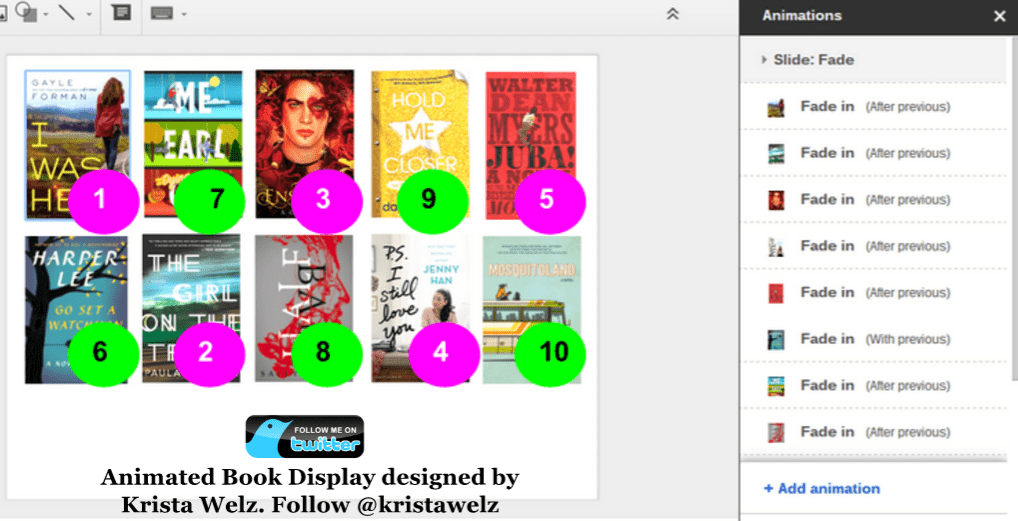
 Krista Welz (



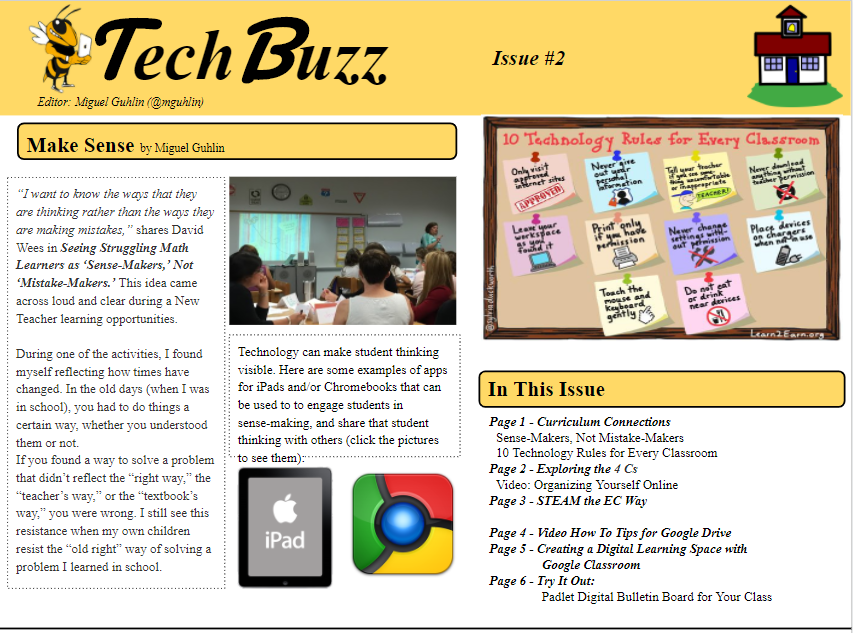

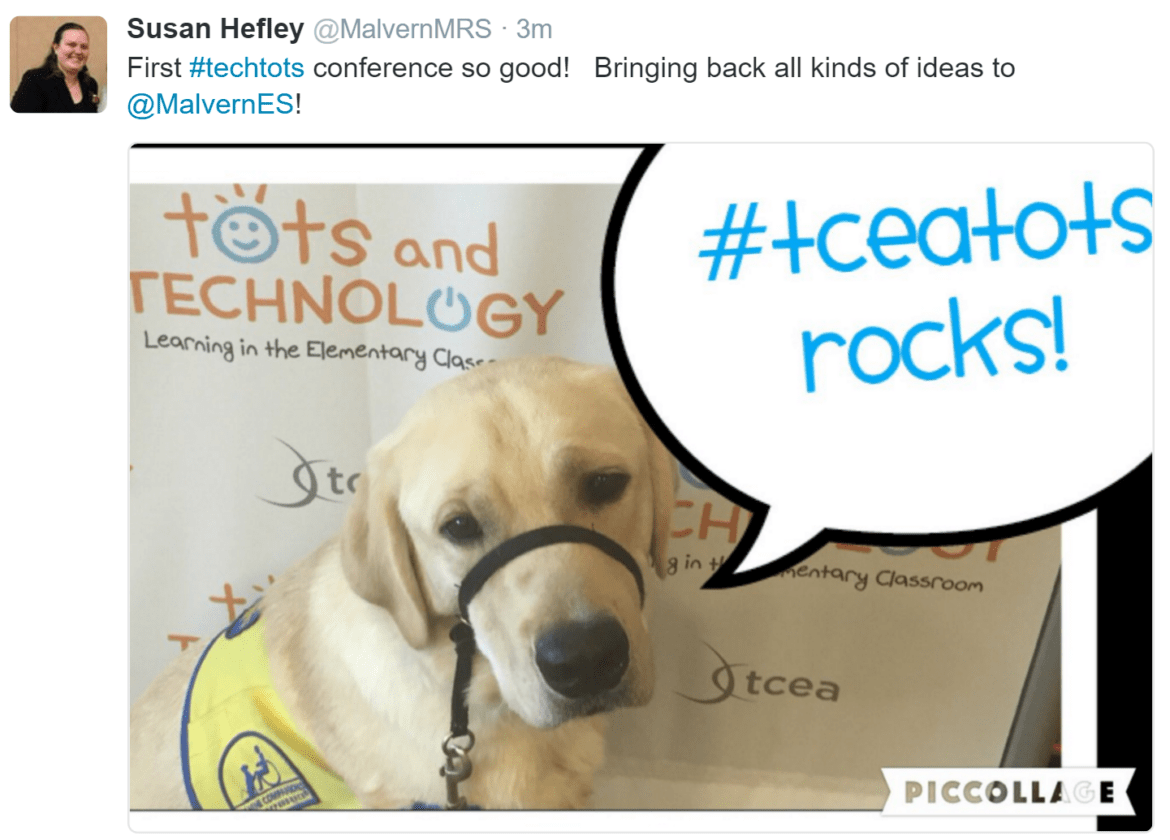
 Virtual FieldTrips and More with Sherrie Berry and Shelley Kozma (Lampasas ISD)
 Coding in the Language Arts Classroom with Kelly Hong
 Digital Learning Centers with Crystal Flores and Jeanine Freeman
 (
(