Discover tips, tools, and strategies for using Google in education. Explore resources to enhance teaching, learning, and productivity.

I’ve always loved learning about space. I remember as a kid seeing the first photos the Sojourner rover took on Mars. It was surreal to see real images of an alien landscape 33 million miles away. It made learning about the red planet so much more concrete.
We often talk about breaking down classroom walls and creating global experiences. But why limit learning to our little globe? Opportunities abound for students to experience our galaxy right from their classrooms. And they’ve come a long way since the mid-90s. We haven’t just upgraded our rovers and satellites; we’ve improved our ed tech as well. Today’s classroom space exploration has clear videos, opportunities for collaboration, and great resources! And these aren’t only powerful ideas for science class. You can use these across the curriculum.
Here are a few free resources to get students excited about exploring our universe and some ideas for how to use them.
With Google, the Sky Isn’t the Limit
Few people aren’t already on board with Google Earth. Satellite images that allow you to explore the far reaches of our globe with a touch of a button? I’m in. But turn the lens the other way and you get Google Sky , Google Moon, and Google Mars. These programs bring together tons of photos, both modern and historical. Students can search to find specific places or events or browse to see what they can discover. There’s also a Chrome experiment that lets you explore the billions of stars in our galaxy. You can zoom in to see our Sun or zoom way out to see the true enormity of our galaxy.
Lesson Ideas:
- Ask students to find a constellation and research its background in mythology. They could even write their own story of how the constellation got its origin.
- Provide news stories on recent NASA research and ask students to locate the stars or celestial bodies mentioned.
- Have students collaborate in groups to create scavenger hunts for their fellow students. They can do research, write descriptions, and even provide coordinates. Groups can race to see who can solve each other’s scavenger hunt first.
Virtual Field Trips
“Traveling to Pluto” falls squarely into the “not physically possible” category of potential field trips. But as a virtual field trip? There’s no end to what you can do!
- Here’s one exploring the International Space Station. It’s also available in 3D for a more immersive experience.
- Take your own journey across Mars with these videos from the Curiosity rover.
- This simulation lets you journey through the solar system and simulates the orbit of the different planets.
Lesson Ideas:
- Give students some leeway to explore on their own. Before the trip, ask them to come up with questions they have and list what they know about the place.
- Have students put together their own virtual field trip of a chosen planet, star, or space object. They can use simple video recording or presentation tools to share their field trip with the class.
Connecting with Astronauts
The life of an astronaut in space is endlessly fascinating. How do they do simple tasks like take a shower or make a bowl of soup in zero gravity? With video technology, these men and women don’t seem so far away. For a real treat, consider applying for a Skype chat with a working astronaut. It’s not a guarantee, but you can find the guidelines to apply with NASA here.
In the meantime, you don’t need an astronaut to come speak to get some of your burning questions answered. There are many videos online where astronauts on the International Space Station talk about what they do and what it’s like living in space.
Lesson Ideas:
- Crowdsource questions the class has about being an astronaut or space exploration. See if they can find the answers to their questions through online research. They can even make videos from the point of view of astronauts answering the questions.
- Have students write a story about what they think it would be like to live in space. They can share what they might do on a single day.
Don’t Let Gravity Keep You Down!
Literally, gravity holds us down here on Earth. But with a few online tools and some creativity, your students can soon be floating in space. From the physics of space flight to the history of astronomy and space exploration to the ripe atmosphere for storytelling, exploring space is the perfect way to create memorable, cross-curricular lessons for your students.


 “What could I create that would make this more helpful to viewers?” I asked in my early attempts at crafting an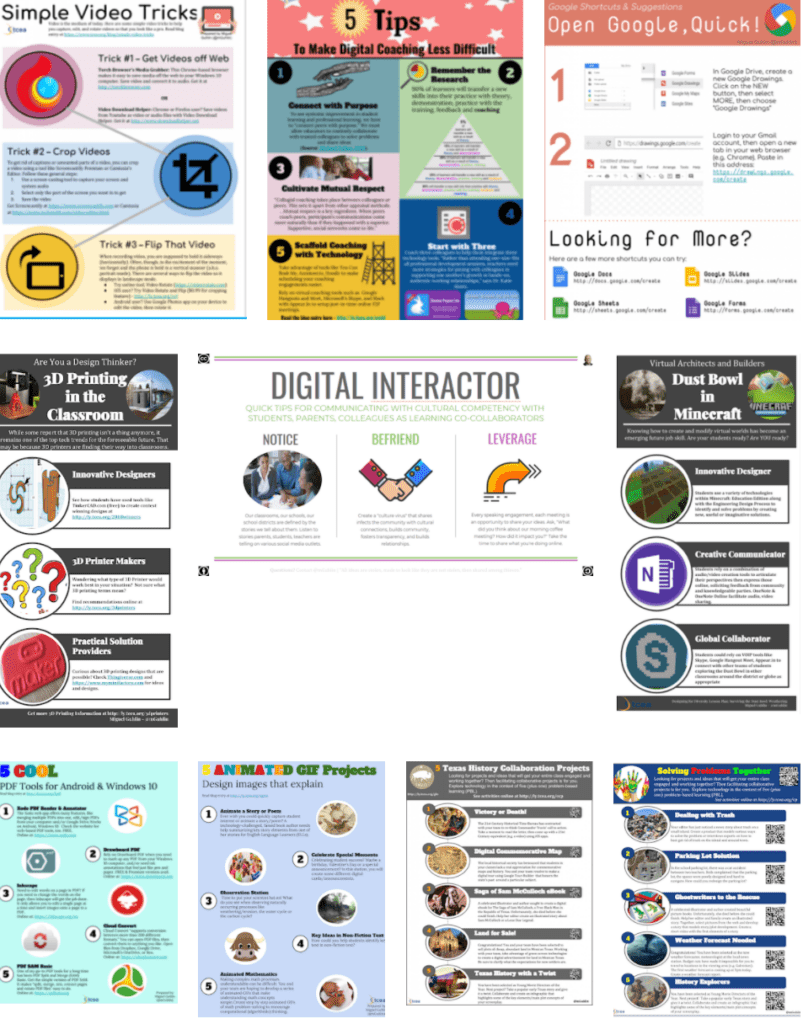

 Mix up learning for your students. Create engaging and relevant learning experiences for students with