
Discover resources and strategies for teaching core content areas. Explore tips, tools, and activities to enhance learning across all subjects.

There will be a rare total eclipse of the sun that is viewable by most of North America on August 21. While a solar eclipse happens about every 18 months, it is unusual for it to be seen by so much of the world. In fact, the table below shows the last time that an eclipse was seen in specific US cities:
| LOCATION | MOST RECENT TOTALITY |
| Anchorage | Feb. 4, 1943 |
| Atlanta | June 24, 1778 |
| Boston | Oct. 2, 1959 |
| Chicago | June 6, 1806 |
| Dallas | Oct. 23, 1623 |
| Denver | July 29, 1878 |
| Honolulu | Aug. 7, 1850 |
| Houston | Oct. 17, 1259 |
| Las Vegas | May 22, 1724 |
| Los Angeles | May 22, 1724 |
| Miami | May 13, 1752 |
| New Orleans | May 28, 1900 |
| New York | Jan. 24, 1925 |
| Phoenix | June 16, 1806 |
| St. Louis | July 7, 1442 |
| San Francisco | June 26, 1424 |
| Seattle | July 18, 1860 |
| Washington, DC | June 28, 1451 |
As you can see, it’s been a while for most of us! So that makes this total eclipse a big deal. Whether school is back in session or not, we should all think about how we can share this exciting event with our students. If it is the first day of school (and it will be for many students in Texas), think about kicking off the school year with an eclipse party. If school is not back yet, you can still schedule an event and invite the community to it. That’s a great way to build a sense of togetherness as school begins again. Or check out this list to see if another group is already hosting a viewing in your city.
Check out these videos for a good overview of the eclipse. This animation is just one minute, 40 seconds long while this one is a little bit longer and provides more information. You can also see a simulation of how much of the sun will be covered by the moon in your area here by just entering your location.
NASA has some great free resources for the event, including an Eclipse Party Kit and an interactive map . The kit provides downloadable flyers, posters, and ways to share your event via social media. Of course, they also have a bevy of AMAZING science resources to help all of us better understand what is happening during the eclipse. You can download their free Eclipse Education Kit, which has a guide that outlines safe activities to do. They’ve even got directions for building an eclipse viewer out of a cereal box. And they have lessons and experiments broken into elementary, middle, and high school levels.
Vernier is also providing some excellent online resources for the eclipse. They have tips for viewing the event and are selling glasses so that you can watch safely for just $16 for a class set of 40. And ISTE has a great blog with seven resources for teaching the solar eclipse. Finally, find some additional activities to use with this epic happening here.
Many local public libraries are holding eclipse parties and offering free eclipse glasses. You can use this website to find one near you. And you can download a free eclipse book from Bill Nye and the National Park Service here.
Finally, if for some reason you can’t watch the eclipse live, here are some sites that will be streaming it:
- NASA TV Livestream Megacast (includes video from space, high-altitude balloons, and aircraft)
- NASA EDGE telescope views (toggle between five views)
- Eclipse.Stream.Live (The Eclipse Ballooning Project, featuring footage captured by 100 high-altitude balloons from 55 teams of students around the country)
- If you have the Samsung Gear VR app, Google Daydream VR app, or CNN VR app, you can watch CNN VR’s livecast of the eclipse in VR
This once-in-a-lifetime event is something that we should definitely share with our students, our friends, and our neighbors. What will you do to celebrate?
This blog was updated with additional content on August 15, 2017.

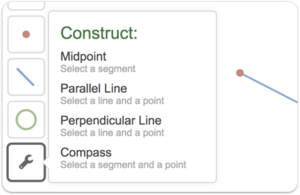 But now they’ve released a new tool specifically for geometry, and it’s just as amazing. Although not as fully featured as a website like
 Most free books are in the public domain, but that doesn’t mean that they are not relevant for our students. But that’s not the only place to find free books. Some parents and students may benefit from signing up for a free month with a particular service even if they don’t plan to extend their usage beyond the complimentary time.
 Many text-to-speech readers are available that can assist with ebooks. Your device and platform may determine which works best for you.
 Hot off the press, these updated lists can give you and your students some direction of what author to check out, the next series to explore, and possibly a new genre to try out.
 Making a book more enjoyable can easily be done by including some after-reading activities. Here are few to get you started. These are great to share with parents as well!
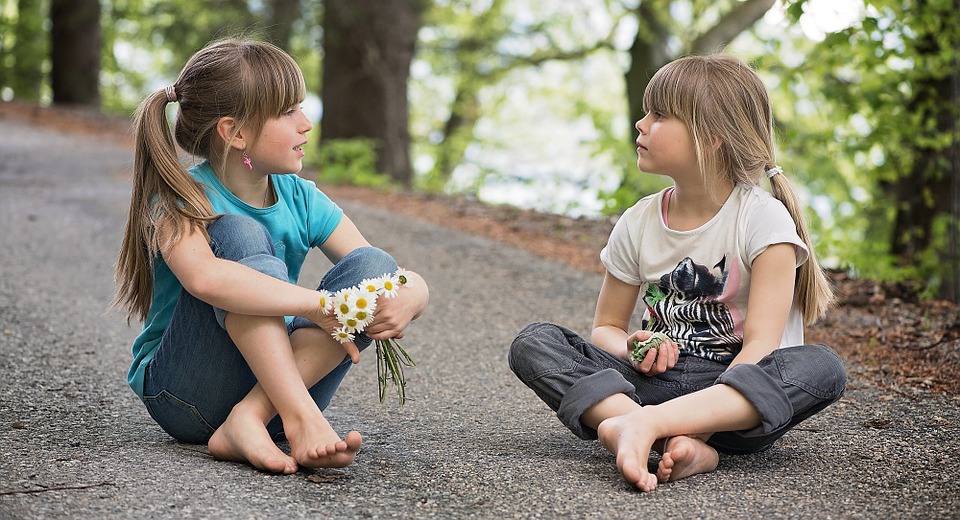
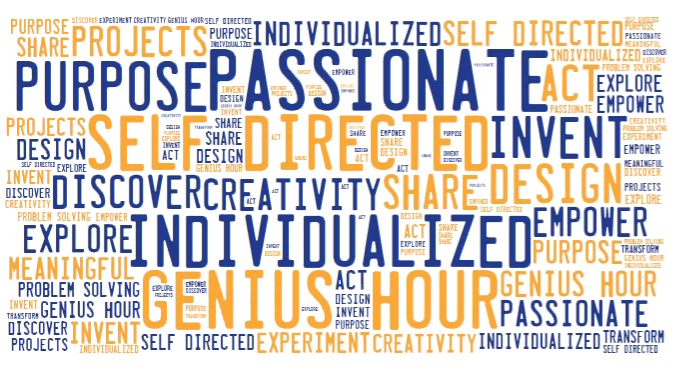
 There’s been a lot of discussion over the last year about implementing genius hour in the classroom. Genius hour is the strategy of giving time for students to do self-directed learning on interests that they are passionate about. Google regularly provides employees 20 percent of their work week that can be devoted to “passion projects,” believing that this will better engage the staff and make them more excited about all of their work. There is nothing magical about the “20 percent” number; it’s more important that you give students some time for open-ended learning in which they can pursue their own interests. Here are a few resources to help you get started integrating this educational trend into your classroom.
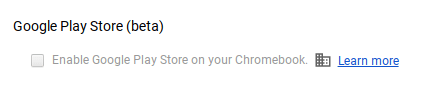 that the option to access the Google Play Store on your Chromebook is enabled in the dashboard. You can check your Chromebook by going to Settings. Scroll down until you see the Google Play Store (beta) section. If the option is greyed out, then you’ll need to bake a batch of cookies to take to the domain administrator and ask if they can enable the feature. (Giving cookies increases the chances of having this feature enabled by 64 percent.) If you log in with your personal Google account on the Chromebook, you’ll notice that it is already enabled. But you do NOT want to use your personal account with your students and other teachers. For safety reasons, you always want to use your district account, even if that means bribing the domain administrator or waiting a few days for it to be enabled.
 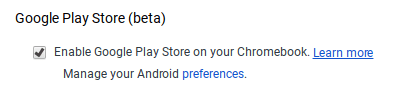 Once the option to enable is made available, you’ll be able to enable it in Settings and manage Android preferences (similar to if you were setting Android preferences on an Android phone or tablet).
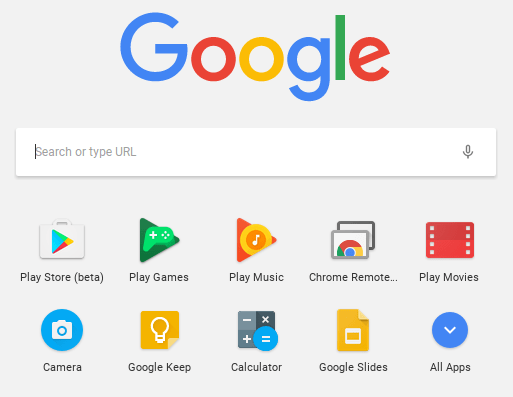 Yippee! You have it enabled. So where it it? Click on the Launcher icon which, by default, is the icon on the bottom left on the shelf. You will now see the Play Store (beta) icon. This beta Play Store is currently a stipped down version of the Play Store you would see if you accessed it through the browser. And yes, you will need to use the beta Play Store to install Android apps. When accessing the store via the browser, your Chromebook will not be an option in the dropdown list of compatible devices. Once you click on the beta store, you will recognize the various categories to help you narrow down what type of app you are looking for. If the developers have not completely finished updating the app in question, it may be available as a beta version. When I spot checked several of the Android apps I have on my phone, almost all were available and ready in the Play Store. You might even find that some app developers have made their product available as a Chrome app (that you install via the Web Store) and an Android app (that you install via the beta Play Store). Either way, once installed, they will appear in your launcher window.
 Autodesk SketchBook – Whether it is illustrating, diagramming, or sketchnoting, you’ll find this to be a simple app to use. When done, save the image to your Chromebook.
 Trello – More than just a to-do list app, Trello can help you keep track of projects. You can work alone or collaboratively with classmates to keep track of project-based learning activities.
 Trading Cards – This isn’t your traditional trading card maker. Templates provided include fictional person, real person, fictional place, real place, object, event, and vocabulary. Once you enter information on the front and back of the card, you can share it as a photo to your photo gallery.
 Pic Collage – Share your message with pictures! Pic Collage lets you start by selecting your photos and then adding them to a grid with templates (start with a themed background) or freestyle (begin with a blank slate and add to it). You can also easily add text and search for photos on the internet to add to your collage.
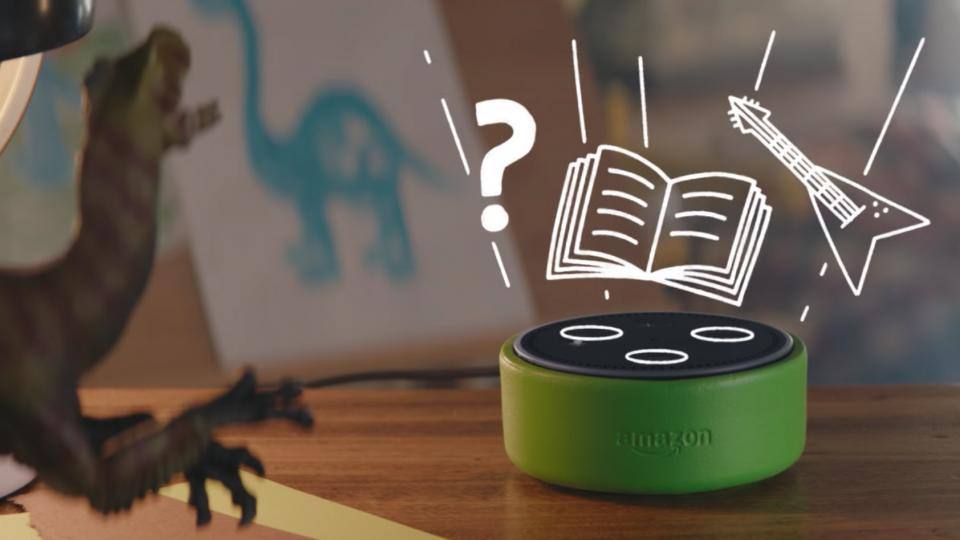 On April 25, Amazon announced a new Alexa designed just for children.