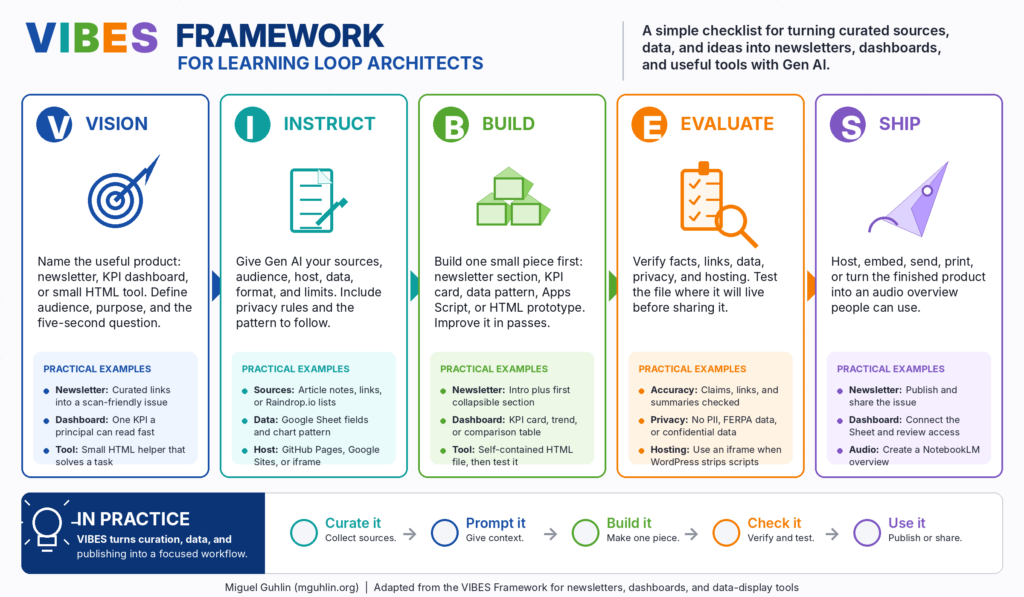
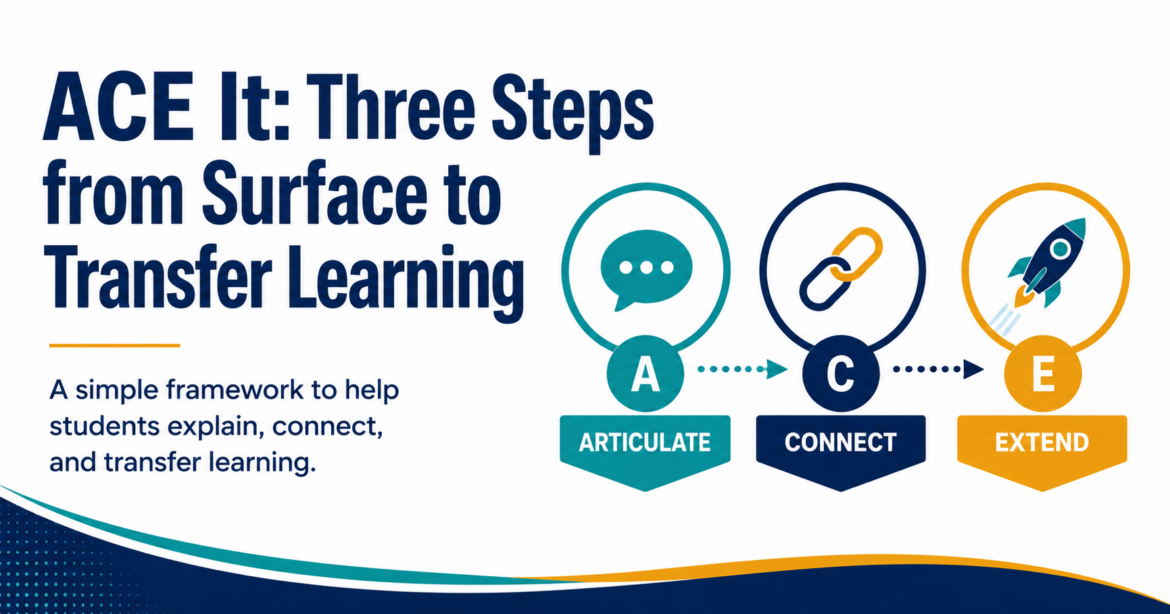
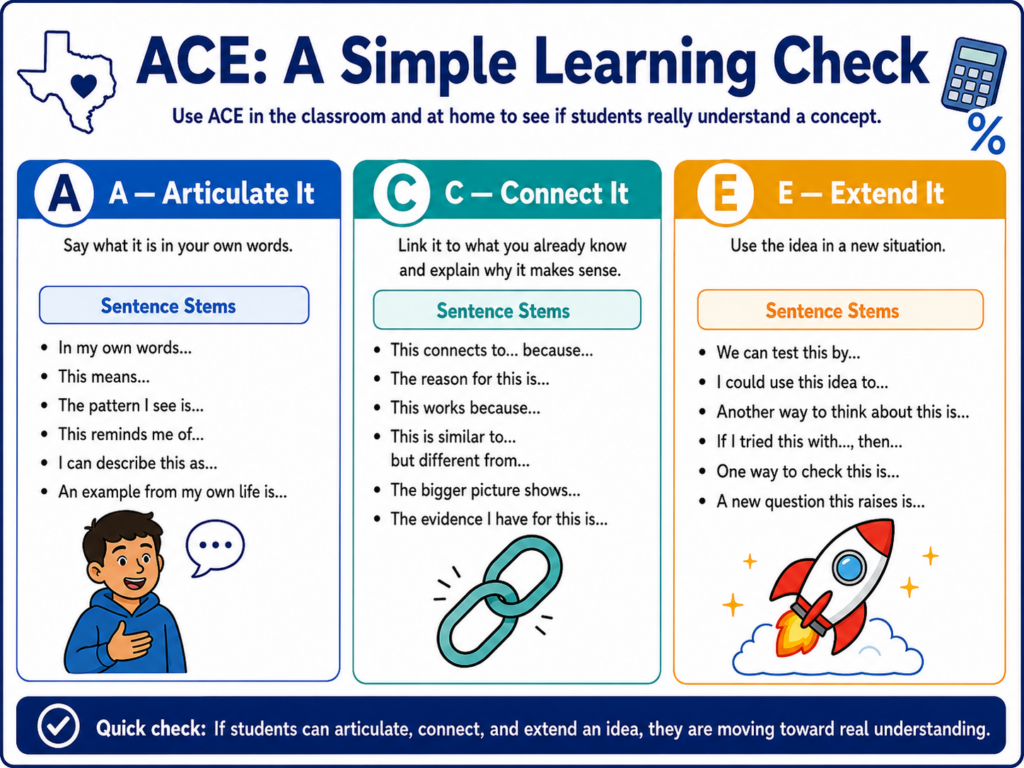
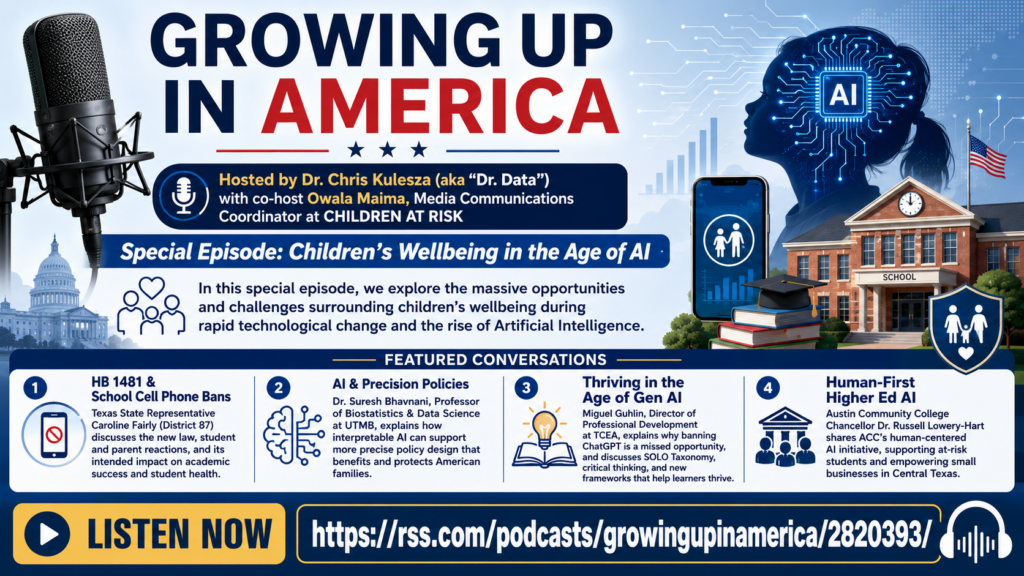
Are you looking for something lighter than a rubric or pre/post test, but still useful in PD sessions? Perhaps you want to vibe code your way to a standalone icebreaker personality quiz you can use with your students? That’s how I started. I wanted a fun, low-stakes icebreaker, a way for educators to reflect on their teaching style. Of course, I also wanted to test out another vibe coding solution, using Gen AI to develop a website, interactive personality quiz. In this two part blog entry, I’ll share how to build a custom GPT and then how to turn it into a standalone website. You might start with a personality quiz, then graduate to an online entry/exit ticket or icebreaker.
In this part, we’ll explore first how to create a custom GPT. Then, in part two, we’ll turn it into an interactive webpage you can host for free on GitHub. Finally, in part three, I’ll share how you can save the data from the interactive webpage to Google Sheets.
Creating an Engaging, Fun Personality Quiz
One of my favorite personality quizzes online is, “Which character are you?” You have probably taken a few of these on Facebook. What bothers me about those quizzes is the collection of personal data. A question in my mind was, “How could I design a privacy-safe, fun personality quiz for teachers?”
Winnie the Pooh seemed the best place to start. I love the characters of the 100-acre wood, and my family often identifies with Pooh and characters. Are you a Tigger or an Eeyore? Maybe you are Owl or Roo?
By popular demand from my work colleagues, I also wanted the quiz to sort educators into characters they were familiar with. So, in addition to Winnie the Pooh, they wanted:
The Smurfs
Snow White and the Seven Dwarfs
Looney Tunes
Each quiz would end with a playful answer: “You’re Tigger as a teacher,” or “You’re Brainy Smurf in the classroom.” The results included a short description of what that character is like as a teacher.
Starting with the Problem, Not the Tool
While I wish I could say I began with the end in mind, I had only a vague idea. I started a conversation with ChatGPT and the adjustments came over time. After working with colleagues, I had to add different universes (e.g. Smurfs, Looney Tunes) because I had different colleagues ask, “Could you please make an assessment for Looney Tunes or Smurfs, etc.?” The first one I started with included Winnie the Pooh characters. At the end, I ended up with several additional considerations:
Each quiz uses a single universe (Pooh, Smurfs, Snow White, or Looney Tunes).
Each quiz has exactly five multiple-choice questions.
Questions appear one at a time.
The quiz waits for the user’s answer before moving on.
At the end, the GPT assigns one character based on the most frequent trait pattern.
The result explains what kind of teacher that character would be.
Again, these developed over time via an interactive conversation with ChatGPT. Then, I asked ChatGPT to give me the custom instructions for the GPT. At that point, I had something to work with.
Want to try this out on your own? If you have a paid account for an AI chatbot (such as BoodleBox Unlimited, ChatGPT Plus/Teams/Education/Enterprise, Google Gemini Gem, Claude Project/Artifact), you can use the custom instructions in this Google Doc to get started. Simply save the instructions as a text file or markdown content with a filename extension of TXT. The filename and extension would be instructions.txt.
Designing the Quiz Flow with ChatGPT
Next, I focused on behavior, not characters. I asked ChatGPT to sketch the flow of a single quiz from start to finish. The prompt looked something like this:
Help me design a personality quiz flow for educators.
Five questions, multiple choice.
Ask questions one at a time.
Wait for an answer before showing the next question.
At the end, analyze answers and assign a single character type.
Make it easy to convert into Custom GPT instructions later.
ChatGPT responded with a simple sequence:
Greet the user and explain the quiz theme.
Ask Question 1 with answer options A–D.
Wait for an answer.
Record the trait associated with that option.
Repeat for Questions 2–5.
Tally which trait pattern appears most.
Map that pattern to a character.
Present the result with a short, teacher-focused description.
This became the framework for every quiz, no matter the universe.
Building the Character Library
As I mentioned earlier, some of my colleagues wanted to know which Smurf or Looney Tunes character they would be. The chatbot provided the descriptions of each character. Of course, the magic is that this would happen no matter what universe they are in:
Winnie the Pooh: Kind, gentle, loyal. As a teacher: Warm, welcoming, always encouraging.
Piglet: Timid, anxious, brave when it counts. As a teacher: Patient, supportive, nurturing confidence.
Tigger: Energetic, optimistic, adventurous. As a teacher: Fun, engaging, brings excitement to learning.
Rabbit: Organized, responsible, a bit fussy. As a teacher: Structured, caring, focused on progress.
I repeated the process for:
The Smurfs (Papa Smurf, Smurfette, Brainy, Hefty, etc.)
Snow White and the Seven Dwarfs (Snow White, Doc, Grumpy, Happy, etc.)
Looney Tunes (Bugs, Daffy, Road Runner, Wile E. Coyote, etc.)
Each question’s options pointed to the traits of one or more characters. At the end of five questions, the most frequently tapped trait pattern determined the result. Describing this takes longer than the actual amount of time spent asking the Gen AI chatbot to do this.
Turning the Model into Custom GPT Instructions
Once the Project worked well, I asked it to give me the custom instructions (a.k.a. system prompt) for the Custom GPT.
Take our quiz flow and character descriptions and turn them into Custom GPT instructions.
The GPT should offer a menu of quiz themes (Pooh, Smurfs, Snow White, Looney Tunes).
Once the user chooses one, it should explain the quiz and start with Question 1.
It must not skip ahead. Wait for each answer.
After five questions, it should assign a character and explain what kind of teacher that character would be.
Always keep the tone warm and educator-friendly.
Display this image at the start:.
Again, with some interactive back-and-forth with the chatbot, ChatGPT generated a set of “rules.” Those rules included:
How to greet users
How to present the image
How to guide quiz selection
How to enforce the one-question-at-a-time rule
How to tally responses and deliver a result
This became the backbone of my Custom GPT, ensuring a reliable response each time. You can see the custom instructions here that I relied on.
Testing, Tuning, and Making It Teacher-Friendly
The last step was trial and error. I found volunteers to run through the various iterations and it turned out to be a wild success. People love fun personality quizzes. As I tested it, I saw different ways to improve it, such as:
Simplifying question wording
Balancing answer choices
Softening language for more hesitant audiences
Ensuring the final descriptions felt affirming, not judgmental
At the end, I had a Custom GPT that educators could enjoy in a PD session, department meeting, or just for fun. The quiz is not about labels. It is about language for talking about how we show up in the classroom. It also served as a way to introduce people unfamiliar with Gen AI to a custom GPT.
Pondering Next Steps, an Interactive Webpage
The next step became obvious after I tried it with others who lacked a ChatGPT account. How could I move this beyond the OpenAI Custom GPT space? Doing so would allow anyone to take the personality quiz via a simple link, no ChatGPT account required. What’s more, I’d be able to create similar assessments that could avoid OpenAI’s strictures of adult learners only. In part two of AI Maker Magic, you will see how to use vibe coding to turn this quiz into an interactive webpage.
If you’re looking for a tool to help students think critically, make connections, or to spark their curiosity, Google’s Learn Everything experiment is worth a look. This interactive resource from Google Arts & Culture explores knowledge webs that grow in real time based on your interests. It’s an open invitation to ask questions and learn everything, just like the name says.
About Learn Everything
Learn Everything is an experimental learning experience powered by Google Gemini. To get started:
Take a photo of an everyday object nearby, such as a plant, coffee cup, burger, or pet, using your device’s camera.
Enter a topic or concept you want to explore.
Choose your audience: Beginner, Intermediate, or Advanced.
Click Explain.
Using your photo as a visual metaphor, an explanation of that topic is generated. The tool also generates follow-up questions and branching concepts. In addition, you can ask follow-up questions or dive into related topics for deeper exploration once the initial explanation appears.
I took a picture of a ladybug rock I had sitting on my desk. Then I asked Learn Everything to tell me about the colors of ladybugs.
Classroom Ideas
Build Background Knowledge Before introducing a new unit, let students explore the topic and its connections. They’ll come to class with context and questions.
Curiosity Journals/Bell Ringers Give students 10–15 minutes to explore a topic related to the day’s lesson. Then, ask them to write down five things they learned and one question they still have. This is great for bell ringers or early finishers.
Research Have students snap a photo or select a starting topic and follow the knowledge web to develop a research question they want to pursue.
Vocabulary and Concept Mapping Use the tool to explore academic vocabulary in context. For example, if you’re teaching photosynthesis, see how the tool explains it with metaphors and which related ideas emerge.
Visual Thinking Activities Ask students to take a photo (a classroom object, nature item, or artwork) and use the tool to explore academic concepts through that lens. This is great for cross-curricular connections.
A Few Tips for Teachers
Try it first to see how metaphors and follow-up questions unfold.
Use it on larger screens for group demos or pair activities.
Let students explore topics that matter to them.
Try It
With just a photo, students can unlock a world of ideas, visual metaphors, and smart connections that deepen understanding and drive curiosity. Whether you’re supporting research skills, presenting a new topic, or just giving students space to wonder, this Google experiment is a fresh, AI-powered way to make thinking visible and fun. To explore more Google experiments, like Learn Everything, check out our other TCEA Technotes blogs.
Need to convert an MP4 video file to an MP3 audio file with drag-n-drop? Or, resize and compress an image that’s too big to upload? Need to convert PDFs into a single merged, text file in MarkDown format for easy upload to a Gen AI chatbot? Or, perhaps, you have a series of photos you want to convert into a slideshow? If you use technology with any frequency, you may find yourself struggling to find the right, no-cost apps to get the job done. I can’t tell you how many times I’ve installed a “free” program only to find that there are in-app purchases needed. But there is an easier way.
Generative AI Makes the Command Line Easy
Much of what you pay app creators for is available for free, if only you knew how how to use the command line on Windows (or GNU/Linux and Mac). The problem is, finding the right combination of command line options for a program like FFMPEG or ImageMagick can take a few Google searches and hours of experimentation. I have put in that time, and then, about six months ago, a solution so obvious I mentally kicked myself for not trying it sooner.
Note: While all the examples in this blog entry focus on .bat files, you can easily ask your Gen AI chatbot for a BASH file (filename extension is .sh). Bash files work a little differently on GNU/Linux, and that would necessitate a separate blog entry. This idea works for all sorts of challenges, including moving fonts from Windows to GNU/Linux, as one person found out when I put together this tutorial for them using Gen AI, too. The point is, give it a go.
You already know what the solution is, right? I decided to ask Generative AI to give me the right command line options for shrinking a series of videos. You see, I had recorded a host of my daughter’s wedding videos, and they had gigantic file sizes. While I work with video all the time, babysitting video conversion programs to do the conversion (which takes forever) was not on my dance card. When Perplexity AI gave me the right combination for a bat file, I realized I might be on to something. A half year later, I’m now using AI-authored BAT (Windows) and BASH (Mac and Linux) to do all sorts of tasks.
What’s a BAT/BASH file?
I learned about BAT files in my freshman college class, “An Introduction to MS-DOS.” My professor, back in the late 1980s, had me write BAT files by hand. At that time, the realization that coding was not my thing sank in a little deeper.
BAT/BASH files are like recipes. They are a list of instructions that instruct your computer to do things automatically. Instead of you clicking through menus and typing commands one by one, the script does it all for you. Think of these as a to-do list for the operating system. The .bat file is for the Windows operating system. On Mac and GNU/Linux, the recipe of instructions file is known as a .bash file. They do the same kind of thing, only they use language that each operating system understands.
Some real world examples you can use script files for include:
Automatic back up of files from one folder to another every day (great for backing up that USB drive you carry around with you)
Launching multiple programs at once with a single click
Renaming hundreds of files in seconds instead of one by one (ugh, this is a pain)
Clean up of temporary files
Now, my “Aha!” moment came when working with large video and image files I wanted to share with others. Others do not need the high quality video or image. A smaller, more shrunken version I can fit inside of an email or text message attachment will do just fine.
Sample Prompt for a BAT File: Make Animated GIF from JPGs
“What is the simplest way to create an animated GIF from an existing JPEG/JPG/PNG? The JPG has a character I need to animate. I’m looking for a bat file” (Source)
To that end, I set up a ChatGPT Project (you can do this in BoodleBox, Claude, Copilot, and Gemini, too) that I labeled “Technical.” Then I added some custom instructions to it to guide my work. These custom instructions take the hard work out, and instead, make it easy to drag-n-drop files on top of a .bat file on Windows to get the desired action.
One Example: PDF/Txt/MD to MD File Merge
Problem: Need to merge PDFs, Txt, or Markdown (MD) files into a single file?
There are limits on how many files you can upload to a knowledge bank (e.g. ChatGPT limits you to 25 files for a Project/CustomGPT). Or, perhaps you want to optimize your text files before putting them into a knowledge bank.
It will convert from PDF/Text/Markdown (MD) formatted files to markdown, then merge the MD files into one. This means instead of giving your GenAI twenty-five different PDF documents, you provide only one. This takes up less space AND the Gen AI chatbot processes the text file faster. You can always rename the “merged.md” to “merged.txt” if your AI chatbot of choice can’t handle markdown.Google Gem and BoodleBox Bots can produce markdown files, but won’t accept them as input unless you change the filename extension to txt.
Free Software to Install for Windows
You will need to install some software, all of it free, open source (FOSS). Then, you will need to add this software to the PATH so it can work anywhere you happen to be (such as your Desktop, in some deep directory/folder on your device). Let’s look at both steps now, which you will only need to do once.
Install Software
You will not need all the software I have in my tools folder (more on that in a moment), but you can start with the following software:
Install ffmpeg and ensure ffmpeg.exe is on PATH.
Install ImageMagick and ensure magick.exe is on PATH.
Optional: install ExifTool (exiftool.exe on PATH) for metadata stripping.
Optional: install Whisper CLI (whisper on PATH) for subtitles.
A convenient step by step is available to assist you in installing the software programs above. That will enable you to take advantage of solutions such as the ones detailed below:
Not sure how to add programs to the PATH on Windows 11? Let’s walk through that now.
Add Programs to the PATH
The way I do this is to put all the EXE files for the programs I installed (see list above) and put them into a single folder called “tools.” Then, I put this tools folder at the root level on my computer. You can find the root folder by going to your “My Computer,” double-clicking Windows (C:) and you will see a list of folders. This is where you can create a “tools” folder and/or drag your Tools folder there.
Here’s an excerpt of a video tutorial I made for a colleague. It shows you how to add a folder called “tools” (like the one shown above) to the PATH on Windows 11.
The main benefit of this? I don’t have to keep modifying my “Environment Variables,” that is, adding items to the PATH again and again. Instead, I simply put the new program into the C:\tools folder and it’s ready to go.
How BAT Files Work with Drag-n-Drop
Here are a few of the problems that I’ve asked ChatGPT to create bat files for me for:
Automatic media conversion to MP3/OGG/MP4. This bat file prompts me for the desired output format I want then gives me a smaller file in that format.
Batch image resizing and compression. This bat file relies on ImageMagick, compresses the image file, and then saves it with a new name.
Convert PDFs + text/Markdown into a single merged Markdown document. This bat file takes advantage of Xpdf tools to create a merged text file.
Here’s a demonstration video showing one in action:
Although I have set up various .bat files, for this blog entry, I asked ChatGPT to generate a menu of options file. This addresses a variety of needs you may run into (or at the least, that anyone working with video, images, and PDFs runs into from time to time).
Get the BAT file and custom instructions for mgConvertGPT, a ChatGPT Custom GPT I made that you can simply use. Of course, you can take all the info I have shared and make your own Project or Custom GPT, BoodleBox Bot, or Gemini Gem.
You can ask it to help you create a BAT file, as you can see in the screenshot below:
Simply click the “Copy code” button, open Notepad on your Windows computer, then paste in the code. Save it with a filename like “Compress_Video_For_Sharing.bat” into your C:\tools folder. Then, drag-n-drop video files on top of the bat file. You can drag-n-drop a single video file, several, or a folder’s worth.
Here’s what that will look like when you drop a video file on it:
We are a few years past the initial generative AI (GenAI) explosion and now have many different educational apps that include GenAI, alongside major large language models (LLMs). And, while some have dabbled in AI or even feel like a pro by now, some have yet to use it at all. No matter your experience level, now is a great time to assess where you are at and update your prompt engineering skills.
What is Prompt Engineering?
IBM defines prompt engineering as “the process of writing, refining and optimizing inputs to encourage generative AI systems to create specific, high-quality outputs.” There are three elements in a basic prompt: context, the instruction or input, and the output indicator.
Some basic prompt examples with little additional context may look like:
Write a short story about a robot who discovers a hidden treasure in medieval times.
Create a four by four rubric of criteria for a writing essay on the impact of World War I.
Write a poem about oceans and mystical creatures.
But, this may not be the best way to prompt your AI of choice. If this is how you have been prompting AI in any of the apps, let’s check out how we can better communicate what we need.
Shot Prompting
There are a few types of prompts that fall under the category of “shot prompting”. A “shot” is anther name for an example. So, when you are providing your prompt, you may or may not provide examples to steer AI toward a better response. Let’s take a look at a couple of these.
Zero-shot Prompting
The first is zero-shot prompting. This prompting is straightforward and has only 1 input, which is the statement or question. You do not provide any examples. You usually use zero-shot prompting for basic responses or facts.
Zero-shot Prompting
Examples
• Single input • Rely on its database • Best for general searches
• What is a large language model? • What are the current populations of the top 10 countries in 2024?
Few-shot Prompting
There is also one-shot prompting, but we’re jumping straight to few-shot prompting. In few-shot prompting, you provide two or more examples in your input. You purposefully include examples to create a pattern so there is an optimal and specific output given.
Let’s assume for this example, you want to determine emotions based off of the input. You will first provide the directions and then some examples. You will leave the last example open for the GenAI to answer.
Few-shot prompting
Example
• 2 or more examples input. • demonstrate pattern for output • for more complex tasks
Classify the statement as happy, sad, or neither.
Text: I am excited to win the game. emotion: happy
Text: The grass is tall. emotion: neutral
Text: I miss my dad. Emotion: sad
Text: It doesn’t work! emotion: ______________
Some examples to use include creating learning resources, writing word problems, or developing feedback to students.
Iterative Prompting
In iterative prompting, you’ll take on a more conversational style with an initial prompt statement or question and follow-up with additional questions or directives until you attain your desired output.
Iterative Prompting
Example
• Builds on previous outputs given • Ask questions or provide directives refine, expand, probe, or modify
First iteration: What should I include in my teaching philosophy? I am a student teacher who is taking courses to become a teacher. Be as specific as possible.
Second iteration: Provide more examples on strategies.
Third iteration text: Be more concise.
This is the style most people are probably using with GenAI.
Contextual Prompting
The last type of prompt I’d like to cover is the contextual prompt. With this prompt, you provide the necessary context to allow the GenAI to provide a very detailed and specific output based on all the information you provide in your input. In their 2023 book—The AI Classroom: The Ultimate Guide to Artificial Intelligence in Education—authors Fitzpatrick, Fox, and Weinstein devised a model to help facilitate better prompts when you are seeking a written response, easily remembered with the accronym PREP.
P stands for Prompt It. Provide context for your request.
Example: Create a quiz on 2-step multiplication.
R is for Role. State the role so it knows how to approach the request.
Example: You are an accountant who is an expert at financial fraud. Answer the questions based on the knowledge of this role.
E means Explicit. Give it explicit instructions. Provide extra information, follow-up questions, data sets, other comparisons, articles, etc.
Example: Create a bullet list 10 soft skills a person needs to be an educator.
P is for Parameters. The last step defines the boundaries of the response you are eliciting.
Example: The essay should be seven paragraphs long and in Mandarin.’
An example using the contextual prompt style would be:
You are an architect who is an expert in the field. Develop the plan based on knowledge of this career. [ROLE] You will write a design plan for a building in Arizona. [PROMPT IT] This building must comply with all state and federal laws and regulations. The plan must include the site analysis, user needs, sustainability features, spatial planning, lighting, technology integration, aesthetics, and cost analysis. [EXPLICIT] This design plan must be written formally and be between 20 to 30 pages. There should be one image of the building. [PARAMETERS]
For education:
You are an eighth grade science teacher. [ROLE] You will create a lesson plan about Earth Science. [PROMPT] The plan needs to follow the 5E model. You will be referencing the TEKS 8.9A and 8.9B. Be sure to also integrate technology for teacher and student. The student should be using technology to analyze or create. Differentiation should also be embedded. I want three formative assessments included. [EXPLICIT] The plan should be three pages in length in semi-formal tone.
Prompt Engineering is easier than you might think.
You just have to know what’s important to include in order to get your intended response. Have you tried any of these prompt engineering methods? Let us know in the comments below, or add your own tips for other readers to try!
If you’re a K–12 educator looking to integrate creativity, storytelling, and ethical digital practices into your classroom, Adobe Express might be the best tool you’re not using (yet). With built-in generative AI, student-friendly guardrails, and a free price tag for all K–12 schools, Adobe Express offers one of the most accessible, secure, and ethically sound platforms available for student media creation today.
Let’s unpack what makes Adobe Express a standout in the ever-growing field of AI-powered education tools and why it’s more than just another graphic design app.
What Is Adobe Express?
Adobe Express is Adobe’s easy-to-use, cloud-based design platform tailored for quick creation of everything from social graphics and posters to videos, web pages, and more. But what sets it apart in 2025? Its newest features include generative AI tools like Text to Image and Text Effects, along with smart templates and quick actions that help students and teachers bring their ideas to life with ease.
But don’t mistake “easy” for “uncontrolled.” Adobe Express has carefully considered the ethics, privacy, and developmental appropriateness of AI tools used in K–12 spaces.
Ethical AI with Built-In Guardrails
The use of AI in schools raises critical questions:
How do we protect students from harmful or inappropriate content?
How do we teach ethical use while still encouraging creativity?
Who owns the AI-generated content?
Adobe Express addresses these concerns head-on. The education version of Adobe Express includes customized guardrails that ensure student searches are developmentally appropriate and safe. AI tools are built with moderation features that filter inappropriate prompts and visuals. In fact, student accounts are designed differently from adult accounts—when a student logs in, the experience is intentionally limited to prioritize safety and learning.
“When my students use the image generator, they’re amazed—but they’re also learning about bias, responsible prompts, and copyright. It’s a teaching opportunity.” – 8th Grade ELA Teacher
Adobe’s generative AI tools are trained using Adobe Stock and openly licensed or public domain content, so students can use what they create with confidence. Unlike other tools that pull images from the web without attribution, Adobe Express uses content it owns, ensuring clear, ethical usage rights.
Privacy That Meets Educational Standards
Privacy matters. Especially in schools.
Adobe Express for Education is COPPA and FERPA compliant, meaning it meets strict standards for student data privacy. Adobe doesn’t sell student data or use it for advertising. When students log in through school-provided accounts, their data is stored securely and used only to support learning.
Unlike some open-ended AI tools that ask for personal logins or collect usage data, Adobe Express for Education allows district-managed single sign-on options and centralized IT control. Teachers can assign projects, monitor student work, and collaborate without worrying about exposing students to external risks.
In short? It’s safe to use because it was quite literally built for schools.
A Tool That Supports Digital Literacy and Ethical Creation
AI is here, and it’s not going away. So, rather than shielding students from AI, Adobe Express provides a scaffolded, ethical on-ramp to explore its potential.
Teachers can use Adobe Express to guide students in:
Creating original artwork using Text to Image tools
Reflecting on how AI transforms design and writing processes
Evaluating prompt writing and responsible content generation
Understanding copyright, ownership, and citation of digital assets
Practicing digital citizenship and media literacy
Instead of simply consuming AI-generated content, students become critical creators—an essential skill in the AI-powered future of work and life. We don’t want a society of copy and pasters from ChatGPT. We want kids analyzing, comprehending, decoding and taking their learning to the next level.
100% Free for K–12 Educators and Students
Yes, really.
Adobe Express for Education is free for all K–12 educators, students, schools, and districts. This includes access to premium features, templates, fonts, stock images, and yes—AI tools.
Schools and districts can deploy Adobe Express through Adobe Admin Console or existing LMS platforms. Individual teachers can also sign up using a verified K–12 school email address. It’s a game-changing offering that removes financial barriers to creativity and access.
While other platforms offer similar tools, Adobe’s reputation in professional design gives students a future-ready skill set and teachers confidence in its safety and quality. Using Adobe Express early prepares students for Adobe Creative Cloud later, giving them a valuable head start.
Beyond Design: Real Classroom Applications
Adobe Express isn’t just for art class. Here are just a few ways teachers are using it:
English Language Arts: Students create character trading cards, blackout poetry, or book trailers using templates and image generators.
Science: Students design infographics explaining lab safety or data-driven posters visualizing environmental issues.
Social Studies: Students make “historical social media posts” or interactive timelines.
Math: Students create graphic stories that illustrate real-world math problems.
Library Media: Librarians guide students through digital storytelling projects or ethical AI exploration during research units.
Thanks to its intuitive interface and classroom-safe controls, Adobe Express empowers students to create polished, portfolio-worthy work across content areas. It even gives step-by-step written and video recordings for the Educator Resources so kids and teachers can learn alongside each other.
The Best-Kept Secret in Ed Tech—But Not for Long
Adobe Express for Education is one of the most robust, responsible, and forward-thinking tools available in K–12 digital learning. It supports both creativity and compliance, imagination and ethics. And it’s not just a tool for making things “look good”—it’s a platform for helping students do good with the digital tools at their fingertips.
As AI becomes more integrated into learning, platforms like Adobe Express provide the balanced, educator-approved pathways we need: student creativity supported by ethical design, safe usage, and meaningful guardrails.
If your school hasn’t started using Adobe Express yet, consider this your sign. The best-kept secret in education is finally out—and your students deserve to experience it.
Ready to get started? Visit https://edex.adobe.com/express to explore how you can bring Adobe Express and generative AI into your classroom—ethically, safely, and creatively.
Open your computer’s “Downloads” folder. Chances are, it’s overflowing with PDFs like “501 Ultimate AI Prompts for Teachers” or “The Mega Pack of ChatGPT Classroom Hacks.” These well-intentioned resources are nice, but you’re still staring at a blinking cursor during your prep time.
Sound familiar?
This is prompt paralysis. We’re treating prompts like recipes to be collected when, in reality, prompt writing is a fundamental skill to be learned and practiced. Hoarding prompt lists makes us dependent on others, but learning how to write strong prompts shifts us towards independence and adaptability.
So, let’s stop stuffing our digital shelves with 500-page PDFs we’ll never use. Instead, let’s master a simple, three-step framework for creating effective, context-aware prompts from scratch in under a minute, turning you from a digital collector to a confident creator, who is able to write better prompts every single time.
Here’s how.
Step 1: Define Your Context
The quality of an AI’s output is directly proportional to the quality of the context you provide. Think of your AI tool as a powerful but brand-new intern. It’s brilliant and eager, but it needs a clear job description before it starts working.
The best way to provide that is with a simple mental checklist for context: R.A.F.T. (Role, Audience, Format, Task).
Role: Who should the AI act as? (e.g., “Act as a 5th-grade science teacher,” “Act as a debate coach”).
Audience: Who is the output for? (e.g., “…for students with mixed reading levels,” “…for parents in a weekly newsletter”).
Format: What should the output look like? (e.g., “in a bulleted list,” “as a table with three columns,” “in a friendly, conversational tone”).
Task: What is the specific, measurable goal? (e.g., “create a 45-minute inquiry-based lesson plan,” “draft three multiple-choice questions”).
Consider the difference. A “before” prompt might be: “Write a lesson on photosynthesis.”
The output will be generic and likely unusable.
The “after” prompt using R.A.F.T.: “Act as a 5th-grade science teacher (Role). Create a 45-minute lesson plan on photosynthesis for my students (Audience). The output should be a table (Format) with columns for Time, Activity, and Materials (Task).”
The difference is dramatic. The first prompt will spit out something generic. The second gives you something structured, practical, and tailored for your classroom. So, before you write the prompt, write the job description. The AI can’t read your mind, but it can read a clear set of instructions.
Step 2: Demand a “Terrible” First Draft
Here’s the dirty little secret: perfectionism kills creativity. Teachers often spend more time trying to craft the “perfect” prompt than actually using the AI. But the fastest way forward? Ask for a bad first draft.
Think about it… Editing is already your superpower as an educator. You constantly refine student work, tweak lesson plans, and adapt activities. Why not apply that same skill to AI outputs?
When prompting, try phrases like:
“Give me a rookie-level explanation of…”
“Write a bad first draft of an email about…”
“Give me a very basic version of this…”
For example, you could prompt: “Give me a very basic summary of the water cycle for a 3rd grader.” The AI will generate simple, easy-to-read text. Now, your expertise as an educator takes over. Your follow-up prompt can be: “Good start. Now, add the words ‘evaporation’ and ‘condensation’ and explain them. Rephrase the second sentence to be a question.”
In seconds, you are iterating, collaborating, and co-creating with AI instead of just commanding. Let it handle the first draft. You handle the genius. It’s always easier to improve a flawed idea than to start at a blank page.
Step 3: Make AI Your Thinking Coach
The most powerful use of an AI model isn’t as an answer machine, but as a thought partner. The final step is to shift your mindset from asking for content to asking for clarity. Command the AI to take on a coaching or Socratic role to help you deepen your own thinking before you create anything.
· “Act as a critical thinking coach. To help me plan my unit on the American Revolution, ask me three clarifying questions to deepen my instructional goals.”
· “Here’s my lesson idea: [insert your idea]. What are three potential weaknesses or blind spots in this plan?”
· “Help me brainstorm. I want to teach fractions using pizza. Give me five different activity ideas, from simple to complex.”
By doing this, the AI might ask you, “What is the single most important takeaway you want students to have?” or “How will you connect this historical topic to their current lives?” These questions force you to refine your own thinking, leading to far more impactful and well-designed lessons.
This process transforms AI from a text generator into a thought partner. It pushes your teaching forward instead of just filling space in a lesson plan.
Step 4: Create Your Perfect AI Prompts
If you’ve ever felt overwhelmed by prompt lists or guilty about hoarding PDFs you never open, you’re not alone. But you don’t need another “500 Ultimate Prompts” guide… you need a durable skillset.
Here’s the recap:
1. Provide clear context with R.A.F.T. so the AI knows exactly what job you’re assigning.
2. Start with a bad first draft to overcome perfectionism and unleash your editing expertise.
3. Use AI as your coach to sharpen your thinking, not just to churn out answers.
The real takeaway is this: The future of teaching won’t belong to the ones with the biggest prompt collections, but to the ones who can think critically, communicate clearly, and adapt quickly. That’s you! So, stop hoarding. Start creating. Your next great prompt isn’t in a PDF… It’s already in you.
Picture this: You spend 20 minutes trying to get ChatGPT to create the perfect AI-generated images for your lesson plan. The first attempt gives you a blonde teacher when you asked for diversity. The second try changes the classroom entirely. By the third attempt, you’re ready to give up and use clip art from 2003.
Sound familiar? If you’re struggling with inconsistent AI-generated images and visuals, you’re not alone in the content creation challenge. There’s a better way.
The Problem Every Educator Faces (And Why It’s Not Your Fault)
You’re not alone in this struggle. Traditional AI prompts are like asking a student to “write something good about science”—too vague, inconsistent results. When you’re creating:
Sequential lesson visuals that need the same characters
Brand-consistent marketing materials for your district
Realistic career scenarios for CTE programs
Diverse, representative imagery that reflects your student body
…you need precision, not guesswork.
Meet JSON: Your New Teaching Assistant
JSON (JavaScript Object Notation) sounds technical, but think of it as a detailed order form for your AI-generated images. Instead of hoping the AI understands your vision, you’re giving it a clear blueprint. It’s like the difference between telling a substitute teacher “keep the kids busy” versus leaving detailed lesson plans with timing, materials, and backup activities. You wouldn’t wing a parent conference, and you shouldn’t wing your AI image requests either. JSON transforms vague hopes into specific instructions that actually work.
Before and After: See the Difference
The Old Way (Frustrating):
“A teacher helping a student with a robot project in a classroom.”
Result: Generic white male teacher, random classroom, inconsistent lighting
Result: Exactly what you envisioned, every single time
The Genius Shortcut: Let AI Write Your JSON
Not comfortable writing JSON yet? Here’s the educator’s secret weapon:
Upload any image to ChatGPT (could be from your phone, a stock photo, or even an AI image you liked)
Ask: “Create a JSON structure describing this image that I can use to generate similar images”
Get instant JSON templates you can modify and reuse
This reverse-engineering approach is perfect for busy educators who want results fast, or want to tweak one thing at a time to see how each attribute impacts the overall aesthetics of the image.
Game-Changing Applications for Your Classroom
🎯 Elementary Teachers
Create consistent character families for math word problems. Instead of generic stick figures or clip art, your students will connect with real-looking characters they recognize from problem to problem. This visual consistency helps students focus on the math concepts rather than getting distracted by constantly changing faces and scenarios.
Image made with JSON prompt on the left using ChatGPT
Build lab safety scenarios with proper PPE. Show students exactly what safe practices look like in realistic laboratory settings, reinforcing safety protocols through visual modeling. These images become powerful reference materials that students can internalize much faster than reading safety manuals alone.
Image made with JSON prompt on the left with Leonardo
Model authentic workplace environments. Give students realistic previews of their potential career paths with industry-accurate tools, settings, and safety standards they’ll actually encounter. These visuals help bridge the gap between classroom theory and real-world application, making career preparation more tangible and motivating.
Image made with JSON prompt on the left with NightCafe
Maintain brand consistency across all materials. Professional-looking communications build trust with parents and community stakeholders while reinforcing your district’s identity and values. Consistent visuals also save time and budget by eliminating the need for expensive graphic design services for routine materials.
Image made with JSON prompt on the left with Ideogram
{
"brand_elements": {
"color_palette": "school district blues and grays",
"logo_placement": "bottom right corner",
"font_style": "clean, professional"
},
"message_tone": "welcoming and inclusive",
"representation": "diverse student and family demographics"
}
Your JSON Toolkit: Copy-Paste Templates for AI-Generated Images
Basic Character Template
{
"character": {
"role": "student/teacher/parent",
"age": "specific age or range",
"ethnicity": "be specific for representation",
"gender": "as appropriate",
"clothing": "describe style and colors",
"expression": "emotion that fits your lesson",
"pose": "what they're doing"
}
}
Art Style Consistency: Add "art_style": "flat illustration" to all your prompts for a cohesive look across your materials.
Color Control: Use "color_palette": "warm earth tones" or "color_palette": "school brand colors" for instant visual harmony.
Perfect Proportions: Include "camera_angle": "eye level" and "framing": "medium shot" for professional-looking educational content.
Speed Hack: Save your most-used JSON templates in a document. Just copy, paste, and modify the details you need to change.
Beyond the Basics: Advanced Educator Tricks
This is where JSON really shines for curriculum development. When students see the same characters moving through different scenarios, it creates a narrative thread that helps them follow complex concepts across multiple lessons. It’s like creating your own educational comic book series where the visual familiarity supports deeper learning retention.
Create Series Consistency
Building a unit on ecosystems? Use the same base JSON but modify only the "biome" field. Same characters, same art style, different environments. Your students will love the visual continuity.
Lesson 1: "biome": "rainforest"
Lesson 2: "biome": "desert"
Lesson 3: "biome": "ocean"
The same JSON prompt was used except the biome was replaced. Each image created with ChatGPT.
Cultural Responsiveness
Include specific cultural elements:
Image made with JSON prompt on the left with MageSpace
{
"cultural_elements": {
"celebration": "Diwali classroom celebration",
"decorations": "rangoli patterns on floor",
"clothing": "traditional and modern mix",
"food": "Indian sweets on sharing table"
}
}
Your Week 1 Challenge: Pick One and Try It
Choose your adventure:
The Series Creator: Make 3 images for your next unit using the same JSON character but different scenes
The Brand Builder: Create 2 promotional images with consistent styling for your next parent newsletter
The Safety Guru: Generate workplace safety scenarios for your CTE pathway with proper equipment and procedures
The Representation Champion: Build diverse character templates you can reuse across multiple lessons
Tools to Get Started Today
A Quick Reality Check: Not all AI image generators understand JSON the same way. Some might interpret your quoted text as literal words to display in the image rather than descriptive attributes. If you see random text appearing in your images, try rephrasing your JSON as a natural sentence instead: “Create an image based on this structure:” followed by your JSON. Alternatively, ask ChatGPT (or another LLM) to convert your JSON into a traditional prompt format that any image generator can understand.
Free Options That Work:
Mage.Space: Perfect for beginners, handles JSON well
Leonardo.Ai: Offers style presets plus JSON control
NightCafe: Great for saving and remixing your templates
Ideogram.ai: Excellent text rendering in images, great for educational posters and signage
Premium Power: ChatGPT Plus users get DALL-E integration with JSON support built right in.
The Bottom Line
You became an educator to inspire learning, not to wrestle with inconsistent AI images. JSON prompts give you back control, save you time, and help you create the exact visuals your students deserve.
Start small. Try one JSON template this week. Notice how much more satisfying it feels when your AI actually listens to what you want. Your future self (and your students) will thank you.
What’s your biggest AI image frustration? Drop a comment below and let’s solve it together with JSON!
While it’s gotten easier to engage in “vibe coding,” many wonder at whether educators should take advantage of it. After all, vibe coding is the popular term for creating code without knowing how to code. Students can learn valuable skills designing and assessing the flaws of their design. This happens even if they don’t know how to write a line of code.
Vibe coding may kindle interest in other aspects of game design or programming projects often denied to those who can’t write a line of code. “Can my students really build their own apps?” The answer may surprise you. Vibes DIY, a collaborative app builder now available, may shift your thinking on what is possible with student creation in the digital space. Let’s take a look at this app development studio.
What is Vibes DIY?
An AI-powered app builder that lets you create custom applications with your preferred style and functionality. No extensive coding knowledge required. (source). Learn more about it from a developer, J. Chris Anderson, via this podcast.
What Makes Vibes DIY Different?
Vibes DIY is an AI-powered platform that makes app development simpler. In straightforward fashion, students can:
Build functional apps without coding knowledge
Collaborate with classmates in real-time
Share their creations with a simple link
Remix existing apps to create something entirely new
Some may see this collaboration at the same level as Google Docs in regard to app development.
The Features That Matter Most
Let’s take a look at the Vibes DIY features. They include real-time collaboration, a template library, and allow for remixing content from others. There are also many other aspects of Vibes DIY that may catch your attention.
Real-Time Collaboration. Vibes DIY eliminates the bottleneck of group projects where only one student can work on the project at a time (reminds me of the old days, having to share the mouse or keyboard in the one computer classroom). Students are able to work together at the same time, and see the information appear on screen.
Template Library. Vibes DIY’s template library offers pre-built structures for games, utilities, and interactive experiences. Students select a foundation and customize from there.
The Remix Revolution. Students can take any existing app on the platform and make it their own. Students can remix games, quizzes, and remix those with their content.
One-Click Sharing. Students generate a link and their app is live. This can enable rapid feedback from others.
Now that you know about the features, what are some ways you could support students engaging in vibe coding with Vibes DIY?
Practical Applications by Grade Level and Content Area
Below, you will find some suggestions for various types of vibe coding ideas. Even if you don’t use Vibes DIY, you might find these ideas helpful with other tools that are incorporating vibe coding.
Elementary Adventures (K-5)
Young learners enjoy visual creation. They might construct:
Interactive alphabet games with custom illustrations
Simple calculators for practicing math facts
Digital storybooks with branching paths
Virtual pet apps that teach responsibility
Give It a Try: Start with an “All About Me” app where students make interactive profiles to share with the class.
Middle School Momentum (6-8)
Pre-teens ready for more complexity can tackle:
Study guide apps for upcoming tests
School event countdown timers
Peer tutoring matching systems
Interactive science simulations
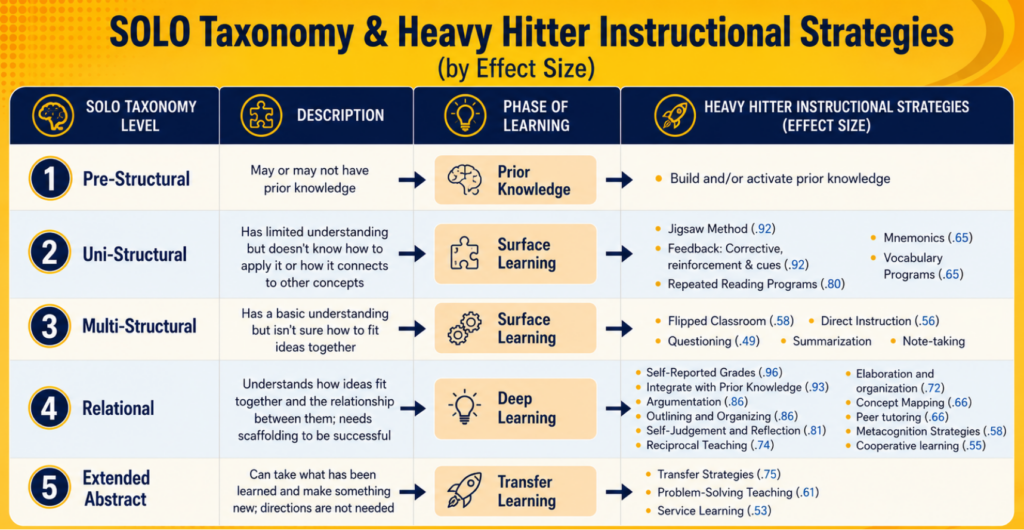
Give It a Try: Challenge students to create apps that solve real problems in your school community. Tie it into a high-effect size instructional strategy like Service Learning (d=0.53).
High School Innovation (9-12)
Teenagers can design tools such as:
College planning tools
Mental health check-in apps
Community service hour trackers
Interactive portfolio showcases
Give It a Try: Connect app creation to career exploration. This makes it easier for students to engineer prototype solutions for fields they’re considering.
Content Area Connections
Here are some content areas applications you may useful. These ideas may work with other solutions aside from Vibes DIY (such as Claude Artifacts).
English Language Arts
Interactive book reports with character profiles
Grammar practice games with immediate feedback
Poetry generators that follow specific forms
Vocabulary builders with context clues
Mathematics
Graphing calculators for visualizing equations
Probability simulators for statistics lessons
Geometry shape manipulators
Real-world problem solvers
Science
Periodic table explorers with element details
Ecosystem simulators showing food chains
Weather tracking apps with data visualization
Lab safety quiz apps
Social Studies
Historical timeline navigators
Geography map quizzes
Government structure explorers
Current events aggregators
Getting Started
To get started, try these four steps. Remember, you want to start exploring then move up to sharing creations.
1- Exploration. Start simple. Have everyone create the same basic app following your lead. Maybe it’s a classroom birthday tracker or a homework reminder. 2- Collaboration. Pair students up. Assign each team a different app type from the templates. Scaffold feature design, task selection and completion, and collaborative problem-solving.
Innovation. Turn them loose. Set parameters (must be school-appropriate, should solve a problem, needs three interactive features) but let creativity lead.
Showcase. Host an “App Fair” where students demonstrate their creations. Invite other classes, administrators, even parents. Celebrate the journey, not just the destination.
To get going, try making your own app at vibes.diy. Plan a project with your students and share your class collaboration with others.
Then, encourage students to work in small groups to do the same. Encourage students to create a process portfolio, engage in peer review circles, or discuss features or track version progress. Some specific details include:
Process Portfolio. Students document their journey with screenshots and reflections. What worked? What didn’t? What would they do differently?
Peer Review Circles. Groups test each other’s apps and provide structured feedback. Teach constructive criticism through authentic practice.
Feature Justification. Students explain why they included specific elements. This shows thinking processes more than the final product ever could. What’s more, you are showing them how to document the process they are following a la make thinking visible.
Version Tracking. Compare version 1.0 to version 2.0. What improvements did students make based on feedback?
Bonus: The SIFT Check for Student Apps
You can also mix in a bit of critical thinking with a twist. Use Mike Caufield‘s The SIFT Method to get students thinking in a critical way.
Stop – What’s the app’s purpose? Who’s the intended user? Any emotional engagement?
Investigate – Does it work as advertised? Are there bugs or broken features?
Find – What similar apps exist? How does this one compare?
Trace – Can you follow the creator’s thought process? Is the flow logical?
Vibes DIY is only the beginning of the types of tools all of us will have access to. Some may see it as a “creativity amplifier.” As a non-coder myself, I find these tools exciting. I am unlikely to learn how to code in the future. But these tools allow me to leverage other skills and knowledge to guide content creation. And, that is, literally empowering. I’ll be sharing some specific examples of how I have relied on vibe coding in future blog entries.
Picture this: You arrive at school Monday morning and find three emails about new AI tools “every teacher should be using.” Your colleague mentions a ChatGPT lesson plan hack in the hallway. During lunch, you scroll through education Twitter and see teachers celebrating their latest classroom innovation. By the time you head home, you feel simultaneously behind and overwhelmed.
Welcome to the Red Queen Race in education.
This concept, borrowed from Lewis Carroll’s whimsical tale, has found new relevance in our AI-accelerated world. The original metaphor described how Alice and the Red Queen had to run as fast as they could just to stay in the same place—and this perfectly captures what’s happening across industries today – including education. Before you even check your morning messages, headlines about new AI breakthroughs have already moved the goalposts. A late-night announcement about an educational AI tool becomes breakfast conversation, and by lunch, not knowing about it feels like falling behind. Just like Alice and the Red Queen, many teachers find themselves sprinting to keep up with technological advances while feeling they’re falling further behind, caught in a cycle where yesterday’s innovation becomes today’s baseline expectation.
But here’s the thing: you don’t have to run this race.
To be clear, this isn’t about rejecting AI or technology entirely. It’s about finding sustainable technology and utilizing it in smart ways.
When AI tools genuinely improve efficiency, boost productivity, or provide valuable insights into student learning, they’re worth adopting. The problem isn’t with technology itself—it’s with the frantic pressure to adopt every new tool simply because it’s the newest thing on the block. Strategic integration based on actual classroom needs is very different from trend-chasing driven by fear of falling behind.
Recognizing When You’re Caught in the Race
The educational Red Queen Race has some telltale signs:
Sunday Night Anxiety: That sinking feeling that you’re not tech-savvy enough for the week ahead. You’ve bookmarked seventeen articles about AI in education but haven’t had time to read any of them.
Tool Fatigue: Your digital toolkit has become a graveyard of half-learned platforms. You signed up for the webinar, downloaded the app, but never quite mastered any of them before the next “game-changing” tool appeared.
Comparison Overwhelm: Watching colleagues effortlessly integrate the latest technology while you’re still figuring out last month’s innovation. Their highlight reels make your behind-the-scenes struggles feel inadequate.
Diminishing Returns: You’re spending more time learning about educational technology than actually benefiting from it. The tools promise to save time, but the learning curve keeps eating into your evenings and weekends.
Why Teachers Should Step Off the Treadmill
Your Core Skills Matter More Than Your App Collection
The best teachers throughout history shared certain qualities: they built relationships, inspired curiosity, and helped students think critically. None of these essential skills require the latest AI platform. While technology can enhance these abilities, it cannot replace them.
Here’s a fundamental truth: if you ever have to choose between good pedagogy and eye-catching technology, choose good pedagogy every time. The technology will change—and change again, and again. But solid teaching principles endure because they’re rooted in how students actually learn and grow.
Students remember teachers who saw them, challenged them, and believed in them—not teachers who used the newest software.
Sustainable Innovation Beats Frantic Adoption
Research consistently shows that successful technology integration happens slowly and thoughtfully. Schools that mandate rapid adoption often see higher teacher burnout and lower student engagement. The most effective educational technology implementations involve careful planning, adequate training, and gradual rollout.
Quality trumps quantity every time.
Your Wellbeing Affects Your Effectiveness
Teacher burnout is at historic highs, and the pressure to constantly upskill contributes significantly to this crisis. When you’re exhausted from chasing the latest trends, you have less energy for the human connections that make teaching magical.
Taking care of yourself isn’t selfish—it’s essential for taking care of your students.
Practical Strategies for Avoiding the Race
1. Embrace the “Minimum Effective Dose”
Instead of trying to master every educational technology tool, identify the smallest set of versatile tools that give you the biggest impact. This might be:
One AI writing assistant
One presentation tool you know well
One collaborative platform your students actually use
One assessment tool that truly saves you time
Master these deeply rather than dabbling in dozens.
2. Create Technology-Free Zones
Deliberately design lessons and activities that don’t require any technology. This serves multiple purposes:
Protects proven teaching methods that work
Gives you and your students a break from screen fatigue
Reminds everyone that learning happened for centuries without WiFi
Builds your confidence in your core teaching abilities
3. Implement Collaborative Filtering
Form a small “tech team” with trusted colleagues. This could even be incorporated into existing PLC meetings when you’re intentionally focusing on tech tools that support your content, engage students, and/or provide quality assessment strategies and data. Divide and conquer:
Each person investigates one or two new tools per month
Share honest reviews (including failures) at monthly meetings
Create a shared document of actually useful tools
Agree to ignore the tools that don’t make the cut
This way, you benefit from collective intelligence without individual overwhelm.
4. Practice Selective Ignorance
Give yourself permission to consciously ignore certain trends. This isn’t about being closed-minded; it’s about being strategic with your limited time and energy.
Set boundaries on education technology news consumption
Unsubscribe from newsletters that create more anxiety than value
Choose which conferences and webinars align with your actual goals
Remember that not every innovation is relevant to your classroom
5. Focus on Timeless Teaching Principles
Invest your professional development time in skills that transcend technological trends:
Questioning techniques that promote deeper thinking
Classroom management strategies that build community
Assessment methods that truly measure learning
Communication skills that strengthen parent partnerships
These abilities will serve you regardless of which apps come and go.
A Framework for Thoughtful Technology Decisions
So how do you distinguish between genuinely useful tools and shiny distractions? The key is developing criteria that help you evaluate technology based on substance rather than hype. Instead of asking “Is this new?” or “Is everyone else using it?”, focus on questions that reveal whether a tool truly serves your teaching goals.
Before adopting any new educational technology, ask yourself:
The Problem Test: What specific problem does this solve in my classroom? If you can’t articulate a clear problem, you probably don’t need the solution.
The Time Test: Is the learning curve justified by the benefits? Be realistic about implementation time versus long-term value.
The Sustainability Test: Will I still find this useful in six months? Can I realistically maintain this alongside my other responsibilities?
The Student Test: Does this genuinely improve learning outcomes, or just make lessons look more impressive?
The Alignment Test: Does this fit with my teaching philosophy and classroom culture?
If a tool doesn’t pass these tests, it’s okay to say no.
Redefining “Keeping Up” with Modern Tech
The Red Queen Race tricks us into believing that “keeping up” means constant motion. But what if we redefined it?
This framing is one of the most insidious aspects of our current educational culture. We’ve internalized the idea that professional growth equals technological acquisition—that a teacher who isn’t implementing the latest AI tool is somehow stagnant or falling behind. But this conflates activity with progress, motion with meaning. True professional growth has never been about surface-level tool switching. Think about the teachers who most influenced you as a student. Were they memorable because they used cutting-edge technology? Or because they saw you as an individual, challenged your thinking, and created an environment where learning felt possible?
The most profound “keeping up” might actually involve slowing down. It could mean deepening your understanding of how students learn, refining your ability to ask questions that spark curiosity, or developing the patience to let difficult concepts marinate rather than rushing to the next digital demonstration. Consider this: while everyone else is racing to master the latest educational app, you could be developing expertise that no algorithm can replicate—the ability to read a classroom’s energy, to know when a student needs encouragement versus challenge, to adapt your teaching in real-time based on subtle cues that no AI has learned to detect. The irony is that by stepping off the technology treadmill, you might actually become more current with what truly matters in education: understanding your students, mastering your craft, and maintaining the enthusiasm that drew you to teaching in the first place.
Real keeping up might mean:
Staying current with your students’ needs and interests
Maintaining your passion for teaching and learning
Building deeper expertise in your content area
Developing stronger relationships with students and families
Refining your ability to help students think critically
False keeping up looks like:
Adopting every new tool because it exists
Feeling pressure to be the influencer with the latest tools
Feeling guilty about not using the latest platform
Measuring your worth by your digital sophistication
Your Permission Slip
Consider this your official permission slip to step off the educational technology treadmill. You have permission to:
Use the same reliable and sustainable technology tools you mastered last year
Attend educational technology conferences (like TCEA) to go deeper in tools you know
Focus on perfecting your core teaching practices
Say “not right now” to well-meaning colleagues sharing new apps unless you feel comfortable integrating new ones that meet specific needs
Prioritize your mental health
Trust your professional judgment about what your students need
Moving Forward Mindfully with Sustainable Technology
Avoiding the Red Queen Race doesn’t mean avoiding all innovation. It means being intentional about which races you choose to run. When you do decide to learn something new, approach it with curiosity rather than anxiety, taking time to truly understand its value before moving to the next thing. After all, sustainable technology use is personal and will look different for every educator. Poke around and discover what works for you.
Remember: in Carroll’s story, Alice eventually realizes that the frantic running leads nowhere. The real progress happens when she steps off the racing ground and chooses her own path forward.
Your students need you present, passionate, and sustainable—not perpetually exhausted from chasing the latest trend. The greatest gift you can give them is a teacher who has chosen wisdom over overwhelm, depth over breadth, and humanity over hype.
The race will continue around you, but you don’t have to run it. Your classroom, your students, and your wellbeing will all be better for it.
Have you mastered sustainable technology usage? Or are you still working on leaving the race? Drop your top tips and proudest moments in the comments below!
There are many AI tools that can help teachers support English-Language Learners (ELLs). ELLs sometimes need extra support to access content, build vocabulary, and gain confidence in their language skills. That’s where AI can make a big difference.
Today’s AI tools can do far more than just translate text. They can personalize instruction, simplify reading passages, and offer real-time speech feedback. They even give students more ways to express themselves, especially when they’re still developing English fluency. Best of all, many of these tools are free, easy to use, and built with teachers in mind.
Below are some AI-powered tools that can help you support ELL students in your K–12 classroom.
Voice-Enabled Reading Practice with Google Read Along
Google Read Along is a reading app that helps younger students improve reading fluency by listening as they read aloud. If they struggle with a word, it offers support with pronunciation and feedback.
In the classroom, you could use the app for centers or independent reading time. In addition, you could pair students with headphones and have them practice fluency. Lastly, you could assign specific stories based on reading level and then monitor their progress over time.
Rewordify rewords complex vocabulary and sentence structures to make reading easier. It also highlights academic vocabulary and provides definitions. This is great for scaffolding content and helping ELLs access grade-level material.
In the classroom, you can paste passages from science or history texts to create leveled reading versions for ELLs. You could also use rewordify to allow students to read a simplified version before tackling the original. In addition, you could create different learning activities such as a word bank quiz, matching sheet, cloze activities, and more.
To access Rewordify, go to rewordify.com. Also, Rewordify is a feature in Read&Write for Google Chrome.
Screenshot by Author
Conversation Practice and Writing Support with ChatGPT
Chatbots like ChatGPT can act like a conversation partner with its voice mode capabilities. Students can type questions, practice dialogue, get grammar corrections, or brainstorm writing ideas. Students can get language practice and writing help in a low-pressure environment and on their own terms.
In the classroom, you could have students conduct a mock interview with the AI to practice question formation. You could also use it to help students write outlines or summaries. In addition, you could have students ask the chatbot to “correct my grammar” or “explain this word.” It would be great to set it up as a station in your classroom. Don’t forget to make note of ChatGPT’s age requirements.
To access ChatGPT, go to chatgpt.com. In addition to ChatGPT, there are also other chatbots such as Google Gemini, Claude, Microsoft Copilot, and Perplexity AI.
Screenshot by Author
Support Writing and Brainstorming with Canva’s Magic Write
ELL students often struggle with getting started on writing tasks. Canva’s Magic Write can help generate sentence starters, outlines, or vocabulary lists based on a prompt. It’s like giving them a boost without giving away the whole answer.
In the classroom, you could use it as a prewriting activity or for brainstorming during writer’s workshop. You could also use it to generate sentences for paragraph building or summaries for longer texts. Furthermore, you could have students compare AI-written sentences to their own and edit for improvement.
You can access Canva’s Magic Write at canva.com/magic-write/. It’s embedded into Canva Docs.
Screenshot by Author
Generate Teaching Resources for ELLs with Twee
Twee is designed for language teachers. It can instantly generate warm-up questions, vocabulary lists, gap-fill exercises, and short dialogues based on topics you provide. Furthermore, Twee contains lesson plans for English teachers packed with creative ESL activities and practical English lesson ideas.
In the classroom, you could use it to create differentiated bell ringers or exit tickets. You could also generate vocabulary-focused games for review. In addition, you could print out conversation scripts for speaking practice.
Whether you’re planning centers, small group work, or independent study, these tools will help your students thrive. When it comes to supporting English language learners, the right tool can open up a world of confidence, curiosity, and success. To learn of additional ways you can support ELL students, be sure to check out other ELL related TCEA TechNotes blog posts.