Did you know Digital Citizenship Day is October 28, 2026? This year, it is organized by MediaSmarts during Media Literacy Week. It focuses on responsible, respectful, and safe participation online. That’s why I’m thrilled to introduce you to several resources this week. The first included the Digital Citizenship Critical Thinking Online Breakouts that appeared on Monday, October 26.
Today, I re-introduce you to a variety of encryption tools. There’s one more coming along focused on Generative AI Literacy. But today, our focus is on safeguarding files and text with free, browser-based encryption.
The Need for Teaching Safeguarding Sensitive Data
A student needs to send a draft containing personal information to a teacher. A campus administrator is carrying confidential notes on a USB drive. A counselor wants to store a sensitive document without dropping another copy into a cloud account. In each case, the file needs more than a password on the device. It needs encryption.
Become a CyberSmart Educator with a practical, self-paced course designed to help you protect sensitive data, secure accounts and devices, recognize social engineering attacks, respond appropriately to cybersecurity incidents, and build stronger digital safety habits. The course is $49 at full price or $34 at the discounted rate. Register online through TCEA Courses.
Often, these tools are difficult to use and complicated. The easy tools are out of date. That’s why this solution fits the bill.
Encryption Is a Digital Citizenship Skill
Digital citizenship lessons often focus on passwords, phishing, social media, and online behavior. Those topics matter, but students and educators also need to understand what happens to data after they create it.
Encryption turns readable information into protected data that cannot be opened without the correct key or password. It is a practical way to reduce harm when a file is lost, copied, intercepted, or stored in the wrong place.
That does not make encryption magic. A compromised computer, malicious browser extension, keylogger, or person watching the screen can still expose information. Good digital citizenship means understanding both what a security tool protects and where its protection ends.

Great teaching grows one strategy at a time. Join TCEA for Pedagogy Showcase: Igniting Excellence on November 7 for two and a half hours of practical, classroom-ready professional learning. Explore strategies for strengthening instruction, engaging students, making thinking visible, meeting diverse learning needs, and using digital tools and Gen AI with purpose. Leave with ideas, templates, and resources you can put to work right away.
Try FileLock.org in the Browser
FileLock.org is a FREE, browser-based encryption tool designed to keep files, text, passwords, and cryptographic keys on the user’s device. There is no account, hosted vault, cloud database, analytics service, or upload process. Encryption happens inside the browser, and the encrypted result downloads to the device.
Step One: Choose What to Protect
You can protect:
- A file
- A folder
- Some typed or pasted text
Drag the item into the workspace or use the button to select it.
Step Two: Choose an Action
You can choose:
- Encrypt: Lock the information
- Decrypt: Unlock the information
- Check integrity: See whether the locked file was changed or damaged
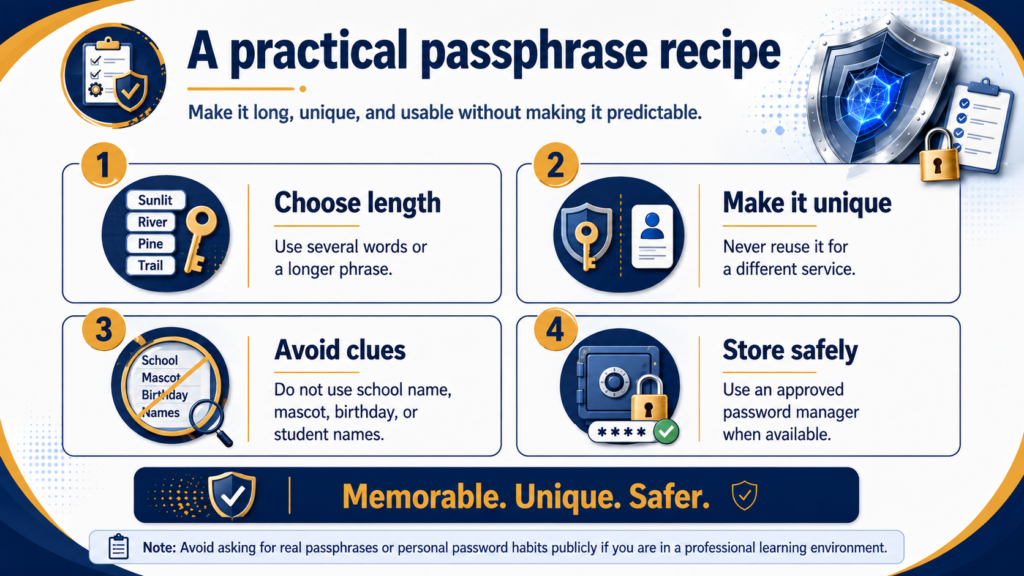
Step Three: Add a Password
Enter a long password that is hard to guess. Do not forget it. Tools like FileLock do not know your password and cannot recover it for you. What’s more, some offer the ability to generate a strong password or passphrase that is secure. It also tells you how long it would take to crack it (too long).
Step Four: Download the Result
Select the button to begin. Tools like FileLock.org create the result inside your browser. Then download the new file to your device. When you encrypt something, you get a locked file. When you decrypt it, you get the original file back.
The Most Important Rule
Before deleting the original file, make sure you can unlock the encrypted copy. The basic process is:
Choose a file → Add a password → Encrypt it → Download it → Test it
You still need to keep your password safe. One free tool you can use is Bitwarden (it’s what I use) for password tracking; there are others that I have covered in previous blog entries.
Turn It into a Classroom Conversation
Ask students to encrypt a harmless text file, download the protected package, and try opening it with an incorrect password. Then discuss these questions:
- What information stays on the device?
- What happens when the password is lost?
- Which threats does encryption reduce?
- Which threats still depend on device security?
- When should a school-approved system be used instead?
Encryption tools that are browser-based can make encryption visible without requiring students to upload personal data. That makes it useful for introducing privacy, password responsibility, data ownership, and the limits of browser-based security.
Explore tools like FileLock.org with sample files before using it with sensitive information. That way you’ll know how to use when you need it.
👤 Human-directed (Miguel Guhlin) · 🤖 Gen AI-assisted (Claude, ChatGPT)