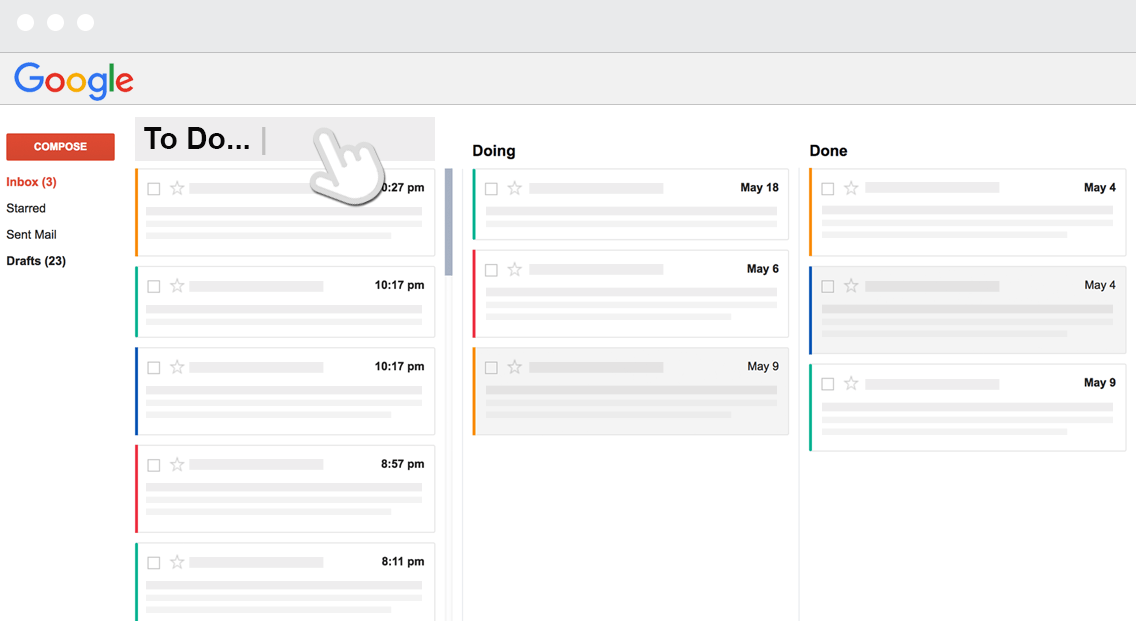
Buried in email? Looking for creative ways to organize and sort your emails? Come along as we take a quick look at some of my favorite email apps and email organization tools. You may need this if you have over fifty emails sitting in your inbox.
Favorite Email Apps
1- Outlook
Looking for a combination email and calendar management solution? An active iOS user, I’m often on the lookout for apps that combine a variety of tools into one multi-purpose approach. Outlook blends a simple interface for email and calendars and provides support for Microsoft OneDrive. But you don’t need to be a Microsoft enthusiast to enjoy Outlook (free) on your Android or iOS device. With a unified inbox and swipe to archive or delete feature, this makes Outlook one of your best choices. It is a solid choice for those who may not want to deviate from traditional email clients and desire a simple interface.
2- Readdle Spark
Spark‘s interface takes email management to the next level above tools like Google’s Inbox and Outlook, automatically sorting your inbox into various categories. “All new emails are smartly categorized into Personal, Notifications, and Newsletters,” reports its website. The app even includes a built-in calendar, and quick responses (e.g. “Thanks!”) for when on the go. It also has Apple Watch integration, which means you will receive updates on your Watch. Give it a try. It is one of my favorite apps.
3-Inbox
Google’s Inbox offers many of the same features as Spark, as well as a few more. Still, I find the lack of a universal inbox to be a bit of a bother. The process to switch between multiple inboxes is problematic. It also lacks support for Microsoft accounts, which could be an impediment for those of us straddling two worlds at work, home, or both.
4-Astro

A relative newcomer to email, Astro features a Mac OS and iOS app. It enjoys an artificial intelligence (AI) that can help you manage your email (with Slack and Alexa support, scheduled emails, snooze emails). After using it for a week, I must confess that it works quite well. With it, I’ve managed to maintain inbox zero for my priority emails. You can add very important people (VIPs) so that they end up in your priority inbox. All others, such as newsletters, are shuttled to the “Other” category. I find the Slack integration, which allows you to read your email in an Astrobot channel, to be a time-saver. Reading my email in Slack, I’m able to archive, delete, or otherwise dispose of it from my Slack client, whether on my mobile or laptop. Astro also support multiple account types, such as Gmail, Microsoft Outlook/Office365, and others.
5-Newton (f.k.a. Cloudmagic)
The Newton app, which works on popular mobile devices (e.g. Android, iOS, Chromebook), boasts a host of awesome features (e.g. Alexa support, read receipts, send later, scheduled emails, snooze emails). Formerly known as Cloudmagic, I pulled my hair out when CloudMagic switched to a subscription service ($49.99 per year). Still, it offers one of the best cross-platform interfaces among all the apps.
Email Organization Tools
Any administrator will tell you that dealing with to-do items in their school Gmail account can be overwhelming. On a good day, you may get upwards of 50 to 100 emails. A few of those include critical tasks as opposed to information you may or may not need (e.g. “Hey boss, I’m going to need to work late on that project!” or “FYI – Look at what my co-worker and I are doing”). Two incredible add-ons will literally change how you see your email in the browser.
1-SortD.com
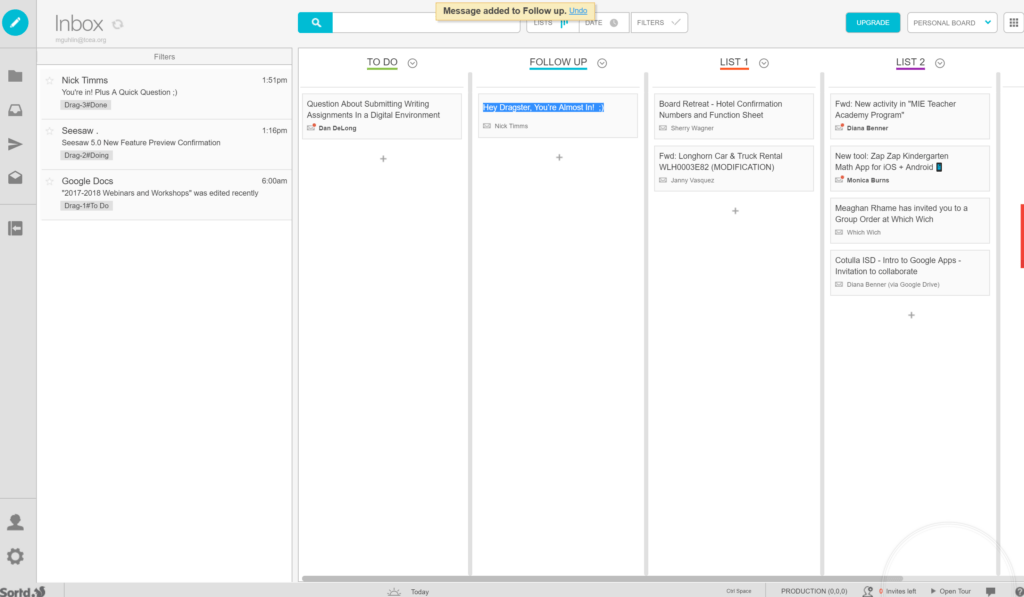
SortD provides some amazing tools for organizing and managing your email. Some of its primary features include a multi-column layout for your Gmail (as shown above), adjust list names, and drag-and-drop to reorder the content of each column or across columns. There are many other features, but you may want to try it out. Before you do, take a look at the other contender in this space, Drag.
2-Drag: To-Do and Task List
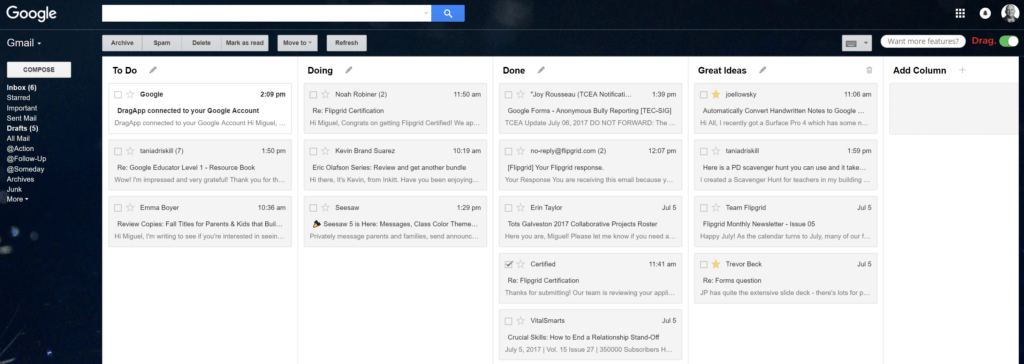
Looking for a quick way to organize your email into columns, as shown above? Check out the Drag add-on. The add-on works quite well and does not take over your screen like SortD does. Unlike SortD, Drag lacks a mobile interface. It works strictly in the Chrome browser, so you will have to make do with that (which is fine for Chrome users). Watch video.
Current Choice
What’s my current choice for email app and add-on for Gmail in the browser? My current choices include Astro for my iOS device, and I rely on the Inbox Zero approach. Not familiar with Inbox Zero? While there are plenty of blog entries and articles about it; allow me to offer some quick points:
- Sort all your email in your inbox into Action, Follow-Up, and Someday.
- Anything else, including emails you deal with, go into Gmail’s built-in archive (a.k.a. All Email).
- Use Gmail’s search tools to quickly find emails in your archive or elsewhere. It’s worth looking at this chart of Gmail search operators. My favorites include:
- to:
- from:
- has:attachment
- is:unread
- after:, before:, newer: with each colon followed by the date in question
- subject: to find words in the subject line
How do you keep your inbox organized? Share some ideas in the comments.



 malistic environment, which is not too taxing to the hardware.
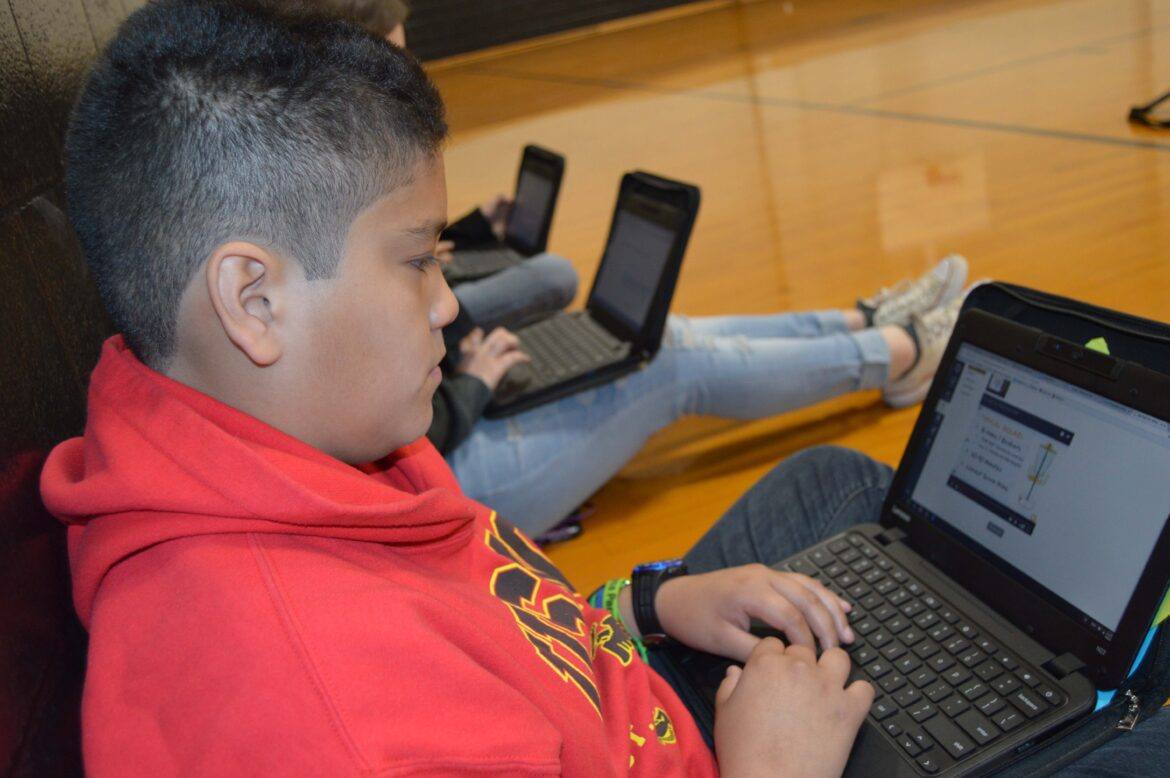
  Every teacher in a school can have a computer but, when it comes to students, some institutions may find it hard to give each child his/her own device. Because everything on Chromebooks is stored on the web, they can be passed around from one learner to the next, with no direct trace of what a previous user was doing. All you need to do is use
  ting, and they’re not really useful when offline.
 The purpose of this certification is to help educators build foundational skills in using their Chromebook as an effective learning tool in the classroom. As you go through the course, you will also be introduced to several of the Google Suite of tools to promote collaboration and critical thinking, and you will be provided opportunities to apply it to your content area or grade level. The capstone project for this certification is a lesson plan implementing some of the learned skills and tools within the grade level and content area of your choice.
 The purpose of this certification is to help educators build foundational skills in using the iPad as an effective learning tool in the classroom. As you go through this course, you’ll learn how best to use the features of the iPad to differentiate and support student learning. The capstone project for this certification is a lesson plan implementing some of the learned skills, features, and apps within a grade level and content area of your choice.

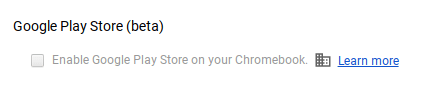 that the option to access the Google Play Store on your Chromebook is enabled in the dashboard. You can check your Chromebook by going to Settings. Scroll down until you see the Google Play Store (beta) section. If the option is greyed out, then you’ll need to bake a batch of cookies to take to the domain administrator and ask if they can enable the feature. (Giving cookies increases the chances of having this feature enabled by 64 percent.) If you log in with your personal Google account on the Chromebook, you’ll notice that it is already enabled. But you do NOT want to use your personal account with your students and other teachers. For safety reasons, you always want to use your district account, even if that means bribing the domain administrator or waiting a few days for it to be enabled.
 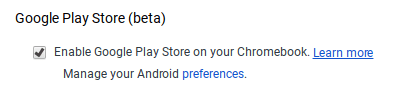 Once the option to enable is made available, you’ll be able to enable it in Settings and manage Android preferences (similar to if you were setting Android preferences on an Android phone or tablet).
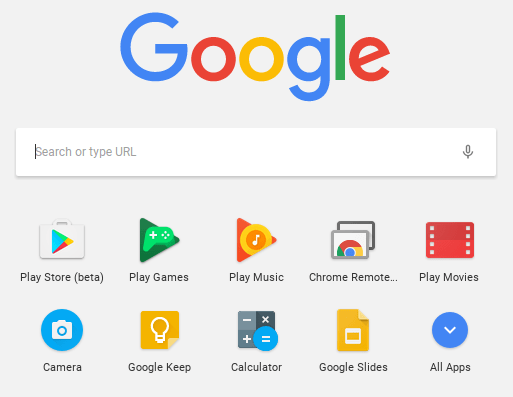 Yippee! You have it enabled. So where it it? Click on the Launcher icon which, by default, is the icon on the bottom left on the shelf. You will now see the Play Store (beta) icon. This beta Play Store is currently a stipped down version of the Play Store you would see if you accessed it through the browser. And yes, you will need to use the beta Play Store to install Android apps. When accessing the store via the browser, your Chromebook will not be an option in the dropdown list of compatible devices. Once you click on the beta store, you will recognize the various categories to help you narrow down what type of app you are looking for. If the developers have not completely finished updating the app in question, it may be available as a beta version. When I spot checked several of the Android apps I have on my phone, almost all were available and ready in the Play Store. You might even find that some app developers have made their product available as a Chrome app (that you install via the Web Store) and an Android app (that you install via the beta Play Store). Either way, once installed, they will appear in your launcher window.
 Autodesk SketchBook – Whether it is illustrating, diagramming, or sketchnoting, you’ll find this to be a simple app to use. When done, save the image to your Chromebook.
 Trello – More than just a to-do list app, Trello can help you keep track of projects. You can work alone or collaboratively with classmates to keep track of project-based learning activities.
 Trading Cards – This isn’t your traditional trading card maker. Templates provided include fictional person, real person, fictional place, real place, object, event, and vocabulary. Once you enter information on the front and back of the card, you can share it as a photo to your photo gallery.
 Pic Collage – Share your message with pictures! Pic Collage lets you start by selecting your photos and then adding them to a grid with templates (start with a themed background) or freestyle (begin with a blank slate and add to it). You can also easily add text and search for photos on the internet to add to your collage.