Discover innovative online tools for education. Explore strategies and resources to enhance teaching, learning, and collaboration in the digital age.
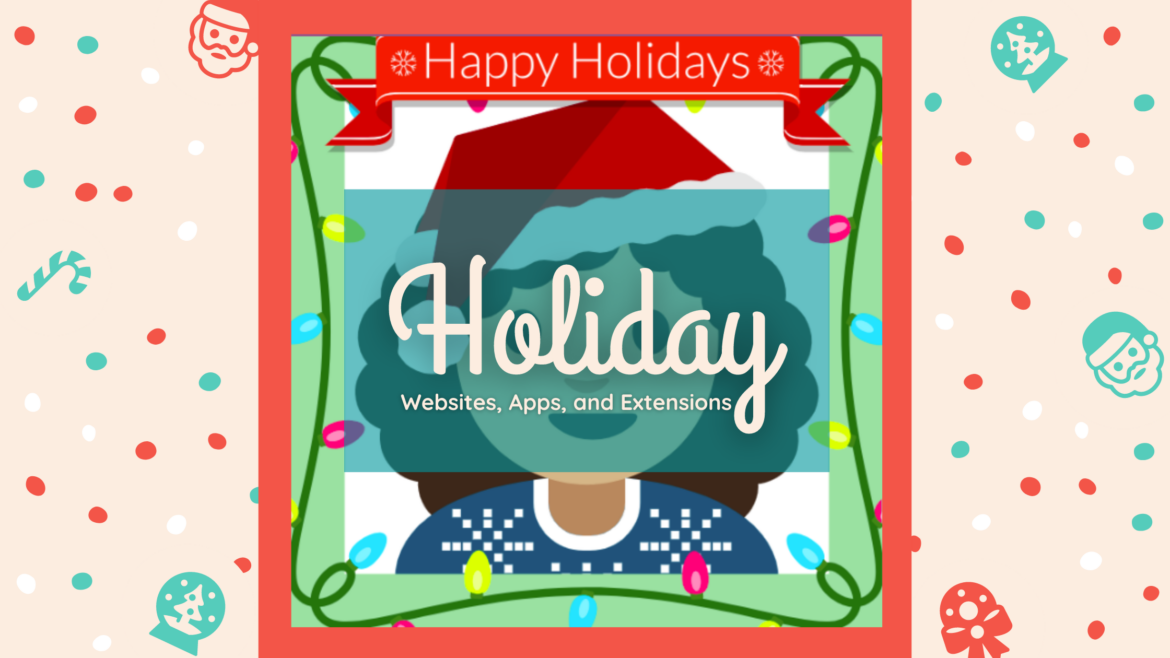
The holidays are upon us and there are so many fun and interactive websites, apps, and extensions that you and your students can take advantage of. Explore the collection below for ideas and activities that can be used in the classroom.
Websites
Christmas Celebrations Around the World
With the world becoming a global village, Christmas is now celebrated in many countries around the world. On this website, simply click on the country’s flag in order to get a glimpse of the different ways Christmas is celebrated in that country. In the classroom, students can learn about other cultures and different Christmas traditions. It is important to realize that being culturally aware is a wonderful way to promote inclusion for all in your classroom.
Northpole
The Northpole website has a lot of great activities for students. Students can write letters to Santa and read and listen to stories. In addition, they can personalize three different stories, each with themselves as the star of the story. Most noteworthy is the Elf Pal Academy, which is included on the site. It will connect you to even more activities geared for elementary students and English language learners.
Storynory
At the Storynory website, students can listen to free audio stories. The stories can be streamed live or downloaded to be played anywhere. In the classroom, you could create a listening center for your students. Furthermore, you can use the story starters as creative writing prompts.
Twelve Days of Christmas
The Twelve Days of Christmas is a simple way to introduce basic economics to classrooms. The price index gives the cost of each gift from “The Twelve Days of Christmas”. It’s a fun way to measure consumer spending and trends in the economy. Furthermore, you can take advantage of the activity book on the site.
Chrome Apps and Extensions
Christmas Coloring Game
With this Chrome app, just select your picture and your color to create your holiday work of art. It is good for some quick festive fun. Moreover, this app offers pictures for other holidays or just everyday objects.
Christmas Day Countdown and Radio
This extension allows you to count down to Christmas while you listen to festive music. There is a variety of music to choose from, with holiday mixes from around the world. Consequently, it will bring some cheerfulness to your everyday Chrome experience.
Spread some holiday cheer into your classroom by utilizing some of the above resources. As a result, this December will be festive as well as productive.
Additional Resources
- Christmas Dialer – You can send one free call
- emailSanta.com – Instantly receive one free letter from Santa
- Elf Yourself – Personalized ELF video
- Free Call – Call Santa for free, and kids can leave a message
- Free Video From Santa -Get a free video from Santa
- Google Santa Tracker – Tracks Santa and also has free games and other activities
- NORAD Santa Tracker – Tracks Santa and has a Santa tracker countdown
- Reindeer Cam – Watch Santa’s reindeer live
- Santa’s North Pole – Activities for kids
- Scheels– Letter and video from Santa
- USPS Letters from Santa – They recommend sending letters from Santa by December 8 so that they can be received by the Anchorage, AK, Postmaster no later than December 15.
More From TechNotes
- Two Brand New Winter Breakouts and Bonus Puzzle
- Tips, Tricks, and Tech Tidbits – Part 8 (more winter activities)
- Winter Resources for the Elementary Classroom
- Fun with a Holiday FlipHunt
- Celebrate the Season with Holiday Websites
- Wonderful Winter-Themed Activities for All Ages
- 5 Holiday Seesaw Activities
- Holiday Websites, Apps, and Extensions
- Merry Merry Breakout