
Explore effective teaching strategies, tools, and resources. Discover ideas to enhance classroom practices and inspire student success.
This is a guest blog by Beth A. Burau, Instructional Technology Coordinator and German teacher at Bishop Lynch High School in Dallas, TX.
Perhaps the most frustrating sound for a teacher is that of complete and utter silence following the question, “Are there any questions?” While a student or two may take a teacher up on the offer for some clarification or insight, more often than not, the silence simply indicates to the teacher that the class understands the material. It’s not until homework is turned in later that the truth and the teacher’s assumption are revealed – there should have been questions.
To monitor whether or not students are learning and to help provide immediate feedback, we should make sure that “checks for understanding” or formative assessment tools are a consistent part of any lesson. Here are five simple Web 2.0 tools to help teachers quickly assess student understanding before the bell rings. They’ll be certain to prompt high fives at the end of class for a job well done.
Socrative – With this free app, students can use their own computers, tablets, and phones to respond to teacher-created questionsl which are either self-paced or teacher-paced to check for understanding. Socrative also has an easy-to-use Exit Ticket option, which is great for getting student responses to spontaneous questions during class or as a way to check for understanding after the lesson is done. The responses are graded, and the results are easy to use.
Plickers – If students don’t have access to devices, but the teacher has an iOS or Android device with a camera, this is the perfect free Web 2.0 tool to use. However, this tool requires some preparation in advance and is not suggested for last-minute assessment. The teacher needs the app installed on a mobile device to use during class, but can create the true/false and multiple choice questions on a desktop computer. Teachers create their questions online and print out Plickers Cards for each student to use. The teacher poses questions to monitor class learning. Then the students simply hold up their card to show their answer, and the teacher scans the room with a mobile device to record and view the results.
Quizizz – Have you used Kahoot! with your classes? If so, you may want to try Quizizz, a similar Web 2.0 tool for formative assessment. Students can use their own device or share devices to answer teacher-generated questions. As a teacher, you can use the app in class or assign quizzes for homework or review. Unlike Kahoot!, Quizizz is self-paced, so students don’t feel as much pressure under time constraints, which is great if you have anxious students or students who need more reading time for each question in class. Students are afforded more time to process the questions and respond instead of simply guessing quickly to earn points.
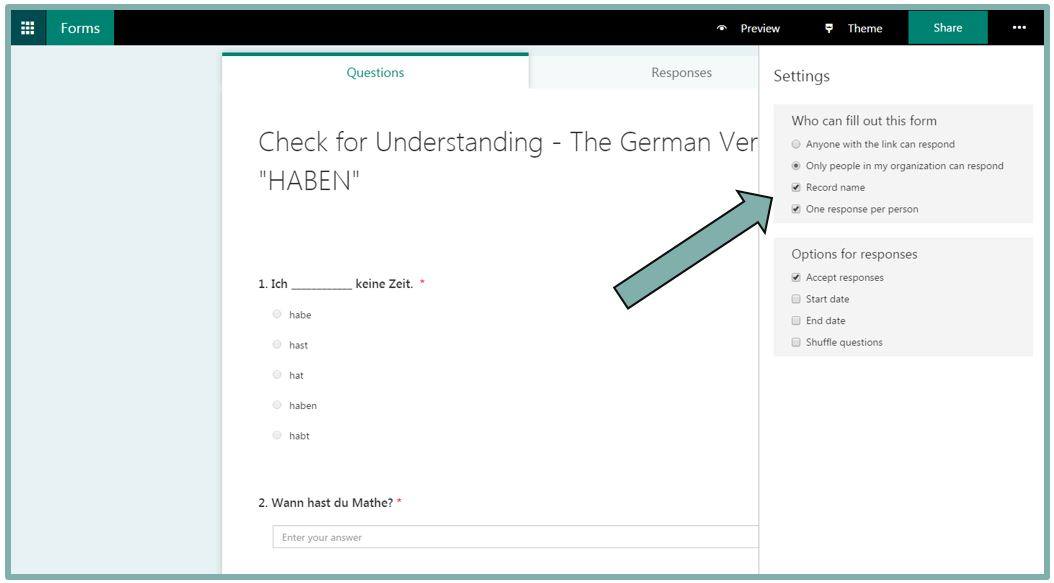
Microsoft Forms If you’ve heard of Google Forms, but have Office 365 Education at your school, you may wish to use these forms for formative assessment instead. As the instructor, you can require the students to log in using their Office 365 account to access the form, which allows you to not only verify the student’s identity, but also to view student results by name. The teacher can then quickly scan all the class responses to check for understanding or identify select students who may need some additional help or instruction.
QuizSocket – This free, online “fast quiz” beta tool doesn’t require an account, just an email address. Using mobile devices, students are given a quiz key to join in. A teacher can then ask real-time multiple choice questions verbally, write them on the board, or include them in a presentation slide. The pace of the poll or quiz is controlled by the teacher, who advances the multiple choice options “ABCD” one at a time for the students. Individual question responses can be viewed synchronously on the website during each question and can also be downloaded as a .csv file at the end of the quiz for further analysis by the teacher.
These are just a few great—and best of all, FREE—assessment tools, so you’re never left wondering if your students are truly understanding the material. Do you have any favorite assessment tools? We’d love to hear from you in the comments.
Beth A. Burau has taught levels PreK-College across various content areas since she began teaching in August 2000. She now serves as the Instructional Technology Coordinator and German teacher at Bishop Lynch High School in Dallas, TX. Beth holds a B.A. and M.Ed. from the University of Notre Dame and has published education articles and chapters both in print and online. She is a proud member of TCEA and a TCEA certified Campus Technology Specialist.

 Once you’ve created several missions (the number of missions is up to you), then you can assign each mission a point value based on its degree of difficulty. Decide how long you want the game to run and if a password is required to join. Then the game is afoot! Gather the participants together and have them divide up into teams. (I would recommend no more than four to a team, with three being the optimum number.) One player on each team will need to download the free GooseChase app, available for either an

 Take time to reflect on what myths you have bought into and the impact that you can make by changing your mind and believing what is actually true…not necessarily easy but true nonetheless. If I left you with one saying to challenge you, it would be with what Steven W. Anderson (
 Diamante Poem – This type of poem is in the shape of a diamond. Each line uses specific types of words (adjectives, -ing words, etc.). What makes it especially nice is that it doesn’t have to rhyme. This app has some examples to illustrate how to write a diamante poem, and it leads you through creating your poem step by step. When you’re finished, you can save the poem as an image to your photo gallery.
  Acrostic Poem – Think of a word and then write a word or phrase for each letter in the word. This app will lead you through creating an acrostic poem and even helps you brainstorm words. Acrostic poems are often used when students write their name vertically and then write out adjectives going across that describe them, but the uses are endless.
  Haiku Poem – This app makes writing this Japanese-style poetry super simple. Walking you through the steps of brainstorming words and phrases and making note of the syllables, you’ll find that constructing one is easy and can be very profound.
  Poems By Heart from Penguin Classics – This well-crafted app introduces students to a wide variety of poetry. Even without the premium downloads, the free ones supplied each come with audio that highlights the lines as the poem is read with inflection. Students can record themselves reading the poem and even earn poetry points by memorizing them.
  POETRY from The Poetry Foundation – Let students encounter a wide variety of poetry in this app. They can discover titles by spinning the category wheels (emotions and events) or by searching for a specific author in the index. Poems that have audio are indicated with a small speaker icon, great for extra support for struggling readers/writers as well as students who may benefit from hearing it read aloud.




 The video is done primarily in black and white with hundreds of simple cartoon-ish illustrations provided. But you also have the option of uploading your own image, logo, or text, if you wish. When it’s time for the voice over, you can upload a recording of you talking that is then automatically synchronized with the story or use the very sophisticated text-to-speech function that provides a voice over in seconds. This is a great resource for students with speech disabilities.


 Benjamin Kelly (