
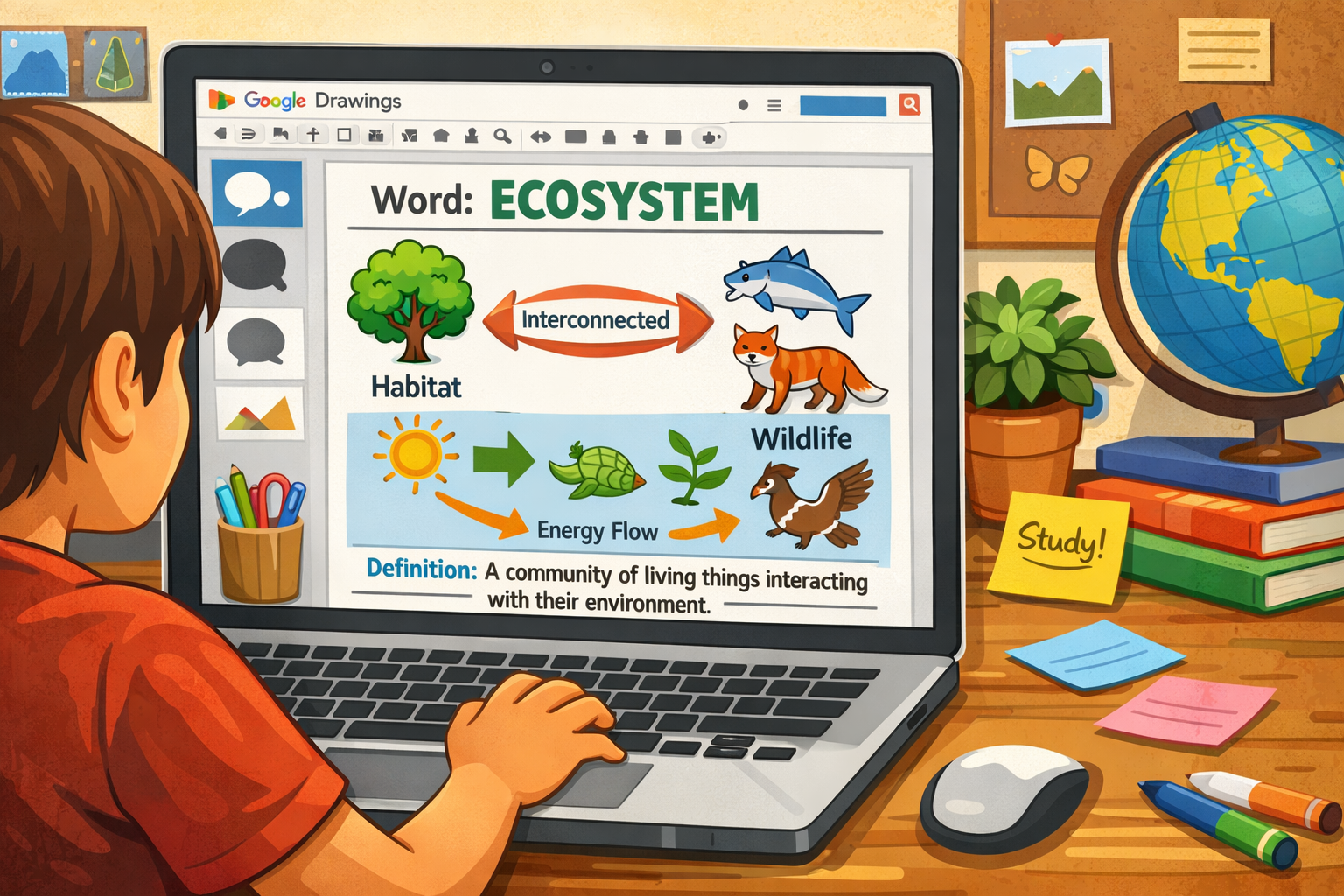
Vocabulary instruction doesn’t have to mean long lists of words, worksheets, or rote memorization. One of the simplest ways to help students truly understand and remember new words is to make vocabulary visual. When students draw, label, and explain a word in their own way, they are processing meaning and not just recalling a definition.
One easy Google tool that makes this possible with minimal setup is Google Drawings.
Why Visual Vocabulary Works
When students pair words with images, multiple things happen at once. For example:
- They slow down and think about meaning
- They make personal connections
- They encode the word visually and linguistically
This is especially powerful for English Language Learners and anyone who benefits from concrete representations.
A Simple Visual Vocabulary Activity Using Google Drawings
Google Drawings gives students a blank canvas where they can combine text, shapes, icons, and sketches all in one place.
The Setup
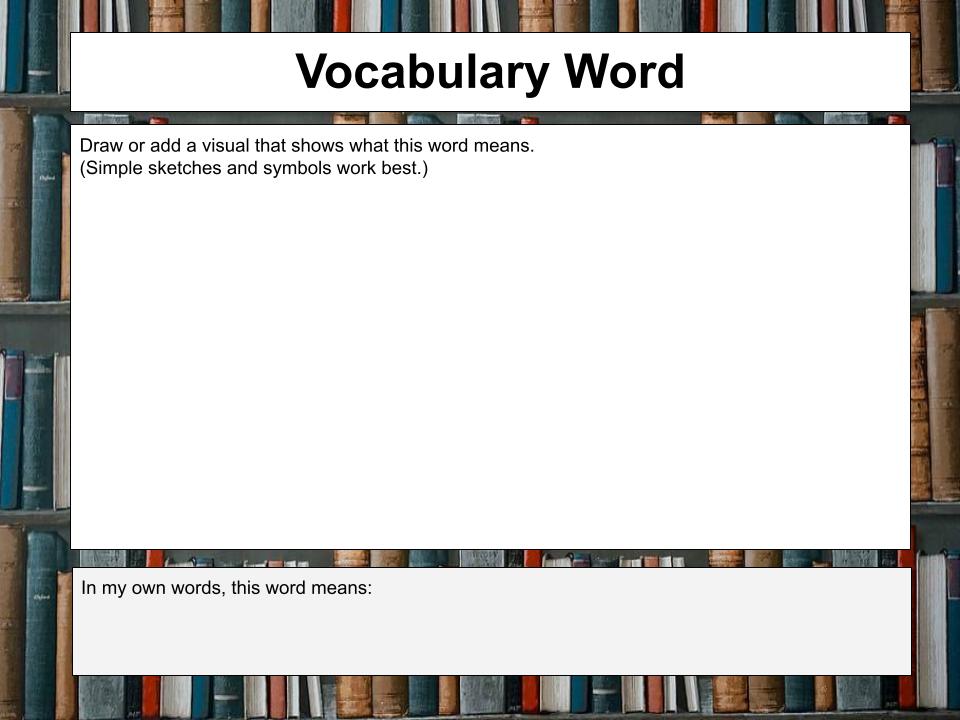
- Create a blank Google Drawing (or reuse the same template all year). Here is a simple Visual Vocabulary Google Drawing template I created that can be used if you don’t want to create your own.
- Add three text boxes:
- Vocabulary Word
- Student-Created Visual
- Student-Friendly Explanation
- Share the Drawing through Google Classroom or provide them with the link.
The Student Task
For each vocabulary word, students:
- Write the word in their own words
- Draw a simple sketch, symbol, or icon that represents the meaning
- Add a sentence or short explanation using everyday language
Remind students that this isn’t about artistic talent. It’s about understanding.
Ways Teachers Can Use This Quickly
This strategy works across grade levels and content areas. Some quick ways teachers can use this in the classroom is:
- Warm-Up: Review yesterday’s vocabulary with one quick drawing
- Exit Ticket: Show what this word means
- Vocabulary Notebook: One drawing per word, saved in a folder
- ELL Support: Pair visuals with translated definitions or sentence stems
Because Google Drawings saves automatically, students can revisit and revise their understanding of words over time.
Ready to Try It?
Grab the Visual Vocabulary Google Drawing template and introduce your first word tomorrow. Let us know how it goes in the comments. For additional resources, explore these vocabulary websites with visuals to help boost student retention.
