
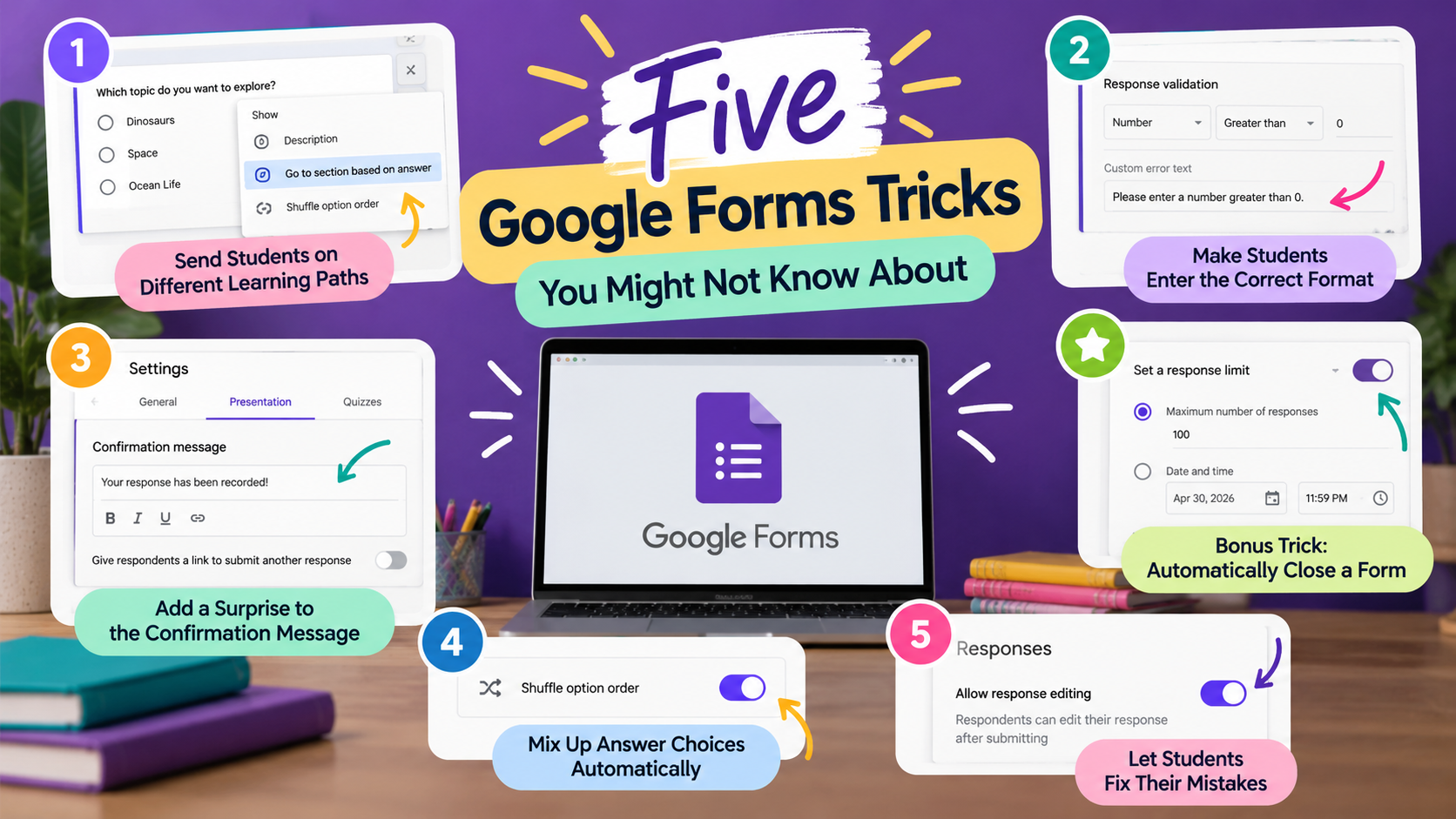
Think Google Forms is just for quizzes and surveys? Think again! While many teachers use Google Forms to collect responses or create assessments, there are some lesser-known features that can make it even more useful. From creating personalized learning experiences to adding a little creativity, these five tricks are worth exploring.
1. Send Students on Different Learning Paths
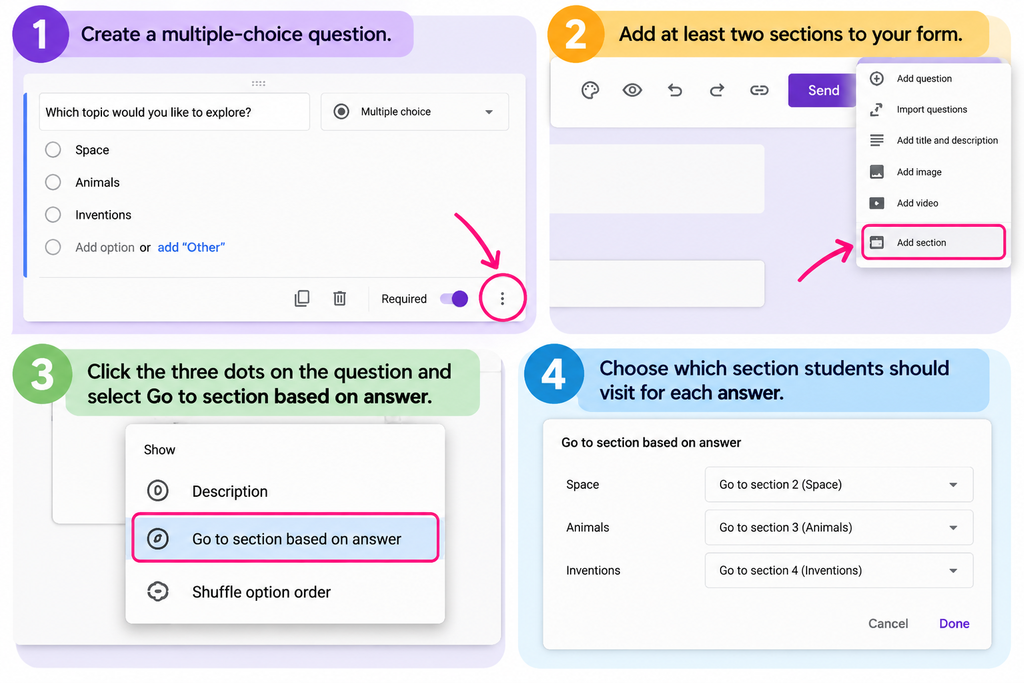
Did you know Google Forms can send students to different sections based on their answers? This feature is called Go to section based on answer.
Try it: Create a multiple-choice question and add at least two sections to your form. Click the three dots on the question and select Go to section based on answer. Then choose which section students should visit for each answer.
Classroom idea: Create a choose-your-own-adventure story or a review activity where students receive different follow-up questions based on their choices.
2. Make Students Enter the Correct Format
Tired of students entering incomplete answers? Response validation lets you set rules for what students can submit.
Try it: Add a short-answer question, click the three dots, and select Response validation. Choose a rule and add a custom error message.
Classroom idea: Create a digital breakout where students must enter the correct code before submitting their response.
3. Add a Surprise to the Confirmation Message
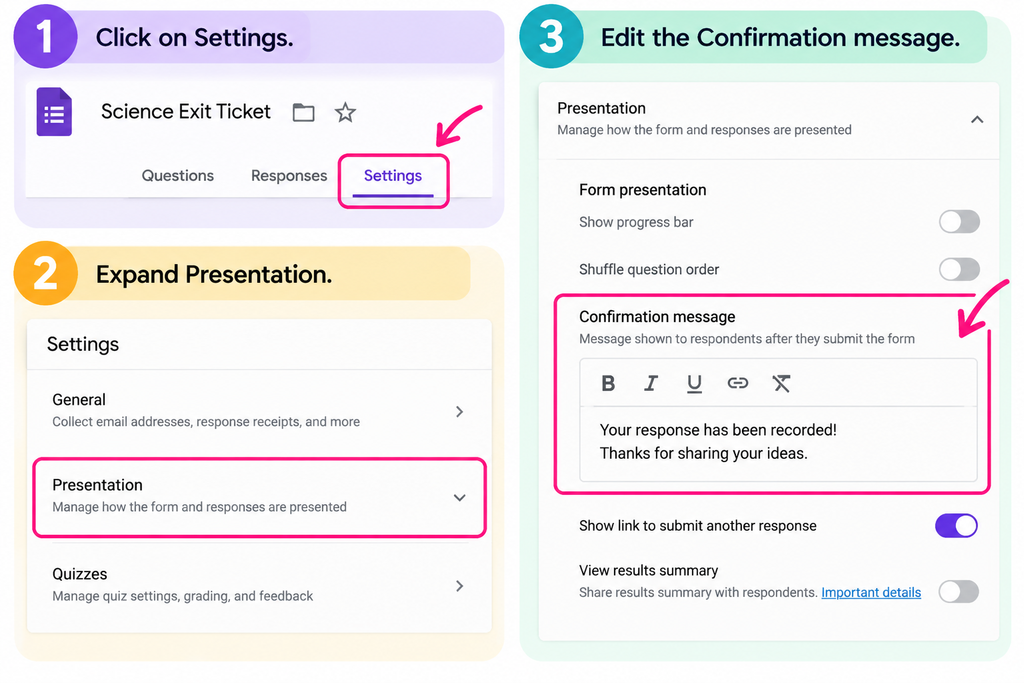
Most Google Forms end with a simple confirmation message. But did you know you can customize it?
Try it: Click on Settings, expand Presentation, and edit the Confirmation message.
Classroom idea: Include a fun riddle, a reflection question, or a link to an extension activity that students can explore after submitting.
4. Mix Up Answer Choices Automatically
Want to make your quizzes a little less predictable? Google Forms can shuffle answer options.
Try it: Create a multiple-choice question, click the three dots, and select Shuffle option order.
Classroom idea: Use this feature for vocabulary reviews or practice quizzes so students see answer choices in a different order.
5. Let Students Fix Their Mistakes
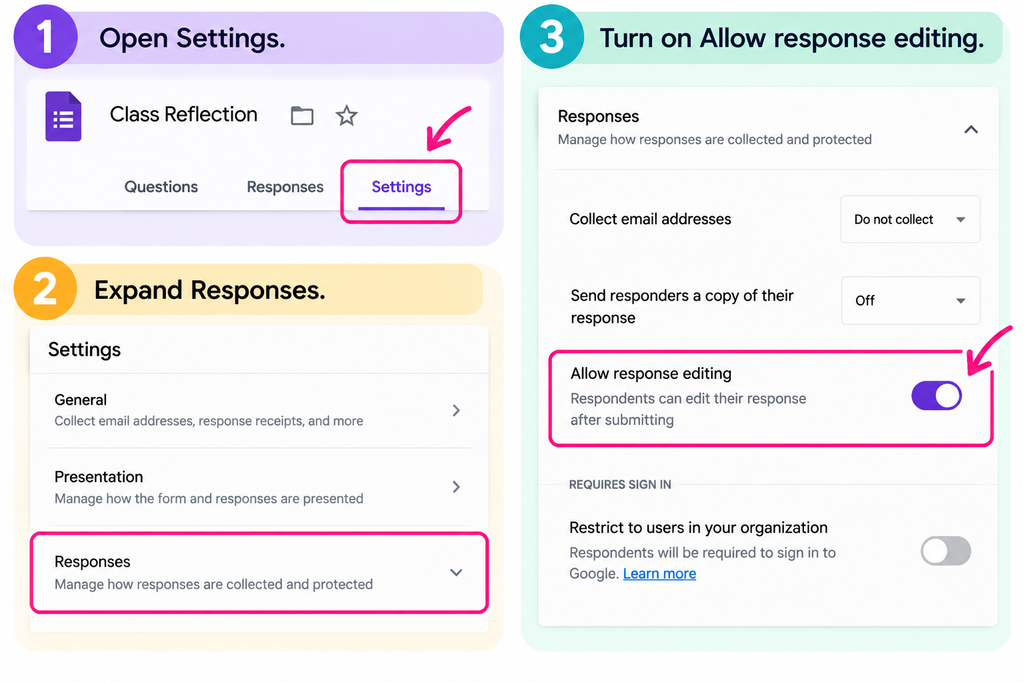
Sometimes students realize they made a mistake right after clicking Submit. Google Forms can let them go back and edit their responses.
Try it: Open Settings, expand Responses, and turn on Allow response editing.
Classroom idea: Use this option for project reflections or ongoing check-ins where students may want to revise their thinking.
Bonus Trick: Make Google Forms Close Automatically
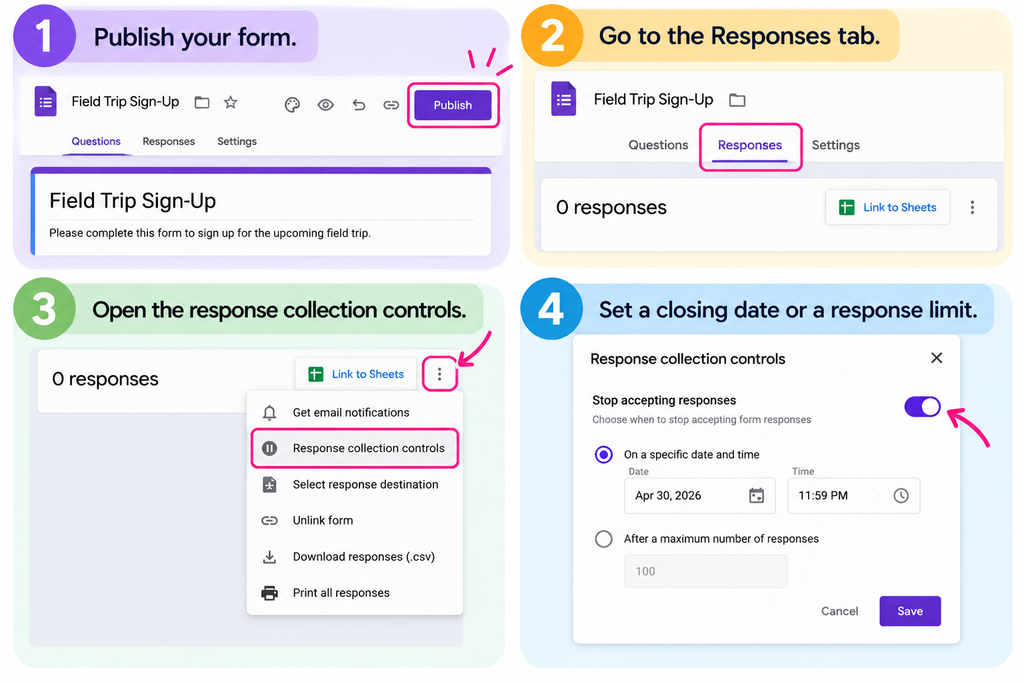
Ever forget to close a Google Form after a deadline? Google has a feature that takes care of that for you. You can now schedule a form to stop accepting responses on a specific date and time or after reaching a certain number of submissions.
Try it: Publish your form, go to the Responses tab, and set a closing date or response limit using the response collection controls.
Classroom idea: Use this feature for assignment deadlines, field trip sign-ups, or classroom polls. Once the deadline arrives or all the spots are filled, the form closes automatically. That’s one less thing you have to remember.
Which Trick Will You Try First?
Google Forms has more to offer than basic surveys and quizzes. Whether you’re creating interactive lessons, collecting student reflections, or adding a little fun to your assessments, these features are easy to try.
Choose one trick and give it a try this week. You might discover a new favorite!
