You’re starting your Sunday afternoon lesson preparation, and find that you need to record a quick walkthrough of a science simulation, then edit a PDF before posting it. You also have to capture three screenshots for a quick explainer email, and set up a digital whiteboard for tomorrow’s bell ringer. Back in the day, each task may have cost you or your school money. Austerity measures this year cut those subscriptions you relied on, and you’re saving your twenty dollar a month discretionary income for something the family needs. Where can you find alternatives to paid subscriptions? If that’s a question you are asking in anticipation of the coming year, here are three free solutions.
These free tools are for you as much as for me. I use each of them every week, if not some daily. Each one solves a specific problem you actually run into during a normal week.
In This Post
Here are the solutions you will find in this blog post:
- Recordly: screen recording with a built-in editor
- ShareX: screenshots, recording, and OCR for Windows
- RevPDF: offline PDF editing
- PDFsplat: full-featured, browser-based PDF editor and organizer
Let’s jump in and explore what’s available.
Recordly Screen Recorder
Recordly is a free, open-source screen recorder with a built-in editor for Windows, macOS, and Linux. Most free recorders give you the recording but stop there. Recordly includes a timeline editor, smooth zoom effects, custom cursor styles, and webcam overlays. You get a polished walkthrough with the editing tools, if that’s what you need when posting to your class Google Sites/Classroom, OneDrive, or learning management system (LMS).
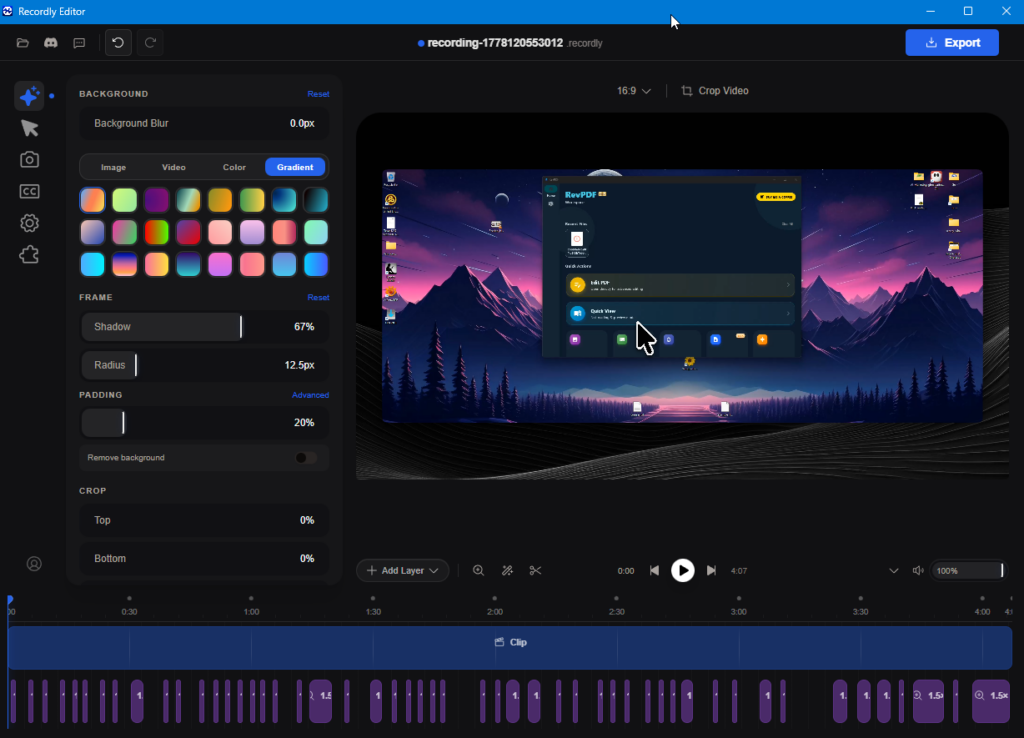
To get started:
- Get the right version for your operating system (e.g. Windows, Mac, Linux) from the Recordly releases page; alas, no Chromebook version available
- Test a short clip first. The recent v1.2.x release improved audio stability, but webcam-to-audio sync is still being refined
- The Linux AppImage runs without an install, which is useful for shared lab machines
I found Recordly drop-dead simple to use on Windows, and I have high hopes for my Mac colleagues. For fellow GNU/Linux users, if this does not work, you can always try SimpleScreenRecorder or OBS Studio.
Let’s move on to solution two, ShareX, for getting screenshots and making animated GIFs. That second feature is what sold me.
ShareX
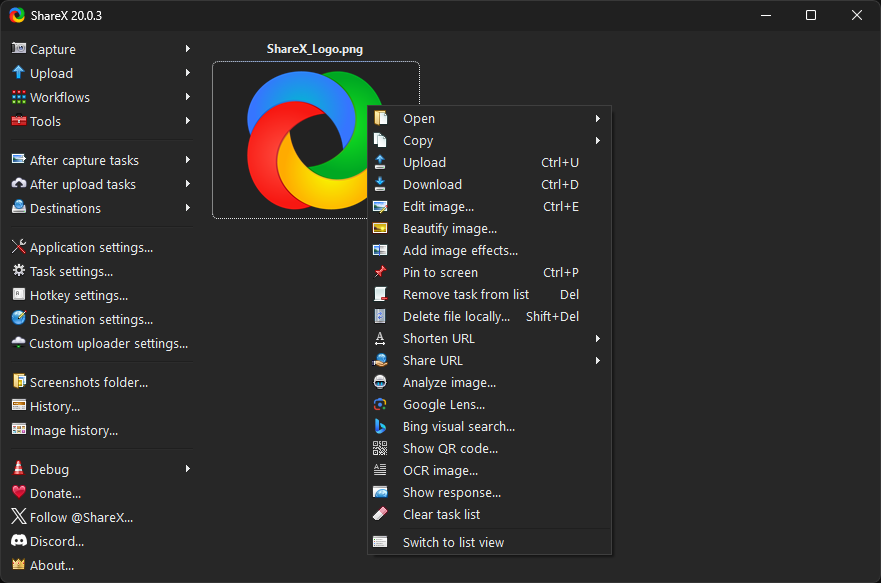
ShareX is a free, open-source capture and productivity tool for Windows. I love LightShot, which works in your browser as well as on Windows and Mac. It’s quite versatile, but doesn’t create animated GIFs. ShareX is the tool to use for screenshots and animated GIF creation.
If you live in Windows, ShareX is the everyday tool I would reach for first. It handles region screenshots, full-screen captures, scrolling captures, screen recording, GIF recording, and Optical Character Recognition (OCR). The image editor includes arrows, blur, pixelate, step numbers, and speech balloons, all in one window. I love being able to quickly annotate screenshots in a variety of colors, draw boxes, and more around or near content.
Two super features worthy of highlight:
- The OCR tool pulls text out of any image in seconds. Some people rely on Google Keep for this, but there are times when you don’t want your data being saved into the Google Cloud. This is useful when a colleague sends a screenshot of a paragraph instead of the file, or a picture of a top secret document.
- The custom uploader lets you push captures directly to a school server, your own cloud storage, or a shared drive without bouncing through a third party
ShareX is Windows only. If that is a dealbreaker, check out Lightshot, which can be installed or works in a browser, as well as Shutter on GNU/Linux. All these tools are free, of course, so trying out what works best will not cost you a dime, only time. Spend time now to save it later.
RevPDF
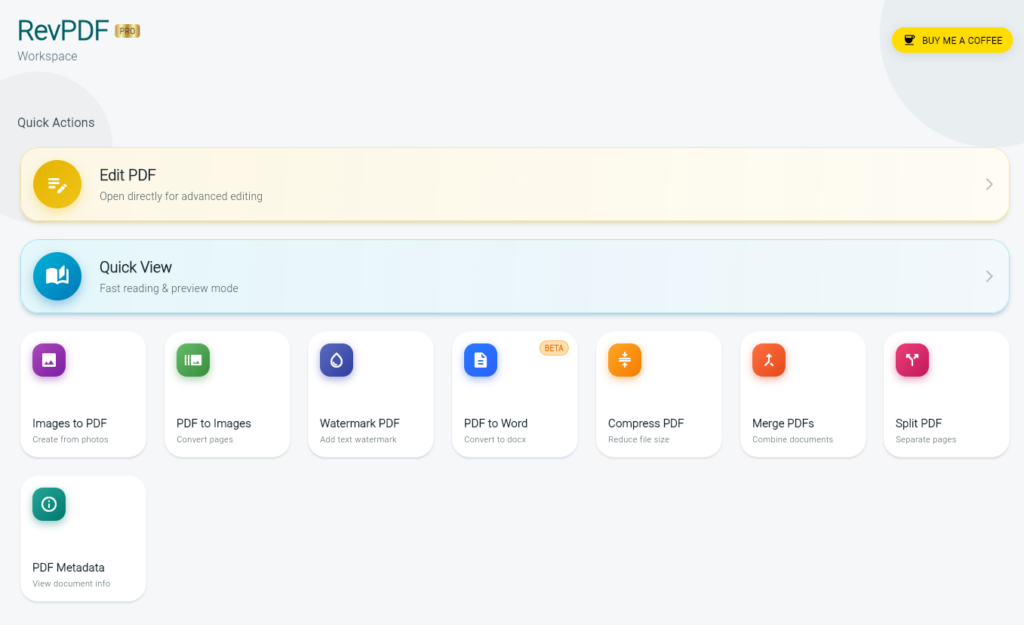
If you need an easy to use, free offline PDF editor for macOS, Linux, Windows, Android, and iOS, then RevPDF is the tool to checkout. I usually edit PDFs on my desktop devices (e.g. Windows, Linux), and RevPDF makes that task easy.
Since I often work with PDFs, I will find myself wanting a quick editor to insert text or edit a few text fields. You can do that with RevPDF and more, such as, redact a name, sign a form, split a page out, compress a file before email. A big benefit? RevPDF does all of that without an account in the cloud or locally.
My favorite feature in RevDev is using the redaction tool to remove underlying text and images. That can make a difference, especially when there is sensitive data in the document. Some other features worth looking at:

You can get RevPDF from the developer’s site. Desktop versions are free, and the mobile app has a 4.6-star rating on Google Play. I promptly paid about $10 for my lifetime version of the Android version. I thought I could do that since I’m not spending $100 a year on a whiteboard style solution.
PDFsplat
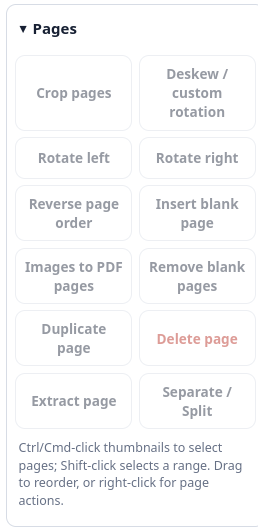
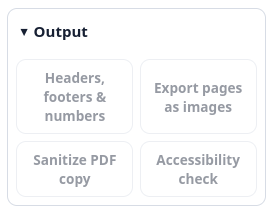
PDFsplat is DrawSplat.org’s browser-based PDF toolkit for editing and managing PDFs without uploading documents to a server. You can add or edit text, highlight, draw, insert images and signatures, crop and rotate pages, reorder or split documents, add page numbers, export pages as images, convert PDFs to EPUB, sanitize files, and run accessibility checks.
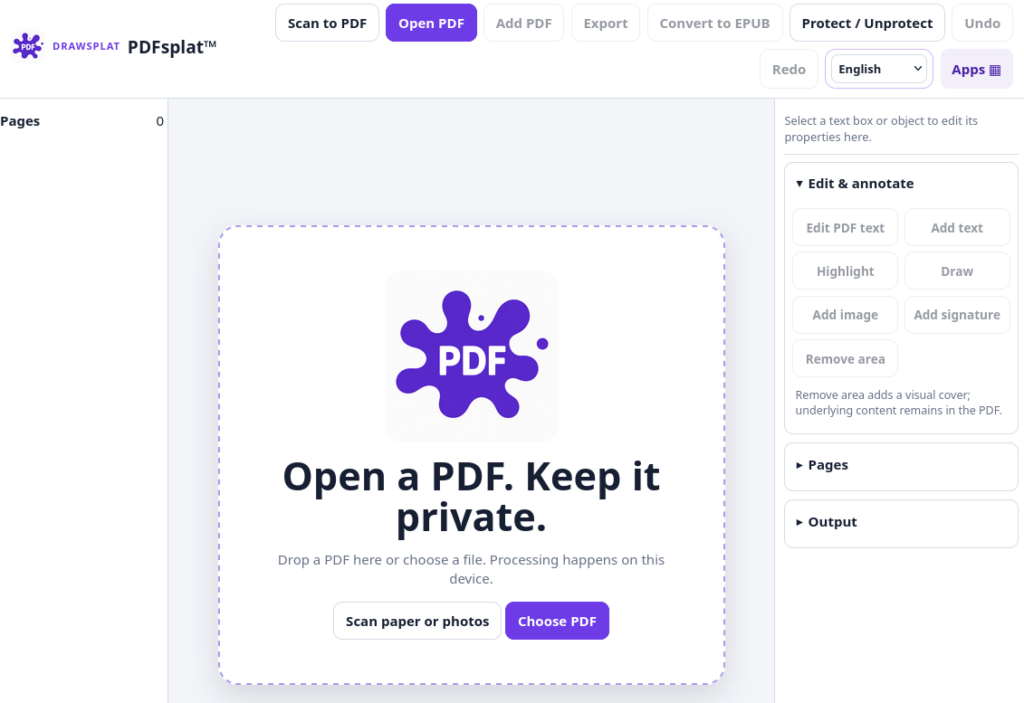
The sidebar (right) shows a list of features or actions you can take. Here is what Pages offers:
And, here is what output offers:
PDF processing happens locally on your device, making PDFsplat especially useful for educators and organizations working with documents they prefer to keep private.
PDF Maple also offers a Scan to PDF option.
Pick One, Use It This Week
The common thread for all of these is that you can use these tools to get work done, and not spend money to do it. That’s important in tough times like these. Three are open source.
Pick the one that maps to a problem you have been solving with a paid tool, and try it this week.
Did You Know? TCEA offers an AI Essentials for Educators course that covers all the tools and vibe-coding. How cool is that? Earn 17 CPE hours, badge plus a certificate.
This blog was updated on 9/14/2026 to reflect new content.