
Are you needing some ways to become more efficient when managing your Gmail? Saving just a few steps to accomplish a task in your inbox might not save the planet, but it may help you get your work done in a more proficient way. Today, I’ll share a few ways to improve productivity and save time, including dealing with the contents of an email during its first reading, searching and finding a specific email, and delegating responsibility to read and answer an email.
Delete Emails with a Filter
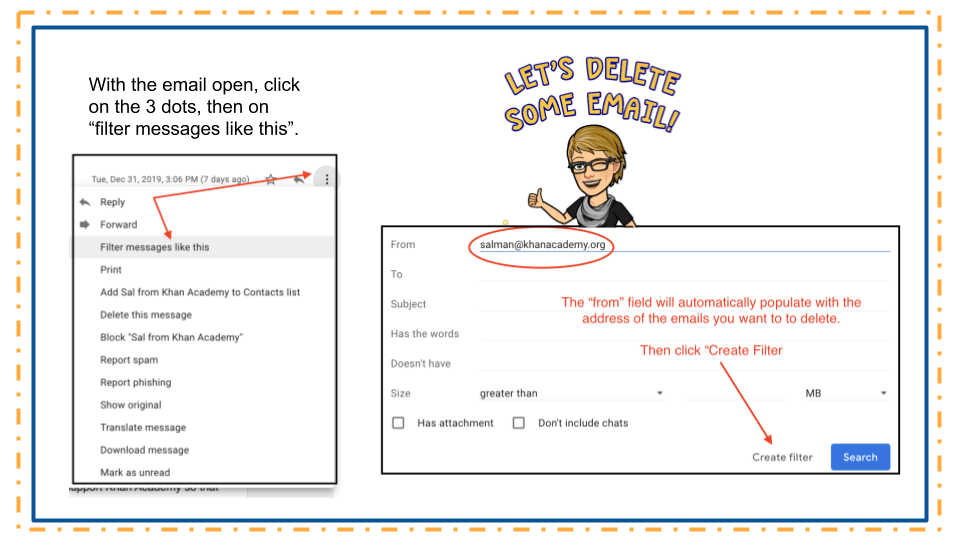
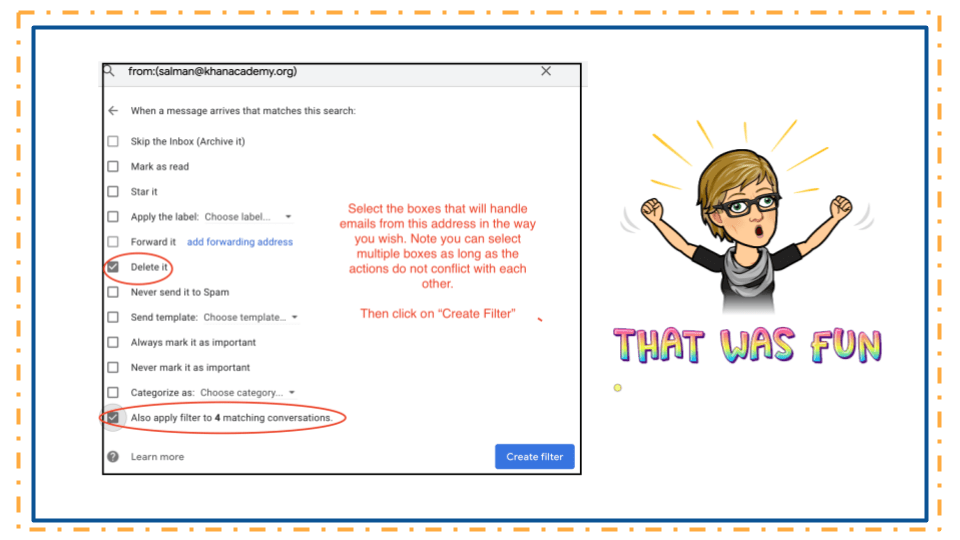
One way to help you organize your email is to create a filter that automatically handles them. I use filters primarily to label emails and to delete those pesky emails that I have no interest in reading. You can unsubscribe to these types of recurring emails, but occasionally the sender makes you jump through hoops to get off their list. Filtering does the trick in these situations, and the easiest way to do this is when you have one of those emails open.
First, open up an email you want to delete automatically, and follow these steps:
Create an Event/Task Within an Email
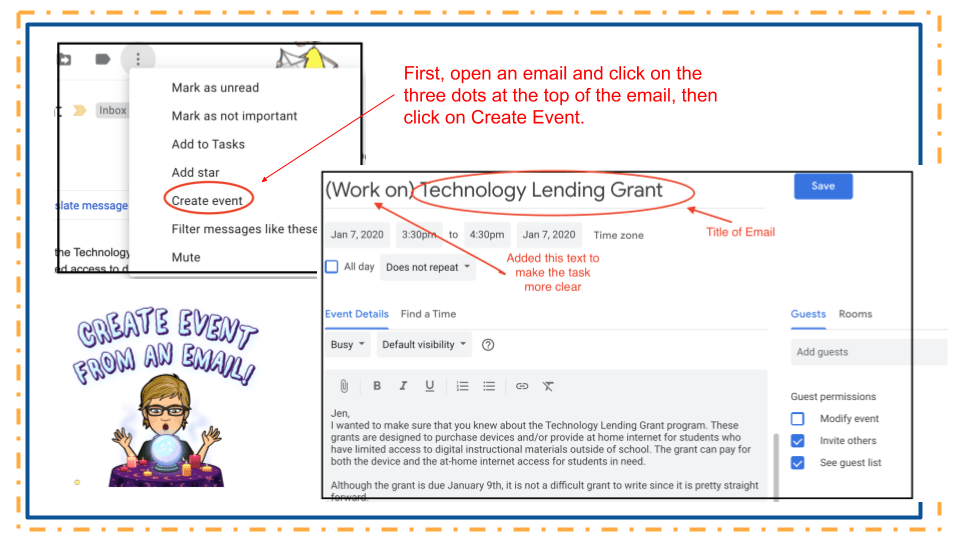
Many emails generate work that needs to be done or may require a meeting that needs to be scheduled. I like to do this within the email, as opposed to copying and pasting the text into my Google calendar, and it’s pretty simple. Begin by opening up the email and clicking on the three small dots at the top of the inbox (some call this the “skinny snowman”). This will open up a menu. In this menu, click on “Create event” and follow the directions below.
Search Your Inbox
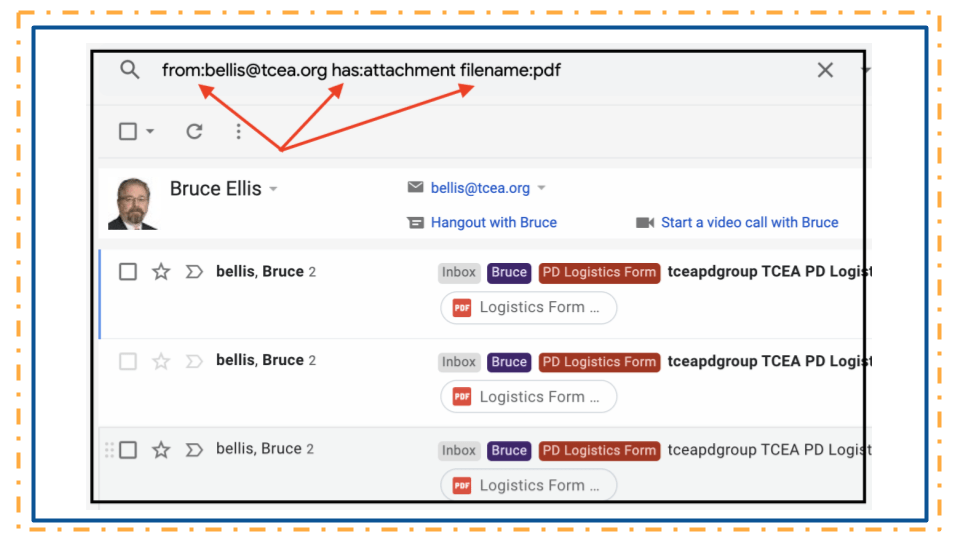
The third trick I use almost every day is searching my inbox to find a specific email using Google’s Gmail search operators. I wrote about this previously in April 2018, so I won’t go into a lot of detail here, but I think the image below demonstrates what it looks like:
Email Delegation and Finding Help
The last tip I want to share is two-fold. First, I want to show you the built-in help feature within Gmail’s settings, And secondly, I want to show you how to let someone else handle your email. Most people don’t need someone to read and answer their email, but there are a few occasions when Gmail’s Email Delegation can come in handy. For instance, a coaching staff may set up a football@sampleisd.org account and then give multiple coaches the ability to read and answer emails sent to that email address. It also could be used by an administrative assistant to help her principal handle her email so that she could spend more time in classrooms.
Begin by accessing your settings by clicking on the gear located at the top right hand of the inbox. Then select Settings, and then click on Accounts.
- When you click on “Learn More,” a “help” box pops up on the right. This is super handy. You can learn about this feature without leaving your settings (see the orange circle and arrow).
- To set up email delegation, first click on “Add another account.” Then you will enter the email of the person you wish to be the delegate. They will get an email asking their permission.
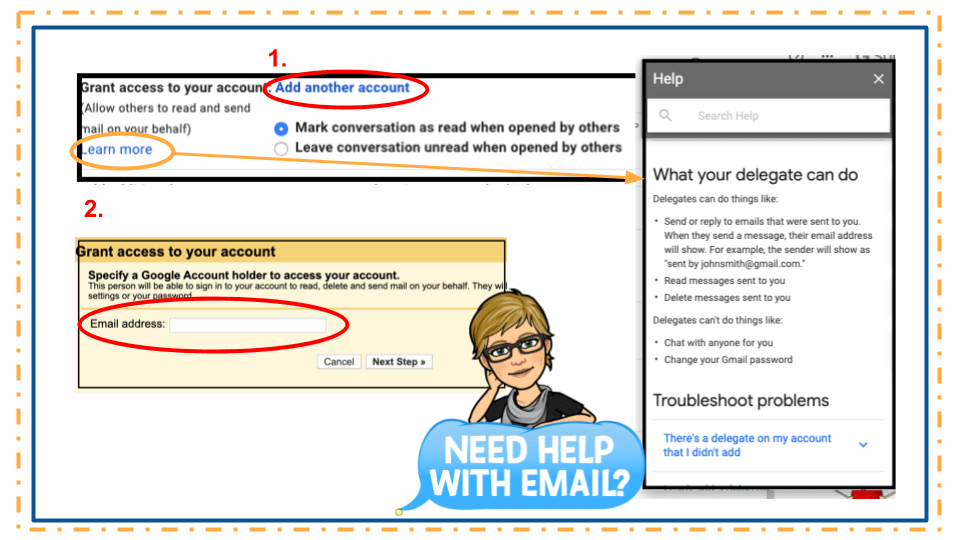
This is pretty transparent. When someone receives an email from the delegate, it will tell the sender that you are sending it for the person who owns the email box.
These are just a few ways you can increase your efficiency when using Gmail. I’d love to hear your ideas, so please insert your favorite time-saving tricks in the comment section!
Photo of iPhone by Kon Karampelas on Unsplash





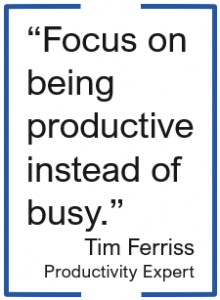 There are so many different tasks that I do which involve using either Microsoft Word or Google Docs that I have picked up a few tips and tricks over the years to help make using Microsoft Word even faster so I can get to other items on my to-do list. And isn’t that our main goal anyway? As Tim Ferriss, author of The 4-Hour Workweek, said, “Focus on being productive instead of busy.” I was training this past week on Microsoft Office and had that startling realization that there are things I know how to do in Office that I take for granted and just assume that everyone knows the same things and makes use of various tools to speed up their process. So, here is a shortened list I would share with someone if they use Word, but want to be more productive.
 Auto Recovery – Initially set at ten minutes, I dropped mine down to five. Whether I’m on my laptop on the go or plugged in at the office, if something happens and my computer shuts off, the worst case scenario is that I have only lost five minutes of work.
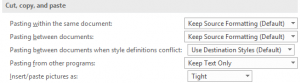 Copying/Pasting – When pasting from other programs, I typically want just the text (not the formatting), so why not set it here? I also have my pictures inserted/pasted as Tight…which is what I would change them to most of the time. The few times I want an image inserted in line with text or in front of text, I can easily change it on the fly using the Wrap Text button on the Format ribbon tab.
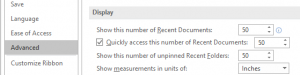 Recent Documents/Folders – It seems like I am always needing to find a Word file that I used a while back. To help make that easier, I increased the preference to show the 50 most recent documents (to quickly access them) and 50 unpinned recent folders.
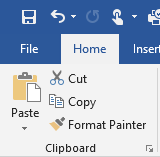 Format Painter – I cannot believe that everyone doesn’t know about the Format Painter tool! Click in the text that contains the format you want to paint somewhere else. Then, click the Format Painter tool once if you are only going to apply it once or double-click it if you want to apply it to multiple pieces of text (or graphics) in your document. If you double-click the tool, then you will need to click it again to turn it off. This tool is especially handy if you have multiple locations where you want to bold, resize, change the font, and the color!
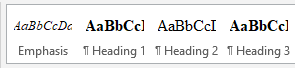 Styles – Instead of being forced to use the styles that are listed across the Home tab ribbon, consider updating them to be what you want. When your cursor is in the text that contains the formatting you want to keep, right-click on the appropriate style and select “Update…to Match Heading.” This is equivalent to boosting the Format Painter tool in that I don’t have to go and find the format in my document to click in and then grab the tool. Updating the styles makes it even easier.
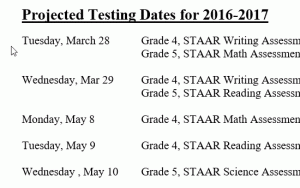 ALT+click/drag – We know that you can click and drag to select text. This shortcut is like that only on steroids! While you hold down the ALT key, click and drag to select the columns of text you want to delete. Once selected, just his the delete key or backspace key.

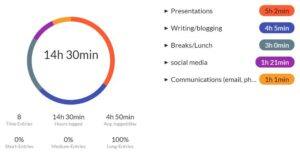 Before you can address some of your habits, you may have to identify them and discover which ones are taking up more time than you realize. In doing so, I highly recommend
 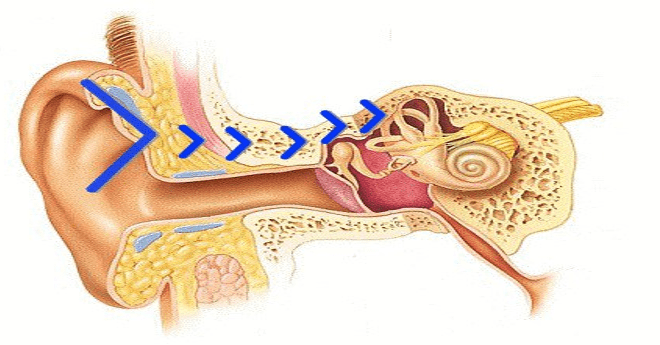 Bone conduction works on a similar premise as how you normally hear. Normally, sound waves (vibrations) enter your ear and are translated by your inner ear. With bone conduction, though, sound travels through your bone (skull) to reach your inner ear. While this process sounds like something from science fiction, it works very well. You actually don’t feel anything unless you have your music turned up on high.
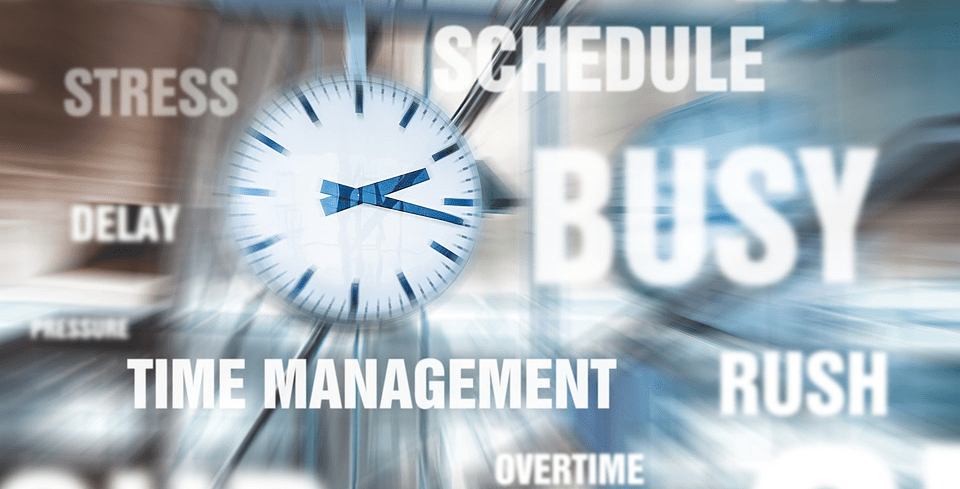
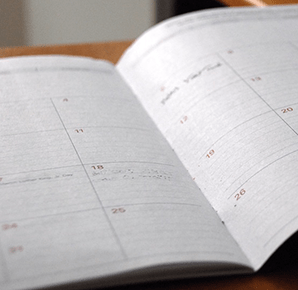 It’s actually pretty simple. Schedule something after work hours that requires you to leave at your scheduled time. It’s funny that anytime my kids have an activity that I have to be at after work or I have an appointment with someone right after the end of the day, I manage to be more productive. Knowing that I cannot stay late or have “extra time” to get things done forces me to push through distractions and be more focused on the tasks I have in front of me. Even if you don’t have a legitimate appointment to put on your calendar, still “schedule” something so that when you look at it, you are reinforcing the expectation that you cannot stay late. This could be something as simple as watching Wheel of Fortune that comes on an hour after the time you should be leaving work. You could also schedule time to get caught up on some enjoyable reading, a date night with your spouse, or taking a walk around the neighborhood to get some exercise in.
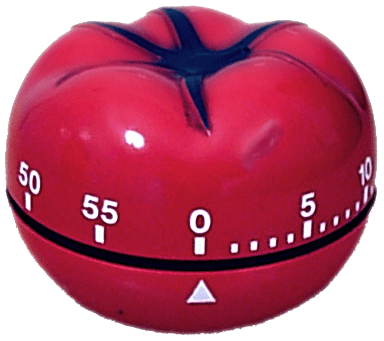 If you find you need a little bit more structure so that you can end your day without staying late, consider using the