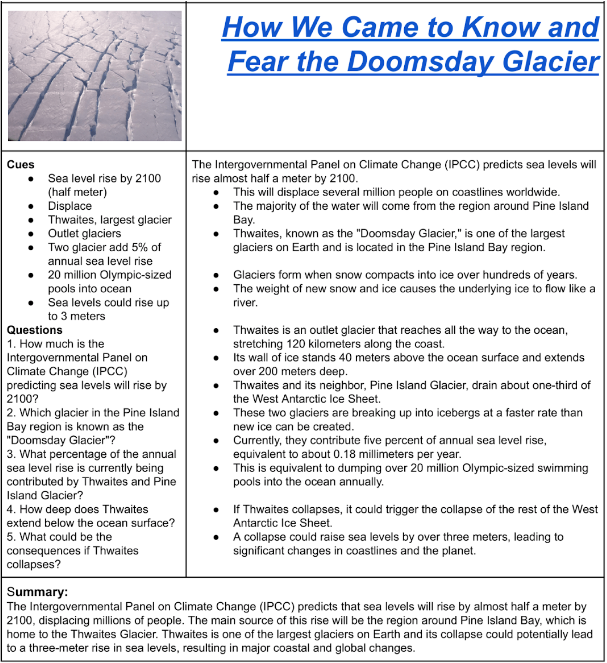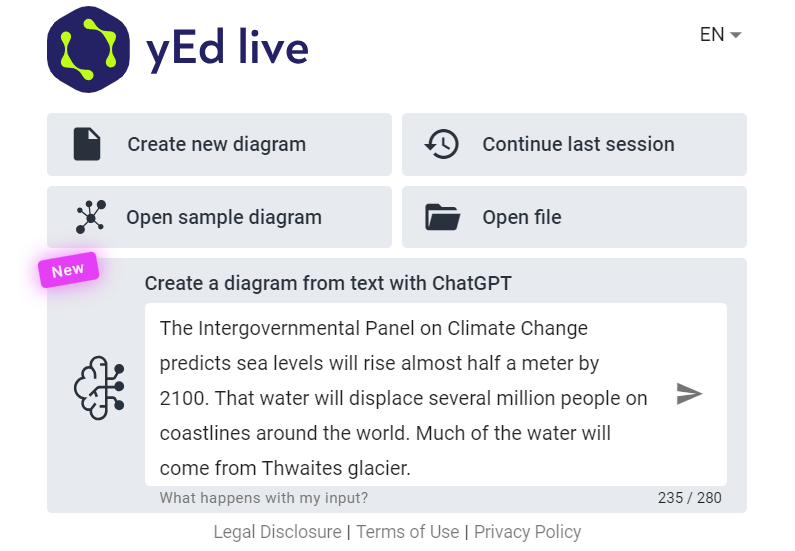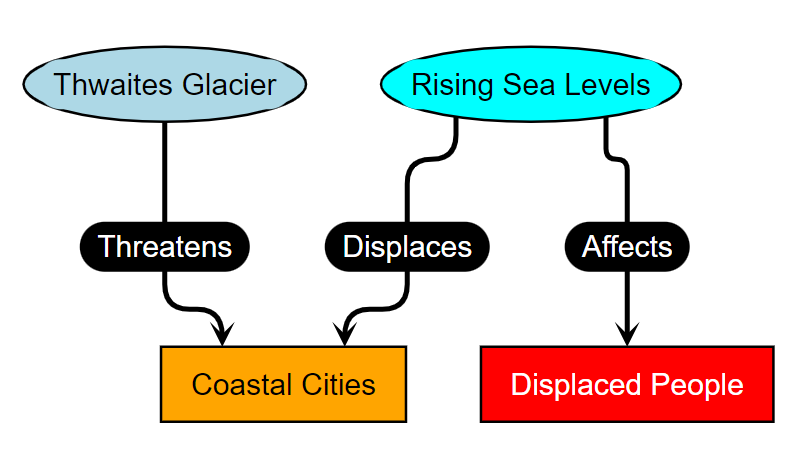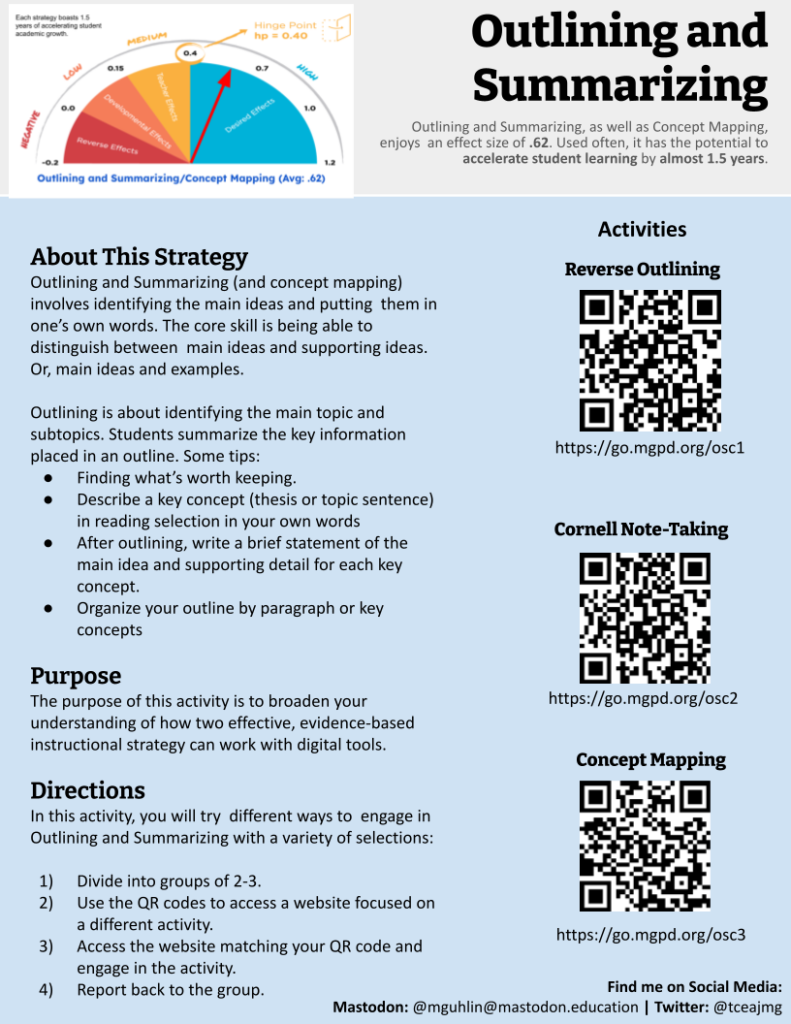
After a meeting, I often paste a transcript into my Outline Helper Bot. A few moments later, I have a traditional outline with key ideas, quotable quotes, and action items. It’s one of seven custom GPTs I’ve created to make routine work easier.
Now those GPTs have an expiration date. So do Google’s Gems.
In September 2026, Google announced its transition from Gems to Skills. OpenAI has also announced plans to retire custom GPTs, replacing them with plugins that can contain reusable skills.
If you’ve spent hours crafting custom instructions, teaching a chatbot to follow an instructional framework, or getting its output exactly right, this news may be unwelcome.
I’ve always believed that the instructions behind a custom chatbot matter more than its name or interface. With the right instructions, you can teach a Gen AI tool to follow a process, apply an instructional framework, or produce work in a consistent format.
That’s why I recommend saving your favorite GPT and Gem instructions as reusable skills. You can adapt them across several Gen AI platforms, keep improving them, and avoid rebuilding everything when a company changes its products.
What’s Changing with GPTs and Gems?
Both OpenAI and Google are shifting toward skills, although they’re taking different approaches.
OpenAI’s custom GPTs are scheduled to retire on December 11, 2026. Some FedRAMP and qualifying Enterprise workspaces have until February 11, 2027. Creators can migrate eligible GPTs into plugins that preserve instructions as skills and copy knowledge files as references. Custom actions require separate migration work.
Google began rolling out Gemini Skills on October 13, 2026. Its transition depends on the type of Google account.
| Platform | Transition | Key dates |
|---|---|---|
| ChatGPT Custom GPTs | GPTs to plugins containing skills | December 11, 2026 |
| Gemini personal accounts, age 18+ | Gems to Skills | November 17 to December 17, 2026 |
| Gemini Workspace business accounts | Gems to Skills | No sooner than March 2027 |
| Gemini Workspace for Education | Gems to Skills | No sooner than June 2027 |
For personal Google accounts belonging to adults, Google says Gems become read-only as they transition on November 17 and are removed on December 17. Its transition timeline is different for younger personal-account users.
For Google Workspace for Education, the later transition gives schools more time to prepare. Google says remaining Gems will be automatically converted into draft skills when the institutional transition occurs. Those drafts must be reviewed and activated.
There’s another detail worth knowing. Skills you create in the Gemini app do not automatically appear in Google Workspace apps. You’ll need to create or import them separately where supported.
Source: Google’s official Gems-to-Skills transition guide and Workspace administrator guidance.
What’s a Skill, and Why Should You Care?
Think of a skill as a reusable set of instructions that tells a Gen AI assistant how to complete a particular task.
Imagine that you regularly take messy meeting notes and turn them into an outline. You could write instructions for that process and paste them into ChatGPT every time. Or you could save the instructions as a skill and ask the assistant to apply them when needed.
Skills can include instructions, examples, reference documents, and, depending on the platform, executable scripts.
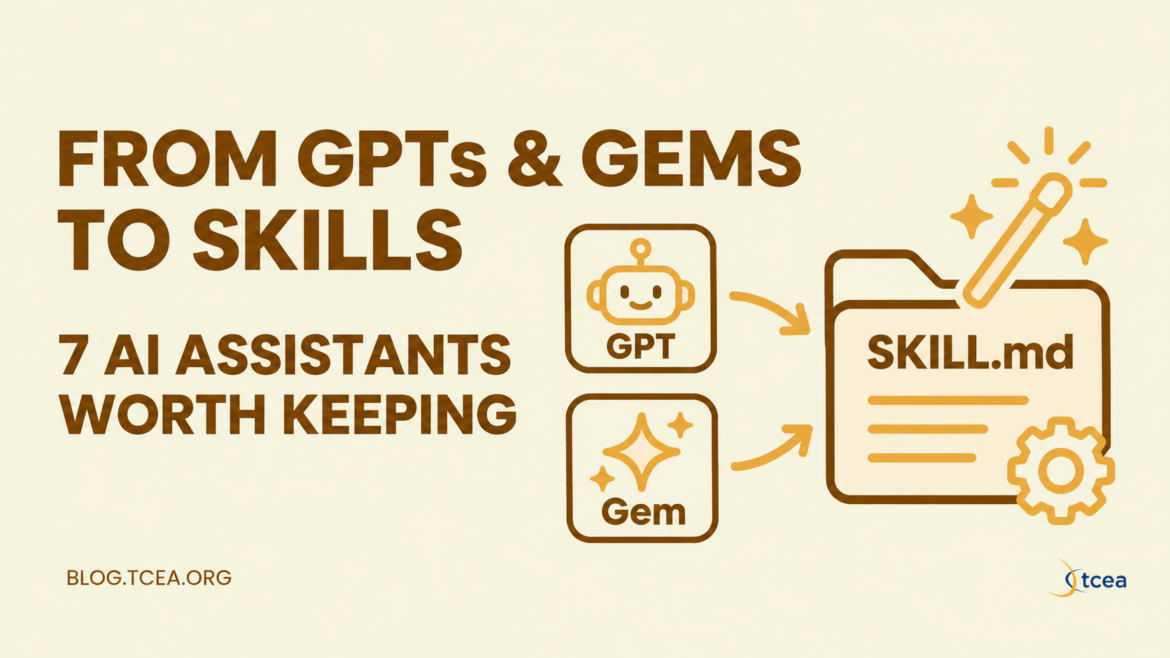
One development I find especially interesting is Google’s adoption of the open, Markdown-based SKILL.md format. Claude already supports skills built around this type of file, and ChatGPT supports reusable skills in eligible workspaces.
For educators, this creates an opportunity to preserve instructional routines in a format that can be adapted to different tools.
Here is how the options compare:
| Tool | How it works | Best use |
|---|---|---|
| ChatGPT Skill | Reusable instructions and supporting resources | Repeatable tasks |
| ChatGPT Plugin | Packages skills, reference files, and optional connected apps | More complex workflows |
| ChatGPT Project | Keeps chats, files, and instructions together | Ongoing work |
| Gemini Skill | Reusable Markdown-based instructions | Specialized assistance across chats |
| Claude Skill | Structured instruction file with optional supporting resources | Repeatable workflows |
| BoodleBox Bot | Custom chatbot instructions and knowledge resources | Classroom and team assistance |
A ChatGPT Project or BoodleBox Bot isn’t the same thing as a portable skill. However, you can adapt the instructions behind those assistants into skills.
Keep in mind that a shared file format doesn’t guarantee identical behavior across platforms. Skills that depend on special tools, integrations, or code may need additional work.
Seven Custom GPTs You Can Turn Into Skills
In my original version of this article (revised 11/2026) I shared seven assistants. Each one represents a practical workflow worth keeping.
Let’s revisit them with skills in mind.
#1 – SIFT Approach Skill for Digital Literacy
Mike Caulfield’s SIFT method gives students a way to investigate online claims before accepting or sharing them.
A SIFT skill can guide learners through four actions:
- Stop: Notice your emotional reaction
- Investigate: Examine the source
- Find: Look for better coverage
- Trace: Follow claims to their original context
Ask the skill to investigate a questionable headline. Rather than declaring it true or false, it should guide students through the steps, asking one question at a time.
This approach helps students practice evaluating information instead of accepting a chatbot’s judgment.with clear “Questions to Ask” at each stage, making critical thinking accessible to learners at various levels.
#2 – PRISM Skill for Deeper Thinking
The PRISM Framework Bot helps students move beyond listing facts.
Its five components are Patterns, Reasoning, Ideas, Situation, and Methods.
Imagine students studying changes in an ecosystem. A PRISM skill could ask them to identify patterns in population data, explain possible causes, consider environmental conditions, and suggest ways to test their conclusions.
You can also align questions to the SOLO Taxonomy, moving learners from surface understanding toward deeper connections.
For classroom use, I recommend instructing the skill to ask questions before providing explanations. Students still need to do the thinking.
#3 – Outline Helper Skill for Meetings
This is one I use several times a week.
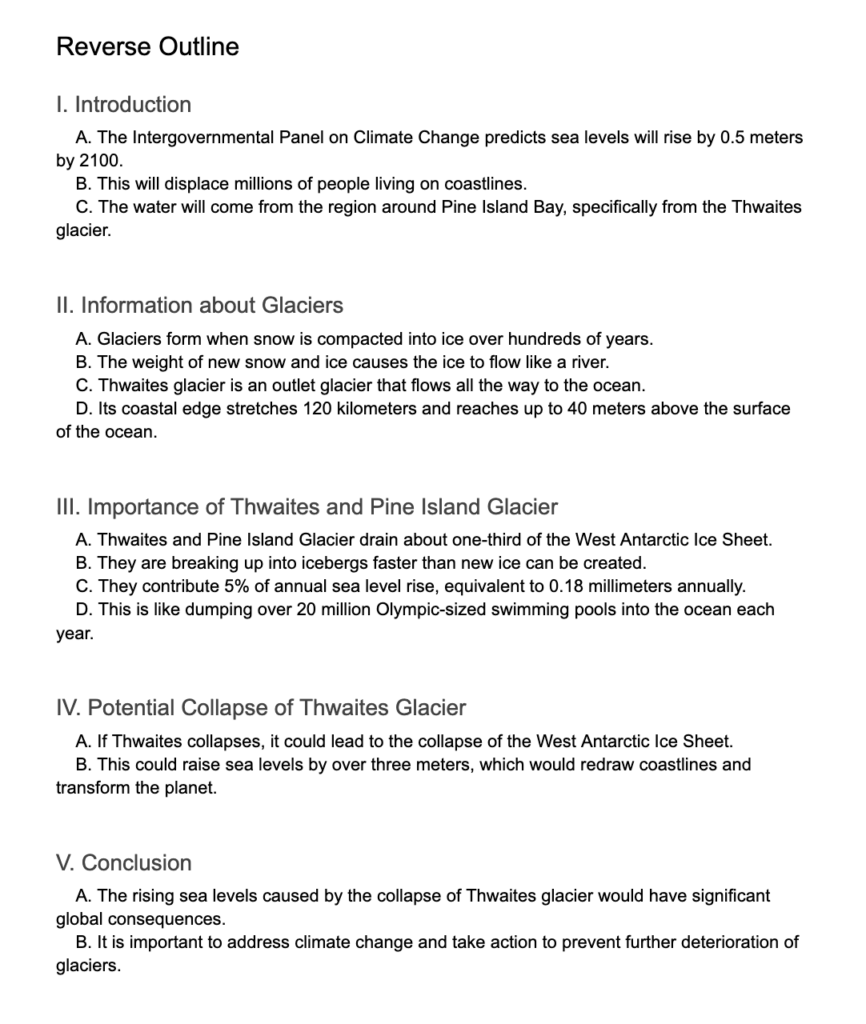
I prefer traditional outlines with Roman numerals, letters, and numbered details. Call me old-fashioned.
The Outline Helper skill can take a meeting transcript and turn it into an organized summary with decisions, important quotations, and action items.
Its instructions should specify that it:
- Uses a traditional outline structure
- Preserves important direct quotations
- Identifies decisions and responsible parties
- Separates action items from general discussion
- Never invents decisions or quotations
You can adapt it for professional learning notes, presentation transcripts, or planning sessions.
One caution: Don’t upload recordings containing confidential student or personnel information into a Gen AI service unless your district has authorized that use.
#4 – Quadrant Note-Taking Skill
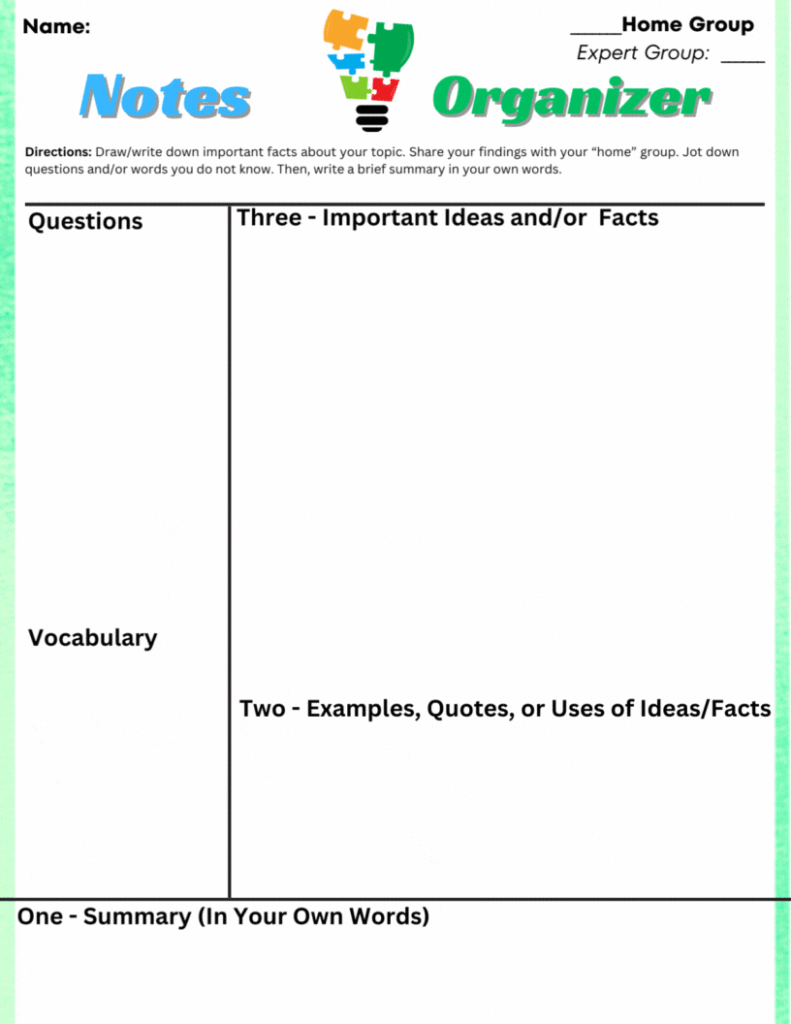
Remember teaching Cornell Notes? Quadrant note-taking offers another way to organize information.
Have the skill divide a passage or lecture into four sections: main ideas, supporting details, personal connections, and synthesis.
For classroom use, I’d have students complete their own notes first. Then they could compare them against a sample generated by the skill.
This gives students an opportunity to identify what they missed and explain why particular details matter.
#5 – AI Citation Assistant Skill
Educators and students need clear expectations about acknowledging Gen AI assistance.
A citation skill can explain common citation conventions, help format sources in MLA, APA, or Chicago style, and give examples of how students might disclose Gen AI use.
It should also warn users when information is missing. Never permit it to invent authors, publications, dates, or URLs.
The skill should follow your school’s academic integrity policies. For additional ideas, see Citing AI Assistance: Five Approaches to Try.
#6 – Vocabulary Enhancement Skill
This assistant offers alternatives to the usual vocabulary worksheet.
A vocabulary skill could take a teacher’s word list and generate poetry prompts, word games, and stop-motion animation storyboards. You can have it adapt activities for K–2, grades three through five, or secondary students.
One useful instruction is to require students to explain each word in context before they create their final product.
You might also have it build retrieval practice activities using words students encountered earlier in the week.
#7 – Freewriting Coach Skill
I’ve seen students freeze when confronted with an empty page. Freewriting helps them get ideas down before worrying about revision.
The original Freewriting Coach Bot used the FLOW method:
- F: Fast and Timed
- L: Loose
- O: Open
- W: Write
Turn that routine into a skill that offers writing prompts, suggests timed writing periods, and encourages writers to keep moving.
Tell it to save editing suggestions until the writing period ends. Otherwise, your freewriting coach might become an overenthusiastic grammar teacher.
You can also review my article about freewriting.
How to Convert a GPT or Gem Into a Skill
You don’t have to rewrite your custom instructions from scratch. In fact, I recommend keeping a copy of the original instructions in a Markdown file before making any changes.
Here’s the process I’d follow.
Step One: Save Your Original Instructions
Begin with the instructions, reference materials, sample prompts, and special rules from your GPT or Gem.
If you’ve built several assistants, create a folder for each one. Include a text or Markdown copy of the instructions and any reference files you own and have permission to reuse.
I’ve already shared the custom instructions for all seven assistants in this article.
Feel free to copy and adapt them for your own use.
Step Two: Convert the Instructions Into a Skill
A good skill needs a clear name, a description of when it should be used, the process it should follow, and the output you expect.
For example, here is a compact version of the Outline Helper instructions:
—
name: outline-helper
description: Organize meeting transcripts into traditional outlines with key decisions and action items.
—
# Outline Helper
## When to Use
Use when the user provides a meeting transcript
and requests an organized summary.
## Process
1. Identify the main discussion topics.
2. Group related details under each topic.
3. Extract important decisions.
4. Identify action items and responsible parties.
5. Preserve direct quotes accurately.
## Output
– Traditional outline format
– Roman numerals, letters, and numbers
– Markdown formatting
– Final section: Next Steps and Action Items
## Rules
– Never invent quotes or decisions.
– Label unknown responsible parties clearly.
– Do not add facts absent from the transcript.
– Keep the language concise and neutral.
Save this as SKILL.md inside a folder named outline-helper.
This is a basic example. You could add sample transcripts, expected outputs, or a more detailed formatting guide.
Step Three: Add the Skill to Your Preferred Gen AI Tool
Each platform handles this differently.
For ChatGPT: If you created a custom GPT, open My GPTs and look for the Migrate to plugin option. When available, OpenAI’s migration process converts the GPT’s instructions into a skill and copies its knowledge files into the plugin’s reference files.
If you prefer to create a new skill directly, eligible ChatGPT workspaces offer skill creation and uploading through the Plugins directory. Availability depends on your account and workspace settings.
For Gemini: Open Gemini and go to Settings or Customize, then Skills, depending on the interface available to your account. You can create a skill manually by copying the name, description, and instructions from your Gem.
You can also upload supported SKILL.md files. Gemini’s instructions explain how to download a skill, add your reference files to its folder, and upload the package again.
Google plans to migrate remaining Gems automatically, although the converted skills may need review and activation. Skills also have some feature limits: Gemini reports that certain Gem tools, including Canvas, Deep Research, and Guided Learning, are not yet supported in skills.
For Claude: Create a skill folder containing SKILL.md, package the folder as a ZIP file, and upload it through Customize > Skills. Claude also supports supporting files and, where permitted, scripts.
For BoodleBox: Reuse the instructions in a custom bot and attach appropriate knowledge materials. This remains a bot workflow rather than a native SKILL.md migration.
Once you have the instructions in Markdown, you have a starting point for adapting the same process elsewhere.
Try This Prompt to Create Your Own Skill
If you’ve already collected your custom GPT or Gem instructions, use the following prompt in your preferred Gen AI chatbot:
Convert the attached custom GPT or Gemini Gem instructions into a reusable skill that follows the open SKILL.md format.
Give it a short name, a clear description of when it should run, specific steps to follow, required inputs, expected outputs, and rules for handling missing information.
Preserve the original instructional purpose. Remove unnecessary platform-specific language. Include YAML frontmatter, Markdown instructions, and two example requests with expected output formats.
Identify features that depend on external tools, knowledge files, or integrations. Do not invent missing capabilities.
Return the complete SKILL.md file and explain what additional files, if any, should accompany it.
Review the result before installing it.
A well-written skill should complete its assigned task without requiring you to explain the same directions every time. If it doesn’t, improve the instructions and test again.
What About Skills Working Together?
One feature of skills I find promising is the ability to combine them.
Google describes this as skill stacking. Gemini can use multiple skills in a conversation. It can also identify relevant skills automatically or let you invoke one by entering / followed by the skill name.
ChatGPT and Claude also support using multiple relevant skills, subject to the features available in each product.
Consider combining three of the examples above.
Start with the SIFT Skill to evaluate a source. Use the PRISM Skill to examine relationships and evidence. Then apply the Quadrant Note-Taking Skill to organize what you’ve learned.
That could be useful for a student examining a news article, a teacher preparing a current-events lesson, or an instructional coach reviewing a new resource.
I’d still keep each skill focused on one job. A skill that tries to handle every possible classroom task will be harder to test and maintain.
Before You Migrate, Check These Limitations
Neither OpenAI nor Google promises that a migrated assistant will behave exactly like the original.
OpenAI’s GPT migration does not automatically transfer custom actions. A migrated plugin also starts private, and people who used the original GPT don’t automatically receive access.
Google’s migration will preserve supported instructions and files, but some Gem features may require changes. Its skills also work differently across Gemini and Google Workspace.
For K–12 educators, that makes testing important.
Use sample material without identifiable student information. Check whether the skill follows the correct process, produces accurate results, respects the intended reading level, and works with the resources it needs.
And keep a local copy of your instructions. I’ve learned that relying on a company’s interface as the only home for work you’ve spent hours refining is rarely a good idea.
Your Next Step: Preserve One Assistant This Week
Choose one custom GPT or Gem you use regularly.
Save its instructions, turn them into a SKILL.md file, and test the new skill against three familiar tasks.
If it works, you’ve preserved something useful. If it doesn’t, revise the instructions until the results meet your expectations.
I plan to keep the instructions behind my favorite assistants in Markdown files, along with any reference documents they need. That gives me something I can edit, back up, and adapt when the next platform change comes along.
You may decide to continue using a bot in BoodleBox, a Project in ChatGPT, or another familiar tool. That’s fine, too. The important thing is to keep control of the instructions that make those assistants useful.
Start with these skills and try using them to support your own work.
Additional Resources
- Claude: How to Create Custom Skills
- OpenAI: Custom GPT Retirement and Migration FAQ
- OpenAI: Skills in ChatGPT
- Google: About the Transition from Gems to Skills
- Google: Gems-to-Skills Transition for Workspace Administrators
- Google Workspace: Introducing Skills and What’s Next for Gems
👤 Human-directed (Miguel Guhlin) · 🤖 Gen AI-assisted (BoodleBox, ChatGPT)