
The suite of productivity products called LibreOffice is a lot like other office suites. It includes tools like a word-processor, spreadsheets, drawings, and even databases. The big difference? LibreOffice is a free, open-source set of applications created by The Document Foundation. Because of that, LibreOffice is a great tool for educators or even families looking to keep up with digital learning.
While it retains amazing functionality as an office suite, LibreOffice has been missing something: the ability to work on the go via your mobile device. In this blog entry, we’ll explore a new development that makes LibreOffice smartphone or tablet friendly.
What LibreOffice Offers
LibreOffice, like OpenOffice, offers a free, open source alternative. Like G Suite EDU and Microsoft Office 365, you get several critical tools that include:
- Writer (word processing)
- Calc (spreadsheets)
- Impress (presentations)
- Draw (vector graphics and flowcharts)
- Base (databases)
- Math (formula editing)
The no-cost office suite is available for use on Windows, Mac, and GNU/Linux platforms. You can find a comparison of features between Microsoft Office 2016 and LibreOffice. One of the key missing features is Microsoft’s Immersive Reader.
Another challenge LibreOffice users have faced is accessing their documents on mobile devices. That is, smartphones and tablets.
LibreOffice in the Classroom or Out
Students often have access to tools like MS Office 365 or G Suite EDU for home use. Both suites come with their own set of online apps. That said, Libreoffice, while late to the mobile platform, does have some benefits. There are still many places where students lack connectivity at home. What connectivity is available for their smartphone is emergency phone use only.
Being able to work offline remains a valued option. LibreOffice offers a free, no-cost alternative to students and staff who need that option.
LibreOffice Goes Mobile
Until a short time ago, LibreOffice’s native format was hard to open and edit on mobile. Open Document Format (ODF) enjoyed a few select apps for viewing, but none for editing. This made embracing LibreOffice and cloud storage (e.g. Dropbox) tough. You would always need a laptop with LibreOffice.
A new app, available for Android and iOS (use links to get it for your device) removes this obstacle. You are now free to open, view, and edit ODF documents on your smartphone.
The New App: Collabra Office
Collabora Office allows you to open LibreOffice documents available via cloud storage. Not only that, but you can edit them and the app works offline. You can open and save file to ODF file format, but also as Microsoft friendly. This includes formats such as .DOC and .DOCx.
You can create the following new documents via Collabra Office:
- Spreadsheet
- Presentation
- Text document
You can also open existing Microsoft documents in .DOCx, .DOC, .PPT, .PPTx, .XLS, and .XLSx formats.
Editing Text Documents and Inserting Items
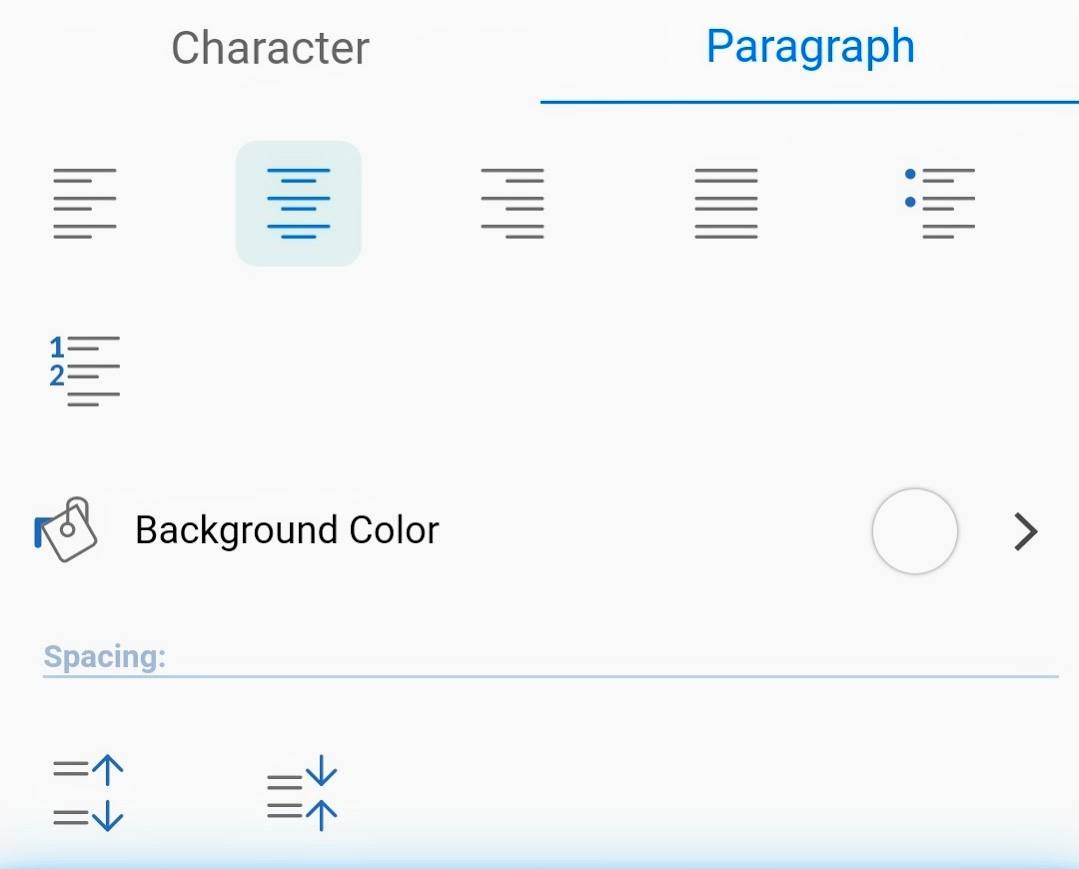
Need to edit text documents? You are going to have access to the usual features. Those features include the ability to bold, italicize, underline, strikethrough, and shadow text. You can adjust fonts, size, and customize other paragraph styles you may need.
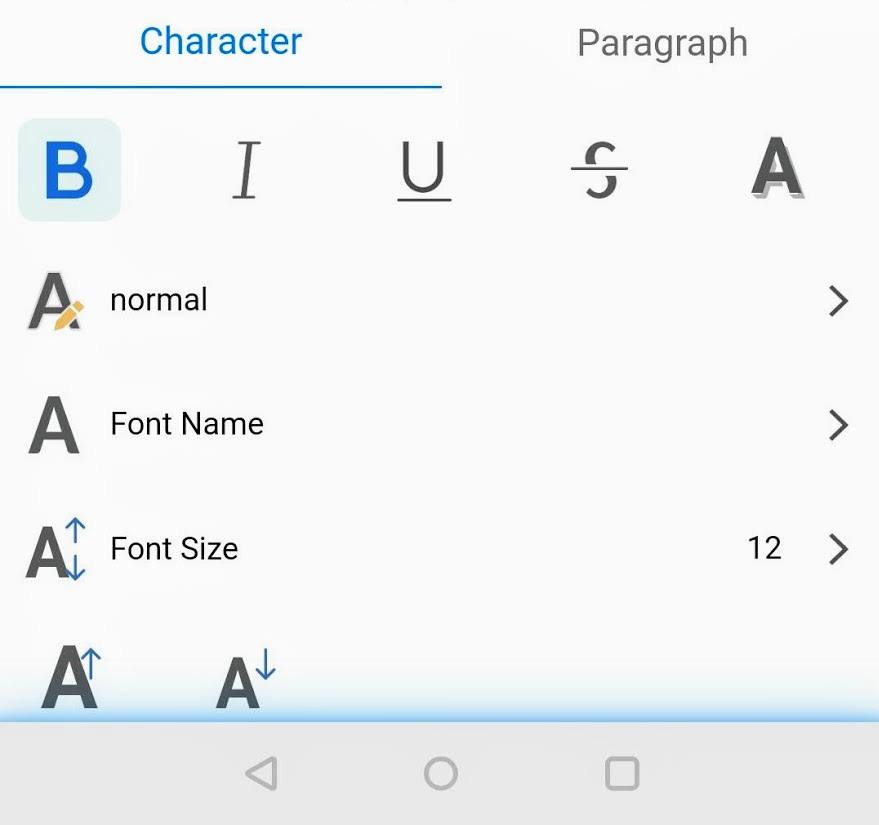
Need to insert an image, table, or comment? You can do that. You can add headers, footers, footnotes, and endnotes, as well as a page break, column break, hyperlink, or shapes. There’s no shortage of actions you can take with Collabora Office. This makes it a nice, full-blown offline document creation and editing tool.
Saving to the Cloud
When you have finished edits to a document, you may want to save it to cloud storage or to local device storage. You can also choose to export it in compatible formats to your cloud storage device of choice. I chose to export my document (which began as a DOCx file) as an ODT to Google Drive.
Given how smartphones are our new creation platforms, it’s nice to imagine that you can get work done on it. If you need an office suite on the go that affords you offline work opportunities, Collabora Office is the tool to use.


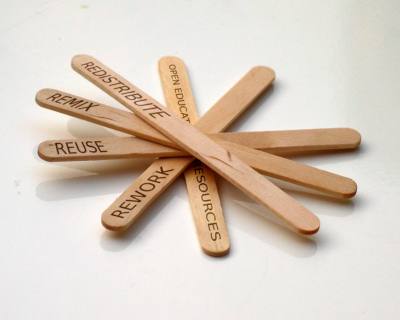
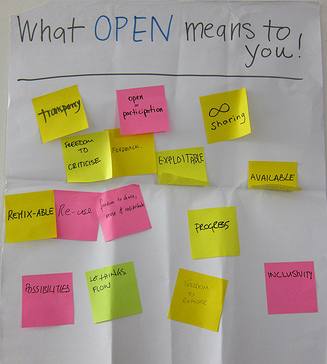 How does a district get started? In order to support districts who are interested in developing some openly licensed educational resources, the #GoOpen campaign has developed a network of states and districts to serve as models and provide support and assistance. A great place to start is by downloading the
  dedication of the instructional staff who have led the process throughout. He noted that the teaching staff has been empowered by the curation process and that the students have positively responded to the change. So far, there have been around 100 teachers involved in the curation process, and he expects that number to grow to more than 200 by the end of this year. He feels that what these teachers have created is a better product than what they could purchase. Their initiative started at the secondary level and, because of their success, the elementary instructional staff is beginning to curate open educational resources as well.
 El Paso ISD is a #GoOpen Launch district. They have