
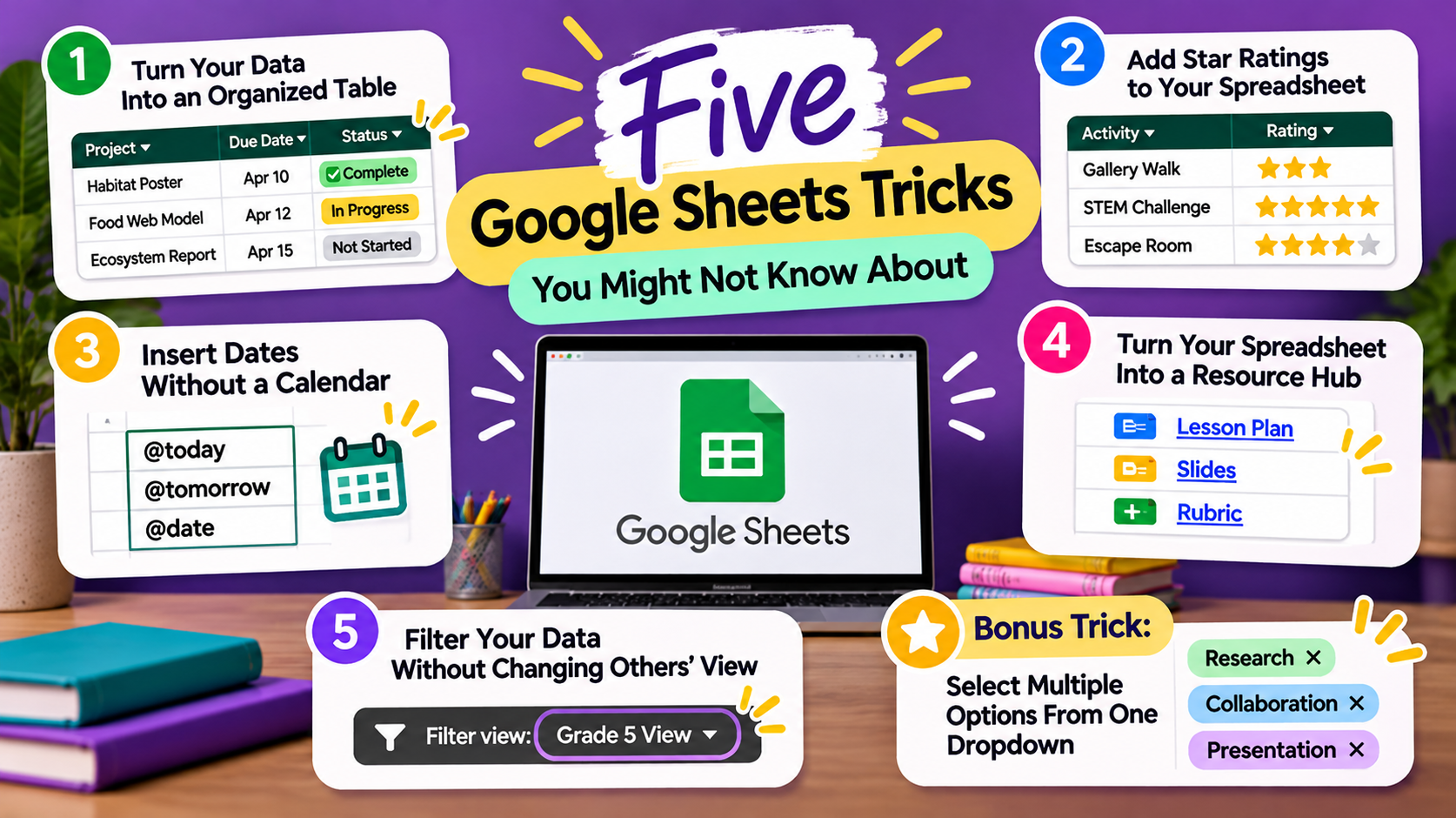
Think Google Sheets is just for organizing numbers and creating spreadsheets? Think again. While many teachers use Google Sheets to collect data, track grades, or organize information, it has some pretty useful features you might not know exist. From creating interactive trackers to organizing classroom resources, these five tricks are worth exploring.
1. Turn Your Data into an Organized Table
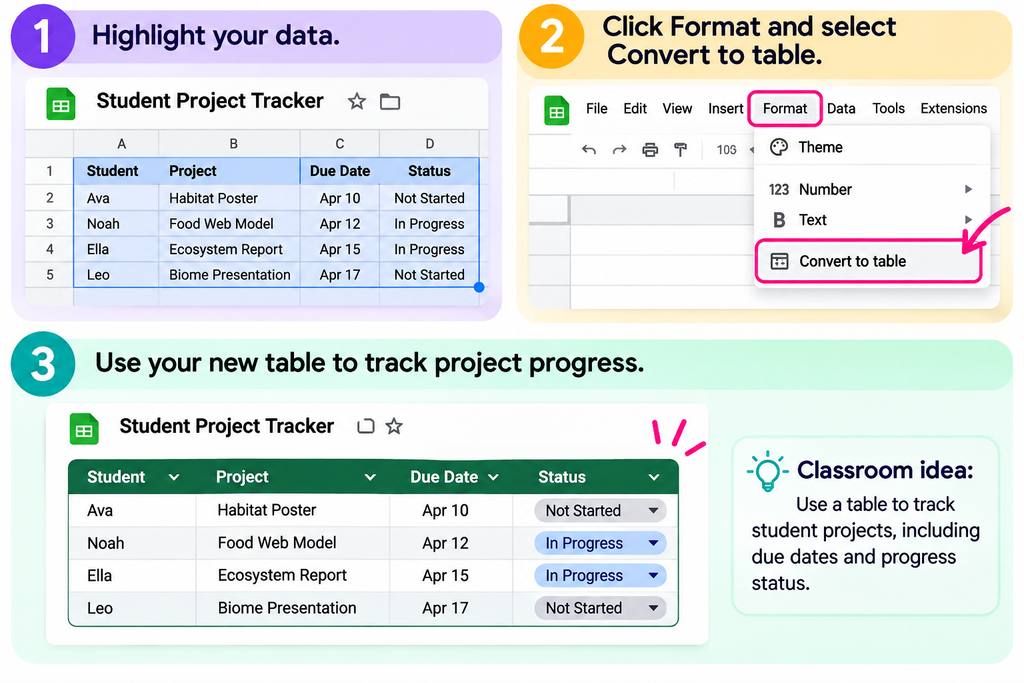
Did you know Google Sheets can automatically turn your data into a formatted table? No need to spend time adjusting every column.
Try it: Highlight your data, click Format, and select Convert to table. You can customize the columns with dates, dropdowns, checkboxes, and more.
Classroom idea: Create a student project tracker or organize classroom supplies without having to format everything manually.
2. Add Star Ratings to Your Spreadsheet
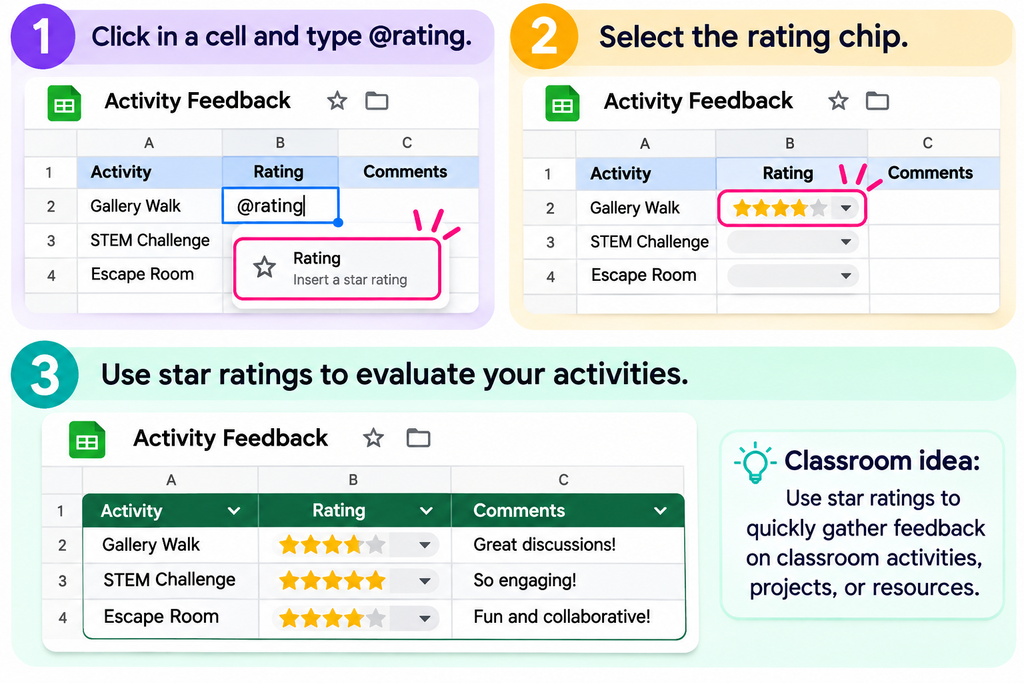
Want to make your spreadsheet a little more interactive? Google Sheets has rating smart chips that let you assign up to five stars.
Try it: Click a cell, type @rating, and select Rating. Then click the chip to choose a star rating.
Classroom idea: Create a digital book review tracker where students rate books they’ve read. You could also use it to evaluate classroom activities or resources.
3. Insert Dates Without Opening a Calendar
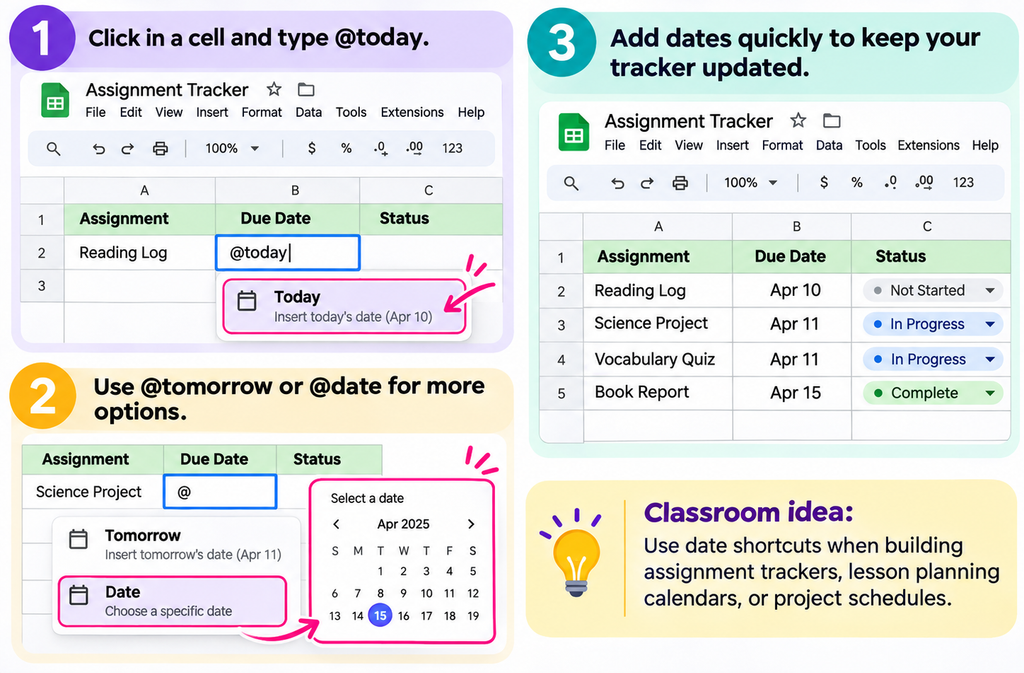
Need to add dates quickly? Google Sheets has some handy shortcuts that save a few clicks.
Try it: Type @today to insert today’s date or @tomorrow for tomorrow’s date. You can also type @date to open a date picker.
Classroom idea: Use these shortcuts when creating assignment trackers, lesson planning calendars, or project schedules.
4. Turn Your Spreadsheet into a Resource Hub
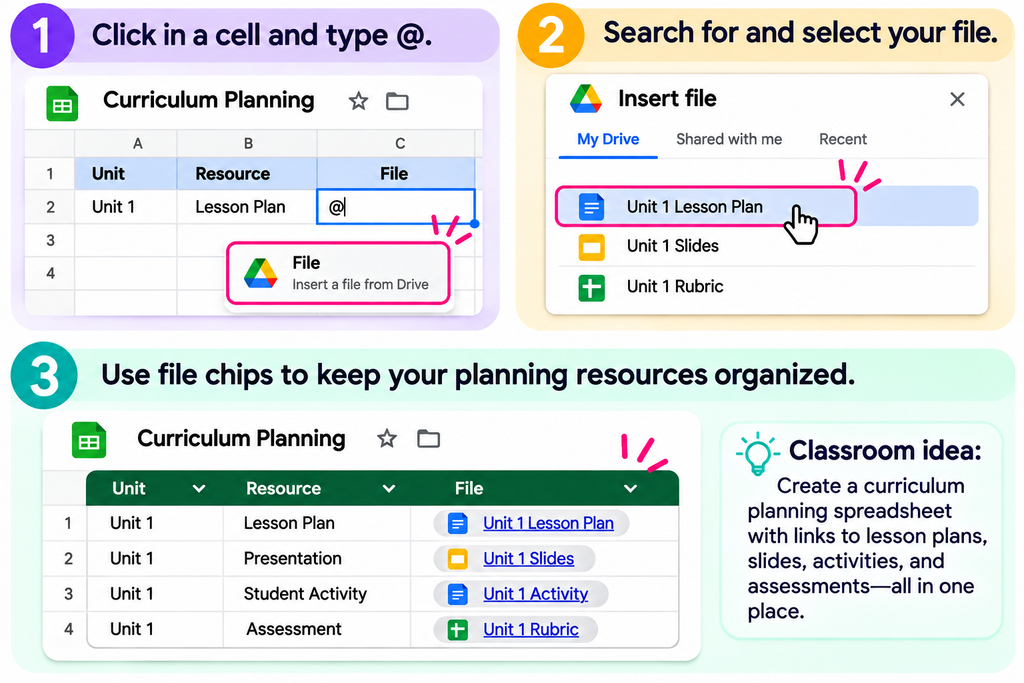
Tired of searching through Google Drive for that one lesson plan? File smart chips can help keep everything organized.
Try it: Click a cell, type @, and search for a file in Google Drive. Select the file to insert a smart chip.
Classroom idea: Create a curriculum planning spreadsheet with links to lesson plans, presentations, rubrics, and other resources.
5. Filter Your Data Without Changing Everyone Else’s View
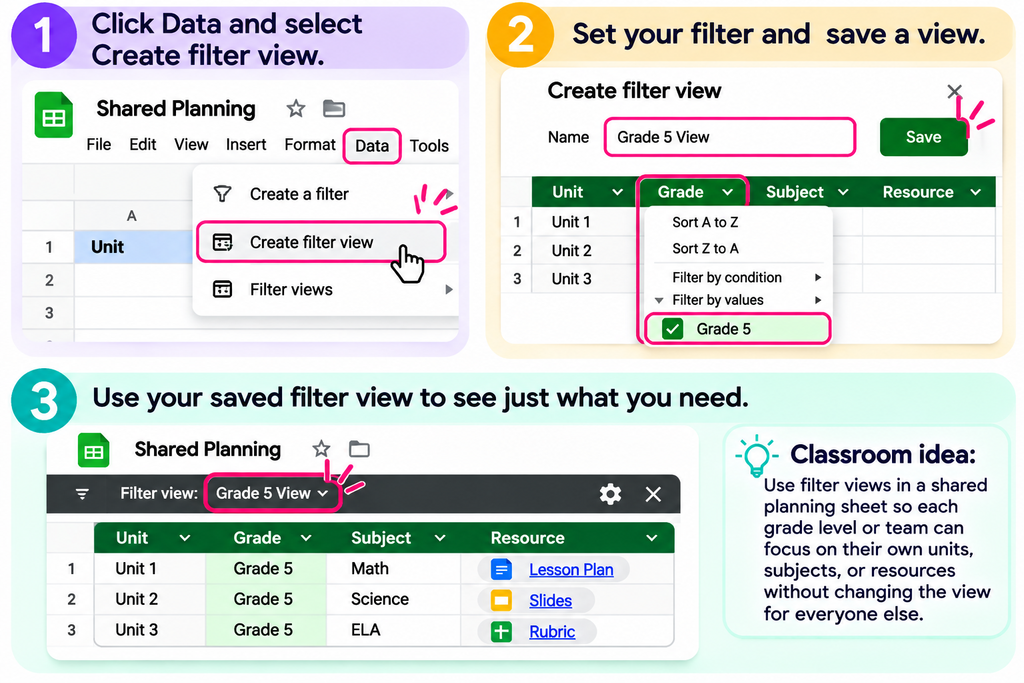
Ever sort a shared spreadsheet and accidentally rearrange what everyone else sees? Filter views can help with that.
Try it: Click Data and select Create filter view. Choose how you want to sort or filter your information, then save your view.
Classroom idea: Instructional coaches can filter shared planning documents by grade level, while teachers can focus on their own assignments or projects.
Bonus Trick: Select Multiple Options from One Dropdown
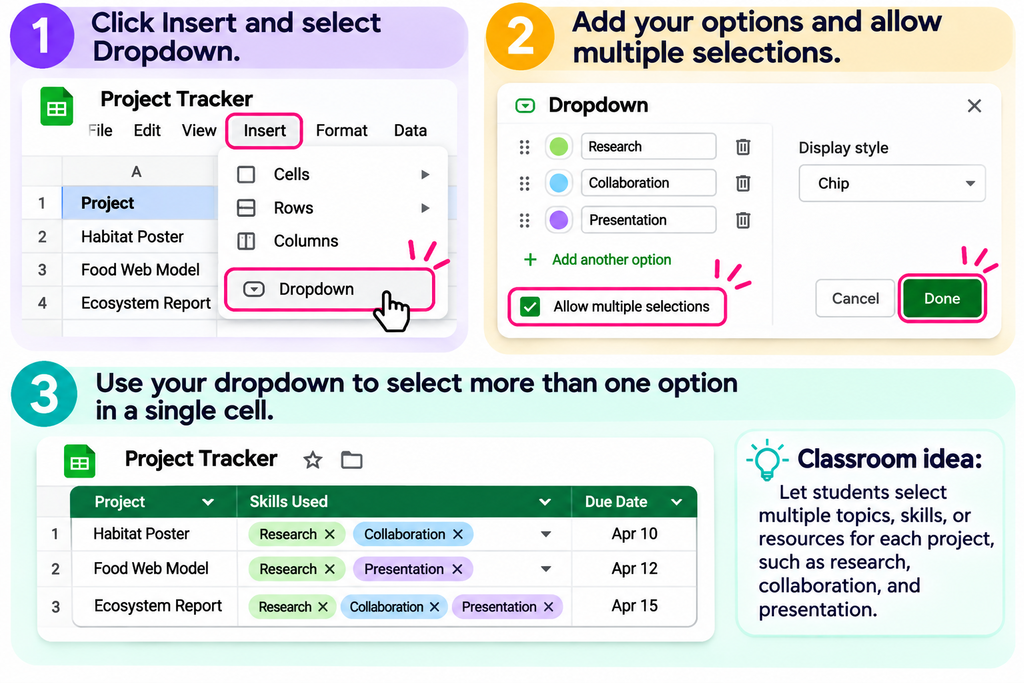
Did you know Google Sheets lets you select more than one option from a single dropdown menu? Instead of creating separate columns for every choice, you can keep everything organized in one cell.
Try it: Select a cell, click Insert, and choose Dropdown. Add your choices, then check Allow multiple selections in the data validation panel. Make sure the display style is set to Chip, and click Done.
Classroom idea: Create a student project tracker where students can select multiple topics, skills, or resources they’re using. For example, a science project might include Research, Collaboration, and Presentation in a single cell.
Which Trick Will You Try First?
Google Sheets can do much more than crunch numbers. Whether you’re organizing resources, tracking projects, or planning lessons, these features can make everyday tasks easier.
Pick one trick and give it a try this week. You might be surprised by what Google Sheets can do!
