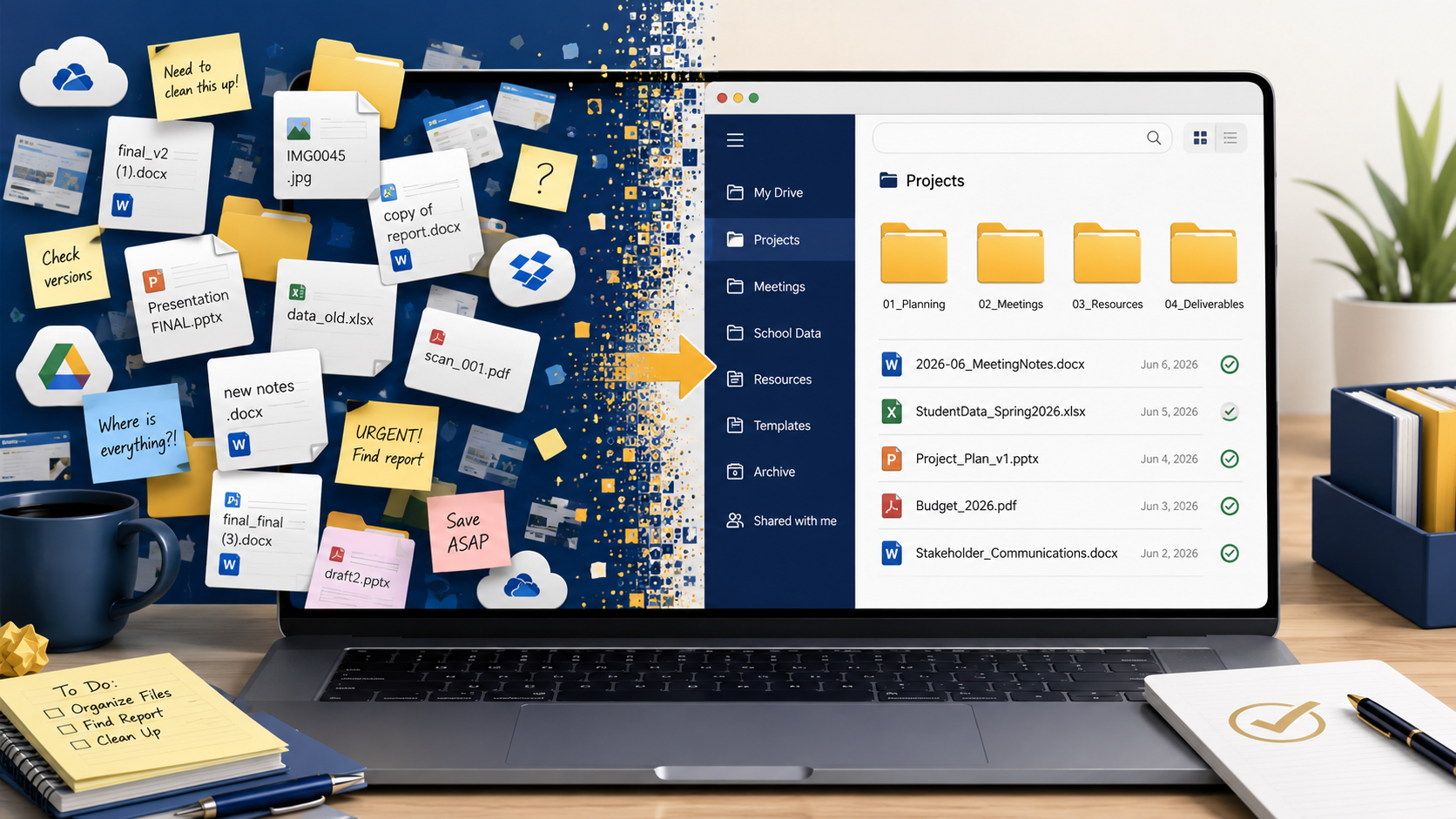
Open your Google Drive, OneDrive, or just your laptop right now. What do you see? If the answer includes folders named “Stuff,” files called “Final_REAL_v2,” and a downloads folder you haven’t touched since last November, you’re not alone. Most teachers finish the school year with a digital workspace that reflects what the year actually felt like: fast, full, and a little chaotic.
That’s not a problem with your habits. It’s the predictable result of prioritizing students over file names for nine months straight. But that clutter carries a real cost. Crown Information Management sites a McKinsey study that reports employees spend an average of 1.8 hours each day just searching for information, meaning nearly 25% of a working day simply vanishes into looking for things. For teachers, that time could go toward planning, feedback, or simply leaving at a reasonable hour.
Marie Kondo, known for her work on decluttering physical spaces, puts it this way: “The space in which we live should be for the person we are becoming now. Not for the person we were in the past.” That principle applies to your Google Drive just as much as your closet. A cluttered digital workspace creates the same kind of friction as a cluttered room: it slows you down, raises your stress level, and makes it harder to focus on what matters.
Summer is your window to fix it, and it doesn’t have to take long. Here’s a practical, phase-by-phase approach to cleaning up your teaching files and building a system that holds up through the next school year.
A 2024 study from Yale University revealed that clutter impairs the brain’s ability to filter out irrelevant details. The more stimuli present, the harder it becomes to focus on what truly matters.
THINKTANKS
Start Here If You’re Short on Time (or Overwhelmed)
If a full Drive overhaul feels like too much right now, start with your email inbox instead. The same principle applies: a cluttered inbox creates the same friction as a cluttered Drive, and it’s often a faster win. I find myself wrangling my own inbox back into shape several times a year. It takes some time, but I always feel better afterward, the same satisfaction as walking into a clean, tidy home.
- Unsubscribe from newsletters and promotions you no longer read. If you find yourself deleting an email without opening it more than twice, unsubscribe instead.
- Set up a filter for one type of recurring email (automated reports, district announcements, etc.) to apply a label, mark as read, and archive automatically. It stays saved and searchable, but it’s out of your inbox.
- Pick one inbox action and apply it consistently before moving on.
- Create a “To Review” or “Action Needed” label and apply it to anything that requires a response. Everything else can be archived. This separates what actually needs your attention from what’s just sitting there.
- Set your inbox to archive automatically after a set number of days using a filter or rule. Many email clients let you auto-archive read emails after 30 or 60 days, so old messages move out of view without being deleted, keeping your inbox focused on what’s current.
Want a faster way to clean up your inbox? A browser extension can speed up the unsubscribe process significantly.
- InboxPurge (Chrome, Gmail only): Scans your subscriptions and lets you mass-unsubscribe in a few clicks. Processes everything locally in your browser, so your data stays private, and the free plan covers 20 unsubscribes per month.
- Clean Email (Chrome/Firefox, works with Gmail, Outlook, and Yahoo): Groups subscription emails together and lets you unsubscribe in bulk, with automation rules for recurring senders. A better fit if you use Outlook or a non-Gmail account.
A quick note: skip Unroll.me. It’s free, but it’s been reported to sell anonymized inbox data to third parties. Not the right trade-off for a school email account.
If your district uses Google Workspace for Education, Gemini in Gmail is included at no additional cost in core editions, with full access on Education Plus. It can summarize long threads, draft replies, and help you find old emails by asking questions in plain language, all without installing anything extra. If you’re not seeing it in your inbox, check with your district’s IT department since some districts manage AI access at the building or department level.
Phase 1: Purge Before You Organize
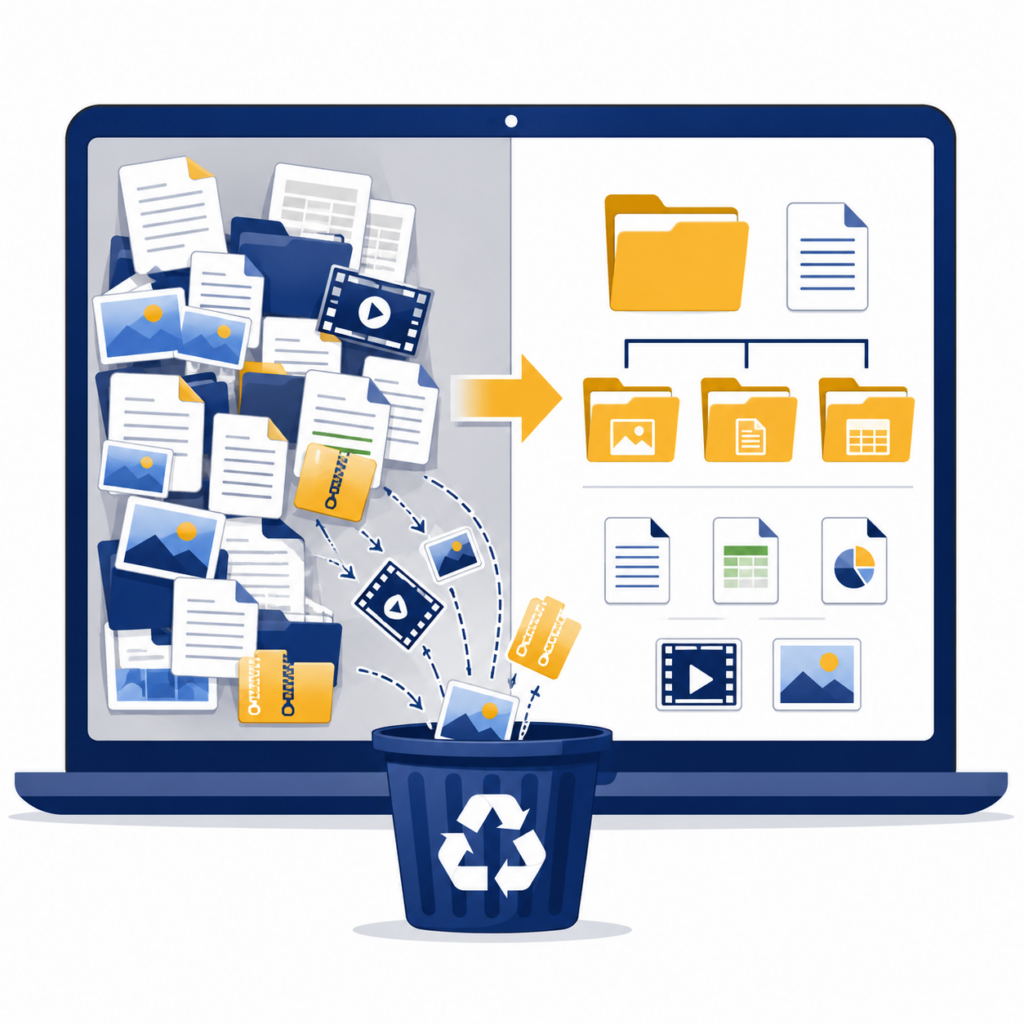
Reorganizing files without deleting anything first just moves the problem around. Start with a purge.
Sort your Google Drive or OneDrive by “Last modified” to surface the oldest files first. For each one, ask a single question: Would I use this again? If yes, keep it. If maybe, create an Archive folder labeled with the school year (e.g., Archive 2024-25) and move it there. It stays searchable but stays out of your way. If no, delete it.
The archive folder isn’t just a one-time cleanup tool. It’s a permanent structure. Every year, completed units, outdated lesson versions, and old admin documents move into that year’s archive folder so your active workspace only contains what’s relevant right now. OneDrive and desktop users can apply the same approach in File Explorer or Finder by sorting files by date modified.
Phase 2: Build a Simple Folder Structure
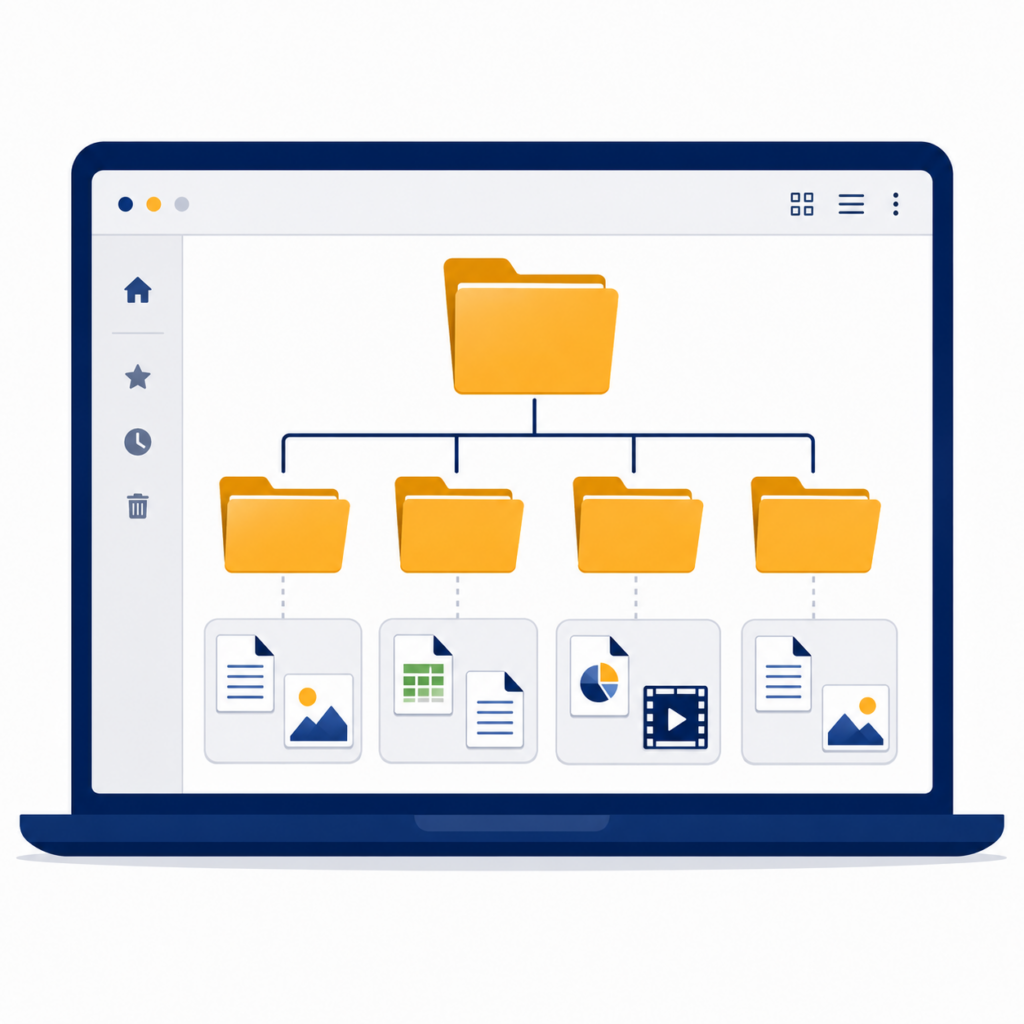
The most common organizing mistake is building a folder system that’s too complicated to maintain. Six nested levels sounds thorough in June. By October, you’ll be dumping everything into the top level because you don’t have time to think about it.
Limit your top-level folders to a small number of broad categories. For most teachers, four to five is enough. Something like Instruction, Assessment, Admin, and Resources covers the majority of what you work with. From there, add one level of sub-folders by unit or marking period. That’s it. If a structure has too many levels, it won’t survive the school year.
Start folder names with numbers (01, 02, 03) so they sort in the order you teach rather than alphabetically. In Google Drive, you can color-code folders or add emojis to make visual scanning faster. It’s a small change with a noticeable impact when you’re navigating your Drive at 6 a.m.
Phase 3: Adopt a File Naming Convention
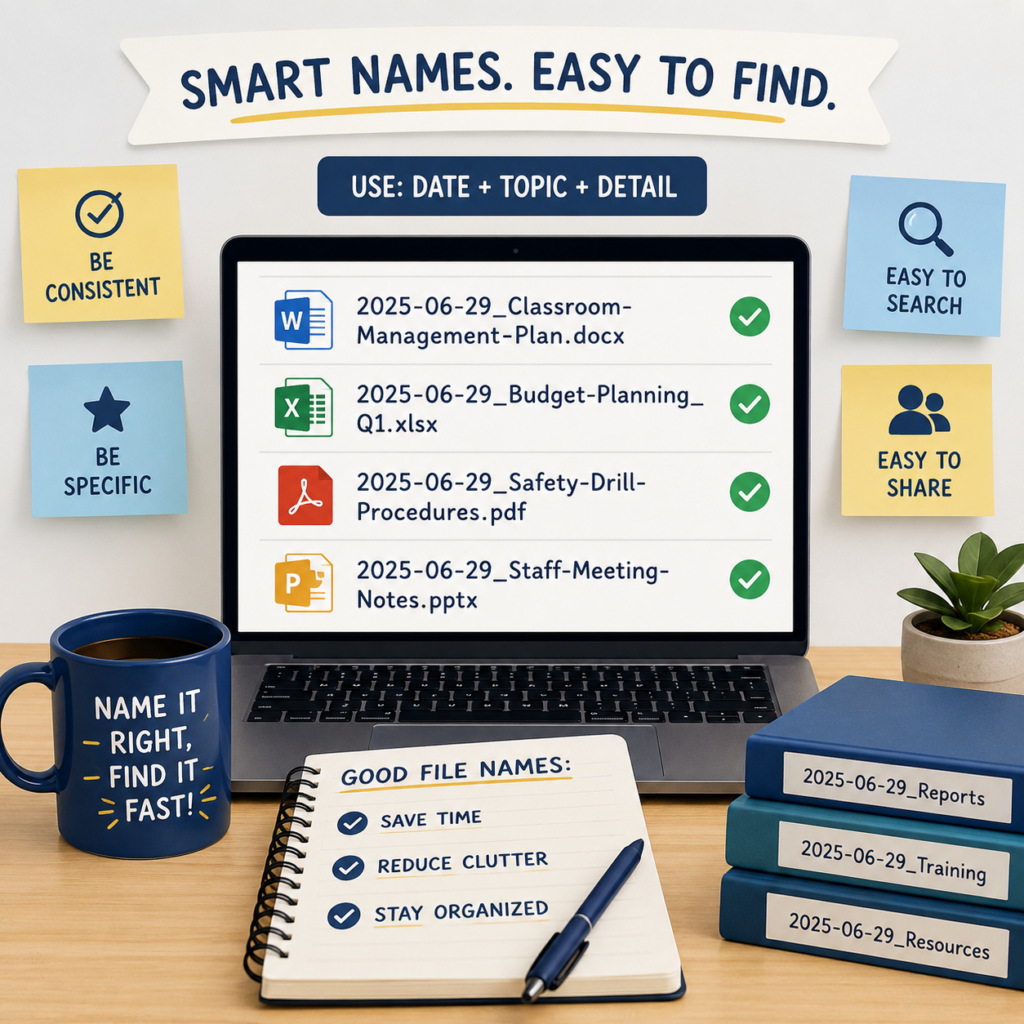
A folder system only works if the files inside it are easy to identify. When every file has a clear, consistent name, the search bar becomes a reliable tool instead of a last resort.
A proven formula used across many professions is: YYYY-MM-DD_Topic_ResourceType
For example:
2025-08-14_Photosynthesis_LabGuide2025-09-02_ColonialAmerica_DiscussionGuide
Starting file names with a date means files self-sort chronologically when listed alphabetically, which is the default in most systems. For teaching resources that aren’t date-specific, a unit-based formula works just as well: U03_Fractions_ExitTicket. The point isn’t which formula you choose. It’s choosing one and using it every time.
Two additional rules: drop the word “Final” from file names entirely, and use a version number (v1, v2) when you revise something. That way you always know which copy is current without opening three files to check.
Phase 4: Choose a Strategy You’ll Stick With
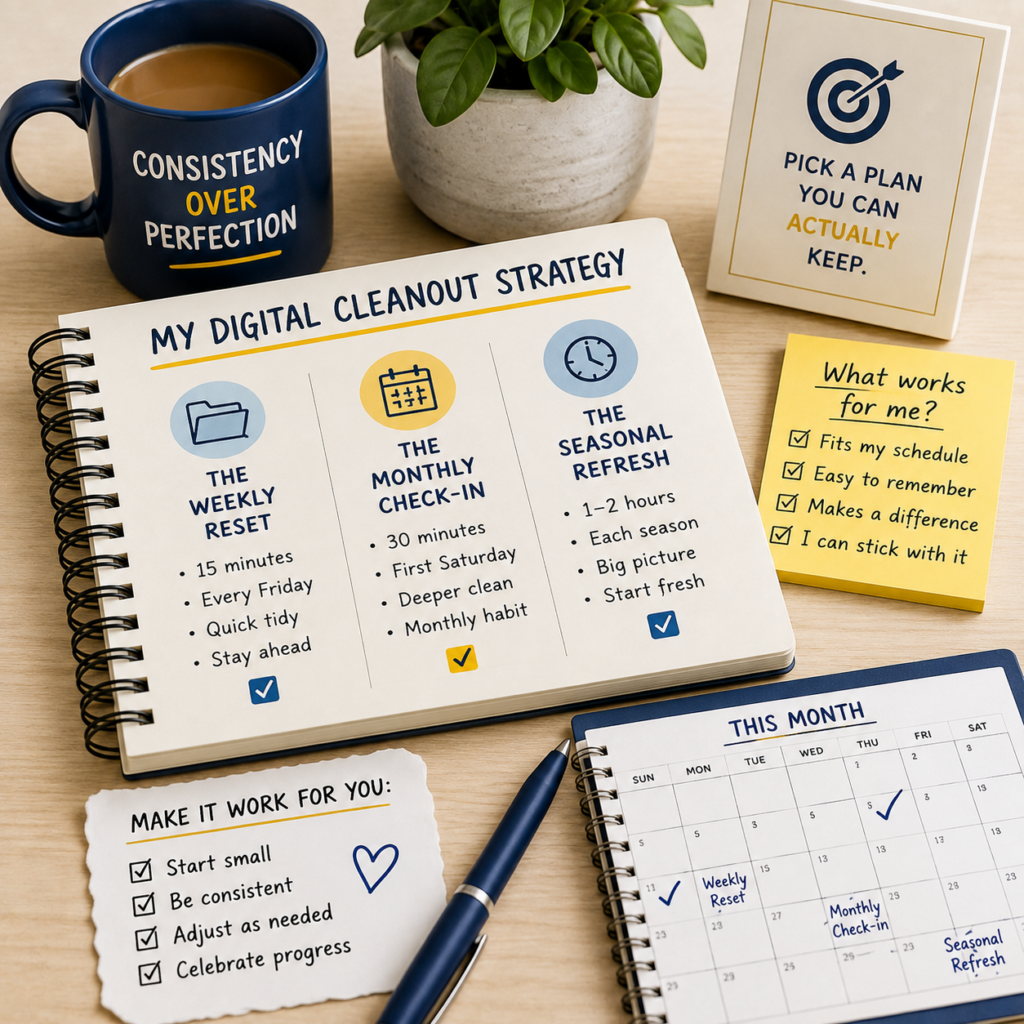
The folder structure you choose matters less than choosing one and using it consistently. Two approaches work well for teachers.
A subject or unit-based system keeps everything grouped by the content you teach, which makes it easy to pull everything you need when planning a unit. A resource-type system uses top-level folders for categories like Assessments, Slides, and Handouts across all subjects, which works well for teachers who move between multiple courses or preps.
Neither is better in the abstract. The one you’ll actually maintain is the right choice. Think about how you search for files during the school year and let that guide your decision.
To keep the system from breaking down by November, build two simple habits now. First, create a folder called 00_Inbox and drop all new files there during the school year rather than deciding where they go in the moment. Second, spend 10 minutes every Friday clearing that inbox and filing things where they belong. A short weekly sweep prevents the annual summer excavation.
You Don’t Have to Do This in One Sitting
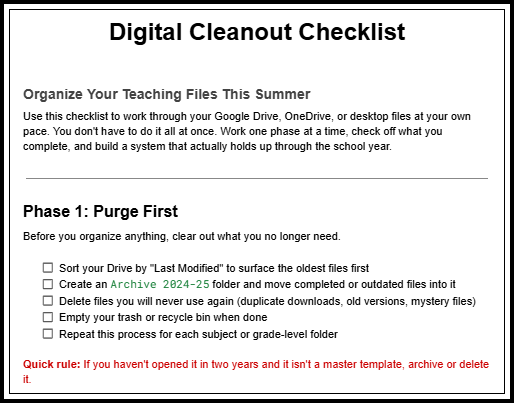
A full Drive cleanup doesn’t require an entire afternoon. Work through it in phases: purge one subject folder this week, build your folder structure next week, rename files the week after. Small, consistent effort gets you to a functional system faster than you might expect.
The goal isn’t a perfect Drive. It’s a Drive that works for you when the school year is already moving fast and you don’t have time to think about where things live. The person you’re becoming next school year deserves a workspace built for them, not a workspace still carrying the weight of years past.
Ready to get started? Download the free Digital Cleanout Checklist. It walks you through each phase at your own pace and helps you build an organization strategy that fits the way you actually teach.
If organizing your cloud drive is too daunting of a task right now, then think of a smaller task that helps you declutter so you can focus…such as organizing your email inbox.