Interested in influencing more educators in the area of technology integration? Want to easily gain valuable knowledge and skills without having to get another college degree? Then check out TCEA’s certification courses. These courses are designed for busy educators like you who want to hone their skills and go deeper in specific technology areas. As a result, you’ll have more confidence in your use of technology, have more influence and ability to help educators that you work with, and become even more effective in your role as an advocate for students using technology. The new cohorts for the Campus Technology Specialist Certification and the Technology/IT Director Certification are forming now and will be starting in September. Continue reading to find out which program is best for you. You may also find more information online here.
Campus Technology Specialist Certification
This learning program is a 12-month program specifically designed for educators already in the role of a campus technology specialist or those looking to move into that role. Through live webinars and an online course, you will gain needed insight and skills in how best to support campus teachers and students in integrating technology by using great tools, apps, websites, and devices in relevant and effective ways. Some of the courses you will take include Tech Trends for Campus Techs, Digital Coaching – Helping Teachers Integrate Technology, and Understanding and Building 21st Century Skills. You can find a complete list of courses for this program here. You’ll complete a relevant final project that will serve as the capstone to your certification requirements. This program includes 26 clock hours of coursework and up to eight clock hours for the final project. TCEA members can enroll for $480; the non-member cost is $529 (includes membership). Enrollment in the Campus Technology Specialist Certification Program includes a one-year membership in the Campus Technology Specialists Special Interest Group (CAMP-SIG).
Technology/IT Director Certification
Designed specifically for those desiring to move into the role of Instructional Technology Director or Information Technology Director, this 12-month program focuses on those skills, insights, and understandings critical to successfully lead a district in the use of technology. Through various online courses and live webinars totaling 41 clock hours, you’ll explore topics such as Personnel Management, Using Key Performance Indicators to Inform Your Work, and Project Management Fundamentals. You can find a complete list of courses and dates for this certification here. As the capstone of your learning, you’ll submit a final project that is appropriate to the role of a Technology or IT Director. TCEA members can enroll for $1,025; the non-member cost is $1,074 (includes membership). Included in enrollment of this program is a one-year membership to the Technology Coordinators Special Interest Group (TEC-SIG).
Chromebook Certification (Level 1)
Completely online and self-paced, this course is ideal for educators who are busy with day-to-day activities, but still want to find a way to increase their knowledge and skills. In this program, you’ll learn how to effectively integrate Chromebooks and GSuite into your content area and use it to engage students with meaningful activities. As a capstone to your learning, you’ll submit a lesson plan demonstrating effective integration of the tools. Though you have up to a year to complete, most people enrolled in this certification program earn their certificate in a few weeks. The cost of this certification is just $99 for TCEA members, $149 for non-members (includes membership). Bulk discounts are also available for campuses and districts wanting to enroll seven or more educators at one time; email Bruce Ellis for more details on bulk discounts. More about this certification can be found here.
iPad Certification (Level 1)
Through this certification, you will learn how to effectively integrate the iPad and several key apps into your content area. And since this program is completely online and self-paced, you’ll have the freedom to learn at your own pace. Though you’ll be given up to a year to complete the certification, most educators who enroll in this certification complete it within a few weeks. To demonstrate your new skills and learning, you’ll submit a lesson plan integrating the iPad in a self-selected grade level and content area. The cost of this certification is just $99 for TCEA members, $149 for non-members (includes membership). Bulk discounts are also available for campuses and districts wanting to enroll seven or more staff members at one time; email Bruce Ellis for more details on bulk discounts. To find out more about this certification, visit this website.
If you have questions about any of these certifications, feel free to contact Bruce Ellis or Ashley Weiler at 800-282-8232. We will also debut a few more certifications later this year, so stay tuned for more ways you can grow your skills and become a more effective user and leader with technology.

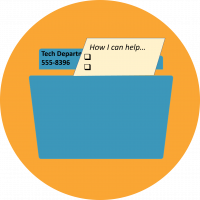 Begin by setting up a brief meeting to introduce yourself. For this meeting, I recommend creating a brief, bulleted list of services and supports you have to offer, along with various ways to contact you and/or your office. Though the administrator should be able to get all of that information from your department website, it is nice to have a hard copy of that information that can be filed away for easy access (the old-school way). Put your information in a
 To go the extra, extra mile, give a copy of the labeled folder and document to their secretary. Recognizing the value of their role in getting things done on the campus can go a long way. While many administrators have good intentions to remember all the details, they typically know they can rely on their secretaries to keep things organized so that that information can be easily accessed when needed.


 It’s actually pretty simple. Schedule something after work hours that requires you to leave at your scheduled time. It’s funny that anytime my kids have an activity that I have to be at after work or I have an appointment with someone right after the end of the day, I manage to be more productive. Knowing that I cannot stay late or have “extra time” to get things done forces me to push through distractions and be more focused on the tasks I have in front of me. Even if you don’t have a legitimate appointment to put on your calendar, still “schedule” something so that when you look at it, you are reinforcing the expectation that you cannot stay late. This could be something as simple as watching Wheel of Fortune that comes on an hour after the time you should be leaving work. You could also schedule time to get caught up on some enjoyable reading, a date night with your spouse, or taking a walk around the neighborhood to get some exercise in.
 If you find you need a little bit more structure so that you can end your day without staying late, consider using the

 What would you add to the list? Has your school or department created a parody of a song to showcase the work that you do? If so, share it in the comments below and let others enjoy your production. In the meantime, if you hear singing while you are waiting for the elevator, it might just be me.

 Most free books are in the public domain, but that doesn’t mean that they are not relevant for our students. But that’s not the only place to find free books. Some parents and students may benefit from signing up for a free month with a particular service even if they don’t plan to extend their usage beyond the complimentary time.
 Many text-to-speech readers are available that can assist with ebooks. Your device and platform may determine which works best for you.
 Hot off the press, these updated lists can give you and your students some direction of what author to check out, the next series to explore, and possibly a new genre to try out.
 Making a book more enjoyable can easily be done by including some after-reading activities. Here are few to get you started. These are great to share with parents as well!

 The purpose of this certification is to help educators build foundational skills in using their Chromebook as an effective learning tool in the classroom. As you go through the course, you will also be introduced to several of the Google Suite of tools to promote collaboration and critical thinking, and you will be provided opportunities to apply it to your content area or grade level. The capstone project for this certification is a lesson plan implementing some of the learned skills and tools within the grade level and content area of your choice.
 The purpose of this certification is to help educators build foundational skills in using the iPad as an effective learning tool in the classroom. As you go through this course, you’ll learn how best to use the features of the iPad to differentiate and support student learning. The capstone project for this certification is a lesson plan implementing some of the learned skills, features, and apps within a grade level and content area of your choice.

 Taking on new skills and the learning curve that goes along with it may be a frightening and/or frustrating task for your staff members. When possible, always try to set them up for success. They may not know how to break the skill down into manageable pieces, for example, so you may need to help model that aloud. Depending on the skill, you may also need to provide additional resources or training to help them become confident and successful. Put yourself in their position and consider what might be helpful in order to stretch…without breaking.
 Talk to your staff about the additional tasks and the need to grow and take on new skills. Having an open discussion can alleviate some of the fear that comes from encountering something new, different, or unknown. When possible, ask questions to find out what they think. They may have a completely different understanding based on their past experiences (or lack thereof). Open dialogue should not be constrained to a single staff meeting however; encourage the conversation to continue. Let your staff know that you want to hear their ideas. Though you may have no control over the growth that needs to take place, you do have a great deal of influence on how well they develop capacity to meet that need.
 When talking with a friend about building capacity in his team, he mentioned that he has a few people that can juggle six or seven major things, and he has one person that can only juggle four. No matter how much he wants the four-task-juggler to grow into a five-task-juggler, he realizes that it just isn’t going to happen. And the best thing he can do is recognize it and use it to both his and his staff member’s advantage. In doing so, he needs to set realistic expectations for each individual staff member. Just because you and I find certain tasks easy to juggle doesn’t mean that a another staff member will obtain the skill with ease. If we think back over our experiences, we probably had much more time (and resources) to build capacity in that area. With that in mind, consider how you can adjust expectations, but still arrive at the required destination.
 There’s been a lot of discussion over the last year about implementing genius hour in the classroom. Genius hour is the strategy of giving time for students to do self-directed learning on interests that they are passionate about. Google regularly provides employees 20 percent of their work week that can be devoted to “passion projects,” believing that this will better engage the staff and make them more excited about all of their work. There is nothing magical about the “20 percent” number; it’s more important that you give students some time for open-ended learning in which they can pursue their own interests. Here are a few resources to help you get started integrating this educational trend into your classroom.
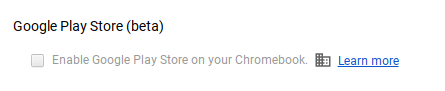 that the option to access the Google Play Store on your Chromebook is enabled in the dashboard. You can check your Chromebook by going to Settings. Scroll down until you see the Google Play Store (beta) section. If the option is greyed out, then you’ll need to bake a batch of cookies to take to the domain administrator and ask if they can enable the feature. (Giving cookies increases the chances of having this feature enabled by 64 percent.) If you log in with your personal Google account on the Chromebook, you’ll notice that it is already enabled. But you do NOT want to use your personal account with your students and other teachers. For safety reasons, you always want to use your district account, even if that means bribing the domain administrator or waiting a few days for it to be enabled.
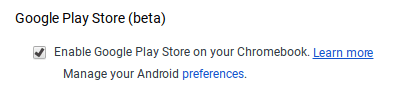 Once the option to enable is made available, you’ll be able to enable it in Settings and manage Android preferences (similar to if you were setting Android preferences on an Android phone or tablet).
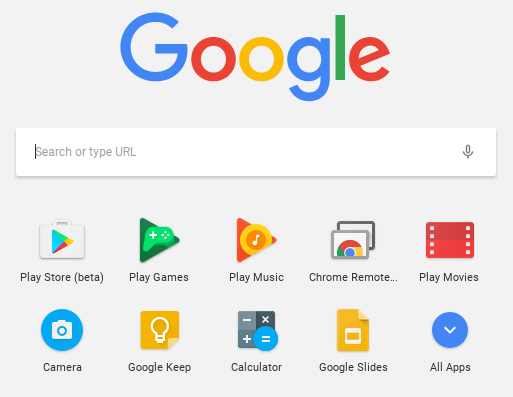 Yippee! You have it enabled. So where it it? Click on the Launcher icon which, by default, is the icon on the bottom left on the shelf. You will now see the Play Store (beta) icon. This beta Play Store is currently a stipped down version of the Play Store you would see if you accessed it through the browser. And yes, you will need to use the beta Play Store to install Android apps. When accessing the store via the browser, your Chromebook will not be an option in the dropdown list of compatible devices. Once you click on the beta store, you will recognize the various categories to help you narrow down what type of app you are looking for. If the developers have not completely finished updating the app in question, it may be available as a beta version. When I spot checked several of the Android apps I have on my phone, almost all were available and ready in the Play Store. You might even find that some app developers have made their product available as a Chrome app (that you install via the Web Store) and an Android app (that you install via the beta Play Store). Either way, once installed, they will appear in your launcher window.
 Autodesk SketchBook – Whether it is illustrating, diagramming, or sketchnoting, you’ll find this to be a simple app to use. When done, save the image to your Chromebook.
 Trello – More than just a to-do list app, Trello can help you keep track of projects. You can work alone or collaboratively with classmates to keep track of project-based learning activities.
 Trading Cards – This isn’t your traditional trading card maker. Templates provided include fictional person, real person, fictional place, real place, object, event, and vocabulary. Once you enter information on the front and back of the card, you can share it as a photo to your photo gallery.
 Pic Collage – Share your message with pictures! Pic Collage lets you start by selecting your photos and then adding them to a grid with templates (start with a themed background) or freestyle (begin with a blank slate and add to it). You can also easily add text and search for photos on the internet to add to your collage.