You’re starting your Sunday afternoon lesson preparation, and find that you need to record a quick walkthrough of a science simulation, then edit a PDF before posting it. You also have to capture three screenshots for a quick explainer email, and set up a digital whiteboard for tomorrow’s bell ringer. Back in the day, each task may have cost you or your school money. Austerity measures this year cut those subscriptions you relied on, and you’re saving your twenty dollar a month discretionary income for something the family needs. Where can you find alternatives to paid subscriptions? If that’s a question you are asking in anticipation of the coming year, here are three free solutions.
These free tools are for you as much as for me. I use each of them every week, if not some daily. Each one solves a specific problem you actually run into during a normal week.
In This Post
Here are the solutions you will find in this blog post:
- ClipMkr: browser-based screen video recording and editing
- Recordly: screen recording with a built-in editor
- PixelMkr and GifMkr: screenshots, recording, and OCR for Windows
- DocMkr: browser-based PDF converter, editor, document viewer, PDF to ebook and many other formats
- RevPDF: offline PDF editing
Let’s jump in and explore what’s available.
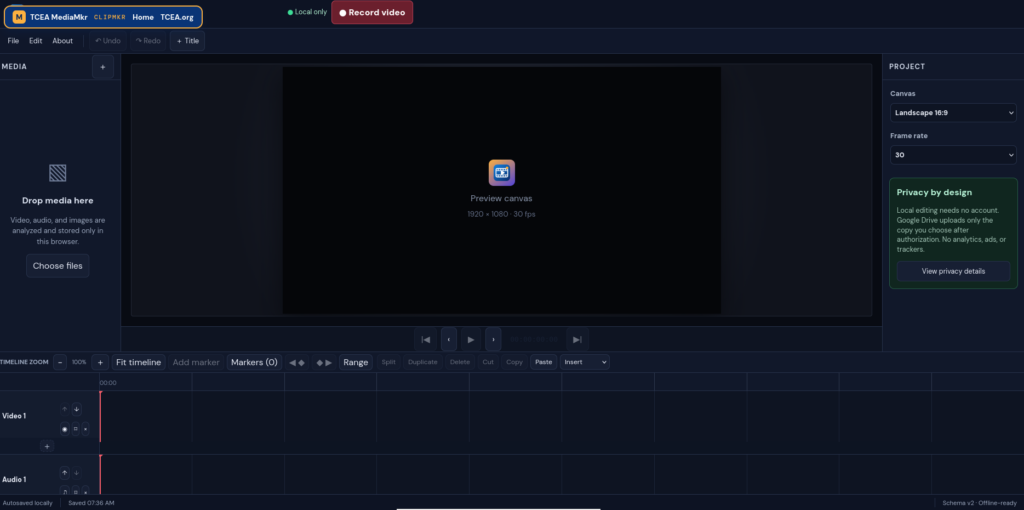
ClipMkr: Free Browser-Based Video Editing
Need to trim a video, add captions, or put together a quick instructional walkthrough? ClipMkr is a free, browser-based video editor from TCEA MediaMkr. It includes a timeline for arranging and editing video clips, adding captions, and placing text or other overlays on your videos. Whether you’re preparing a short lesson introduction, cleaning up a recorded demonstration, or creating a tutorial for students, ClipMkr lets you work directly in your browser without installing video editing software. It’s another practical option for educators looking to cut costs and simplify their workflow.
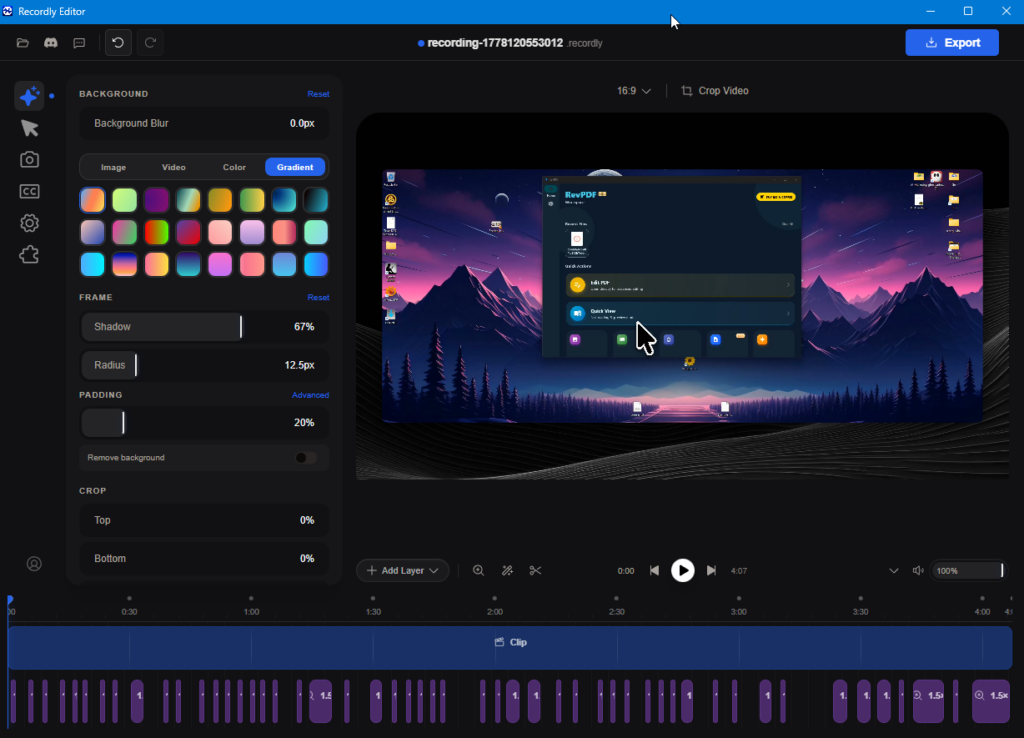
Recordly Screen Recorder
Recordly is a free, open-source screen recorder with a built-in editor for Windows, macOS, and Linux. Most free recorders give you the recording but stop there. Recordly includes a timeline editor, smooth zoom effects, custom cursor styles, and webcam overlays. You get a polished walkthrough with the editing tools, if that’s what you need when posting to your class Google Sites/Classroom, OneDrive, or learning management system (LMS).
To get started:
- Get the right version for your operating system (e.g. Windows, Mac, Linux) from the Recordly releases page; alas, no Chromebook version available
- Test a short clip first. The recent v1.2.x release improved audio stability, but webcam-to-audio sync is still being refined
- The Linux AppImage runs without an install, which is useful for shared lab machines
I found Recordly drop-dead simple to use on Windows, and I have high hopes for my Mac colleagues. For fellow GNU/Linux users, if this does not work, you can always try SimpleScreenRecorder or OBS Studio.
Bonus: You might also consider recorder.video, which comes with a host of browser-based tools with no upload. It comes with:
- rotate.video fixes sideways phone video (lossless quarter turns)
- brighten.video rescues dark classroom or event footage
- loop.video repeats a clip or makes a seamless loop
Let’s move on to the next solution combo, PixelMkr and GifMkr. The first does image editing, green screen, and screenshots, while the second turns those into animated GIFs.
PixelMkr: Free Browser-Based Image Editing
Need to crop an image, resize a graphic, or make a quick visual adjustment before sharing it with students or colleagues? PixelMkr is a free, browser-based image editor from TCEA MediaMkr. It gives educators an easy way to edit pictures, adjust image size, and prepare visuals for classroom use without installing extra software. Whether you’re refining screenshots, resizing images for slides, or polishing graphics for a handout or LMS, PixelMkr helps you handle everyday image tasks quickly and simply right in your browser.
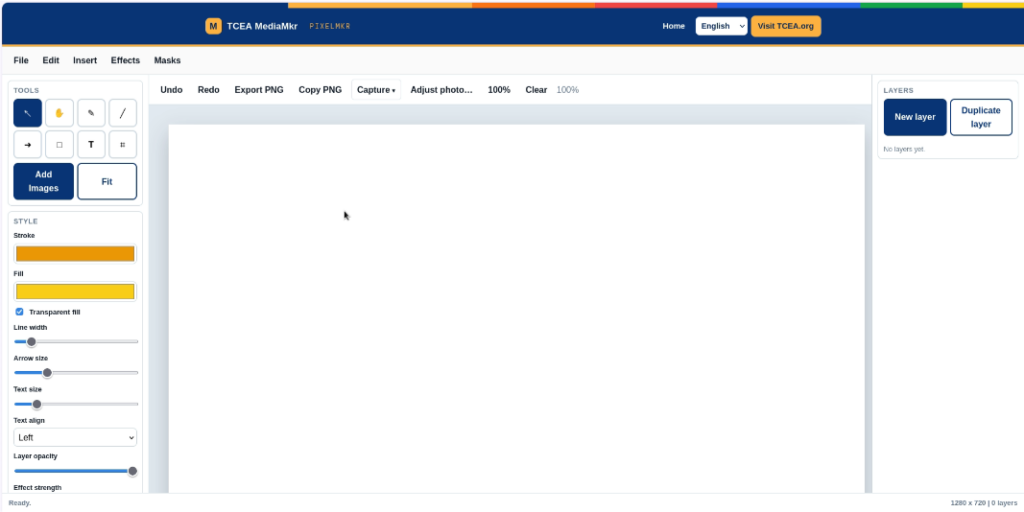
You can take your captured images and turn them into an animated GIF or MP4 video file with GIFMkr. Give it a go!
DocMkr: Free Browser-Based PDF Tools
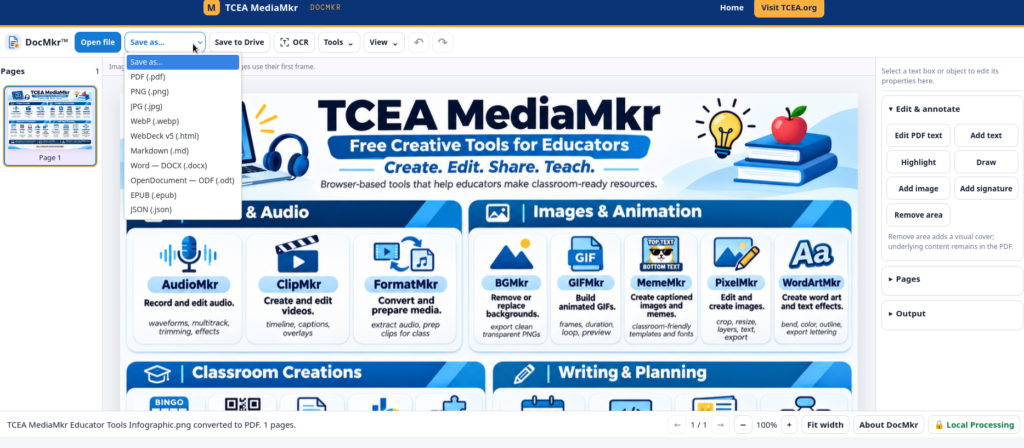
Need to combine several PDFs into one file, pull a few pages from a document, or prepare materials for your students? DocMkr is a free, browser-based PDF utility from TCEA MediaMkr. It lets you merge multiple PDFs, split larger documents into smaller files, and prepare PDFs for classroom use. Whether you’re assembling a substitute packet, separating worksheets from a curriculum guide, or organizing handouts for your learning management system (LMS), DocMkr helps you get the job done without installing additional software. Your files are processed directly in your browser, making it a practical option for educators who want to simplify everyday document tasks.
RevPDF
If you need an easy to use, free offline PDF editor for macOS, Linux, Windows, Android, and iOS, then RevPDF is the tool to checkout. I usually edit PDFs on my desktop devices (e.g. Windows, Linux), and RevPDF makes that task easy.
Since I often work with PDFs, I will find myself wanting a quick editor to insert text or edit a few text fields. You can do that with RevPDF and more, such as, redact a name, sign a form, split a page out, compress a file before email. A big benefit? RevPDF does all of that without an account in the cloud or locally.
My favorite feature in RevDev is using the redaction tool to remove underlying text and images. That can make a difference, especially when there is sensitive data in the document. Some other features worth looking at:

You can get RevPDF from the developer’s site. Desktop versions are free, and the mobile app has a 4.6-star rating on Google Play. I promptly paid about $10 for my lifetime version of the Android version. I thought I could do that since I’m not spending $100 a year on a whiteboard style solution.
PDF Maple also offers a Scan to PDF option.
Pick One, Use It This Week
The common thread for all of these is that you can use these tools to get work done, and not spend money to do it. That’s important in tough times like these. Three are open source.
Pick the one that maps to a problem you have been solving with a paid tool, and try it this week.
This blog was updated on 9/14/2026 to reflect new content.
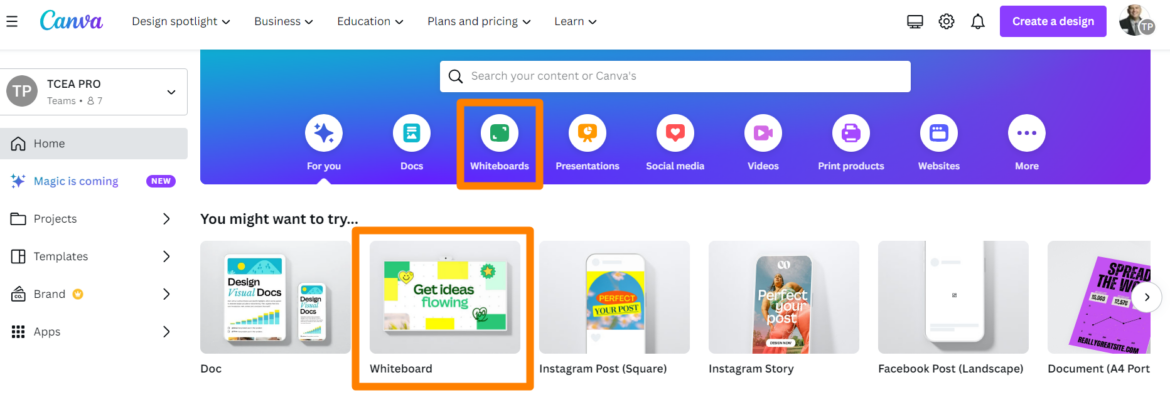
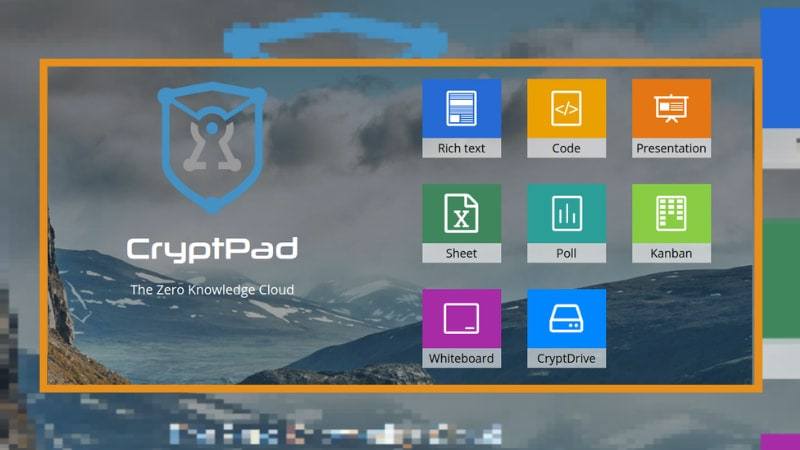
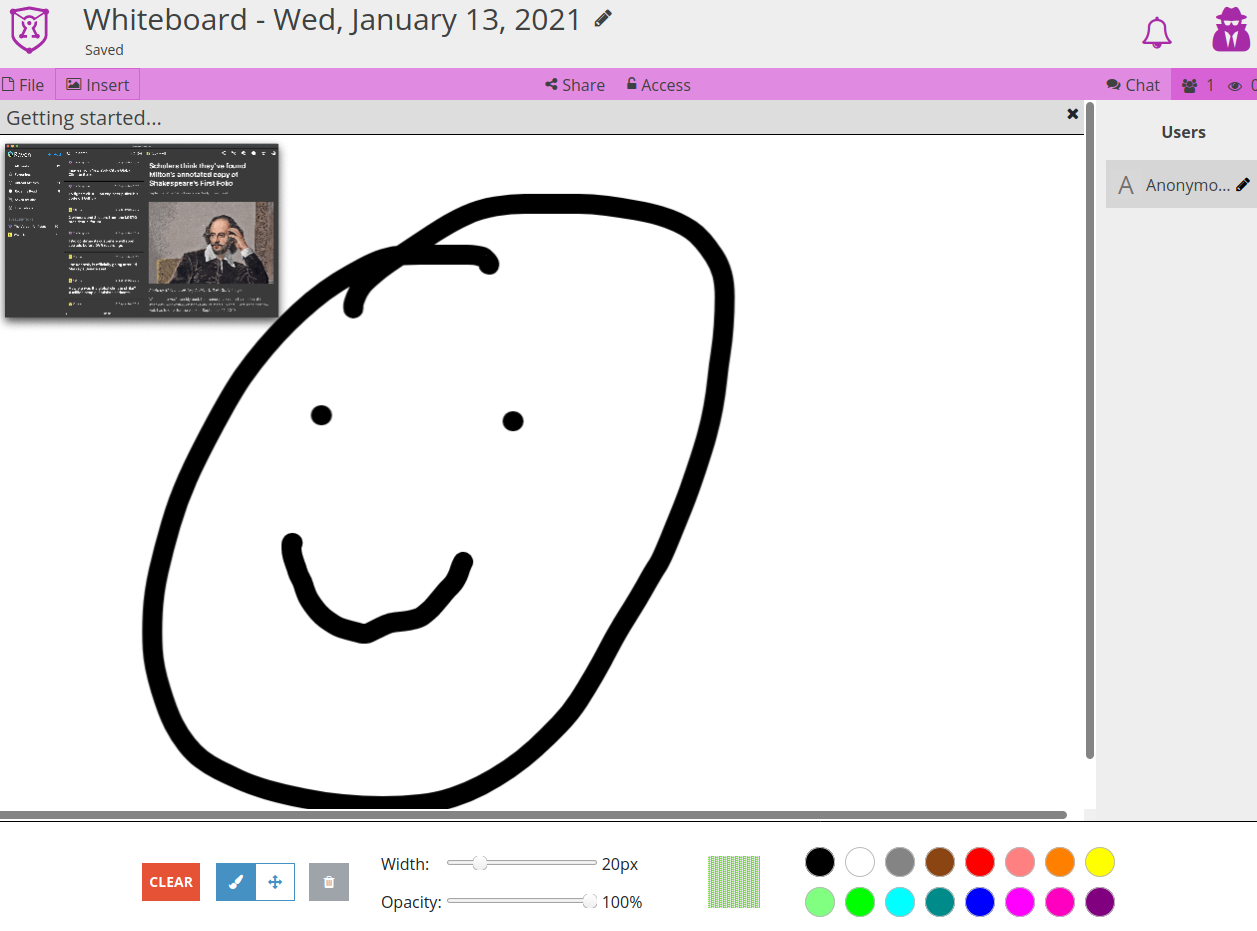

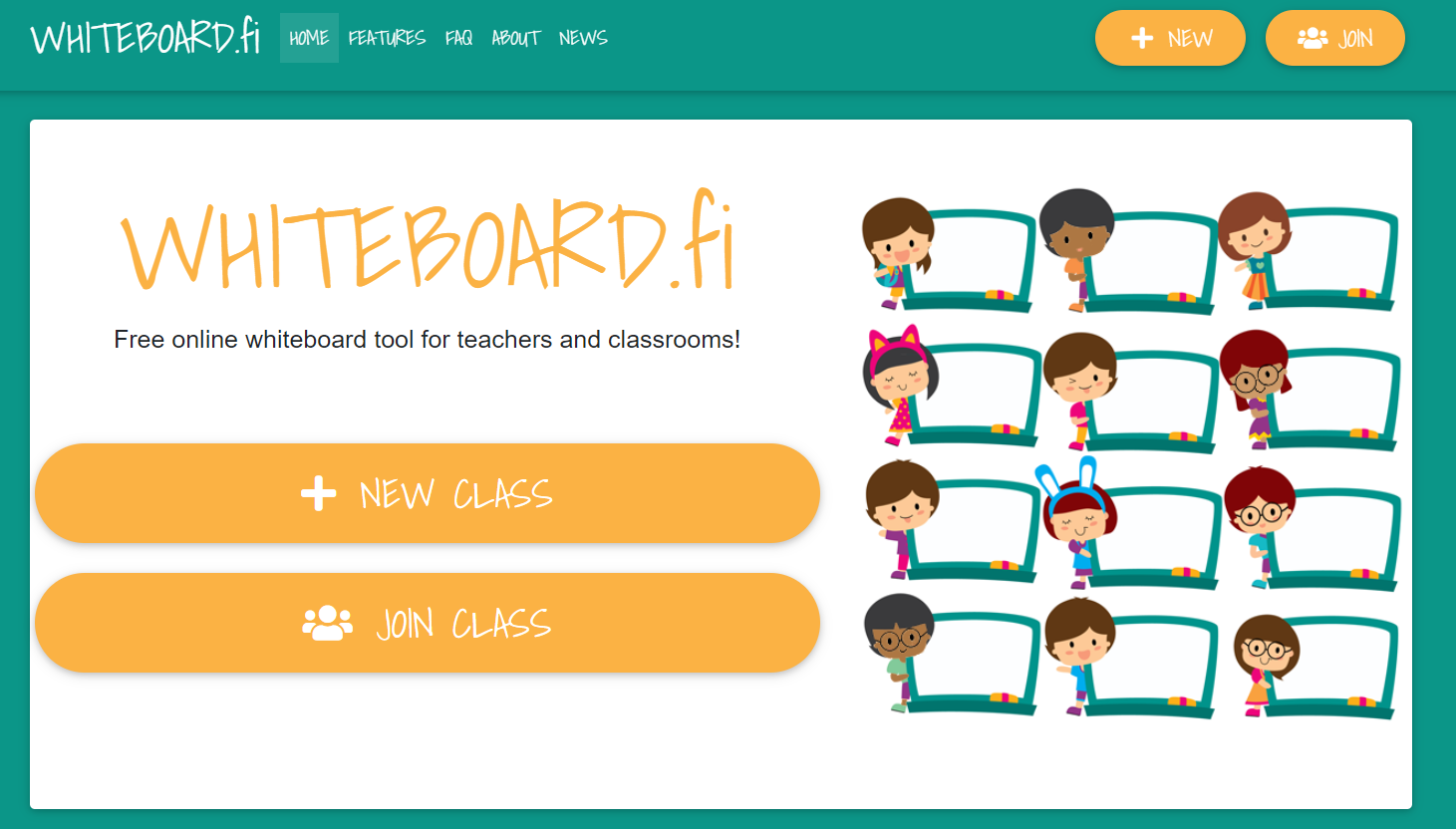 Another nifty solution is
 Sign up for one of our Google Certified Educator certifications. You’ll learn about more than Google Meet, as well as earn 12 CPE hours per course. Use these courses to get Google Educator certified.
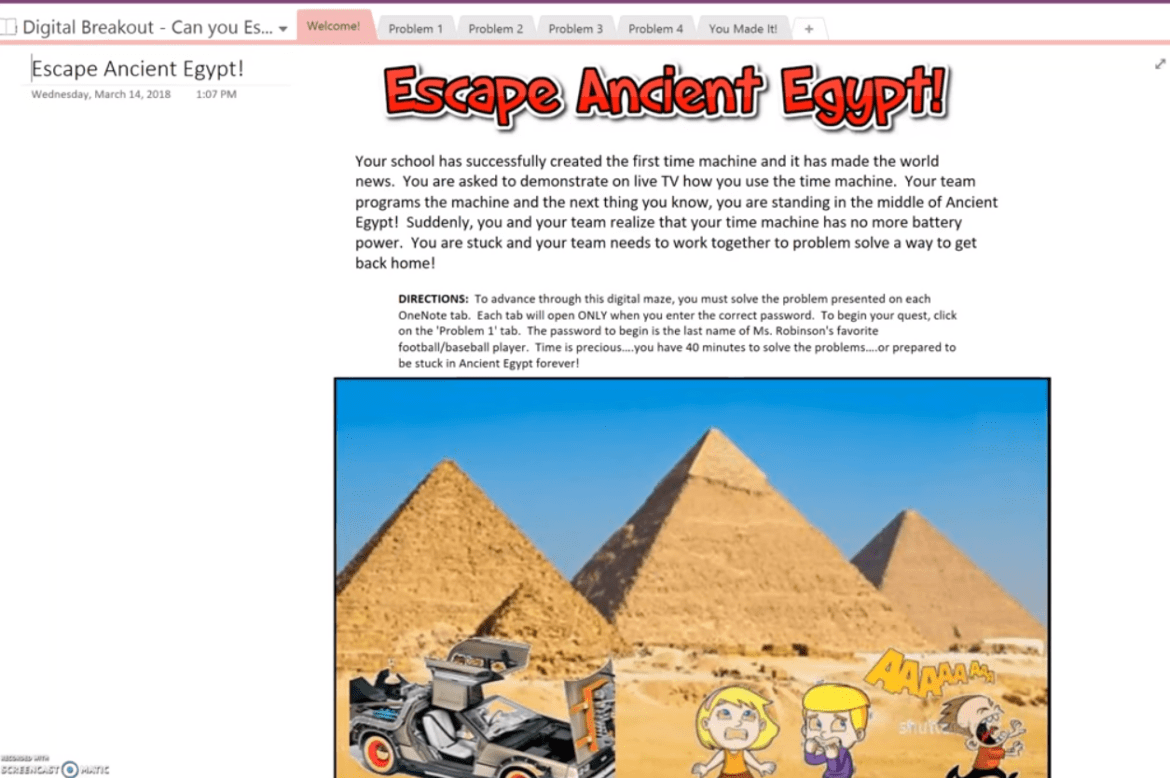




 You can create T-charts in Microsoft tools (e.g. Powerpoint, Microsoft Word).