Ever find yourself wishing for an amazing icebreaker you can use with a group of educators? An old familiar one is often best. Faculty icebreakers either tell you nothing or take twenty minutes to set up and twenty more to debrief. You can build a better one yourself using Gen AI and vibe-coding. After making it, you can host it on free tools you already use (e.g. Google Sites), and watch a live results chart grow. The whole setup takes about fifteen minutes the first time. After that, the activity lives in a single shareable link. You can do this and more with vibe-coding using $20 a month tools like ChatGPT, Claude, and/or Gemini. This blog shows you how.
Special thanks to Peggy Reimers for providing the initial prompt for this activity. I only made slight modifications to it. You can see it at the end of this blog post.
What You Are Building
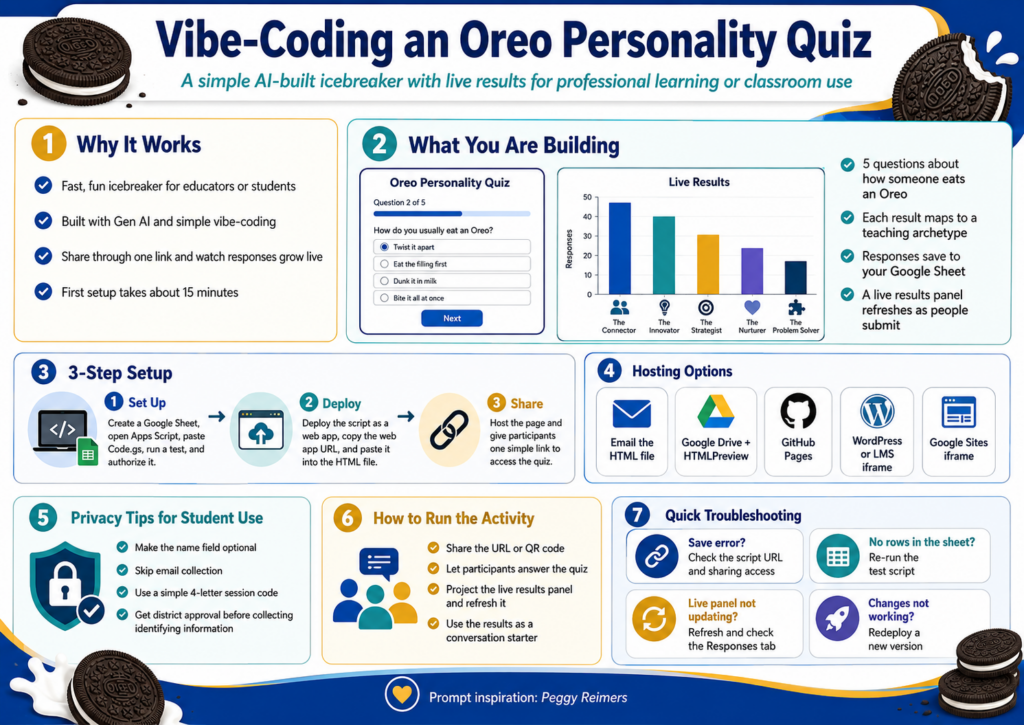
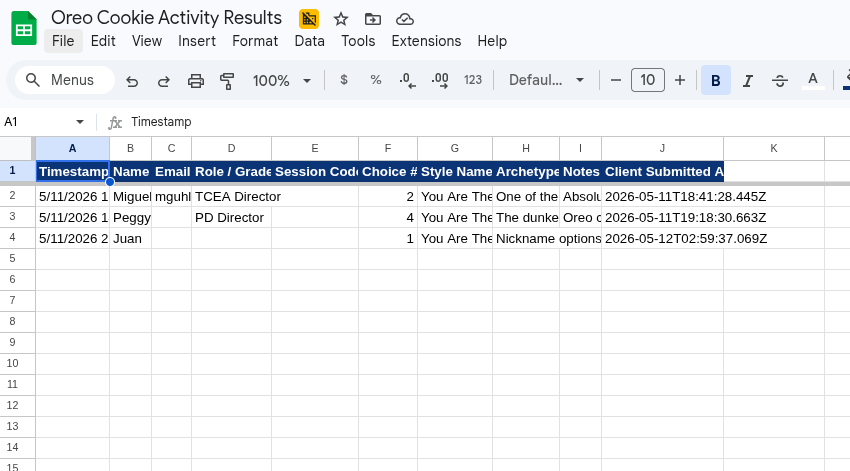
The activity is simple. Five questions ask how someone eats an Oreo. The result maps to a teaching archetype, with a short description that becomes a conversation starter. Names go into your own Google Sheet. A live results panel on the same page refreshes as people submit. No vendor account, no subscription, no student data leaving your district drive.
Ready to begin? Let’s get started. Note that if you want to REALLY start from scratch, go to the end of this blog post and copy the prompt. Then, paste it into your BoodleBox, ChatGPT, Claude, or Gemini solution. Remember, everything is hard when you start, but it gets easier after you do it 1000+ times.
Step 1: Set Up Your Sheet and Script
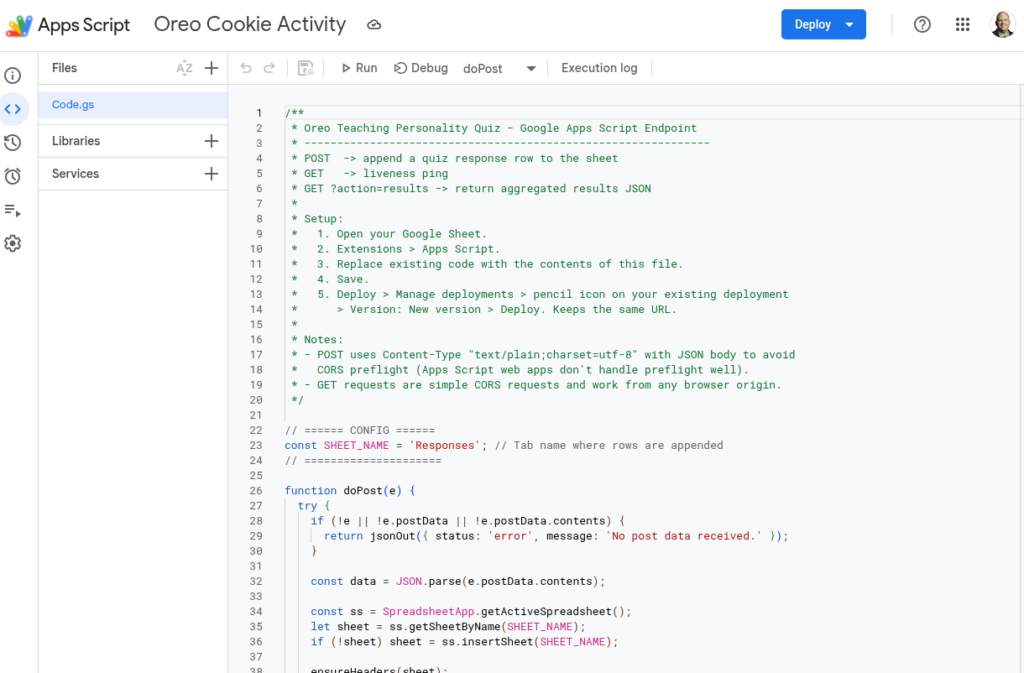
Open Google Drive and create a blank Google Sheet. Name it something obvious like “Oreo Quiz Responses.” From inside that sheet, click Extensions, then Apps Script. A code editor opens in a new tab. You can see an example online.
Delete the sample code. Paste in the Code.gs file from the project bundle, save, and name the script “Oreo Quiz Endpoint” when prompted. Run a test by selecting testWrite from the dropdown next to the Run button. Google will ask you to authorize the script. Approve it. If a warning appears about an unverified app, click Advanced, then “Go to project (unsafe),” then Allow. That is normal for scripts you wrote yourself and have not published as a public app.
Switch back to your sheet. A new tab called Responses should have one test row, which you can delete. The script is now talking to your sheet.
Step #2: Deploy the Script and Paste the URL
Back in the Apps Script editor, click Deploy in the top right and pick New deployment. Click the gear icon next to “Select type” and choose Web app. Fill in:
Description: Oreo Quiz v1
Execute as: Me
Who has access: Anyone
Click Deploy and copy the web app URL. Open the HTML file in any plain text editor. Near the bottom, find the line that reads APPS_SCRIPT_URL = "PASTE_YOUR..." and replace the placeholder with the URL you just copied. Save the file. That is the entire connection.
This is what that looks like:
Did You Know?
TCEA’s self-paced AI Essentials for Educators offers 17+ CPE hours, walks you through the essentials of vibe-coding on any chatbot you care to use (e.g. BoodleBox, ChatGPT, Claude, Gemini). It’s a steal for $49 for individuals, or $34 in bulk pricing with 10 or more.
Step #3: Get the Page in Front of People
You have four hosting options, ranked easiest to most polished:
Option #1: Email the HTML as an attachment. Anyone who downloads and opens it gets the quiz. Some email systems block HTML attachments, so test first
Option #2: Upload the file to Google Drive and share throughHTMLPreview, which renders Drive-hosted HTML
Option #3: Host it free on GitHub Pages for a permanent URL like https://yourname.github.io/oreo-quiz/. Add about ten more minutes. See example.
Option #4: Embed it in your school WordPress or LMS using an iframe. Best for a polished classroom or PD experience
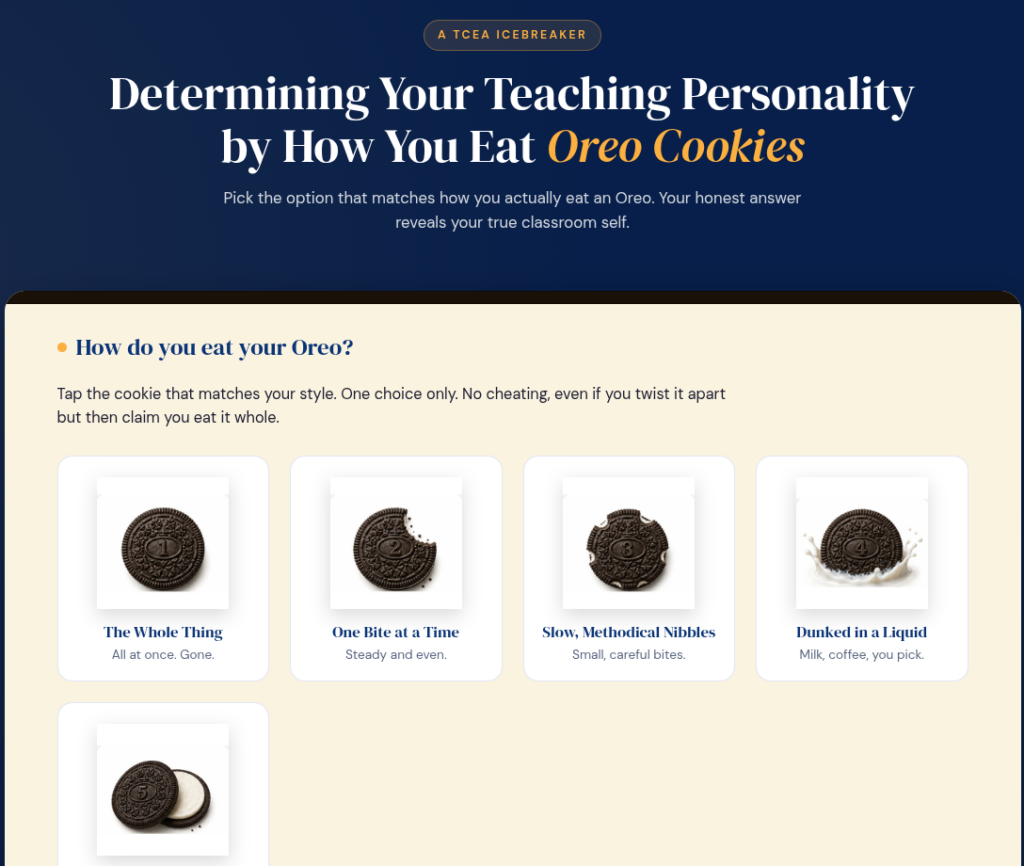
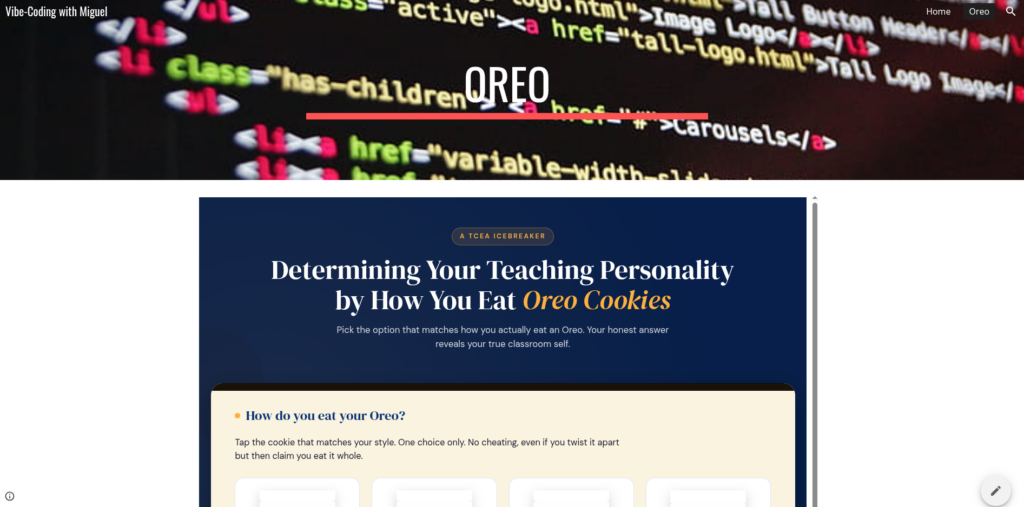
Option #5: Embed it in Google Sites using an iframe. Easy and simple to use if your code is straightforward (you won’t know until you try). See screenshot above or view online in Google Sites.
For a faculty meeting, the GitHub Pages route is worth the extra ten minutes. You will reuse the link.
A Key Point: Privacy Before Students Touch It
For colleagues and staff, real names and emails are fine. For students, treat the data the way your district expects:
Make the name field optional so students can submit anonymously
Skip the email field entirely. Email plus another identifier is what triggers most privacy rules
Use a session code instead of names. Ask each student to pick a four-letter code they will remember, so they can find their own result without typing real identifiers
Get district approval before recording any identifying information
The good news is that the data goes to your Google Drive, not a third-party platform. That usually shortens whatever approval process you do have to run. Data is saved to your Google Workspace for Education account storage, which is where Google Classroom data lives as well.
Running It in a Session
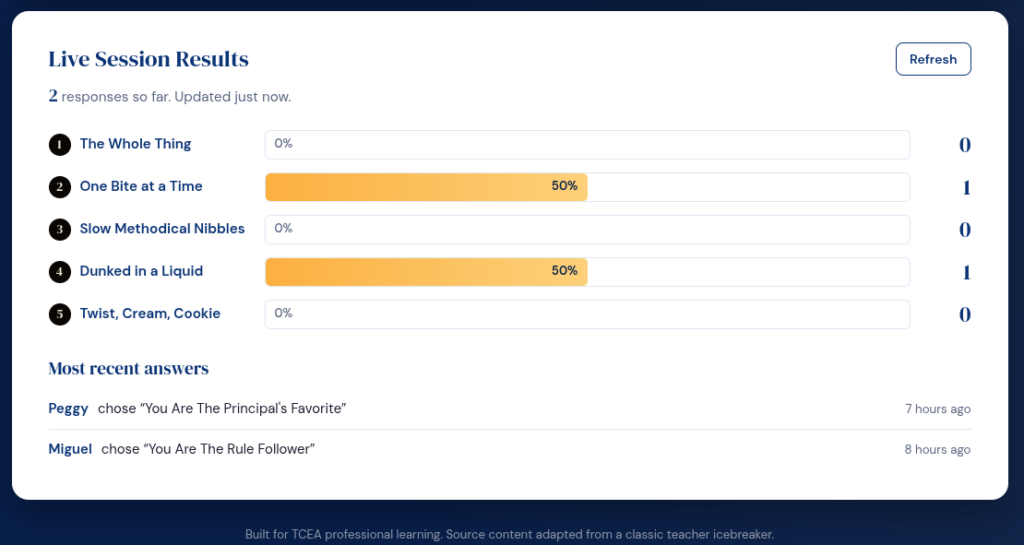
The activity runs about ten minutes start to finish. Project the URL or share it through chat or a QR code. Give a one-sentence intro: “Pick how you actually eat an Oreo, see what kind of teacher that makes you, and add your name so we can see the class results.” While people answer, pull up the live results panel on your screen and refresh every minute. The bars grow as responses come in.
Use the descriptions as a conversation starter: ask which result felt accurate and which one felt wrong, and why. The second question is where the real talk happens. Remember to have fun with it.
Quick Troubleshooting
Symptom
First thing to check
“Could not save right now” message
URL missing in the HTML, or deployment access is set to “Only myself” instead of “Anyone”
Sheet shows no new rows
Re-run testWrite in Apps Script. If that fails, recreate the script from inside the sheet
Live results stuck at “Waiting for the first answer”
Click Refresh on the panel and confirm the Responses tab has rows
You edited Code.gs and now nothing works
Deploy, Manage deployments, edit your existing deployment, change Version to New version, redeploy
Sample Prompt
Want to give it a start from scratch yourself? Here’s the prompt I started with:
Create a self-contained html file that will make this into an online interactive…use TCEA blue and gold colors, but give everything an Oreo cookie feel. I want to save the results to Google Sheets. Please provide the AppScript code for that, and give me a readme file and setup instructions
Determining Your Teaching Personality by How you Eat Oreo Cookies 1. The whole thing all at once. 2. One bite at a time. 3. In slow and methodical nibbles. 4. Dunked in a liquid. 5. Twisted apart, eat the inside, then the cookie. 1. You are the teacher that no one messes with. Your nickname could be Mother of Dragons, Chuck Norris, or the Terminator. 2. You are one of the 5.4 billion billion that eat their Oreos this way. You follow the rules. Your lesson plans are always turned in on time and never late for your extra duties. But stay out of the fast lane if you are only going the speed limit. 3. You’re tidy and orderly. Probably the word that comes to mind is meticulous. Your students come to class with sharpened pencils, backpacks organized, and homework turned in on time. I am guessing your students always ask for extra credit projects. 4. Your Oreo is always dunked in some kind of liquid, be it milk, coffee, wine or whiskey. Your principal loves you, as you always volunteer for extracurricular activities: dances, field trips, and sporting events. You want to be the dunkee at the Fall Festival. All is good as long as you have your concealed flask. 5. This means you consume life with abandon, you are fun to be with, exciting, carefree with some hint of recklessness. But no one should trust you with his or her children.
While I don’t know the source for this version, there are many variations online, such as this one. My next project? Dice-breakers. I can’t wait to get started.
👤 Human-directed (Miguel Guhlin) · 🤖 Gen AI-assisted (Claude, ChatGPT)