Every day, a new Gen AI tool (see my working list) lands in my inbox or social media feed. The constant stream of new technologies can be overwhelming. If you’re feeling Gen AI fatigue, you’re not alone. As educators, a deluge of AI tools drops on our heads daily. Each claims to save time. Each is guaranteed to improve student achievement. Without a structured approach, all of these tools can become time traps rather than time savers.
Mark Zimmerman wisely cautions in his CIO piece, How AI Tools Can Become a Time and Cost Trap, that we must set clear boundaries. Otherwise, we risk spending countless hours experimenting with AI. That’s a problem given our limited time and funds. Remember, as educators, we have to implement new tools in alignment with research-aligned ways. What’s more, how do you know which are FERPA-compliant and offer data privacy agreements appropriate for K-12 education? Let’s explore five strategies that can help you stay in control.
Strategy #1: Setting Clear Goals with Success Criteria
Just as we teach students to set clear learning targets, educators need specific goals when implementing AI tools. Before diving into any AI tool, ask yourself: “What specific educational problem am I trying to solve?” This simple question, can help students focus on what’s productive, and what’s not.
Consider creating an AI Goal Sheet before each session that includes:
- The specific problem you’re addressing
- Time limits
- Clear success criteria for evaluating outcomes
One middle school science teacher uses a simple log to track her AI experiments: tool used, time spent, and specific benefits achieved. Use of a tool like this can eliminate “going down the rabbit hole” and adds a sense of urgency.

Strategy #2: Feedback-Informed Tool Selection and Mastery
Rather than constantly chasing the newest AI tools, focus on several Gen AI tools that deliver results. Remember the Greek poet Archilochus’ adage of the fox and the hedgehog. That is, “the fox knows many things, but the hedgehog knows one big thing.” Or as Paul Roetzer and Mike Kaput, hosts of The Artificial Intelligence Show podcast, assert, “Learn one Gen AI tool really well” (a paraphrase).
Get to be an expert on one tool, and solicit feedback from other educators as to which works best. Get comfortable with that one Gen AI tool before moving to another. What does expert mean? Ask yourself, “How does this AI tool work in my situation?” Explore (keep strategy #1 in mind) until you identify a use case. A use case is a specific process that can be translated into Gen AI tool to realize some improvement.
Consider adopting these implementation approaches:
- Select one AI tool per quarter to learn deeply, accepting being uncomfortable is part of that process
- Create feedback forms for students: “How did this AI-enhanced lesson help your learning?”
- Establish peer observation protocols specifically for AI-integrated lessons (pineapple chart, anyone?)
“I was spending hours every week testing different AI tools,” admits a high school English teacher I chat with from time to time. “Now I focus on getting to know one tool that has become my go-to. I’m spending time going deep in applying it to my work, and have reclaimed my planning time as a result.”
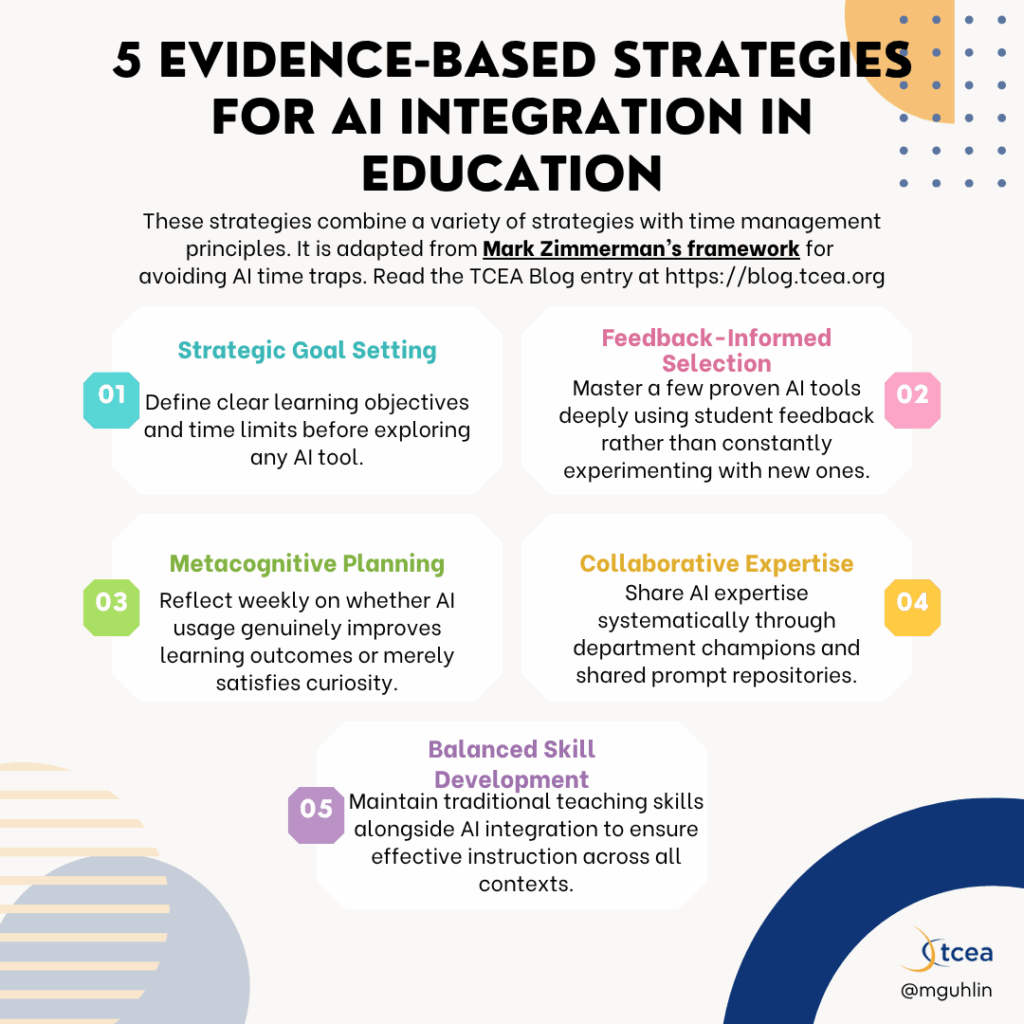
Strategy #3: Metacognitive Integration Planning
How are you using Gen AI in your work? Take the time for structured reflection. It’s hard to do because it’s easy to keep moving forward to new or different projects. But take a quiet moment to jot down a few reflections. Differentiate between problem-solving and mere curiosity-driven experimentation.
Try these practical applications:
- Weekly reflection: “Did my AI use this week directly improve student learning outcomes?”
- Monthly team meetings to share AI successes and challenges
- School-wide AI integration guidelines with clear evaluation criteria
One technology director suggested this approach:
“Instead of having every teacher experimenting independently, we now have a structured approach where we collectively evaluate tools against our learning objectives. The result is a more strategic implementation and less wasted time.”
Strategy #4: Collaborative Learning Through AI Peer Teaching
“Would you mind sharing what you did, Miguel?” That’s the question I loved to hear from a grade level colleague in my small East Texas school. As a third-grade bilingual teacher working in the portable building, I loved being able to share what my students created. And, of course, that involved me sharing my lesson activity with technology enhancement.
Make sharing your Gen AI a systemic action at the grade level, campus, and district level. This can go a long way to developing a centralized AI strategy. Not only do you learn what others really think about Gen AI tools, all get to provide solutions that work. That’s more important than AI hype or hate on social media. One thing to keep in mind? You won’t need to do this forever.
Consider implementing:
- Identify AI Champions in each grade level or department who research and share effective tools
- Monthly “AI Show and Tell” sessions where educators demonstrate successful applications
- Shared repositories of proven AI prompts and strategies for common educational tasks
What I love? The idea that peer teaching is the best source of learning about new technologies. Well, maybe after TCEA professional learning solutions.
Did You Know? Get access to BoodleBox Unlimited (pro version) for six months while you complete the Educator Accelerator certification course, The AI-Amplified Educator. Sign up now.
“Our AI Champions program has transformed how we approach technology,” reports an elementary principal. “Instead of everyone struggling independently, we now have a collaborative system where expertise is shared efficiently.”
Strategy #5: Balanced Skill Development with Transfer Strategies
Can you still maintain and develop traditional teaching skills? Yes, but also consider strategically integrating AI. Don’t rely on technology alone. Reach for paper and pen, too.
Practical applications include:
- Alternate between AI-assisted and traditional lesson planning
- Maintain a balance of tech-enhanced and unplugged learning activities
- Routine engagement in non-AI professional development to sharpen core teaching skills
A veteran teacher shared her balanced approach: “I use AI to help generate differentiated practice problems. I still design the core learning experiences myself. This balance ensures I maintain my instructional expertise while leveraging AI for efficiency where it makes sense.”
Recommended Education-Focused AI Tools
To implement these strategies effectively, consider exploring these education-focused AI platforms:
- BoodleBox for collaborative AI exploration with built-in educational safeguards
- MagicSchool for streamlining lesson planning and assessment creation
- SchoolAI for creating personalized learning experiences
These are only a few of the FERPA-compliant Gen AI tools designed for education. The key is selecting tools that address your specific instructional needs rather than adopting technology for its own sake.
Measuring Success
It’s important, Zimmerman says, to measure the actual benefits. That’s why keeping a log of time spent with specific results can be helpful. I like to jot these down in a paper notebook to ensure long-term memory retention occurs. In fact, I have a dedicated notebook (perhaps, two or three notebooks now) with my notes.
| Success Indicator | Measurement Method | Example |
|---|---|---|
| Time savings | Before/after time tracking | Lesson planning reduced from 2 hours to 45 minutes |
| Learning improvements | Student performance data | 15% increase in assessment scores |
| Engagement | Student surveys, observation | Higher participation rates in AI-enhanced lessons |
Let’s take a look at next steps.
Did You Know?
TCEA offers multiple Gen AI professional learning solutions, each suited to any budget. Don’t hesitate to take advantage of our $29 knowledge boosters, $44 courses, $149 accelerators, and more.
Conclusion and Next Steps
Effective AI integration isn’t about using the most tools or the newest technologies. When you find and use tools that enhance learning, you become more effective. Avoid AI time traps. Use one of these five strategies to get started. You will find your confidence improving.