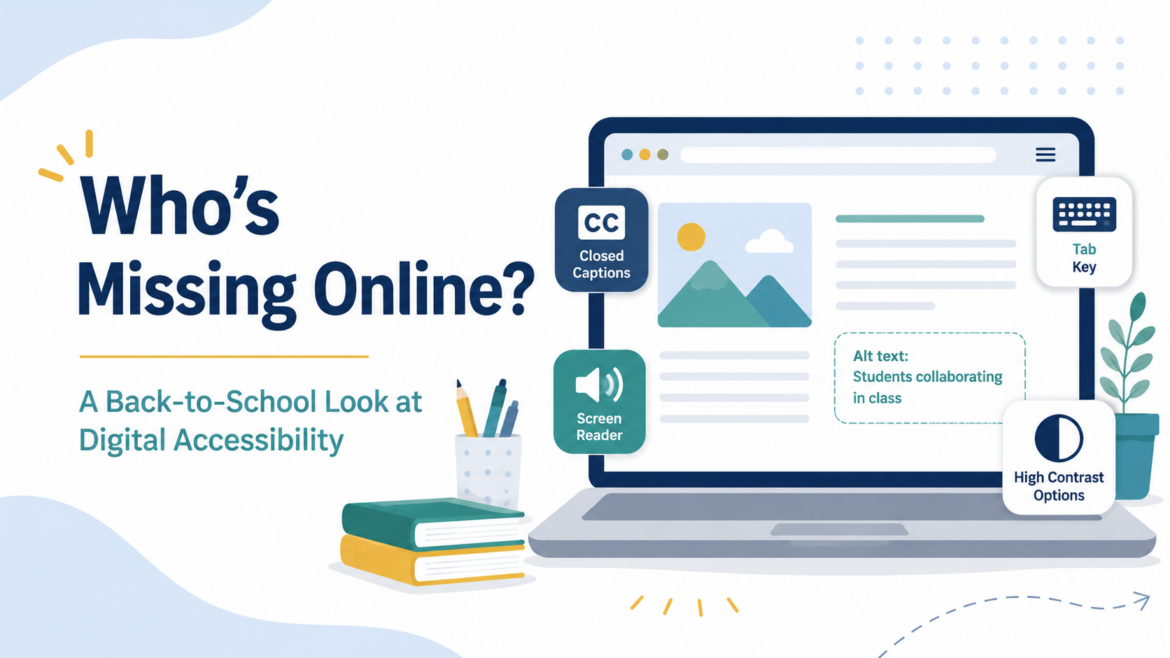
Supervising a web developer in a school district can be fun. Your idea starts out as a simple website, but then, pretty soon, the web developer is making suggestions about accessibility you hadn’t even thought of. If you haven’t been listening to your web developer, then you may want to. There’s a clock ticking and an upcoming deadline. This blog covers digital accessibility (A11Y for short) and offers some suggestions to prepare, if you haven’t already. You will get access to several tools and questions to ask, chatbot custom instructions, and see a sample report.
Upcoming Free Event: October 14, 2026 at 4:30 PM (Central) – Register Now
Digital accessibility is a Texas-sized topic with an impact on every learner. For the past decade, Mary Rice and Raymond Rose have explored how accessible digital environments support students, faculty, administrators, and parents—and they have witnessed growing awareness across education. Whether you are just discovering digital accessibility or ready to dig deeper, this session offers something for DigitALL learners. Come learn how accessibility makes digital learning more inclusive, practical, and effective for everyone. Join the presentation for a lively discussion, questions, and shared ideas.
Join us live for the presentation, then stick around for 30 minutes of open conversation and Q&A with the presenters.
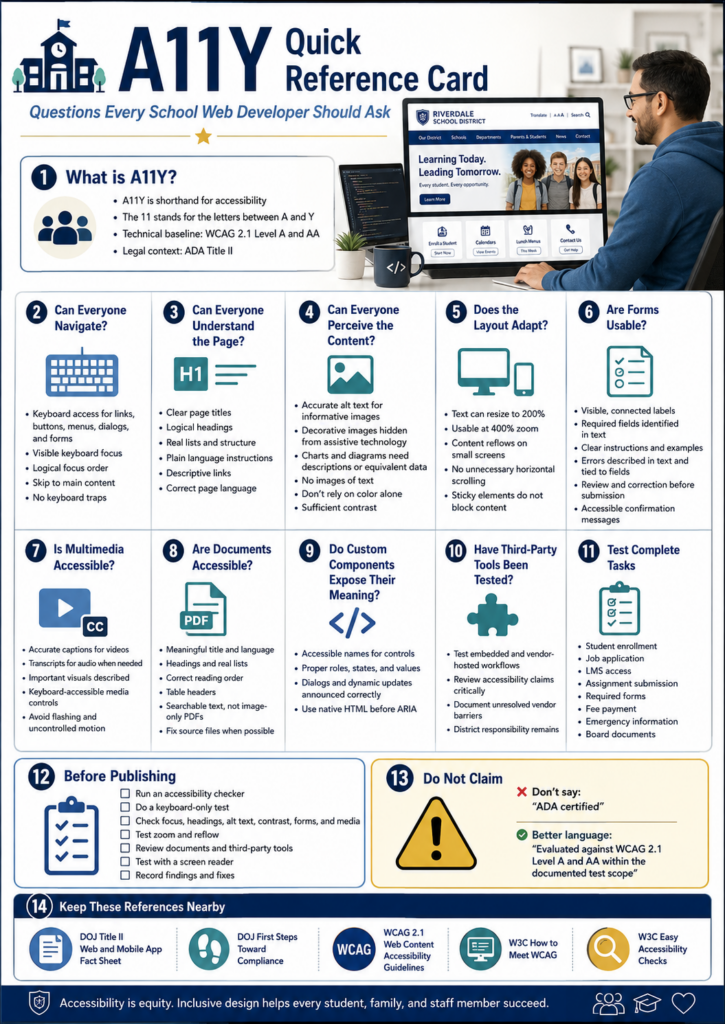
Questions to Ask
Here are some questions that you, as a web developer, should be asking. Or, maybe you should ask your web developer where your website stands on these:
Scenario To Avoid
Imagine yourself as a parent. A parent opens your district website to register a child for school. The registration link just says “Click here,” the form fields carry no labels a screen reader can announce, and the required handbook turns out to be an image-only PDF with no readable text behind it. For most families that adds up to a minor annoyance. For a parent who navigates by screen reader, it can stop the whole process before it starts.
Become a CyberSmart Educator with a practical, self-paced course designed to help you protect sensitive data, secure accounts and devices, recognize social engineering attacks, respond appropriately to cybersecurity incidents, and build stronger digital safety habits. The course is $49 at full price or $34 at the discounted rate. Register online through TCEA Courses.
School websites stopped being brochures a long time ago. Families rely on website for all sorts of necessary tasks, such as:
registering students,
checking calendars,
applying for jobs,
reading emergency notices,
making payments, and
reaching learning resources.
Once the site becomes the front door to a public service, accessibility is no longer a design nicety (if it ever was). Now, there’s a federal standard that clarifies expectations.
What Changed Under ADA Title II?
The U.S. Department of Justice updated the regulations for Title II of the Americans with Disabilities Act. Under the rule, state and local governments, public schools and districts included, have to make their web content and mobile apps accessible.
The technical standard is Web Content Accessibility Guidelines 2.1, Level AA, usually shortened to WCAG 2.1 AA. You will also run across accessibility written as A11Y, where the number stands in for the eleven letters between the “A” and the “Y.”
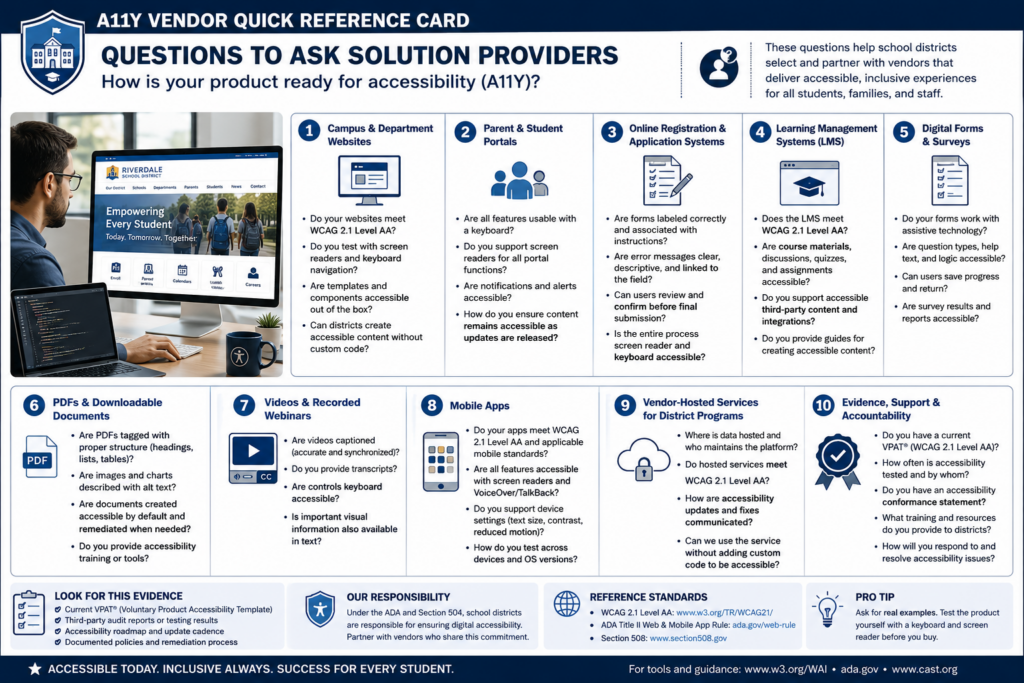
The rule reaches well past your homepage. It can cover items that have you ask third-party solution providers how their products comply. Here’s a short list and a list of questions for those solution providers:
Campus and department websites
Parent and student portals
Online registration and application systems
Learning management systems
Digital forms and surveys
PDFs and downloadable documents
Videos and recorded webinars
Mobile apps
Vendor-hosted services used to deliver district programs
As you can see, some of the products schools and district use every day have to comply. Read that list again and notice the bolded items. To me, those bolded items would surely have been a “not my circus, not my monkeys” kind of situation. However, they are significant performers in schools and districts.
Simply put, a vendor resource does not get a pass just because it sits behind a login or belongs to a vendor. The Department of Justice fact sheet points out that content and apps delivered through contracts, licensing, or other arrangements are covered right along with everything you build yourself.
When Do Schools Need to Comply?
The Department of Justice extended the original compliance dates in April 2026. Public entities serving a population of 50,000 or more now have to meet the technical requirements by April 26, 2027, while smaller public entities and special district governments have until April 26, 2028. Both dates appear in the 2026 interim final rule.
One possible concern is that “population” refers to the jurisdiction you serve, not your student enrollment. The DOJ explains that distinction in First Steps Toward Compliance. Some school districts may confuse jurisdiction with student enrollment, resulting in mistakes.
Keep the following information in mind: The population figure determines which ADA Title II compliance deadline applies. A district might enroll only 8,000 students but serve a jurisdiction with more than 50,000 residents. Using enrollment would wrongly place that district in the smaller-entity category and could make it plan around the later deadline.
Public entities already carry ADA duties around effective communication and equal access, and those duties did not move with the deadline. A family can raise a barrier today, and courts have recognized web accessibility claims for years.
Start With What Families Actually Have to Do
One way to approach this is to start with the essential tasks a family or staff member has to complete:
Enroll a student
Apply for a job
Submit a required form
Find emergency information
Get into a course
Read a board document
Ask for help
Work through each one using a keyboard alone, no mouse, then run the same pages through a screen reader and zoom to 400 percent to see what falls apart. From there, make sure to check the following:
Forms,
Videos,
PDFs, and
Error messages inside tasks
When you find an issue, fix it in the shared template or component rather than page by page. That may assist you in preventing the problem from reoccuring across the hundreds of pages you maintain.
Who Owns This?
As you may have guessed, your web developer isn’t the sole person responsible for this. While you may wear that hat in your role, this is actually a “A11Y is everyone’s responsibility” situation. Consider that Communications manages pages, teachers upload documents, human resources posts job applications, curriculum staff build courses, and vendors run the biggest platforms.
Wherever people publish, that’s where the responsibility has to be assigned as well. It’s a big job, especially if you outsource solutions like learning management systems, content management systems, video hosting, parent/student portals.
You will need to put a system in place to manage all the components, including a content inventory, a named accessibility owner, staff training, purchasing requirements that ask vendors to prove conformance. You will also need a clear way for people to report barriers, and a written remediation plan. I would also recommend a committee to share the compliance load.
Here’s a list of questions you can use:
As you might imagine, you are not trying to earn an “A11Y certified” badge. The goal is that a person with a disability can reach the same information as anyone else. And, also, that someone needing A11Y can finish the same school tasks with comparable privacy, independence, and ease.
Focus
What to do first
Essential tasks
Test enrollment, job applications, and forms by keyboard and screen reader
Shared templates
Fix the component, not the individual page
Documents
Replace image-only PDFs with readable, tagged versions
Purchasing
Require vendors to document WCAG 2.1 AA conformance
Ownership
Name an accessibility lead and train the people who publish
Not only is A11Y a legal requirement, it is also a long-term goal that schools and districts need work towards achieving and maintaining.
Just wanted to say I liked your package about accessibility. It was very comprehensive. Ideal for folks who get it and need help making their school/district in compliance. Nice job.
Raymond Rose
A Tool to Help: Digital Accessibility Readiness Assessment
Do you have access to a paid chatbot, such as ChatGPT, Claude, or Gemini? Get it to do the initial, first-step work of assessing your websites and other services. Use these custom instructions (get a copy) and paste them into your chatbot of choice. Then, ask it to assess the website or learning management system. It won’t be perfect, but it may get you further along than simply eyeballing a website.
For fun, I used ChatGPT to assess the TCEA.org website using the custom instructions…you can see my prompt was short and to the point.
Wondering how to use the instructions? Copy-n-paste them into a chatbot screen. You might even create a custom Project (Claude and ChatGPT call them “Projects,” while Gemini may refer to it as a “Gemini Notebook and Gem”) if you know this is something that you’ll be doing again and again.
Wouldn’t it be nice to have a report like this available to kick your A11Y committee work off?
Pick one high-traffic task on your site this week, the enrollment form is a good candidate, and try to finish it using only your keyboard. What you run into will tell you exactly where to start. Share what you learn in the comments.
👤 Human-directed (Miguel Guhlin) · 🤖 Gen AI-assisted (Claude, ChatGPT)
As digital technology advances, it is becoming increasingly important to expedite everyone’s access to websites, apps, and other digital products. Web accessibility is a key factor in creating a successful web project. It not only provides an essential service for those with disabilities but also opens up the online presence to a much wider user base.
Let’s explore the importance of web accessibility, why it should be a priority for every web project, how web accessibility can make websites more accessible and inclusive to all, and how accessibility has a positive impact on user experience.
What Makes a Website Accessible?
Accessible websites are designed with features that allow users with disabilities to access the content more easily and efficiently, which includes using ARIA attributes, semantic HTML elements, and color contrast ratios that meet the standards of accessibility guidelines.
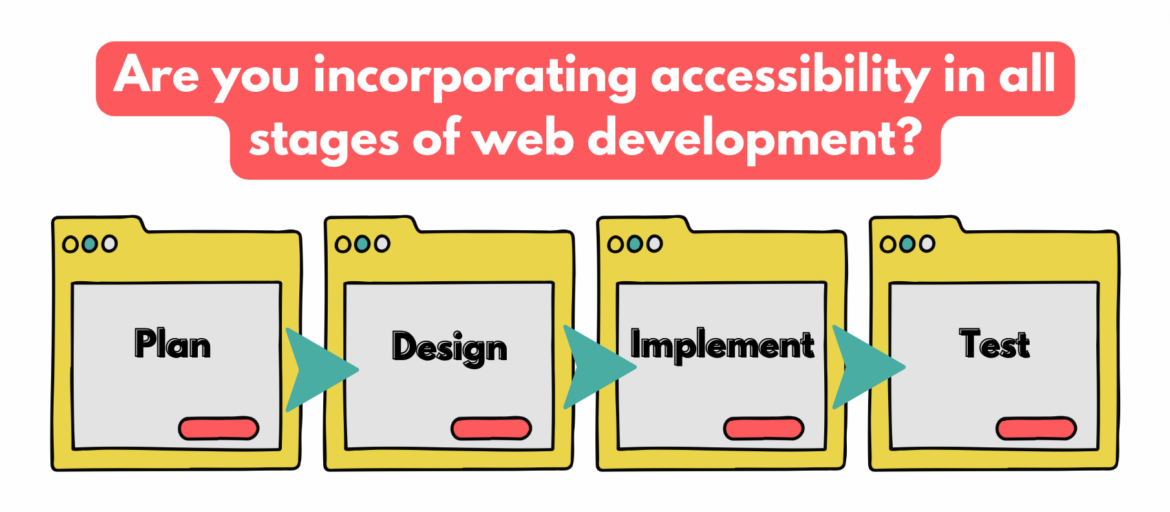
The challenge with web accessibility is to integrate it into every phase of the web development process, from design to deployment. This means making sure that user experience (UX) meets the needs of all users, including those with visual impairments, hearing impairments, physical disabilities, cognitive disabilities, and more.
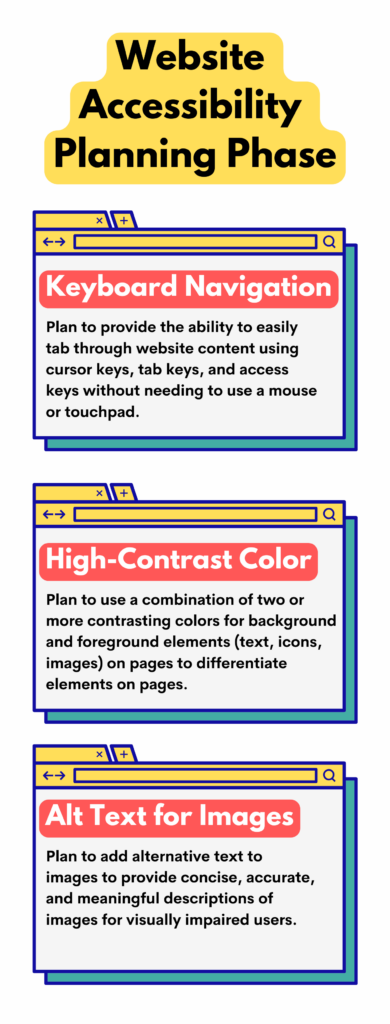
When designing, developing, and deploying a website, think about how users with disabilities will interact with the site. Take the time to plan out a website’s accessibility early in the process by incorporating the following features. Doing so will save time down the line in testing for compliance.
Planning Phase
Keyboard Navigation
With keyboard navigation, users can easily tab through the content on a website without needing to use a mouse or touchpad. This allows them to quickly and efficiently move around the page as required. For example, keyboard navigation allows cursor keys to move around the page, tab keys to navigate between links and fields, and access keys for shortcuts to specific parts of a site.
High-Contrast Colors
High-contrast colors, a combination of two or more contrasting hues, and highlight important information, making it easier for users to find what they are looking for. High-contrast colors can be used for background and foreground elements, including text, icons, and images, to differentiate between elements on the page and facilitate access to the content. When using high-contrast colors, choose the right color combinations that are both aesthetically pleasing and legible so that users can navigate a website without any trouble.
Alternative Text (alt text) for Images
Alternative text allows visually impaired users to understand the image and its context. It also helps search engine robots understand and index the content of a page more easily. When writing alt text, describe the content of an image using simple terms. Write concisely, accurately, and in a meaningful manner to someone who cannot see the image. It should also be short enough that it does not distract everyone else from the overall experience.
Design Phase
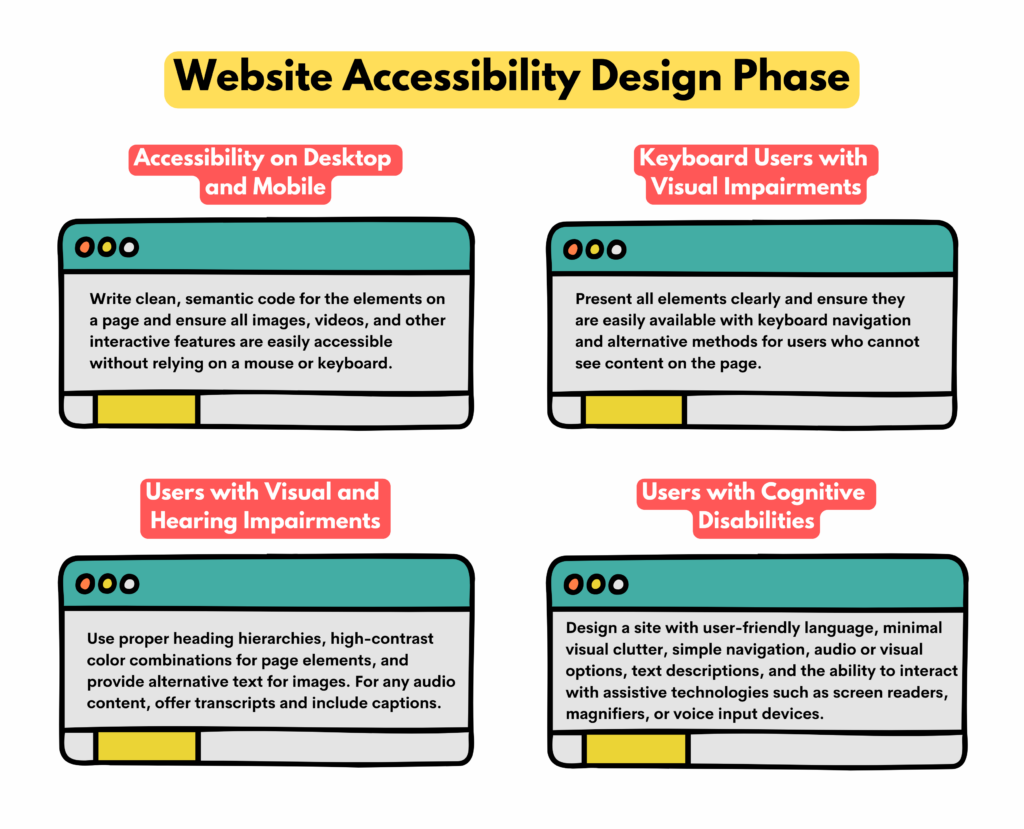
Accessibility on desktop and mobile
Designing web accessibility for desktop and mobile browsers requires special attention to establish that all parts of the website are accessible and usable on both devices. That means considering keyboard navigation, screen reader compatibility, color contrast, font size, etc. It involves writing clean, semantic code for the elements on a page and ensuring all images, videos, and other interactive features are easily accessible without relying on a mouse or keyboard.
Keyboard users with visual impairments
Designing a website with keyboard users in mind means that all page elements are clearly presented and easily available with keyboard navigation. It also provides alternative methods for users who cannot see the content on the page, such as those who have difficulty using a mouse or cannot see certain colors.
Users with visual and hearing impairments
Designing a website accessible for the visually and hearing impaired makes all the difference in providing an enjoyable experience for those who may not have access to all of the standard website features. This includes providing images with alternative text, proper heading hierarchies, and high-contrast color combinations. In addition, developers should also offer audio transcripts for videos and include captions for audio content to provide users with a convenient user experience.
Users with cognitive disabilities
These users may need help understanding complex visual layouts or comprehending large amounts of text. Therefore, ensure the design is simple, intuitive, and easy to use. This involves using user-friendly language, minimal visual clutter, simple navigation, clear visual cues and prompts, and audio or visual options and text descriptions. In addition, ensure users can interact with a website with assistive technologies such as screen readers, magnifiers, or voice input devices.
Implementation Phase
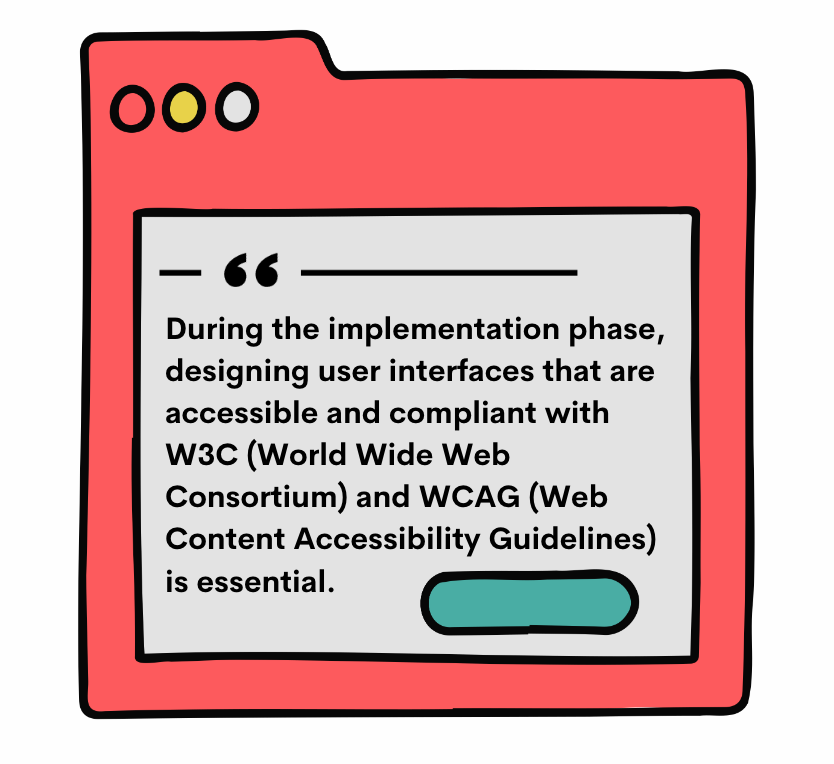
During the implementation phase, designing user interfaces that are accessible and compliant with W3C(World Wide Web Consortium) and WCAG(Web Content Accessibility Guidelines) is essential. This involves ensuring that a website’s content meets accessibility standards, such as providing alternative text for images, adding captions to videos, and providing transcripts of audio recordings.
For example, developers must consider how users with visual impairments will access content on the website by providing text alternatives to images or other multimedia elements. Ultimately, adhering to these standards during the implementation phase will help to create an equitable online experience for all users.
Test Phase
Web accessibility testing is an integral component of the web development process to confirm that a website meets current accessibility standards such as ADA (Americans with Disabilities Act) and WCAG. It also ensures that the site creates an inclusive digital experience for all users.
During this phase, developers check the accessibility status of their website to identify any user-experience issues and verify that the site is easy to use regardless of any disability.
Furthermore, the team should conduct usability tests with disabled people to get feedback on how they interact with the site to identify any remaining issues that can be addressed before launch. Checkpoints include checking for color contrast, keyboard navigation, and other features to make the website more accessible for people with different needs.
Finally, run accessibility tests using online tools like checkers or web browser extensions that provide a free accessibility audit. However, such tests should also be conducted regularly throughout the development process to identify and resolve potential issues before launch.
Web accessibility provides a level playing field for people with disabilities, allowing them to take advantage of opportunities available on the internet. Ultimately, all stakeholders should strive to make the web a place where everyone has equal access to resources and information. By following best practices in web accessibility, businesses can create a user-friendly, inclusive website that is accessible to everyone with ease.
Supporting digital accessibility remains a key priority for schools and organizations. As a blogger and website designer, I often despaired of my efforts in the area of digital accessibility. What actions should I take to make content more accessible for others? How could I better optimize my text for screen readers?
When I began working as a school district technology director, I was able to address the issue, and I’ll share several digital accessibility rubrics.
For me, the answer is simple. When I don’t make content accessible, there is a world of people who are cut off from the content. As Kaitlyn Nielsen points out, accessible content improves access for all. She says:
Content is a critical part of your accessibility strategy. It improves the web experience for all users, not just people with disabilities.
In 2020, Raymond Rose, a TCEA member, wrote this as a comment on a previous blog entry:
“I wish that you’d include some information about making the website fully accessible (WCAG 2.1 AA). A survey of some 6k LEA websites a year ago found that only ~60% passed the webAim WAVE review.
We know that tool does not pick up all the accessibility issues. If teachers are doing websites for communications, they should be communicating with everyone.”
As you might surmise, there are a wealth of tools available to content creators. The question I have: How can we leverage these tools to improve digital accessibility? It’s an important question, and one that I can’t take credit for asking.
The Need for a Simple Rubric
In a recent TCEA Community chat, Raymond made an assertion I had to respond to.
“It would be nice if there were a simple rubric to assess digital accessibility,” said Raymond Rose. He then said, “Unfortunately, that doesn’t exist.” How could I resist the challenge of trying to make a simple rubric?
The rubric I curated and adapted addresses some key areas that Raymond identifies as important, as well as others. In his TCEA Community remarks, he highlights the United States Department of Justice. The US DOJ says:
…businesses “can currently choose how they will ensure” web accessibility. DOJ identifies the “Web Content Accessibility Guidelines (WCAG) and the Section 508 Standards. The federal government uses these for its own websites… (Source: Morgan Lewis)
Keep in mind that creating a simple rubric can be difficult. The topics are tough and can be technical. It’s important to have some way to assess the tools we use as educators.
I wish that you’d also include a comment about the accessibility or lack of accessibility for students with disabilities for each tool you review. Teachers should not be using a tool if it is not fully accessible. Source: Raymond Rose
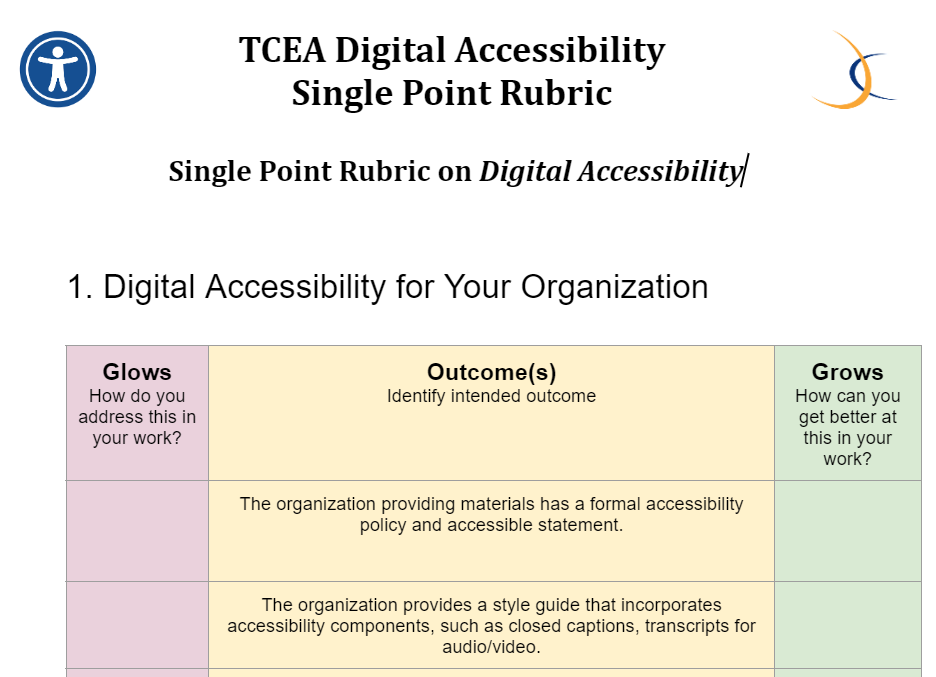
It’s easy to get lost in the weeds, especially with a holistic or analytic rubric. To avoid confusion, I decided to use a single point rubric format.
For teachers, they are easier and faster to create. Why? You don’t have to spend time thinking up ways people can fail to achieve the ideal.
For students, they are simpler to understand and process.
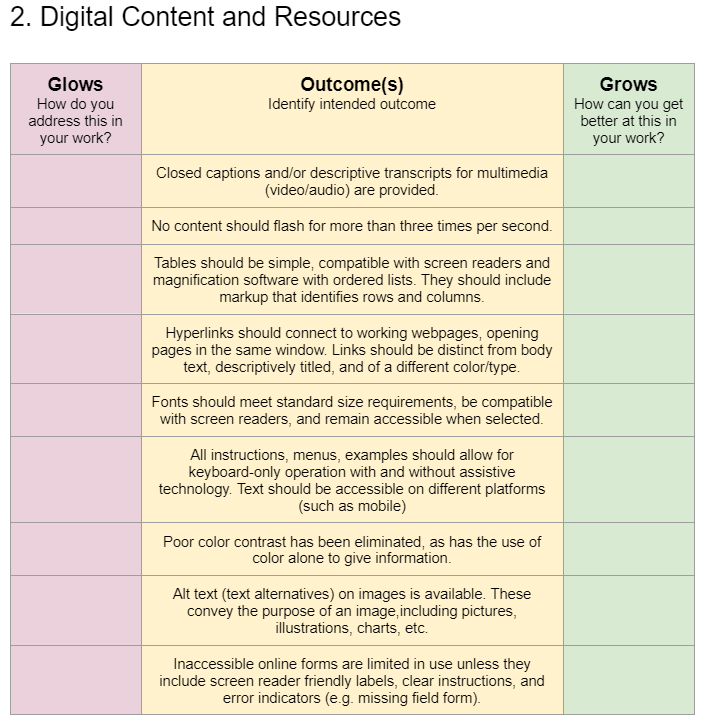
You can also use them to focus users on reflection, as you will see in my version of the single point rubric. It’s simple! The header has three columns:
Glows: How do you address this in your work?
Outcome(s): Identify intended outcome
Grows: How can you get better at this in your work?
When I first started, I had more complex column headers. I stripped out unnecessary words. The rest of the rubric tries to do the same. Give it a try, either for your organization or for your content and resources.
Reading and reflecting on the Grows question for my own work, I could see there might be room for growth. How would such indicators and questions cause your organization to grow?
More Rubrics and Resources
What? You wish there were more rubrics? You wish the rubric above addressed more areas? You may be longing for more complexity. If you’d like to see other examples, explore this Wakelet Collection.