Discover innovative online tools for education. Explore strategies and resources to enhance teaching, learning, and collaboration in the digital age.
This blog was updated on May 21, 2016 to include new information.
Researchers from the Pew Research Center have found that gamifying learning stimulates interest and deep engagement with content. Two tools that facilitate this include Kahoot! and the relative newcomer, Quizizz.
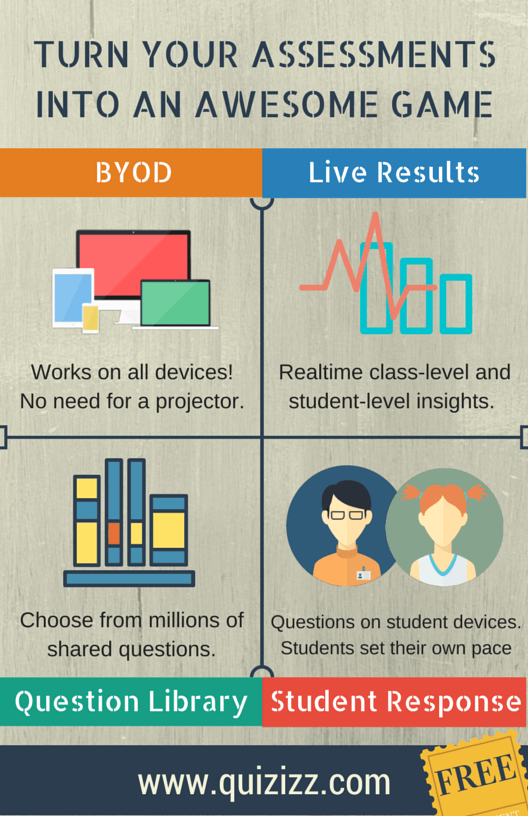
Quizizz allows you to create multi-player quizzes that work on almost any device. What’s more, you can access others’ assessments that can be completed in class or assigned as homework. With your free account, you can export the results as well. Teachers create their account and publish the link to the Quizizz. Then students, working at their own pace, complete the quiz using any Internet-connected mobile device. The more quickly they respond, the more points they gain.
Quizizz has more customizable features than Kahoot!, including the ability to mix up the order of the questions and the answers for each student, the ability to show the correct answer after each question, and the ability to display a Quiz Review at the end that shows all questions. In addition, the teacher can turn off the timer and choose to show a Leaderboard (for greater gamification).
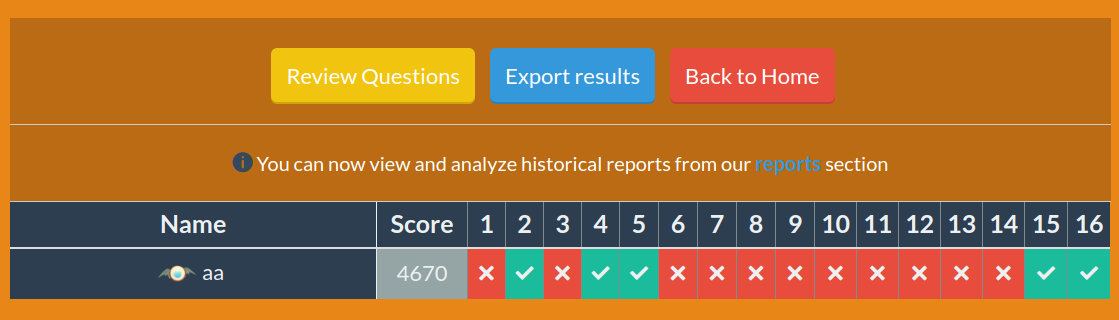
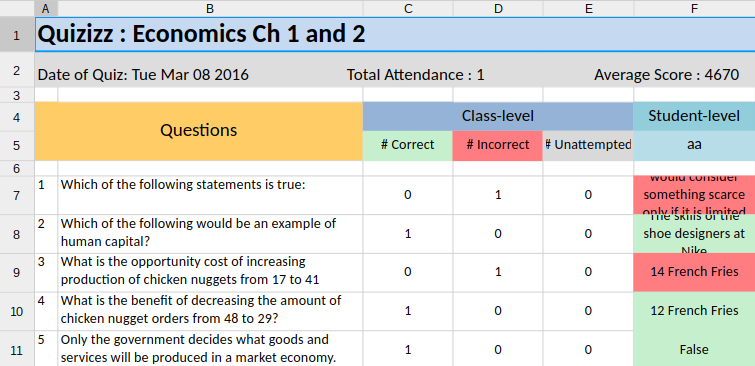
Quizizz enlivens the quiz with music and silly “correct” or “incorrect” images drawn from popular media. As the teacher, once the quiz is over, you can access data and analyze reports. The raw results can be exported, as shown in the screenshot below, to Excel format:
If a Quizizz is assigned as homework, the teacher can set a deadline for completion of up to 15 days from the start. Students can then complete the quiz at home. Some teachers are allowing their students to take the quiz over again repeatedly to raise their score (and learn the content even more!).
You can also integrate Quizizz with Google Classroom! Some of the features of Google Classroom integration include the following: 1) Quizizz reports will show the actual names of your students; 2) Student safety is enhanced since they are logging in with their Google accounts; and 3) Facilitate assignment tracking since completion reports are available in Google Classroom.
A new feature recently added to Quizizz is internationalization. If you click on the American flag in the upper right corner, you can change from English to Spanish. More languages will be coming soon.
Three ways to take Quizizz to the next level:
-
Use the tool to facilitate “College Bowl” competition that pits teams against each other.
-
Have students design quiz content for each other to highlight key content ideas and topics.
-
Take a team-based approach to quizzes that works like this: Have students take the test and discuss what they got right or wrong. Then have them take the quiz as a group. This facilitates higher-order thinking and focus teams on the subject material.
Ready to try Quizizz yourself? Watch this seven-minute video overview.