Have you ever taken the perfect photo until you looked at it later and found that the background wasn’t what you wanted? Would you like to add your own background scene, replacing an existing photo or video’s background? As we work with remote learners, knowing how to remove inconvenient backgrounds scenes is important. This blog entry provides a quick roundup of background removal tools that make this job easy for you.
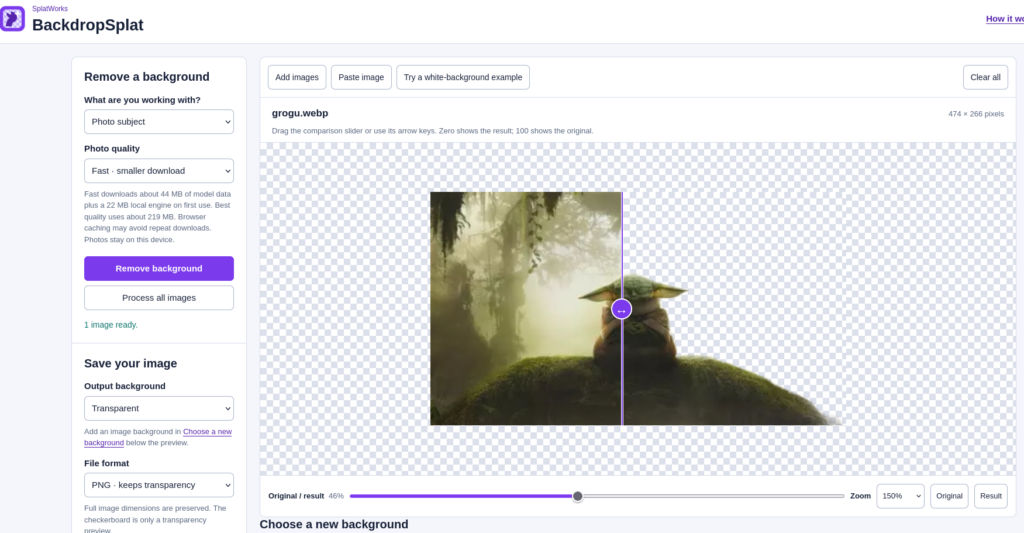
My favorite tool in the pack, BackdropSplat makes it easy to yank the background from an existing photo. BackdropSplat works great on smartphones and tablets. Even easier is replacing the background with a provided image or your own picture.
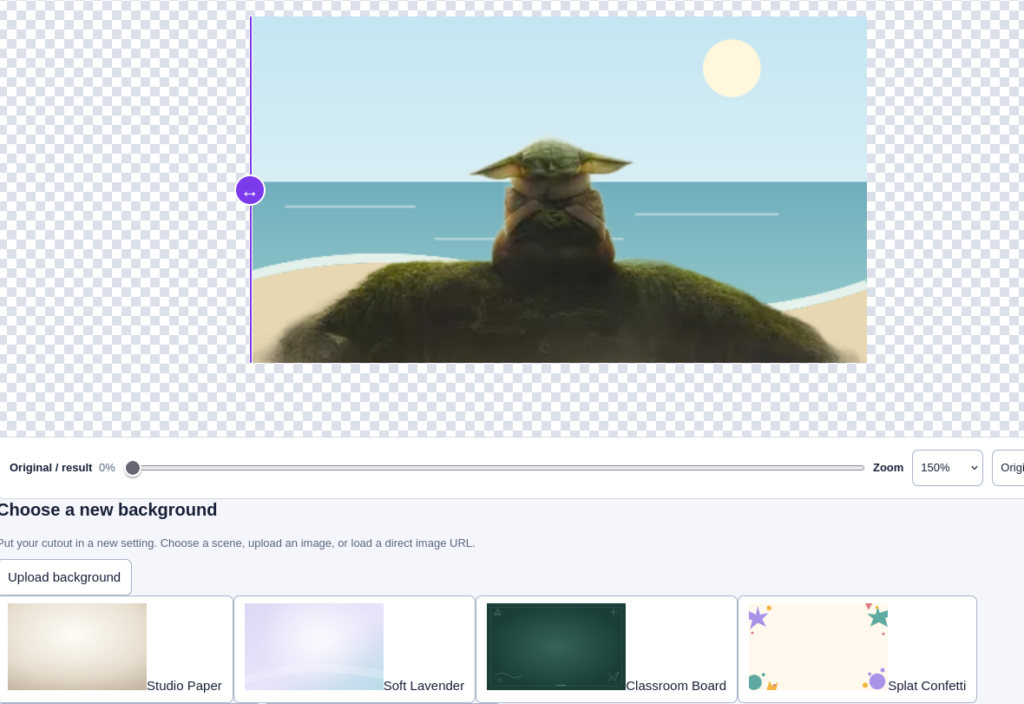
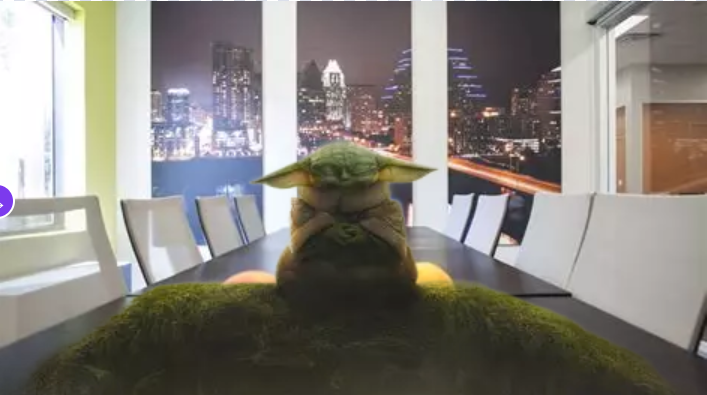
As you can see from the clip above, the original picture appears featuring a character in a natural setting. With BackdropSplat, you can remove the natural setting and then replace it. You can edit the image and replace the background using this interface:
And another example:
Unfortunately, the images are not layered. This means that you cannot move the new background or original image independent of each other.
Need an alternative? Give utilz.neta shot as an alternative.
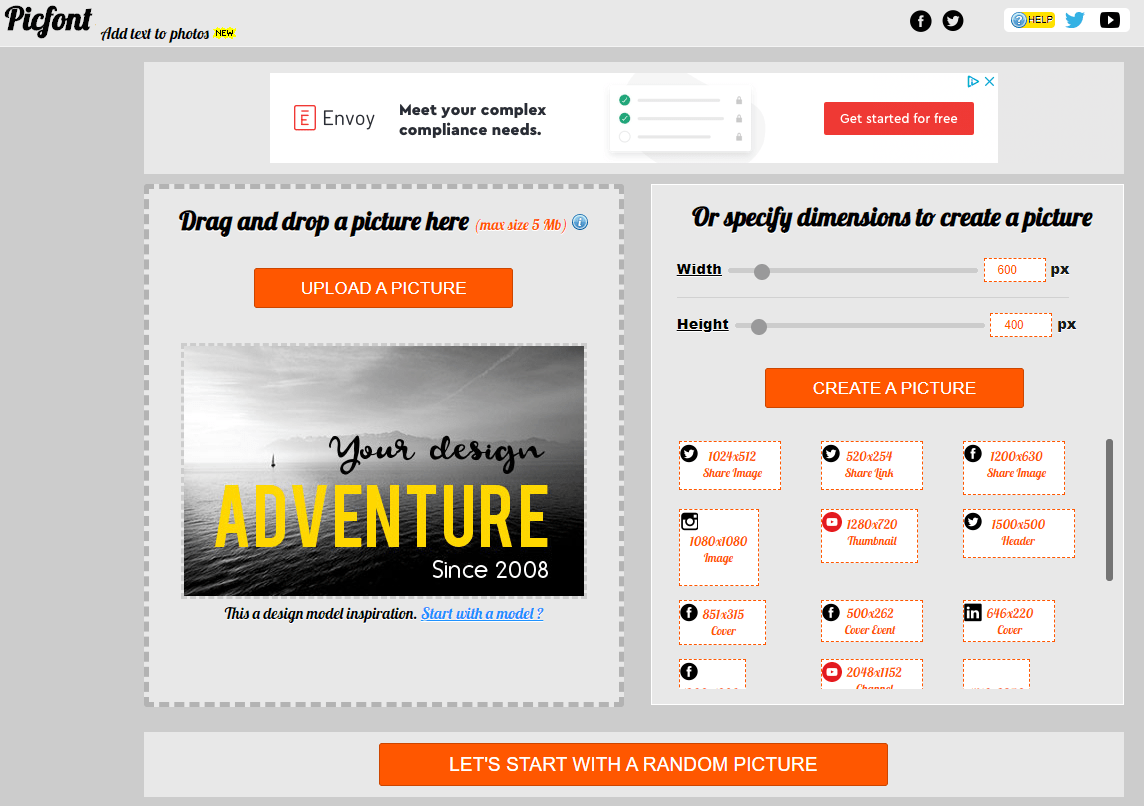
Once you have the image the way you want it, you can save it to your computer or device. Remove.bg doesn’t allow you to add text to photos. You can use Picfont to do that (provided you turn off Ad Block Plus):
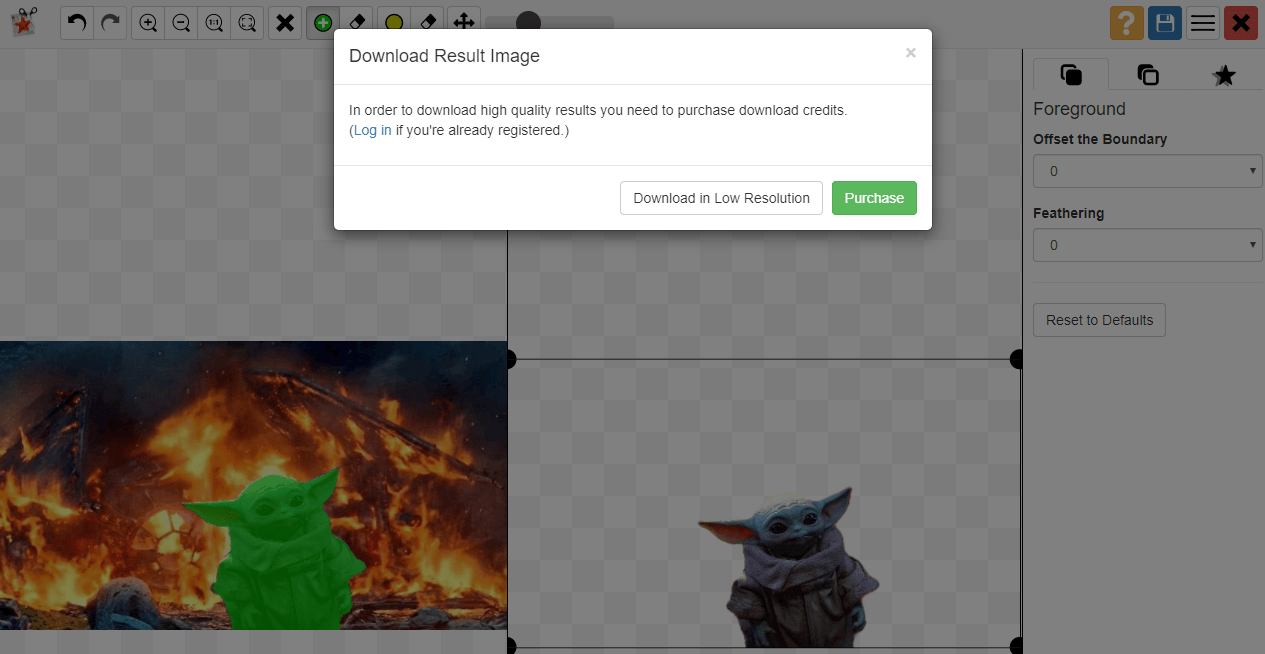
Need a way to pluck yourself out of a picture? PhotoScissors offers some ways to do this via their website. Like Remove.bg, it does a nice job of removing the background from a picture. It does have some limitations though. It limits high-quality results to for-pay options ($30 for Windows or Mac). You can see that it offers an almost bewildering set of tools.
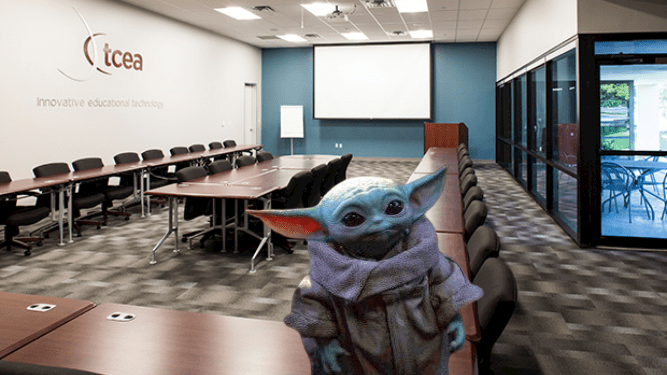
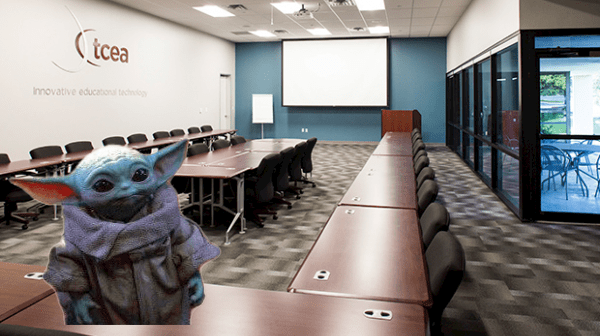
It does allow you to reposition the character in the picture. You can then app smash these tools a bit to get different results. In the image below, I’ve taken the PhotoScissors image and dropped it back into BackdropSplat.
The PhotoScissors website offers other tools you can take advantage of (at a slight cost):
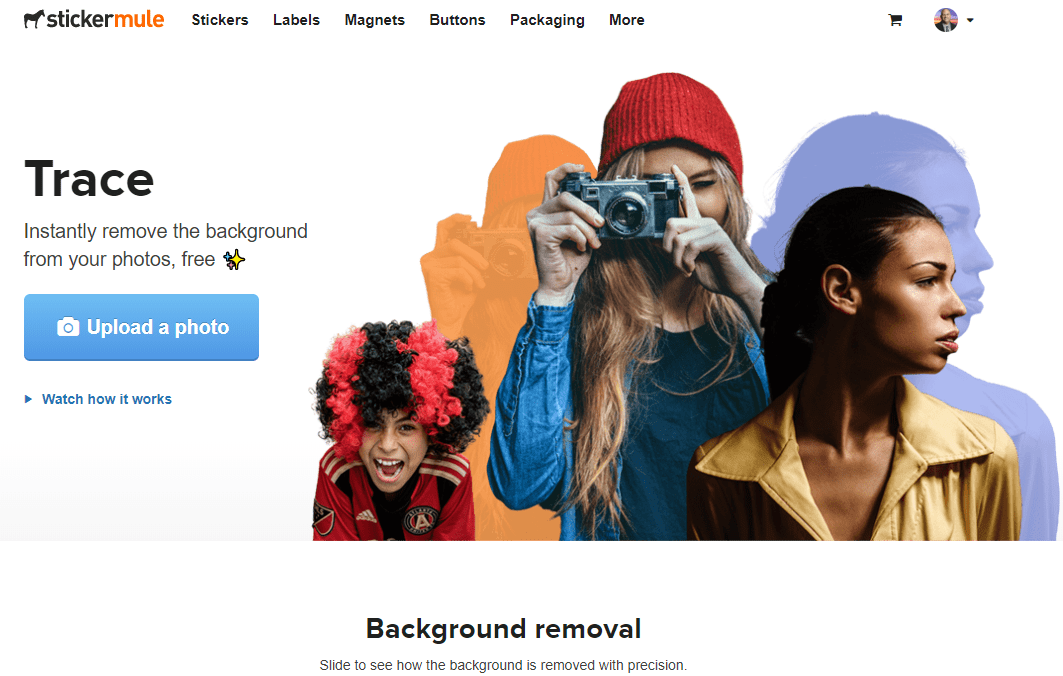
Right from the get-go, you will need to create an account to use Trace. This may not be a problem since you can “Sign up with Google.” You can also create an account using a name and email combination. Once you have an account set up, you get access to Trace to remove photo backgrounds.
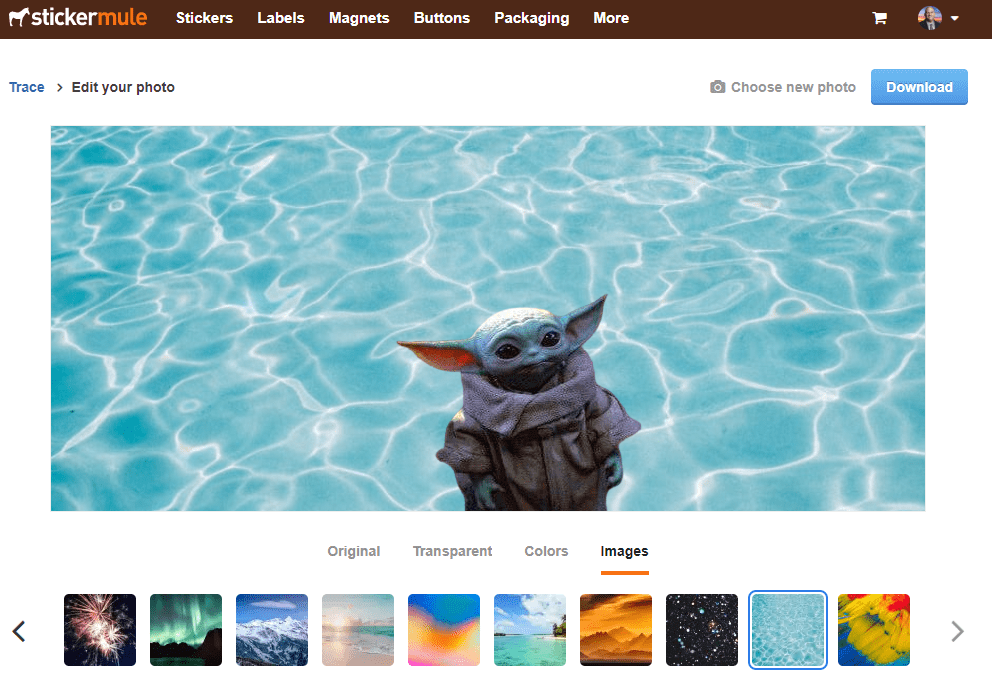
StickerMule’s Trace offers a nice interface that looks like the one below. Note that you can’t provide your own background; you must select one from the list. It does offer the option of replacing the background with standard colors.
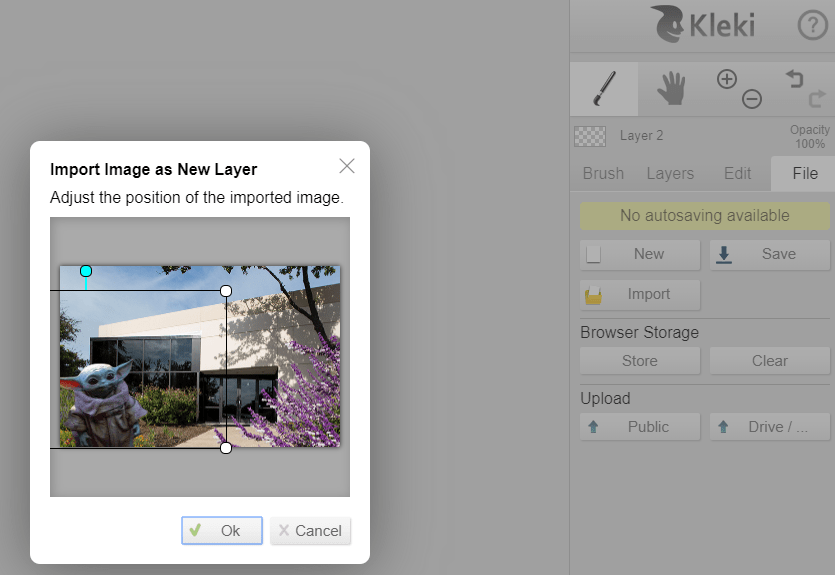
One thing you can do is download (save) the transparent version of your image. Then you can load that picture into an online paint tool like Kleki. The advantage of that is that you can import your desired background. After you do that, import your transparent image from Trace as a layer.
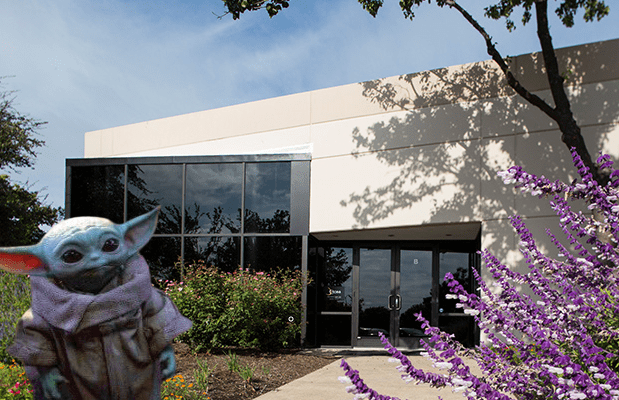
A big advantage is that you can reposition your character anywhere in the new background, as you can see:
Isn’t that amazing? Even if you are a novice at paint programs, this will be easy to figure out. Kleki is NOT Adobe Photoshop (thank goodness). Those are three powerful tools for removing backgrounds in images.
The following is a guest blog post by April Whitehead about things she learned during TCEA 2016. April serves as the District Instructional Technologist for Hamshire-Fannett ISD.
Tuesday
After attending “You Can’t Just Google It!” on Tuesday morning, I feel much more prepared to address copyright and Creative Commons during teacher professional development. As an instructional technologist, I train teachers on best practices for using digital resources, but I don’t go into great depth or detail. Basically, teachers hear “Make sure you cite your sources. Don’t let students just Google an image and use it. Use the “research tool in Google Docs.” That’s about it.
Amy, Krista, and Shannon from Round Rock ISD mapped out their approach to teaching students and teachers about Creative Commons (CC). CC licenses provide a simple way for creators to label their work (whether it’s a photo, website, video, or presentation) so that others will know if it’s okay to share, remix, or reuse. Any picture or document that is published online is protected by copyright. That’s so easy to forget! But, if you find a picture with a CC license, you can easily see if or how you can use it.
The Round Rock team shared great websites that help you find resources with CC licenses. For photos, Pixabay and Morguefile were great, but Unsplash was my absolute favorite!
Matt Lyons and William Jeffery shared some of my favorite new-to-me sites of TCEA 2016. Their #RevengeoftheMaps session showed just how versatile and fun digital maps are. Confluence.org for snapshots of latitude and longitude confluences, Geoguessr for a fun “guess where you are” game in Google Street View, and Gapminder for visualizing geographical data were some of the highlights. William shared a stupendous idea for using the My Maps in Google maps. He showed how students can build their own interactive map by dropping in markers and adding text, pictures, and even 360° YouTube videos! I can’t wait to try that with our teachers and students at HF.
Wednesday
I love going to sessions taught by Peggy Reimers from TCEA, and her “Just the Google Gravy” session was super fun, as I expected. She went over some cool Google tricks like “do a barrel roll” (Google it!) and the “Google a Day” search challenge. Flippity.net was the star of the session, in my opinion.
Flippity converts your Google sheet into all kinds of useful things. You can make flashcards or PD certificates. You can track digital badges for students. You can make a quiz that awards a certificate. You can make an awesome random name generator that also randomly groups students. I could have saved so much time if I had this when I taught middle school! As an instructional technologist, I’m definitely going to use it to make randomized groups for PD activities. The most fun Flippity tool was the Flippity quiz show generator. I had heard of this, but I’d never made time to investigate it. Peggy showed us how simple it is to edit the Flippity template to make a cute Jeopardy-style quiz show. This is another tool I’ll be adding to my tech PD sessions!