Are you looking for something lighter than a rubric or pre/post test, but still useful in PD sessions? Perhaps you want to vibe code your way to a standalone icebreaker personality quiz you can use with your students? That’s how I started. I wanted a fun, low-stakes icebreaker, a way for educators to reflect on their teaching style. Of course, I also wanted to test out another vibe coding solution, using Gen AI to develop a website, interactive personality quiz. In this two part blog entry, I’ll share how to build a custom GPT and then how to turn it into a standalone website. You might start with a personality quiz, then graduate to an online entry/exit ticket or icebreaker.
In this part, we’ll explore first how to create a custom GPT. Then, in part two, we’ll turn it into an interactive webpage you can host for free on GitHub. Finally, in part three, I’ll share how you can save the data from the interactive webpage to Google Sheets.
Creating an Engaging, Fun Personality Quiz
One of my favorite personality quizzes online is, “Which character are you?” You have probably taken a few of these on Facebook. What bothers me about those quizzes is the collection of personal data. A question in my mind was, “How could I design a privacy-safe, fun personality quiz for teachers?”
Winnie the Pooh seemed the best place to start. I love the characters of the 100-acre wood, and my family often identifies with Pooh and characters. Are you a Tigger or an Eeyore? Maybe you are Owl or Roo?
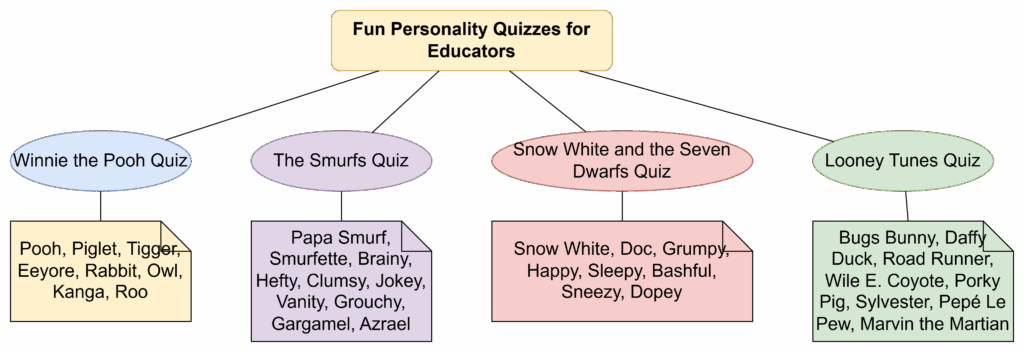
By popular demand from my work colleagues, I also wanted the quiz to sort educators into characters they were familiar with. So, in addition to Winnie the Pooh, they wanted:
The Smurfs
Snow White and the Seven Dwarfs
Looney Tunes
Each quiz would end with a playful answer: “You’re Tigger as a teacher,” or “You’re Brainy Smurf in the classroom.” The results included a short description of what that character is like as a teacher.
Starting with the Problem, Not the Tool
While I wish I could say I began with the end in mind, I had only a vague idea. I started a conversation with ChatGPT and the adjustments came over time. After working with colleagues, I had to add different universes (e.g. Smurfs, Looney Tunes) because I had different colleagues ask, “Could you please make an assessment for Looney Tunes or Smurfs, etc.?” The first one I started with included Winnie the Pooh characters. At the end, I ended up with several additional considerations:
Each quiz uses a single universe (Pooh, Smurfs, Snow White, or Looney Tunes).
Each quiz has exactly five multiple-choice questions.
Questions appear one at a time.
The quiz waits for the user’s answer before moving on.
At the end, the GPT assigns one character based on the most frequent trait pattern.
The result explains what kind of teacher that character would be.
Again, these developed over time via an interactive conversation with ChatGPT. Then, I asked ChatGPT to give me the custom instructions for the GPT. At that point, I had something to work with.
Want to try this out on your own? If you have a paid account for an AI chatbot (such as BoodleBox Unlimited, ChatGPT Plus/Teams/Education/Enterprise, Google Gemini Gem, Claude Project/Artifact), you can use the custom instructions in this Google Doc to get started. Simply save the instructions as a text file or markdown content with a filename extension of TXT. The filename and extension would be instructions.txt.
Designing the Quiz Flow with ChatGPT
Next, I focused on behavior, not characters. I asked ChatGPT to sketch the flow of a single quiz from start to finish. The prompt looked something like this:
Help me design a personality quiz flow for educators.
Five questions, multiple choice.
Ask questions one at a time.
Wait for an answer before showing the next question.
At the end, analyze answers and assign a single character type.
Make it easy to convert into Custom GPT instructions later.
ChatGPT responded with a simple sequence:
Greet the user and explain the quiz theme.
Ask Question 1 with answer options A–D.
Wait for an answer.
Record the trait associated with that option.
Repeat for Questions 2–5.
Tally which trait pattern appears most.
Map that pattern to a character.
Present the result with a short, teacher-focused description.
This became the framework for every quiz, no matter the universe.
Building the Character Library
As I mentioned earlier, some of my colleagues wanted to know which Smurf or Looney Tunes character they would be. The chatbot provided the descriptions of each character. Of course, the magic is that this would happen no matter what universe they are in:
Winnie the Pooh: Kind, gentle, loyal. As a teacher: Warm, welcoming, always encouraging.
Piglet: Timid, anxious, brave when it counts. As a teacher: Patient, supportive, nurturing confidence.
Tigger: Energetic, optimistic, adventurous. As a teacher: Fun, engaging, brings excitement to learning.
Rabbit: Organized, responsible, a bit fussy. As a teacher: Structured, caring, focused on progress.
I repeated the process for:
The Smurfs (Papa Smurf, Smurfette, Brainy, Hefty, etc.)
Snow White and the Seven Dwarfs (Snow White, Doc, Grumpy, Happy, etc.)
Looney Tunes (Bugs, Daffy, Road Runner, Wile E. Coyote, etc.)
Each question’s options pointed to the traits of one or more characters. At the end of five questions, the most frequently tapped trait pattern determined the result. Describing this takes longer than the actual amount of time spent asking the Gen AI chatbot to do this.
Turning the Model into Custom GPT Instructions
Once the Project worked well, I asked it to give me the custom instructions (a.k.a. system prompt) for the Custom GPT.
Take our quiz flow and character descriptions and turn them into Custom GPT instructions.
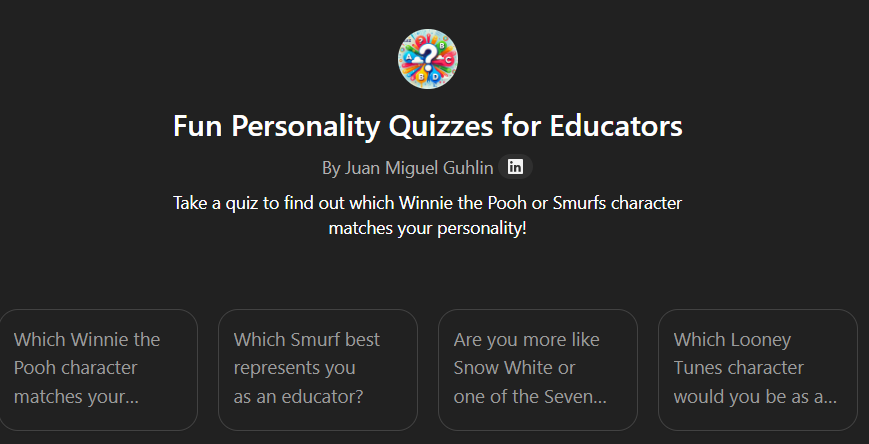
The GPT should offer a menu of quiz themes (Pooh, Smurfs, Snow White, Looney Tunes).
Once the user chooses one, it should explain the quiz and start with Question 1.
It must not skip ahead. Wait for each answer.
After five questions, it should assign a character and explain what kind of teacher that character would be.
Always keep the tone warm and educator-friendly.
Display this image at the start:.
Again, with some interactive back-and-forth with the chatbot, ChatGPT generated a set of “rules.” Those rules included:
How to greet users
How to present the image
How to guide quiz selection
How to enforce the one-question-at-a-time rule
How to tally responses and deliver a result
This became the backbone of my Custom GPT, ensuring a reliable response each time. You can see the custom instructions here that I relied on.
Testing, Tuning, and Making It Teacher-Friendly
The last step was trial and error. I found volunteers to run through the various iterations and it turned out to be a wild success. People love fun personality quizzes. As I tested it, I saw different ways to improve it, such as:
Simplifying question wording
Balancing answer choices
Softening language for more hesitant audiences
Ensuring the final descriptions felt affirming, not judgmental
At the end, I had a Custom GPT that educators could enjoy in a PD session, department meeting, or just for fun. The quiz is not about labels. It is about language for talking about how we show up in the classroom. It also served as a way to introduce people unfamiliar with Gen AI to a custom GPT.
Pondering Next Steps, an Interactive Webpage
The next step became obvious after I tried it with others who lacked a ChatGPT account. How could I move this beyond the OpenAI Custom GPT space? Doing so would allow anyone to take the personality quiz via a simple link, no ChatGPT account required. What’s more, I’d be able to create similar assessments that could avoid OpenAI’s strictures of adult learners only. In part two of AI Maker Magic, you will see how to use vibe coding to turn this quiz into an interactive webpage.
Transforming teaching, learning and leadership through the strategic application of technology has been Miguel Guhlin’s motto. Learn more about his work online at blog.tcea.org, mguhlin.org, and mglead.org/mglead2.org. Catch him on Mastodon @mguhlin@mastodon.education
Areas of interest flow from his experiences as a district technology administrator, regional education specialist, and classroom educator in bilingual/ESL situations. Learn more about his credentials online at mguhlin.net.
Like what you're reading? Sign up to stay connected with us.
*By downloading, you are subscribing to our email list which includes our daily blog straight to your inbox and marketing emails. It can take up to 7 days for you to be added. You can change your preferences at any time.