If you’re like me, you depend on Canva for amazing presentations. If someone in the room gets a question right that you’ve posed in a slide, instead of simply offering a verbal affirmation, press a simple key combination in your Canva presentation. Confetti suddenly rains across the screen.
That’s probably when everyone will want to know, “How did you do that?”
Become a CyberSmart Educator with a practical, self-paced course designed to help you protect sensitive data, secure accounts and devices, recognize social engineering attacks, respond appropriately to cybersecurity incidents, and build stronger digital safety habits. Or, learn AI Essentials for Educators. Each course is $49 at full price or $34 at the discounted rate. Register online through TCEA Courses.
Highlighting Magic Shortcuts
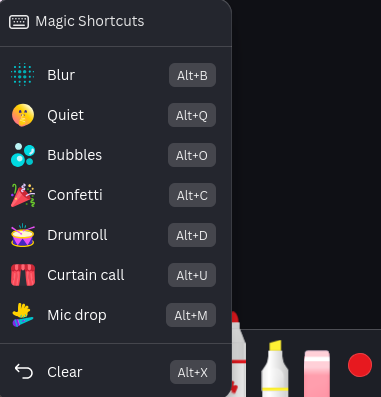
Canva calls these effects Magic Shortcuts, but they feel like Easter eggs. That is, small surprises hidden inside presentation mode. Open a Canva presentation, select Present, and try these eight shortcuts.
1. Blur the Screen with B
Press Alt-B to blur the current slide. Use it when you want students to stop reading and focus on a question, discussion, or set of verbal directions.
2. Celebrate with C
Press Alt-C and confetti rains across the screen. It is perfect for celebrating a correct answer, completed challenge, class milestone, or particularly clever student response.
3. Build Suspense with D
Press Alt-D to start a drumroll. Try it before revealing a quiz answer, announcing a winner, or showing the solution to a difficult problem.
4. Finish Strong with M
Press Alt-M for an animated mic drop. Save this one for a strong conclusion, memorable quotation, surprising fact, or student response that deserves a little extra recognition.
5. Take a Bubble Break with O
Press Alt-O to send floating bubbles across the presentation. The bubbles can provide a quick visual break or add some playfulness to a transition.
6. Quiet the Room with Q
Press Alt-Q to display Canva’s quiet symbol. Instead of repeating “Let’s settle down,” let the visual signal remind students that it is time to listen.
7. Reveal Something with U
Press Alt-U for a curtain-call animation. Use it to hide and reveal an answer, introduce a special guest, uncover an image, or add drama to the next slide.
8. Start a Timer with 1–9
Press any number from 1 through 9 to begin a countdown for that many minutes. Press 3, for example, to give students three minutes for partner talk, quick writing, brainstorming, or problem-solving.

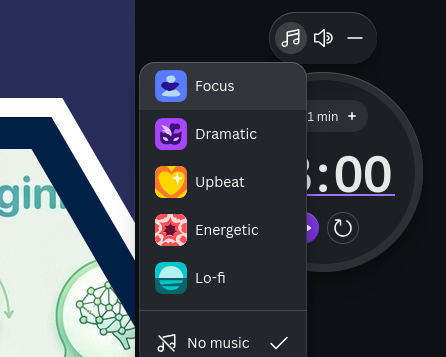
What’s more, you can click on the musical note above the timer and access music to play:
See All the Available Effects
You can see all the available effects by pressing Shift + / or the ? key while presenting. Canva lists the current shortcuts in its official guide to animated presentations.
The trick is not to use every effect in every lesson. Choose two or three and connect them to consistent classroom routines. Confetti is much more effective when students do not see it every seven minutes.
Which Canva Easter egg will you introduce your students to first?
👤 Human-directed (Miguel Guhlin) · 🤖 Gen AI-assisted (Claude, ChatGPT)